Update – Sad to need to postpone the event, our speakers are not able to attend due to unforeseen circumstances
Let’s get together
We are back – this time in a full hybrid setup! You can join in person or remote for 2 fantasic topics.
Our first session is about Microsoft Endpoint Manager, that used to be called Intune. Did you know it already exists for 12 years? Evolved from a hard to use tool to must have solution for every organization. Wout Vergauwenof Scappmanwill show how easy it can be to deploy applications and configure autopilot for zero-touch deployments.
After a short break we continue with Ben Bridts of Cloudar, the AWS integrator of Belgium. We all know AWS, but how well do we know the components of AWS? Do you want to know how it compares to Azure? What are the flavors of Azure Storage, Azure Functions of SQL Databases in AWS? Want to know what AWS S3, Glacier, EC2, Elastic Beanstalk or Redshift are? Make sure to join this open session where you can ask your own questions!
Agenda
19h30 – Welcome
Welcome with a drink & well-deserved slice of pizza
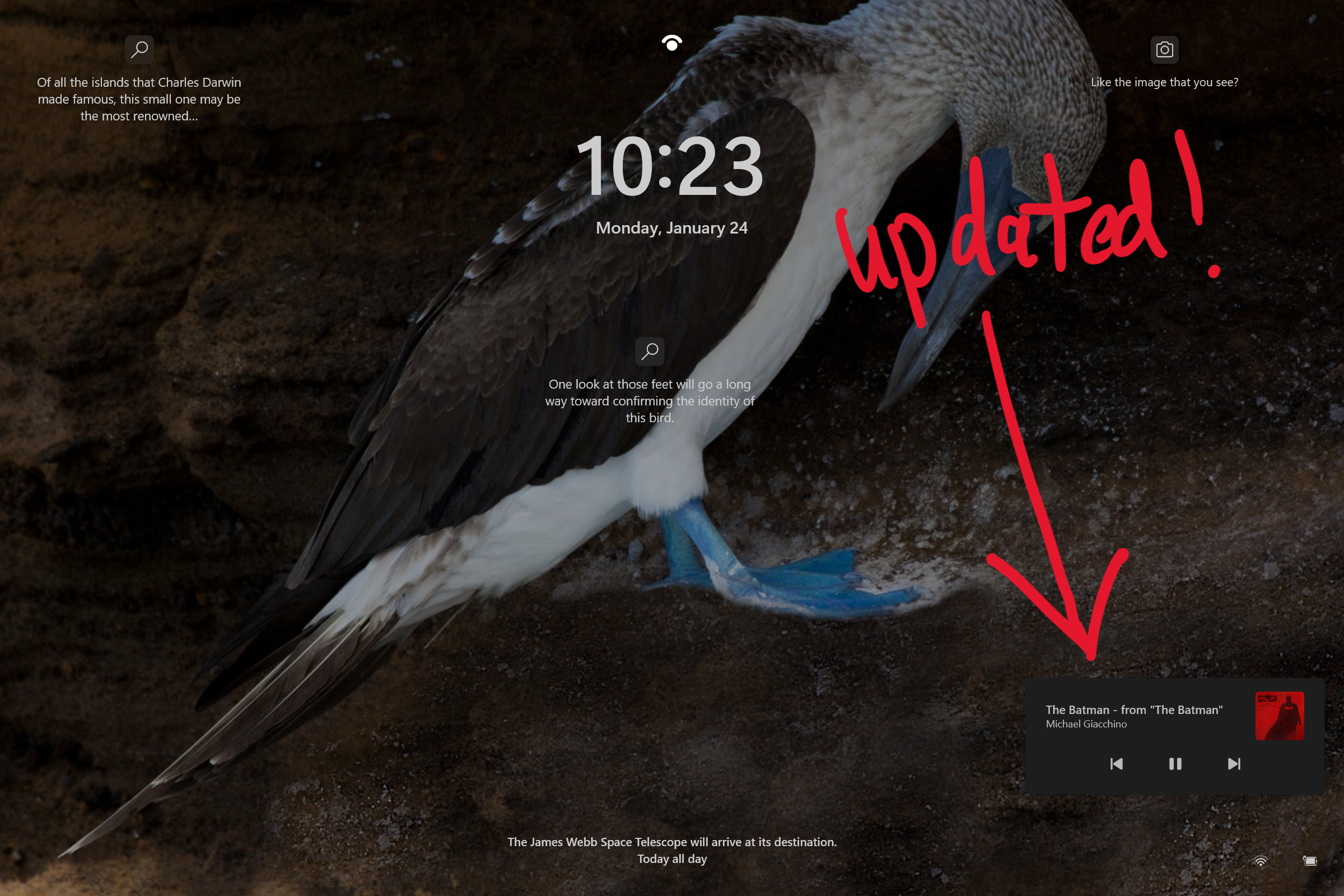
Hi all, last Wednesday Microsoft released Windows 11 Insider Preview Build 22567 to the Dev Channel.
While most of us were hoping to see the Start Button right-click / WinKey + X explorer crach to be fixed, it is still a known issue in this build
What’s new in Build 22567
Windows Update leverages more renewable energy
Windows Update will try to schedule update installations at specific times of day when doing so results in lower carbon emissions. Most electrical grids are powered by multiple sources, including renewables and fossil fuels. Whenever possible, Windows 11 will now prioritize installing updates in the background at times when greater amounts of clean energy sources (like wind, solar, and hydro) are available. Users can always choose to install updates immediately by navigating to Settings > Windows Update and choosing “Check for Updates”.
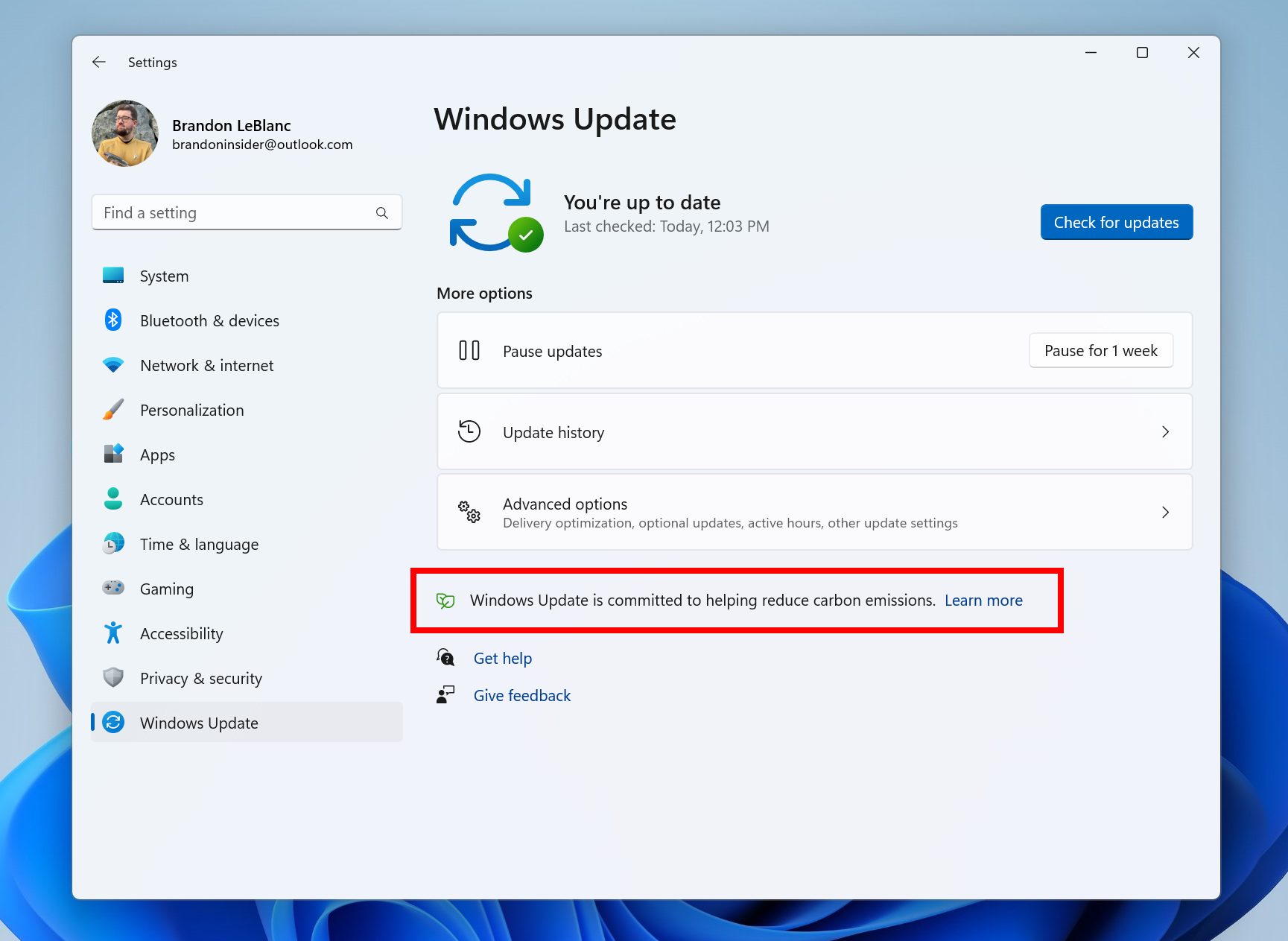
This feature will only be enabled when your PC is plugged-in and regional carbon intensity data is available from our partners electricityMap or WattTime. If enabled, users will see the text shown below on the Windows Update settings page. We’re still working on the content that the text links to – stay tuned for future updates.
Text as it appears in Windows Update when prioritizing installing updates in the background when more clean energy sources are available.
[We are beginning to roll this feature out, so it isn’t available to all Insiders just yet as we plan to monitor feedback and see how it lands before pushing it out to everyone.]
FEEDBACK: Please file feedback in Feedback Hub (WIN + F) under Install and Update > Downloading, installing, and configuring Windows Update.
Improving Microsoft 365 subscription management in Settings
In October, we introduced subscription management within “Your Microsoft account” under Settings > Account. This enabled you to view your OneDrive storage, recurring billing and sharing information as part of your Microsoft 365 subscription within Windows 11. With today’s build, we’re making it easier for you to manage your Microsoft 365 subscription:
We are elevating the Microsoft 365 subscription management experience a level up under Settings > Accounts. As we mentioned here, we will use Online Service Experience Packs to bring more experiences to you within accounts under Settings > Account.
The Microsoft 365 subscription management experience is now at the top of Accounts page in Settings.
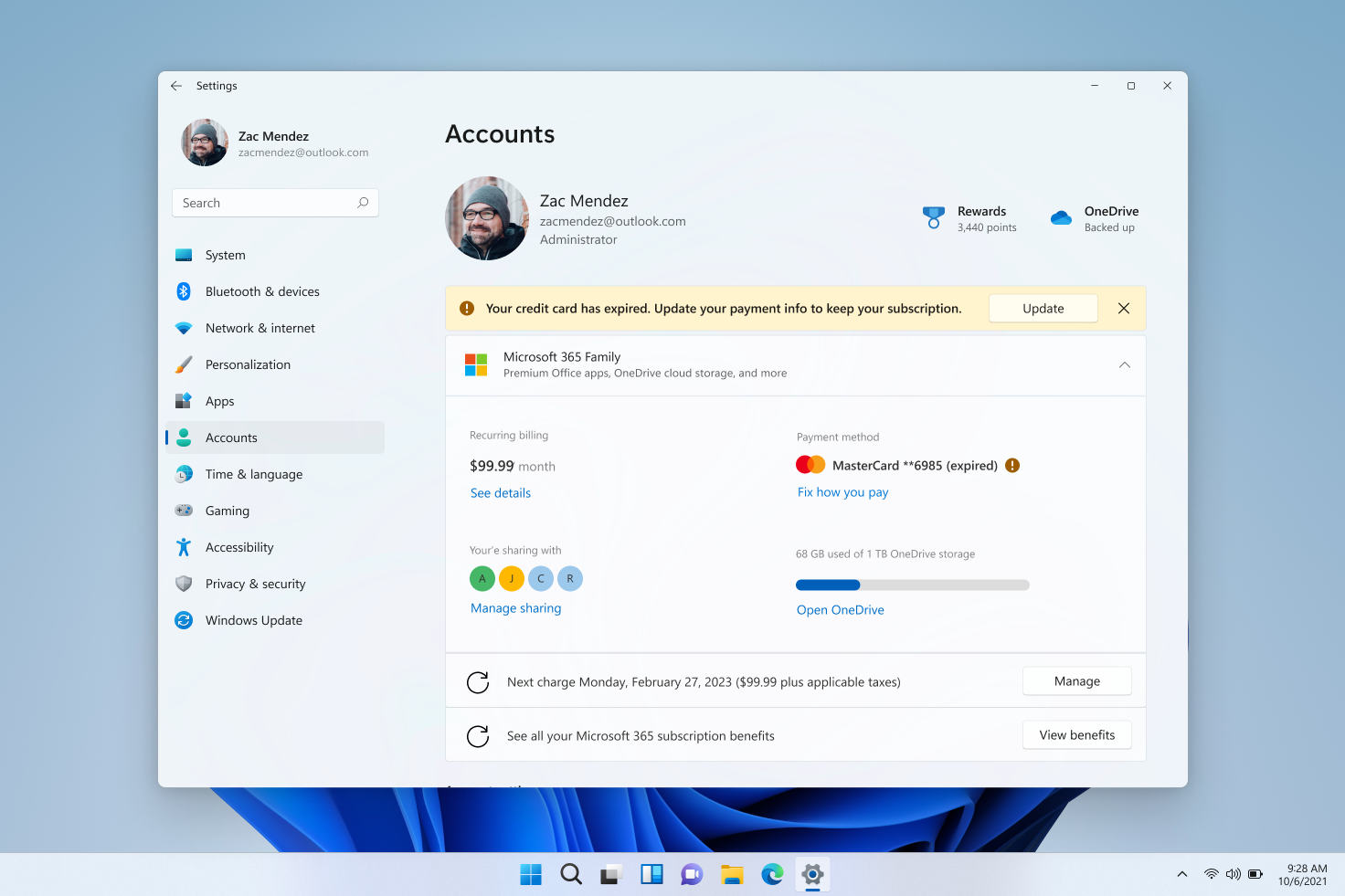
We are introducing payment details within the subscription card experience. This will allow you to view your payment information and be notified when your payment method needs to be updated, allowing you to continue your subscriptions without any disruptions.
Banner shown on Account settings page alerting you to update your payment for your Microsoft 365 subscription.
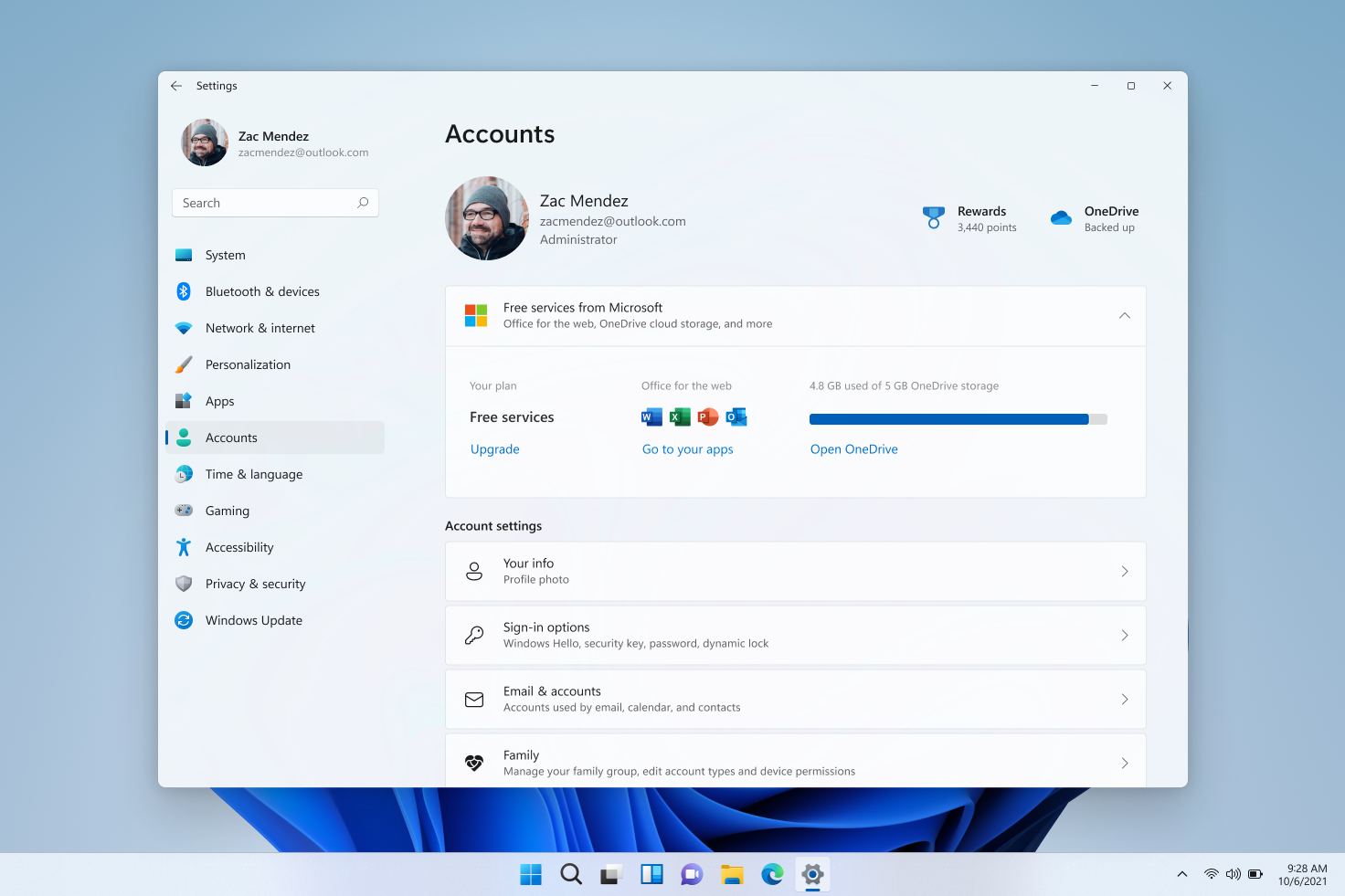
For customers who are not Microsoft 365 subscribers, we are highlighting the free benefits you have access to as part of your Microsoft account on the “Your Microsoft account” page. You can directly access your Office Web Apps, view your OneDrive storage or upgrade to a Microsoft 365 subscription to unlock the premium benefits.
[We are beginning to roll this feature out, so it isn’t available to all Insiders just yet as we plan to monitor feedback and see how it lands before pushing it out to everyone.]
FEEDBACK: Please file feedback in Feedback Hub (WIN + F) under Settings > Settings Homepage.
Device Setup (OOBE): Phone Linking
You can now link your Android phone to your PC as part of the device setup (OOBE) for Windows 11. Linking will give you instant access to everything on your phone, right from your PC. Without needing to constantly swap your attention to your phone, you can use your favorite mobile apps, send text messages, make calls, and more on your PC with the benefit of a full keyboard and mouse.
The new phone linking page in device setup (OOBE).
We will be releasing updated ISOs in the coming weeks that will allow Windows Insiders to do a clean-install if they want to or set up a virtual machine to run through the device setup experience. You can use the PC reset feature under Settings > System > Recovery if you want to run through the device setup experience today.
FEEDBACK: Please file feedback in Feedback Hub (WIN + F) under Apps > Your Phone.
Smart App Control
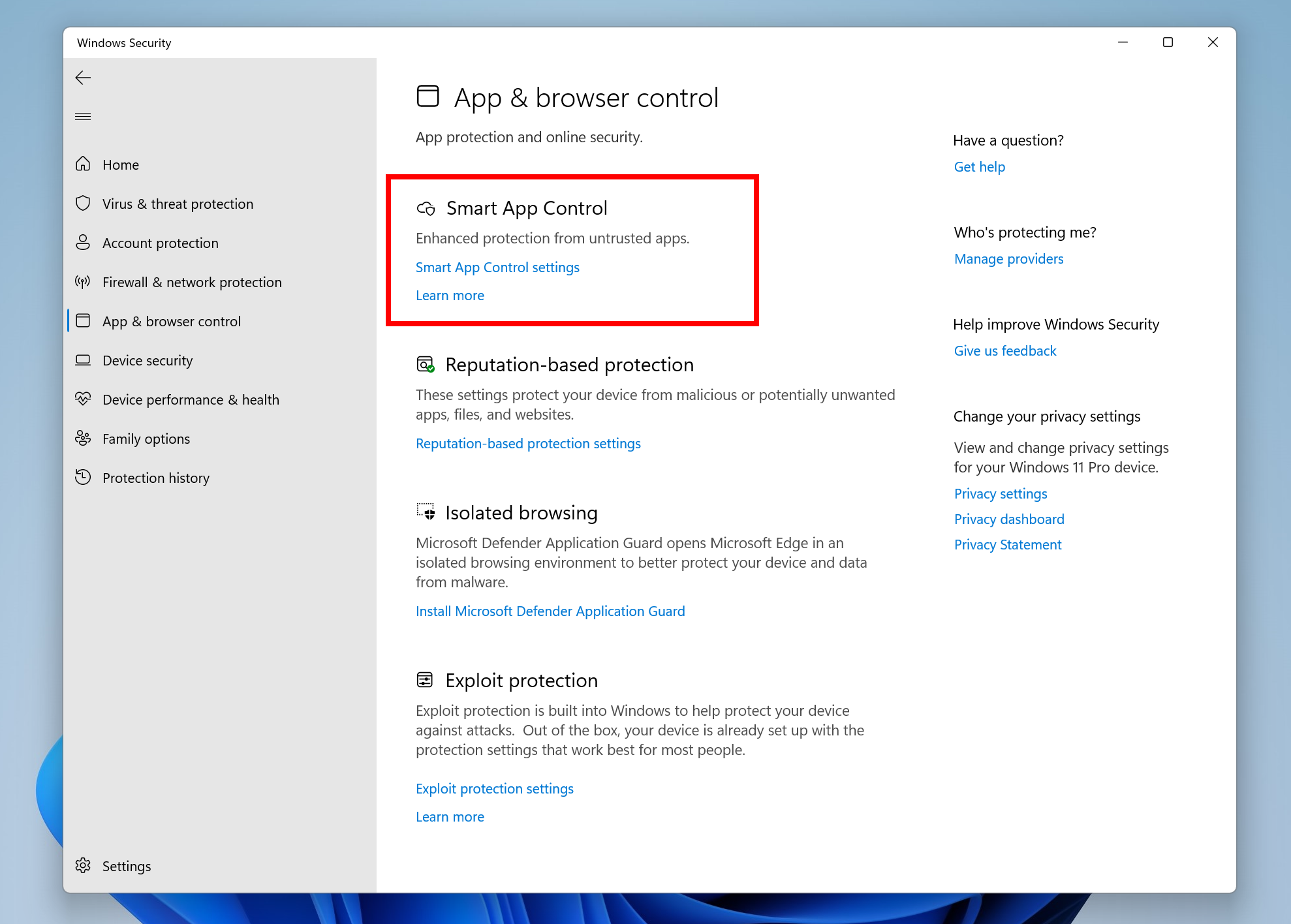
Smart App Control (SAC) is a new security feature for Windows 11 that blocks untrusted or potentially dangerous applications. SAC can only be enabled on Windows devices that have performed a clean install with the latest Insider Preview build (Build 22567 and higher). SAC is first configured in evaluation mode. While SAC is in evaluation mode, it will learn if it can help protect you without getting in your way too much. If so, it will automatically be turned on. Otherwise, it will automatically be turned off. While in evaluation mode, a user can manually turn on SAC in the Windows Security app under the App & Browser Control section. More details on this feature will be shared in the future.
Smart App Control listed under “App and browser control” in Windows Security.
FEEDBACK: Please file feedback in Feedback Hub (WIN + F) under Security and Privacy > Smart App Control.
Changes and Improvements
[General]
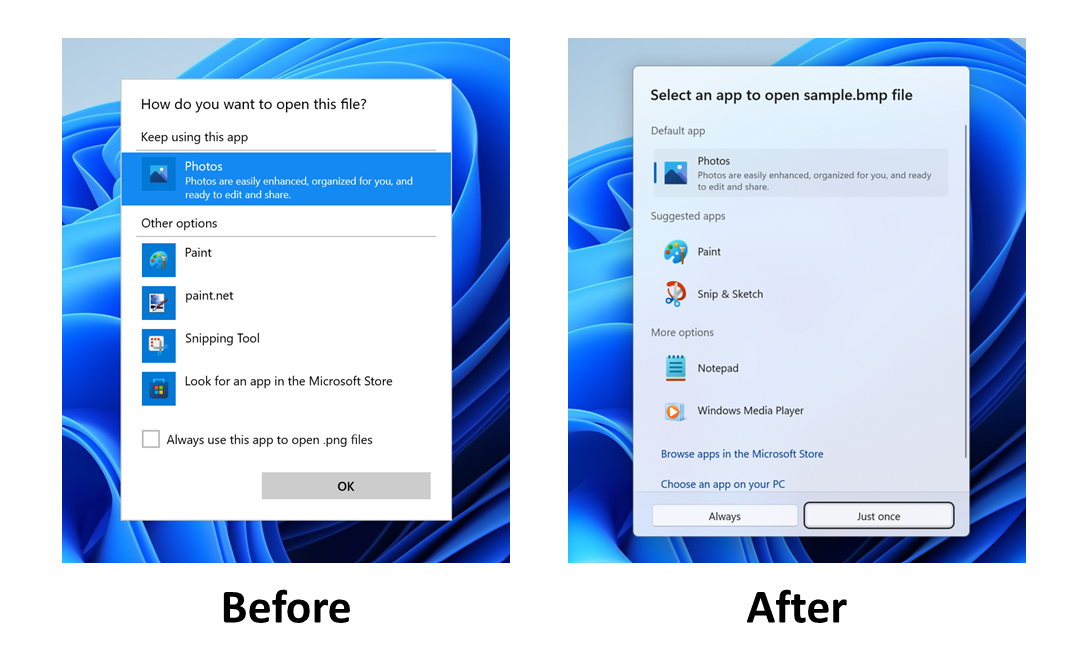
We have updated the “Open with” dialog box to align with Windows 11 design principles. The updated dialog box honors light/dark theme. We have also simplified the experience by making it possible to update your default app with just one click. [We are beginning to roll this feature out, so it isn’t available to all Insiders just yet.
The “Open with” dialog before and after with the updated design.
[Start menu]
When you hover one pinned app icon over another, there will now be a small animation to hint that this will create a folder.
[Windowing]
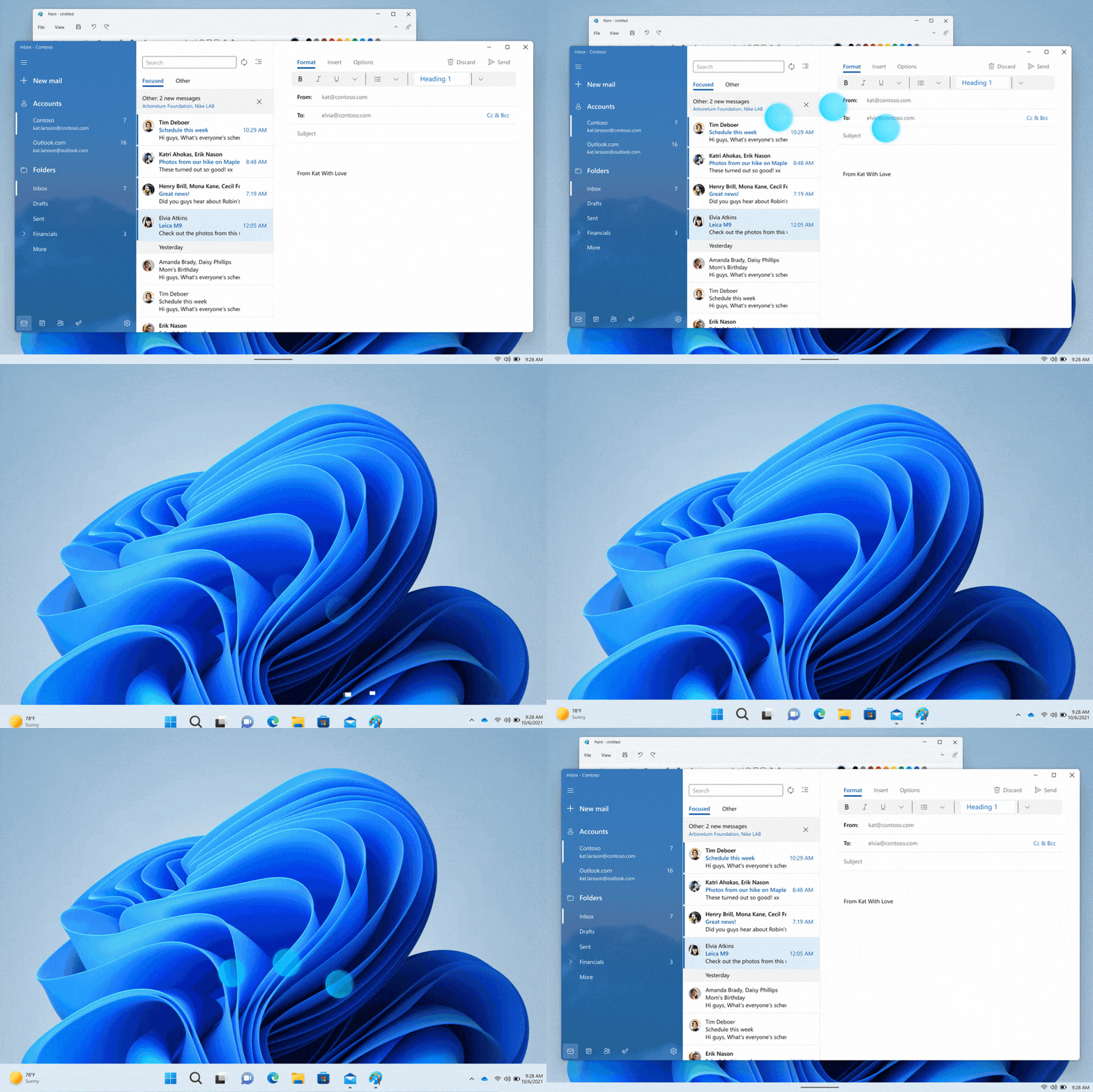
We’re updating multi-finger touch gestures to include responsive and delightful animations that follow your finger.
Use three fingers to swipe down and minimize all windows. Swipe up with three fingers to bring your windows back.
[Voice typing]
The ability for voice typing to download Speech Packs from the Microsoft Store for device-based speech recognition to provide a better performance of transcription is now available for all Insiders in the Dev Channel. This began rolling out with Build 22538.
The ability for you to choose which microphone to use in voice typing if you have multiple microphones connected to your PC is now available for all Insiders in the Dev Channel. This began rolling out with Build 22557.
The following new commands in voice typing are now available for all Insiders in the Dev Channel. This began rolling out with Build 22557.
To insert this
Say this
Enter
“Press Enter”
Backspace
“Press Backspace”, “Backspace”
Space
“Press space”, “Insert Space”
Tab
“Press Tab”, “Tab”
[Settings]
We have made updates to pages across the Settings app to adopt WinUI controls for consistent look and feel across the app.
To make it easier to find settings within the app, we have made improvements to how searching for settings works behind the scenes. These improvements will provide users with a more accurate set of search results as well as bring more relevant search results up to the top of the list.
You can now mute and unmute your audio by clicking the volume icon in the hardware indicator for volume.
[Task Manager]
The redesigned Task Manager that began rolling out with Build 22557 is now available for all Insiders in the Dev Channel.
[Windows Sandbox]
Windows Sandbox mapped folders now support relative paths. For example, ..\relative\folder..
Fixes
[General]
Fixed an issue where users weren’t hearing the startup sound.
[Taskbar]
Using the taskbar to bring an already running app to the foreground should work more reliably now.
Fixed an issue where if you changed time zone the calendar flyout wouldn’t update to reflect a date change.
Using Narrator key plus Enter or Narrator touch gestures should now work to activate items in the taskbar now.
Mitigated an issue that was causing windows to be able to draw on top of the taskbar after dismissing one of the taskbar flyouts.
[Tablet-optimized taskbar]
NOTE: These fixes will only show if tablet-optimized taskbar is enabled on your device, which is beginning to roll out to Windows Insiders and not yet available for everyone.
The taskbar setting has been changed to “Optimize taskbar for touch interactions when this device is used as a tablet”.
We have improved mouse click reliability of system tray icons.
[Start menu]
Fixed an issue affecting the reliability of the Start menu opening.
Fixed an issue where dragging a pinned app icon between pages of pinned apps wasn’t working.
Addressed an alignment issue with the More button.
[File Explorer]
Clicking the buttons in the new OneDrive flyout should now bring those objects into foreground focus.
Star rating supported files (for example mp4 files) should work again now.
Fixed an issue that could cause explorer.exe to crash when opening the context menu sometimes.
Improved the performance of displaying the content in the Recycle Bin in cases where there were many files.
Addressed an underlying crash that was happening when trying to start a search from File Explorer, impacting the ability to search.
Fixed a rare issue for people with small screens where the context menu in File Explorer would animate in downwards, disappear, then immediately reappear animating upwards.
[Input]
Improved input switching responsiveness when using WIN + Space.
Fixed an issue which was leading to some Insiders seeing black text on a dark background in the input switcher.
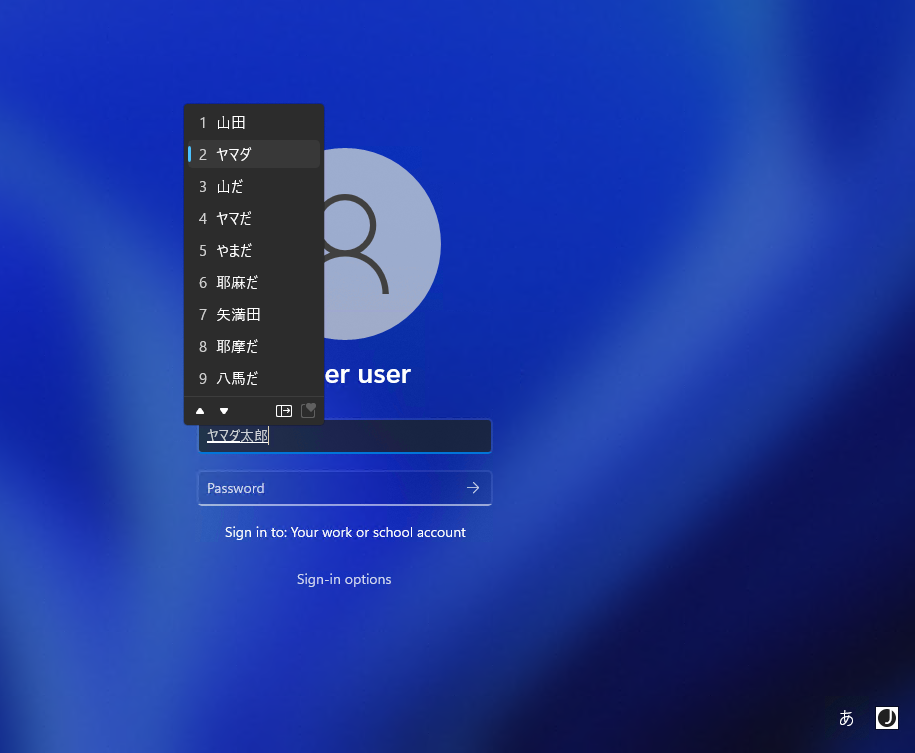
Addressed an issue where the Japanese IME toolbar could become transparent, and the IME candidate window clipped or not displayed at all.
If you’re using the Japanese IME with a vertical candidate list, the text should now appear written in the correct direction.
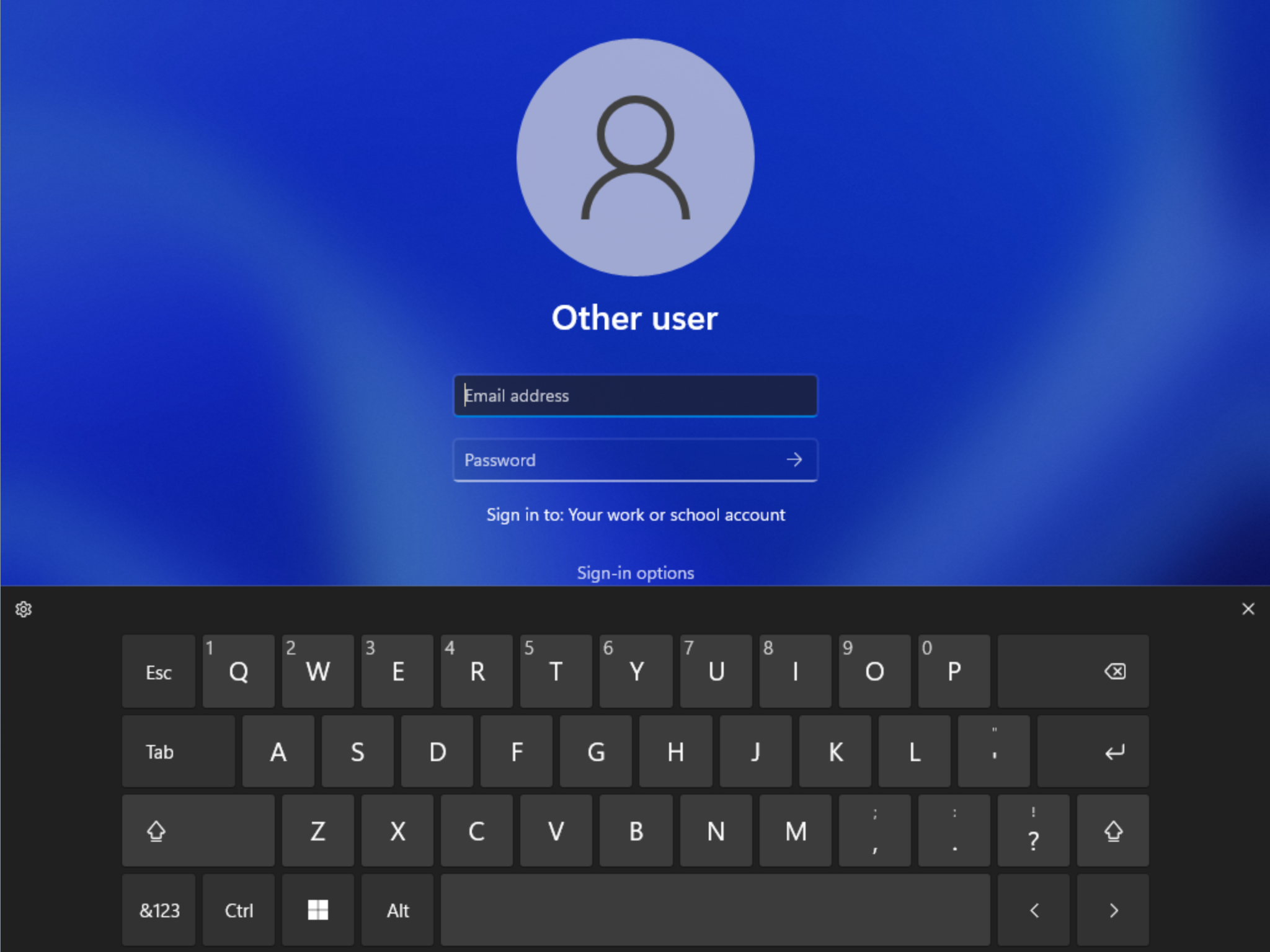
Updated the icon used for hiding key press visuals in the touch keyboard when focus is set to a password field to help make it easier to understand.
Fixed an issue where the new “Press Backspace” command when voice typing wasn’t working in Japanese.
Mitigated an issue that was causing Narrator focus to get stuck in the wrong place after inserting an emoji and dismissing the emoji panel.
[Settings]
Items in the app list under Apps > Installed apps should no longer overlap each other.
Fixed an issue where it wasn’t possible to select the restart now button in Settings > Windows Update using touch.
[Windowing]
Explorer.exe shouldn’t crash anymore when dragging a window between monitors.
If you’re hovering over a Desktop thumbnail in Task View, the tooltip should now actually match the one you’re hovering over.
Fixed an issue where snap assist might unexpectedly trigger when you already had a window snapped in that area.
Improved reliability of invoking snap layouts at the top of the screen.
Task View should now successfully launch if you invoke it while the search flyout from the taskbar is open, rather than invoking and immediately dismissing.
[Voice access]
Fixed an issue that was causing Outlook to scroll to the beginning of your emails if you enabled voice access and started talking.
Button text in voice access will no longer be cut off when you’ve changed your text size.
Fixed an issue that was preventing voice access from launching on ARM64 devices.
Voice access will no longer turn on after you log in unless the voice access setting is also turned on.
[Live captions]
Live captions will now handle you switching audio devices more smoothly.
Changing the size of live captions will no longer cause white flashes in dark mode.
You can now search for live captions to find their page in Settings.
Accessibility home page in Settings now lists “live captions” under Captions.
Settings flyout can now be light-dismissed in the live captions window.
[Narrator]
Fixed an issue causing high CPU usage while using Narrator.
Narrator will now read out the theme as well as the selection state in Settings > Personalization > Text input > Theme.
When a dialog pops up, Narrator will now consistently announce that it’s reading from a dialog when reading its message.
When using Microsoft Edge’s History page, Narrator will now announce the name of the page and the focused element correctly.
Fixed an underlying issue which was impacting Narrator keyboard navigation in webview2 in certain apps.
Updated Braille display input and output table type dropdowns in Settings to have a default value now.
Fixed an issue that was causing Narrator to hang when using Norton Power Eraser.
If you Review > Check Accessibility in Excel, Narrator will now read the errors, warnings, tips & intelligent services section correctly.
[Task Manager]
The suspended and efficiency mode icons should no longer be clipped in Task Manager at high DPIs.
Fixed an issue where column preferences weren’t being preserved.
The default start page and always on top settings should work now.
When there’s nothing to show under the “…” menu, it won’t display now.
Mitigated a crash that was happening sometimes when trying to launch Task Manager.
Fixed an issue where Efficiency mode icons were missing on some child processes.
Fixed an issue where some settings options were not preserved.
Fixed an issue where Suspended and Efficiency mode icons were clipped when displayed on monitors with high DPI settings.
[Lock screen and logging in]
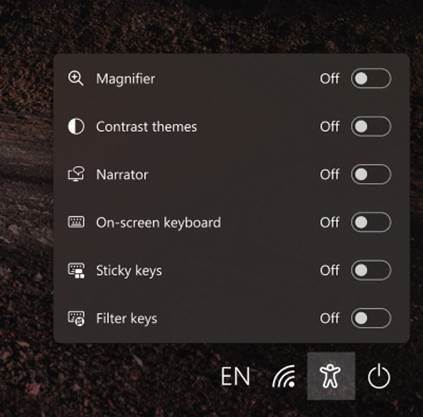
Fixed an issue causing the accessibility flyout on the Lock screen to flicker.
The accessibility flyout on the Lock screen’s location and spacing should now be centered and consistent with the design of other options on this screen.
Fixed the border of the accessibility flyout on the Lock screen to show correctly in high contrast mode.
Addressed an encoding issue in the message text when using a security key to login.
Mitigated an explorer.exe crash some Insiders were seeing when logging into their PC.
[Other]
Notification Center will now close when you start a focus session, and the focus timer opens instead of you having to dismiss it.
Fixed an issue which was impacting the ability of opening Quick Settings and Notification Center when animations were disabled.
Quick Settings and Notification Center should dismiss more reliably now if you had used a gesture to invoke them before trying to dismiss them.
Mitigated a bug check which was happening in the last few flights for Insiders with more than 8 monitors connected.
If you have pinned an app to the taskbar within Windows Sandbox, clicking the app to launch it will now actually work.
NOTE: Some fixes noted here in Insider Preview builds from the active development branch may make their way into the servicing updates for the released version of Windows 11 that became generally available on October 5th, 2021.
Known issues
[General]
Users running Windows 10 who try to upgrade directly to build 22563 or higher in the Dev Channel may encounter an install failure with error code 0x8007007f. To bypass, please join the Beta Channel, install the offered Windows 11 build there, and then switch to the Dev Channel to receive the current Dev Channel update. This issue is understood and will be fixed in an upcoming build.
When going through the device setup experience (OOBE) on the Enterprise edition, the network add screen will be skipped on the first attempt. As a workaround, when users see the “name your computer” option, please reboot and re-start OOBE. The network add screen will now appear as expected.
We’re investigating reports from Insiders that Windows Mixed Reality is not working starting with the previous flight, due to repeated explorer.exe crashes.
Scroll bars are not rendering appropriately on some Win32 applications. This bug is visual only as users are still able to click/drag the scroll bar as expected.
[Taskbar]
If you right click on the Start icon in this build or press WIN + X, explorer.exe will likely crash. Please use CTRL + Shift + Esc for the time being if you use this menu to launch Task Manager.
[Tablet-optimized taskbar]
The taskbar doesn’t always automatically collapse after launching an app or tapping outside of the expanded taskbar on 2-in-1 devices.
Some areas of the OS are not yet tracking the height of the expanded taskbar on 2-in-1 devices so you may see overlapping components, such as Widgets overlapping with the taskbar.
[File Explorer]
Opening suggested results shown while entering search terms in File Explorer’s search box may not work.
We’re working fixing issues regarding icon sizing, visual bugs, and text clipping in the flyout showing OneDrive storage.
[Widgets]
Sometimes when pinning from the Feed, the pinned widget is placed at the top instead of below other pinned widgets. If this happens this will autocorrect within 30 minutes, moving the recently pinned widget to the expected default location. Or you can sign out of your Widgets board and immediately signing back in should correct the problem.
After rearranging widgets in the widgets board, some users experience problems with widgets in the pinned section rendering incorrectly. If this happens, signing out of your widgets board and immediately signing back in should correct the problem.
[Focus]
The taskbar icon and tooltip may not match the focus state.
The Clock app does not yet update Windows Focus state when configuring focus sessions within the app. This will be addressed in a future app update.
[Live captions]
Certain apps in full screen (e.g., video players) prevent live captions from being visible.
Certain apps positioned near the top of the screen and closed before live captions is opened will re-launch behind the live captions window positioned at top. Use the system menu (ALT + Spacebar) while the app has focus to move the app’s window further down.
The very top of maximized apps (e.g., title bar window management buttons) can’t be reached with touch while live captions is positioned at the top.
[Task Manager]
Some tooltips do not accurately display the preferred visual setting when Task Manager is configured for dark mode.
Hi all, last Thursday Microsoft released Windows 11 Insider Preview Build 22563 to the Dev Channel.
Pressing WinKey+X or right-clicking start to open the admin menu crashes explorer on this build (FeebackHub: https://aka.ms/AAfyw1l )
What’s new in Build 22563
Tablet-optimized taskbar
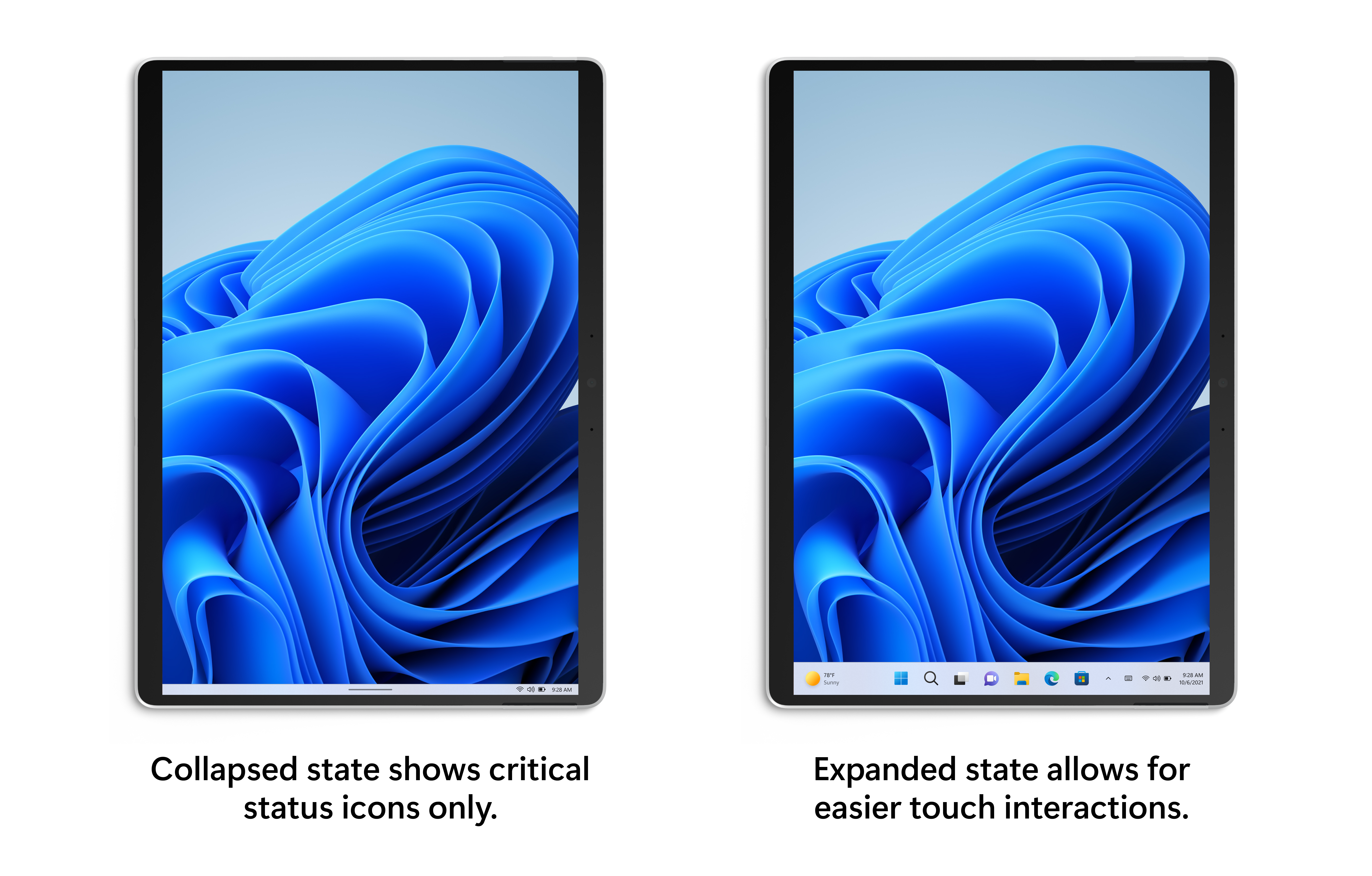
We’re introducing a new taskbar state that’s specifically designed to make you feel more confident and comfortable using your device as a tablet. Your taskbar will automatically transition to this optimized version when you disconnect or fold back the keyboard on your 2-in-1 device. This feature only works on devices that can be used as tablets. It does not work on laptops or desktop PCs.
There are two states of this taskbar: collapsed and expanded. In the collapsed state, the taskbar gets out your way, gives you more screen space, and prevents you from accidentally invoking the taskbar when you’re holding your tablet. In the expanded state, the taskbar is optimized to be easier to use with touch. You can easily switch between the two states by swiping up and down on the bottom of your device.
Tablet-optimized taskbar in both collapsed and expanded states.
To see if this feature is available on your device, navigate to Settings > Personalization > Taskbar > Taskbar behaviors where a new setting called “Automatically hide the taskbar when using your device as tablet” will be shown and set to on by default.
[We are beginning to roll this feature out, so it isn’t available to all Insiders just yet as we plan to monitor feedback and see how it lands before pushing it out to everyone.]
FEEDBACK: Please file feedback in Feedback Hub (WIN + F) under Desktop Environment > Taskbar. See the known issues section below for a set of known issues for this feature.
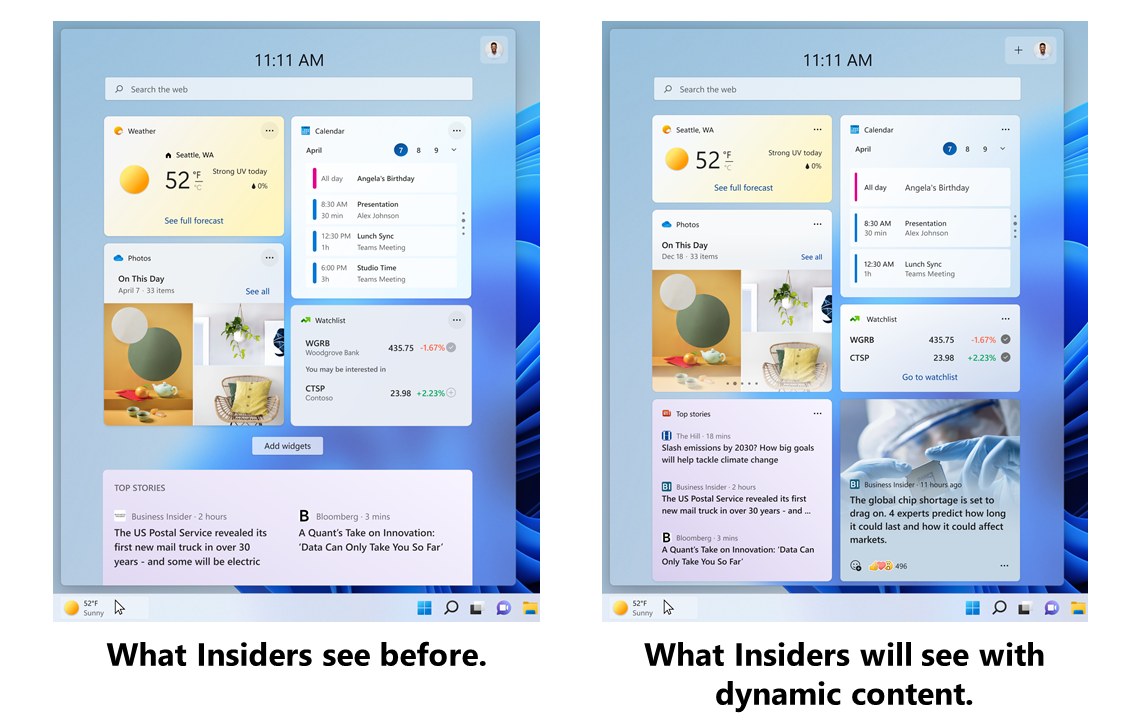
Making Widgets content more dynamic
We’re trying out some changes in Widgets to bring more dynamic content to your Widgets board, by experimenting with bringing together the widgets and news feed experiences as a dynamic blended feed containing both widgets and news content. This should make it easier for you to discover and engage with new widgets and news content through your feed. With a dynamic feed there’s less of a burden on you to curate the canvas on your own, but you’ll still be able to pin your favorite Widgets to the top if you want.
If you’ve already customized your Widgets board, all your pinned widgets will be exactly where you’d expect them to be, your existing customizations won’t be lost.
The Widgets board Insiders see before and how it will look with dynamic content.
This release focuses on making widgets discoverable from the feed and over time we plan to make the feed even more personalized.
[We are beginning to roll this feature out, so it isn’t available to all Insiders just yet as we plan to monitor feedback and see how it lands before pushing it out to everyone.]
FEEDBACK: Please file feedback in Feedback Hub (WIN + F) under Desktop Environment > Widgets OR by clicking on your profile picture on the Widgets board and choosing “Give feedback” toward the bottom above the version number. See the known issues section below for a set of known issues for this feature.
New group policy for managing Windows Update notifications
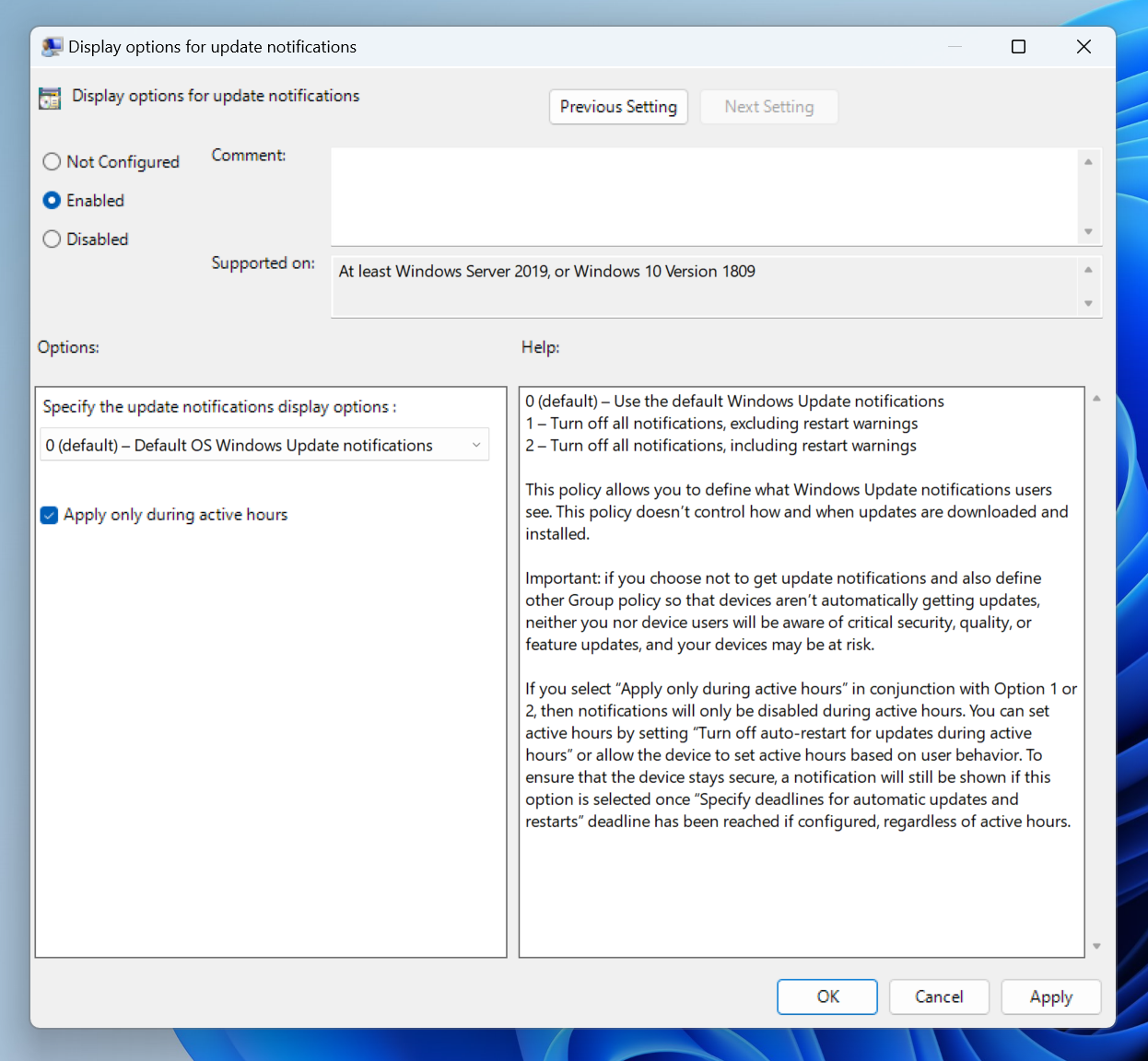
For IT Admins in education, we have a new policy built with you and your students in mind. Starting with this build, you will finally be able to turn off all Windows Update notifications that might distract your students during the school day. You will be able to provide this better experience while staying compliant as the notifications will start to show again if user action is needed and the devices reaches the deadline, though hopefully most devices are able to automatically restart overnight when the student isn’t there.
The new group policy for managing Windows Update notifications as shown in the group policy editor.
To get to this new group policy, just open the group policy editor and navigate to Computer configuration > Administrative Templates > Windows Components > Windows Update > Manage end user experience > Display options for update notifications.
FEEDBACK: Please file feedback in Feedback Hub (WIN + F) under Install and Update > Downloading, installing, and configuring Windows Update.
Changes and Improvements
[Taskbar]
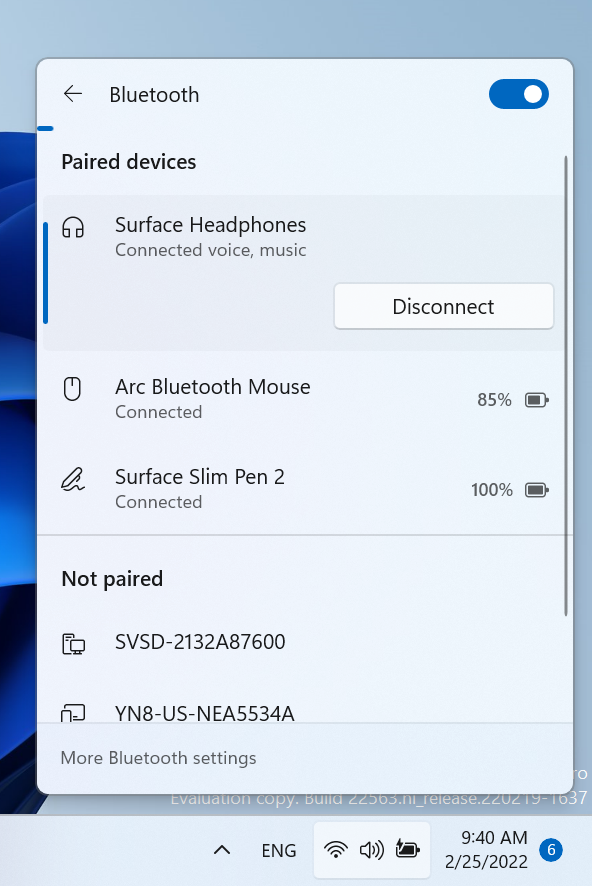
[ADDED 2/25] We are beginning to roll out the ability to more easily manage your Bluetooth devices directly within Quick Settings, including the ability to connect, disconnect, and see battery level for supported devices.
Easily manage your Bluetooth devices directly within Quick Settings.
[File Explorer]
Search from Quick Access has been expanded to include content from your OneDrive, Downloads, and any indexed location. Use Quick Access to find results fast.
Files in Quick Access without any local presence (for example, files shared to you from another OneDrive) now show thumbnails and work with OneDrive sharing.
[Windowing]
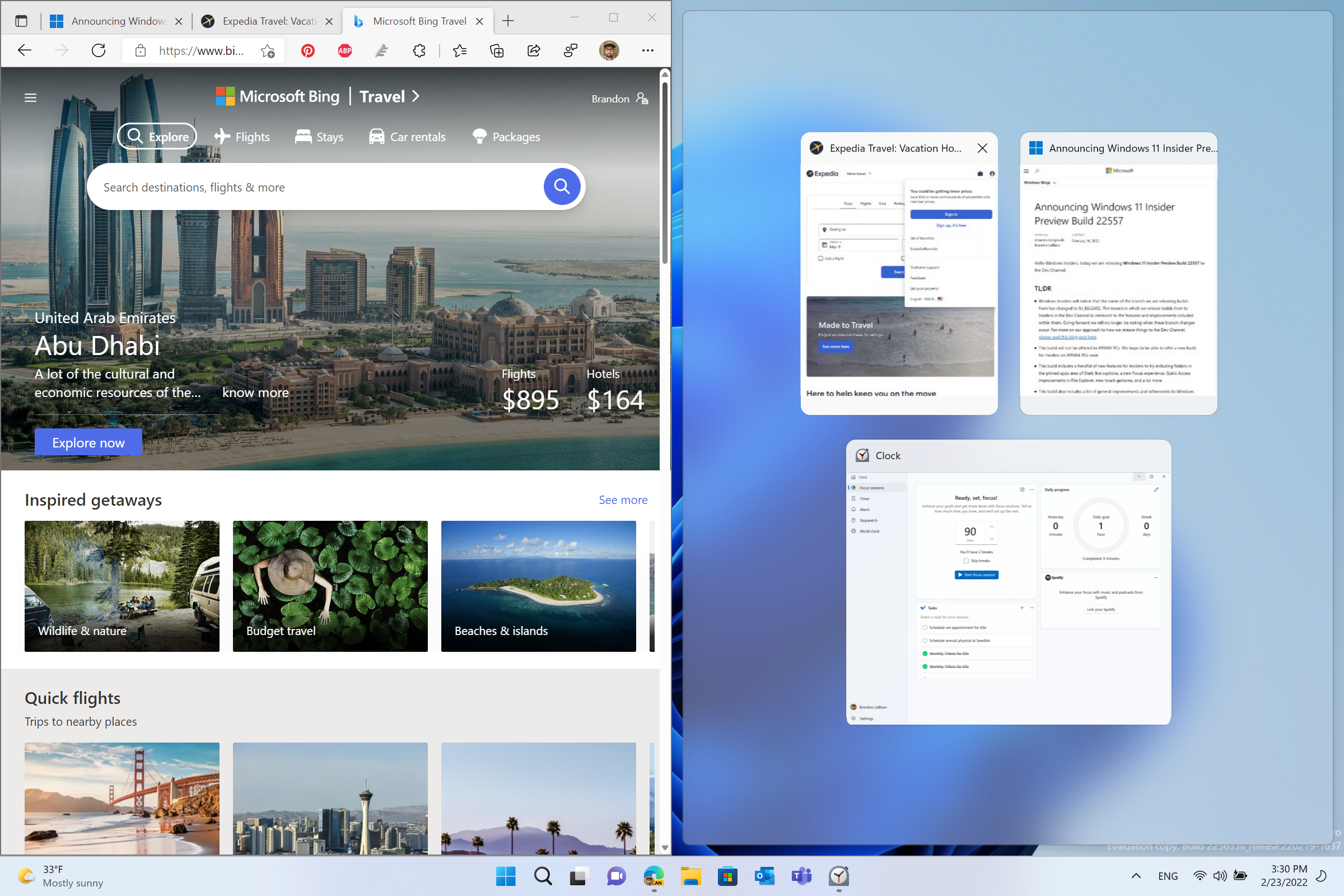
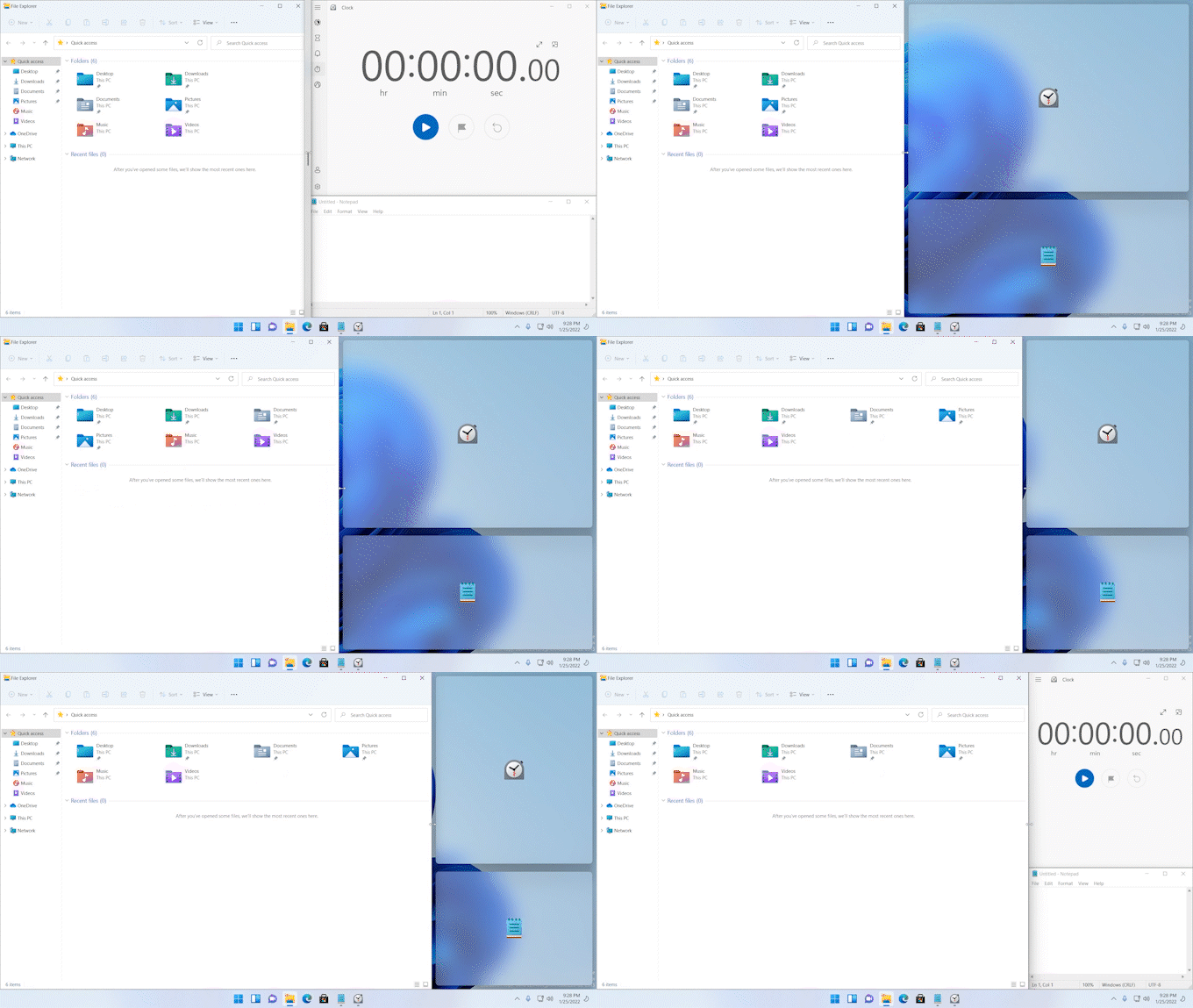
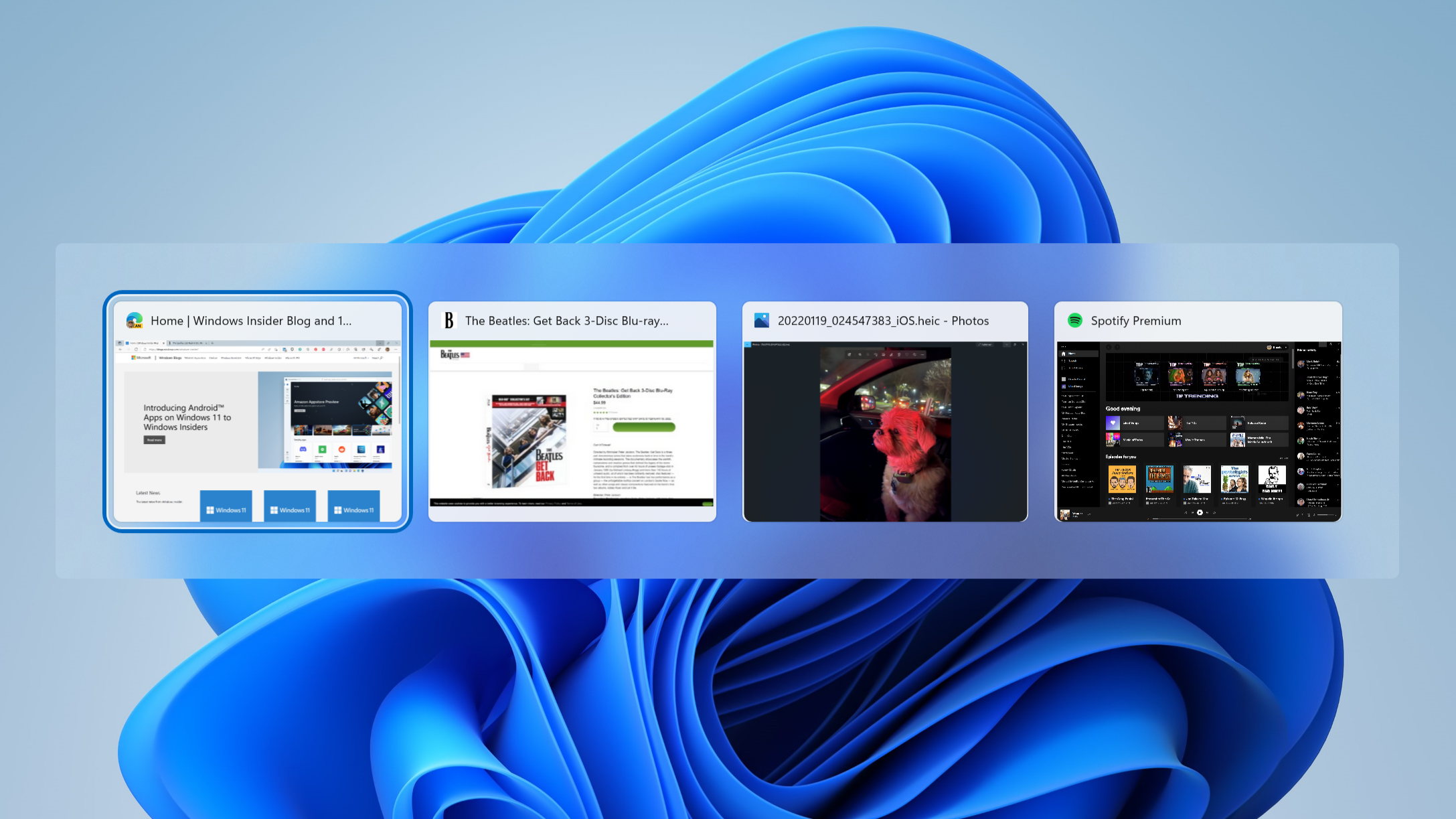
We’ve made it even easier to snap the most relevant windows next to each other side by side by introducing Microsoft Edge tabs as suggested windows in snap assist. When a window is snapped, you will now see 3 of your most recent Edge tabs shown (by default) as suggestions. You can always control whether to show Microsoft Edge tabs and number of tabs shown when snapping or pressing ALT + TAB via Settings > System > Multitasking.
Adjust how Microsoft Edge tabs are displayed in snap assist.
[Input]
Starting with this build, Windows Insiders can now use 37 new emoji characters in the emoji picker as part of Emoji 14.0. Some of the new emoji include “melting face”, “troll”, “coral”, “beans”, “playground slide”, and “mirror ball”.
New “melting face”, “troll”, “coral”, “beans”, “playground slide”, and “mirror ball” emoji introduced in Emoji 14.0 update.
Skin tone variations for hands gestures and people bring the total to 112 emoji which includes the hand shake. You can now choose the skin tones between the two hands in the hand-shake emoji.
The updated accessibility flyout on the login screen, introduced in Build 22557, is now available to all Windows Insiders in the Dev Channel.
The accessibility flyout on the login screen now matches the Windows 11 design principles.
Fixes
[General]
Improved login performance for a specific case where someone had a very large temp folder.
Fixed a few issues impacting explorer.exe reliability.
Updated the volume flyout when using the hardware keys on your keyboard to account for cases where there is no working audio.
[Taskbar]
The auto-hide taskbar will now stay expanded while you use Task View to switch Desktops.
When dragging a file or app to the taskbar, we’ve updated the message next to the mouse showing what is and is not supported to now respond to dark mode and contrast themes.
Fixed a cyclical explorer.exe crash that was happening for people using the French (Canada) display language, related to the battery icon tooltip.
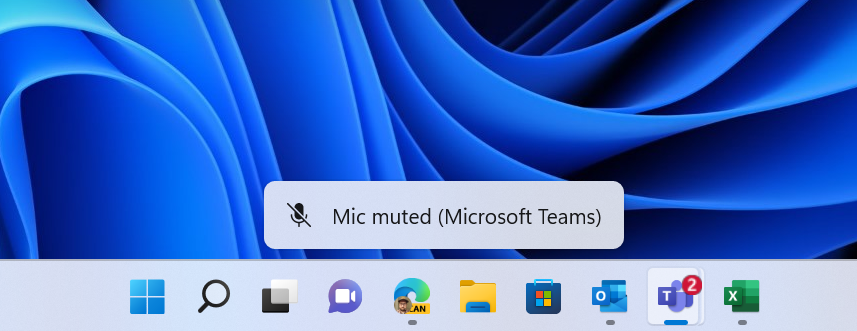
Updated the mute icon in the taskbar so that the tooltip now gives a hint for the keyboard shortcut (WIN + Alt + K).
[Tablet-optimized taskbar]
NOTE: These fixes will only show if tablet-optimized taskbar is enabled on your device. Please see above for details on the tablet-optimized taskbar, which is beginning to roll out to Windows Insiders and not yet available for everyone.
The top border line of taskbar now extends across the entire taskbar instead of stopping just before the system tray area.
The button styling for the hidden icons flyout is now consistent with the design of the rest of the system tray buttons.
The taskbar should no longer flicker when switching input methods or during other scenarios where system tray icons are added and removed.
[Start menu]
Fixed an issue that was causing the Start menu to not open consistently with the new touch gesture where you swipe up from the bottom of the screen.
When recommended items are newly added or removed, their icons will now be animated to fade in and out.
The sleep icon in the power menu is no longer incorrectly showing as a bell.
Fixed an issue causing the apostrophe in the power button tooltip to not display correctly.
Names of apps in folders no longer appear blurred briefly when opening folders in Start.
Fixed a crash some people were encountering when trying to share an app from the All apps list.
[File Explorer]
Fixed an issue where the OneDrive icon wouldn’t show up in the File Explorer command bar sometimes when it should have.
Removed a random white dot that was appearing in the context menu when right clicking on File Explorer’s title bar in dark mode.
[Input]
Made some improvements to the emoji search results based on feedback, including generally putting a stronger preference in the search results to the exact name match of emoji (for example, the balloon emoji first when searching for balloon) over the various other emoji that might be returned for those keywords.
Fixed an issue causing Insiders to not see the updated Korean IME design in the previous flight.
Fixed a couple issues with the coloring in the IME candidate window.
Mitigated a crash that was happening when attempting to access the Personalization > Text Input in Settings after upgrading if you had customized your touch keyboard appearance.
Addressed an explorer.exe crash that could happen when switching input methods.
Improved the performance of launching the input switcher for the first time.
If you have “Show accent color on Start and Taskbar” enabled in Color Settings, the input switcher background color will now follow that preference.
Fixed the Typing link name in the touch keyboard settings options, so it matches the Settings page that opens.
System > Clipboard in Settings now explains why the “Sync across your devices” option could be grayed out.
Added text to the emoji panel to help explain certain scenarios where emoji search results aren’t supported.
[Search]
We’ve done some more work to reduce the chance that the recent searches flyout could get stuck on the screen.
We’ve addressed an issue in recent Dev Channel builds leading to some Insiders experiencing an issue where search would open, but only show a magnifying glass in the window and not display any results. If you continue experiencing issues, please file feedback under Desktop Environment > Search with details about what exactly you are seeing.
[Settings]
Addressed an issue where pop up dialogs (for example, when adding an optional feature, or when configuring your IP address) in Settings were launching left aligned instead of centered.
Addressed an issue where RSAT: DNS Server Tools would show that it was installed in Optional Features if you attempted to install it but wouldn’t actually be installed.
Fixed an issue where Display settings might not show the option to change refresh rate when your PC was in portrait mode.
Settings should no longer crash when attempting to uninstall apps via Apps > Installed apps when your User Account Control settings are set to Always Notify.
Windows Update > Update History should show history for feature updates again with this build.
Mitigated an issue related to the Windows Update page that could make Settings hang.
The link to give feedback in Settings > System > Notifications will now take you directly to notifications feedback section in the Feedback Hub.
Fixed an issue preventing you from adding Bluetooth or Cast to the Quick Settings flyout.
The media controls above Quick Settings should now show when you open media or hide when you close media more reliably.
Fixed an issue where the number in the volume popup that opens when you use your hardware keys didn’t match the volume number in Quick Settings.
Improved the positioning of the Accessibility flyout above the button on the login screen.
Fixed an issue that was occasionally causing certain Bluetooth devices to not auto-connect after powering on or resuming your PC from sleep/hibernate.
[Widgets]
With the taskbar left-aligned, information such as temperature is now shown.
Fixed an issue where Widgets weather info may have shown different information across a multi-monitor setup.
[Task Manager]
Did some work to help address an issue where the navigation bar in the updated Task Manager design was showing black glitches when you launched Task Manager from a minimized state.
[Windowing]
Fixed an issue that was preventing you from using the minimize, maximize, and close buttons on maximized apps (and other scenarios) because Notification Center had kept focus.
Did some work to improve the smoothness of the animation when invoking Task View using the 3-finger on screen gesture.
Improved general reliability of ALT + Tab to help address scenarios where it could get stuck.
Addressed an issue that was impacting the performance when using ALT + Tab, Task View or snap assist in recent builds.
Snap group titles should appear properly when using Windows with an Arabic or Hebrew display language now.
Made some refinements to the snap layouts invocation experience when moving a window to the top of the screen.
Fixed an issue where dragging a snapped window while snap assist is active would include a thumbnail of the dragged window.
When using the down arrow to navigate through app thumbnails in snap assist, it should cycle to the top now when you’ve reached the bottom row.
Fixed two crashes that could happen when using snap layouts on a secondary monitor or a portrait mode monitor.
Made the margins for snapping to the left and right side of the screen a little bigger.
Switching desktops using the keyboard shortcuts while the Start menu is open should no longer cause your desktop to unexpectedly switch back after closing Start.
[Network]
Added some text to show Disconnecting to communicate if work is in progress after you’ve clicked the Disconnect button in the VPN section of Quick Settings.
Fixed an issue where Managed VPN profiles with IPv4 routes specified might disconnect frequently.
[Narrator]
Narrator will no longer jump up to the search box in Start after using the power or account menus.
After switching to the All apps section of the Start menu, Narrator will now navigate to and read you app information correctly.
Narrator in Word online will now read the new line correctly when arrowing up and down between paragraphs.
Fixed an issue that was causing Narrator to stop reading or being able to move the cursor when entering tables in Microsoft Word.
Improved how Narrator reads content in the Accessibility flyout on the login screen.
[Other]
Fixed an issue that was causing the back button in the sign in window of certain apps to not to be visible when using a contrast theme.
NOTE: Some fixes noted here in Insider Preview builds from the active development branch may make their way into the servicing updates for the released version of Windows 11 that became generally available on October 5th, 2021.
Known issues
[General]
Users running Windows 10 who try to upgrade directly to Build 22563 in the Dev Channel will encounter a hang at “0% Downloading” on Windows Update. To bypass, please join the Beta Channel, install the offered Windows 11 build there, and then switch to the Dev Channel to receive the Build 22563 update. This issue is understood and will be fixed in an upcoming build.
When going through the device setup experience (OOBE) on the Enterprise edition, the network add screen will be skipped on the first attempt. As a workaround, when users see the “name your computer” option, please reboot and re-start OOBE. The network add screen will now appear as expected.
Many users won’t hear the startup sound right now.
[Taskbar]
If you right click on the Start icon in this build or press WIN + X, explorer.exe will likely crash. Please use CTRL + Shift + Esc for the time being if you use this menu to launch Task Manager.
[Tablet-optimized taskbar]
Windows Insiders who have this feature enabled will not be able to use new touch gestures that start on the bottom of the screen announced in Build 22557 until they first remove or fold back their keyboard. Insiders with PCs such as laptops that cannot be used as tablets, and who have this feature enabled, will not be able to use the touch gestures that start on the bottom of the screen. This will be fixed in a future flight.
The taskbar doesn’t always automatically collapse after launching an app or tapping outside of the expanded taskbar on 2-in-1 devices.
Some areas of the OS are not yet tracking the height of the expanded taskbar on 2-in-1 devices so you may see overlapping components, such as Widgets overlapping with the taskbar.
Transition animations are still being tuned for going between expanded and collapsed taskbar on 2-in-1 devices.
[File Explorer]
The File Explorer search box may not work when typing and clicking a suggestion.
We’re working fixing issues regarding icon sizing, visual bugs, and text clipping in the flyout showing OneDrive storage.
[Widgets]
Sometimes when pinning from the Feed, the pinned widget is placed at the top instead of below other pinned widgets. If this happens this will autocorrect within 30 minutes, moving the recently pinned widget to the expected default location. Or you can sign out of your Widgets board and immediately signing back in should correct the problem.
After rearranging widgets in the widgets board, some users experience problems with widgets in the pinned section rendering incorrectly. If this happens, signing out of your widgets board and immediately signing back in should correct the problem.
[Focus]
The taskbar icon and tooltip may not match the focus state.
The Clock app does not yet update Windows Focus state when configuring focus sessions within the app. This will be addressed in a future app update.
[Live captions]
Certain apps in full screen (e.g., video players) prevent live captions from being visible.
Certain apps positioned near the top of the screen and closed before live captions is run will re-launch behind the live captions window positioned at top. Use the system menu (ALT + Spacebar) while the app has focus to move the app’s window further down.
The very top of maximized apps (e.g., title bar window management buttons) can’t be reached with touch while live captions is positioned at the top.
[Task Manager]
We are aware that the Efficiency mode icon is missing on some child processes.
Some settings options are not preserved.
We are working on fixing issues regarding icon size, visual bugs and in most cases the workaround is to either resize Task Manager or lower the resolution settings from Settings > Display > Display resolution.
Hello All, last Wednesday, after waiting for 2 weeks on a sable build, Microsoft released Windows 11 Insider Preview Build 22557 to the Dev Channel.
and what a build it is, tons of new stuff to check out & test, the new task manager, editable folders/groups in start, OneDrive’s integration into explorer, folder preview is back & more
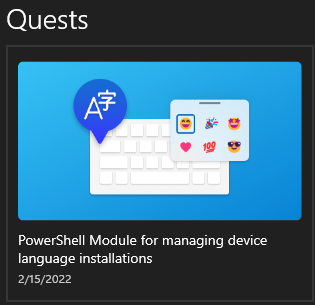
A new Quest in Feedback Hub, testing adding languages with the new PowerShell commands:
New Quest in Feedback Hub
Using the Store App Configuration Designer open an unexpected Terminal Window when WT is you default console (Feedback Hub: https://aka.ms/AAfsbhs)
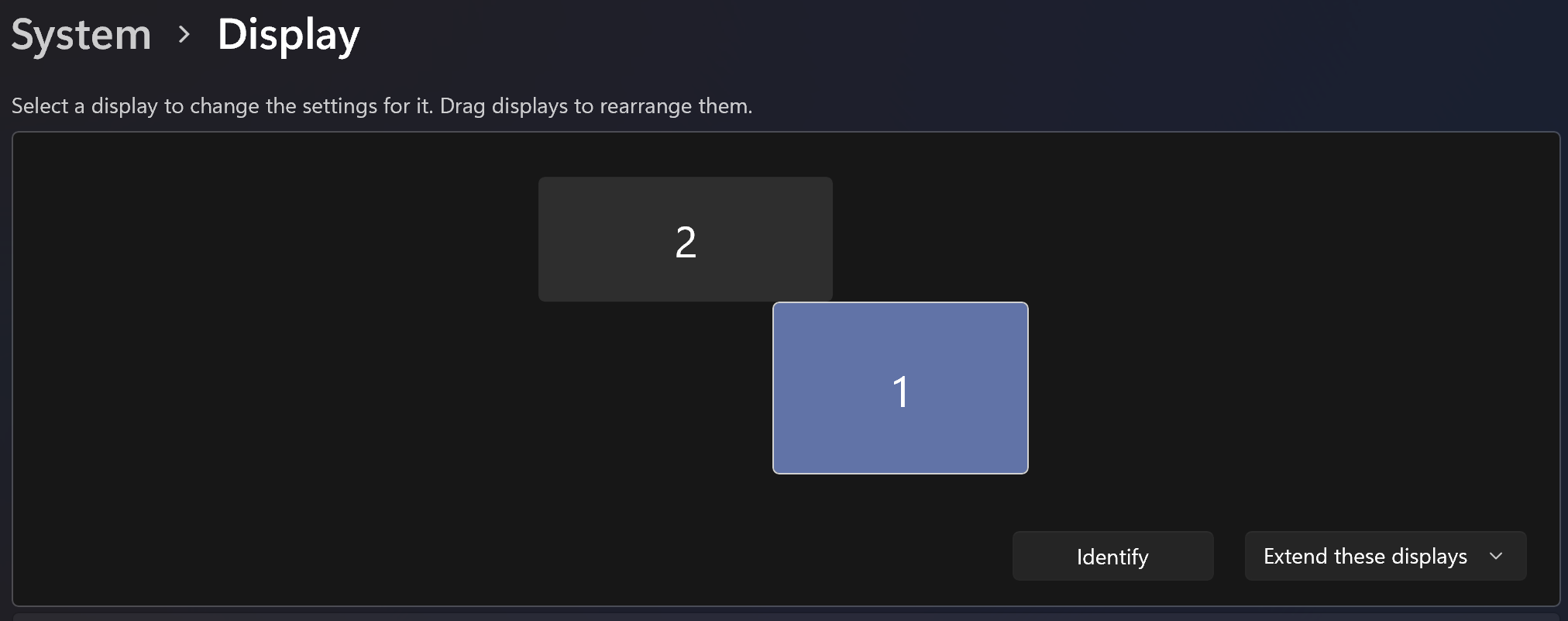
With A screen layout like the screenshot below, since this build crossing the top edge of screen 1, ends up on screen 2 while it’s only supposed to do that on the part where both screens touch each other
What’s new in Build 22557
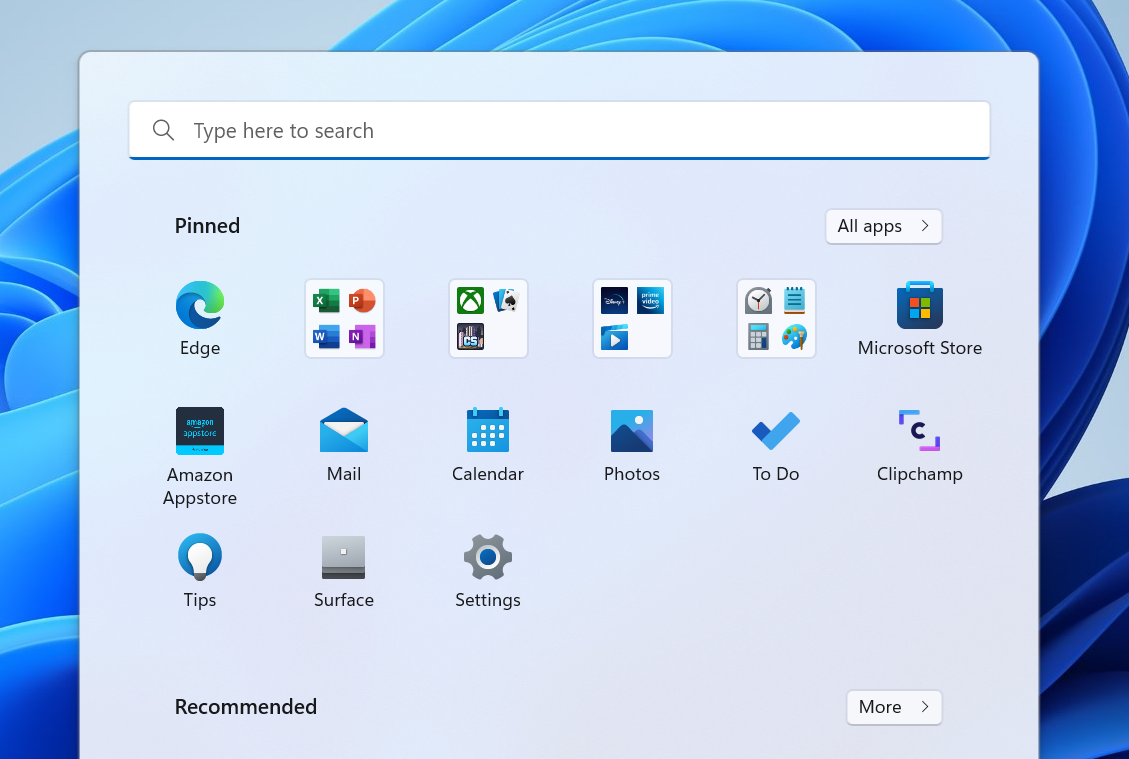
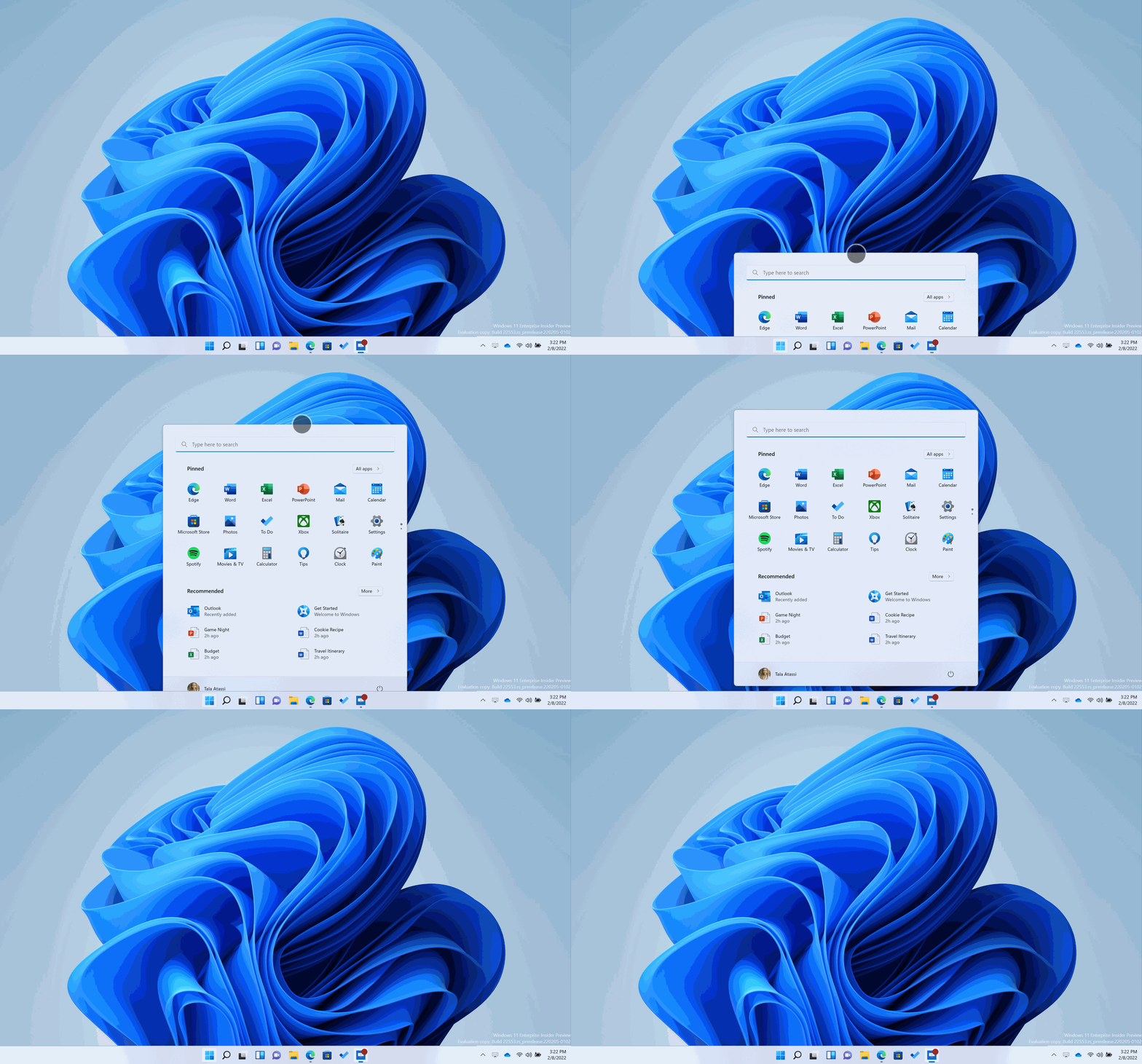
Create and curate folders in the pinned apps area of Start
We’ve heard from many of you that you’d like to customize your pins in Start by organizing them into folders, so we’re introducing the first version of folders in this build. Simply drag an app on top of another to create a folder. You can add more apps to a folder, rearrange apps within a folder, and remove apps from a folder. Keep an eye out for further improvements like the ability to name and rename folders in one of our upcoming builds.
Start showing pinned apps organized into folders.
FEEDBACK: Please file feedback in Feedback Hub (WIN + F) under Desktop Environment > Start menu.
Introducing Do Not Disturb and Focus
We’ve reimagined focus experiences on Windows. Do not disturb makes it easy to silence notifications. Focus is a new experience that enables everyone to stay in the moment and minimize distractions on their PC. To help you stay on track, focus integrates with the Clock app for other focus tools, such as a focus timer and calming music.
Do not disturb:
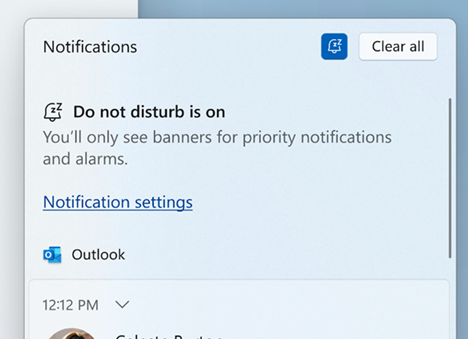
It’s now easier than ever to silence notification banners with do not disturb. When you are ready to see the notifications that you may have missed, you can find them in Notification Center.
How do not disturb appears when turned on in Notification Center.
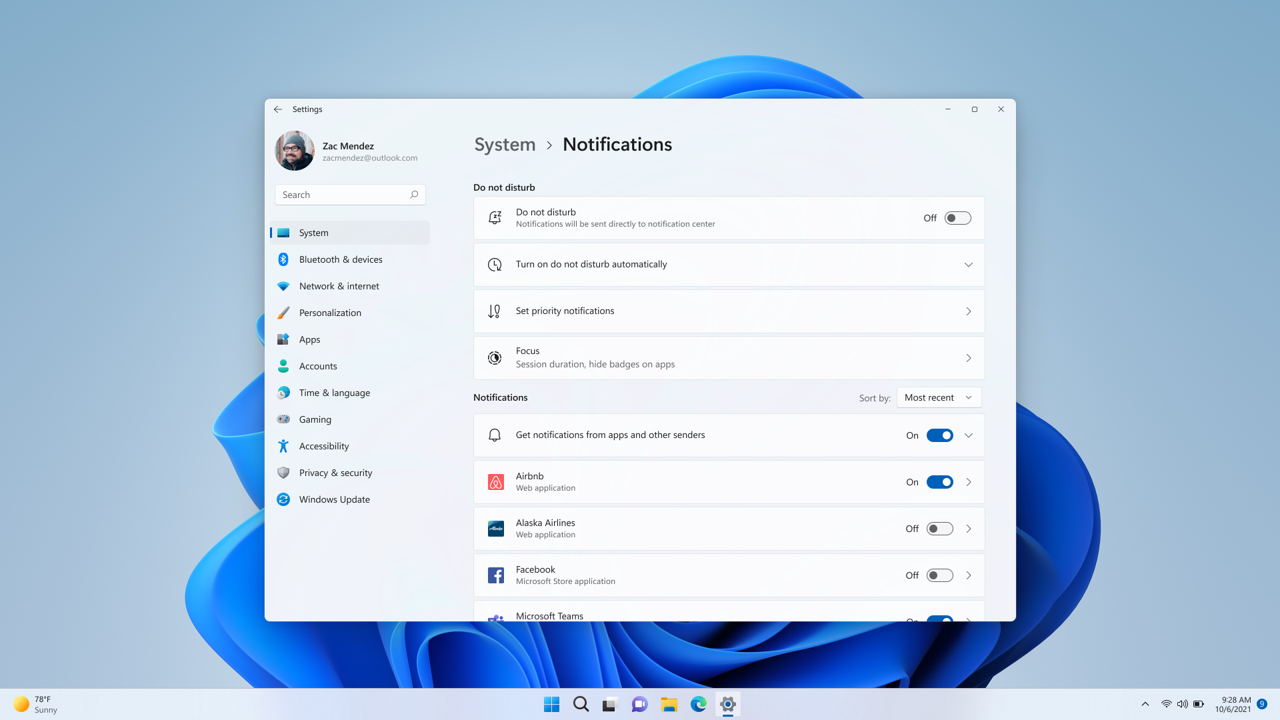
You are always in control of your notifications. Under Settings > System > Notifications, you can set up rules to automatically turn on do not disturb. For example, you could set do not disturb to automatically turn on outside of your work hours. Additionally, you can set priority notifications to control whether calls, reminders, and specific apps break through when do not disturb is on.
You can personalize do not disturb in Settings.
Focus:
It is easy to start focus right from Notification Center (click on the time and date in the taskbar):
Open Notification Center.
Select the amount of time for your focus session.
Press Start Focus.
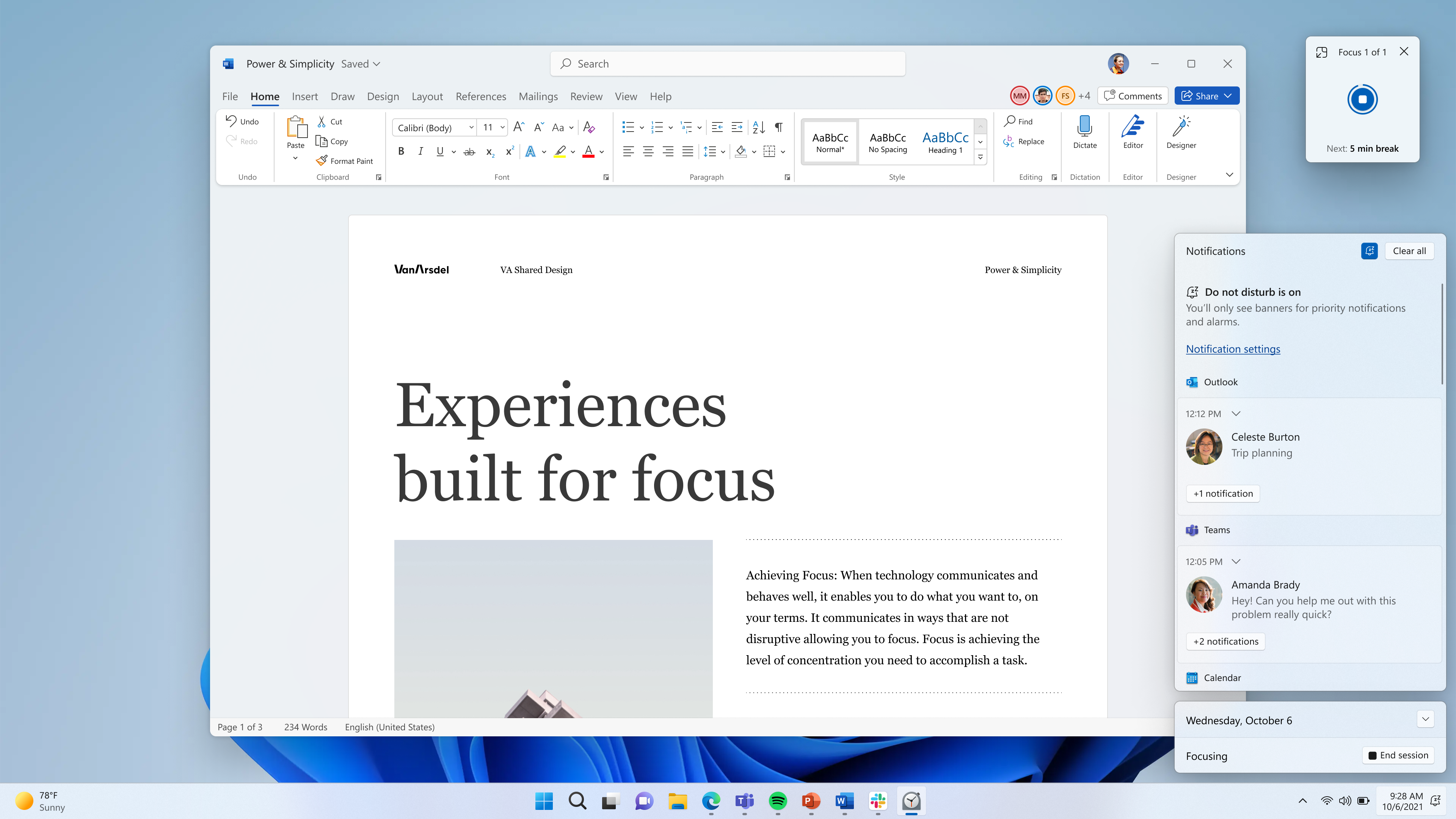
Focus session in progress with taskbar badging off, the focus timer on screen, and do not disturb will turn on.
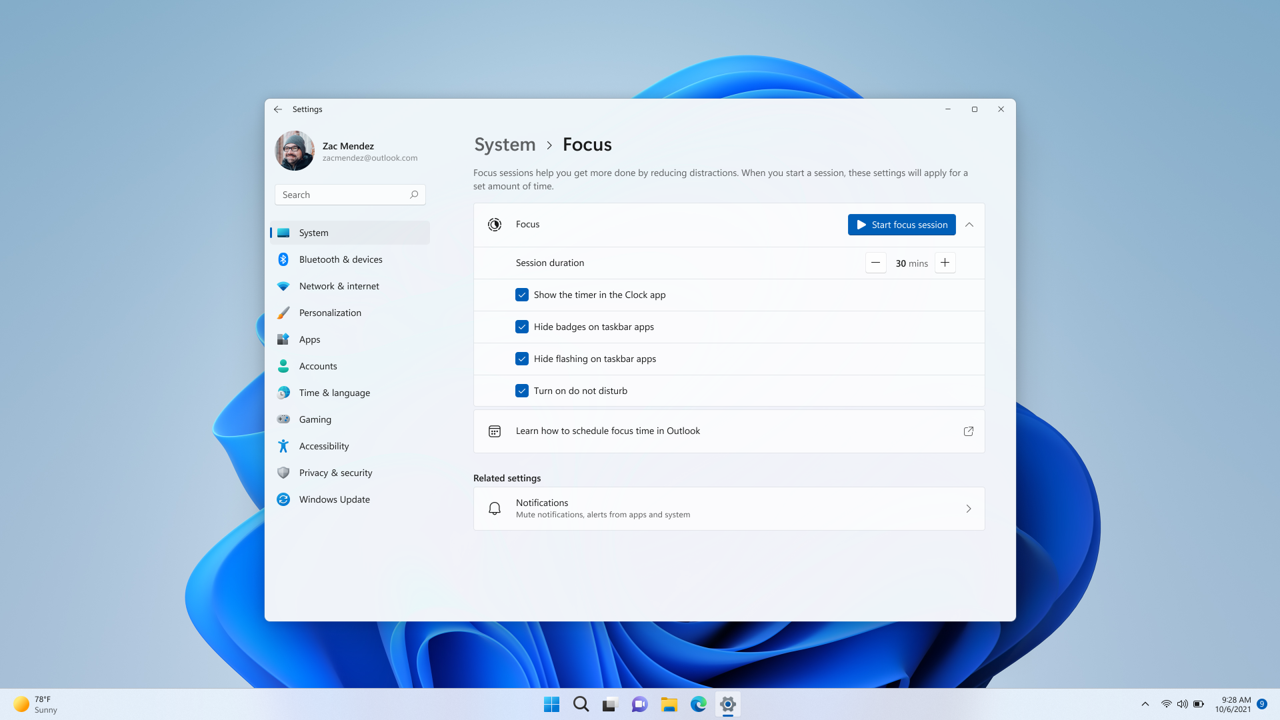
When you start a focus session, taskbar badging will turn off, flashing of applications in the taskbar will turn off, a focus timer will appear on screen, and do not disturb will turn on. Focus in Windows integrates with focus sessions in the Clock app, so you can play calming music and see a task list from Microsoft To-Do. When your focus session ends, you will receive a notification letting you know your focus time has completed. You can personalize your focus experience (Settings > System > Focus).
You can personalize your focus experience under Settings > System > Focus.
FEEDBACK: Please file feedback in Feedback Hub (WIN + F) under Desktop Environment > Focus.
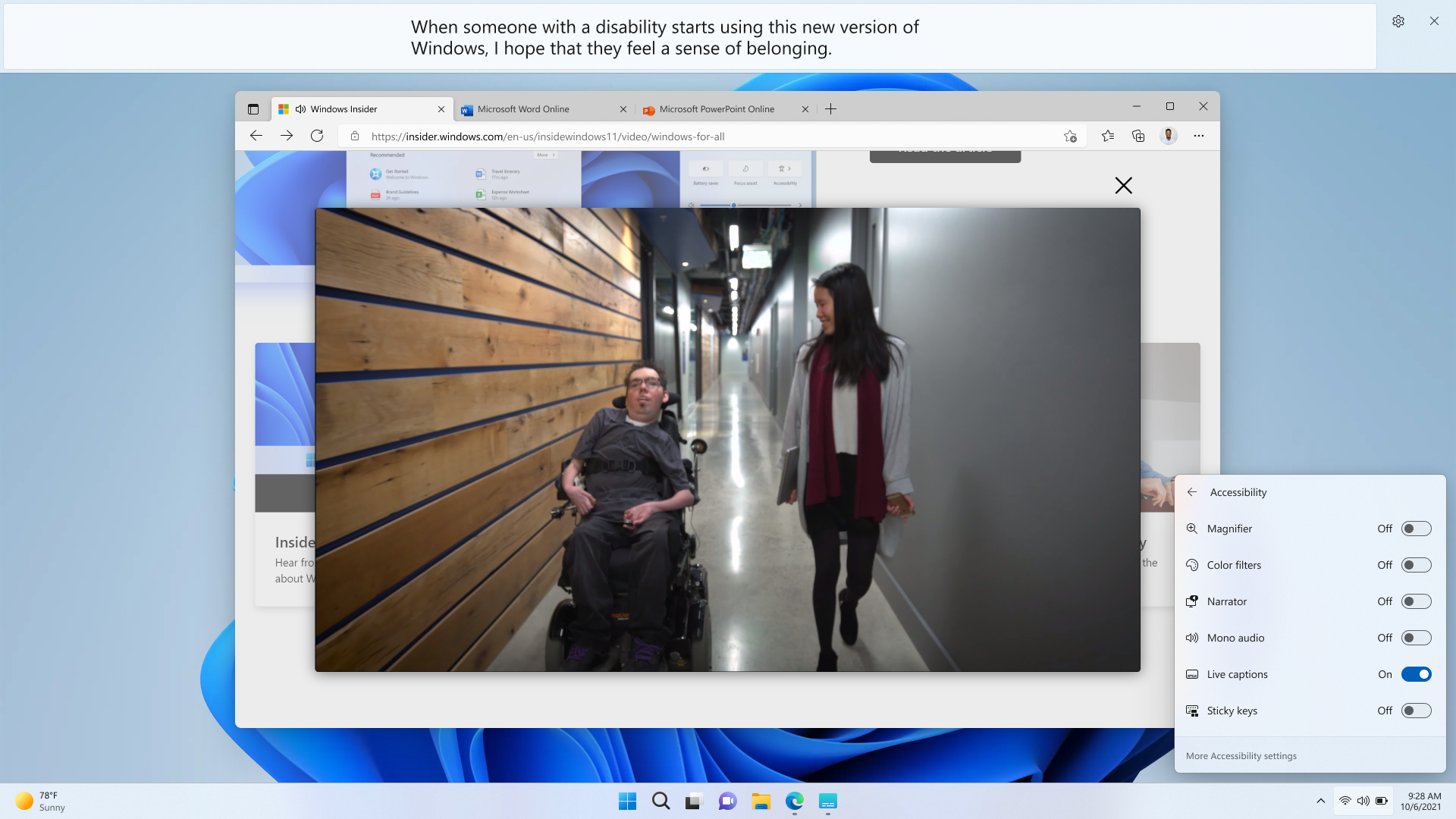
Live Captions
Live captions will help everyone, including people who are deaf or hard of hearing, better understand audio by viewing captions of spoken content. Captions are automatically generated on-device from any content with audio. Captions can be displayed at the top or bottom of the screen, or in a floating window. The caption window can be resized, and caption appearance can be personalized by applying or customizing a caption style. Microphone audio can be included, which can be helpful during in-person conversations. Live captions support English (U.S.) content.
Live captions (launched from Quick Settings Accessibility flyout) generating captions for a video playing in the web browser.
To get started, live captions can be turned on with the WIN + Ctrl + L keyboard shortcut, or from the Accessibility flyout under Quick Settings. When turned on the first time, live captions will prompt for download of the required speech model to enable on-device captioning.
FEEDBACK: Please file feedback in Feedback Hub (WIN + F) under Accessibility > Live captions.
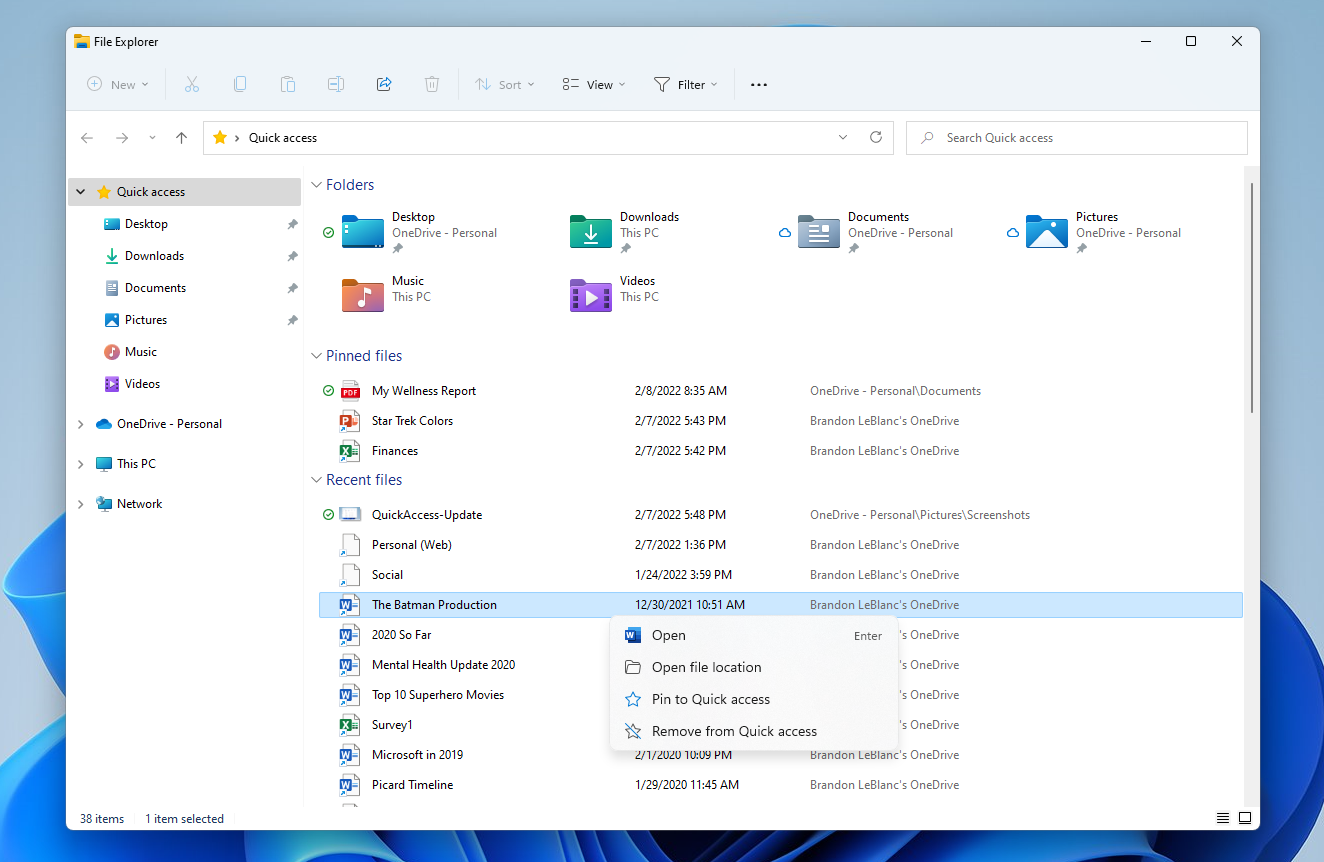
Improving Quick Access in File Explorer
We are rolling out an update to File Explorer’s Quick Access view. First, “Pin to Quick Access” support has been extended from only supporting Folders to now also supporting Files. Pinned files are shown in a new section above Recent files in Quick Access.
Quick Access in File Explorer now supports pinning files and will show files hosted in OneDrive, SharePoint, and Teams.
Next, for users who log into Windows with (or attach as a secondary account) a Microsoft Account or Work/Education account, Pinned and Recent files from Office.com will also be shown in Quick Access. Changes that pin or unpin files hosted in OneDrive, SharePoint, and Teams will sync and be reflected in Office.com and Office apps. File activity updates from collaborators such as edits, and comments are shown in Tiles view and can also be shown in Details view.
FEEDBACK: Please file feedback in Feedback Hub (WIN + F) under Files, Folders, and Online Storage > File Explorer.
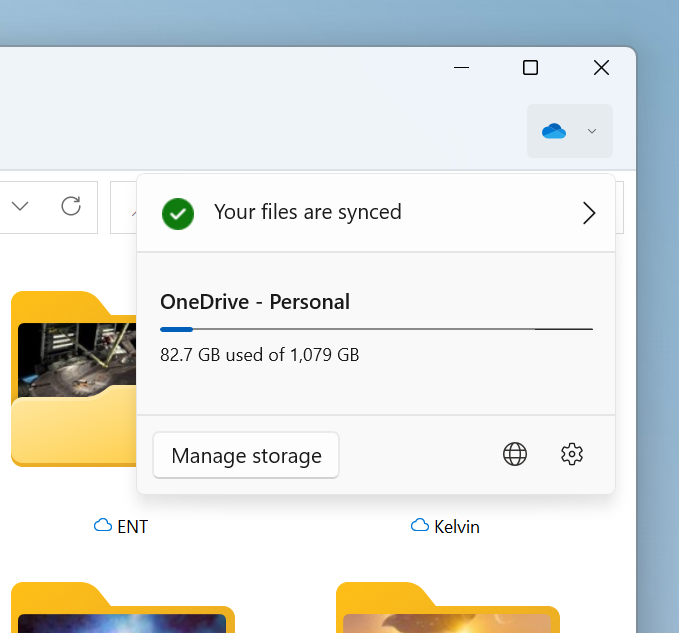
See your OneDrive storage in File Explorer
Backing up your files and managing your cloud storage is important for the safety of your stuff. To help you have control over storage consumption and ensure your files are syncing, we’ve added OneDrive integration into File Explorer. When browsing your OneDrive folders, you can now see your sync status and quota usage without having to leave File Explorer.
OneDrive storage as shown in File Explorer when navigating to OneDrive folders.
ALT-TEXT: OneDrive storage as shown in File Explorer when navigating to OneDrive folders.
FEEDBACK: Please file feedback in Feedback Hub (WIN + F) under Files, Folders, and Online Storage > File Explorer.
New Touch Gestures
This build includes 5 new touch gestures to make it easier and quicker to navigate Windows 11 on a PC with touch:
Swipe to invoke and dismiss Start: Swipe with your finger from the middle of the taskbar to invoke the Start menu and swipe back down to dismiss it.
Swipe with your finger from the middle of the taskbar to invoke the Start menu and swipe back down to dismiss it.
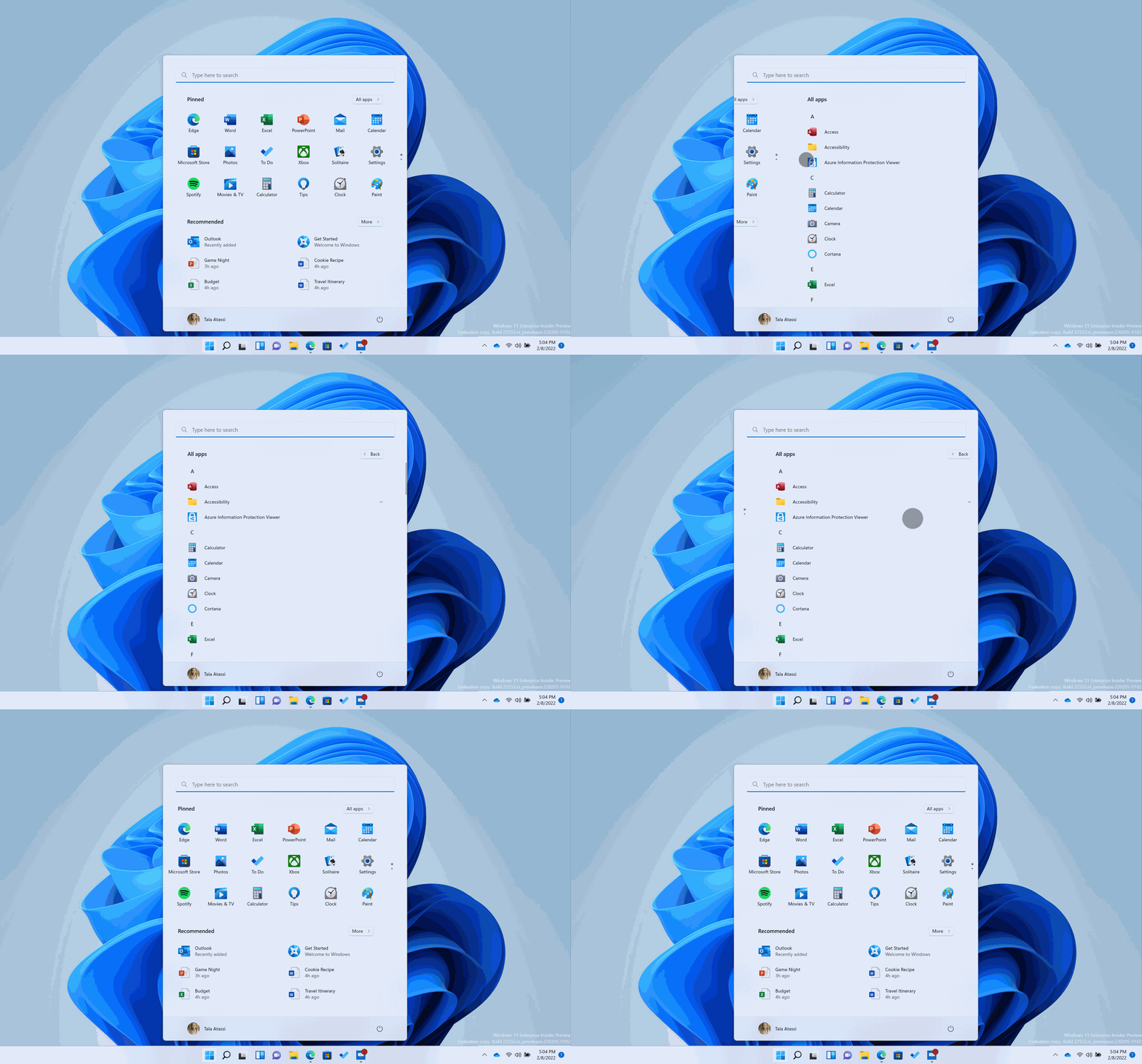
Swipe between Pinned/All apps and Recommended/More on Start: Within Start, swipe right to left from Pinned to get to All apps and left to right to get back to Pinned. The same gesture works for Recommended/More.
Within Start, swipe right to left from Pinned to get to All apps and left to right to get back to Pinned. The same gesture works for Recommended/More.
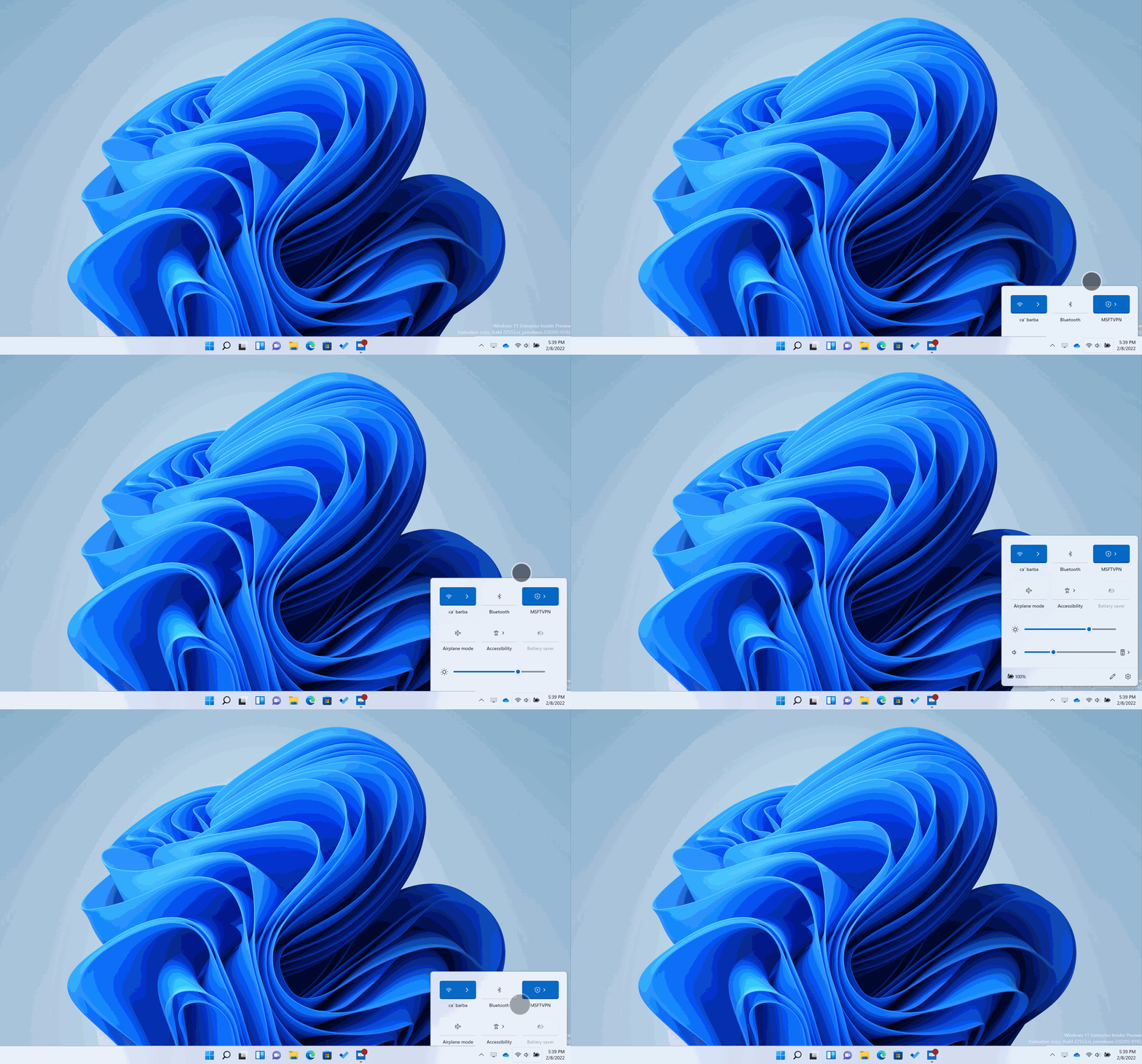
Swipe to invoke and dismiss Quick Settings: Swipe with your finger from the bottom right of the taskbar to invoke Quick Settings and swipe back down to dismiss it.
Swipe with your finger from the bottom right of the taskbar to invoke Quick Settings and swipe back down to dismiss it.
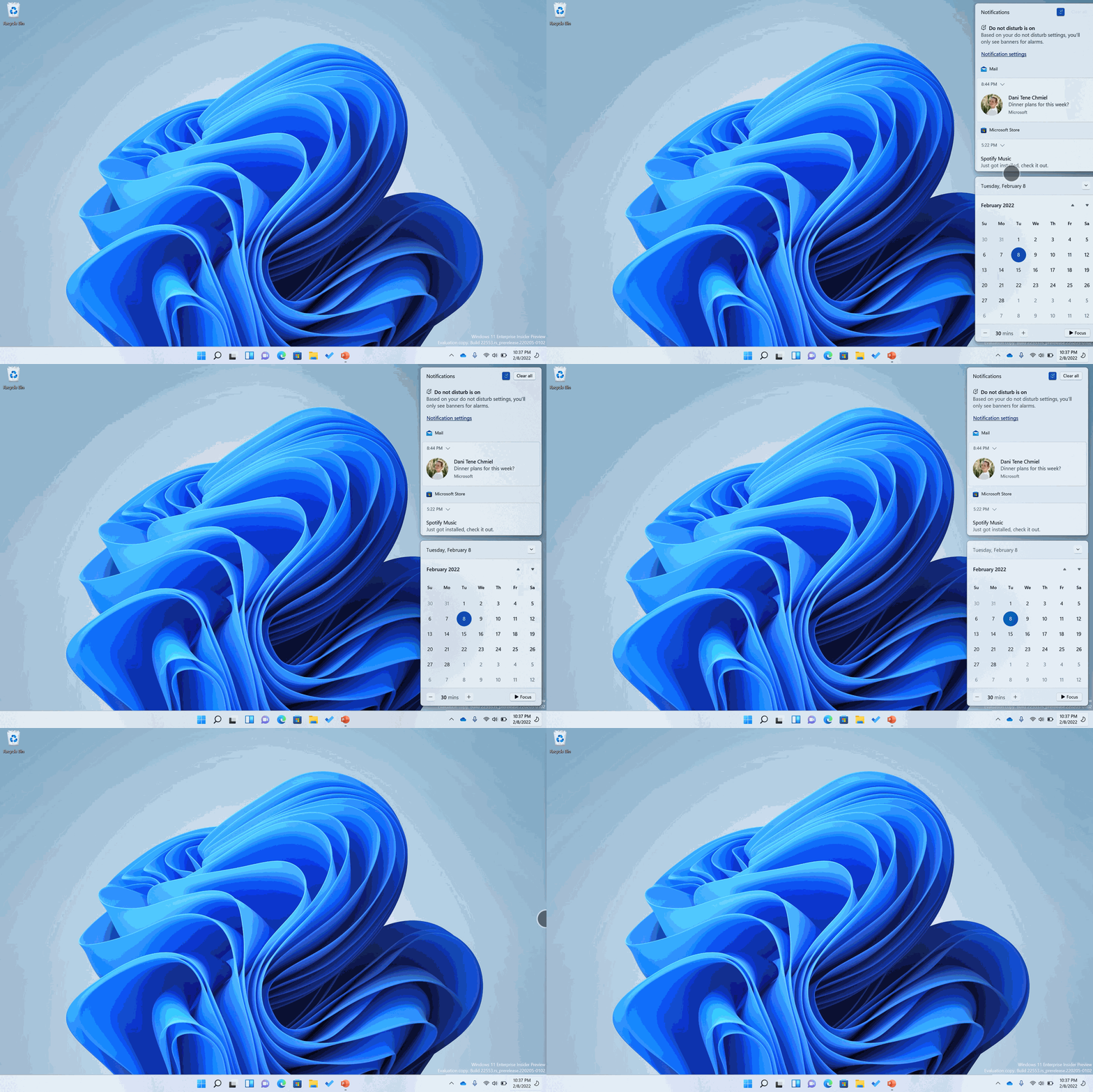
Swipe to invoke and dismiss Notification Center: We’ve updated the animation when swiping to invoke and dismiss Notification Center from the right edge of your screen so that it’s more responsive and follows your finger.
We’ve updated the animation when swiping to invoke and dismiss Notification Center from the right edge of your screen so that it’s more responsive and follows your finger.
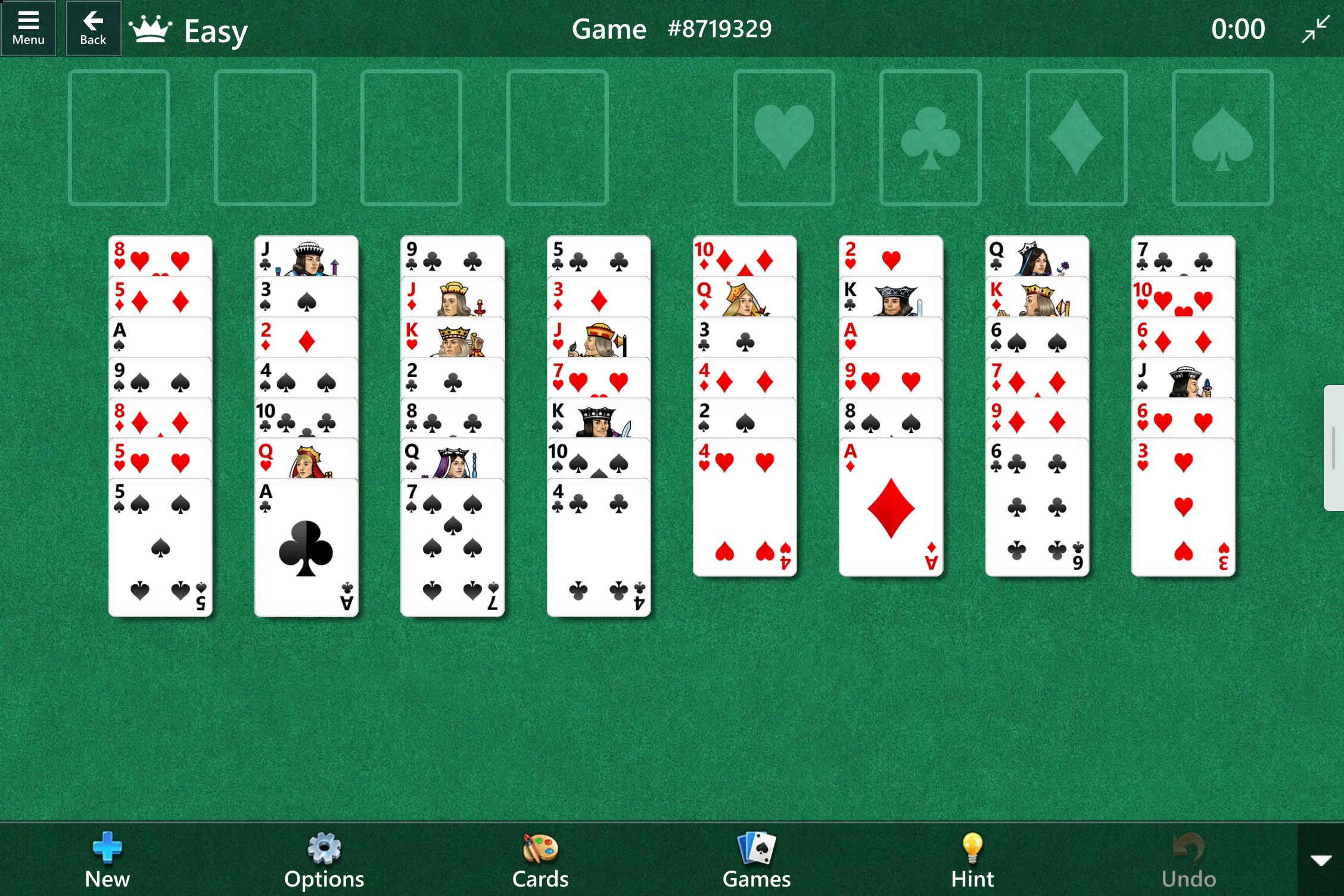
Full screen gripper: In full screen touch-oriented apps and games (e.g., Solitaire), notice a gripper that appears if you swipe from the edges of the screen. This feature is designed to keep you in your app if you accidentally swipe near the edges. If you need to access edge content, simply swipe again on the gripper.
In full screen touch-oriented apps and games (e.g., Solitaire), notice a gripper that appears if you swipe from the edges of the screen.
Note that these gestures are reversed in Right to Left languages. Any swipe from the right becomes a swipe from the left and vice versa.
FEEDBACK: Please file feedback in Feedback Hub (WIN + F) under Input and Language > Touch Input and Gestures.
Improving Snap Layouts
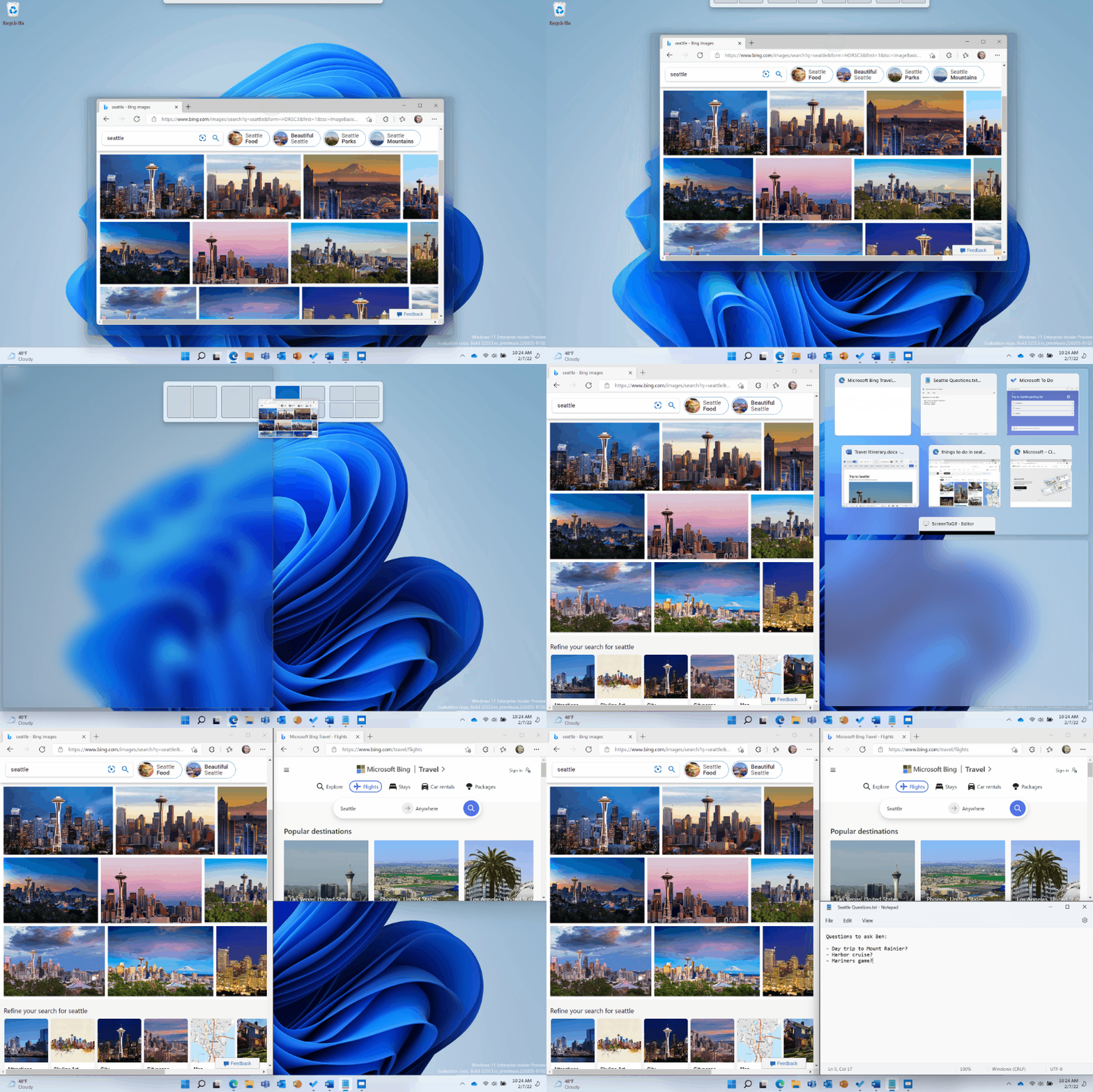
We’ve added a new way to snap windows into snap layouts that works wonderfully with both touch and mouse! To try it out, just drag a window to the top of the screen to reveal the snap layouts, drop the window on top of a zone to snap it, and use snap assist to finish building your layout.
Just drag a window to the top of the screen to reveal the snap layouts, drop the window on top of a zone to snap it, and use snap assist to finish building your layout.
On top of all that, we’ve also improved snap assist to seamlessly animate between zones in a layout for a delightful end-to-end snapping experience.
FEEDBACK: Please file feedback in Feedback Hub (WIN + F) under Desktop Environment > Snap.
More sustainable power settings and recommendations
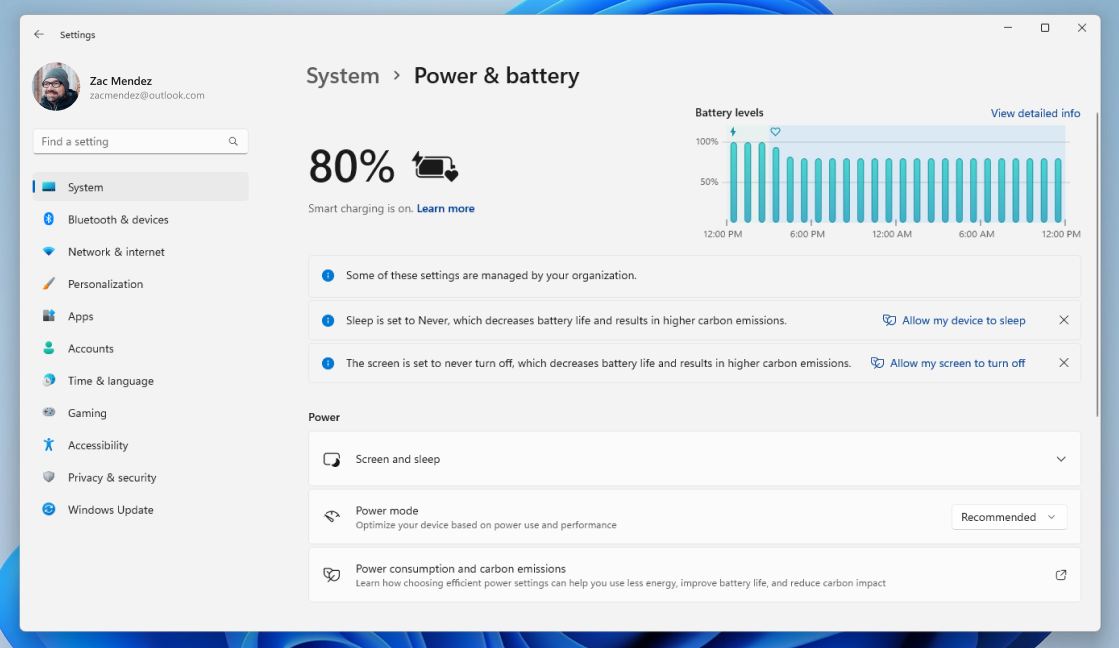
The default values for Sleep and Screen off have been updated to reduce energy consumption, and carbon emissions, when PCs are idle. We will also provide power saving recommendations to help reduce carbon emissions to those with Sleep and Screen off set to Never.
Power saving recommendations shown in Settings to help reduce carbon emissions to those with Sleep and Screen off set to Never.
The changes to default Sleep and Screen off settings will only be seen by those clean-installing Windows 11 with this build or higher. If you intentionally set Sleep or Screen off to Never, please let us know why, especially if sleep is not working as expected. We’re still working on the content that the “Power consumption and carbon emissions” options links to – stay tuned for future updates.
FEEDBACK: Please file feedback in Feedback Hub (WIN + F) under Power and Sleep > Sleep (or use the link above).
More improvements to browsing the web in Microsoft Edge with Narrator
Building off the collection of improvements for Narrator and Microsoft Edge from Build 22509, we have been working on more improvements to web browsing with Microsoft Edge and Narrator. Specifically, when navigating the web more useful information is provided, navigating dialogs is more natural, and editing text should now be more reliable.
When navigating the web, you can have Narrator read the current item (e.g., current page, current time etc.) and when you need to sort a table on the web, Narrator will announce the sort order you’ve selected (e.g., ascending, descending).
We also made it simpler to know when an item is selected in a tree view control and to know the state of a checkbox when these are part of a list. We also improved link navigation, and you will find that tabbing through links on a webpage and pressing Enter will always take you to the link destination.
When you encounter a dialog box on the web, Narrator will help you stay focused within the dialog box and prevent navigation to the content that’s behind it. This improvement is currently available in Microsoft Edge Canary builds.
Lastly Narrator has a few improvements for when you are editing text on the web. First, if you are deleting text on a form field, Narrator will read the character that was deleted and if you need to cut a large set of text with Control + X, Narrator will confirm that the text has been cut.
FEEDBACK: Please file feedback in Feedback Hub (WIN + F) under Accessibility > Narrator.
Task Manager Redesign & Efficiency Mode
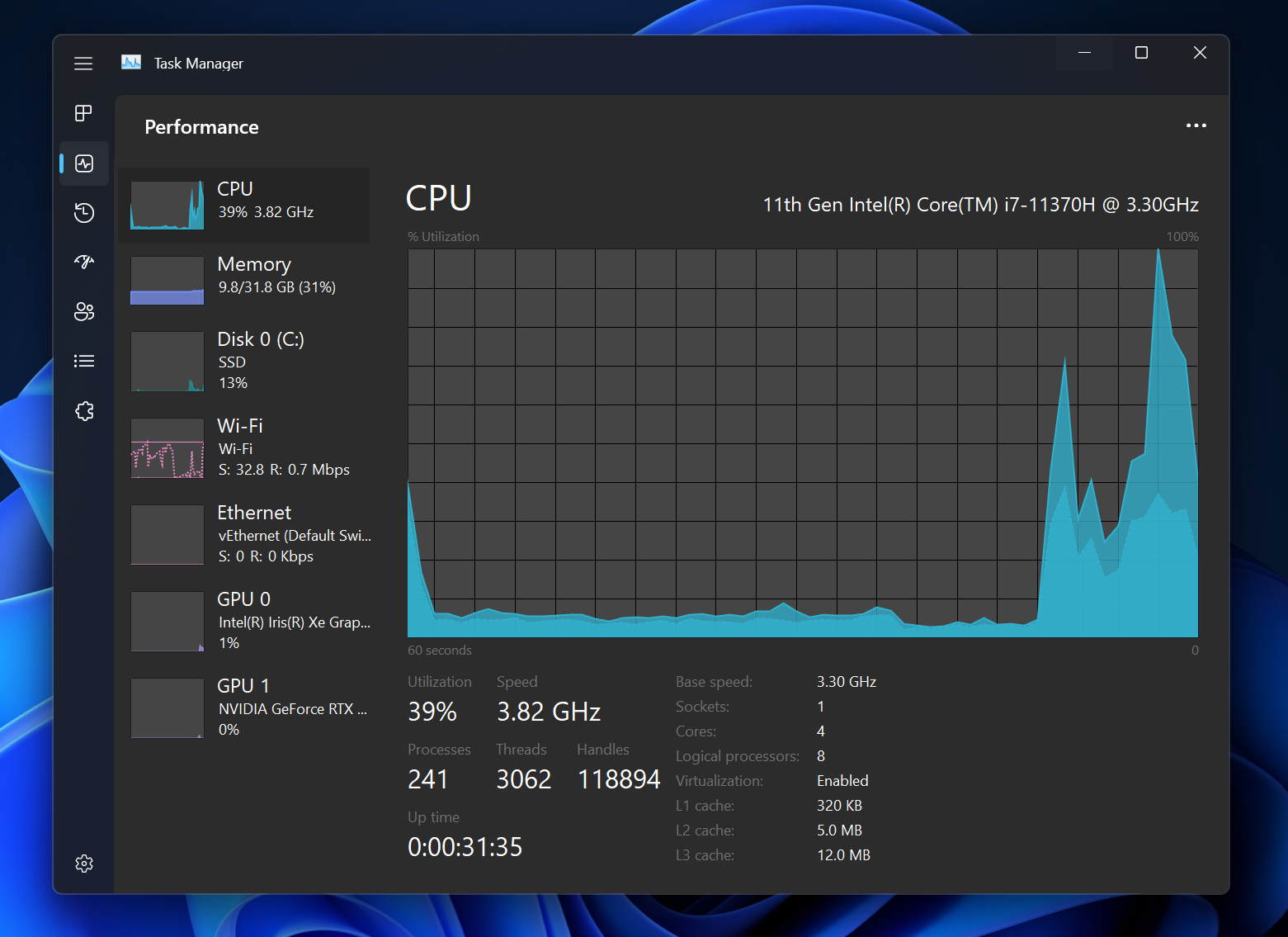
We have updated the design of Task Manager to match the new Windows 11 design principles. This includes a new hamburger style navigation bar and a new settings page. A new command bar on each page gives access to common actions. We are also excited to bring dark theme to Task manager and will automatically match the system-wide theme configured in the Settings app.
The updated design of Task Manager in dark theme.
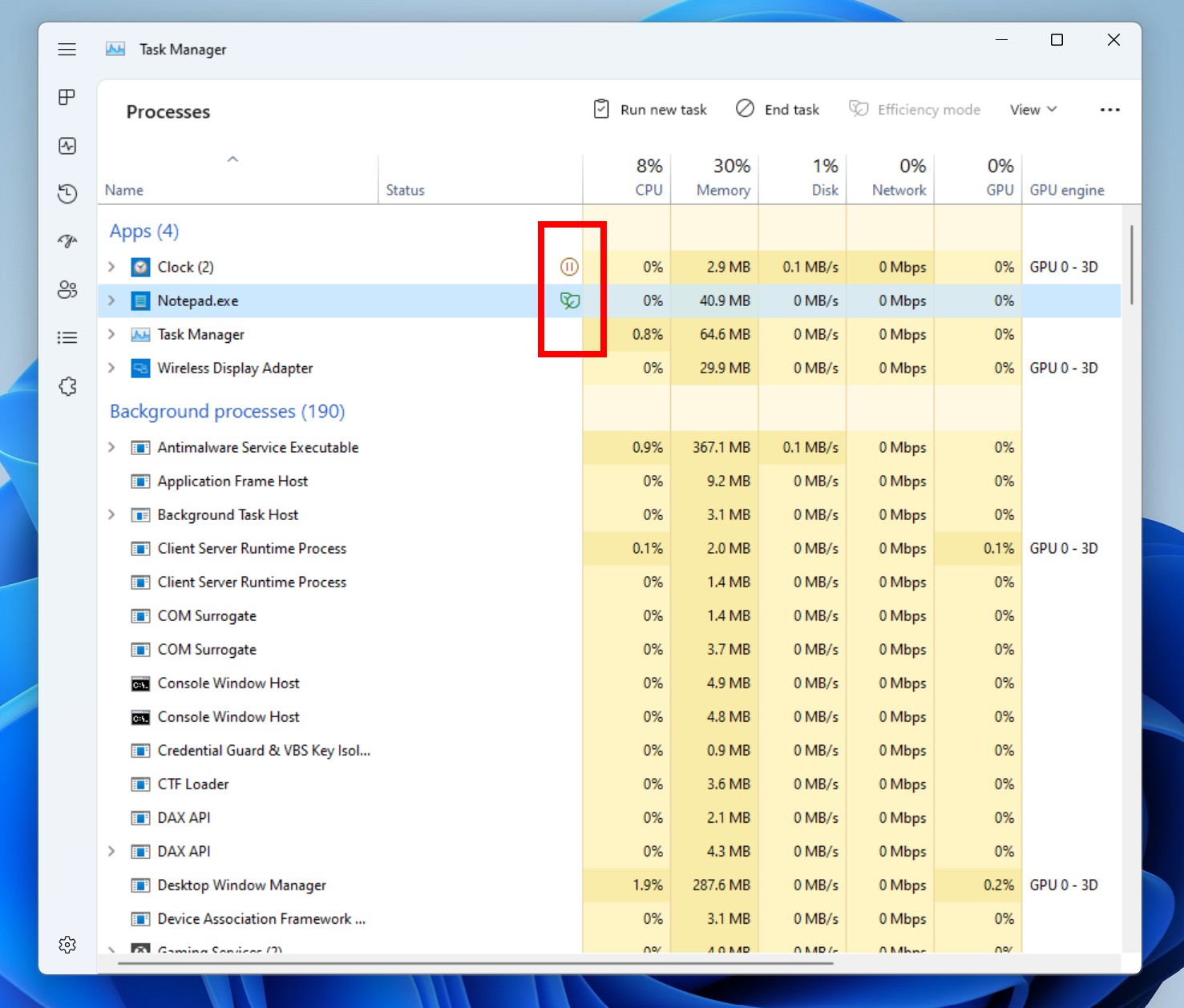
Last April, we experimented with a new feature called “Eco mode” in Task Manager and we’re bringing this back with a new brand name: Efficiency mode. This feature is helpful when you notice an app consuming high resources and would like to limit its consumption so that the system gives priority to other apps which will lead to faster foreground responsiveness and better energy efficiency.
The new Suspended and Efficiency mode icons as they appear in Task Manager.
You can apply Efficiency mode either by clicking on the command bar in the Processes page or right click on the process. You can only apply Efficiency mode to single process and not to the entire group process. If the option is grey out, it generally means that it’s a core Windows process and throttling it might affect the performance of the system. The Efficiency mode process will be marked with a new leaf icon, and we are also introducing new pause icon for Suspended process to indicate the process is in suspended mode
[We are beginning to roll this change out, so it isn’t available to all Insiders just yet as we plan to monitor feedback and see how it lands before pushing it out to everyone.]
FEEDBACK: Please file feedback in Feedback Hub (WIN + F) under Desktop Environment > Task Manager.
Introducing a new PowerShell module to provision language and language related features
This new PowerShell Module allows users to easily add languages and related language features and manage settings like System Preferred UI Language, System Locale, Input method (Keyboard), Locale, Speech Recognizer, User Preferred Language List using the PowerShell prompt. These commands work in conjunction with the existing International PowerShell Module to provide the user control over various elements of the UI language on a PC.
Note: To run the Install and Set commands you must run PowerShell as an administrator.
To do this
Command
Install a language on the PC.
Install-Language Note: Please restart or log out and log back in for changes to take effect. Once you log back in, please change your Windows display language (WDL) via Settings > Time & language > Language & region to change the UI language on the PC. You can also change your WDL by using the international module commands (Set-WinUILanguageOverride ). Params: Language: The bcp47 tag of the language being installed. CopyToSettings (optional): If included, set the system and default device settings (WDL, regional, locale format) to the provided language following the installation.
Get a list of the installed languages on the device, which type of Language Pack is installed, and what Language Features are installed.
Get-InstalledLanguage Alias: Get-Language Params: Language (optional): filters the list to only show the given language.
Set a language as the System Preferred UI Language
Set-SystemPreferredUILanguage Alias: Set-PreferredLanguage, Set-SystemLanguage Params: Language: The bcp47 tag of the language being installed
Get the value of the current System Preferred Language.
Get-SystemPreferredUILanguage Note: Please restart or log out and log back to see the changes reflected in the new language. Additional user accounts created on the same system will reflect the new system language. Alias: Get-PreferredLanguage , Get-SystemLanguage
Uninstall a language on the PC.
Uninstall-Language Params: Language: The bcp47 tag of the language being installed.
FEEDBACK: Please file feedback in Feedback Hub (WIN + F) under Apps > PowerShell.
Changes and Improvements
[Taskbar]
Drag and drop is now supported on the Windows 11 taskbar. Quickly drag and drop files between app windows, by hovering over apps in the taskbar to bring their windows to the foreground. Try attaching a file to an Outlook e-mail by dragging it and hovering over the Outlook icon in the taskbar to bring the window to the foreground. Once in the foreground, drop your file into the e-mail to attach it. You can also customize your taskbar with your favorite apps from Start’s All apps list by dragging and dropping over the taskbar to pin them. You can also drag and drop to the desktop via “Show desktop” at the very right corner of the taskbar.
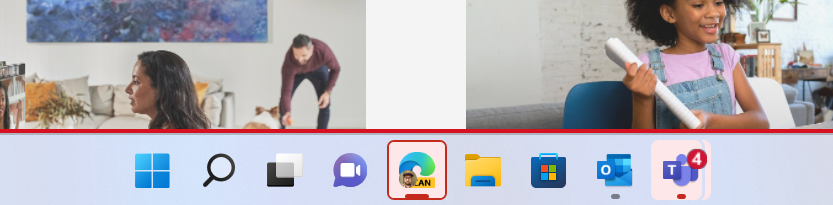
For Insiders using Microsoft Teams for work and school that are using share any window from the taskbar, we have added a new visual indication to the taskbar that indicates which window is being shared. This is especially important when you have multiple applications running or where your attention is split across multiple monitors. When you choose to share a window in your Microsoft Teams call, the shared window will also now be surrounded by a colored border.
When using Share any window, we have added a new visual indication to the taskbar that indicates which window is being shared.
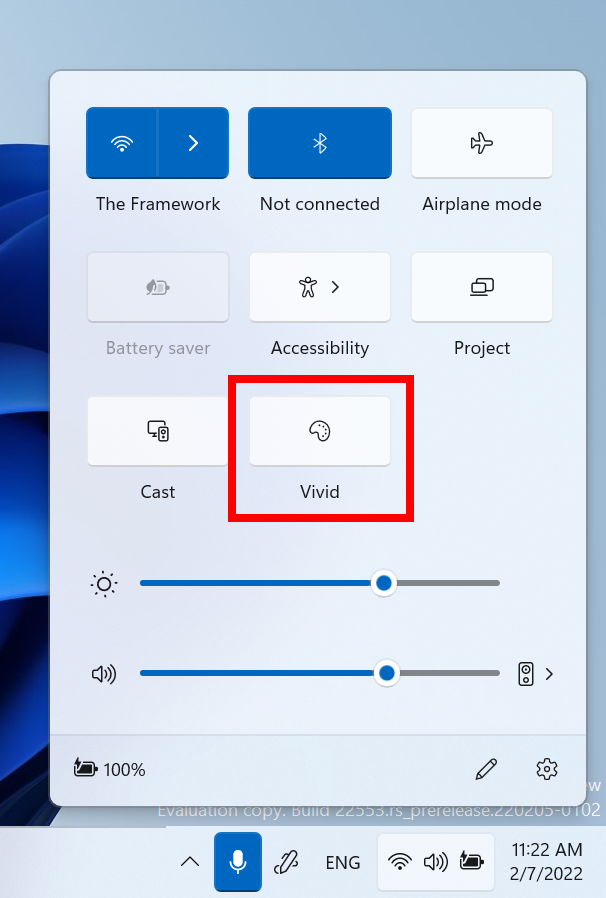
On PC’s with more than one color profile, you will be able to add a quick setting to switch more easily between these modes. On clean install, the Color profile button should not be pinned by default, but it might appear on upgrades.
The new color profile quick setting.
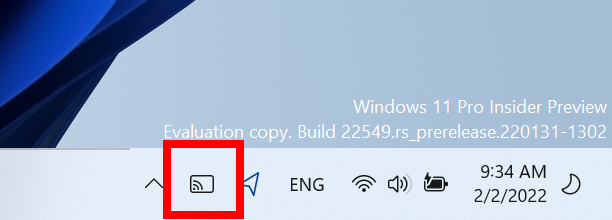
When casting (WIN + K) from your PC, a Cast icon will appear at the lower-left corner of your taskbar to show you are casting. Clicking the icon will open the Cast Quick Settings where you can quickly stop casting if needed. And expect more improvements coming for this experience.
The new Cast icon as it appears on the taskbar when casting to a display.
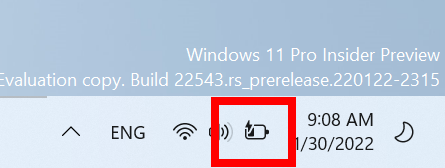
As discovered by Insiders with Build 22543, we have updated the battery charging indicator to use a lightning bolt instead of a power cable. This addresses feedback that it was not possible to see lower charging levels at-a-glance because they were obscured by the cable. It’s also consistent with other consumer electronics devices and reflects the evolving landscape of charging to include USB charging devices.
The updated battery charging indicator as shown on the taskbar.
[File Explorer]
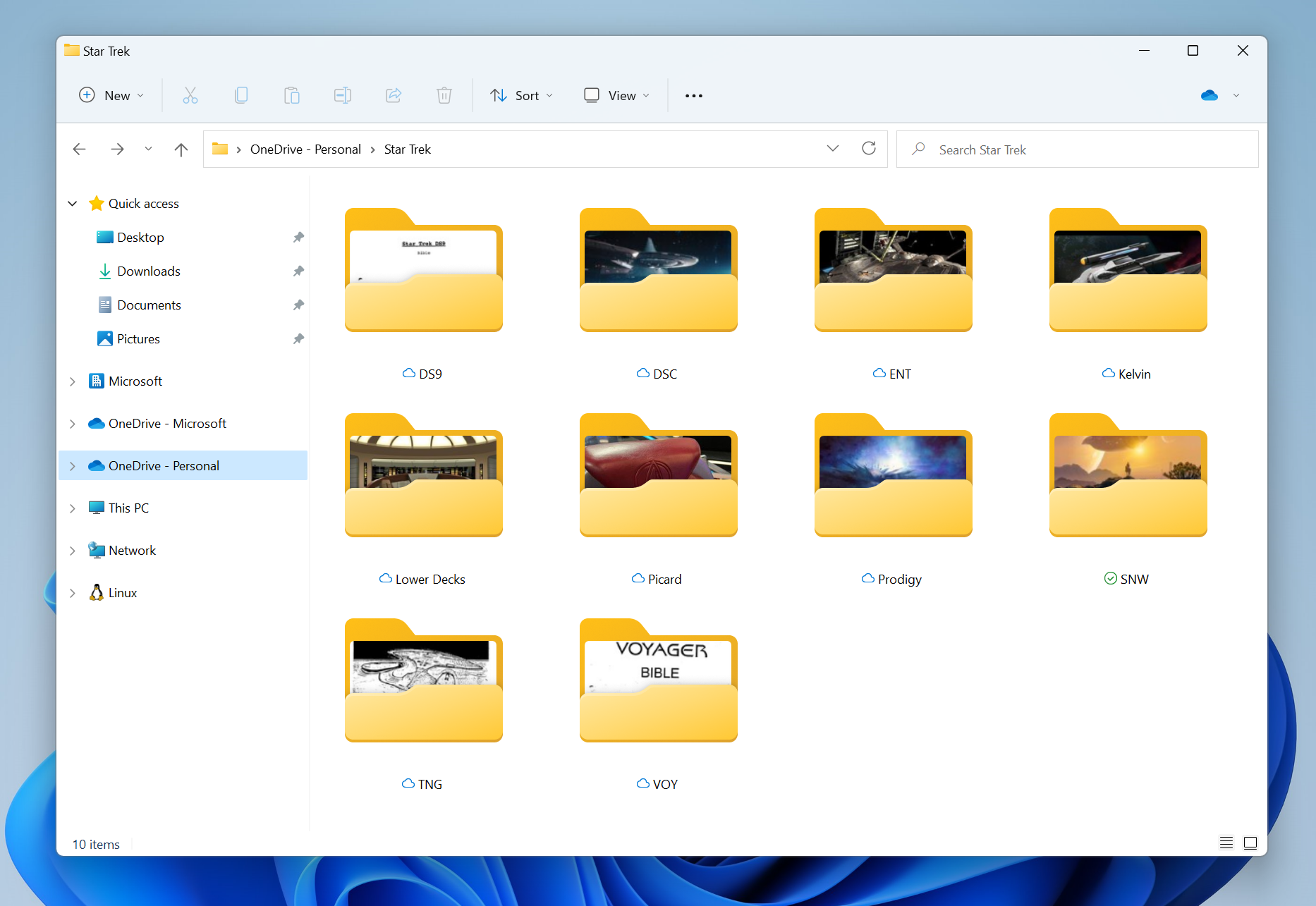
File Explorer will now show previews of items within folders.
Folders now show previews of the contents within them in File Explorer.
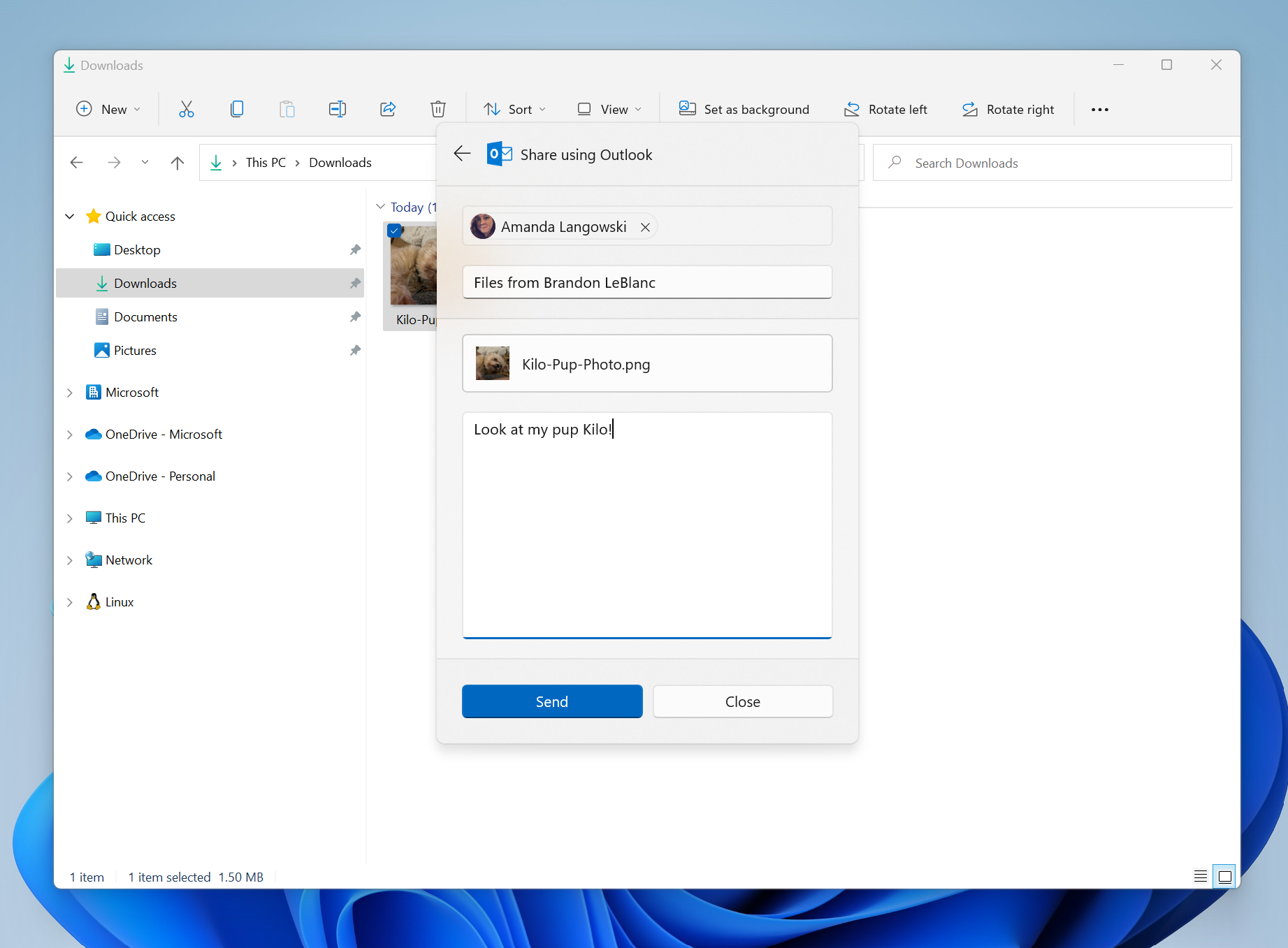
When sharing a local file in File Explorer to Outlook – you can now compose an email message directly within the share window without having to go into Outlook directly. You will need Outlook Desktop Integration installed via the Store and this capability is not available for files stored in OneDrive folders as OneDrive has its own share experience. Also, the share window will now suggest contacts from Microsoft 365 to share the file to via Outlook.
Share a local file via Outlook in File Explorer a compose an email without leaving the share window.
[Search]
Searching for apps and settings in the Windows search box on the taskbar is now even faster and more accurate than before. Try searching for your favorite app or a setting you use frequently to see faster results. We’ve also fixed an issue that prevented Windows users from being able to search for an app in the first few seconds after it had been installed.
[Windowing]
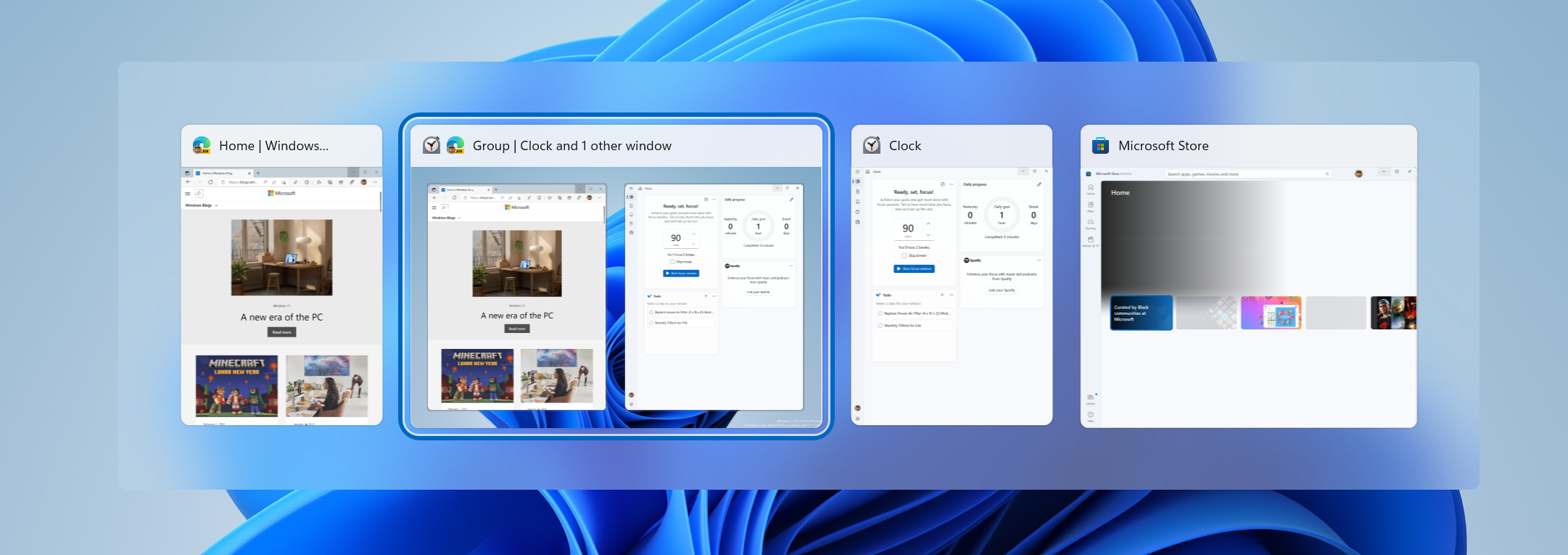
We have updated the snap group visuals to include the desktop wallpaper to make it easier to differentiate your groups from normal windows. This will appear when using ALT + TAB, Task View, and in the taskbar previews. Additionally, ALT + TAB will now show as windowed for all Insiders running Build 22554 and up.
ALT + TAB showing the updated visuals for snap groups.
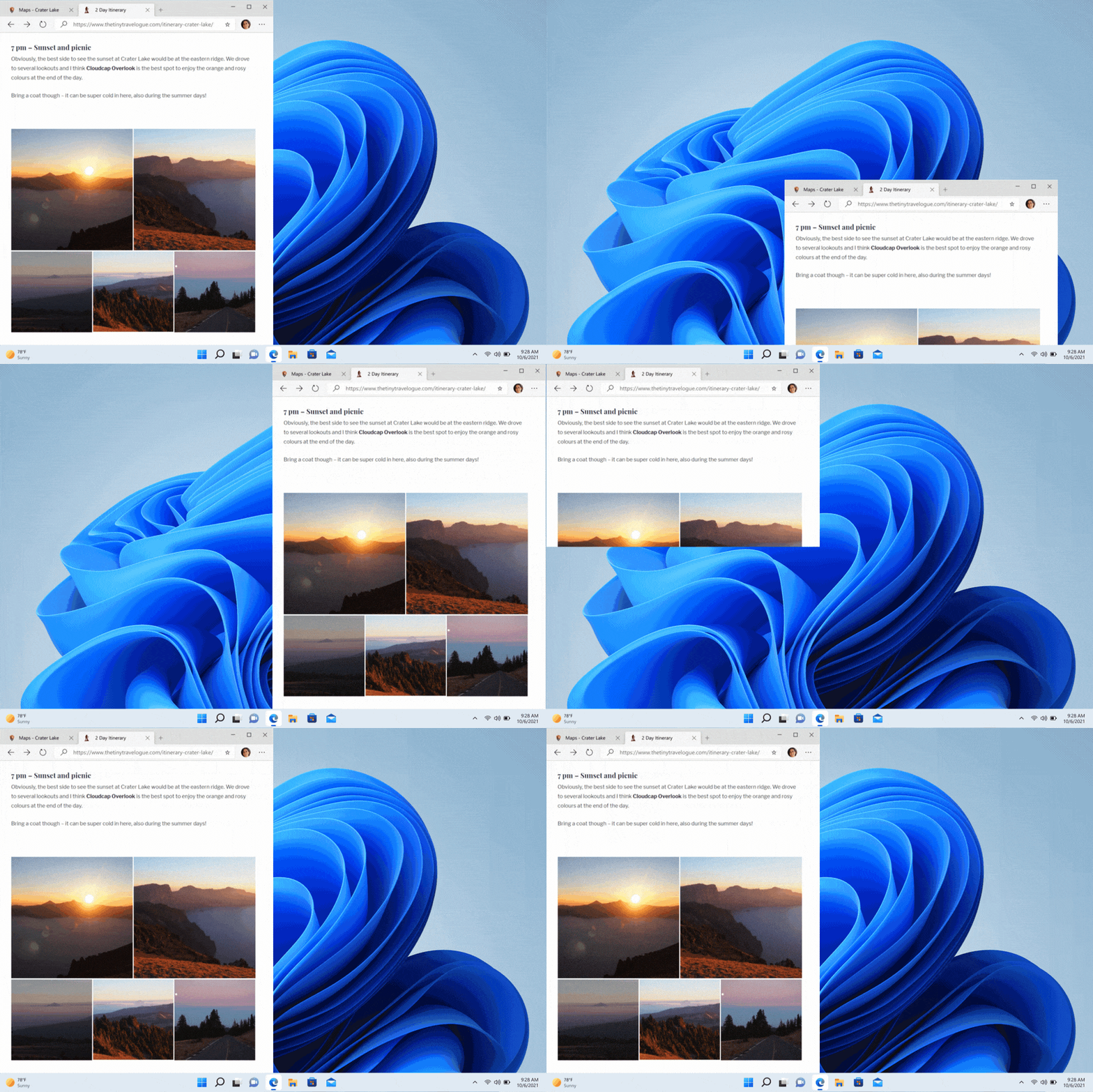
We are updating the transition animation that shows going from one snapped window state to another. Snap some windows using the snap assist, move windows from one configuration to another and observe the fluidity of the transition with our new animations.
The updated transition animation that shows going from one snapped window state to another.
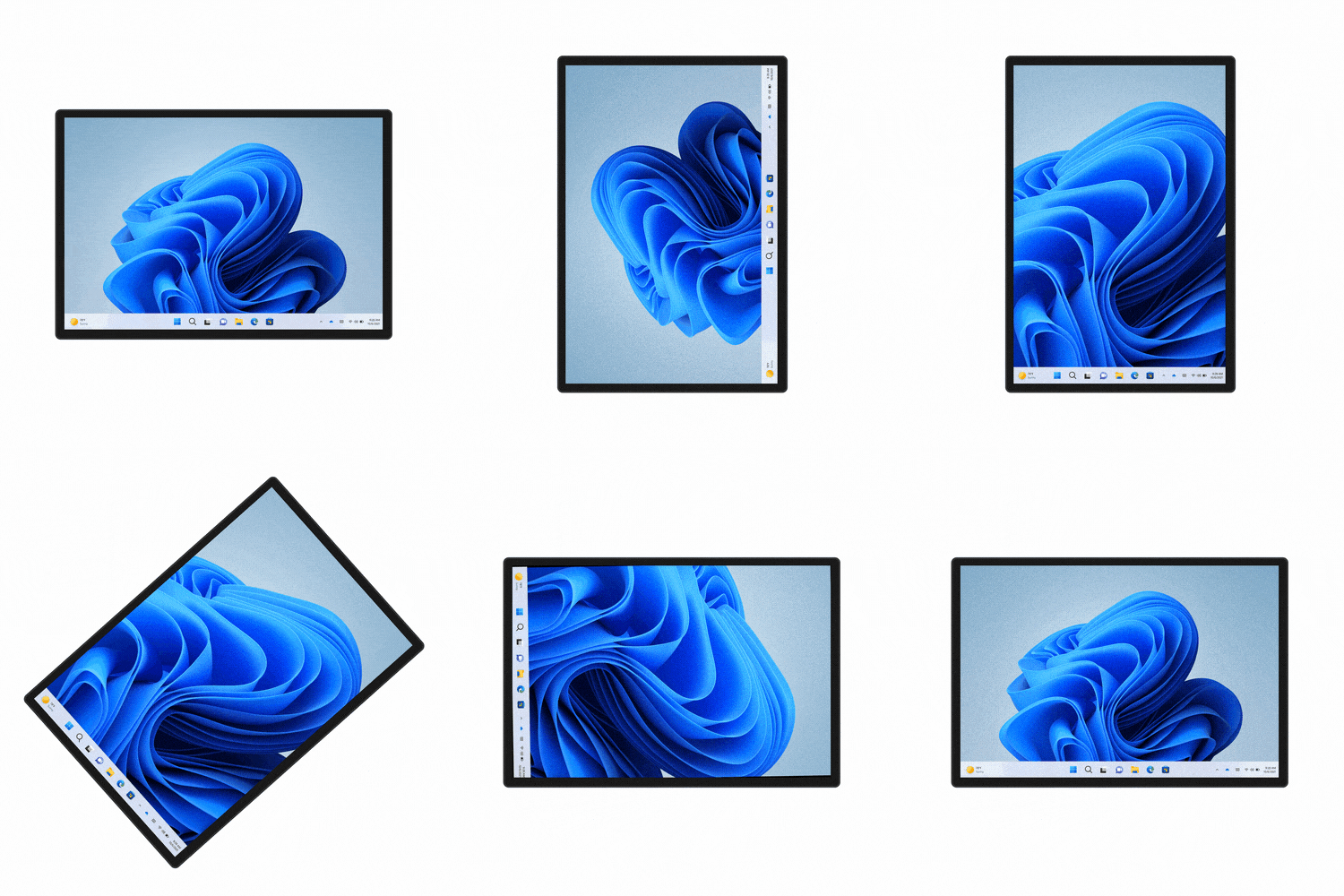
Rotating your device between portrait and landscape orientation is snappier, more responsive.
We have made rotating your device between portrait and landscape more responsive.
We have reduced the number of notification sounds that play when you connect and disconnect docks and monitors.
It is now easier to move your cursor and windows between monitors, by letting your cursor jump over areas where it would previously get stuck. This behavior is controlled in settings with System > Display > Multiple displays > Ease cursor movement between displays.
We’ve made some small changes to the snapping options under System > Multitasking to help simplify them and make them easier to understand.
[Narrator]
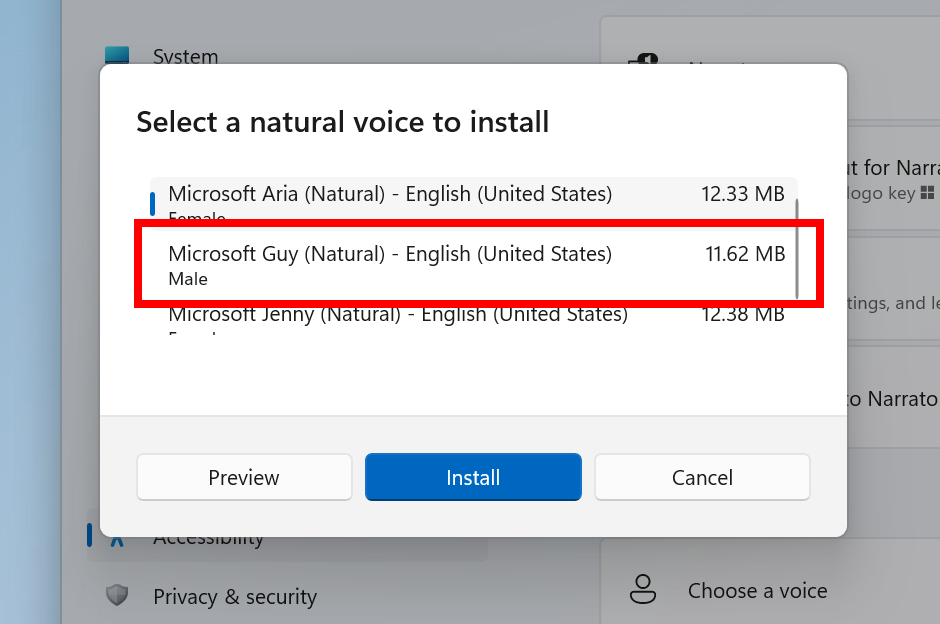
Narrator now provides a new male natural voice called Guy. We introduced new natural voices for Narrator in Build 22543.
Narrator now provides a new male natural voice called Guy to download.
[Voice typing]
We are adding the ability for you to choose which microphone to use in voice typing if you have multiple microphones connected to your PC. [We are beginning to roll this change out, so it isn’t available to all Insiders just yet as we plan to monitor feedback before pushing it out to everyone.]
We are beginning to roll out the ability for you to use the following new commands in voice typing. [We are beginning to roll this change out, so it isn’t available to all Insiders just yet as we plan to monitor feedback before pushing it out to everyone.]
To insert this
Say this
Enter
“Press Enter”
Backspace
“Pres Backspace”, “Backspace”
Space
“Press space”, “Insert Space”
Tab
“Press Tab”, “Tab”
[Voice access]
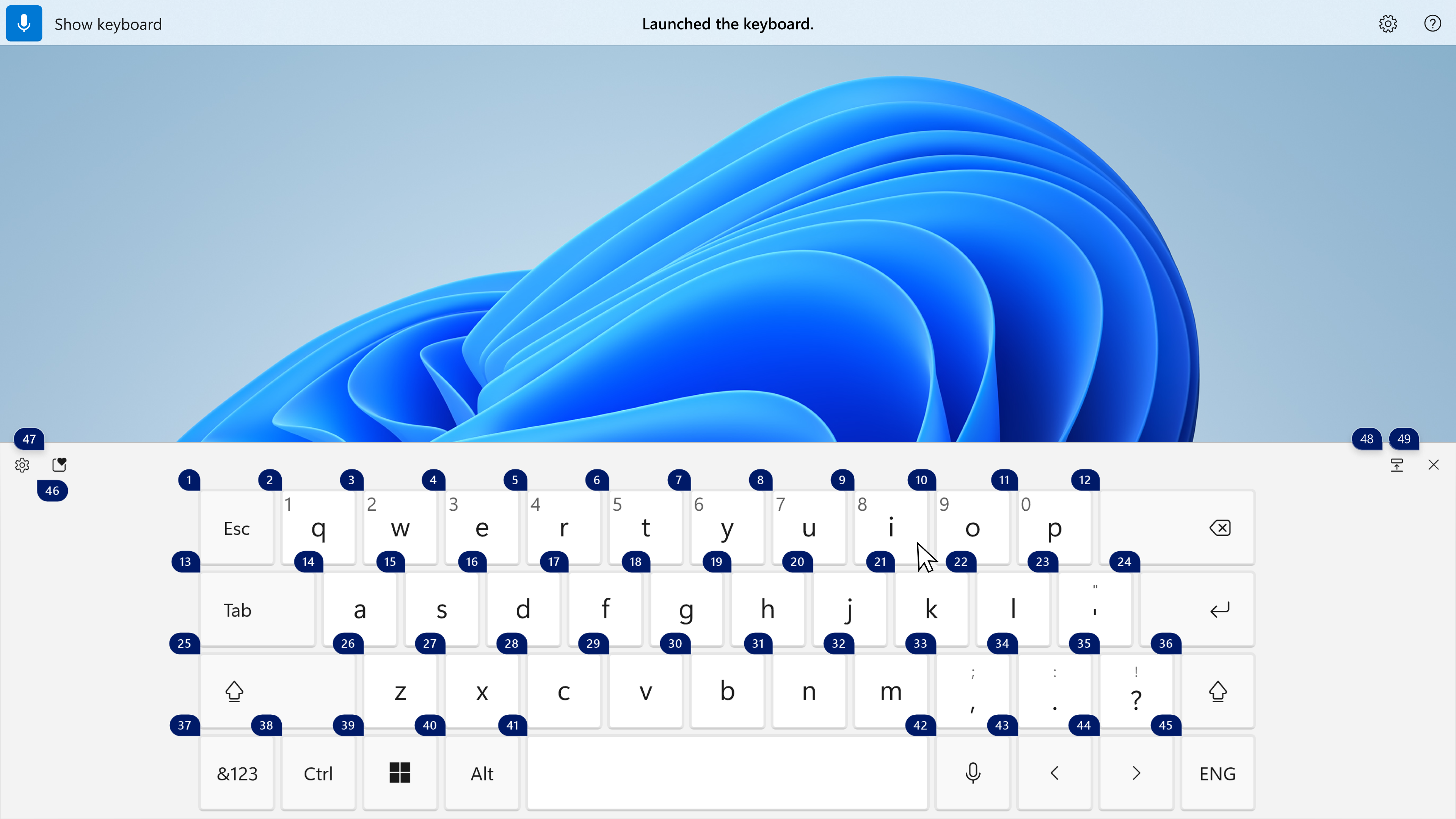
A new setting to add punctuation automatically when dictating text has been added. You can turn it on by clicking on the settings icon on voice access UI and selecting automatic punctuation from “manage options”.
We added a new setting to filter profanity. This is on by default and any profane or sensitive words will be masked with asterisk (*) when dictating text or commanding. You can turn it off by clicking on the settings icon on voice access UI and selecting filter profanity from “manage options”.
It is now easier to use “show numbers” command as we have reduced the occurrence of number labels hiding the controls on windows UI and making it hard to understand the control under a number.
We improved feedback messages for unsupported languages.
We also improved feedback messages for using voice access when you have multiple displays setup.
We improved discoverability of using touch keyboard with voice to enter passwords or PINs, correcting mistakes, and spelling out words using “correct that” and “spell that” commands.
To do this
Say this
Correct the last dictated text
“Correct that”, “Spell that”
Correct specific text
“Correct [text]”, “Spell [text]”
[Graphics]
We’re expanding Dynamic Refresh Rate (DRR) experiences on laptops with 120Hz displays beyond smooth scrolling in Office and low latency inking. When you move the cursor, the system will now boost to 120Hz, making your PC feel more responsive. Touch and pen interactions blend into smooth animations in Windows UI and apps UI. Smooth scrolling is now supported not only in Office, but also in Microsoft Edge Canary and Windows UI such as the Settings app. To enable smooth scrolling on Edge Canary you need to enter the following in the address bar of a new tab: “edge://flags/#edge-refresh-rate-boost-on-scroll”, set the highlighted flag to ‘Enabled’ and then restart Edge.
The Windows HDR Calibration app is coming to Windows PCs soon – you’ll be able to improve color accuracy and consistency on your HDR display. For easier access, you’ll be able to access this app via the Windows settings under System > Display > HDR You may see an early access point in HDR settings in this build, but as the app is not live yet, it will simply lead you here.
This build introduces a feature called Optimizations for windowed games and is designed to significantly improve latency and unlock other exciting gaming features including Auto HDR and Variable Refresh Rate (VRR). Latency improvements can benefit all gamers – from improving your input lag to creating a competitive edge in your gaming experience. Go to System > Display > Graphics > Change default graphics settings to enable the feature. Note that this feature may be already on by default and is also required to use other graphics features such as Auto HDR. To learn more, check out https://aka.ms/WindowedGameOptimizations.
[Input]
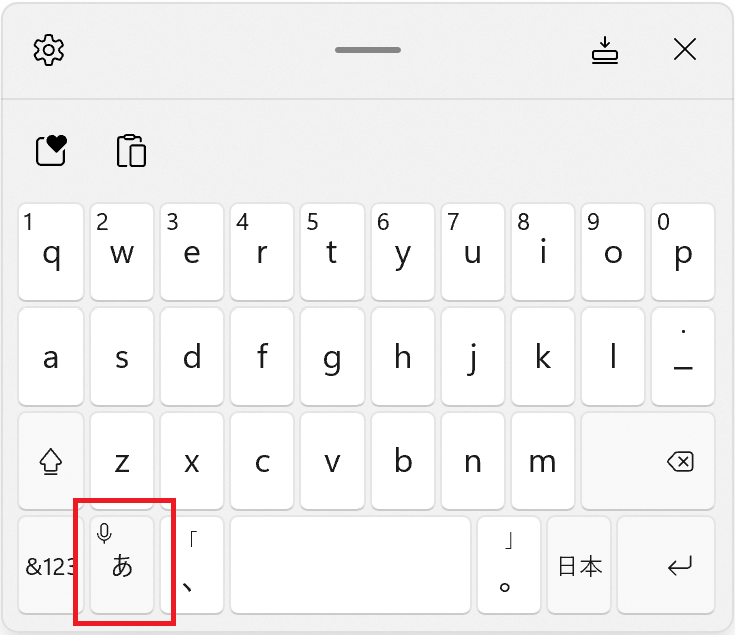
We’re working on adding an IME On/Off key to the touch keyboard small layout for the Japanese, Korean, and Chinese Traditional IMEs. For Insiders with only one keyboard this will be a standalone key on the left of the space key. If you have multiple keyboards the On/Off key is combined with voice typing – to access voice typing, simply press and hold the key. In addition, we’re adding small layout support for the Chinese Simplified Microsoft Pinyin and Microsoft Wubi IMEs. These changes are currently rolling out to a subset of Windows Insiders at first and we’ll expand over time based on feedback.
The small layout in the touch keyboard for the Japanese IME.
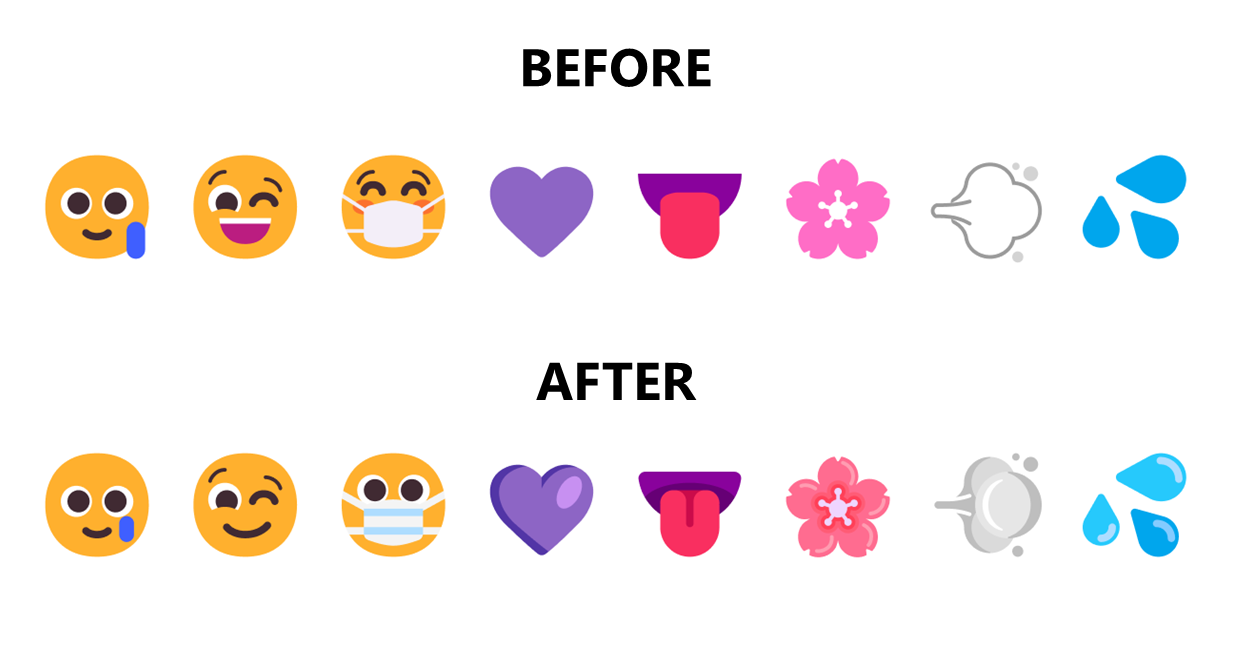
Updated some of the emoji based on feedback, including the smile with tear emoji, sakura emoji, and colored heart emojis.
Updated emoji in Build 22554.
Added a few new items to the kaomoji section in WIN + Period(.) based on feedback, including UwU.
Windows 11 now supports Hungarian for handwriting input as of this build. Pick up your pen and write using Hungarian in the handwriting input panel or handwriting keyboard, and have your handwriting be converted to text.
[Settings]
We’ve done some work to generally improve results when searching in Settings, including more relevant results and now have some flexibility for returning results in the case when the search terms have common typos.
We’ve increased the size of the icons in the Settings navigation pane to make them a bit easier to see.
To help customers give their PC a second life, or recycle it, we are including links in Settings to help customers find available programs. Some articles may not be localized.
Storage Sense will now be enabled by default for PCs going through OOBE. Your current settings will be persisted on upgrade. You can configure your Storage Sense settings under System > Storage.
Updated Settings Time & Language category and Date & time page to now include a live digital clock and information about currently selected option.
Updated the design of Network & Internet > Dial-up when you have a connection set up to align with the overall design of Settings in Windows 11.
We’ve made some adjustments to Personalization > Fonts to improve the design of the page, including that the drag and drop area for installing fonts is larger now.
[Windows Sandbox]
Aligning with Hyper-V behavior, even if you’re not in full screen mode, modifier keys and shortcuts (for example Windows key shortcut) will now be intercepted by Windows Sandbox if the window has focus.
Windows Sandbox now supports basic environment variable usage (like %USERPROFILE%) inside in mapped folder paths.
[Other changes]
We have updated the accessibility flyout on the login screen to align with Windows 11 design principles.
The accessibility flyout on the login screen now matches the Windows 11 design principles.
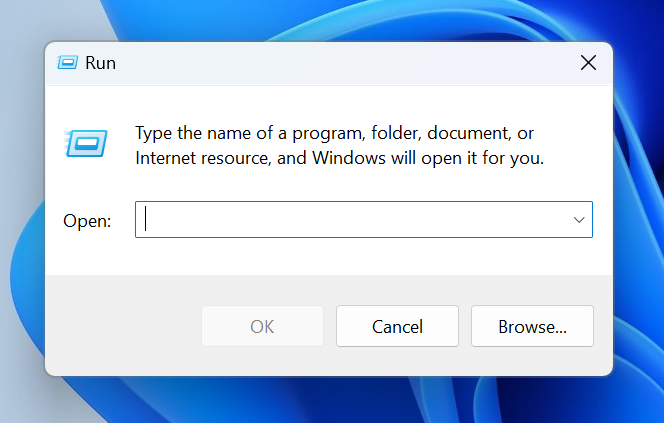
Insiders will notice the Mica material in more title bar surfaces. For example, the Run dialog now utilizes Mica.
The Run dialog with Mica in the title bar.
TKIP and WEP are deprecated security standards and Windows 11 will no longer allow connections to those types starting with this build. Contact your network administrator or update your router to one that supports at least WPA2 (WPA3 is the current standard).
Similar to Windows 11 Home edition, Windows 11 Pro edition now requires internet connectivity during the initial device setup (OOBE) only. If you choose to setup device for personal use, MSA will be required for setup as well. You can expect Microsoft Account to be required in subsequent WIP flights.
Fixes
[General]
Fixed a recurring backgroundTaskHost.exe some Insiders were experiencing.
Fixed an issue leading to auto HDR not activating as expected in certain games.
Mitigated an lsass.exe crash that was resulting in some Insiders seeing crashes on the login screen in recent flights.
Addressed an issue that was leading to noticeably distorted audio for audio devices connected using the Xbox Wireless Adapter in recent flights.
[Taskbar]
Task View should no longer crash if you hold CTRL while hovering over it.
Dragging a file across the taskbar on secondary monitors should no longer cause an explorer.exe crash.
[File Explorer]
Updated the Storage Usage button in the Properties dialog for a disk to now be called Details and a little wider, to accommodate for languages where the button text was getting truncated.
Improved the performance of deleting files in Recycle Bin.
Fixed the Blu-ray icon so it aligns with the other drive and volume icons.
[Input]
Addressed an issue where the IME candidate window was unexpectedly not following your preference of light or dark mode.
Fixed an issue leading to some elements of the voice typing settings flyout to be invisible in dark mode.
The IME candidate window should appear as expected now in the username field of a UAC prompt.
Updated the term “Halfwidth alphanumeric / Direct Input” to just say “Halfwidth Alphanumeric” in the Japanese IME context menu.
Fixed an issue where after typing hiragana in Kana-input mode if there was a half-width alphabet character before the hiragana in composition it would unexpectedly become full-width.
Addressed a rare issue where the input switcher might unexpectedly list the same entry twice.
Mitigated an issue leading to an unexpected black box that was appearing in the input switcher sometimes.
Updated the input switcher so it can get a bit taller now for people with more than 4 keyboards.
Fixed a memory leak in the input switcher leading to explorer.exe crashing after repeated rapid use.
Fixed an explorer.exe crash when clicking on More Keyboard Settings in the input switcher.
Fixed an issue where the emoji panel might show “you’re offline” even though you had network connectivity.
Fixed an issue where the multiply emoji and counterclockwise arrows button emoji were displaying the design for the wrong emoji.
Updated the preview in the Personalization > Text input Settings page to reflect your desktop wallpaper rather than the default.
Did some work to improve reliability of the Stop media key when media is playing.
[Voice access]
We fixed a Visual C++ Runtime mismatch causing voice access to not run on some PCs.
[Search]
Fixed a high hitting search crash.
Clicking the search box in Start will now immediately switch over to Search without showing the Search window animate in upwards, just like when you press the Windows key and start to type.
[Settings]
Addressed an issue where Narrator wasn’t reading the elements of System > Storage correctly.
Fixed the broken “size and theme” link under Time & Language > Typing > Touch keyboard.
Did some work to help improve performance when updating accent color or mode.
We made a change to help reduce clipping in combo boxes in Settings for certain languages and text sizes.
Fixed an issue that was causing the icons on the IME settings pages to sometimes be white on white.
Mitigated an issue leading to the install button having truncated text in some languages when previewing fonts.
Fixed an underlying crash that was causing the preview video on System > Display > HDR to be distorted sometimes.
Addressed an underlying issue that could make Settings crash when you scrolled the window.
Adjusted the Wi-Fi icon in the Wi-Fi section of Quick Settings so that the lock shown for a secured network now has a small separation from the Wi-Fi strength, making it a bit easier to distinguish.
[Windows Spotlight]
Updated the name of Spotlight collection to be Windows Spotlight, so it’s consistent with the Lock screen.
Made a change to help make Windows Spotlight update images more reliably.
Rather than showing a solid color background, if for some reason new Windows Spotlight images aren’t available for the desktop, it will now fall back to showing the default Windows Spotlight background image (Whitehaven Beach).
Right-clicking on “Learn more about this picture” for Windows Spotlight on the desktop will now always show all options, just greyed out if they’re not currently available.
When hovering over “Learn more about this picture”, the tooltip should now more consistently align with the current image.
[Windowing]
Addressed an issue that was causing the minimize, maximize, and close buttons in File Explorer and some other apps to be invisible in certain cases.
Mitigated an issue leading to performance impact when dragging windows with acrylic and other scenarios with acrylic.
You should no longer see a briefly visible yellow border when taking screenshots.
We’ve made some improvements to address feedback that windows were repositioning unexpectedly.
[Network]
Did some work to address an issue that might cause certain VPN connections to fail. If you continue experiencing issues, please file feedback with a capture of the issue under Network and Internet > Connecting with a VPN client.
Fixed an issue that was leading to decreased Wi-Fi speeds after waking your PC from sleep in the previous flight.
[Narrator]
When backspacing, Narrator will now more consistently announce when you’re deleting characters with backspace.
Fixed an issue causing Narrator not to read selected text in the Feedback Hub.
NOTE: Some fixes noted here in Insider Preview builds from the active development branch may make their way into the servicing updates for the released version of Windows 11 that became generally available on October 5th, 2021.
Known issues
[General]
When going through the device setup experience (OOBE) on the Enterprise edition, the network add screen will be skipped on the first attempt. As a workaround, when users see the “name your computer” option, please reboot and re-start OOBE. The network add screen will now appear as expected.
[Start]
Names of apps in folders may appear blurred briefly when opening folders in Start.
[Taskbar]
The taskbar will sometimes flicker when switching input methods.
[File Explorer]
Searches from Quick Access may not work.
We’re working fixing issues regarding icon sizing, visual bugs, and text clipping in the flyout showing OneDrive storage.
[Focus]
The taskbar icon and tooltip may not match the focus state.
Clock app integration requires an app update that is starting to become available today. Most users should get this update automatically, but you can check for app updates manually by navigating to Microsoft Store > Library and clicking Get updates.
The Clock app does not yet update Windows Focus state when configuring focus sessions within the app. This will be addressed in a future app update.
[Search]
After clicking the Search icon on the Taskbar, the Search panel may not open. If this occurs, restart the “Windows Explorer” process, and open the search panel again.
[Widgets]
With the taskbar left-aligned, information such as temperature is not shown. This will be fixed in a future update.
[Live captions]
Certain apps in full screen (e.g., video players) prevent live captions from being visible.
Certain apps positioned near the top of the screen and closed before live captions is run will re-launch behind the live captions window positioned at top. Use the system menu (ALT + Spacebar) while the app has focus to move the app’s window further down.
The very top of maximized apps (e.g., title bar window management buttons) can’t be reached with touch while live captions is positioned at the top.
[Task Manager]
We are aware that the Efficiency mode icon is missing on some child processes.
Some settings options are not preserved.
We are working on fixing issues regarding icon size, visual bugs and in most cases the workaround is to either resize Task Manager or lower the resolution settings from Settings > Display > Display resolution.
Task Manager has limited keyboard support in navigation and command bar. Users may unable to navigate the UI using the keyboard due to limited support.
C++ packages for Win32 headers and libs per architecture
BuildTools package when you just need tools like MakeAppx.exe, MakePri.exe, and SignTool.exe
These NuGet packages provide more granular access to the SDK and better integrate in CI/CD pipelines.
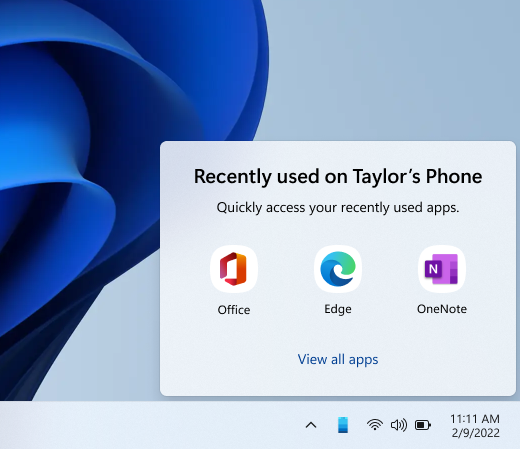
Your Phone app: Get to your recent Android apps faster
We are excited to announce another feature for the Your Phone app. For those of you with Samsung devices, now you can enjoy more continuity as you move from your phone to your PC. With this latest addition, you can easily access recently used apps from your Android device on your Windows PC.
Your recently used Android apps shown on the taskbar.
You can access the three most recently used apps from your Android by selecting the Your Phone icon in the Windows taskbar. You can also find a new recent apps section within the apps page in Your Phone app. The feature is now available for all Windows Insiders in all Insider channels with select Samsung devices (details below). Give it a try and let us know what you think!
Recent Apps requirements:
To use recent apps, you will need:
Your Phone app version 1.21092.145.0 or higher. Older versions will not show recent apps even if you have a supported device.
A supported Android device. Recent Apps requires a deeper level of integration with the Android device and the team worked directly with Samsung to light this up. It is available on select Samsung devices that have Link to Windows, with OneUI 3.1.1 or higher and Link to Windows Service 2.3 or higher, such as:
Samsung Galaxy Z Fold
Samsung Galaxy Z Flip
Samsung Galaxy S series
Samsung Galaxy Note series
Your Android device and PC need to be connected to the same Wi-Fi network for apps to launch on your PC.
Taskmanager no longer crashes when switching to the performance tab
Last 2 builds, presenting full screen in a Teams session, the taskbar acts strange when moving the mouse pointer to the bottom of the screen (FBH: https://aka.ms/AAfkhbf)
Snapped Outlook window show up partially off screen after standby (FBH: https://aka.ms/AAfkoup)
Context menu in explorer jumps when loading 3rd party items (FBH: https://aka.ms/AAfle5l)
Happy Upgrading!
What’s new in Build 22543
More Natural Narrator Voices
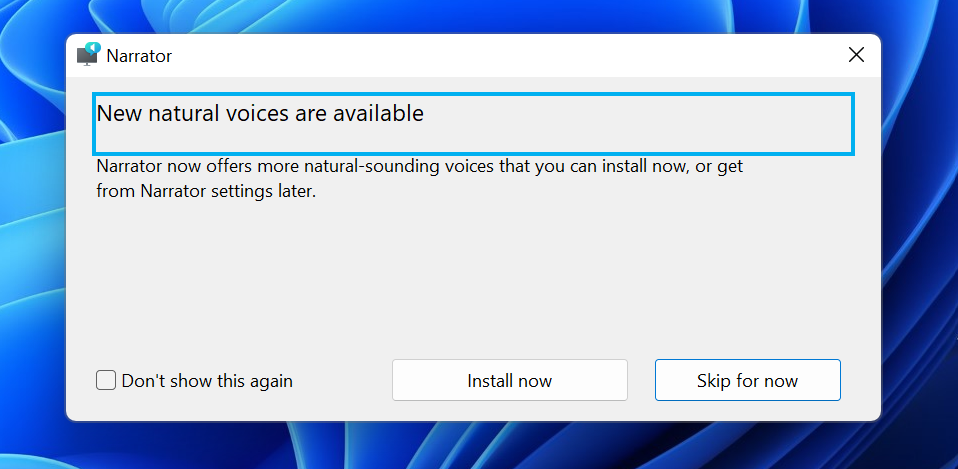
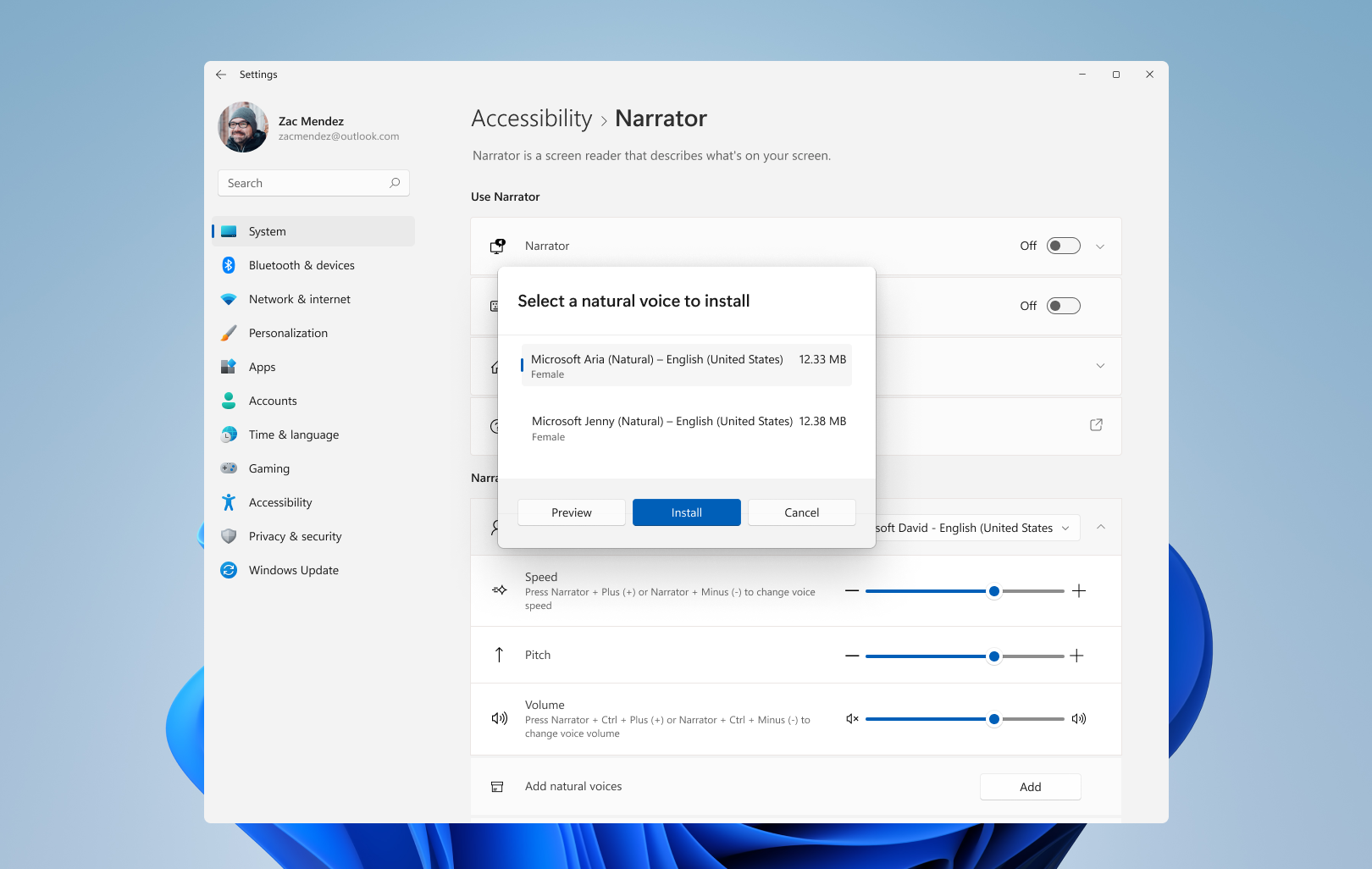
We’re introducing more natural voices for Narrator. More natural voices enable Narrator users to enjoy scenarios like browsing the web, reading, and authoring mail, and more. Natural Narrator voices use modern, on-device text to speech and once downloaded are supported without an internet connection. Natural Narrator voices are available in English-U.S.
Get Started
Narrator will announce that more natural voices, “Jenny” and “Aria”, are available when it first launches.
Narrator will let you know new natural voices are available to install when launched.
Select “Install now” on the announcement window to go to Narrator Settings to add the new voices. From there you can select “Add” button under the “Add natural voices” section. The dialog allows you to select either the “Jenny” or “Aria” voice. Both voices can be installed but must be installed separately. You can click “Preview” to hear a preview of the voice and you can select “Install” to start the download of the selected voice.
The “Select a natural voice to install” dialog displays a list of natural voices preview, install, and cancel buttons.
“Select a natural voice to install” dialog displays a list of natural voices preview, install, and cancel buttons.
New Narrator Keyboard Commands
In addition, we have made it easier for Narrator users to switch between voices to better support common tasks like reading and navigating.
Newly added Narrator keyboard commands include:
Narrator + Alt + the Minus key – Move to the previous voice in Narrator’s voice settings combo box.
Narrator + Alt + the Plus key – Move to the next voice in Narrator’s voice settings combo box.
Updated keyboard commands include:
Narrator + Alt + the Left Bracket key – Move to the previous punctuation reading mode.
Narrator + Alt + the Right Bracket key – Move to the next punctuation reading mode.
We look forward to you trying out our new natural voices and would love to hear your feedback and suggestions in Feedback Hub (Win + F) under Accessibility > Narrator.
Changes and Improvements
Building on the recent changes to the flyout design for the hardware indicators, we have updated the media controls which appear on the Lock screen when playing music in a supported app. It more closely matches the design shown for the media controls in Quick Settings when signed-in to your PC. The media controls will always use dark theme to complement the rest of the Lock Screen visual style. [We are beginning to roll this change out, so it isn’t available to all Insiders just yet as we plan to monitor feedback and see how it lands before pushing it out to everyone.]
The updated media controls on the Lock screen reflect the Windows 11 design principles.
We have updated the experience of resizing app windows in snap layouts by overlaying the relevant app icon on top of the acrylic background. Snap some windows using the snap assist, resize the snapped window layout using the buffer and watch the other snapped windows go out-of-focus overlaid with their app icon.
Resize the snapped window layout using the buffer and watch the other snapped windows go out-of-focus overlaid with their app icon.
Using the WIN + ALT + K keyboard shortcut to mute your call will now show a confirmation flyout.
Confirmation flyout of muting your call.
The input switcher improvements announced with Build 22518, including updated design with an acrylic background, is now available to all Insiders in the Dev Channel.
When doing a full build upgrade, the progress ring animation has been updated, aligning with the updated boot screen animation.
Updated the design of System > Storage > Disks & Volume and Storage Spaces in Settings to align with the overall design of Settings in Windows 11. Certain options for the drive, volume, and space, like properties, are also now directly available inline on these pages as buttons without having to click that entry first.
Fixes
[General]
Task Manager shouldn’t crash when switching to the Performance tab.
Fixed an issue where certain characters (like characters with umlauts) weren’t allowed when naming your PC in OOBE, even though it was allowed in Settings after finishing OOBE.
Addressed an issue which was leading to OneNote crashing in recent builds when trying to open pages with inserted PDFs.
Mitigated an issue that was leading to unresponsive UI after enabling HDR.
[File Explorer]
Fixed an issue that could lead to explorer.exe crashing when dragging and dropping a file out of a zipped folder in File Explorer.
The context menu in File Explorer now shows a CTRL + Shift + C keyboard shortcut next to Copy as Path.
[Input]
Fixed an issue which was leading to the cursor unexpectedly disappearing in certain apps.
Fixed a crash in Quick Settings when opening the input switcher from there.
Addressed an issue which was leading to the candidate window customization being unexpectedly missing from Personalization > Text Input for Chinese Simplified IME users sometimes.
[Taskbar]
We fixed the issue causing two arrows to appear for the hidden icon flyout and the Quick Settings icons, and the date and time were misaligned.
[Settings]
Mitigated an issue leading to Settings getting stuck in a suspended state and couldn’t be launched.
If you’ve opted to turn off the startup sound, that setting should persist upgrades going forward.
Fixed the icon in the notification that shows if you have chosen to postpone finishing setting up your device.
Tabbing through Quick Settings should no longer set focus to an invisible element.
Fixed an issue that was sometimes causing the media controls above Quick Settings to be off-screen.
[Windowing]
The underline indicating the active desktop in Task View will now follow your chosen accent color instead of being blue.
Mitigated a WER issue which was leading to DWM crashes in recent flights.
NOTE: Some fixes noted here in Insider Preview builds from the active development branch may make their way into the servicing updates for the released version of Windows 11 that became generally available on October 5th, 2021.
Known issues
[Taskbar]
The taskbar will sometimes flicker when switching input methods.
[Search]
After clicking the Search icon on the Taskbar, the Search panel may not open. If this occurs, restart the “Windows Explorer” process, and open the search panel again.
[Input]
On a UAC prompt, the IME candidate window doesn’t show up.
[Widgets]
With the taskbar left-aligned, information such as temperature is not shown. This will be fixed in a future update.
[Narrator]
Restart Narrator if the voice is not automatically switched after downloading Microsoft Aria (Natural) from voice selection combo box.
Hi all, Last Wednesday Microsoft released Windows 11 Insider Preview Build 22538 to the Dev Channel.
A welcome update as it fixed Camera not working issues in Teams,
Crashing of the backgroundtaskhost.exe is still in this build, (Feedback Hub: https://aka.ms/AAfh06f)
No issues with the TPM on my devices upgrading to this build, looks like this might also be fixed (Feedback Hub: https://aka.ms/AAfh079)
Task Manager crashes on some devices when switching to the performance tab (Feedback Hub: https://aka.ms/AAfin6x)
What’s new in Build 22538
Updates for voice access
We first introduced voice access in Build 22518. Voice access is a new experience to control your PC with just voice. With today’s build, we have some updates for voice access for Windows Insiders to try out.
Using touch keyboard with voice access
Numbered tear drops appearing over all keys of touch keyboard.
You can use the touch keyboard with voice access to:
Spell words e.g., names and email addresses.
Enter numbers e.g., phone numbers and addresses.
Enter punctuation marks and symbols.
Enter emojis.
To do this
Say this
Open touch keyboard
“Show keyboard”
Hide touch keyboard
“Hide keyboard”
Click a key on touch keyboard
“Click [number]”, “[number]” e.g., “Click 2, “2”
You can only use the following voice access commands while using the touch keyboard:
Voice access on/ off commands e.g., “voice access wake up”, “voice access sleep”, “turn off microphone”, “turn off voice access”.
Commands to use touch keyboard e.g., “hide keyboard,” “click 2”.
Changes and Improvements
The updated entry point for Widgets with weather on the taskbar first introduced with Build 22518 should now be available to all Windows Insiders in the Dev Channel.
In ALT + TAB, Task view, and Snap assist, the focus rectangle that shows what is selected will now use your chosen accent color on your PC.
ALT + TAB showing focus rectangle with accent color.
Our updated IMEs and touch keyboard designs will now show on the Lock screen and where you enter your account information such as username and password. This change is currently rolling out to a subset of Windows Insiders at first and we’ll expand over time based on feedback.
The updated touch keyboard design as seen from the Lock screen.The updated IME design as it appears on the Lock screen.
We are beginning to roll out the ability for voice typing to download Speech Packs from the Microsoft Store for device-based speech recognition that provides a better performance of transcription.
We’re experimenting with improving the discoverability of certain input features in various areas across the OS.
For those who need it, you can access ncpa.cpl directly again.
We have added HTTPS boot for Hyper-V Generation 2 VMs. The feature is enabled by default.
For PCs that support it, display calibration is now directly available under Settings > Display > HDR instead of having to open a separate Settings page.
Fixes
[General]
Pressing the hardware buttons for volume up/down should no longer cause explorer.exe to crash for some Insiders.
We believe that the issue causing some Insiders to see text in Settings and other places mixed up in the previous flight should no longer repro in this build.
Fixed an issue that was causing Narrator to crash in text boxes when using scan mode.
Mitigated an issue where for some PCs, after resuming from sleep or hibernate, video playback would resume instantly but the audio could take 10 seconds to start playing.
[File Explorer]
Folders named Advanced should no longer unexpectedly open the Advanced Sharing Settings page in Settings.
[Search]
We’ve done some work to address an issue wherein typing when using Search from Start or after clicking the Search icon Taskbar would not actually start a Search, as no text was input. If you continue to experience this issue after upgrading, please file a new piece of feedback under Desktop Environment > Search in Feedback Hub.
[Taskbar]
Taskbar’s date and time in the long format should no longer cut off on secondary monitors.
[Settings]
There should no longer be a random blank entry under Bluetooth & Devices.
Fixed an issue where Narrator was reading the Resume updates button as “Check for updates” in the Windows Update page.
Settings should no longer crash when going to System > Display > HDR.
Fixed an issue believed to be the root cause of Settings crashing sometimes when using the clear location history option.
Mitigated an issue that was causing Settings to crash for some Insiders when viewing the properties of a Wi-Fi network.
The “private” and “public” controls in network properties should no longer flicker for people with dual network cards.
If you search for “network reset” the Settings page for doing that will now appear in the search results.
When viewing the list of available Wi-Fi networks in Quick Settings, the signal strength indicators should now reflect the correct signal strength instead of all showing full strength.
[Input]
Removed the “try out your setup” box from Personalization > Text Input > Custom Theme, since it didn’t work.
The customized text color from Settings > Personalization > Text input > Custom theme” should actually apply to the text in the candidate window / clipboard history/ emoji panel now.
Mitigated an issue which was impacting the performance for Insiders with the new input switcher when rapidly switching input back and forth.
Tapping the search box in the expressive input area of the touch keyboard should no longer cause the touch keyboard to immediately dismiss the first time you do it after switching input language.
Fixed an unexpected 1-pixel gap between the side of the touch keyboard and edge of the screen when docked.
Adding missing inverted interrobang (⸘) to the general punctuation section of WIN + Period.
[Windowing]
For those using the custom mode in Settings > Personalization > Colors, the background of ALT + Tab, Task View, and Snap Assist should now follow the default Windows mode for light or dark and not the default app mode.
Dragging and dropping windows in Task View while using an Arabic or Hebrew display language should drag in the correct direction again now.
Explorer.exe shouldn’t crash now when closing snap groups which include 3 or 4 apps.
[Widgets]
We fixed the issue where if you changed the taskbar alignment, it would cause the Widgets button to disappear from taskbar.
Widgets content on taskbar should not get out of sync between monitors when multiple monitors are connecting to your PC.
[Voice access]
Fixed an issue where recently removed microphone shows up as the selected microphone.
An issue was addressed to ensure the microphone state changes are announced for screen reader users.
Fixed an issue to ensure microphone names are read out for screen reader users on the microphone selection page while setting up voice access for the first time.
Fixed an issue to ensure microphone labels communicate the current microphone state for screen reader users.
Fixed an issue where duplicate number labels were showing up on Microsoft Edge home page with the command “show numbers”.
Fixed an issue where the command “lowercase previous character” was not working as expected.
Fixed an issue where voice access would give an incorrect message to say “voice access wake up” even when no microphone is connected.
Fixed an issue where the command “switch to Edge” was not prompting for input when two Microsoft Edge windows are open with one of them maximized.
Fixed an issue where the command “go to font” didn’t give expected results in Microsoft Word.
Addressed an issue where the command “voice access wake up” was not activating voice access microphone when you speak continuously without any pauses.
Addressed an issue where dictation was not working as expected on the desktop and File Explorer.
Addressed an issue where the command “show numbers” was not showing number labels on the window in focus.
[Task Manager]
Fixed an issue that was impacting Task Manager reliability.
Update App History tab column name in Task Manager from “Tile updates” to “Notifications”.
NOTE: Some fixes noted here in Insider Preview builds from the active development branch may make their way into the servicing updates for the released version of Windows 11 that became generally available on October 5th, 2021.
Known issues
[Taskbar]
[ADDED] We’re investigating reports of two arrows appearing for the hidden icon flyout and the Quick Settings icons and date and time are misaligned. Rebooting may resolve the issue.
The taskbar will sometimes flicker when switching input methods.
[Search]
After clicking the Search icon on the Taskbar, the Search panel may not open. If this occurs, restart the “Windows Explorer” process, and open the search panel again.
[Input]
On a UAC prompt, the IME candidate window doesn’t show up.
[Widgets]
With the taskbar left-aligned, information such as temperature is not shown. This will be fixed in a future update.
Hi all, Last Wednesday Microsoft released Windows 11 Insider Preview Build 22533 to the Dev Channel.
Some interesting challenges here, 2 of my hybrid-joined, Intune managed devices lost access to their TPM causing a lot of issues… Outlook unable to launch, OneDrive failing to sign in, credential manager not working, causing all authentication to be re-done after reboot…
Fixed it by clearing the TPM & re-enrolling the devices in MDM
Backgroundtaskhost.exe crashes multiple times a day: Feedback Hub: https://aka.ms/AAfh06f
Reliability Monitor’s logging information & warnings again on this build
Happy Upgrading!
Changes and Improvements
We have updated the flyout design for the hardware indicators for brightness, volume, camera privacy, camera on/off and airplane mode, to align with Windows 11 design principles. These new flyouts will appear when you press the volume or brightness keys on your laptop and will honor light/dark mode to give you a more coherent Windows experience. Brightness and volume indicators continue to be interactive with the update.
The redesigned hardware indicator for volume.
You can now search for voice access from the taskbar and pin voice access to your taskbar or Start like other apps as well as turn it on/ off.
We’re expanding the rollout of extending the 13 touch keyboard themes to IMEs, the emoji panel, and voice typing (first introduced with Build 22504) to all Windows Insiders in the Dev Channel.
When you press WIN + X or right click the Start icon it will now say “Installed apps” in the menu instead of “Apps & Features”.
It is now possible to uninstall the Clock app if you want.
Fixes
[General]
Fixed an issue where Insiders may have seen error 0x8007012a during a driver or firmware update.
Addressed an issue causing Insiders to be unable to sign-in to certain apps sometimes, such as Feedback Hub.
Fixed the text in the exploit protection description in the Windows Security app so it just refers to Windows and not Windows 10.
Fixed an issue resulting in not being able to import photos from certain cameras and mobile phones into the Photos app (it would just loop forever saying 0 items found so far).
Launching Windows Sandbox, closing it, and then launch it again, should no longer lead to having two Windows Sandbox icons in the Taskbar (one of which is non-functional).
[Taskbar]
The Wi-Fi icon should appear more reliably in the Taskbar now.
If you have multiple monitors connected to your PC and right-click on the date and time on the taskbar on your primary monitor, explorer.exe will no longer crash.
Holding CTRL and hovering your mouse over the Task View icon in the taskbar should no longer make explorer.exe crash.
[Settings]
Mitigated an underlying issue related to the use of mica in Settings which was impacting overall reliability of the Settings app in recent flights.
Fixed an issue impacting some Insiders which was resulting in Settings crashing when trying to access the Installed Apps, Startup Apps, and Default Apps pages.
Mitigated an issue that was making the Wheel page in Settings crash when adding an action for an app.
You should no longer hear a crackle if playing audio and repeatedly clicking the volume slider in Quick Settings to change the volume.
[Windowing]
If you hover your mouse over a truncated window title in ALT + Tab or Task View a tooltip showing the full window name will now appear.
[Input]
Improved how the text color and buttons look with theming applied on candidate window, emoji panel and clipboard (before this, some buttons/text was hard to see with certain custom background colors).
The voice typing launcher should no longer unexpectedly reappear after clicking the microphone icon to invoke voice typing.
For Insiders with the updated input switcher experience, accessibility tools like Magnifier and Narrator should work better with it now.
NOTE: Some fixes noted here in Insider Preview builds from the active development branch may make their way into the servicing updates for the released version of Windows 11 that became generally available on October 5th, 2021.
Known issues
[General]
[ADDED 1/14] We’re investigating reports that some Insiders are experiencing explorer.exe crashes when using hardware keys to adjust the volume and/or brightness. If you are impacted, please use Quick Settings (WIN + A) to do this for the time being.
[Start]
In some cases, you might be unable to enter text when using Search from Start or the taskbar. If you experience the issue, press WIN + R on the keyboard to launch the Run dialog box, then close it.
[Taskbar]
The taskbar will sometimes flicker when switching input methods.
[Search]
After clicking the Search icon on the Taskbar, the Search panel may not open. If this occurs, restart the “Windows Explorer” process, and open the search panel again.
[Settings]
When viewing the list of available Wi-Fi networks, the signal strength indicators do not reflect the correct signal strength.
Settings may crash when going to System > Display > HDR. If you need to enable or disable HDR on an HDR-capable PC, you can do so using the WIN + ALT + B keyboard shortcut.
There is a blank entry under Bluetooth & Devices.
[Widgets]
Changing the taskbar alignment can cause the Widgets button to disappear from taskbar.
When having multiple monitors, Widgets content on taskbar may get out of sync between monitors.
With the taskbar left-aligned, information such as temperature is not shown. This will be fixed in a future update.
New Calls experience for the Your Phone app
This week we are beginning to roll out a new Calls experience for the Your Phone app on Windows 11. This update will be available to all Windows Insiders in the Dev Channel. This update includes a new in-progress call window with updated icons, fonts, and other UI changes that align with the improved design of Windows 11. Placing calls with the Your Phone app should still work as before with this new UI! Please try it out and share any comments with us via Feedback Hub under Apps > Your Phone.
New in-progress call window with updated visuals in the Your Phone app.
Some Windows 10 preloads have a small EFI System Partition of 100MB which is enough for 10 but might cause the upgrade to Windows 11 to fail with the message ‘We couldn’t update system reserved partition’ error code 0xc1900104, or error code 0x800f0922.
Without the need for partition resizing tools you should be able to work around this issue by following these steps:
Search for cmd. Press-and-hold or right-click on Command Prompt in the results, and select Run as administrator.
At the command prompt, type mountvol y: /s and then hit Enter. This will add the Y: drive letter to access the System Partition.
Switch to the Y drive by typing Y: and press Enter. Then, navigate to the Fonts folder by typing cd EFI\Microsoft\Boot\Fonts. Once there, type del *.ttf to delete font files. The system may ask you if you are sure to continue, press Y and then Enter to continue.