
Announcing Windows 11 Insider Preview Build 26120.3073 (Dev and Beta Channels)

Share this post:

Hi all, last Friday Microsoft released Windows 11 Insider Preview Build 26120.3073 (KB5050090) to the Dev Channel. With this update, we are previewing the ability to use improved Windows Search to find files saved in your OneDrive with Windows Insiders with Snapdragon-powered Copilot+ PCs. We also have a small Paint update rolling out (see below).

Starting today, Windows Insiders in the Beta Channel can now access the same Dev Channel updates based on Windows 11, version 24H2. These updates are initially optional, allowing you to upgrade at your convenience.

Exiting times for Copilot+ PC users, but also for the Beta channel users that now can choose to start getting the Dev channels goodies!

Happy Upgrading!

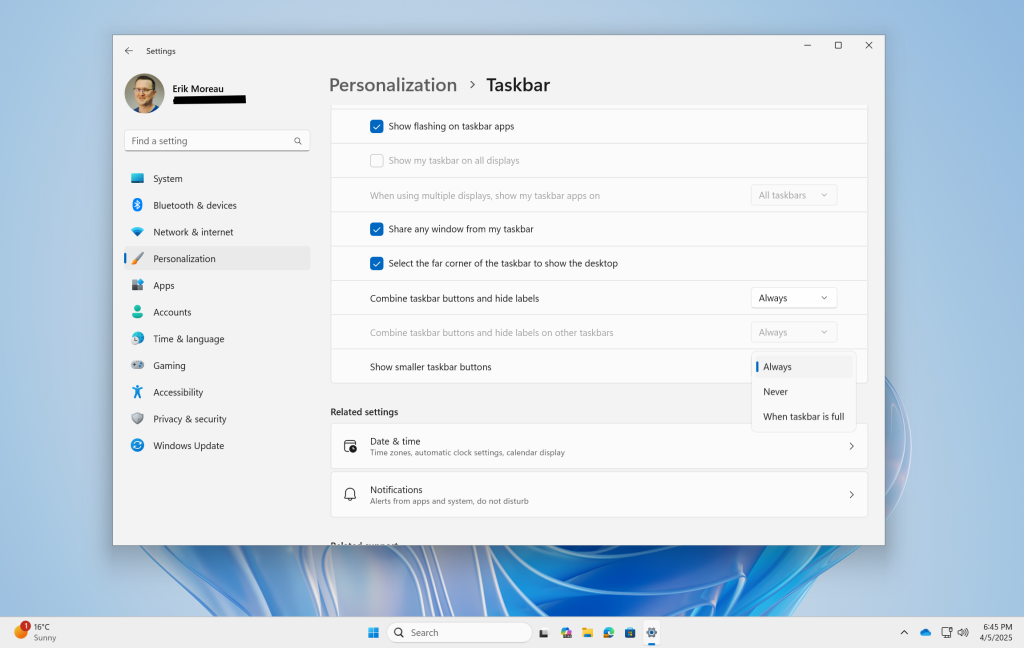
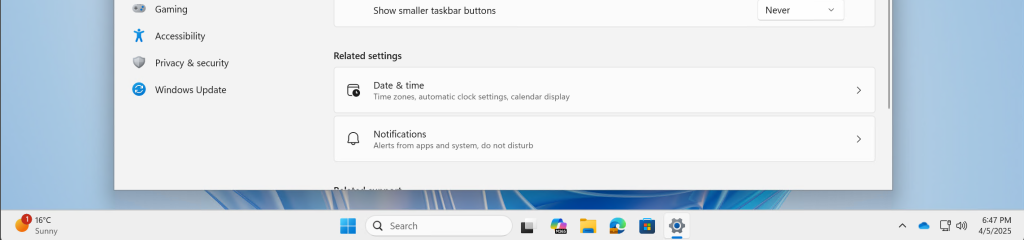
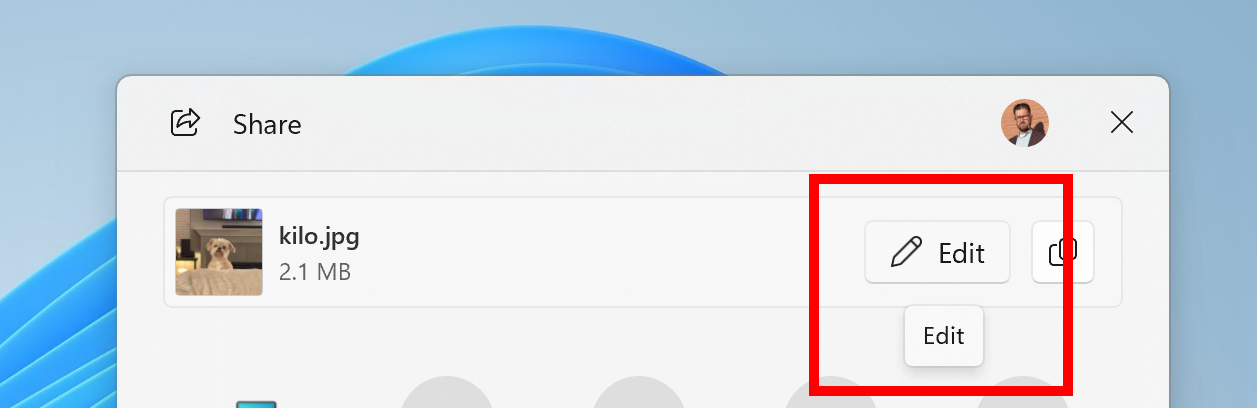
Optional Windows 11, version 24H2 update offers in Windows Update for Windows Insiders in the Beta Channel highlighted in a red box.

We plan to make these updates recommended later this year, which means you will eventually get upgraded to 24H2-based updates automatically if you are in the Beta Channel. Until that happens, the Beta Channel will continue to receive both updates based on Windows 11, version 24H2 AND Windows 11, version 23H2 (but sometimes not at the same time). Please note that if you choose to upgrade to receiving updates based on Windows 11, version 24H2 in the Beta Channel, you may lose some feature rollouts. 

If you are an Insider in the Dev Channel, you now have a window to switch from the Dev Channel to the Beta Channel if you would like. This window will only be open for as long as we’re releasing the same 24H2-based updates across both the Dev and Beta Channels. By the end of February, the Dev Channel will jump ahead to receiving updates with higher build numbers and once this happens, the opportunity to switch between these channels will close. When the Dev Channel jumps ahead, things might not be as stable as the Dev Channel is today, so we highly encourage you to evaluate which channel you would like to be in during the time in which the window to switch is open.

New Copilot+ PC experiences

Find photos saved in the cloud with improved Windows Search

A few weeks ago, we began previewing improved Windows Search with Windows Insiders on Copilot+ PCs. In that first preview, we introduced semantic indexing along with traditional lexical indexing for finding files saved locally in indexed locations on Copilot+ PCs with 40+ TOPS NPU onboard.

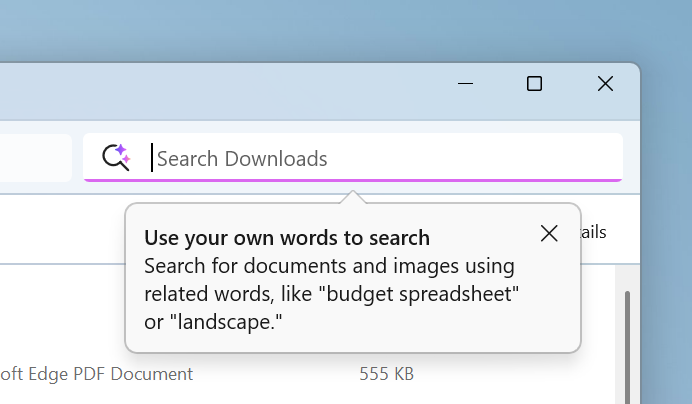
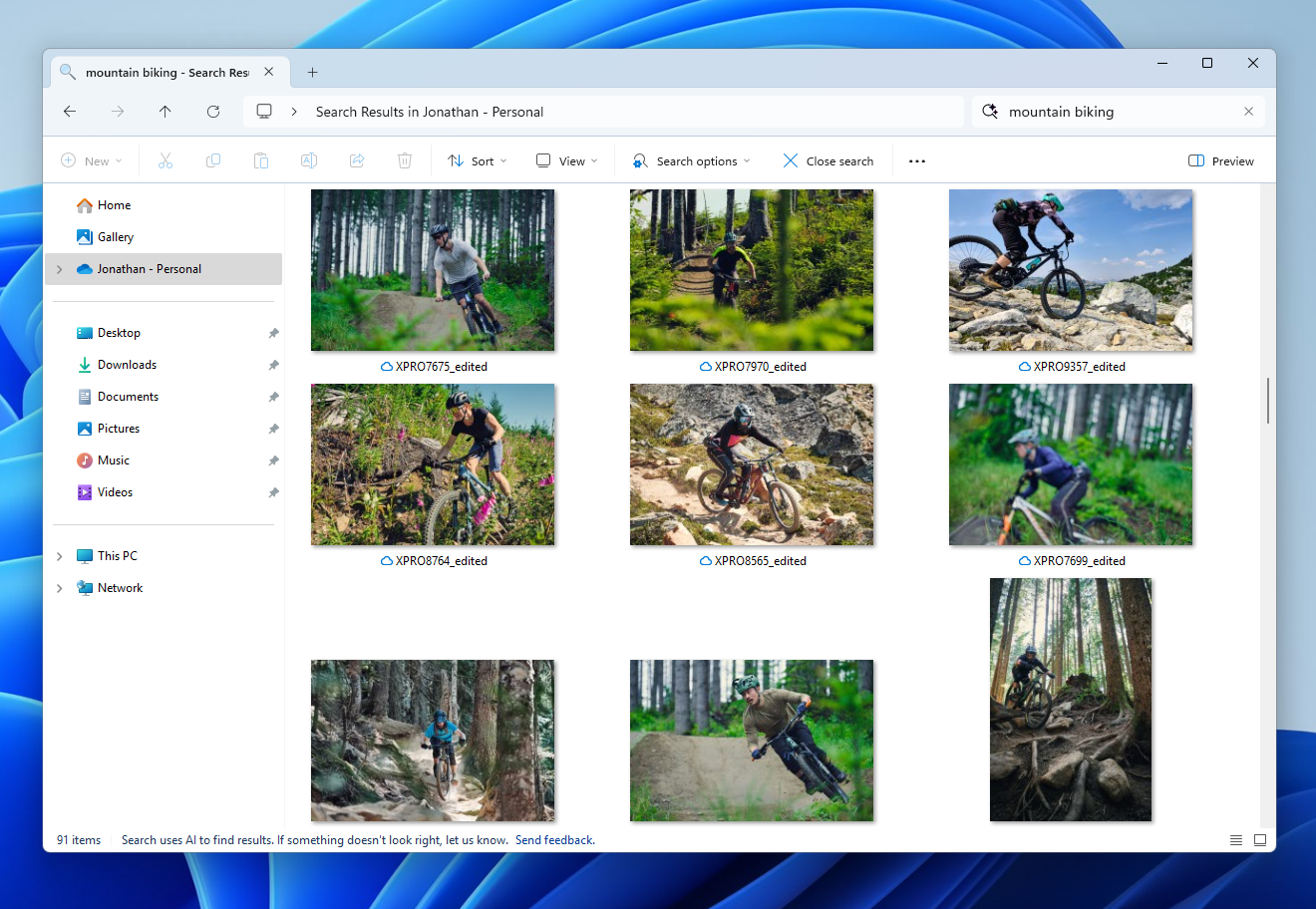
Today, we are excited to announce support for also finding photos saved in the cloud with improved Windows Search. Just use your own words to find photos stored and saved in the cloud by describing what they are about like “European castles” or “summer picnics” in the search box at the top right corner of File Explorer. In addition to photos stored locally on your Copilot+ PC, photos from the cloud will now show up in the search results together. In addition to searching for photos, exact matches for your keywords within the text of your cloud files will show in the search results.

Results including mountain bike photos from the cloud in File Explorer with improved Windows Search.

Finding photos saved in the cloud currently works when searching within File Explorer directly. This will also work directly from the Windows search box on the taskbar in a future flight.

You can try this experience out today with your personal OneDrive when signed in with your Microsoft account and connected to the internet. If you are signed into OneDrive with a work or school account (Entra ID), you will only see matches for keywords you are searching for within the text of your cloud files in the search results – not photos. Third-party cloud providers will be able to support this experience with their services as well with documentation coming soon.

We’re excited to introduce a new way to find your cloud content in Windows and will continue improving search results and capabilities over time. These improved Windows Search experiences continue to gradually roll out to Windows Insiders on Snapdragon-powered Copilot+ PCs, including finding photos saved in the cloud, so you may not see these experiences right away. Support for AMD and Intel-powered Copilot+ PCs is coming soon. See here for more details.

You can learn more about semantic search on Copilot + PCs here.

FEEDBACK for File Explorer Search: Please file feedback in Feedback Hub (WIN + F) under Files Folders and Online Storage > File Explorer Search.

Other changes that are included in this Dev and Beta Channel update

This update (Build 26120.3073) includes other changes and improvements available to Windows Insiders across all Windows 11 PCs in addition to the features noted above that are exclusive to Copilot+ PCs. These changes are documented below in two buckets:

  • New features, improvements, and fixes that are being gradually rolled out for Insiders who have turned on the toggle to get the latest updates as they are available (via Settings > Windows Update*).
  • New features, improvements, and fixes rolling out to everyone in the Dev Channel.

For more information, see the Reminders section at the bottom of this blog post.

Changes and Improvements gradually being rolled out to the Dev Channel with toggle on*

[Settings]

  • We are starting to roll out the Settings homepage for commercial customers on PCs managed by an IT administrator. The feature will show some existing cards relevant to enterprise-managed PCs like “Recommended settings” and “Bluetooth devices” as well as two new enterprise-specific device info and accessibility preferences cards. For commercial customers who also use their Microsoft account on their managed PC, there will also be a new accounts card indicating the presence of both work and school and Microsoft account types. We are starting the rollout of this gradually with managed commercial PCs who have both work and school, and Microsoft accounts presently seeing this experience first.
The Settings homepage for a commercial customer on a managed PC.

Fixes gradually being rolled out to the Dev Channel with toggle on*

[Taskbar & System Tray]

  • Fixed an issue which was causing the taskbar preview windows to not display sometimes when hovering over open apps in the taskbar.

[File Explorer]

  • We did some work to help address an issue where File Explorer might hang when browsing a folder with lots of media in it.
  • Fixed an issue where if you opened a File Explorer window and minimized it in, it might not be rendered correctly when you restored it.

[Improved Windows Search]

  • Fixed the issue where in some rare cases, searching on Outlook while offline might result in some results not being found.

[Live Captions]

  • Fixed an issue where live captions might show an icon in the taskbar, but the window wouldn’t display on the screen, after disconnecting a second monitor.

[Remote Desktop]

  •  Fixed an issue which was causing Remote Desktop to show significant display / rendering issues when connecting to certain other computers.

[Settings]

  • Fixed an issue which was causing Settings to crash when interacting with the Bluetooth & Devices page sometimes.

[Other]

  • Fixed an issue where when using GDI+ to shrink an image, the colors may be wrong afterwards..
  • Fixed an issue which could cause shutdown to be noticeably slower on certain devices when a controller was connected.
  • Fixed an underlying issue causing the Windows Security pop up when signing into certain Wi-Fi networks to not be interactable. This may have also impacted interacting with this pop up for certain other options in Settings.
  • Fixed an issue where the description for virtual NICs wasn’t displayed correctly in ncpa.cpl, it showed garbled characters.

Fixes for everyone in the Dev Channel

[General]

  • We fixed the issue causing a 0xc0e90001 error to occur when booting into Windows Recovery (WinRE) on Arm64 PCs.

[Other]

  • [Memory leak] Fixed: Leaks occur when predictive input ideas show.
  • [High dynamic range (HDR)] Fixed: The display of some games appears oversaturated. This occurs when you use Auto HDR.
  • [Remote Desktop Gateway] Fixed: You get errors or cannot sign when you connect to Windows 11 workstations. This occurs when you enforce device redirection.
  • [USB audio device drivers] Fixed: The code 10 error message, “This device cannot start” appears. This occurs when you connect to certain external audio management devices.

Known issues

[General]

  • After you do a PC reset under Settings > System > Recovery, your build version may incorrectly show as Build 26100 instead of Build 26120. This will not prevent you from getting future Dev Channel updates which will resolve this issue.
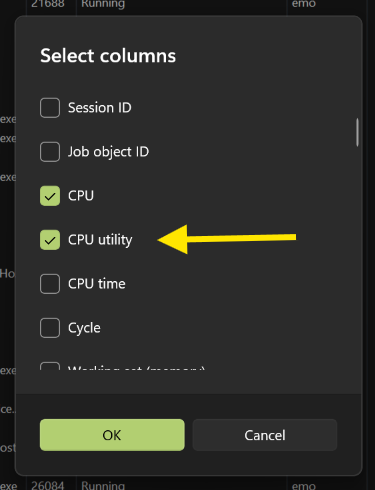
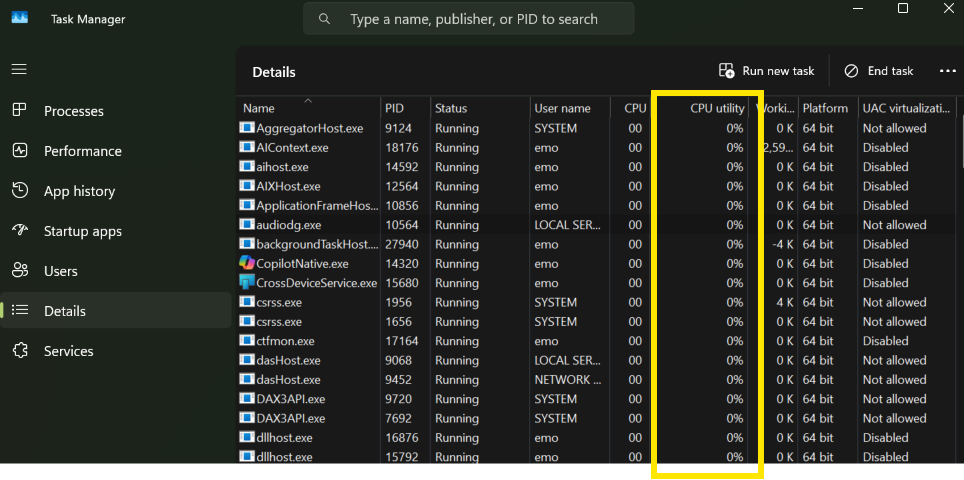
  • [NEW] We’re investigating an issue causing unexpectedly high DCOM CPU usage for some Insiders after opening the Performance section of Task Manager

[Recall]

The following known issues will be fixed in future updates to Windows Insiders:

  • Recall can be enabled or disabled from “Turn Windows features on or off”. We are caching the Recall binaries on disk while we test add/remove. In a future update we will completely remove the binaries.
  • Some users may see a message to “Make sure Recall is saving snapshots”, while the Settings page for Recall shows saving snapshots is enabled. Reboot your device to resolve this issue.
  • Make sure you update Microsoft 365 apps to the latest version so you can jump back into specific documents.

[Click to Do]

The following known issues will be fixed in future updates to Windows Insiders:

  • Sometimes additional context is given when using more intelligent text actions powered by Phi Silica.
  • The intelligent text actions leverage the power of Microsoft’s secure cloud to improve your text results by ensuring prompts and responses are safe and appropriate. This data is automatically deleted. Local moderation to ensure the safety of prompts and responses will be added in the future, replacing this cloud endpoint.
  • If any of your actions on image entities are no longer appearing, please ensure you have the latest updates for the Photos and Paint app from the Microsoft Store.

[Live captions & real-time translation]

The following known issues will be fixed in future updates to Windows Insiders:

  • Some Insiders may see a crash on first launch of live captions. Restart live captions if you encounter this issue and you will not see it again.
  • If audio is playing or the microphone is enabled, switching languages will crash live captions. Stop audio when changing languages to resume captions or translations.

[Improved Windows Search]

The following known issues will be fixed in future updates to Windows Insiders:

  • [NEW] The AI sparkle and underline animation in the File Explorer search box is not present in this build even when improved Windows Search is in use on your Copilot+ PC. If your search results are powered by improved Windows Search, you will see a notice at the bottom of File Explorer stating, “Search uses AI to find results” and directing you to file feedback if something doesn’t look right.
  • In this build, the search box on the taskbar does not yet have the same underline and sparkles icon UI that the File Explorer search box has. This is coming in a future flight.
  • In some rare cases, improved Windows search experiences may not be available and may require a reboot to start working.
  • In some rare cases, File explorer search might be unresponsive and may require a reboot to start working.
  • The tip about the new search improvements appears whenever you set focus to the search box in File Explorer, rather than only once.

[File Explorer]

  • We’re investigating an issue causing File Explorer to be very slow to close for some Insiders when closing using the X button. This may also have an impact on the other title bar buttons.

[Power and Battery]

  • [NEW] The colors in the new battery icon aren’t displaying correctly when you have your mode in Personalization > Colors set to certain options with Custom.

[Settings]

  • [NEW] The Home page of Settings may crash. If you are impacted by this, you should still be able to open specific Settings pages directly by searching for them from the taskbar.

Paint Update

We are rolling out an update for Paint (version 11.2412.271.0 and higher) to Windows Insiders in the Canary and Dev Channels. In this update, we are introducing the Copilot menu to Paint where you can access all the intelligent features which help you complete your image generation and editing tasks faster. Clicking on the Copilot icon from the toolbar will expand into a drop-down menu where you can easily access the features Cocreator, Image Creator, Generative erase, and Remove background. Note that Cocreator is only available on Copilot+ PCs. Within the dropdown, each feature will also include a short description to help you choose the right tool.

Paint Copilot menu opened.

FEEDBACK: Please file feedback in Feedback Hub (WIN + F) under Apps > Paint.

source: Windows Blogs

Share this post:

Announcing Windows 11 Insider Preview Build 26120.3000 (Dev Channel)

Share this post:

Hi all, Yesterday Microsoft released Windows 11 Insider Preview Build 26120.3000 (KB5050103) to the Dev Channel.

Fast and smooth updates on my DevChannel devices, including the Surface Laptop 7th edition (ARM)

The issue on ARM resuming from staandby tiggering a GSOD was fixed last build however slowness/sluggyness was still happeing sounds like this might be solved with this build too.

Playing around with improved search is great, make sure you give it a spin!

Happy Upgrades!

New features gradually being rolled out to the Dev Channel with toggle on*

Improving the battery iconography in Windows 11

Introducing new and improved battery icons in Windows 11! These icons have been designed to communicate battery status of your PC with just a quick glance. Key changes include colored icons to indicate charging states, simplified overlays that don’t block the progress bar, and an option to turn on battery percentage.

Battery shown in black, yellow, and green to indicate different charging states.

When your battery icon is green, this shows that your PC is charging and in a good state. A yellow battery icon will let you know that your PC using battery in energy saving mode – this automatically happens when your battery is less than or equal to 20% to preserve power. When the battery icon is red, you have a critically low battery and should plug in your PC as soon as possible. You will see these new battery icons on the taskbar in the system tray, in the quick settings flyout, and in Settings. The new battery icons will begin showing on the Lock screen in a future flight.

As always, your PC’s battery status and more will also be available to you when you hover over the battery icon in the system tray and under Settings > System > Power & battery where you can also adjust the battery level percentage in which energy saver mode kicks on for your PC.

Along with the updates to the battery icon, we are also introducing the ability to show your battery percentage next to the battery icon in the system tray – a highly requested feature by Insiders and customers. To enable this, go to Settings > Power & battery and toggle on the “Battery Percentage” setting.

[We are beginning to roll this out to Windows Insiders in the Dev Channel, so the experience isn’t available to all Insiders just yet as we plan to monitor feedback before pushing it out to everyone.]

FEEDBACK: Please file feedback in Feedback Hub (WIN + F) under Power and Battery > Battery.

Changes and Improvements gradually being rolled out to the Dev Channel with toggle on*

[Input]

  • After being temporarily disabled to address some issues with Build 26120.2213, we are beginning to roll out a new Gamepad keyboard layout for the touch keyboard in Windows 11 again. This change introduces the ability to use your Xbox controller to navigate and type. This includes button accelerators (example: X button for backspace, Y button for spacebar) additionally the keyboard keys have been vertically aligned for better controller navigation patterns.
New Gamepad keyboard layout for the touch keyboard in Windows 11 that supports the ability to use your Xbox controller to navigate and type.

[Narrator]

  • We have added new functionalities to Narrator scan mode. Jump to list item (I’) allows you to quickly access and jump to a list item on a page or a document. Beginning and end of element (Comma (,)  and Period (.)) allow you to quickly jump to the beginning or end of large tables, lists or landmarks. This is most helpful when navigating through long emails, news articles, and wiki pages. To try these new features, you need to turn on Narrator first (Win key + Ctrl + Enter), then turn scan mode ON by pressing Caps Lock + Spacebar and finally use the new shortcuts – ‘I’, ‘,’ and ‘.’. Please note that scan mode is ‘ON’ by default on most web pages (like news articles, wiki pages, etc.).

[Search on the Taskbar]

  • Improved support for web search providers in Windows Search for the EEA, including clearer provider attribution in tabs.

[Other]

  • Suggested actions that appear when you copy a phone number or future date in Windows 11 are now deprecated. With this build, we’re beginning to disable the feature.

Fixes gradually being rolled out to the Dev Channel with toggle on*

[General]

  • Fixed an underlying issue which was causing significant performance degradation for a small population of Insiders in the previous flight due to repeated background crashes.

[File Explorer]

  • Fixed an issue where sometimes you would be unable to navigate by entering a path in the address bar.
  • Fixed an issue where the File Explorer address bar unexpectedly overlapped with content while in full screen (F11) view.
  • Improved performance of context menu launches for people when right-clicking on cloud files.
  • Made a change to help ensure thumbnails for cloud files are displayed more consistently in search results within File Explorer.
  • Fixed an issue where searching might lose keyboard focus on the text box while you were typing.

[Other]

  • Fixed an underlying issue which could lead to scanners not being detected by scanning apps, although the scanner was connected.
  • Fixed an underlying issue which could result in 2 in 1 PCs unexpectedly changing screen orientation when coming out of sleep.

Known issues

[General]

  • After you do a PC reset under Settings > System > Recovery, your build version may incorrectly show as Build 26100 instead of Build 26120. This will not prevent you from getting future Dev Channel updates which will resolve this issue.
  • A 0xc0e90001 error will occur when booting into Windows Recovery (WinRE) on Arm64 PCs. This will be fixed in the next Dev Channel flight. For recovery options on your PC, visit Settings > System > Recovery.

[Recall]

The following known issues will be fixed in future updates to Windows Insiders:

  • Recall can be enabled or disabled from “Turn Windows features on or off”. We are caching the Recall binaries on disk while we test add/remove. In a future update we will completely remove the binaries.
  • Some users may see a message to “Make sure Recall is saving snapshots”, while the Settings page for Recall shows saving snapshots is enabled. Reboot your device to resolve this issue.
  • Make sure you update Microsoft 365 apps to the latest version so you can jump back into specific documents.

[Click to Do]

The following known issues will be fixed in future updates to Windows Insiders:

  • Sometimes additional context is given when using more intelligent text actions powered by Phi Silica.
  • The intelligent text actions leverage the power of Microsoft’s secure cloud to improve your text results by ensuring prompts and responses are safe and appropriate. This data is automatically deleted. Local moderation to ensure the safety of prompts and responses will be added in the future, replacing this cloud endpoint.
  • If any of your actions on image entities are no longer appearing, please ensure you have the latest updates for the Photos and Paint app from the Microsoft Store.

[Live captions & real-time translation]

The following known issues will be fixed in future updates to Windows Insiders:

  • Some Insiders may see a crash on first launch of live captions. Restart live captions if you encounter this issue and you will not see it again.
  • If audio is playing or the microphone is enabled, switching languages will crash live captions. Stop audio when changing languages to resume captions or translations.

[File Explorer]

  • If you open a File Explorer window and minimize it in this build, it may not render correctly when you restore it.
  • [NEW] We’re investigating an issue causing File Explorer to be very slow to close for some Insiders when closing using the X button. This may also impact the other title bar buttons.

[Improved Windows Search]

The following known issues will be fixed in future updates to Windows Insiders:

  • In this build, the search box on the taskbar does not yet have the same underline and sparkles icon UI that the File Explorer search box has. This is coming in a future flight.
  • In some rare cases, improved Windows search experiences may not be available and may require a reboot to start working.
  • In some rare cases, File explorer search might be unresponsive and may require a reboot to start working.
  • In some rare cases, searching on Outlook while offline might result in some results not being found.
  • The underline animation in the File Explorer search box sometimes does not stop pulsing.
  • The tip about the new search improvements appears whenever you set focus to the search box in File Explorer, rather than only once.

[Voice Access]

  • [NEW] Voice access may not work in this build.

source: Windows Blogs

Share this post:

Previewing Improved Windows Search on Copilot+ PCs with Windows Insiders in the Dev Channel

Share this post:

Hi all, Last Friday today we are releasing Windows 11 Insider Preview Build 26120.2992 (KB5050083) to the Dev Channel.

With this update, we are previewing improved Windows Search with Windows Insiders with Snapdragon-powered Copilot+ PCs.

After updating my Surface Laptop 7th edition, the issue causing slugginess and GSOD resuming from standby seems to be fixed (Feedback Hub: https://aka.ms/AAu1l9n)

Some nice added features for magnifier

Happy Upgrades!

New Copilot+ PC experiences

Improved Windows Search

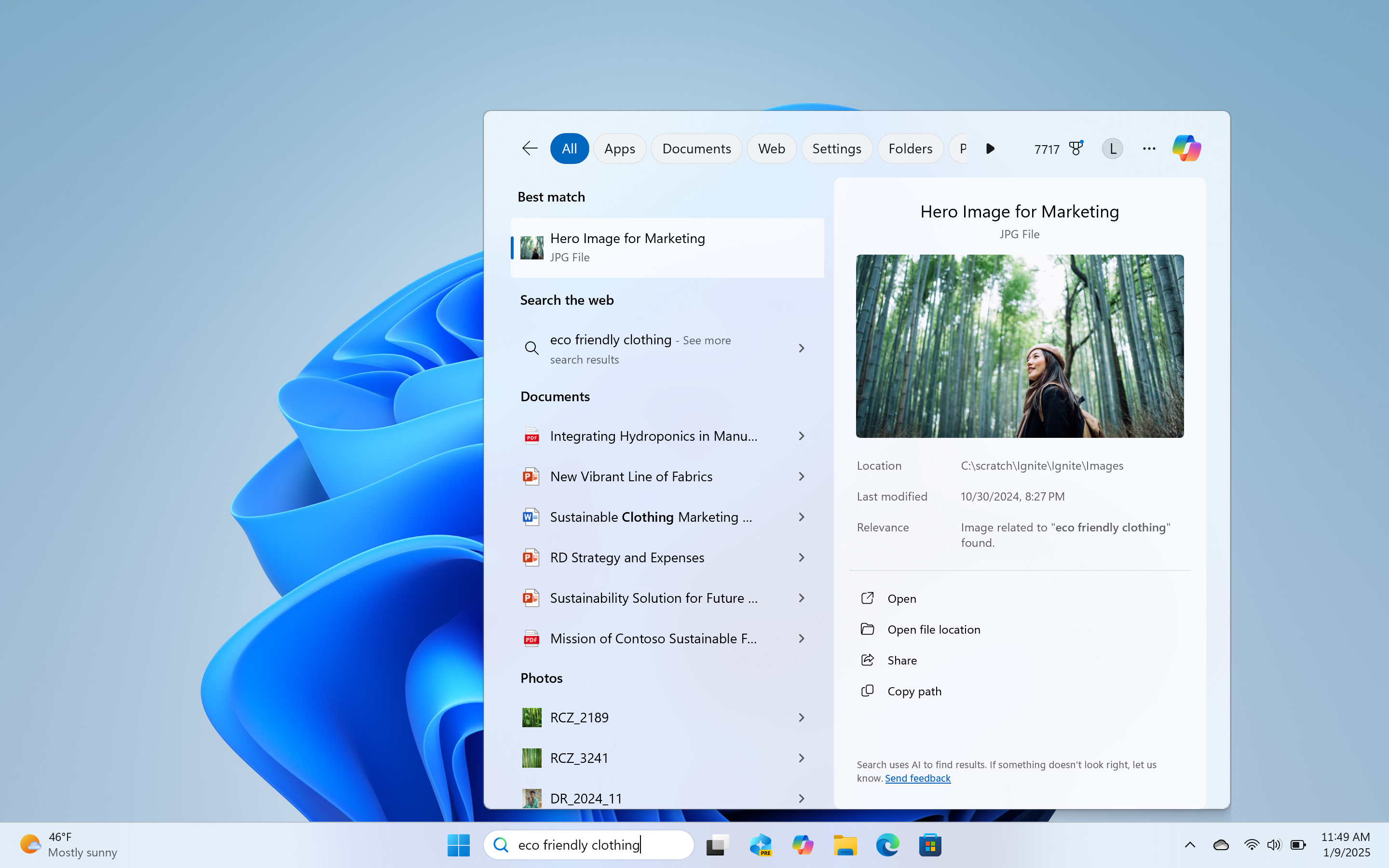
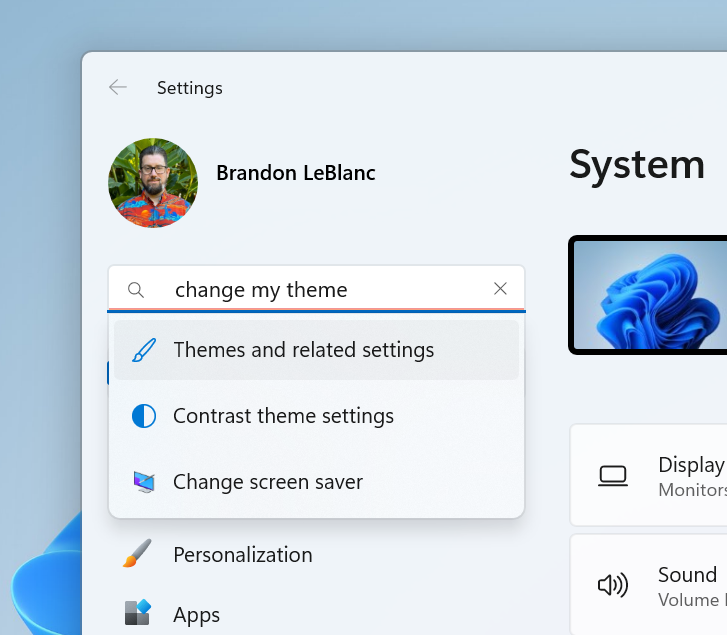
We are making finding your documents, photos, and settings across Windows 11 easier on Copilot+ PCs by introducing semantic indexing along with traditional indexing. Whether it’s searching in File Explorer, in the Windows search box on your taskbar, or in Settings – just type what’s on your mind to find it on your Copilot+ PC. You no longer need to remember file names, exact words in file content, or settings names. For example, you can use your own words to find images by typing “bridge at sunset”, documents by describing what they are about like “Europe trip budget”, or settings like “change my theme”. Thanks to the power of the 40+ TOPS NPU onboard Copilot+ PCs, these search improvements work even when you’re not connected to the internet.

Use your own words to search for documents and images in File Explorer.
Use your own words to search for documents and images from your taskbar.
Use your own words to change settings on your Copilot+ PC in Settings.

Today, searching for files on your Copilot+ PC with improved Windows Search will only work for files saved locally in indexed locations on your PC. You can go to Settings > Privacy & security > Searching Windows to adjust which locations are indexed on your PC or turn on “Enhanced” to index your entire PC. In a future flight, we will support searching for documents and photos stored in cloud storage providers such as OneDrive.

Searching for settings like “change my theme” will work within the Settings app for now. In a future flight, you will be able to do this within the Windows search box on the taskbar.

These improved Windows Search experiences will gradually roll out to Windows Insiders on Snapdragon-powered Copilot+ PCs, with support for AMD and Intel-powered Copilot+ PCs coming soon. These experiences are supported in select languages (Chinese, English, French, German, Japanese, and Spanish) and document formats. Supported file formats include .txt, .pdf, .docx, .doc, .rtf, .pptx, .ppt, .xls, .xlsx for documents and .jpg/.jpeg, .png, .gif, .bmp, .ico for images. See here for more details.

You can learn more about semantic search on Copilot + PCs here.

FEEDBACK for File Explorer Search: Please file feedback in Feedback Hub (WIN + F) under Files Folders and Online Storage > File Explorer Search.

FEEDBACK for Windows Taskbar Search: Please file feedback in Feedback Hub (WIN + F) under Desktop Environment > Search.

FEEDBACK for Settings Search: Please file feedback in Feedback Hub (WIN + F) under Settings > Search Settings.

New text action for Click to Do (Preview)

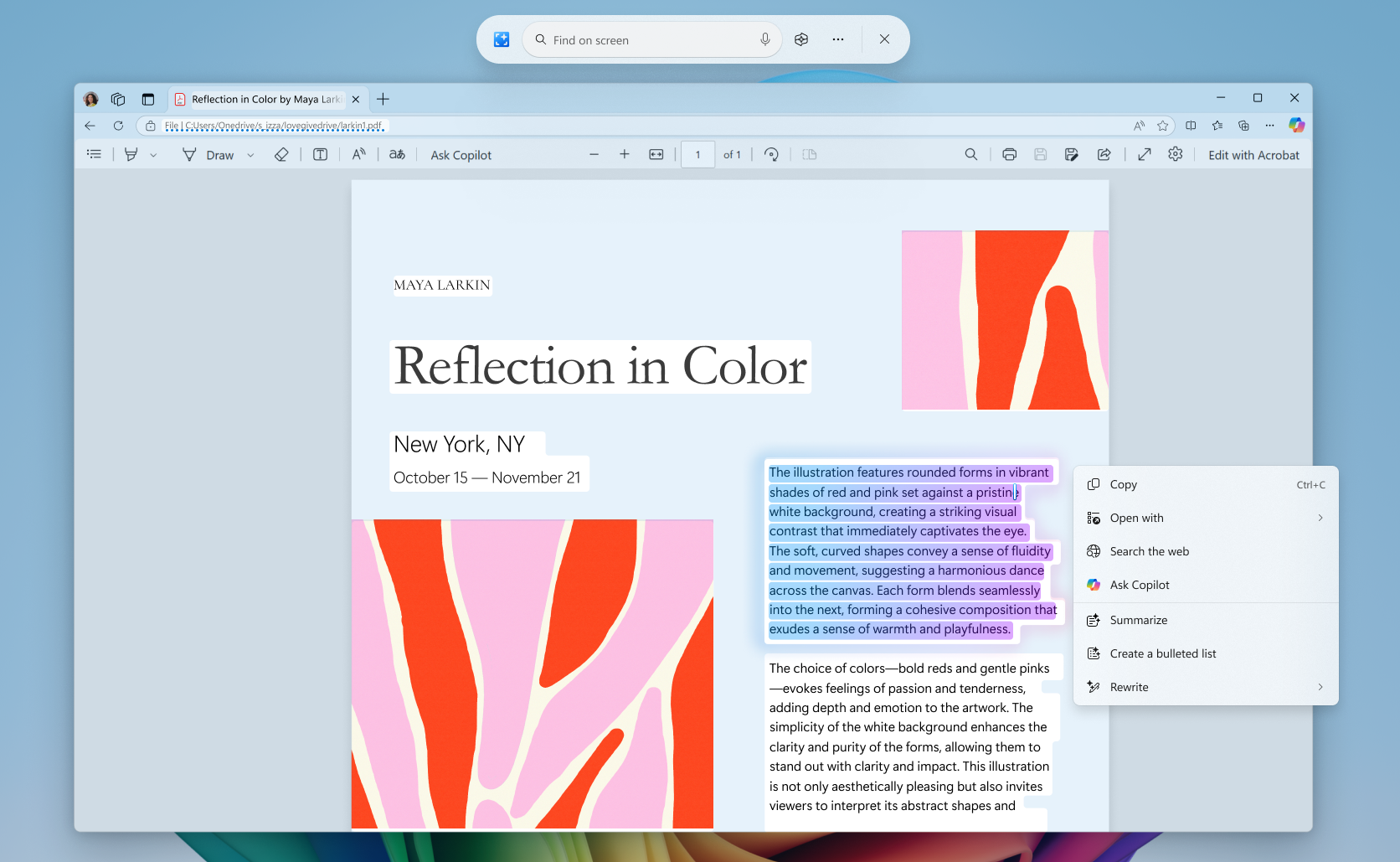
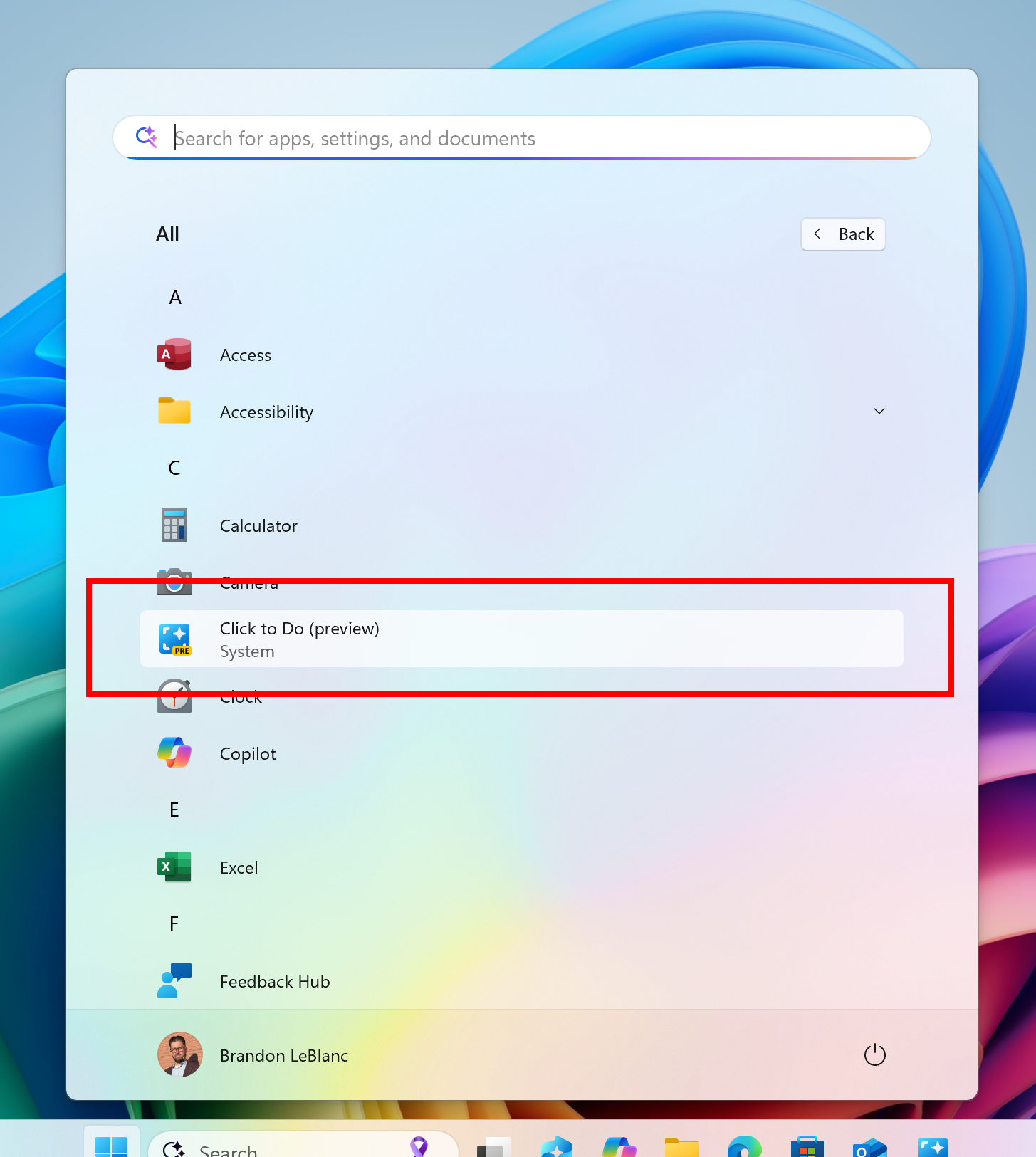
You’ll see a new text action for Click to Do available on Copilot+ PCs called Refine. To try this out, press Win + Click directly on a block of text or press Win + Q and then navigate to the text you’d like to proofread and refine. When you open the menu, the new action will be under Rewrite > Refine.

New Refine text action in Click to Do.

All the other actions you’ve seen in Click to Do are still here. If anything looks missing, please check the Microsoft Store for the latest Photos and Paint apps installed.

You can learn more about using Click to Do here.

FEEDBACK: Please file feedback in Feedback Hub (WIN + F) under Desktop Environment > Click to Do.

Other changes included in this Dev Channel update

This update (Build 26120.2992) includes other changes and improvements available to Windows Insiders across all Windows 11 PCs in addition to the features noted above that are exclusive to Copilot+ PCs. These changes are documented below in two buckets:

  • New features, improvements, and fixes that are being gradually rolled out for Insiders who have turned on the toggle to get the latest updates as they are available (via Settings > Windows Update*).
  • New features, improvements, and fixes rolling out to everyone in the Dev Channel.

For more information, see the Reminders section at the bottom of this blog post.

Changes and Improvements gradually being rolled out to the Dev Channel with toggle on*

[File Explorer]

  • We’ve added a New Folder option in the context menu when right-clicking locations in the navigation pane.

[Magnifier]

  • We’re adding a new keyboard shortcut CTRL + ALT + Minus for Magnifier users to quickly toggle between the current zoom and 1X zoom.
  • In addition to the keyboard shortcut CTRL + ALT + Minus to quickly toggle between the current zoom and 1X zoom, we have also added buttons in Magnifier to reset zoom to fit to screen and reset zoom to your last/preferred magnification.
New buttons in Magnifier to reset zoom to fit to screen and reset zoom to your last or preferred magnification highlighted in a red box.

Fixes gradually being rolled out to the Dev Channel with toggle on*

[File Explorer]

  • Fixed an issue where the date/time properties of files were unexpectedly updated in some cases after copying them.
  • Fixed an issue where File Explorer may sometimes lose focus on the search box while typing.
  • Fixed an issue where when you did a search it may unexpectedly trigger the search happening repeatedly.
  • Fixed an issue where the Details Pane icons weren’t responding correctly to theme changes, making it hard to see if you switched from dark to light or vice versa.
  • Fixed a black flash in File Explorer that appeared when duplicating a tab.

[Task Manager]

  • Fixed an issue where Task manager wrongly identified an HDD as an SSD.

[Click to Do]

  • We fixed the issue where Click to Do would sometimes not highlight any info on screen if there is no content on a connected external monitor in extended mode.

Changes and Improvements gradually being rolled out to everyone in the Dev Channel

[Windows Backup]

  • You will now have a standard Windows 11 taskbar after restoring from a backup via the Windows Setup experience (OOBE) on a new Windows PC. You can still find your apps in the Start menu and Search and pin apps you want to your taskbar.

Fixes for everyone in the Dev Channel

[Other]

  • [Windows Kernel Vulnerable Driver Blocklist file (DriverSiPolicy.p7b)] This update adds to the list of drivers that are at risk for Bring Your Own Vulnerable Driver (BYOVD) attacks.

Known issues

[General]

  • After you do a PC reset under Settings > System > Recovery, your build version may incorrectly show as Build 26100 instead of Build 26120. This will not prevent you from getting future Dev Channel updates which will resolve this issue.
  • [NEW] A 0xc0e90001 error will occur when booting into Windows Recovery (WinRE) on Arm64 PCs. This will be fixed in the next Dev Channel flight. For recovery options on your PC, visit Settings > System > Recovery.

[Recall]

The following known issues will be fixed in future updates to Windows Insiders:

  • Recall can be enabled or disabled from “Turn Windows features on or off”. We are caching the Recall binaries on disk while we test add/remove. In a future update we will completely remove the binaries.
  • Some users may see a message to “Make sure Recall is saving snapshots”, while the Settings page for Recall shows saving snapshots is enabled. Reboot your device to resolve this issue.
  • Make sure you update Microsoft 365 apps to the latest version so you can jump back into specific documents.

[Click to Do]

The following known issues will be fixed in future updates to Windows Insiders:

  • Sometimes additional context is given when using more intelligent text actions powered by Phi Silica.
  • The intelligent text actions leverage the power of Microsoft’s secure cloud to improve your text results by ensuring prompts and responses are safe and appropriate. This data is automatically deleted. Local moderation to ensure the safety of prompts and responses will be added in the future, replacing this cloud endpoint.
  • [NEW] If any of your actions on image entities are no longer appearing, please ensure you have the latest updates for the Photos and Paint app from the Microsoft Store.

[Live captions & real-time translation]

The following known issues will be fixed in future updates to Windows Insiders:

  • Some Insiders may see a crash on first launch of live captions. Restart live captions if you encounter this issue and you will not see it again.
  • If audio is playing or the microphone is enabled, switching languages will crash live captions. Stop audio when changing languages to resume captions or translations.

[File Explorer]

  • [NEW] If you open a File Explorer window and minimize it in this build, it may not render correctly when you restore it.

[Improved Windows Search]

The following known issues will be fixed in future updates to Windows Insiders:

  • [NEW] In this build, the search box on the taskbar does not yet have the same underline and sparkles icon UI that the File Explorer search box has. This is coming in a future flight.
  • [NEW] In some rare cases, improved Windows search experiences may not be available and may require a reboot to start working.
  • [NEW] In some rare cases, File explorer search might be unresponsive and may require a reboot to start working.
  • [NEW] In some rare cases, searching on Outlook while offline might result in some results not being found.
  • [NEW] The underline animation in the File Explorer search box sometimes does not stop pulsing.
  • [NEW] The tip about the new search improvements appears whenever you set focus to the search box in File Explorer, rather than only once.

source: Windows Blogs
Share this post:

Announcing Windows 11 Insider Preview Build 27774 (Canary Channel)

Share this post:

Hi all, last Thursday Microsoft relesed Windows 11 Insider Preview Build 27774 to the Canary Channel.

ISOs are avalaivel for this build – they can be > downloaded here <

Upgrades went smoothly on all my canary channel devices, make sure to file feedback when you spot any issues with this build not listed below. With Administrator protection integrated in Security settings, we’re getting closer to having this awesome feature available for every user with admin rights. If you haven’t tested this feature yet, make sure you do this makes using your device so much safer!

Changes and Improvements

[General]

  • This update includes a small set of general improvements and fixes that improve the overall experience for Insiders running this build on their PCs.

[Windows Setup]

  • When installing Windows from installation media, you will now see a confirmation dialog when formatting or deleting partitions.

[Administrator protection]

  • Administrator protection can now be enabled from Windows Security settings under the Account Protection tab. This allows users to enable this feature without requiring help from IT admins. It also allows Windows home users to enable Administrator protection via Windows Security settings. Changing this setting requires a Windows reboot.
  • With administrator protection enabled, the prompt requesting the user’s authorization for elevating untrusted and unsigned applications now comes with expanded color-coded regions which will now extend down over the app description.
Windows Security credential dialog example showing expanded color over app description.

Fixes

[General]

  • Fixed an underlying issue causing accent colored window borders to not be not displayed when enabled, shadows around windows not displaying when enabled, and window launching (and other) animations to show even though the setting to show animations is turned off in the latest Canary builds.

[Other]

  • Fixed an underlying issue which was causing the Xbox app to fail to launch with a “Please try again” error sometimes in the last two Canary builds.

Known issues

[General]

  • [IMPORTANT NOTE FOR COPILOT+ PCs] If you are joining the Canary Channel on a new Copilot+ PC from the Dev Channel, Release Preview Channel or retail, you will lose Windows Hello pin and biometrics to sign into your PC with error 0xd0000225 and error message “Something went wrong, and your PIN isn’t available”. You should be able to re-create your PIN by clicking “Set up my PIN”.
  • We’re working on the fix for an issue where SFC /scannow is showing errors every time it’s run.

[File Explorer]

  • If you open a File Explorer window and minimize it in this build, it may not render correctly when you restore it.

[Remote Desktop]

  • [NEW] Using MTSC.exe for Remote Desktop may fail on this build with error 0x80080005. As a workaround, please launch as admin.

source: Windows Blogs
Share this post:

Announcing Windows 11 Insider Preview Build 27768 (Canary Channel)

Share this post:

Hi all, last Thursday Microsoft released Windows 11 Insider Preview Build 27768 to the Canary Channel.

The 2nd build of 2025 brings a few welcomed fixes to the Canary channel

Changes and Improvements

[General]

  • This update includes a small set of general improvements and fixes that improve the overall experience for Insiders running this build on their PCs.

[File Explorer]

  • We’ve added a New Folder option in the context menu when right-clicking locations in the navigation pane.

[Settings]

  • The ability to change time zones is available again under Settings > Time & Language > Date & Time for standard (non-admin) users.

Fixes

[File Explorer]

  • Fixed an issue where the date/time properties of files were unexpectedly updated in some cases after copying them.
  • Fixed an issue where File Explorer may sometimes lose focus on the search box while typing.
  • Fixed an issue where when you did a search it may unexpectedly trigger the search happening repeatedly.
  • Fixed an issue where the Details Pane icons weren’t responding correctly to theme changes, making it hard to see if you switched from dark to light or vice versa.
  • Fixed a black flash in File Explorer that appeared when duplicating a tab.

[Input]

  • Fixed an issue which could lead to the mouse cursor unexpectedly stuttering when you moved it around sometimes.

[Graphics]

  • Fixed an underlying issue which could result in some games appearing oversaturated when using Auto HDR.

[Other]

  • Fixed an issue causing some Insiders in Canary to experience bugchecks with error PAGE_FAULT_IN_NONPAGED_AREA.

Known issues

[General]

  • [IMPORTANT NOTE FOR COPILOT+ PCs] If you are joining the Canary Channel on a new Copilot+ PC from the Dev Channel, Release Preview Channel or retail, you will lose Windows Hello pin and biometrics to sign into your PC with error 0xd0000225 and error message “Something went wrong, and your PIN isn’t available”. You should be able to re-create your PIN by clicking “Set up my PIN”.
  • We’re working on the fix for an underlying issue causing accent colored window borders to not be not displayed when enabled, shadows around windows not displaying when enabled, and window launching (and other) animations to show even though the setting to show animations is turned off.
  • [NEW] We’re working on the fix for an issue where SFC /scannow is showing errors every time it’s run.

[File Explorer]

  • [NEW] If you open a File Explorer window and minimize it in this build, it may not render correctly when you restore it.

source: Windows Blogs

Share this post:

Announcing Windows 11 Insider Preview Build 27766 (Canary Channel)

Share this post:

Hi all, Yesteday Microsoft released Windows 11 Insider Preview Build 27766 to the Canary Channel.

This 1st flight of the year installed smoothly on my Canary channel devices, a few tweaks it seems.

Happy New to everyone & enjoy your 1st flight!

Changes and Improvements

[General]

  • This update includes a small set of general improvements and fixes that improve the overall experience for Insiders running this build on their PCs.

Fixes

[General]

  • We fixed the issue where if you roll back from Build 27764 to an earlier build (including if the upgrade failed), you would see an “Your organization used App Control for Business to block this app” dialog when attempting to use or install certain third-party apps on your PC due to an incorrect policy being enforced.
  • As of the latest Insider Preview builds in the Canary Channel, the main issues causing Insiders to experience an increase in rollbacks (with error code 0xc190010) when attempting to upgrade have been addressed. As a reminder, 0xc190010 is a generic error code that has multiple root causes, so if you’re continuing to experience issues, please file feedback (WIN + F) to investigate.

[Taskbar & System Tray]

  • Fixed an underlying issue which was causing some Insiders in Canary to experience frequent explorer.exe crashes after they clean installed or reset their PC.

Known issues

[General]

  • [IMPORTANT NOTE FOR COPILOT+ PCs] If you are joining the Canary Channel on a new Copilot+ PC from the Dev Channel, Release Preview Channel or retail, you will lose Windows Hello pin and biometrics to sign into your PC with error 0xd0000225 and error message “Something went wrong, and your PIN isn’t available”. You should be able to re-create your PIN by clicking “Set up my PIN”.
  • We’re working on the fix for an underlying issue causing accent colored window borders to not be not displayed when enabled, shadows around windows not displaying when enabled, and window launching (and other) animations to show even though the setting to show animations is turned off.

source: Windows Blogs
Share this post:

Unleashing the Power of Microsoft Copilot: Your AI Companion for Productivity and Creativity

Share this post:

In today’s fast-paced digital world, staying productive and creative can be a challenge. Enter Microsoft Copilot, an AI-powered assistant designed to revolutionize the way you work and create. Whether you’re a developer, data analyst, or business professional, Copilot offers innovative solutions to enhance your productivity, creativity, and data accessibility.

What is Microsoft Copilot?

Microsoft Copilot is an AI assistant that leverages advanced language models to provide intelligent support across various Microsoft platforms and products. It integrates seamlessly with Microsoft 365 apps like Word, Excel, PowerPoint, Outlook, and Teams, offering a more interactive and efficient digital workspace.

Key Features of Microsoft Copilot

  1. Enhanced Productivity: Copilot helps you streamline your workflow by automating repetitive tasks, generating content, and providing real-time insights. Imagine drafting a report in Word or creating a complex spreadsheet in Excel with just a few prompts.
  2. Creative Assistance: Whether you’re brainstorming ideas, writing emails, or designing presentations, Copilot can assist you in generating innovative content. It can even help you create images and visual content, making your projects more engaging and visually appealing.
  3. Data Security and Privacy: Microsoft Copilot is built with enterprise-grade data security and privacy features, ensuring that your data is protected at all times. This makes it a reliable tool for organizations that prioritize data security.
  4. Customization and Integration: You can customize Copilot to suit your specific needs by integrating it with various plugins, connectors, and message extensions. This flexibility allows you to tailor the AI assistant to your unique workflow and business requirements.

Getting Started with Microsoft Copilot

To begin your journey with Microsoft Copilot, explore the curated training, documentation, videos, and other resources available on the Microsoft Learn Copilot page. Here are some steps to get you started:

  1. Understand Copilot: Learn how Copilot integrates with Microsoft platforms to provide a more interactive and efficient digital workspace.
  2. Adopt Copilot: Integrate OpenAI, communication, and organizational data into your apps to enhance their functionality.
  3. Extend Copilot: Expand and customize Copilot with plugins, connectors, or message extensions to meet your specific needs.
  4. Build Copilot: Create a personalized AI experience using Microsoft Cloud technologies.

Conclusion

Microsoft Copilot is more than just an AI assistant; it’s a powerful tool that can transform the way you work and create. By leveraging its advanced features, you can boost your productivity, enhance your creativity, and ensure your data’s security. Start exploring Microsoft Copilot today and unlock new possibilities for your professional and personal projects.

Share this post:

Releasing Real-Time Translation in Live Captions to More Copilot+ PCs in the Dev Channel

Share this post:

Hi all, Last Wednesday Microsoft released the last insider flight of the year, Windows 11 Insider Preview Build 26120.2705 (KB5050636) to the Dev Channel.

This Build adds real-time translation in live captions for AMD and Intel®-powered Copilot+ PCs and an improvement for real-time translation on Snapdragon-powered Copilot+ PCs. Beyond these two changes, this update is the same as the update released to the Dev Channel last week.

Smooth flighting on all my Dev Channel devices, Happy Flighting!

New experiences for AMD and Intel®-powered Copilot+ PCs

Please install all the latest driver updates available from Windows Update to ensure the following experience work correctly on your AMD or Intel®-powered Copilot+ PC. To ensure you have the latest drivers for your Copilot+ PC, make sure the “Get the latest updates as soon as they’re available” toggle is on under Settings > Windows Update. Just click the “Check for updates” button and install any new drivers that Windows Update delivers to you.

If you’d like to test the latest driver versions available directly from our partners before they get to Windows Update, you can download them directly here:

Live captions and real-time translation

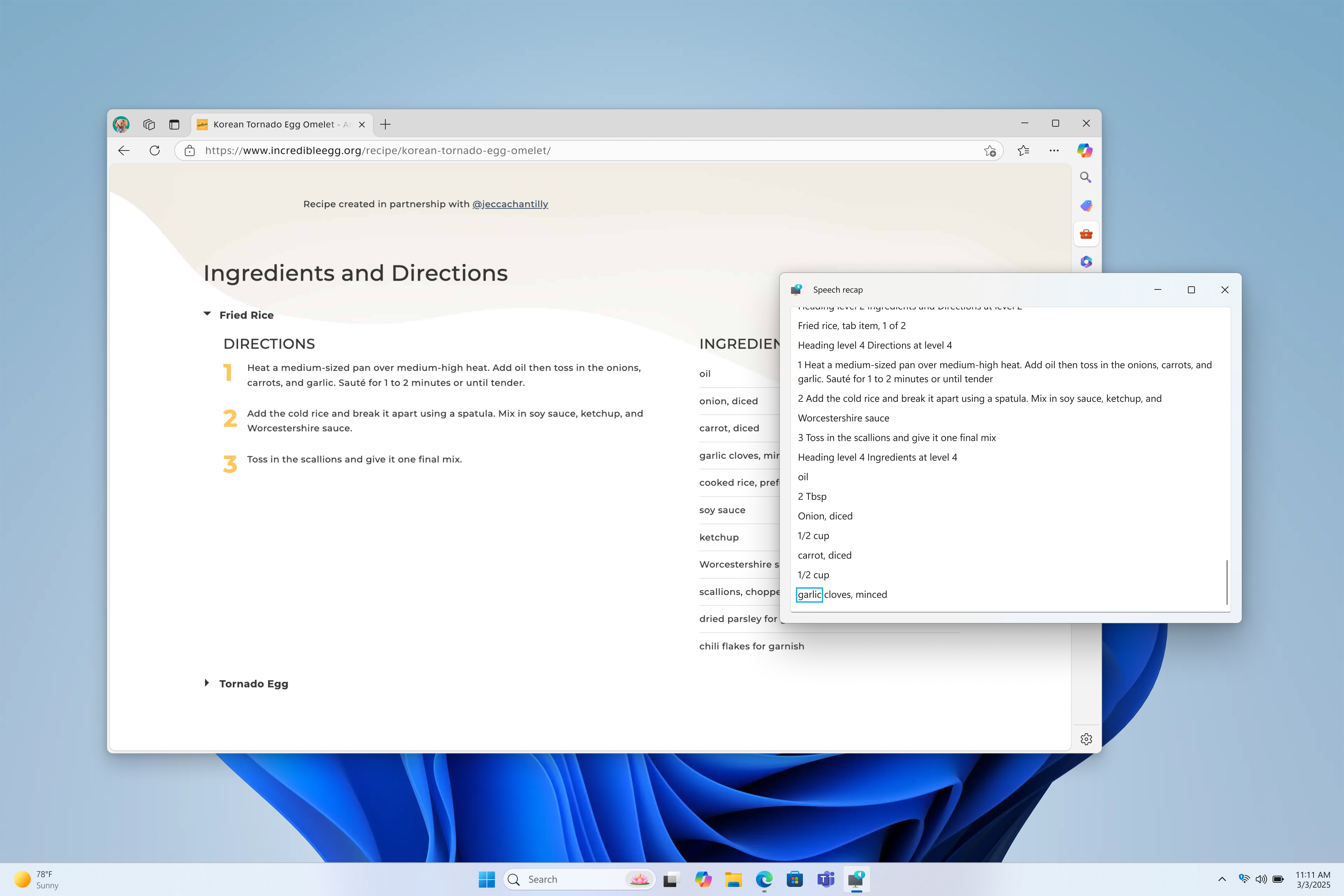
We are enhancing communication on AMD and Intel®-powered Copilot+ PCs with live captions and real-time translation. We’re beginning to roll out the ability in live captions to translate more than 44 languages into English, including speakers in real-time video calls, recordings and streamed content. Real-time translation is rolling out AMD and Intel®-powered Copilot+ PCs with English as the primary language in use. Be sure to check the known issues for real-time translation in live captions documented below in this blog post.

Real-time translation with Live captions while watching a video in Microsoft Edge.

FEEDBACK: Please file feedback in Feedback Hub (WIN + F) under Accessibility > Live captions.

Changes and Improvements gradually being rolled out to the Dev Channel with toggle on*

[Live captions]

  • On Snapdragon-powered Copilot+ PCs, we’re beginning to roll out the ability to do real-time translation to Chinese (Simplified). Supported languages include Arabic, Bulgarian, Czech Danish, German, Greek English Spanish, English, Estonian, Finnish, France, Hindi, Hungarian, Italian, Japanese, Korean, Lithuanian, Norwegian, Dutch, Polish, Portuguese, Romanian, Russian, Slovak, Slovene, and Swedish.

Known issues

[General]

  • After you do a PC reset under Settings > System > Recovery, your build version may incorrectly show as Build 26100 instead of Build 26120. This will not prevent you from getting future Dev Channel updates which will resolve this issue.

[Recall]

The following known issues will be fixed in future updates to Windows Insiders:

  • Recall can be enabled or disabled from “Turn Windows features on or off”. We are caching the Recall binaries on disk while we test add/remove. In a future update we will completely remove the binaries.
  • Some users may see a message to “Make sure Recall is saving snapshots”, while the Settings page for Recall shows saving snapshots is enabled. Reboot your device to resolve this issue.
  • Make sure you update Microsoft 365 apps to the latest version so you can jump back into specific documents.

[Click to Do]

The following known issues will be fixed in future updates to Windows Insiders:

  • Sometimes additional context is given when using more intelligent text actions powered by Phi Silica.
  • The intelligent text actions leverage the power of Microsoft’s secure cloud to improve your text results by ensuring prompts and responses are safe and appropriate. This data is automatically deleted. Local moderation to ensure the safety of prompts and responses will be added in the future, replacing this cloud endpoint.
  • Sometimes Click to Do doesn’t highlight any info on screen if there is no content on a connected external monitor in extended mode.

[Live captions & real-time translation]

The following known issues will be fixed in future updates to Windows Insiders:

  • Some Insiders may see a crash on first launch of live captions. Restart live captions if you encounter this issue and you will not see it again.
  • If audio is playing or the microphone is enabled, switching languages will crash live captions. Stop audio when changing languages to resume captions or translations.

source: Windows Blogs
Share this post:

Announcing Windows 11 Insider Preview Build 26120.2702 (Dev Channel)

Share this post:

Hello Windows Insiders, today we are releasing Windows 11 Insider Preview Build 26120.2702 (KB5048761) to the Dev Channel.

Changes in Dev Channel builds and updates are documented in two buckets: new features, improvements, and fixes that are being gradually rolled out for Insiders who have turned on the toggle to get the latest updates as they are available (via Settings > Windows Update*) and then new features, improvements, and fixes rolling out to everyone in the Dev Channel. For more information, see the Reminders section at the bottom of this blog post.

New features gradually being rolled out to the Dev Channel with toggle on*

Windows Camera Advanced Configurations

We are beginning to roll out a new advanced camera options page. Just navigate to a camera under Settings > Bluetooth & devices > Cameras and click the edit button for advanced camera options.

New advanced camera configurations page in Settings.

This new advanced camera options page will provide you with the following two configurations for your camera:

  • Multi-app camera: Allows multiple applications to access the camera stream simultaneously, developed with the Hard-of-Hearing community to enable video streaming to both a sign language interpreter and the end audience at the same time.
  • Basic camera: Enables basic camera functionality for improved debugging, recommended as a last resort when your camera is not functioning correctly. This feature was developed in collaboration with Microsoft support agents.

Coming in a future build, we plan to introduce a third option here for selecting a media type. This feature will let you choose different media types like resolution and frame rate, with the default setting being “Let Windows Choose” for optimal experience.

FEEDBACK: Please file feedback in Feedback Hub (WIN + F) under Devices and Drivers > Device Camera or Webcams.

Passwordless Improvements

As part of Microsoft’s commitment to a passwordless future, on Windows, we are launching API support for third-party passkey providers. Microsoft has been engaging with passkey manager partners on developing this capability. We are committed to bringing a passwordless future to all customers – together with third-party credential providers, we will raise the bar on login security with passkeys for all users on Windows.

WebAuthn Plugin Authenticator APIs

We are releasing updates to WebAuthn APIs to support a plugin authentication model for passkeys. In the coming months, Windows customers will be able to choose a third-party provider as an additional choice alongside the native Windows passkey provider while maintaining the Windows Hello user experience. Messages in WebAuthn flows will be forwarded to the plugin and responses are returned to the WebAuthn client applications. This enables plugins to create and authenticate with passkeys when requested by the customer. This model allows plugins to use Windows Hello as a user verification mechanism to enable a seamless passkey experience. You will notice additional user experience updates to the passkey flows and Settings alongside the new capabilities.

If you are a developer for third-party passkeys, we invite you to integrate with Windows 11 to support customers in their passkey journey. To find out more about implementation detail, go to https://aka.ms/3P-Plugin-API.

FEEDBACK: Please file feedback in Feedback Hub (WIN + F) under Security and Privacy > Passkey.

Changes and Improvements gradually being rolled out to the Dev Channel with toggle on*

[Start menu]

  • We are improving the filtering for recommended websites on the Start menu based on feedback from Windows Insiders so that we show the highest quality sites based on your own browsing history. Please continue to give us feedback if you see a website recommended you feel shouldn’t be.

[Settings]

  • The ability to change time zones is available again under Settings > Time & Language > Date & Time for standard (non-admin) users.

Fixes gradually being rolled out to the Dev Channel with toggle on*

[Input]

  • Fixed an issue where if pointer trails were enabled, the mouse cursor may become invisible with a black box behind it.
  • Mitigated an issue where the ALT or Shift key on the keyboard may get stuck down in the latest flights after the Windows Hello prompt appeared for some Insiders.
  • Fixed an issue which could lead to the mouse cursor unexpectedly stuttering when you moved it around sometimes.

[Graphics]

  • Fixed an underlying issue which could result in some games appearing oversaturated when using Auto HDR.

Fixes for everyone in the Dev Channel

[Rollback]

  • We fixed the issue where if you roll back from Build 26120.2510 to an earlier build, you would see an “Your organization used App Control for Business to block this app” dialog when attempting to use or install certain third-party apps on your PC due to an incorrect policy being enforced.

Known issues

[General]

  • [NEW] After you do a PC reset under Settings > System > Recovery, your build version may incorrectly show as Build 26100 instead of Build 26120. This will not impact you from getting future Dev Channel updates which will resolve this issue.

[Recall]

The following known issues will be fixed in future updates to Windows Insiders:

  • Recall can be enabled or disabled from “Turn Windows features on or off”. We are caching the Recall binaries on disk while we test add/remove. In a future update we will completely remove the binaries.
  • Some users may see a message to “Make sure Recall is saving snapshots”, while the Settings page for Recall shows saving snapshots is enabled. Reboot your device to resolve this issue.
  • Make sure you update Microsoft 365 apps to the latest version so you can jump back into specific documents.

[Click to Do]

The following known issues will be fixed in future updates to Windows Insiders:

  • Sometimes additional context is given when using more intelligent text actions powered by Phi Silica.
  • The intelligent text actions leverage the power of Microsoft’s secure cloud to improve your text results by ensuring prompts and responses are safe and appropriate. This data is automatically deleted. Local moderation to ensure the safety of prompts and responses will be added in the future, replacing this cloud endpoint.
  • Sometimes Click to Do doesn’t highlight any info on screen if there is no content on a connected external monitor in extended mode.

Microsoft Edge Game Assist (Preview)

We invite Windows Insiders to try out Microsoft Edge Game Assist (Preview)!

The Microsoft Edge Game Assist experience in Game Bar.

Game Assist is the first in-game browser that delivers a rich gaming-centric browsing experience—including access to your browser data from your PC and mobile devices. Game Assist is a special version of Microsoft Edge that’s optimized for PC gaming and can appear on top of your game in Game Bar. It’s game-aware and will suggest tips and guides for what you’re playing. It also shares the same browser data with Edge on your PC so the information you care about is always accessible while you play, including your favorites, history, cookies, form fills, and more. Check out this blog post for more details and how to get started using Game Assist!

source: Windows Blogs
Share this post:

Announcing Windows 11 Insider Preview Build 27764 (Canary Channel)

Share this post:

Hi all, last Wednesday Microsoft released Windows 11 Insider Preview Build 27764 to the Canary Channel.

A few small tweaks and fixes in this one,

All my Canary devices upgraded smoothly to this build, Happy Upgrading!

Changes and Improvements

[Start menu]

  • When right-clicking on apps pinned to the Start menu, jump lists will be shown for apps that have them such as PowerPoint, Word and more.
Jump lists will now be shown when right-clicking on apps pinned to the Start menu such as Word that have jump lists.

[Dynamic Lighting]

  • When no compatible devices are attached, the Dynamic Lighting settings page will now show a placeholder message and Brightness and Effects controls are disabled.
  • On the Dynamic Lighting settings page, we have added Forward, Backward, Outward and Inward direction options to the Wave effect, and added the Forward direction option to the Gradient effect.

[Input]

  • We are beginning to roll out a change where we now hide the IME toolbar when apps are in full screen mode for those who have the IME toolbar enabled and type in Chinese or Japanese.

[Narrator]

  • We have added new functionalities to Narrator scan mode. Skip past links (N’) allows you to navigate to the text after a link. This is most helpful when navigating through long emails, news articles, and wiki pages. Jump to lists (L’) allows you to quickly access a list on a web page or a document. To try these new features, you need to turn on Narrator first (Win key + Ctrl + Enter), then turn scan mode ON by pressing Caps Lock + Spacebar and finally use the new shortcuts – ‘N’ and ‘L’. Please note that scan mode is ‘ON’ by default on most web pages (like news articles, wiki page, etc.).

[Speech in Windows]

  • We have improved our speech-to-text and text-to-speech experience on Windows. Users of Narrator, voice access, live captions, live translations, and voice typing might see a message asking them to update their language files manually. The language files will be released separately through Microsoft Store.

Fixes

[General]

  • Fixed an issue causing some Insiders to see a bugcheck with error PAGE_FAULT_IN_NONPAGED_AREA while using their PC starting with Build 27754.

[File Explorer]

  • We did some work to help address an issue where File Explorer might hang when browsing a folder with lots of media in it.

[Taskbar & System Tray]

  • Fixed an issue on secondary monitors for left aligned taskbar users, where the widgets text in the taskbar might overlap the date and time.

[Input]

  • Fixed an issue where if pointer trails were enabled, the mouse cursor may become invisible with a black box behind it.

[Task Manager]

  • Fixed an issue where some HDDs were being incorrectly listed as SSD on the Performance page.

[Display]

  • Fixed an issue which could result in lag and screen tearing on secondary monitors with full screen windows.

[Other]

  • Fixed an underlying issue which could lead to Excel sometimes hanging on launch when opening certain files.

Known issues

[General]

  • [IMPORTANT NOTE FOR COPILOT+ PCs] If you are joining the Canary Channel on a new Copilot+ PC from the Dev Channel, Release Preview Channel or retail, you will lose Windows Hello pin and biometrics to sign into your PC with error 0xd0000225 and error message “Something went wrong, and your PIN isn’t available”. You should be able to re-create your PIN by clicking “Set up my PIN”.
  • We’re investigating reports that some Insiders are still experiencing rollbacks (with error code 0xc190010) when attempting to install the latest Canary builds.
  • We’re working on the fix for an underlying issue causing accent colored window borders to not be not displayed when enabled, shadows around windows not displaying when enabled, and window launching (and other) animations to show even though the setting to show animations is turned off.

source: Windows Blogs
Share this post: