
Create a folder and name it GodMode.{ED7BA470-8E54-465E-825C-99712043E01C}
This will give you a folder with direct links to all 248 control panel settings.

Aug 08
Aug 05
Today, we are happy to announce exciting updates coming to the web version of Outlook in Office 365. As part of our ongoing work to deliver the richest email and calendar experiences on the web, we are rolling out an improved user interface (UI) and new features that help you be more efficient, stay on top of your inbox, and better manage your calendar. Formerly known as the Outlook Web App (or OWA for short), our browser-based Outlook experience will simply be referred to as “Outlook on the web” going forward. Let’s take a closer look at what’s new.
Outlook on the web now sports a simplified, cleaner UI to help you work more efficiently. This starts with the new action bar available across our Mail, Calendar, People and Task experiences in Outlook on the web. The Action toolbar provides quick access to the most common commands, whether you are clearing out your inbox, replying to an email, or adding an event to your calendar.
We made a number of tweaks and improvements throughout the UI for a cleaner look. The email subject line is larger and more prominent, and messages in the reading pane are now indented for easier reading. In Calendar, more prominent buttons make creating a new meeting request straightforward and navigation of your calendar simpler.
The new unified Action toolbar (highlighted in orange) spans Mail, Calendar, People and Tasks and provides quick access to the most commonly used commands, including search.
We’ve added new tools to help you sort through your email and identify the most important items to tackle first.
Pinned messages are kept at the top of your inbox and easily identified with a yellow highlight.
With the preview pane turned off, the single line view of your inbox now provides a preview of the message contents to quickly scan your inbox. Messages you want to read can be opened with a single click.
Expressing yourself in email has never been easier—or more fun! Outlook on the web now provides the ability to easily resize images, add custom borders, apply shadow effects, rotate images and more. We’ve also added a full set of emojis to help you better express yourself.
New image formatting tools make it easier to tell your story in pictures.
Finding the people you want to reach has also been improved. When you place your cursor on the recipient line (To, Cc, Bcc), Outlook on the web shows a list of the most common people and distribution groups you have been emailing. As you type, the list of recipients is automatically refined to filter only those matching your search. The list of common recipients is intelligent and adapts as the people you email changes over time.
As you add recipients, Outlook on the web suggests people and distribution groups that you most commonly email.
Planning your schedule can be tough—so we’ve made improvements to Calendar to help you manage both your work and personal life. One of these improvements is a five-day weather forecast included right in your calendar. Icons next to each day give you a quick look at the forecast; simply click one to see a more detailed view. Never be without your umbrella again!
In addition to the traditional color-coding approach, Calendar now supports charms—icons you can apply to Calendar items as visual cues that help you quickly identify specific types of events. Add an airplane charm to an upcoming flight, a knife and fork for a business dinner, or a music note for a piano class. There are a number of charms to choose from, and once added, each charm appears in the lower right corner of the calendar event.
Calendar now includes a five-day weather forecast and charms.
In addition to weather and charms, additional features in the Calendar experience include:
To deliver outstanding email and calendar experiences on Windows Phone, iOS and Android, we built the mobile Outlook apps to deeply integrate with these platforms. But occasionally users need to interact with their Office 365 email without installing an app—for example, when they are borrowing a friend’s phone. They can do this by signing in at outlook.office365.com from the device’s mobile browser.
To enhance this mobile browsing experience, we’ve made a number of UI and navigational improvements, including:
In addition to the new features we’re announcing today, we’re making it easier for you to provide feedback to us. We want to foster an ongoing conversation by giving you a direct line of communication to the team that builds Outlook on the web, while also providing you the opportunity to see what other users are saying.
With the rollout we’ll be adding an Outlook on the web forum to Outlook UserVoice, where you can share your feedback, recommend features and vote for the ideas you like best. Joining the conversation in the updated web experience is easy—just click Feedback under the gear icon and add your suggestion without leaving your inbox.
Users with an Office 365 plan that includes Exchange Online and have opted into our First Release program will begin seeing these updates today, while the rest will begin receiving these updates the first week of September.
Source: Office Blogs
Aug 01
Check out this handy list to navigate swiftly between options in Windows 10 with your keyboard.
|
Windows 10 Keyboard Shortcut
|
Description
|
|
Windows
|
Show the Windows 10 Start Menu
|
|
Windows + Tab
|
Launch Windows 10 Task View
|
|
Windows + Q
|
Search the web and Windows with Cortana (speech)
|
|
Windows + S
|
Search the web and Windows with Cortana (keyboard input)
|
|
Windows + I
|
Open Windows 10 settings
|
|
Windows + A
|
Open Windows 10 notifications
|
|
Windows + L
|
Lock your Windows 10 device
|
|
Windows + Ctrl + D
|
Create new virtual desktop
|
|
Windows + Ctrl + F4
|
Close current virtual desktop
|
|
Windows + Ctrl + [Left][Right]
|
Switch between virtual desktops
|
|
Windows + [Left][Right][Up][Down]
|
Position windows on your screen
E.g. Windows + [Left] moves the current window to the left half of your screen. If you use Windows + [Up] afterwards, the current window will be placed in the upper left quarter of your screen.
And, what’s very handy in my opinion: If you release the Windows key after positioning a window, Task View shows up on the opposite side of the positioned window to select and position another app.
|
|
Windows + H
|
Share content (if supported by current app)
|
|
Windows + K
|
Connect to wireless displays and audio devices
|
|
Windows + X
|
Open Start button context menu
|
|
Windows + G
|
Opens the Windows 10 Game Bar to take game screenshots and record gaming videos of Windows 10 games (works in any game app, e.g. Microsoft Solitaire Collection)
|
|
Windows + D
|
Show Windows desktop
|
|
Windows + E
|
Open Windows Explorer
|
|
Windows + Space
|
Switch keyboard input language (if you have added at least a second one)
|
|
Windows + Shift + [Left][Right]
|
Move current Window from one monitor to another (when using a multiple monitor setup)
|
|
Windows + [1][2][3][…]
|
Open programs that are pinned to task bar
E.g. if first pinned program on your task bar is Windows Explorer (from left to right), the shortcut Windows + 1 opens Windows Explorer for you.
|
|
Windows + R
|
Run a command
|
|
Windows + P
|
Project a screen
|
|
Alt + Tab
|
Switch to previous window
|
|
Alt + Space
|
Restore, move, size, minimize, maximize or close current window. Also works like a charm for Windows 10 modern apps.
|
|
Alt + F4
|
a) Close current window
b) If you’re on your Windows 10 desktop, open Power dialogue to shut down or restart Windows, put your device in sleep mode, sign out or switch the current user
|
Source: Winbeta
Jul 21
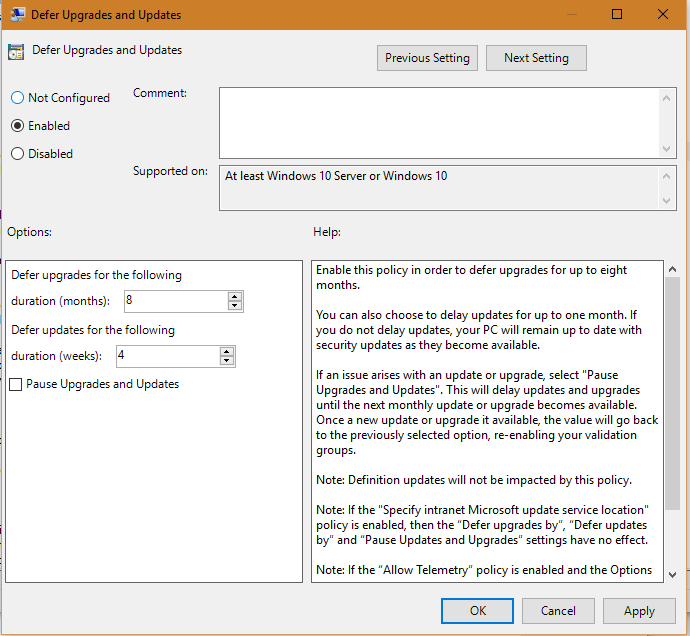
The Windows 10 upgrade is automatically blocked (that is, no further action is required) on computers or other devices in the following scenarios:
for other scenario’s where you need to block the notification check this KB3080351
Jul 10
Today Microsoft released Office 2016 for Mac read more here on the Office Blogs
Jun 25
You can download the Word for Android, Excel for Android and PowerPoint for Android apps from the Google Play* store beginning today. We hope you enjoy using them as much as we enjoyed making them.
—Kirk Koenigsbauer
Source: Office Blog
Jun 13
Yesterday, Microsoft released three security patches for 10130, along with what Gabe Aul, head of the Windows Insiders program, called “a fix for a few of the top issues reported in the build”. Microsoft’s release notes for those fixes are posted below:
However, before you install Insider Preview build 10130, be aware of one thing: some users may be unable to install the build via Windows Update, encountering error code 0x80246017 while attempting to do so.
If this happens, Microsoft recommends that you download the ISO and upgrade your PC to the build from there.
Jun 01
Today Microsoft published the release date for Windows 10, July 29th 2015
More info & Source: Windows Blog
May 05
A great new version of Office now available in Public Preview

More info: Office Blog
Get your copy here: https://products.office.com/en-us/office-2016-preview
May 04
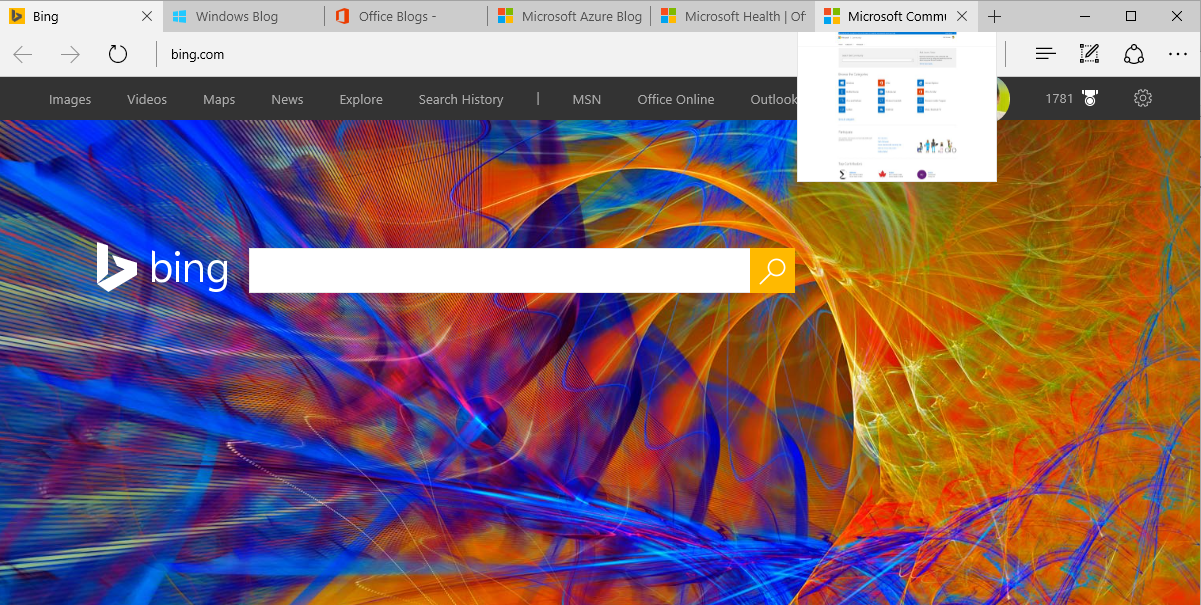
Microsoft Edge is the all-new Windows 10 browser built to give you a better web experience. Write directly on webpages and share your mark-ups with others. Read online articles free of distraction or use the offline reading feature for greater convenience. Microsoft Edge is the new browser that works the way you do.
Source: Windows Blogs