Hi all, last Friday Microsoft released Windows 11 Insider Preview Build 26220.7535 (KB5072046) to the Dev & Beta Channels.
As a reminder, we are offering the same builds to both the Dev & Beta Channels on Windows 11, version 25H2.
If you are an Insider in the Dev Channel, you now have a window to switch from the Dev Channel to the Beta Channel if you would like. This window is soon closing.
New features gradually being rolled out with toggle on*
Bringing Copilot-powered image descriptions to Narrator
Last year, we introduced rich image descriptions in Narrator on Copilot+ PCs—making it possible for blind and low-vision users to hear detailed, AI-generated descriptions of images, charts, and graphs.
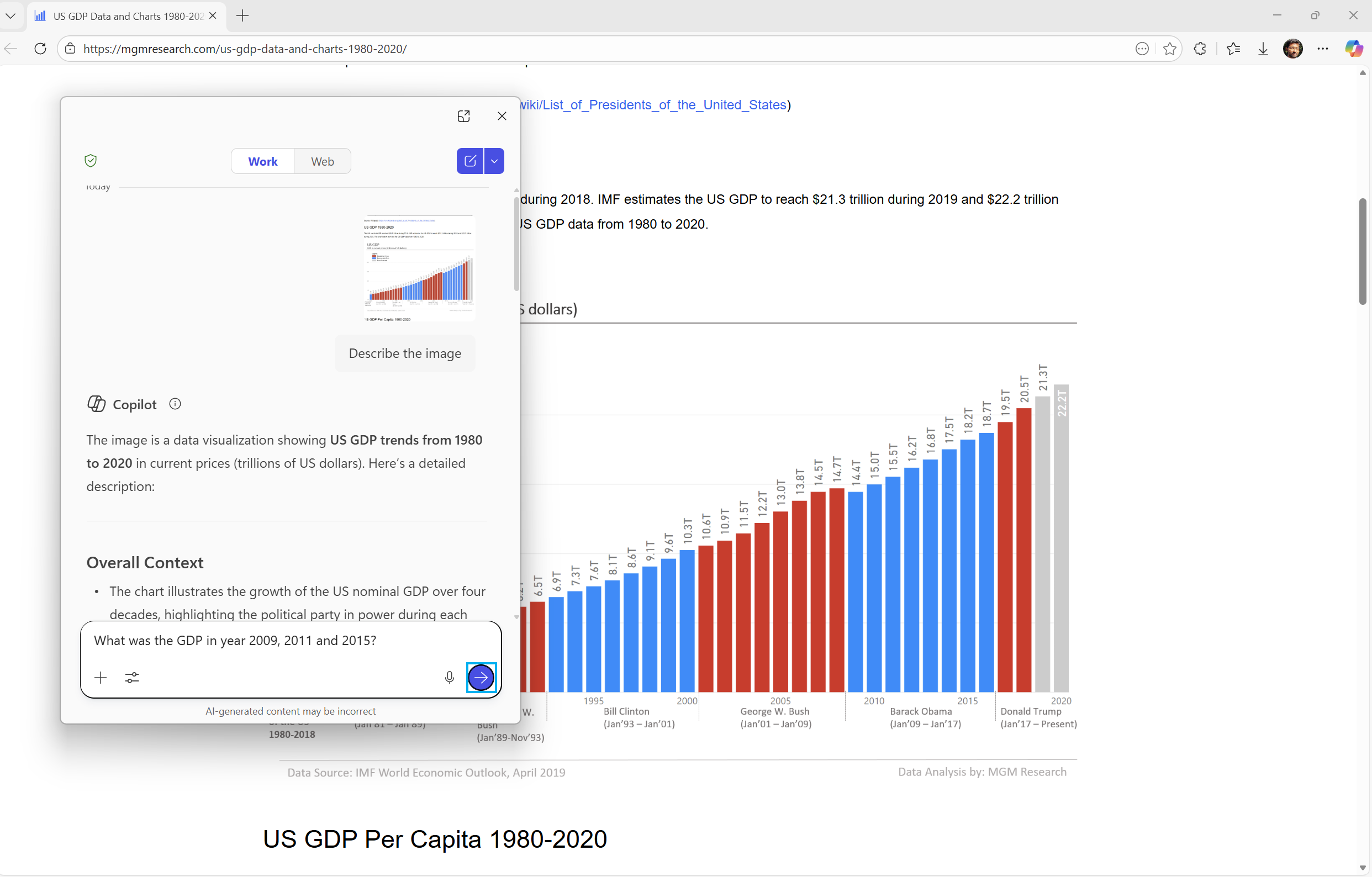
Narrator can now work with Copilot on all Windows 11devices to further understand images and visual elements on your screen. You can press Narrator key + Ctrl + D to describe the focused image or press Narrator key + Ctrl + S to describe the full screen. Copilot opens with the image ready, allowing you to enter your own prompt and generate a description tailored to what you want to know. Importantly, the image is only shared after you choose to describe it. You remain in control at every step.
On Copilot+ PCs, Narrator continues to provide instant, on-device image descriptions using local AI. Press Narrator key + Ctrl + D/S, and Narrator immediately reads a rich description—highlighting people, objects, colors, text, numbers, and layout. When you want more detail or follow-up insights, simply select Ask Copilot to continue exploring.
This feature is not available in the European Economic Area (EEA).
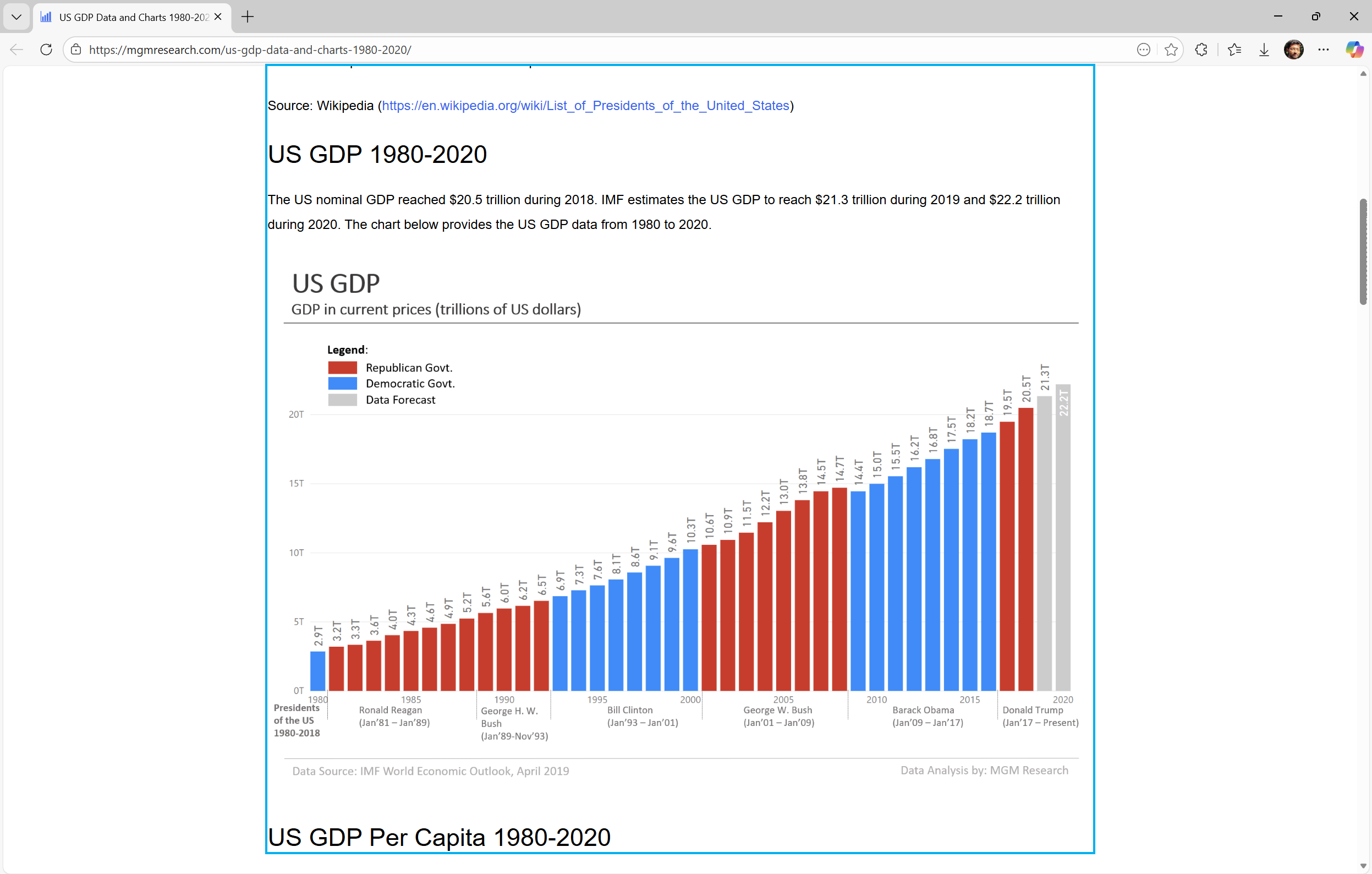
Use Narrator with Copilot to explore trends, labels, and key changes in images and visual elements (example-US GDP growth over several decades).
Explore and ask questions about the images and visual elements using your own words such as details, trends, and summaries.
FEEDBACK: Please file feedback in Feedback Hub (WIN + F) under Accessibility > Narrator.
Uninstalling Microsoft Copilot App on managed devices
Admins can now uninstall Microsoft Copilot for a user in a targeted way by enabling a new policy titled RemoveMicrosoftCopilotApp. It will apply for devices/users that meet the below conditions:
Microsoft 365 Copilot and Microsoft Copilot are both installed
The Microsoft Copilot app was not installed by the user
The Microsoft Copilot app was not launched in the last 28 days
If this policy is enabled, the Microsoft Copilot app will be uninstalled, once. Users can still re-install if they choose to. This policy is available on Enterprise, Pro, and EDU SKUs.
To enable this policy, open the Group policy editor and go to: User Configuration -> Administrative Templates -> Windows AI -> Remove Microsoft Copilot App.
FEEDBACK: Please share your feedback in Feedback Hub (WIN + F) under Desktop Environment > Taskbar.
Changes and Improvements gradually being rolled out with toggle on*
[For Developers]
We’re excited to share an enhancement to the Cross Device Resume capability that we announced earlier. Until now, app developers could integrate with Resume using a solution based on the Link to Windows app. We’ve now introduced an additional integration path leveraging the Windows Notification System (WNS). This additional option expands the scope of users to whom you can offer Resume capability, while delivering the same seamless experience on Windows. We invite developers to explore onboarding with this new capability alongside the existing integration method. Together, these options help maximize continuity across devices. Use WNS Notifications to implement Cross Device Resume (XDR) – Windows apps | Microsoft Learn.
[Windows Spotlight]
The Windows Spotlight icon is getting refreshed. The new icon flight was started in late December for a small set of Insiders.
Old Windows Spotlight icon on the desktop.
New Windows Spotlight icon on the desktop.
Fixes gradually being rolled out with toggle on*
[Start menu]
Fixed an issue where the edge of the warning dialog shown when shutting down your PC while other users were still signed in was truncated by the edge of the Start menu.
[File Explorer]
Fixed an issue which was causing explorer.exe to crash for some Insiders when invoking the context menu on the desktop recently.
[Input]
Fixed an issue which could lead to a black flash when using a pen to ink in Snipping Tool.
[Print]
Fixed an issue which could lead to two print dialogs appearing when you opened print instead of just one.
Fixed the color of the close button the print dialog to be consistent with other windows.
Fixed an issue where the text on the Printers and Scanners page in Settings could become truncated and unreadable.
[Windows Update]
Fixed an issue which could lead to the Windows Update settings page hanging when loading.
Known issues
[Xbox full screen experience for PC]
Some apps may behave unexpectedly when using FSE, particularly those that expect to be locked to a given size or launch additional windows.
[Taskbar & System Tray]
We’re working on the fix for an issue which is causing the Start menu to not open for some Insiders on click, although it will open if you press the Windows key. This issue may also potentially impact the notification center (which you can open with WIN + N) and quick settings (WIN + A).
We’re investigating an issue where for some Insiders apps aren’t showing in the system tray when they should be.
We’re working on the fix for an issue in the latest builds where, when the taskbar is set to autohide, it might invoke before interacting with the bottom of the screen, blocking the use of apps in that area.
[Settings]
[NEW] We’re working on the fix for an issue causing Settings to crash when interacting with audio devices.
[Bluetooth]
We’re working on the fix for an issue causing Bluetooth device battery level to not show for some Insiders.
[Click to Do]
We’re investigating an issue where the Microsoft 365 Copilot prompt box on selected images does not function if the Microsoft 365 Copilot app is not running.
Hi all, last Friday Microsoft released Windows 11 Insider Preview Build 26220.7523 (KB5072043) to the Dev & Beta Channels.
The last Insider build for 2025, enjoy this one and Happy Holidays!
New features gradually being rolled out with toggle on*
Introducing Ask Copilot on the taskbar with Microsoft 365 Copilot
In October, we introduced Ask Copilot on the taskbar in build 26220.7051 for consumer customers. Now, we’re starting to roll out a version tailored for commercial customers—first announced at Microsoft Ignite. This opt‑in experience will roll out gradually in the coming weeks to commercial Windows Insider Program customers in the United States who have Microsoft 365 Copilot licenses.
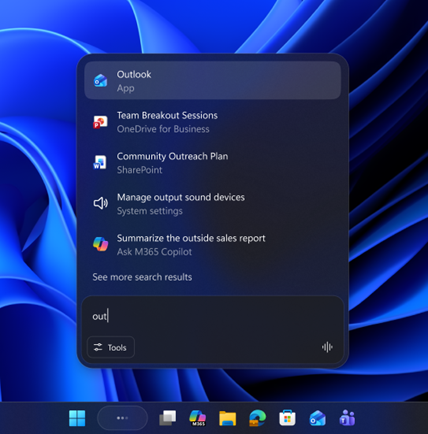
UI of Ask Copilot on the taskbar showing easy access to apps, files, and Microsoft 365 Copilot.
Ask Copilot on the taskbar provides a unified entry point that fluidly connects Microsoft 365 Copilot, agents, and search. This makes Copilot and agents feel like a natural part of how you use your PC, turning everyday interactions into moments of productivity and impact.
One-click access to Copilot from your taskbar: This opt-in experience is the most integrated and natural way to engage with Copilot through voice or text in the way that works best for you. Commercial users will have all the power of their Work IQ as contextual information that they can reference in their Copilot chats and with Microsoft 365 AI Agents.
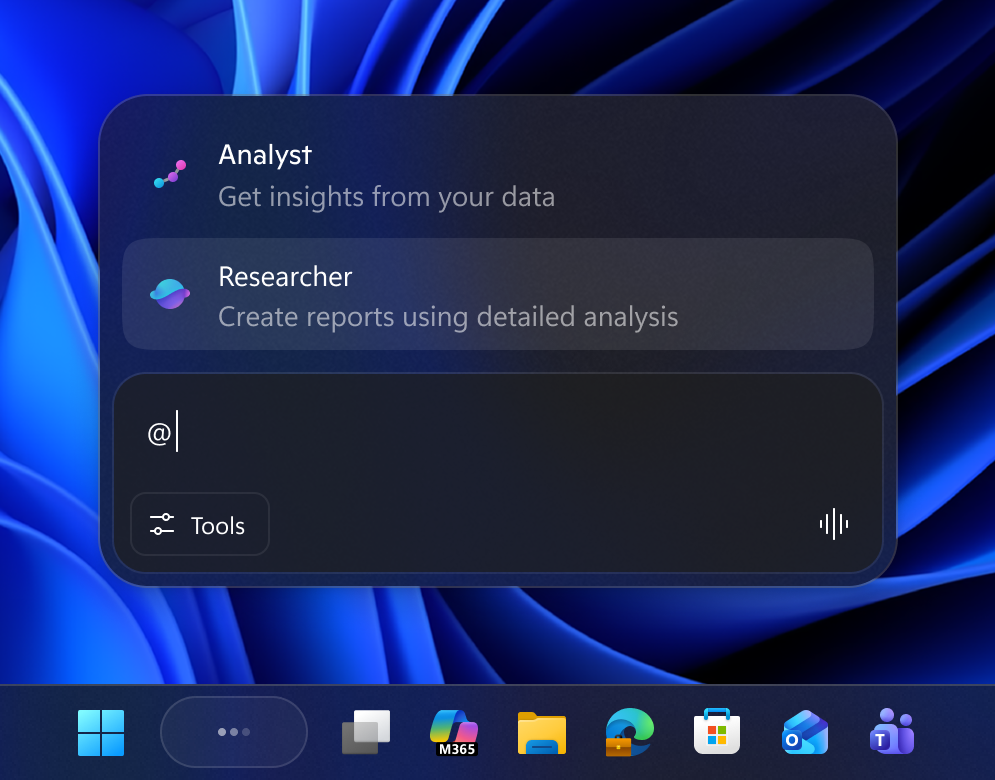
Invoke agents: You’ll be able to invoke agents directly from Ask Copilot on the taskbar using the tools button or by typing “@.”
Streamlined search experience: Lightning-fast results in a refreshed design makes finding apps, files and settings easier.
To get started go to Settings > Personalization > Taskbar > Ask Copilot to enable the experience.
Ask Copilot in taskbar complements the familiar Windows Search experience, so you can continue using Search as you always have from Start while trying out this new experience.
Ask Copilot uses existing Windows APIs to return apps, files, and settings—just like Windows Search—and does not grant Copilot access to your personal content. For more details, you can learn about privacy and control options for Microsoft 365 Copilot here.
Feedback: Share your thoughts in Feedback Hub (WIN + F) under Desktop Environment > Ask Copilot in taskbar.
Introducing Agents on the taskbar
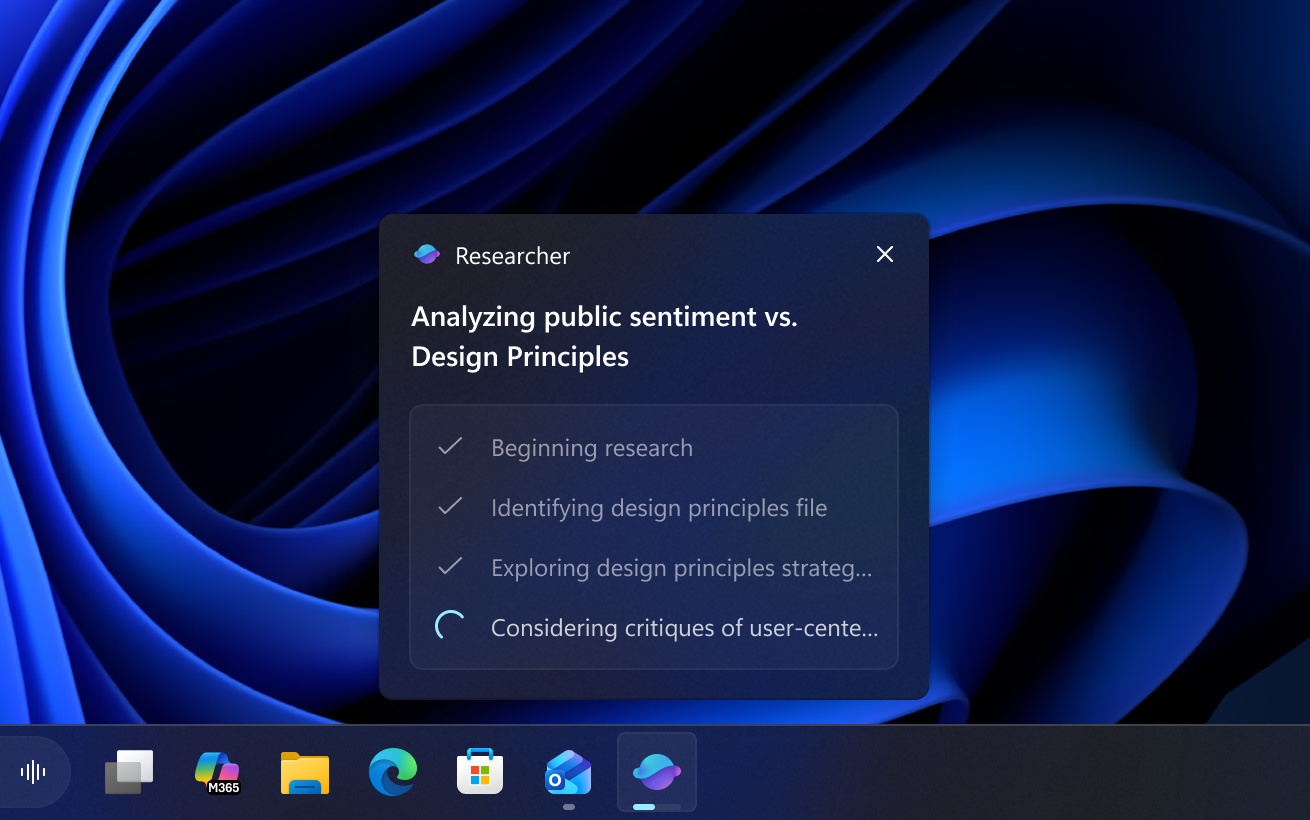
Windows is adding a new way to keep an eye on your Agents right from the taskbar. Researcher in Microsoft 365 Copilot can dig into a topic and build a detailed report, and now you’ll be able to track its progress without breaking your flow. Give it a try by asking Researcher a question from within the Microsoft 365 Copilot App.
We’re also testing a hover experience—when you move your cursor over the Copilot or Researcher icon, you’ll see real‑time reasoning updates, so you always know how the task is progressing. Researcher will also let you know when it’s done. This opt‑in experience will roll out gradually in the coming weeks to commercial Windows Insider Program customers in the United States who have Microsoft 365 Copilot licenses.
UI showing current progress of Researcher on taskbar hover.
When the report is complete, you will receive a notification as well as seeing a ‘completed’ state on the taskbar. Click either to go back to Microsoft 365 or review the report and turn your learnings into action.
We are experimenting with different ways that Agent tasks will appear in the taskbar to determine how to best meet the needs of customers. (Group the agent task with the Copilot icon on the taskbar or have it as a separate Researcher icon.)
Agent Launchers on Windows
We are introducing Agent Launchers, a new framework that enables Windows apps to register AI agents and make them discoverable across the system. Agent Launchers provides a standardized way for apps to expose their interactive AI agents so they can be found and invoked by Windows and Applications. When launched, these agents open their chat experience so you can start working with them. Agents provide active, collaborative experiences, asking clarifying questions, maintaining context, and taking actions to get things done.
With Agent Launchers, developers can register their agents once, and those agents become available to all supporting experiences—including Ask Copilot on the taskbar with Microsoft 365 Copilot and other installed apps. Microsoft 365 Copilot is already using this framework to register agents like Analyst (for gaining insights from data) and Researcher (for creating detailed reports). Developers can register agents statically at install time or dynamically at runtime, giving flexibility to control availability based on authentication, subscriptions, or other conditions. Documentation is available at https://learn.microsoft.com/windows/ai/agent-launchers/.
Analyst and Researcher agents in Ask Copilot on the taskbar.
FEEDBACK: Please share your feedback in Feedback Hub (WIN + F) under Developer Platform > App Actions on Windows.
Personalize what Narrator announces
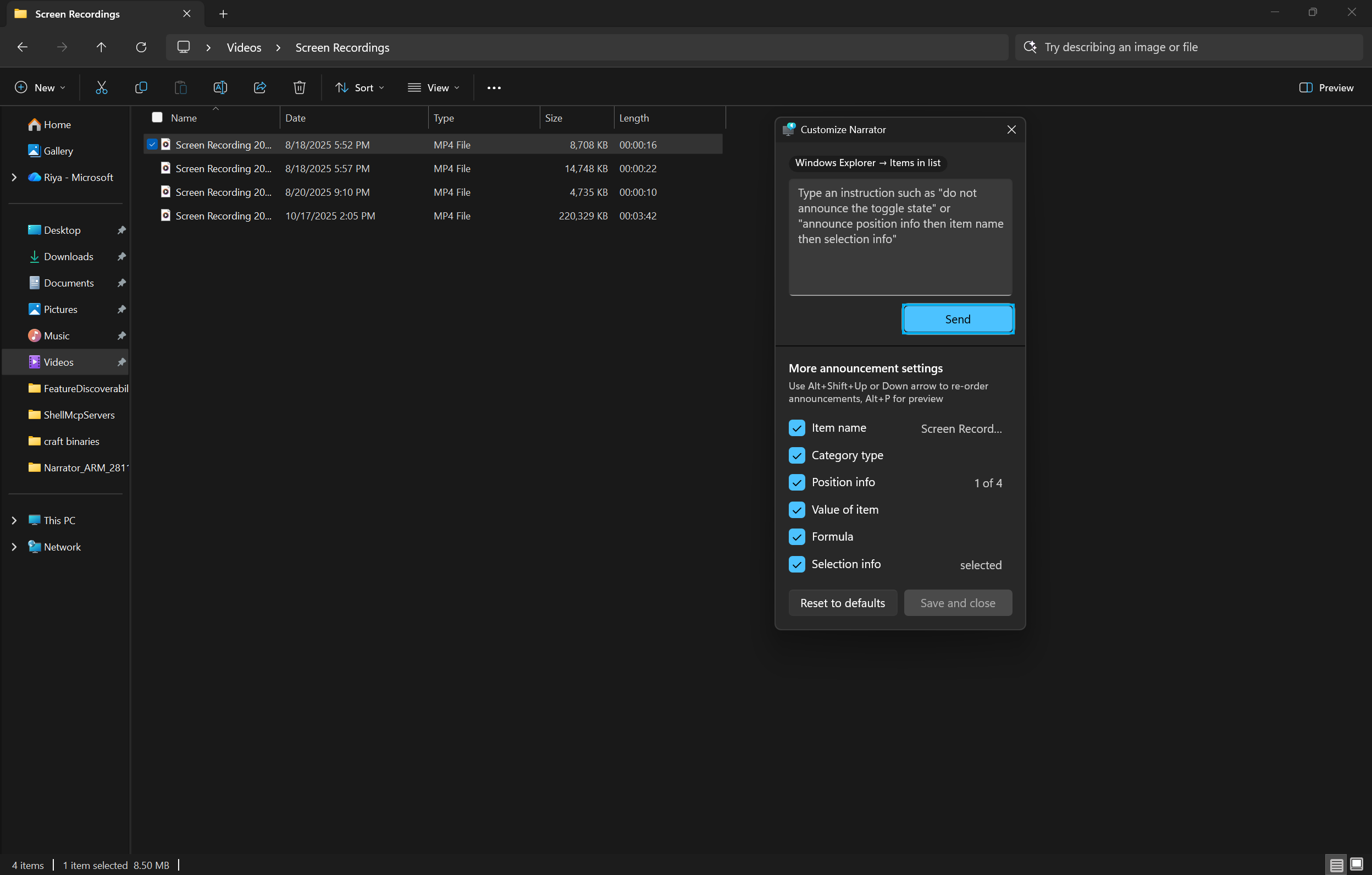
Narrator now gives you more control over how information is spoken when you navigate UI elements in an app. Every app is made up of different control types—such as buttons, checkboxes, links, sliders, and text fields. Each control includes properties (like its name, role, or state) and values (for example, a slider set to “75%”). Narrator usually announces these in a fixed order, but you can now choose which properties are spoken and rearrange their order to match your preferences.
For example, when you land on a “Submit” button, Narrator may announce: “Submit, button.” With personalization, you can choose to hear the label first, the role first, or omit something you don’t need. On a checkbox, you might decide whether the state (“checked” or “not checked”) should come before or after the label—or whether you prefer not to hear the state at all.
To customize these announcements, press Narrator key + Ctrl + P. From there, you can select, unselect, & reorder the properties Narrator speaks for each control type.
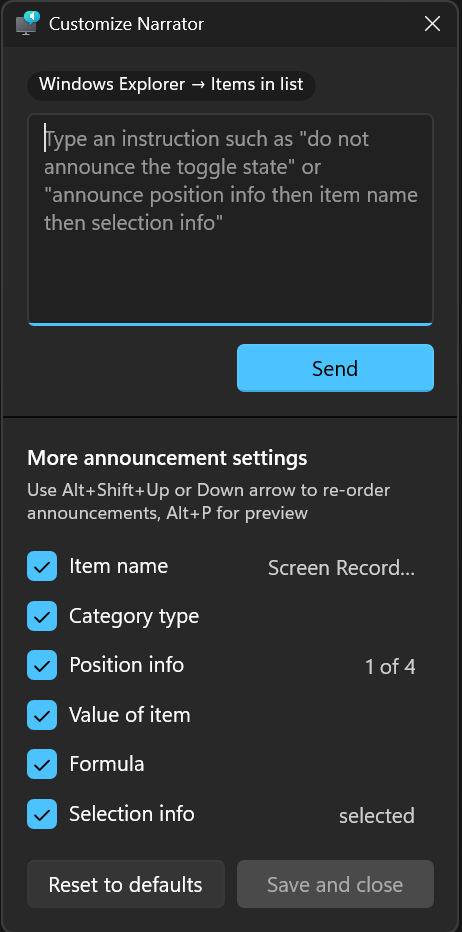
You can make changes faster using a natural language input box exclusively on Copilot+ PCs. Simply type what you want—for example: “Don’t announce the selection info or position info,”
These changes apply to that control type throughout the app you’re currently using.
You can also preview how your personalized announcement will sound before saving your changes. If you ever want to go back, simply choose Reset to default to restore Narrator’s original announcement pattern.
Shape Narrator’s detail level the way you prefer—clearer, more predictable, and aligned with how you want to navigate.
UI showing the Narrator customization panel in Windows 11.
UI showing the Narrator customization panel adjustable announcement settings in Windows 11.
FEEDBACK: Please file feedback in Feedback Hub (WIN + F) under Accessibility > Narrator
Enhancing the Touch Keyboard Experience for Voice Typing
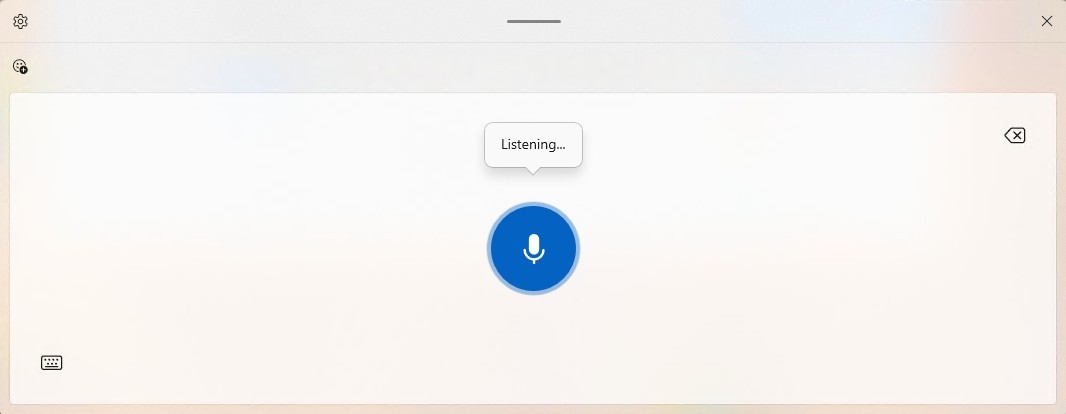
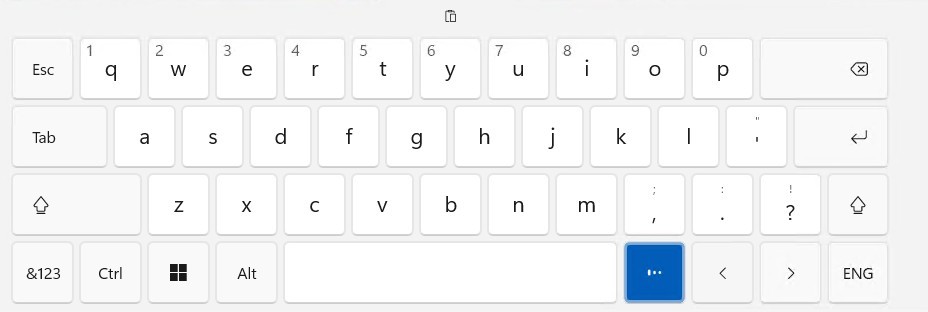
We’re updating the experience when you use voice typing with the touch keyboard to make it feel more streamlined and intuitive. The new design removes the previous full‑screen overlay and instead shows voice typing animations directly on the dictation key, helping you stay focused on what you’re doing without extra visual distractions.
Before the update:
Previous UX: When the dictation key is pressed, an overlay is displayed.
After the update:
New UX: No overlay; dictation state animations are shown directly on the dictation key.
FEEDBACK: Please share your feedback in Feedback Hub (WIN + F) under Input and Language > Voice Typing (Windows key plus H).
Discover Windows Widget
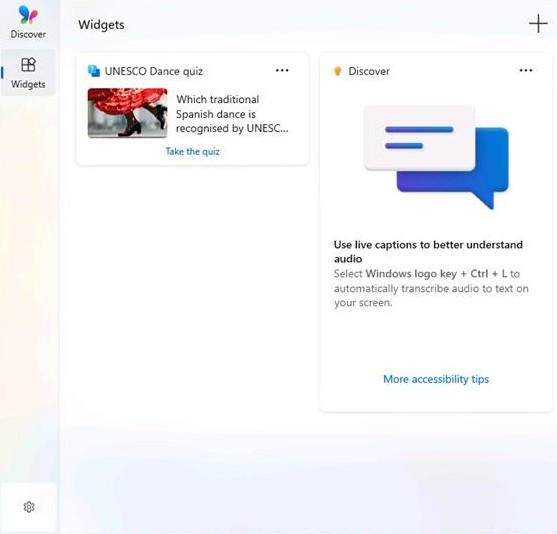
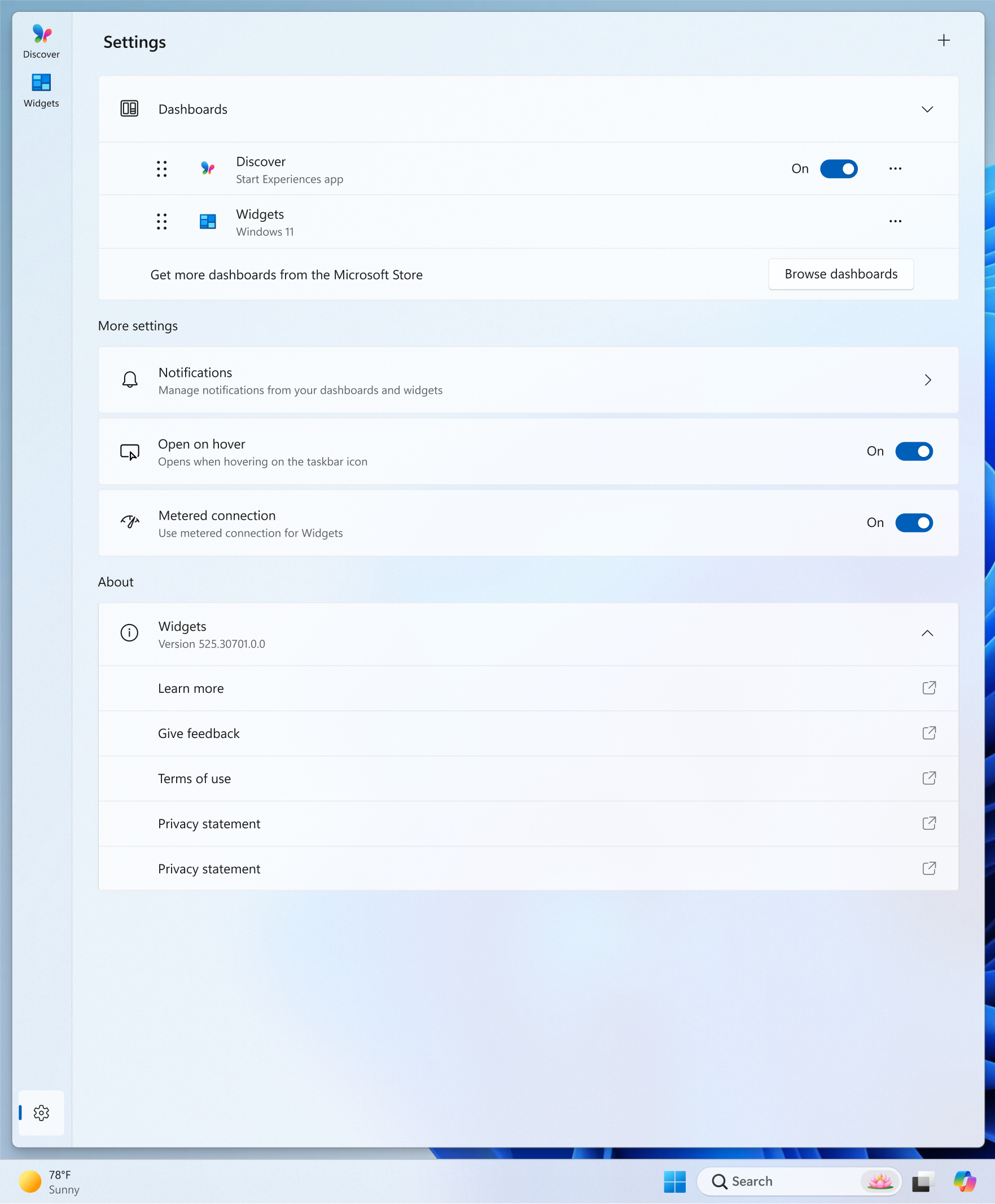
We’re introducing a new Discover Windows widget on Windows 11. This widget helps you learn about Windows features with short, helpful tips that appear right when you need them.
What it shows:
Quick, actionable tips from the Windows Tips website—covering things like shortcuts, productivity tricks, and security reminders.
Tips update automatically throughout the day to match common usage moments.
How to add it:
To Widgets Board: Open the Widgets Board, select Add widgets, then choose Discover.
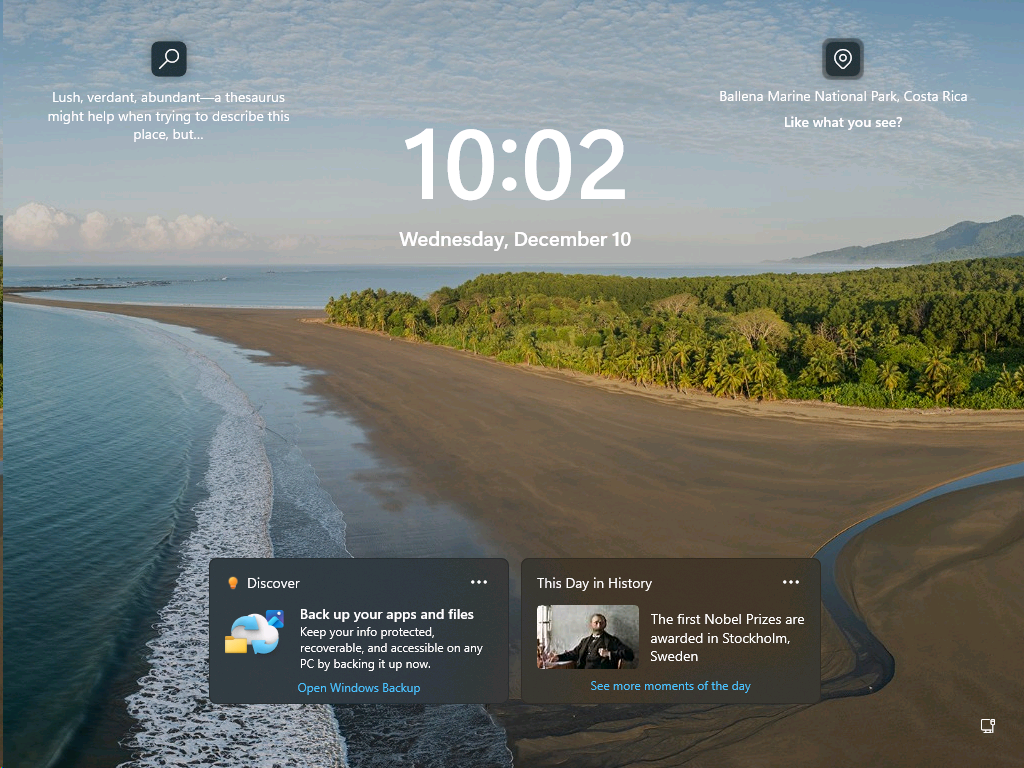
To Lock Screen: Go to Settings > Personalization > Lock screen, then add the Discover widget to your lock screen widgets.
You can add it, remove it, or ignore it at any time—it’s designed to be helpful without getting in the way. We’ll be trying out this experience with Insiders first to gather feedback before a wider rollout.
UI showing the revamped Widgets board in Windows 11.
UI of lock screen widgets displaying quick tips and historical highlights.
FEEDBACK: Please share your feedback in Feedback Hub (WIN + F) under Desktop Environment > Widgets.
Changes and Improvements gradually being rolled out with toggle on*
[Settings Agent Language Expansion]
Last September, we announced that Agent in Settings experience was expanded to include French in Dev and Beta Now, the languages supported by the Settings Agent continue to be expanded. The following locales and languages are supported with this release:
Current:
English: en-gb, en-us
French: fr-fr, fr-ca
New:
German: de-de
Portuguese: pt-br, pt-pt
Spanish: es-es, es-mx
Korean: ko-kr
Japanese: ja-jp
Hindi: hi-in
Italian: it-it
Chinese (Simplified): zh-cn
[Click to Do]
The Copilot prompt box in Click to Do now supports Microsoft 365 Copilot. Ask Microsoft 365 Copilot about what’s on your screen. Quickly type a custom prompt directly into a text box, which is then sent to Microsoft 365 Copilot along with your selected screen content. This change is not yet rolling out to Windows Insiders in the EEA (European Economic Area) or China. This feature previously rolled out last September to Dev and Beta channel outside of EEA.
[Input]
The AltGr layer is now enabled for the Arabic 101 keyboard layout. The left Alt key continues to function as before, while the right Alt key acts as a modifier to access additional symbols. The first new symbol mapped to AltGr on the Arabic 101 layout is the Saudi Riyal currency symbol (AltGr + S). Users who switch languages with Alt + Shift can continue to use the left Alt + Shift or the general shortcut Windows logo key + Space. Arabic 102 and Arabic 102 AZERTY layouts are updated similarly.
[Voice Access]
We’re introducing a more streamlined setup flow to make it even easier to get started with Voice Access. The redesigned flow helps download the right speech model for your language of choice; select your preferred input microphone & highlights what Voice Access can help you do on your PC.
[Taskbar]
We’re temporarily stopping the rollout of the new animations when sliding between open apps on the taskbar to investigate some issues – appreciate your patience.
[File Explorer]
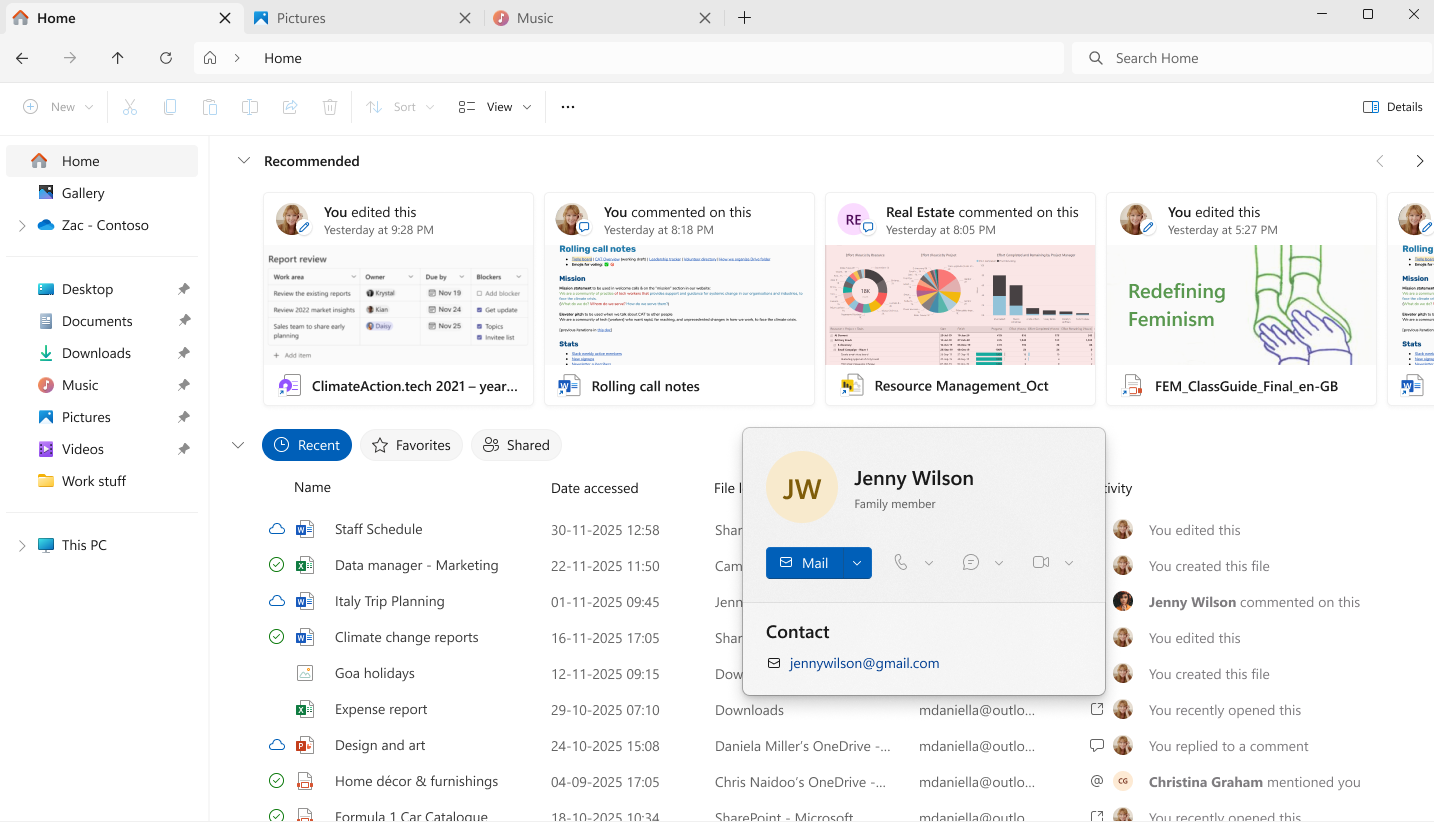
For Windows Insiders signed in with a Microsoft account (consumer cloud), File Explorer will now begin showing people icons under the “Activity” column on File Explorer Home and in areas like Recommended, Favorites, and Recent. When you hover or click on a people icon, File Explorer will display the new Windows People Card (WPC), giving you lightweight context about who recently interacted with the file and providing quick actions like starting a chat or a call through your preferred communication apps.
UI showing the File Explorer Windows People Card for a family member.
This brings the people context experience—previously available only for work and school (Entra ID) files via the Live Persona Card (LPC)—to consumer cloud files as well, enabling a more consistent and intuitive collaboration experience across File Explorer. This is an update to the originally released feature which was previously documented in the Dev and Beta channels August 2025.
Fixes gradually being rolled out with toggle on*
[Taskbar and System Tray]
When your taskbar is set to uncombined, if you have an app open with many windows, they will no longer all move as a set to the overflow area when there is not enough space on the taskbar, and instead only the ones specifically within the set that don’t have space. With this change, the overflow area should no longer appear to display with lots of available space.
Fixed an issue where the label in the taskbar might not be displayed correctly if you had an app with multiple windows open.
[File Explorer]
Fixed an issue causing File Explorer recently to show a white flash when navigating between pages after the latest flights.
Made some improvements to File Explorer search performance by eliminating duplicate file indexing operations, which should result in faster searches and reduced system resource usage during file operations.
Enhanced search reliability with improved handling of system and secondary drive locations, to help ensure more accurate search results across all your storage devices.
Fixed an issue which could prevent OneDrive files from opening in RemoteApp sessions (showing error 0x80070057).
Improved Voice Access support in File Explorer’s Gallery view, so you can now open photos by saying ‘click [number]’ instead of requiring ‘double click,’ streamlining voice-controlled navigation.
[Login and lock screens]
Fixed a few more issues which could lead to the login screen becoming unresponsive and not rendering.
[Display and Graphics]
Fixed an issue which could lead to Adaptive Brightness not working immediately after rebooting your PC.
[Windows Update]
Fixed an issue resulting in an increase in Insiders seeing error 0x800F0922 when trying to install the latest updates recently.
[Other]
Fixed an issue where text might not display correctly in Windows Recovery when using the Japanese display language.
Fixed an issue where in some cases valid Windows license migration might fail when upgrading because the device couldn’t register with the Windows Activation server for its CLIP / online entitlement, requiring using the troubleshooter to fix.
Fixed an issue where external virtual switches might lose their physical network adapter (NIC) bindings after a host restart. When this happened, the switches would revert to internal mode, resulting in loss of network connectivity for virtual machines and blocking normal server operations.
Fixed an issue where the Share dialog might unexpectedly show an option to share to Shell Experience Host.
Updated the “Change Account Type” dialog in Settings > Accounts > Other accounts to better align with other modern dialogs in Settings.
If you were seeing a message saying “There’s a newer build available” in Windows Insider Program Settings, but there wasn’t actually, that should be resolved now.
Known issues
[Agents on the Taskbar]
Researcher may appear unresponsive if you click on the taskbar icon or status card when task is in progress. Switching to a different conversation then back to the researcher task within Microsoft 365 Copilot should fix the problem.
[Xbox full screen experience for PC]
Some apps may behave unexpectedly when using FSE, particularly those that expect to be locked to a given size or launch additional windows.
[Taskbar & System Tray]
We’re working on the fix for an issue which is causing the Start menu to not open for some Insiders on click, although it will open if you press the Windows key. This issue may also potentially impact the notification center (which you can open with WIN + N) and quick settings (WIN + A).
We’re investigating an issue where for some Insiders apps aren’t showing in the system tray when they should be.
[NEW] We’re working on the fix for an issue in the latest builds where, when the taskbar is set to autohide, it might invoke before interacting with the bottom of the screen, blocking the use of apps in that area.
[File Explorer]
Scrollbar and footer are missing and showing a white block instead when text is scaled in dark mode version of the copy dialog.
We’re working on the fix for an issue where opening the context menu is causing explorer.exe to crash for some Insiders after the previous flight.
[Bluetooth]
We’re working on the fix for an issue causing Bluetooth device battery level to not show for some Insiders.
[Click to Do]
[NEW] We’re investigating an issue where the Microsoft 365 Copilot prompt box on selected images does not function if the Microsoft 365 Copilot app is not running.
Paint App update rolling out to Canary & Dev Channels
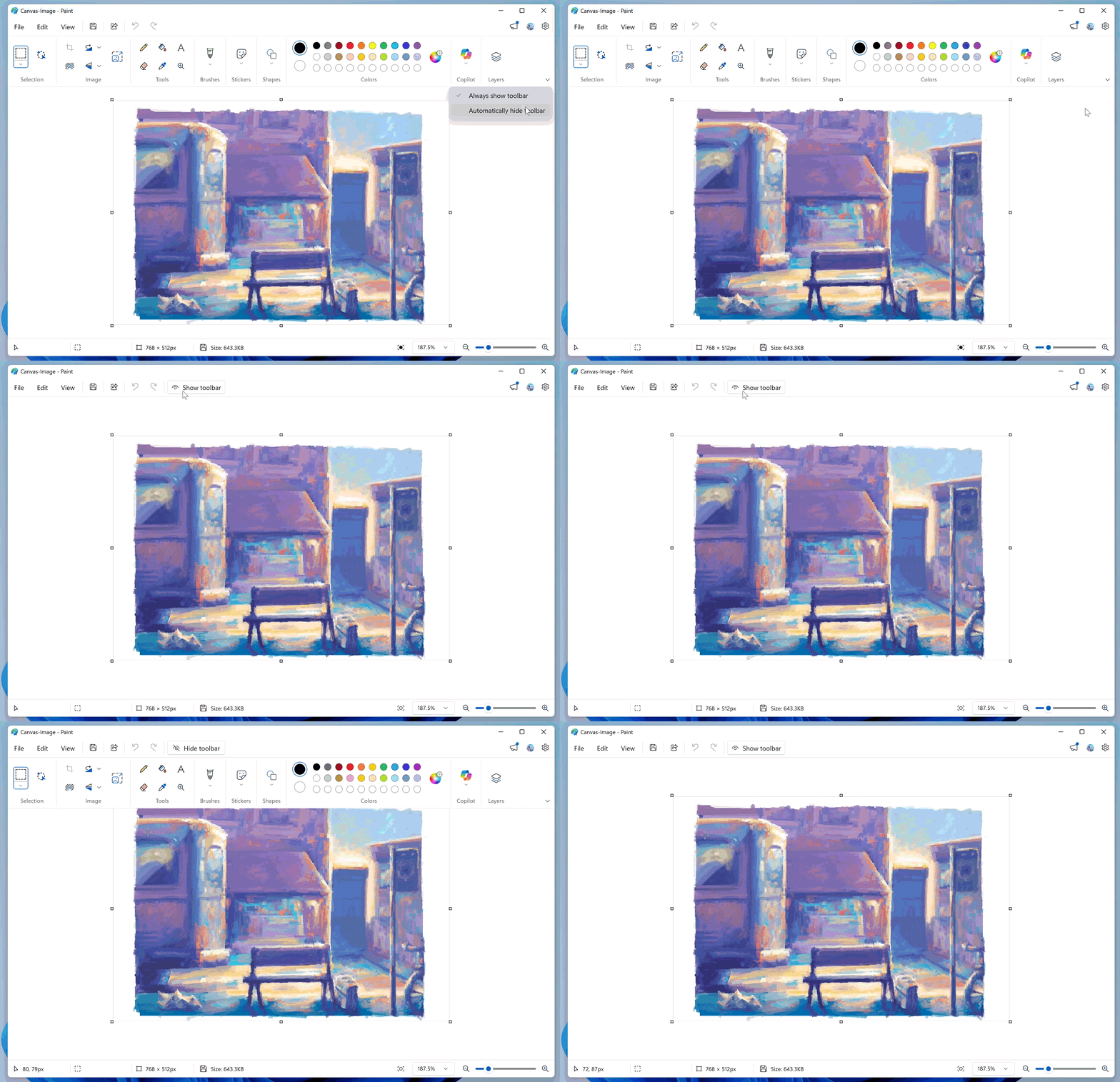
With Paint version 11.2511.281.0, we’re introducing the collapse toolbar feature in Paint. To get started, open Paint and click the chevron icon at the bottom-right of the ribbon to enable Automatically hide toolbar. Once the toolbar collapses, use the Show toolbar button to bring it back and switch tools. To hide it again, click the Hide toolbar button or anywhere outside the toolbar. When you’re ready to return to the default view, click the chevron icon and select Always show toolbar.
Paint App GIF showing the collapsable toolbar.
Paint App GIF showing the collapsable toolbar.
FEEDBACK: Please file feedback in Feedback Hub (WIN + F) under Apps > Paint.
Hi all, last Monday Microsoft released Windows 11 Insider Preview Build 28020.1362 to the Canary Channel. (KB 5073095)
This will be the last Canary Build of the Year, and it is packed with features
Happy Testing!
What’s new in Build 28020.1362
Changes and Improvements Gradually Rolling Out
[Gaming]
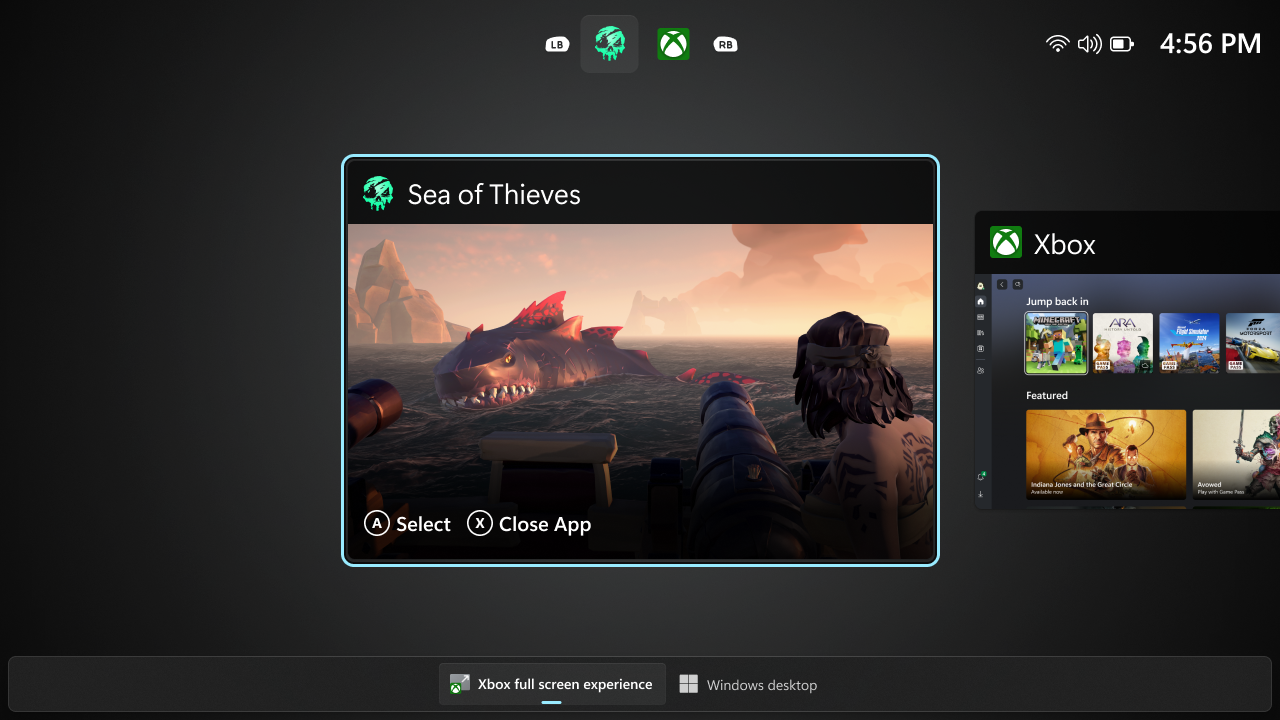
The full screen experience (FSE) is now available on more Windows 11 handheld devices after its initial launch on ASUS ROG Ally and ROG Ally X. FSE gives you a console-style interface with the Xbox app, making handheld gaming clean and distraction-free. It improves performance by minimizing background tasks, so gameplay stays smooth and responsive. To turn it on, go to Settings > Gaming > Full screen experience, and set Xbox as your home app. You can open FSE from Task View or Game Bar or configure your handheld to enter full screen experience on startup.
UI showing the Task View in Xbox full screen experience.
Feedback: Share your thoughts in Feedback Hub (WIN + F) under Gaming and Xbox > Gaming Handhelds.
[Click to Do]
The following changes and improvements are rolling out for Copilot+ PCs:
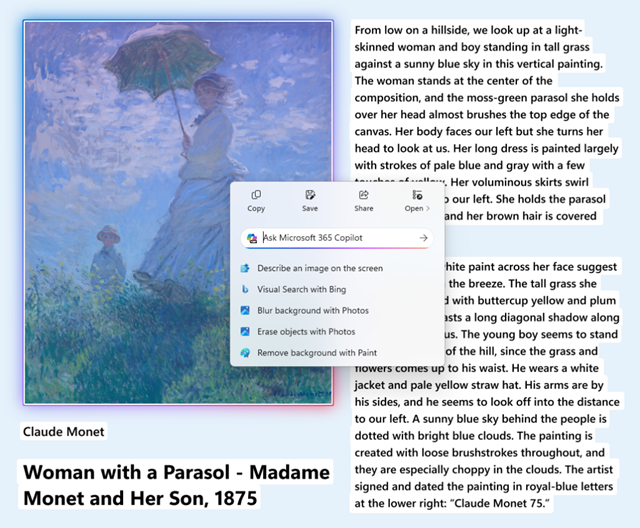
The Click to Do context menu is being updated with a streamlined design, making it simpler to locate what you need. Frequently used actions like Copy, Save, Share, and Open will now be easier to access directly from the context menu.
Whenever a large image or table appears on your screen, the context menu will automatically pop up, making it quicker and easier to access the actions and results you need.
UI showing the context menu automatically appearing to provide quick access to common actions.
[Agent in Settings]
The following changes and improvements are rolling out for agent in Settings on Copilot+ PCs:
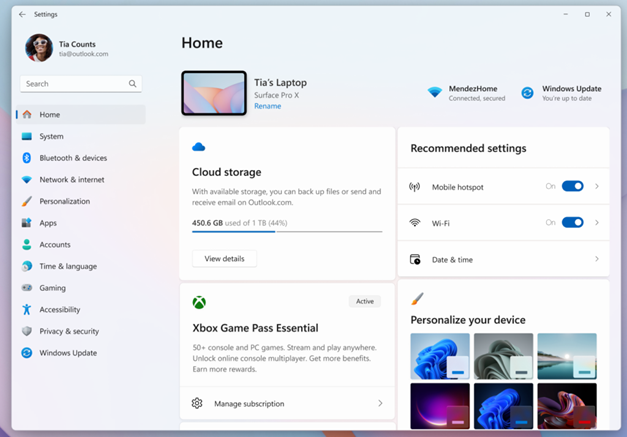
We’re introducing new experiences to make it easier to modify settings in both search and recommended settings.
Recommend Settings: Now allows for faster changes by showing an inline agent action for recently modified settings.
Settings Homepage with options to adjust recently modified settings under “Recommended settings”.
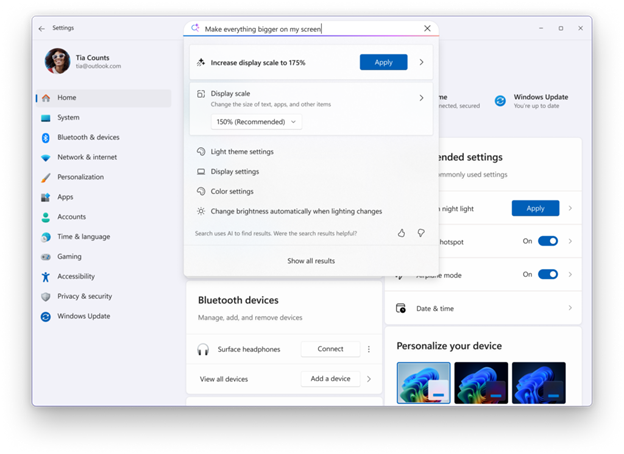
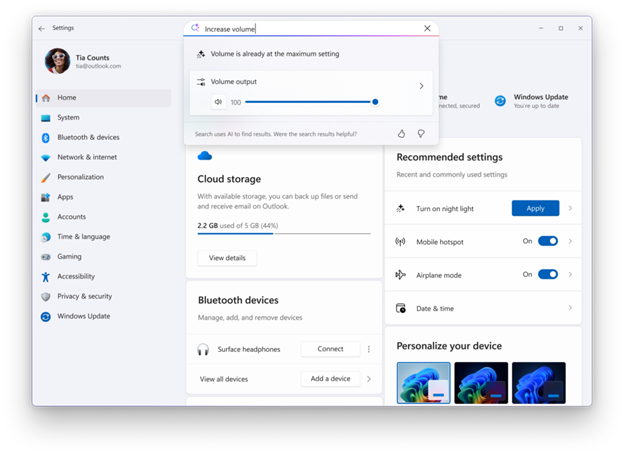
Search: We now show more available results in the search fly out to discover what you’re looking for and to allow you to quickly modify those settings. In cases where the settings can’t be adjusted further, a dialog lets you know why and provides an option to modify the settings as needed.
More available results are displayed within search to take action and quickly modify those settings.
When searching for “increase volume” within settings, a dialog is presented indicating that volume is already at the maximum setting and provides a slider to modify the value.
[Studio Effects]
Making Windows Studio Effects available on additional cameras
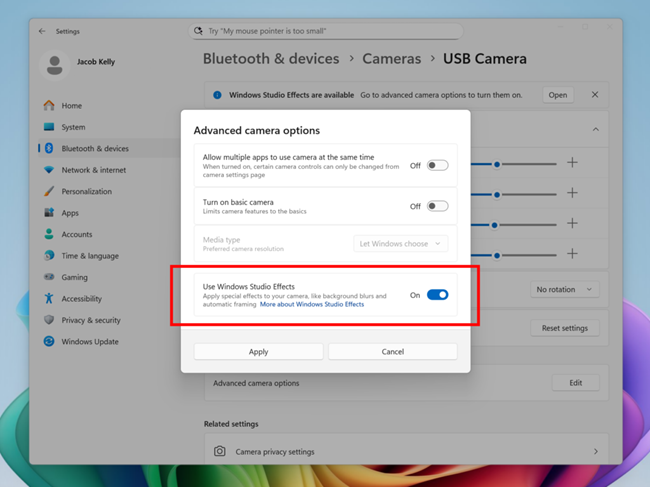
We are working to bring the Windows Studio Effects experience from integrated laptop cameras to a broader range of camera hardware, helping you stay professional and look your best across more setups. On supported Copilot+ PCs, we are rolling out the ability to use Studio Effect’s AI-powered camera enhancements with an additional, alternative camera – such as a USB webcam or your laptop’s built-in rear camera.
New option inside Settings to turn on the ability to use Windows Studio Effects on an additional camera highlighted in a red box.
To get started, navigate to Settings > Bluetooth & devices > Cameras and select your preferred camera from the connected cameras list. Then, open the advanced camera options menu to find the new “Use Windows Studio Effects” toggle. Once enabled, you can now access and adjust Studio Effects directly from the camera settings page or via the quick settings menu in the taskbar.
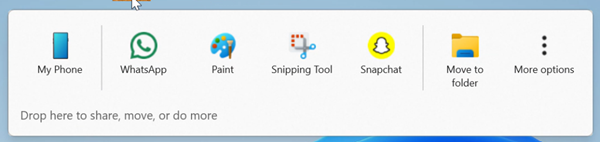
Drag Tray now supports multi-file sharing, intelligently surfaces more relevant apps, and enables seamless file movement to a chosen folder.
Drag Tray UI shows options to share to apps like WhatsApp, Paint, Snapchat, and movement to other folders.
We’ve added the ability to turn Drag Tray on/off from Settings > System > Nearby sharing.
[File Explorer]
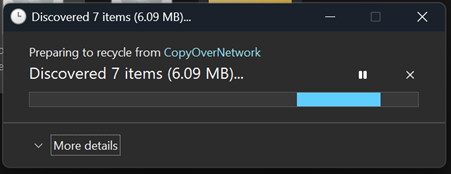
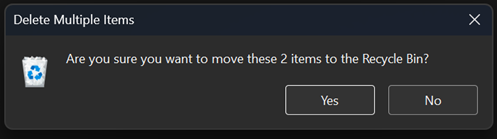
Dark Mode: We’ve made improvements to the dark mode experience in File Explorer starting with key actions like copy, move, and delete dialogs. You’ll now see a consistent dark mode experience in:
The default and expanded state for copy, move, and delete dialogs
Progress bars and chart views
Dialogs for confirming states like skip, override, and file selection
Multiple confirmation and error dialogs
The new discover dialog in dark mode.
The new recycle bin dialog in dark mode.
The new copy dialog in dark mode.
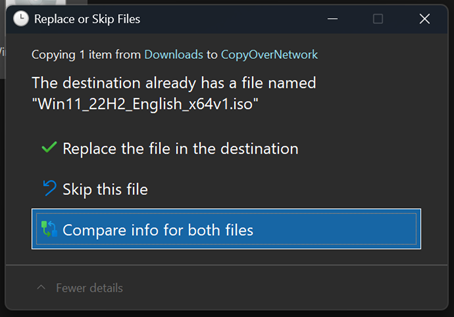
The new replace or skip files dialog in dark mode.
Other File Explorer improvements include:
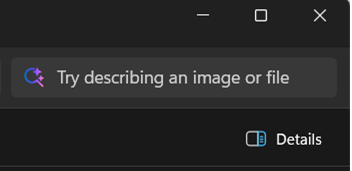
For Insiders with Copilot+ PCs, we’re updating the File Explorer Search Box placeholder text to raise awareness of the improved Windows Search experience introduced earlier this year. Learn more in our January blog post.
Search for documents and images in File Explorer.
When you hover over a file in File Explorer Home, commands such as Open file location and Ask Copilot appear as quick actions. This experience is now supported for work and school accounts (Entra ID). This feature isn’t available in the European Economic Area.
[Mobile Device Settings]
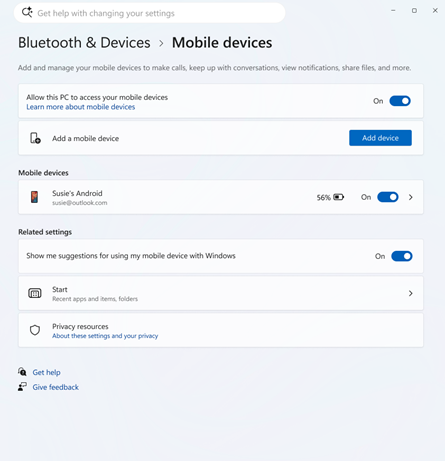
You can now directly add and manage your mobile devices from Settings on your Windows PC by navigating to “Mobile Devices” under the Bluetooth & Devices section. This page allows you to view your mobile devices, add new mobile devices, and manage features such as using your device as a connected camera or accessing your device’s files in File Explorer.
New settings page under Bluetooth & Devices to manage and add connected mobile devices.
[Desktop Spotlight]
We are trying out a change that adds “Learn more about this background” and “Next desktop background” to the context menu when you click on your desktop if you have Windows Spotlight chosen as your desktop background under Settings > Personalization > Background.
[Input]
We’re moving more keyboard settings from Control Panel to Settings – this includes that the setting for character repeat delay / rate is now available under Settings > Bluetooth & Devices > Keyboard, and the setting for cursor blink rate is now available under Settings > Accessibility > Text cursor.
Keyboard backlight performance has improved on supported HID-compliant keyboards. Compatible keyboards display keys clearly in low-light environments, and the backlight adjusts to help conserve power.
The AltGr layer is now enabled for the Arabic 101 keyboard layout. The left Alt key continues to function as before, while the right Alt key acts as a modifier to access additional symbols. The first new symbol mapped to AltGr on the Arabic 101 layout is the Saudi Riyal currency symbol (AltGr+S). The Saudi Riyal currency symbol is also available on the touch keyboard’s symbols page and the expressive input panels currency tab. Users who switch languages with Alt+Shift can continue to use the left Alt+Shift or the general shortcut Windows logo key+Spacebar. Arabic 102 and Arabic 102 AZERTY layouts are updated similarly.
Pens that support haptic feedback will now deliver tactile responses during certain interactions with the system UI. For example, you may feel vibrations when hovering over the close button or when snapping and resizing windows.
[Game Pass]
In this build we have modified references to Game Pass plans in Settings to reflect updated branding and benefits.
Settings Home page reflects new Game Pass branding and benefits.
[OneDrive]
We are rolling out the new OneDrive icon in Accounts and Homepages in Settings.
[Recovery]
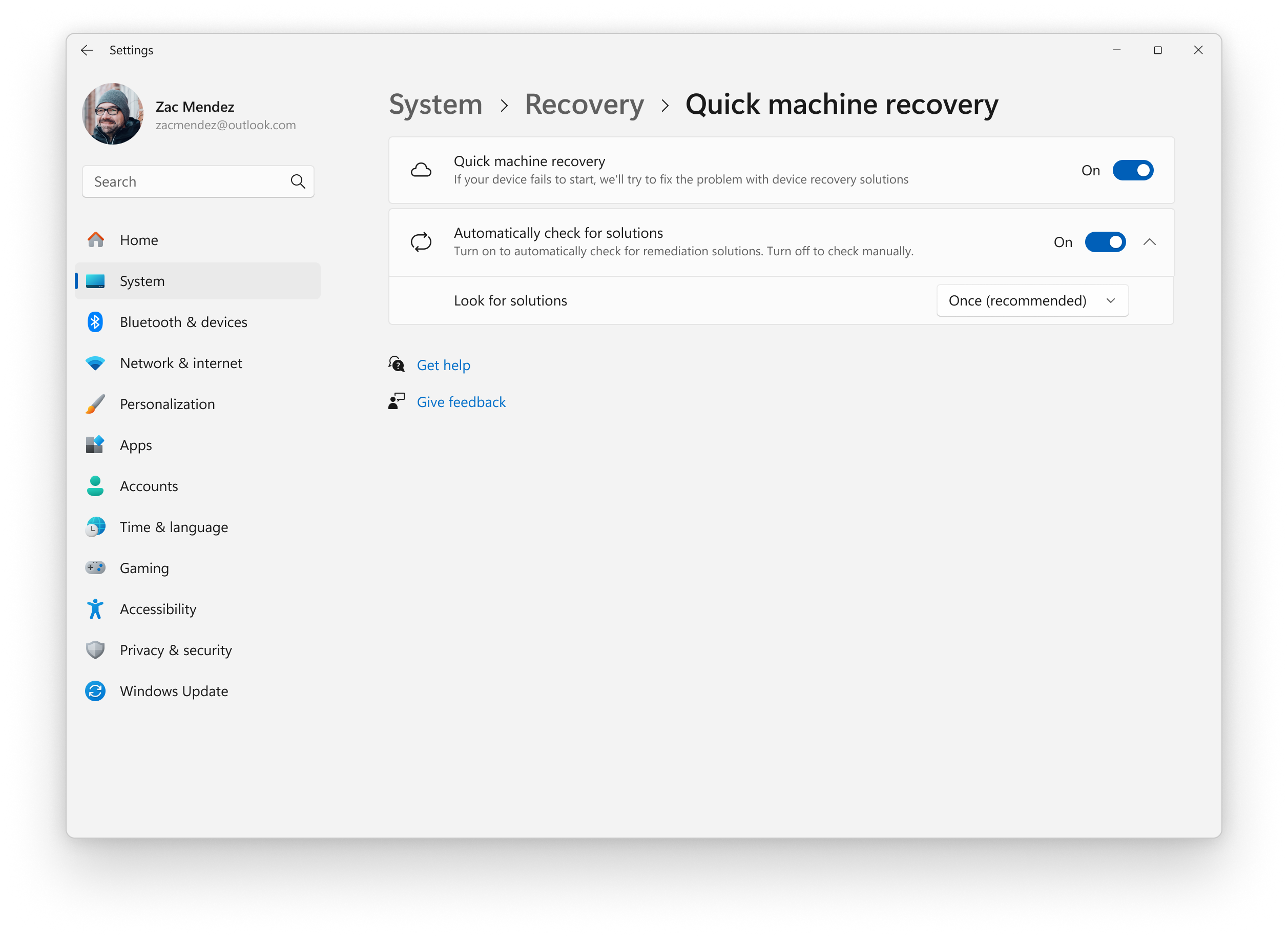
Quick Machine Recovery (QMR) now runs a one-time scan on PCs with settings quick machine recoveryand automatically check for solutions are both turned on. If a fix isn’t available immediately, QMR directs you to the best recovery options to get your PC running again.Alt txt: In Settings for Systems, Recovery, “Quick machine recovery” and “Automatically check for solutions” are enabled to run a onetime QMR scan by default.
[Advanced Settings]
You can now turn on Virtual Workspaces in Advanced Settings. Virtual Workspaces allow you to enable or disable virtual environments such as Hyper-V and Windows Sandbox. To access Virtual Workspaces, go to Settings> Systems > Advanced.
Fixes gradually being rolled out
[File Explorer]
Fixed an issue where File Explorer might unexpectedly not show thumbnails for video files containing certain EXIF metadata.
Fixed an issue where an old white toolbar might sometimes appear unexpectedly in File Explorer.
Fixed an issue where when you right-clicked a file, the app icon next to the Open option might appear generic instead of showing the default app for that file type.
Fixed an issue where when opening a folder from another app (for example, opening the Downloads folder from a browser), your custom view — including sorting files by name, changing the icon size, or removing grouping — unexpectedly might reset back to default.
Fixed an issue where the body of the File explorer window might no longer respond to mouse clicks after invoking the context menu.
Fixed an issue where extracting very large archive folders (1.5gb+) might fail with a “Catastrophic Error” (error code 0x8000FFFF).
Fixed an issue which could cause File Explorer to become unresponsive when opening Home.
[Settings]
Fixed and issue where Settings might become unresponsive when attempting to navigate to the Network & Internet section.
Fixed an issue where the search bar in Settings might become overlapped with the minimum and maximum buttons in the title bar.
Fixed an issue where the processor name in Settings > System > About might be truncated.
[Taskbar]
Fixed an issue where the automatically hide the taskbar setting might unexpectedly turn off, after seeing a message saying a toolbar is already hidden on this side of your screen.
Fixed an issue where Voice access wasn’t working correctly when attempting to interact with the taskbar (calling out a number might not invoke that item).
Fixed and issue where the taskbar icons might automatically scale to be smaller, although there was enough room left without scaling changes.
Fixed an issue where if you hovered over an app icon on the taskbar, and then selected the window preview, the preview might dismiss and not bring the window to the foreground.
[Start menu]
For Insiders with the new Start menu, the Windows Search panel now matches the new Start menu in size. This update aims to create a smoother transition when searching.
[Internet]
Made some underlying improvements to help address an issue which could lead to not having internet after resuming from disconnected standby. Please don’t hesitate to file feedback under Network and Internet in the Feedback Hub if you continue experiencing issues.
[Display and graphics]
Improved performance when apps query monitors for their full list of supported modes. When this happened it could previously lead to a momentary stutter on very high-resolution monitors. This work should help prevent and reduce stuttering in these scenarios.
Fixed an issue where All-in-one PCs might experience issues with their brightness slider, where it unexpectedly would revert to the original brightness when interacting with it.
Fixed an issue where recently certain games might display the message Unsupported graphics card detected, although a supported graphics card was being used.
Fixed an issue where apps and browsers might display partially unresponsive onscreen content when other maximized or full-screen apps were updating in the background. This issue was particularly noticeable when scrolling, as only parts of the window content might update.
Fixed an issue where text might not render correctly when editing content within a multiline text box in certain apps.
[Login and Lock screens]
Made some underlying changes to improve the performance of loading the taskbar after unlocking your PC from sleep. This also should help in cases where the password field and other sign-in screen contents didn’t render when transitioning from the lock screen to the sign-in screen after sleep.
Fixed an issue where it might be very slow the first time when signing into a new account.
Fixed an issue where when your lock screen was set to slide show, there might be a memory leak. Memory leaks can lead to performance or reliability issues over time.
[Narrator]
Fixed an issue where Narrator might take abrupt random pauses during continuous reading. in word docs.
[Windows Update]
Fixed an underlying issue which could cause “Update and shutdown” to not actually shut down your PC after updating
Fixed an underlying issue which could lead to some Insiders seeing error 0x8007042B when attempting to upgrade to Canary from recent Windows 11 24H2 or 25H2-based builds.
[Task Manager]
Fixed an issue where Task Manager might open as expected, but if you tried to close it it would remain running in the background, with the number of processes growing each time you opened Task Manager. This could also lead to Task Manager unexpectedly appearing on boot.
[Other]
Fixed an issue where certain apps might become unresponsive when launching the Open or Save Dialog.
Fixed an issue where interacting with the desktop might unexpectedly invoke Task View.
[Paint App update rolling out to Canary & Dev Channels]
With Paint version 11.2511.281.0, we’re introducing the collapse toolbar feature in Paint. To get started, open Paint and click the chevron icon at the bottom-right of the ribbon to enable Automatically hide toolbar. Once the toolbar collapses, use the Show toolbar button to bring it back and switch tools. To hide it again, click the Hide toolbar button or anywhere outside the toolbar. When you’re ready to return to the default view, click the chevron icon and select Always show toolbar.
Paint App GIF showing the collapsable toolbar.
FEEDBACK: Please file feedback in Feedback Hub (WIN + F) under Apps > Paint.
When deploying Windows 11 devices, you might need to install updates or drivers before handing them over to end users, without going through the entire Out-of-Box Experience (OOBE) setup. This is where Audit Mode comes in handy.
What Is Audit Mode?
Audit Mode is a special Windows setup state that lets you boot into the OS without creating a user account or completing OOBE. It’s designed for IT admins and OEMs to customize, update, and prepare devices before finalizing the setup.
Why Use Audit Mode?
Skip OOBE: No need to create temporary accounts.
Install Updates: Apply Windows updates, drivers, or apps.
Run Scripts: Configure settings or apply customizations.
Capture Images: Ideal for creating reference images with Sysprep.
How to Enter Audit Mode
Start OOBE: Boot the device into Windows 11 setup.
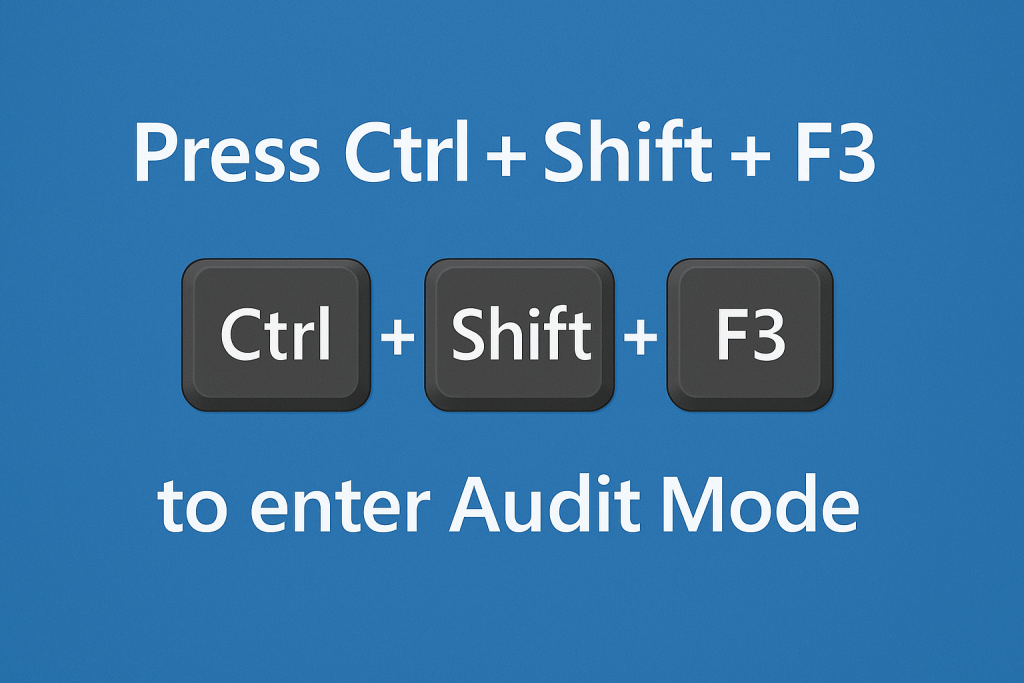
Press Ctrl + Shift + F3: This key combo works at any point during OOBE.
Automatic Restart: The device reboots and logs in automatically as the built-in Administrator.
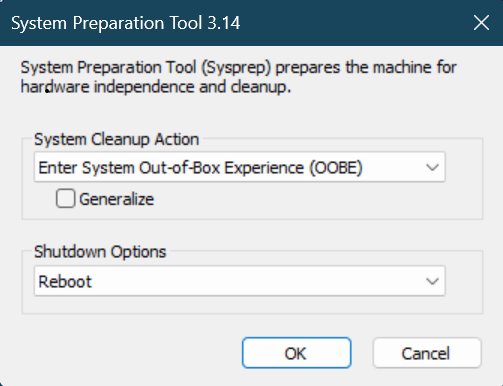
Audit Mode Desktop: You’ll see the Sysprep tool open by default.
(depending ok the manufacturer of your device you might need to hold down the Fn button too)
What Can You Do in Audit Mode?
Install Windows Updates:
Connect to the network.
Run Settings > Windows Update
Add Drivers:
Use Device Manager or pnputil for bulk driver installs.
Use the OEM’s driver tool to update drivers and firmware
Install Applications:
Deploy required apps or scripts.
Debloat scripts can be used here too
Apply Custom Configurations:
Modify registry, set policies, or run PowerShell scripts.
Important Notes
Do Not Create User Accounts: Audit Mode uses the built-in Administrator account temporarily.
Exit Audit Mode:
When finished, run Sysprep with the option:
Enter System Out-of-Box Experience (OOBE)
Generalize (if creating an image, for single device leave unchecked)
Device Security: Keep the device secure while in Audit Mode since it auto-logs in as Administrator.
Hi all, Last Friday Microsoft released Windows 11 Insider Preview Build 26220.7344 (KB5070316) to the Dev & Beta Channels.
After a short break, a new build for Dev and Beta Channel, more AI options rolling out, while many online sources talk about AI in Windows as a bad thing, I can only see it as a next step in evolution and most of it is off by default and can be turned on if you like.
Not only the OS but also the hardware is getting smarter or capable of being smarter.
All smooth upgrades on my devices here, happy upgrades!
New features gradually being rolled out with toggle on*
Public preview of native support for MCP on Windows
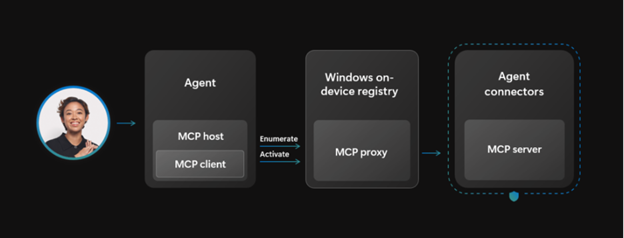
Windows now offers native support for the Model Context Protocol (MCP), an open standard that gives AI agents a universal way to connect with apps, tools, and services. Agents can discover and connect to these tools and other agents via a secure, manageable Windowson-device registry (ODR). By default, all agent connectors in the Windows on-device registry will be contained in a secure environment with their own identity and audit trail. With OS level integration, MCP on Windows delivers secure discoverability, consistent controls, and enterprise grade manageability—empowering developers, IT professionals, and end users to build and deploy agentic workflows at scale.
MCP enables secure agent connections to Windows apps and services.
As part of this release, two agent connectors are built into Windows—File Explorer and Windows Settings.
File Explorer Connector Agents can use the File Explorer connector to manage, organize and retrieve local files on a user’s device with their consent. On Copilot+ PCs, the connector can also perform natural language search to retrieve the exact file based on descriptions, content, metadata, and, for images, enhanced search based on image classification.
Windows Settings Connector On Copilot+ PC devices, Windows Settings connector lets users check, change settings, or navigate directly to specific pages such as display, mouse, keyboard, and sound using natural language.
Feedback: Share your thoughts in Feedback Hub (WIN + F) under Developer Platform > All other issues.
Quick Machine Recovery
Quick machine recovery (QMR) will now be turned on automatically for Windows Professional devices that are not domain joined. These devices will get the same recovery features as Windows Home users. For enterprise computers that are domain joined, nothing changes—QMR will stay off unless your organization turns it on.
Feedback: Share your thoughts in Feedback Hub (WIN + F) under Recovery and Uninstall > Quick Machine Recovery.
Update Orchestration Platform (UOP)
The Unified Update Orchestration Platform (UOP) is starting to roll out to Windows Insiders in the Dev and Beta Channels. UOP makes app updates more consistent and predictable, with fewer interruptions. Insiders will see a new page in Settings > Apps > App Updates, where they can check update progress and take action if needed.
How it Works
Apps will register with UOP via APIs.
UOP triggers a registered app to scan, download and install updates based on user activity and system state.
Apps continue to utilize their own backend for acquiring updates.
Apps report update status back to UOP, so users can see it in the App Updates page.
Availability
No apps utilize UOP yet because the feature is new, but apps will start using it over time. The feature is partially enabled for Dev and Beta Channel Insiders today and will reach full enablement in these channels soon. API documentation will follow.
Feedback: Share your thoughts in Feedback Hub (WIN + F) under Downloading, installing, and configuring Windows Update.
Windows MIDI Services
We’re excited to announce the highly anticipated production release of Windows MIDI Services, going to the Dev and Beta Windows Insider channels today, and then to retail Windows in the next few months. This is our update of MIDI on Windows with a focus on a great experience for musicians using MIDI 1.0 or MIDI 2.0.
Full support for WinMM MIDI 1.0 and WinRT MIDI 1.0, complete with in-service translation, enabling any API to use any MIDI 1.0 or MIDI 2.0 device. This means your existing applications will use the new service and gain important new features like the ability for more than one app to open a MIDI port at the same time, custom port names, and more.
New loopback and app-to-app MIDI support.
Lots of performance improvements and bug fixes thanks to our vibrant community. Thank you!
The App SDK and Tools package is a separate download, versioned outside of Windows. This enables applications to use the in-box MIDI 2.0 features and also provides the tools you need to manage your MIDI setup on Windows, including the MIDI Console and MIDI Settings app. Current releases are available on our GitHub repo releases page or via the main Windows MIDI Services landing page. Please note that these are unsigned releases at the moment and so will give you a warning when you download and install.
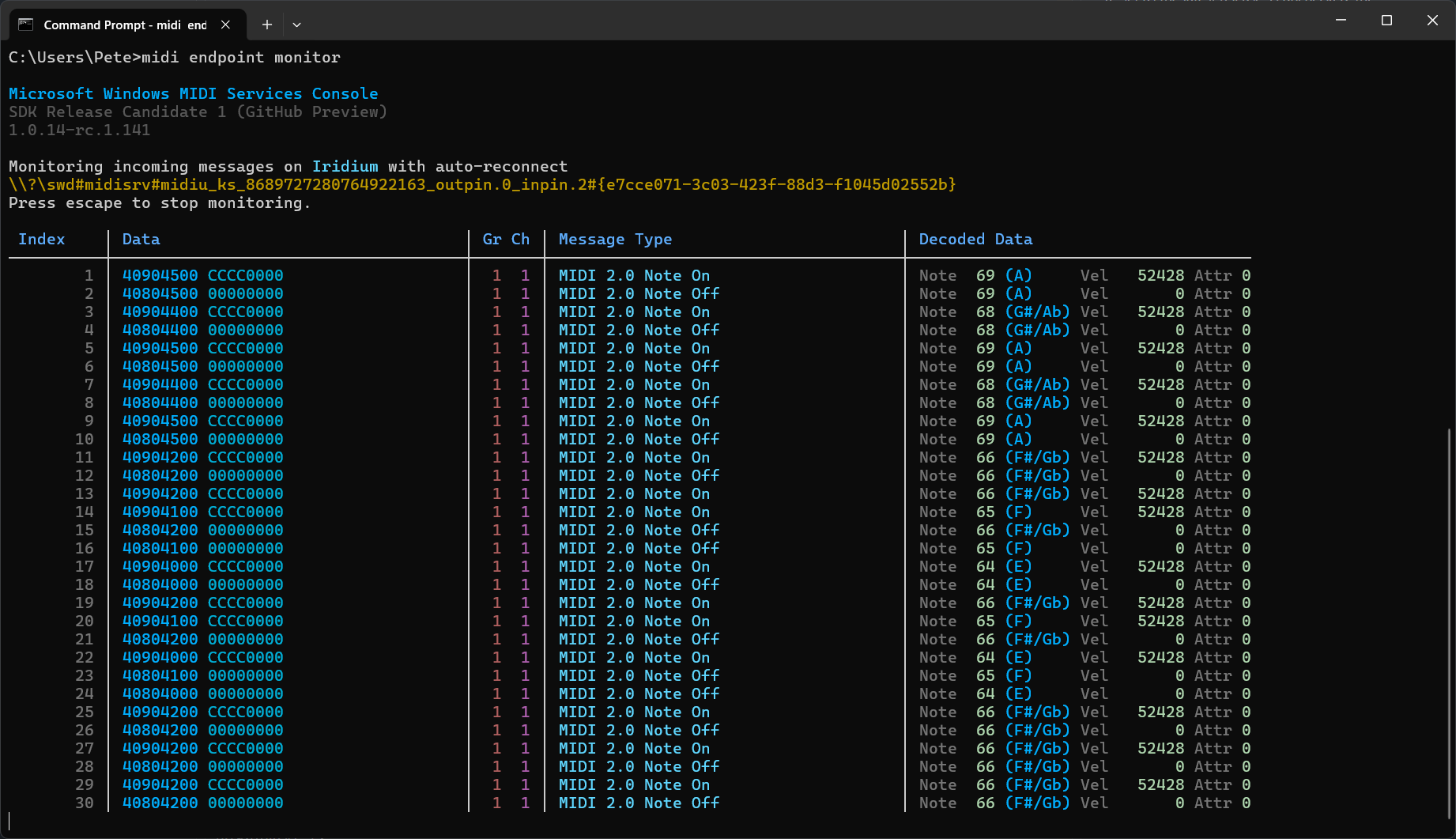
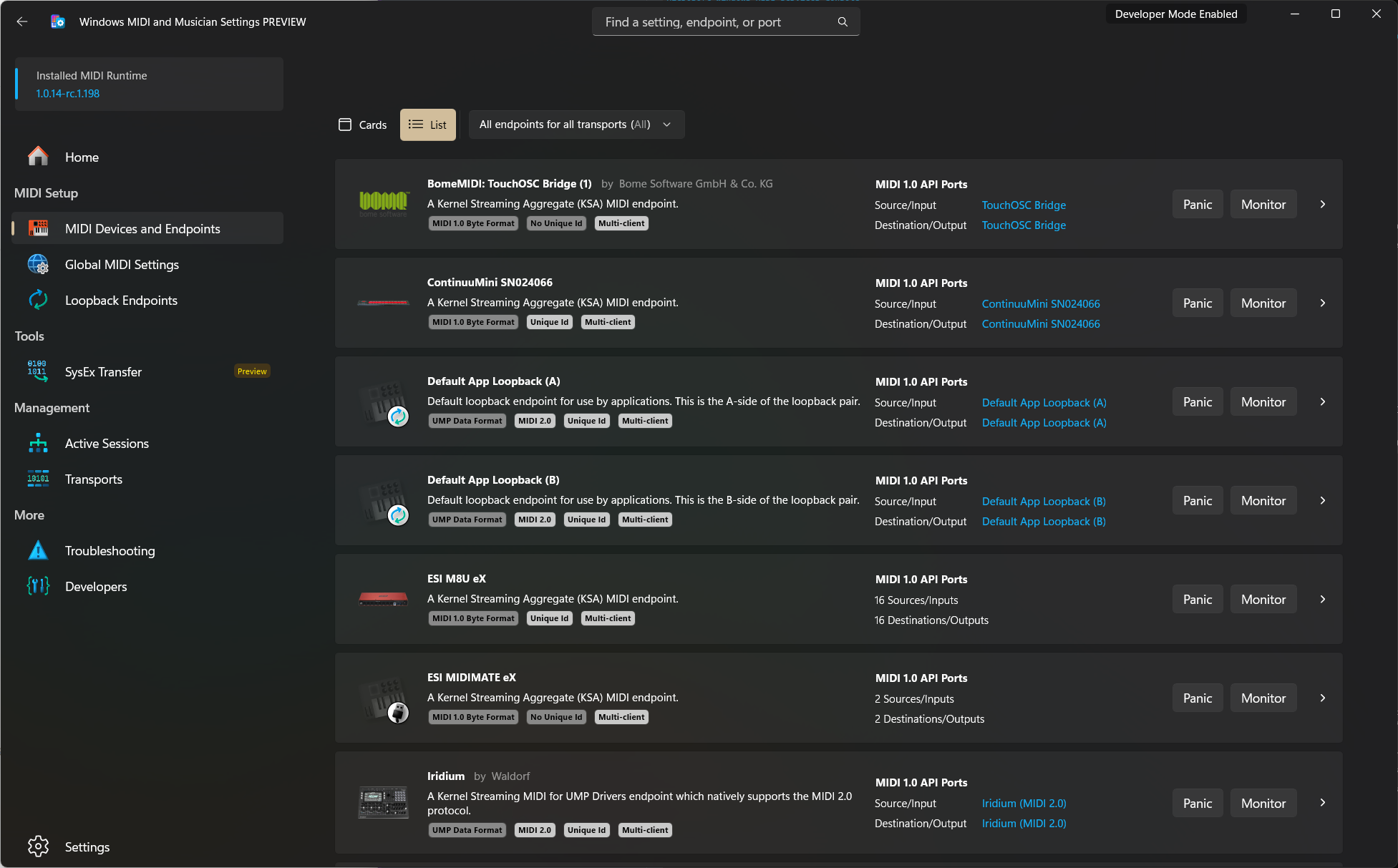
Windows MIDI Services Console Monitor
Windows MIDI Services Settings app
We look forward to having Windows Insiders who create music try out the Windows MIDI Services release especially with your current applications and devices. You can also join the discussion on Discord if you have questions or are looking to help or provide feedback! You will find a list of known issues documented here.
Changes and Improvements gradually being rolled out with toggle on*
[“Open With” App Integration]
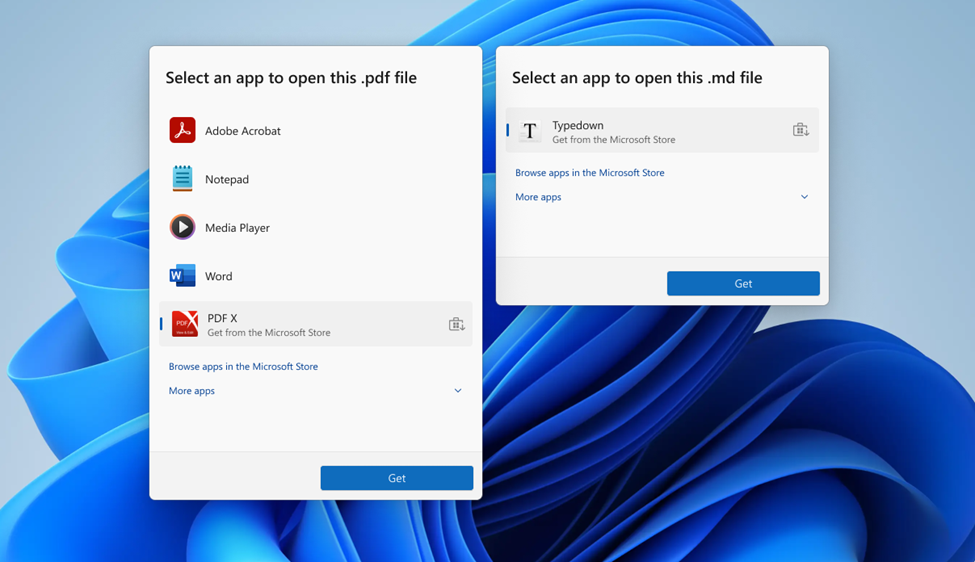
We’re updating Open With so that if you don’t have a relevant app you need installed, instead of having to open Microsoft Store to find it, it will now show directly in this list as available to install. This makes it faster and easier to find and install the app you need. [Update 12/8] This functionality originally rolled out to the Dev Channel and Beta Channel last spring.
Choose an app to open files—now with direct Microsoft Store integration.
Fixes gradually being rolled out with toggle on*
[Search]
Fixed a recent issue which could caused the search window to unexpectedly start floating above the taskbar.
[File Explorer]
If there are no available or enabled AI Actions, this section will no longer show in the context menu.
Fixed an issue where File Explorer might not search certain SMB shares after the latest updates.
[Windows Hello]
Fixed an issue resulting in fingerprint recognition not working for some Insiders after the latest flights.
[Display and Graphics]
Fixed an issue which could cause the Project pane to not appear after pressing WIN + P.
[Xbox full screen experience for PC]
For Insiders with the new Xbox full screen experience for PC, the virtual keyboard should now show properly when needed for controller users on devices without a touch screen.
[Other]
Fixed an issue in the previous flight which was leading to some Insiders seeing a bugcheck with error DRIVER_IRQL_NOT_LESS_OR_EQUAL when using a controller.
Fixed an underlying issue that could lead to your PC freezing where attempting to run Windows Terminal elevated from a non-admin account.
Known issues
[Xbox full screen experience for PC]
Some apps may behave unexpectedly when using FSE, particularly those that expect to be locked to a given size or launch additional windows.
[Taskbar & System Tray]
We’re working on the fix for an issue which is causing the Start menu to not open for some Insiders on click, although it will open if you press the Windows key. This issue may also potentially impact the notification center (which you can open with WIN + N) and quick settings (WIN + A).
We’re investigating an issue where for some Insiders apps aren’t showing in the system tray when they should be.
[File Explorer]
Scrollbar and footer are missing and showing a white block instead when text is scaled in dark mode version of the copy dialog.
We’re working on the fix for an issue where File Explorer has started showing a white flash when navigating between pages after the latest flights.
[NEW] We’re working on the fix for an issue where opening the context menu is causing explorer.exe to crash for some Insiders after the previous flight.
[Bluetooth]
We’re investigating an issue causing Bluetooth device battery level to not show for some Insiders.
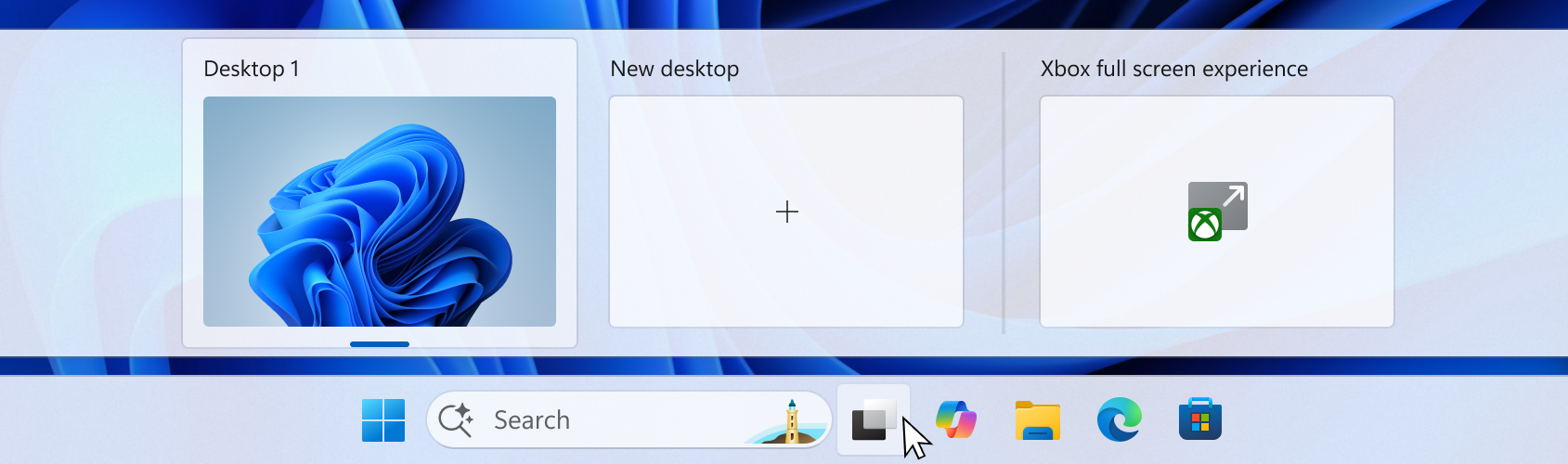
Designed with console-style navigation in mind, the Xbox full screen experience delivers a clean, distraction-free interface for controller-first gaming. Pair a controller to your PC for smooth task switching and a streamlined gaming experience on your desktop, laptop, or tablet.
UI showing the Task View in Xbox full screen experience on PC.
How to enter Xbox full screen experience:
You can access Xbox full screen experience from Task View,Game Bar settings, or use Win + F11 hotkey to toggle FSE.
UI of the task view interface showing the option to access Xbox full screen experience.
The Xbox full screen experience begins as a gradual rollout to Windows Insiders on the Dev & Beta Channels, who are also registered Xbox Insiders. We expect to expand this later to all Insiders on the Dev & Beta Channels without requiring Xbox program registration. If you want to be among the first to try out these new features on your PC, join the Xbox Insiders Program and opt into the PC gaming preview through the Xbox Insiders Hub.
Feedback: Share your thoughts in Feedback Hub (WIN + F) under Gaming and Xbox > Gaming Full Screen Experience.
New features gradually being rolled out with toggle on*
Point-in-time restore for Windows
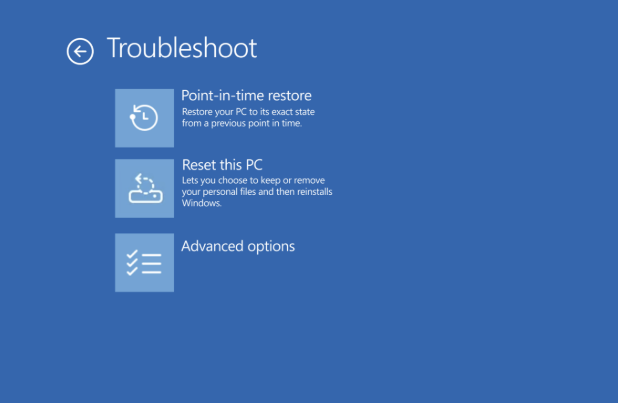
We’re excited to introduce point-in-time restore for Windows, now available to Insiders in the Beta and Dev Channels! This flexible recovery feature empowers you to quickly roll your device back to a previous state—helping minimize downtime and simplify troubleshooting when disruptions strike. Whether you’re dealing with a widespread outage or a one-off issue, point-in-time restore helps recover your system (including apps, settings, and user files) to get you back to productivity faster. For more details, check out our documentation.
Point-in-time restore shown in the Troubleshoot menu for Windows RE.
Feedback: Share your thoughts in Feedback Hub (WIN + F) under Recovery and Uninstall > Point-in-time restore.
Introducing Fluid Dictation in Voice Typing
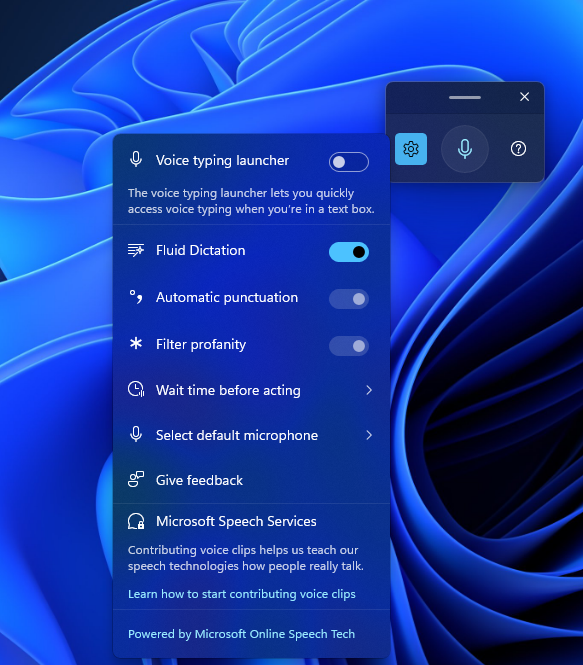
Following the introduction of Fluid dictation for voice access users, we’re also now introducing it for voice typing users on NPU devices. Fluid dictation makes voice-based dictation smoother and smarter by automatically correcting grammar, punctuation, and filler words as you speak, reducing the need for manual editing. Powered by on-device small language models (SLMs), it ensures fast and private processing.
To use it, set focus to a text field and launch voice typing by pressing the Windows key plus H and complete setup if you’re a first-time user. Fluid Dictation is enabled by default—you can check or toggle it via the settings flyout—so all you need to do is start talking!
UI showing the Fluid Dictation toggle in the voice typing launcher.
Feedback: Share your thoughts in Feedback Hub (WIN + F) under Input and Language > Voice Typing (Windows key plus H).
Changes and Improvements gradually being rolled out with toggle on*
[Seamlessly resume more apps from your Android phone to your PC]
Following the ability to resume Spotify tracks from your phone onto your PC, we’re excited to share that:
vivo Android phone users can also now continue your browsing activity from vivo Browser on your phone, onto your default browser on your PC.
Honor, Huawei, Oppo, Samsung and vivo Android phone users can also now continue online files opened on M365 Copilot app from your phone onto your PC. Word, Excel, and PowerPoint files will open in the respective app on your PC if you have it installed, or if you don’t they’ll open in the default browser on your PC. Note – offline files (stored locally on the phone) are not currently supported.
FEEDBACK: Please file feedback in Feedback Hub (WIN + F) under Devices and Drivers > Linked Phone.
[Click to Do]
We’re testing and refining the Click-to-Do top bar to determine the best experience for future updates. Functionality will vary by device and market.
[File Explorer]
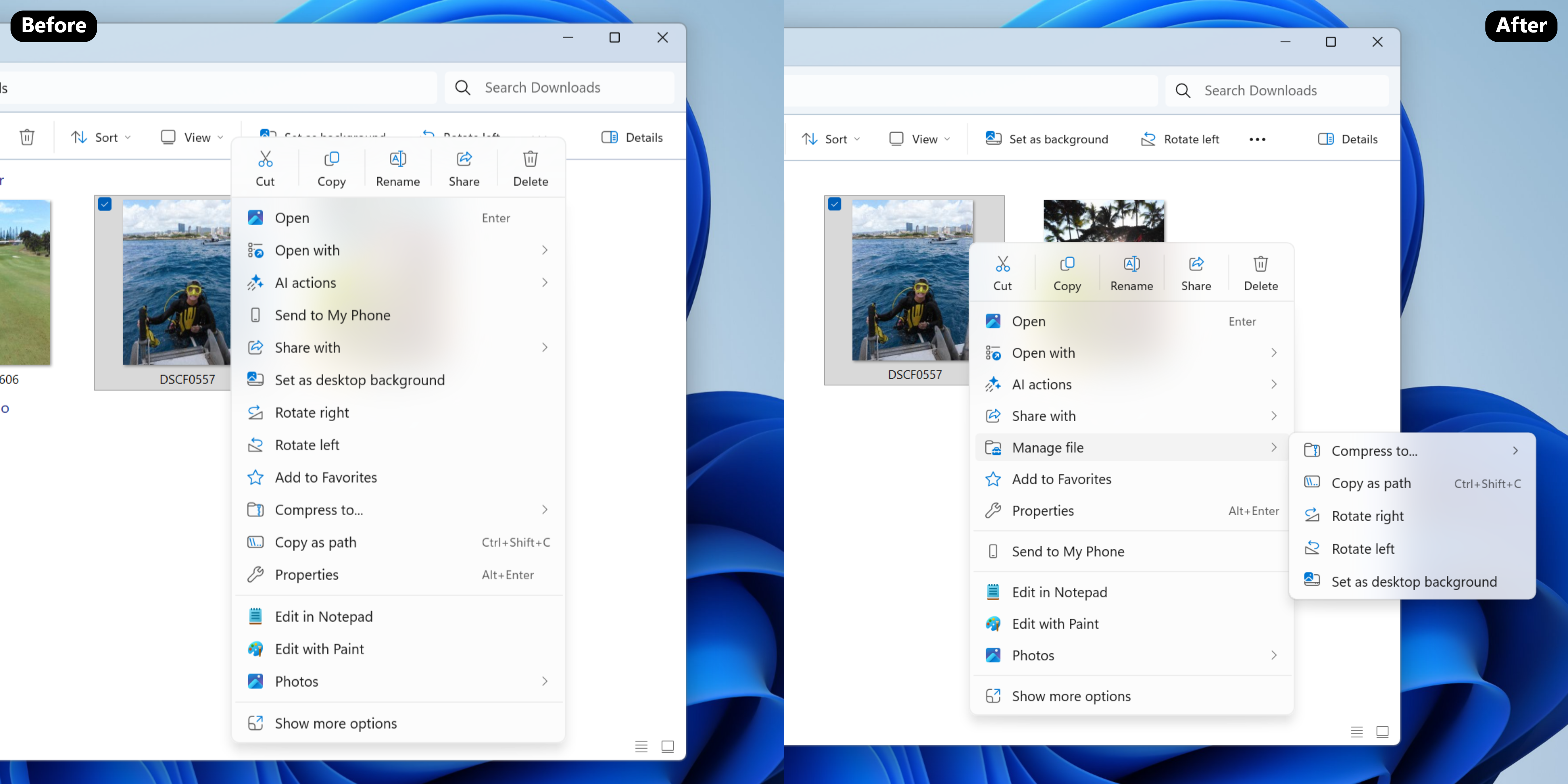
We’re making a few refinements to the context menu aimed at reducing the space taken by less commonly used actions, while keeping them easy to access. We’ve also updated the ordering of actions to group similar tasks. This includes:
We’ve moved Compress to ZIP file, Copy as Path, Set as Desktop Background, and Rotate Right, and Rotate Left into a new Manage file flyout.
We’ve moved cloud provider options, like Always Keep on this Device and Free Up Space, into their relevant cloud provider flyout.
We’ve moved Send to My Phone next to the cloud provider options.
We’ve moved Open Folder Location to now be next to Open and Open with.
The image on the left shows the “before” experience before and the image on the right shows the “after” experience.
Note, the name Manage file may change in a future Insider update. If you have feedback, please file it in the Feedback Hub under Desktop Environment > Right-Click Context Menu
We’re exploring preloading File Explorer in the background to help improve File Explorer launch performance. This shouldn’t be visible to you, outside of File Explorer hopefully launching faster when you need to use it. If you have the change, if needed there is an option you can uncheck to disable this called “Enable window preloading for faster launch times” in File Explorer’s Folder Options, under View. Looking forward to your feedback! If you do encounter any issues, please file them in the Feedback Hub under Files Folders and Online Storage > File Explorer Performance, or Files Folders and Online Storage > File Explorer.
[Microsoft Store]
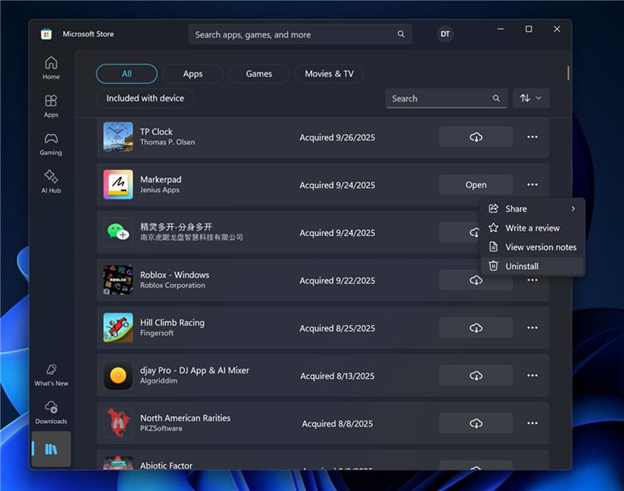
Based on user feedback, we have added support for uninstalling Store-managed apps from the Store’s library page. Simply find an installed app in your library, click the three-dot menu, and click uninstall. Please let us know what you think!
UI showing the uninstall functionality for Store-managed apps from the Store’s library page.
Windows Insiders across all channels running Microsoft Store version 22510.1401.x.x and higher will see this improvement.
FEEDBACK: Please file feedback in Feedback Hub (WIN + F) under Microsoft Store.
Fixes gradually being rolled out with toggle on*
[Taskbar and System Tray]
Fixed an issue which could cause the taskbar to hang after receiving certain notifications.
Fixed an issue where the battery icon in the taskbar might unexpectedly show its own backplate when hovering over the icon in the system tray (instead of combined with wi-fi and volume).
[Internet]
Made some underlying improvements to help address an issue which could lead to not having internet after resuming from disconnected standby. Please don’t hesitate to file feedback under Network and Internet in the Feedback Hub if you continue experiencing issues.
[File Explorer]
Fixed an issue where if you opened the Recycle bin and had “Empty recycle bin” visible in the command bar, it might stay showing after you navigated away.
[Settings]
Fixed an issue where Settings might crash when navigating to Privacy & Security > Camera, Location, or Microphone.
[Display and Graphics]
Fixed an issue where recently certain games might show a message saying “Unsupported graphics card detected”, although a supported graphics card was being used.
[Task Manager]
If you’re using Die or CAMM memory form factor, Task Manager will now show that in Performance under Memory > Form Factor, instead of a blank.
[.NET Framework and Visual Studio]
The issue causing Insiders with ARM64 PCs to potentially observe crashes with Visual Studio or applications that depend on .NET Framework should be resolved if you have installed the latest .NET Framework update.
Known issues
[Xbox full screen experience for PC]
[NEW] The virtual keyboard is not shown for controller users on devices without a touch screen. Please use the physical keyboard as a workaround for now.
[NEW] Some apps may behave unexpectedly when using FSE, particularly those that expect to be locked to a given size or launch additional windows.
[Taskbar & System Tray]
We’re investigating an issue which is causing the Start menu to not open for some Insiders on click, although it will open if you press the Windows key. It’s believed this issue may also potentially impact the notification center (which you can open with WIN + N).
We’re investigating an issue where for some Insiders apps aren’t showing in the system tray when they should be.
[File Explorer]
Scrollbar and footer are missing and showing a white block instead when text is scaled in dark mode version of the copy dialog.
[NEW] We’re investigating an issue where File Explorer has started showing a white flash when navigating between pages after the previous flight.
[Bluetooth]
[NEW] We’re investigating an issue causing Bluetooth device battery level to not show for some Insiders.
Hi all, last Tuesday during Microsoft Ignite in San Francisco, Microsoft released Windows 11 Insider Preview Build 28000.1199 to the Canary Channel. (KB 5068860)
A quick and smooth update to the Canary channel
Happy upgrades!
What’s new in Build 28000.1199
[General]
This update includes a small set of general improvements and fixes that improve the overall experience for Insiders running this build on their PCs.
Hi all, last week Microsoft released Windows 11 Insider Preview Build 26220.7262 (KB5070303) to the Dev & Beta Channels.
Flighted this build from San Francisco where Microsoft Ignite was on all week, great new tweaks and features in this build
Happy Flighting !
New features gradually being rolled out with toggle on*
HD Voices in Narrator and Magnifier
Narrator and Magnifier now support high-definition voices for English (United States), powered by Azure’s latest on-device text-to-speech models. These voices use generative AI to adjust tone and pacing for more natural, expressive speech.
When reading with Narrator or listening to text in Magnifier, HD voices provide clearer audio and smoother flow. This helps reduce listening fatigue during long sessions and makes it easier to stay focused on the content. While natural voices are available in multiple languages, HD voices are currently offered in English (United States). Both Narrator and Magnifier allow you to personalize your experience by adjusting voice speed and switching between voices anytime.
To enable in Narrator
Open Settings → Accessibility → Narrator.
Navigate to “add a natural voice” button
Download your preferred HD voice.
Switch voices or adjust speed anytime in Narrator settings.
Currently, HD voices are available in English (United States), with one male (Andrew) and one female (Ava) option to choose from.
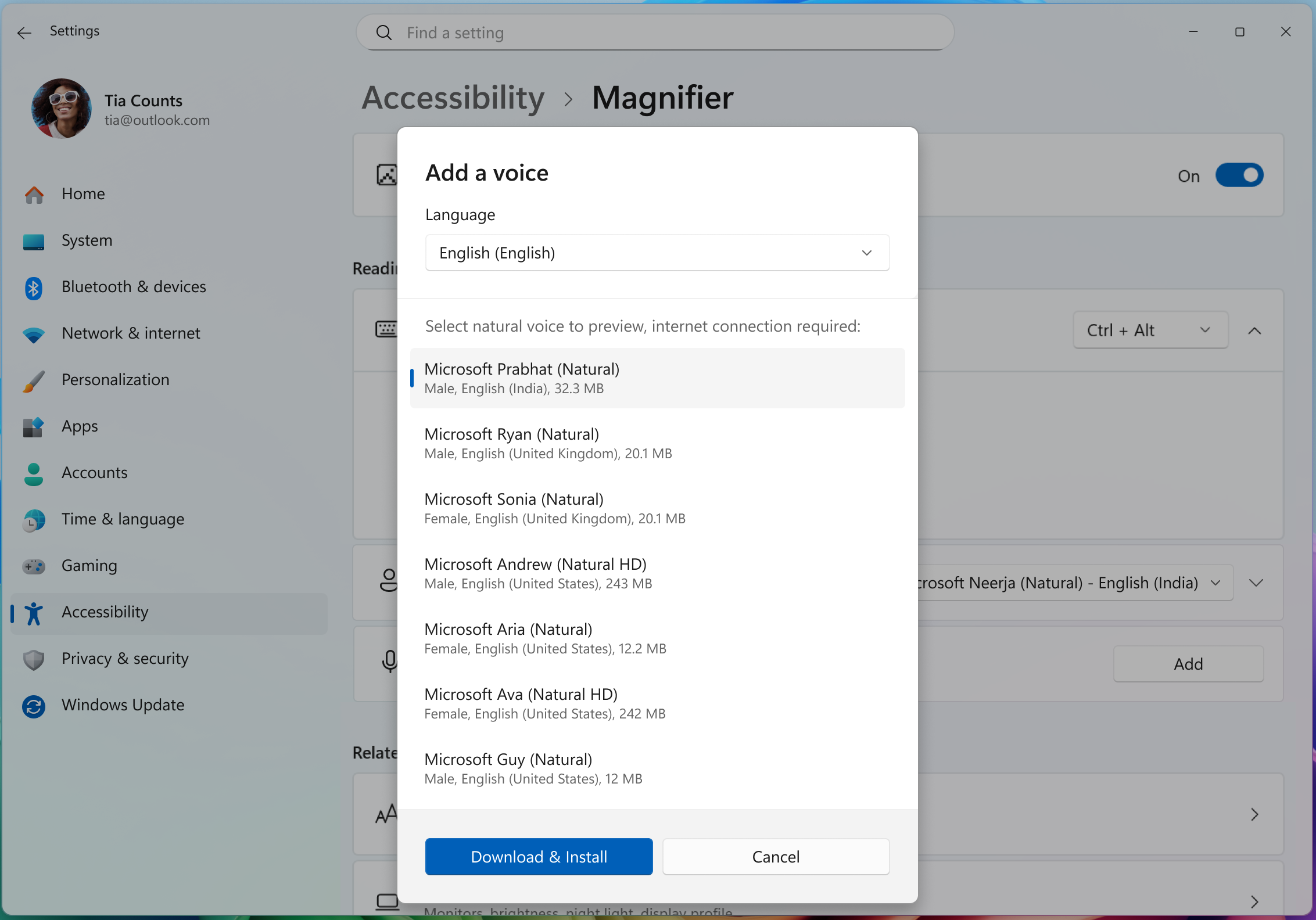
Magnifier also supports natural voices, including new HD options for even clearer, more lifelike speech. To enable:
Open Settings → Accessibility → Magnifier.
Navigate to “add a natural voice” button
Download your preferred voice.
Change voices or adjust speed anytime in Magnifier settings.
UI showing list of voices that can be downloaded in Magnifier.
FEEDBACK: Please share your feedback in Feedback Hub (WIN + F) under Accessibility > Narrator or Accessibility > Magnifier.
Narrator now supports math
We’re introducing the first phase of Math reading in Narrator, bringing clearer and more natural math experiences to users who are blind or have low vision. With this update, equations in Microsoft 365 apps such as Word can now be read in a structured way that reflects how they’re meant to be understood. Math is at the heart of STEM education and learning, and this improvement helps ensure that students and professionals can independently explore equations, formulas, and scientific notations with confidence.
To try out this experience, turn on Narrator (press Win + Ctrl + Enter) and open a Word document containing mathematical equations. Use any of the standard Narrator reading commands to hear equations read aloud in a more natural, structured way. We’re continuing to refine this experience and plan to expand it to more scenarios in the future.
FEEDBACK: Please file feedback in Feedback Hub (WIN + F) under Accessibility > Narrator.
AI Components Setting
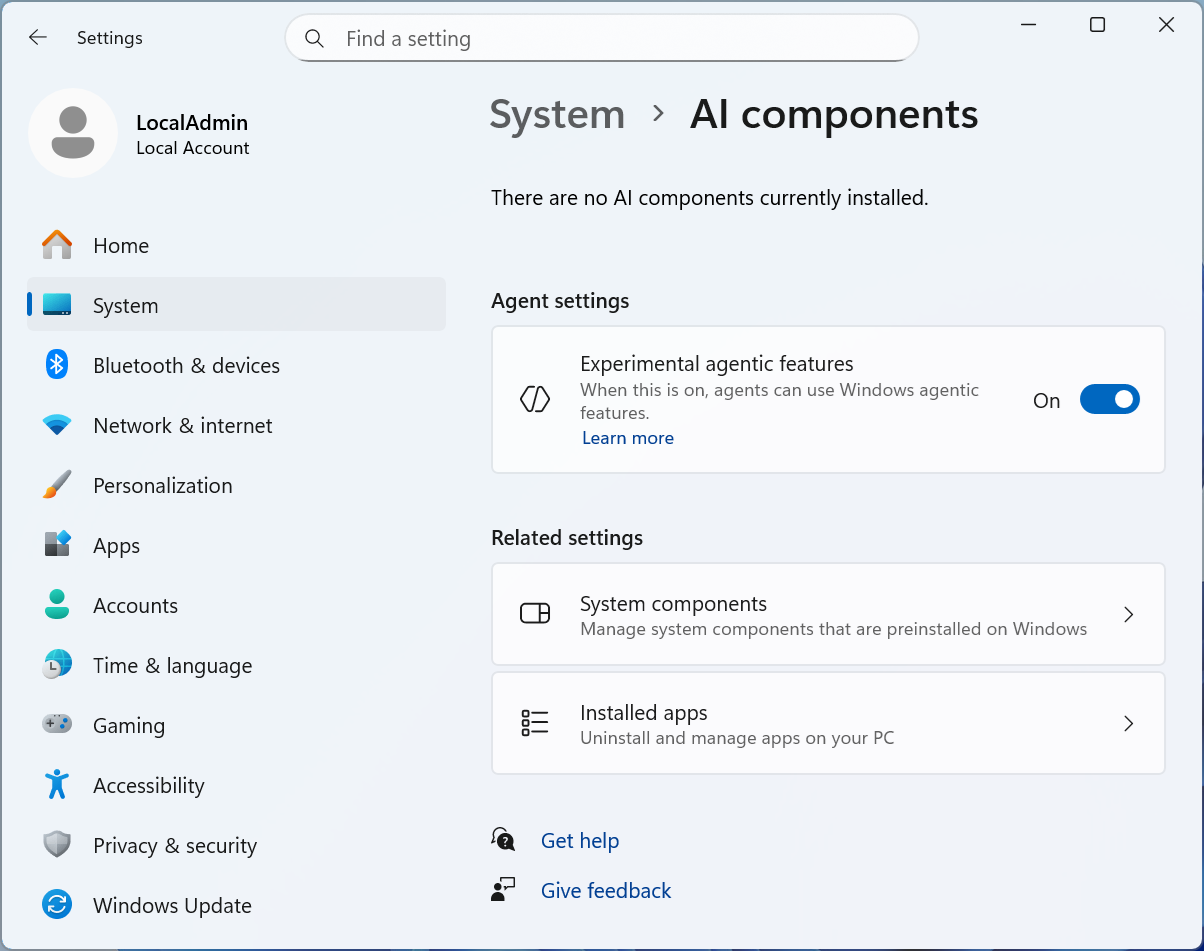
New “Experimental agentic features” toggle in the Settings app. This setting, under System >AI Components, allows agents to use new Windows agentic features. More information can be found here: Experimental Agentic Features – Microsoft Support.
UI showing the Windows Settings app, specifically under System > AI components where users can activate the “Experimental agentic features” toggle.
Changes and Improvements gradually being rolled out with toggle on*
[Click to Do]
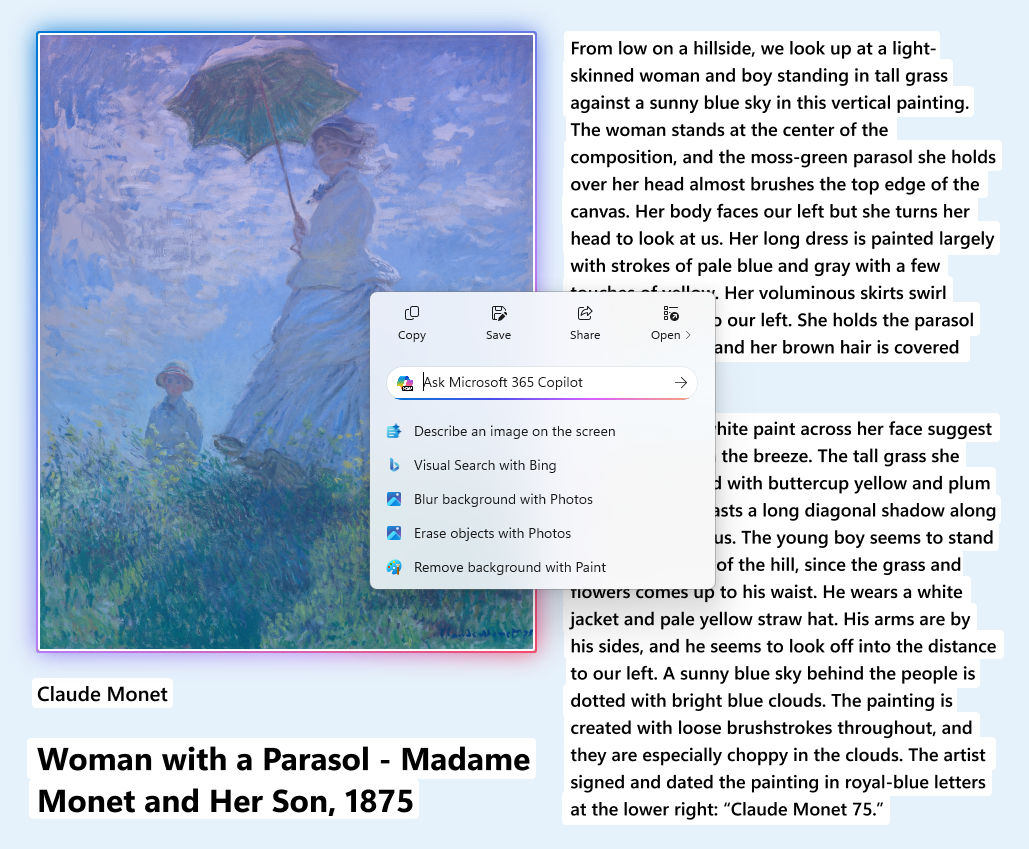
The Click to Do context menu is being updated with a streamlined design, making it simpler to locate what you need. Frequently used actions like Copy, Save, Share, and Open will now be easier to access directly from the context menu.
Whenever a large image or table appears on your screen, the context menu will automatically pop up, making it quicker and easier to access the actions and results you need.
UI showing the context menu automatically appearing to provide quick access to common actions.
Image Object Selection Update
We are temporarily turning off Image Object select as detailed here for Dev and Beta
Teaching Tip Updates
Teaching tips and introduction screen in tutorial mode have been improved.
A new “Launch Tutorial” button and refreshed instructions make it easier for users to start the tutorial.
[Input]
Pens that support haptic feedback will now deliver tactile responses during certain interactions with the system UI. For example, you may feel vibrations when hovering over the close button or when snapping and resizing windows.
[File Explorer]
We are reconfiguring the CFR that supported AI Actions in File Explorer – Insiders may see a temporary loss in image actions and Copilot summaryactions as this is relaunched and gradually rolled out to Insiders in the Dev & Beta Channels.
We’re temporarily stopping the roll out of the ability for newly launched File Explorer folders to open in tabs instead of windows, as it wasn’t working correctly. Appreciate your patience.
We’re working on consolidating the share options in the context menu into a single entry point. (Updated 11/17)
[Administrator Protection]
We’re temporarily stopping the rollout of administrator protection feature. Appreciate your patience. (Updated 11/17)
Fixes gradually being rolled out with toggle on*
[General]
Fixed an issue resulting in mouse and keyboard not working for some Insiders in WinRE / Advanced Startup.
[Recall]
Fixed an issue recently causing some Insiders to see a message saying they don’t have an eligible camera for Recall when they did.
[Task Manager]
Fixed an issue where the Task Manager process wasn’t stopping correctly after closing Task Manager. As a result of this, you may have also seen Task Manager unexpectedly open on boot.
[Settings]
Fixed an issue where the Virtual Workspaces options weren’t working correctly in Settings > System > Advanced. As part of this fix, the option is now available again for Insiders.
Fixed an issue where the CPU information in Settings > System > About may be unexpectedly truncated.
Known issues
[Taskbar & System Tray]
We’re investigating an issue which is causing the Start menu to not open for some Insiders on click, although it will open if you press the Windows key. It’s believed this issue may also potentially impact the notification center (which you can open with WIN + N).
We’re investigating an issue where for some Insiders apps aren’t showing in the system tray when they should be.
[File Explorer]
Scrollbar and footer are missing and showing a white block instead when text is scaled in dark mode version of the copy dialog.
[.NET Framework and Visual Studio]
[NEW] Insiders using ARM64 PCs may observe crashes with Visual Studio or applications that depend on .NET Framework. To resolve the problem, scan for Windows Updates and install the latest .NET Framework update.
Hi all, Yesterday Microsoft released Windows 11 Insider Preview Build 26220.7070 (KB5070300) to the Dev & Beta Channels.
Dev & Beta currently have the same updates, allowing you to switch from Dev to Beta channel for a short while.
New features gradually being rolled out with toggle on*
Widgets
Choose your default dashboard in an updated Widget Board Settings
Launching the Widget Board when it’s showing live weather content will now open the first dashboard in your navigation bar instead of your most recently used dashboard for a more predictable Widget Board experience.
To modify your default dashboard, navigate to the new full-page Widgets Settings experience by clicking the gear icon at the bottom of your Widget navigation bar and re-arrange your desired default dashboard to the top position.
Widgets board with a redesigned Widget Settings page that allows dashboard to be re-arranged
See numbered badges on the Widget Board navigation bar
Badges on the dashboard icons in the Widget navigation bar will now show numbers corresponding to the number of alerts from that dashboard. Navigation bar badges clear automatically when you leave a dashboard, making it easy to track what’s new.
Numbered badge on the Discover dashboard icon in the navigation bar.
FEEDBACK: Please file feedback in Feedback Hub (WIN + F) under Desktop Environment > Widgets
Changes and Improvements for everyone
[Recovery]
We’re updating Quick Machine Recovery in Windows – Microsoft Support make getting back to a working PC clearer and faster. The experience in both Windows Settings and the Windows Recovery Environment (WinRE) has been streamlined so options are easier to find and use. On PCs with the settings “quick machine recovery” and “automatically check for solutions” both enabled, QMR now runs a one‑time scan by default instead of repeating scans in a loop. If a fix isn’t available right away, you won’t be left waiting; QMR will quickly point you to the most appropriate recovery options to get you back up and running.
In Settings for Systems, Recovery, “Quick machine recovery” and “Automatically check for solutions” are enabled to run a onetime QMR scan by default.
Changes and Improvements gradually being rolled out with toggle on*
[Smart App Control]
We’re updating Smart App Control (SAC) so you will now be able to switch SAC off or on without any clean install requirement. To make changes, go to Windows Security > App & Browser Control > Smart App Control settings.
We are re-enabling people icons under the “Activity” column in File Explorer Home detailed here.
We are temporarily turning off the integration supporting the StorageProvider APIs for cloud providers as detailed here.
We are temporarily turning off support for frequently used and recently downloaded recommended files in File Explorer as detailed here.
Fixes gradually being rolled out with toggle on*
[General]
Fixed an underlying issue which was causing interacting with the desktop to unexpectedly open Task View recently for some people.
[File Explorer]
Fixed an issue where Shift + Click (or middle clicking) on File Explorer in the taskbar wasn’t opening a new File Explorer instance.
Fixed an issue where the File Explorer active tab title might not display bolded until you hovered your mouse over it.
[Taskbar]
Fixed an issue which could lead to the “Automatically hide the taskbar” setting unexpectedly turning off, after seeing a message saying “a toolbar is already hidden on this side of your screen”.
[Settings]
Fixed an issue which could lead to Settings hanging when trying to navigate to the Network & Internet section.
Known issues
[Taskbar & System Tray]
We’re investigating an issue which is causing the Start menu to not open for some Insiders on click, although it will open if you press the Windows key. It’s believed this issue may also potentially impact the notification center (which you can open with WIN + N).
We’re investigating an issue where for some Insiders apps aren’t showing in the system tray when they should be.
[File Explorer]
Copy progress might flash when clicking more or less details in dark mode version of the copy dialog.
Scrollbar and footer are missing and showing a white block instead when text is scaled in dark mode version of the copy dialog.
[Recall]
[NEW] We’re working on the fix for an issue causing some Insiders to see a message saying they don’t have an eligible camera for Recall when they do.