
Hi all, last Wednesday Microsoft released Windows 11 Insider Preview Build 27871 to the Canary Channel.
More and more features 1st tested out in the Dev Channel are rolling our to the Canary Channel
Happy upgrades!
What’s new with Build 27871
Energy saver now available in Microsoft Intune
We are bringing the ability to manage energy saver in Windows 11 to Microsoft Intune to allow IT administrators to control the energy saver settings on Windows 11 PCs through group policies and Mobile Device Management (MDM) configurations.
This feature, when enabled, intelligently balances your battery use, so it can last longer between charges. It extends battery life by managing power usage efficiently. It limits background activity and reduces screen brightness, ensuring that devices consume less power while maintaining optimal performance. By automatically managing system processes and power usage, the energy saver group policy helps reduce overall energy consumption. This not only saves costs but also contributes to environmental sustainability.
IT administrators can activate the policy by using either method below:
Local Group Policy Editor in Windows 11
Microsoft Intune Admin Center
New group policy highlighted in a red box in Local Group Policy Editor.
The path for the new policy configuration can be found at in Local Group Policy Editor by navigating to Computer Configuration > Administrative Templates > System > Power Management > Energy Saver Settings and “Enable Energy Saver to Always Be On”.
Changes and Improvements
[Phone Link]
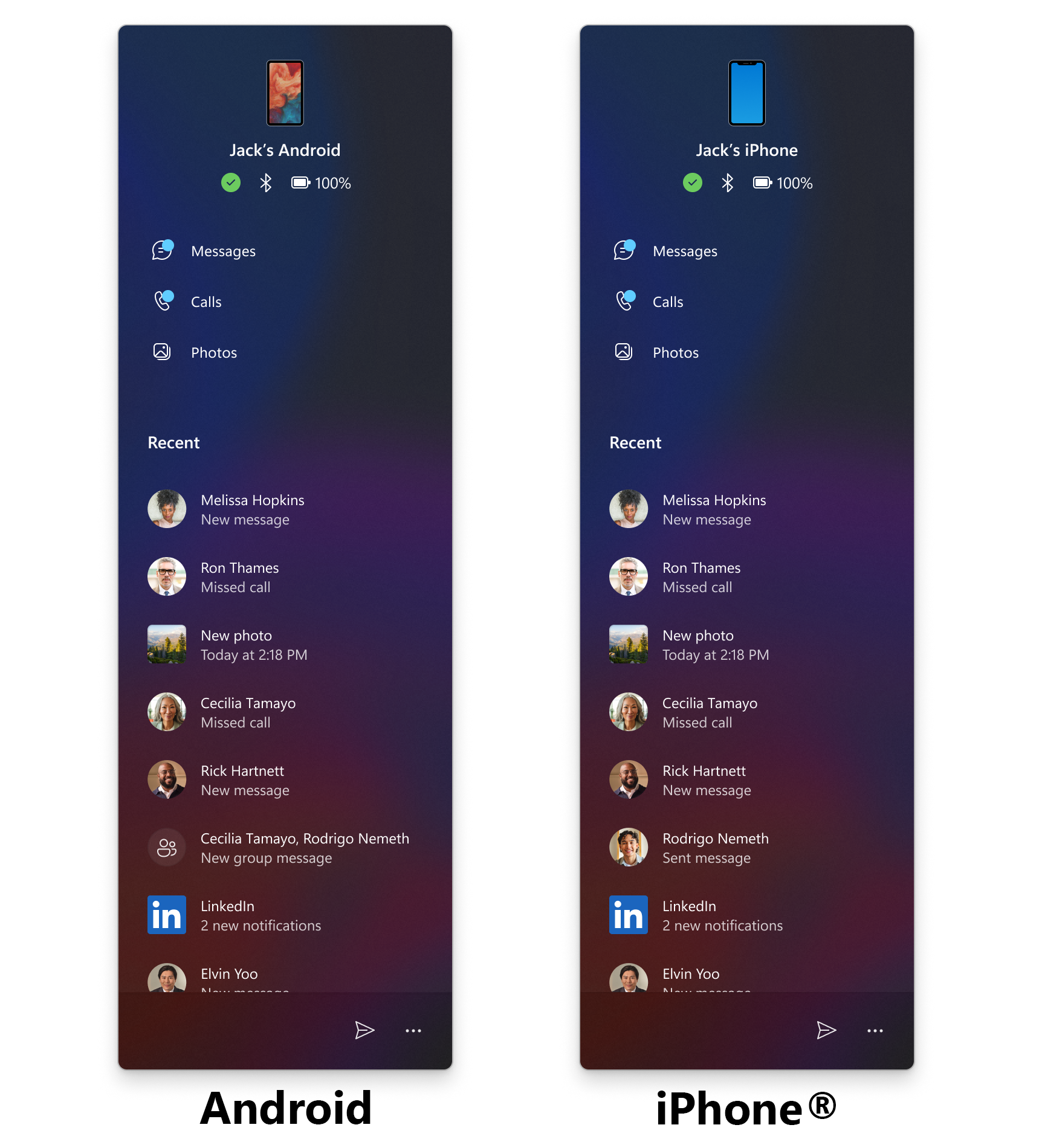
Phone companion for the Start menu is rolling out (again) for Windows Insiders in the Canary Channel along with the following improvements:
Instantly see notifications from your mobile device apps — grouped by app for easy catch-up, right from your Start menu.
Mirror your Android device’s screen with a single click from your Start menu. Simply click on your device’s icon or access the option from the footer menu to quickly launch device screen mirroring.
We have adjusted the needy state pill under apps on the taskbar that need attention to be wider and more visible.
Wider needy state pill UI showing for Microsoft Teams on the taskbar indicating the app needs attention.
Fixes
[General]
We have mitigated the issue where if Virtualization Based Security is enabled, applications dependent on virtualization, such as VMware Workstation, would lose the ability to run unless the “Windows Hypervisor Platform” Windows optional component is installed on the system.
[File Explorer]
Fixed an issue where if you had disconnected network drives when doing a search from Home it might prevent searches from executing and you’d remain on Home.
Fixed an issue where tapping the View button in File Explorer with touch would crash File Explorer.
[Taskbar]
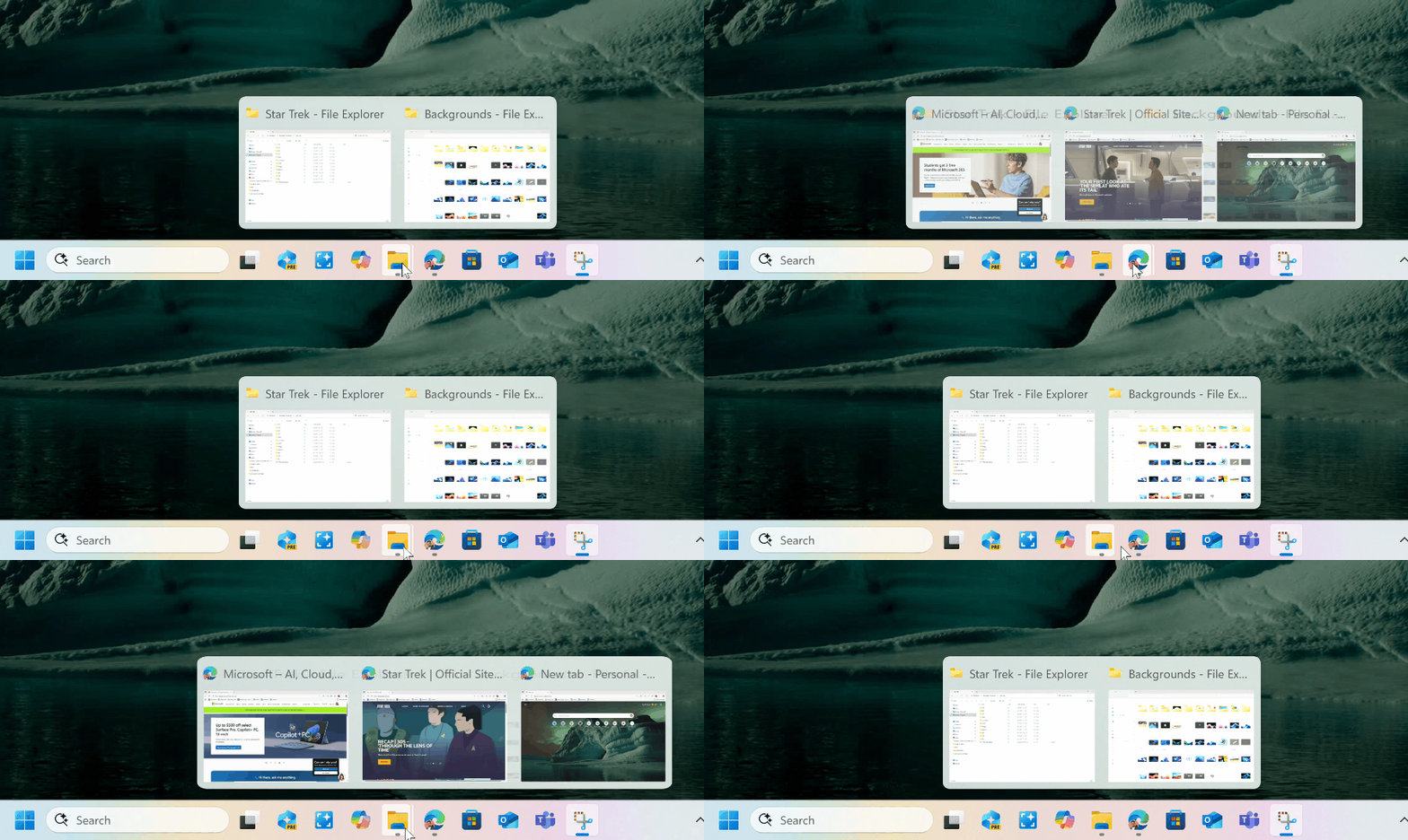
Fixed an issue where WIN + CTRL + Number wasn’t working anymore for switching windows in the taskbar.
Fixed an underlying issue which was causing keyboard focus to get set to widgets in the taskbar on login, which could make widgets unexpectedly invoke.
Fixed an issue when using Tab and Shift + Tab to move keyboard focus around the taskbar, where if keyboard focus went backwards at least once you could get keyboard focus stuck on the taskbar frame, causing some screen readers to just say “pane”.
[Settings]
Fixed an issue where hovering over the cards at the top of Settings > System > About wasn’t showing the correct corner radius.
Fixed an issue where the storage card in Settings > System > About showed a garbage character instead of the proper disk size.
[Administrator Protection]
Fixed an issue where when using Administrator Protection, some apps might not follow your preference if it was set to dark mode.
[Task Manager]
Fixed the issue causing search and other options such as filtering in Task Manager to not work.
[Audio]
Fixed an issue in the last few Canary flights where audio devices with high sampling (like 192Hz) and multiple channels weren’t producing sound.
Fixed an issue which could cause the startup sound not to play, though it was enabled.
[Input]
Fixed an issue where voice typing wouldn’t start from the touch keyboard when using the Chinese (Simplified) narrow layout.
Fixed an issue where when using the Symbols section of the touch keyboard, pressing the key to change pages might unexpectedly insert a character into password fields.
[Graphics]
Fixed an issue which could cause unexpected scaling and window position changes after sleep/resume for some devices.
[Voice access]
Fixed an issue which could voice access to freeze with error “working on it” when dictating.
[Other]
Fixed an issue causing an Administrative Templates error message when opening Group Policy Editor. [UPDATE 6/5] This issue is not completely fixed yet.
Fixed an issue where some of the commands when using xml to setup were unexpectedly not being run.
Fixed an issue when installing Windows from installation media, where if you changed your keyboard layout from the default, it may still use the default when entering the product key.
Fixed an issue when installing Windows from installation media, where certain partitions may show an extremely large erroneous size.
Known issues
[General]
[IMPORTANT NOTE FOR COPILOT+ PCs] If you are joining the Canary Channel on a new Copilot+ PC from the Dev Channel, Release Preview Channel or retail, you will lose Windows Hello pin and biometrics to sign into your PC with error 0xd0000225 and error message “Something went wrong, and your PIN isn’t available”. You should be able to re-create your PIN by clicking “Set up my PIN”.
We’re working on the fix for an underlying issue where the taskbar is unexpectedly not showing acrylic material after upgrading to the latest Canary builds. This is impacting a few other scenarios, leading to unexpected black or white in some UI.
There is an issue causing an Administrative Templates error message to display when opening Group Policy Editor.
Hi all, last Monday Microsoft released Windows 11 Insider Preview Build 26200.5622 (KB5058512) to the Dev Channel.
Great Improvements for Click To Do, hope you have a Copilot+ Pc to test all these cool features, they save so much time.
New Copilot+ PC experiences
New Microsoft 365 text action in Click to Do
We are beginning to roll out a new text action in Click to Do!
Draft with Copilot in Word: Ever stumble across a great idea and wish you could just start writing? With the “Draft with Copilot in Word” Click to Do action, you can. Whether it’s a sentence in an email or a snippet on your screen, just Win + Click on the recognized text and choose the “Draft with Copilot in Word” action. It’ll help you turn that spark into a full draft, fast. No more blank pages. No more writer’s block. Just momentum.
Click to Do showing “Draft with Copilot in Word” action on content being shared during a Microsoft Teams call.
These new Microsoft 365 text actions will begin rolling out over the course of the coming weeks. For “Draft with Copilot in Word” – a Microsoft 365 Copilot subscription is required.
FEEDBACK: Please file feedback in Feedback Hub (WIN + F) under Desktop Environment > Click to Do.
New features gradually being rolled out to the Dev Channel with toggle on*
Introducing quick machine recovery
Quick machine recovery, a feature introduced as part of the Windows Resiliency Initiative at Ignite 2024 – is now available for Windows Insiders in the Dev Channel. QMR is designed to help Windows 11 devices recover from widespread boot issues by applying remediations through the Windows Recovery Environment (WinRE).
The quick machine recovery settings page.
To make this feature even more accessible, we’re also introducing a dedicated settings page in Settings which can be found under System > Recovery > Quick machine recovery. From there, you can easily check whether the feature is enabled, configure it to automatically search for available remediations, set how often those checks occur, and choose when your device should restart to apply any necessary fixes.
IT professionals looking to set configuration options for their managed fleets are now also able to leverage the Intune Settings Catalog UI to easily configure quick machine recovery settings as documented as a part of the RemoteRemedationCSP.
Windows Insiders can start testing the remediation experience today. When “test mode” is activated, a test remediation payload will be automatically downloaded and installed. You can confirm its application by going to Settings > Windows Update > Update history, where it will appear under Quality updates. Please note that the test remediation package will begin rolling out later this week.[UPDATE 6/5] The test remediation package is now available. The visibility of this update in update history will roll out gradually in the Dev Channel as well.
FEEDBACK: Please file feedback in Feedback Hub (WIN + F) under Recovery and Uninstall > Quick Machine Recovery.
Multiple dashboards in Widgets
As we continue to evolve the widgets experience, we are also adding support for multiple boards so that you can have more space for your favorite widgets while being able to stay on top of current events with a feed that helps you discover the world around you. With the introduction of the new navigation bar on the left, you can switch between a dedicated widgets dashboard and other integrated dashboards like My feed. Give it a try and let us know what you think using the feedback button at the top of the board. This experience was also previously previewed with Windows Insiders in the EEA.
Widgets board with new navigation board on the left for switching between multiple dashboards.
FEEDBACK: Please file feedback in Feedback Hub (WIN + F) under Desktop Environment > Widgets.
Changes and Improvements gradually being rolled out to the Dev Channel with toggle on*
[General]
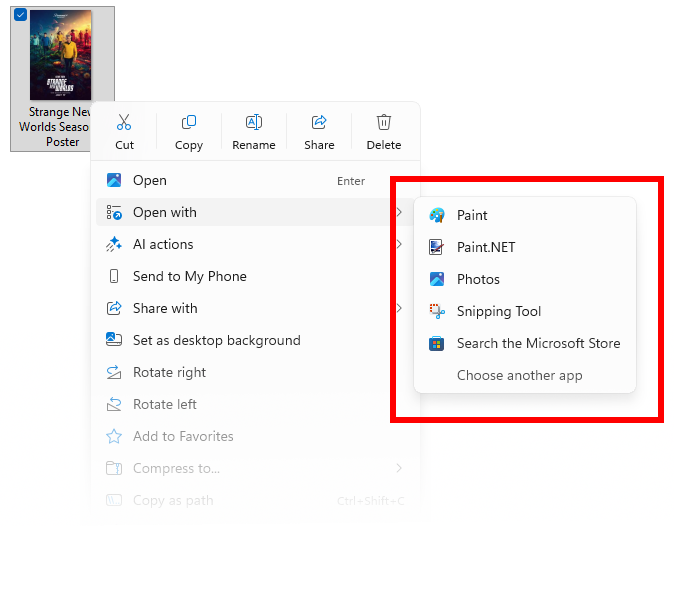
To help you quickly find the right app for opening files, we are trying out showing recommendations from the Microsoft Store app within the “Open with…” dialog. These recommendations are denoted by a Store icon next to apps in the dialog.
“Open with” dialog with Store icon highlighted in a red box denoting a recommendation from the Microsoft Store.
[Click to Do (Preview)]
The following changes and improvements are rolling out for Click to Do on Copilot+ PCs:
For Windows Insiders using French or Spanish as their primary language on their PC, we’re beginning to roll out Rewrite and its options, including Refine, again for Click to Do.
Click to Do can now perform intelligent text actions in German, Italian and Portuguese.
[Phone Link]
The following improvements for Phone Link and phone companion with the Start menu are rolling out to Windows Insiders across all channels:
Instantly see notifications from your mobile device apps — grouped by app for easy catch-up, right from your Start menu.
Mirror your Android device’s screen with a single click from your Start menu. Simply click on your device’s icon or access the option from the footer menu to quickly launch device screen mirroring.
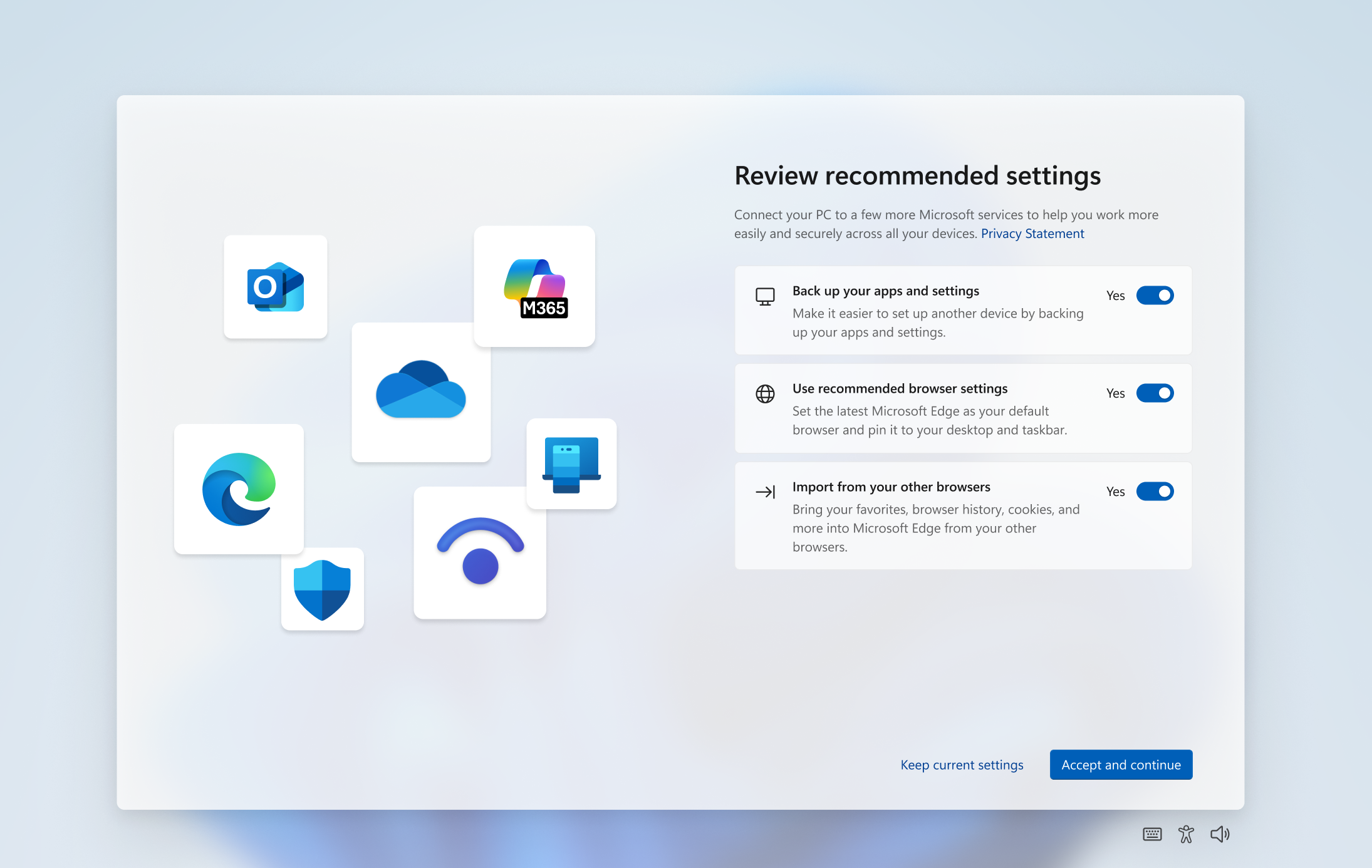
We’re beginning the rollout of a new PC-to-PC migration experience in Windows. You’ll start to see the landing and the pairing page in the Windows Backup app, giving you a first look at what’s coming. In the full experience, you will be able to transfer your files and settings from your old PC to the new one during the PC setup process. Support during the PC setup will be available in a future update. We are releasing in phases for a smooth experience and will provide more details soon.
[Settings]
We’ve updated the dialogs for entering your product key, troubleshooting activation, phone activation, and retail demo to match the Windows 11 visuals.
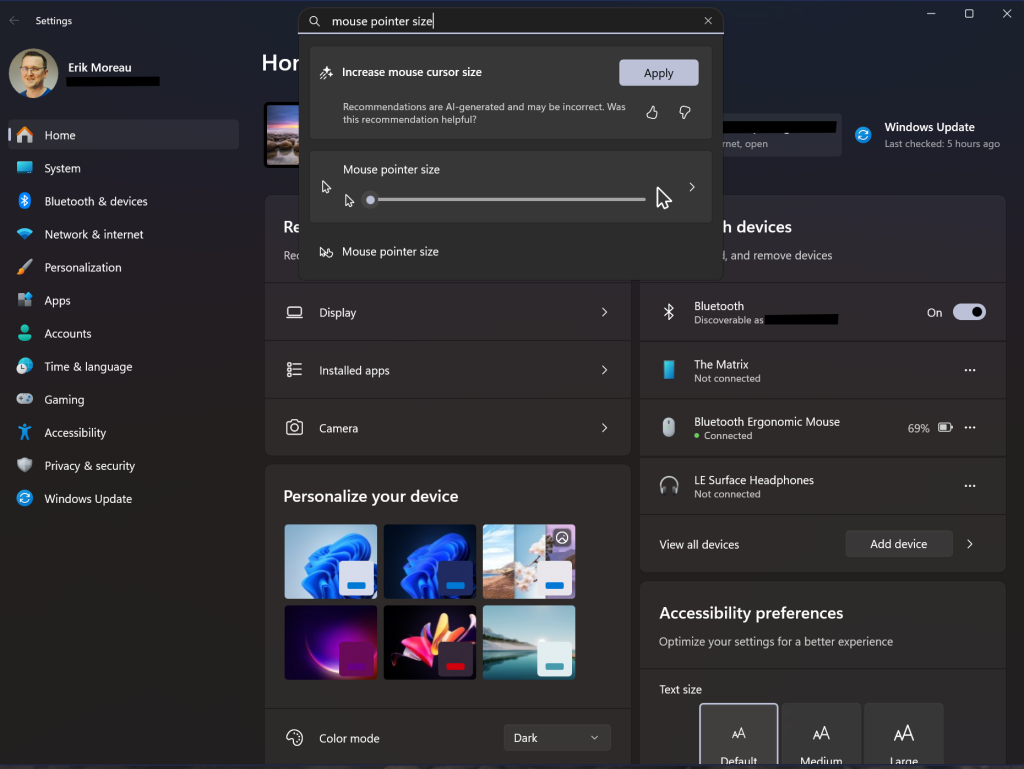
For Windows Insiders on Snapdragon-powered Copilot+ PCs with the new agent experience in Settings, we’ve made some improvements to make the search box at the top of Settings more centered.
More centered search box at the top of Settings.
We’re rolling out a new Device Card for Settings Home for Windows Insiders signed in with their Microsoft account and in the U.S. It provides a quick snapshot of your PC’s key specs and usage, right where you need it. From the card, you can jump directly to the Settings > About page to see more detailed information about your PC. NOTE: We’ve been previewing the Device Card with Windows Insiders with Settings Home on IT-managed PCs signed in with an Entra ID.
New Device Card for Settings Home.
Fixes gradually being rolled out to the Dev Channel with toggle on*
[Improved Windows Search]
The following fixes are rolling out for improved Windows Search on Copilot+ PCs:
Fixed an underlying crash causing semantic indexing to not work for some Insiders in the last couple flights.
[Start menu]
There have been some underlying improvements which should help address the issue where clicking your profile picture wasn’t opening the Account Manager for some Insiders after the latest flights. If you’re continuing to experience issues, please file feedback.
Fixed an issue causing Start menu to crash on launch for some Insiders in the latest flights.
[File Explorer]
Fixed an issue where if you opened the “…” menu in the File Explorer address bar to show the full list of folders for the current path, the dropdown might be cut off and the bottom of it inaccessible.
Fixed an issue which was causing File Explorer to crash doing various actions in the latest flights, including when deleting files for some Insiders.
Fixed an issue where the recommended section in File Explorer wasn’t expanding when using the right arrow key.
Fixed an issue which could lead to duplicate access keys in the File Explorer context menu.
The following are fixes for AI actions in File Explorer:
Fixed the issue where the action result canvas displayed text from left to right for AI actions for Microsoft 365 files when your Windows display language is configured with a right-to-left language.
[Task Manager]
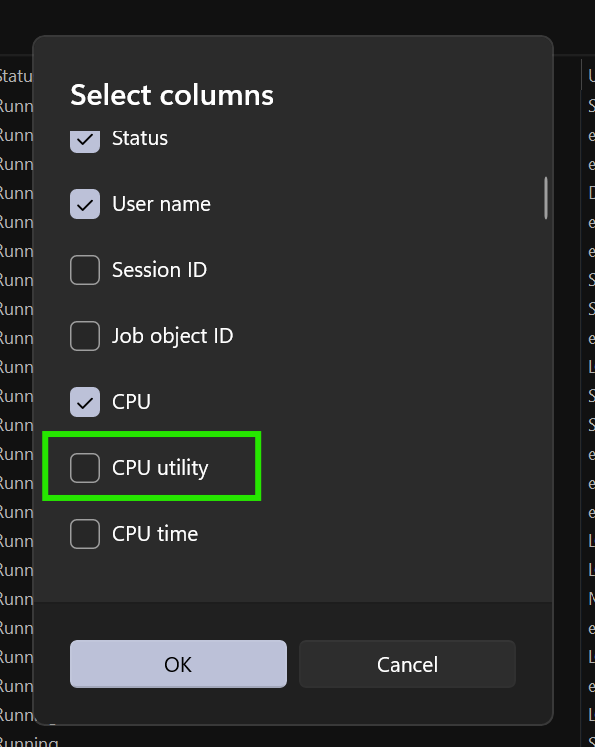
Fixed an issue where after adding the new CPU Utility column, you might notice that System Idle Process always showed as 0.
Fixed an issue where the CPU graphs in the Performance page were still using the old CPU utility calculations.
[Narrator]
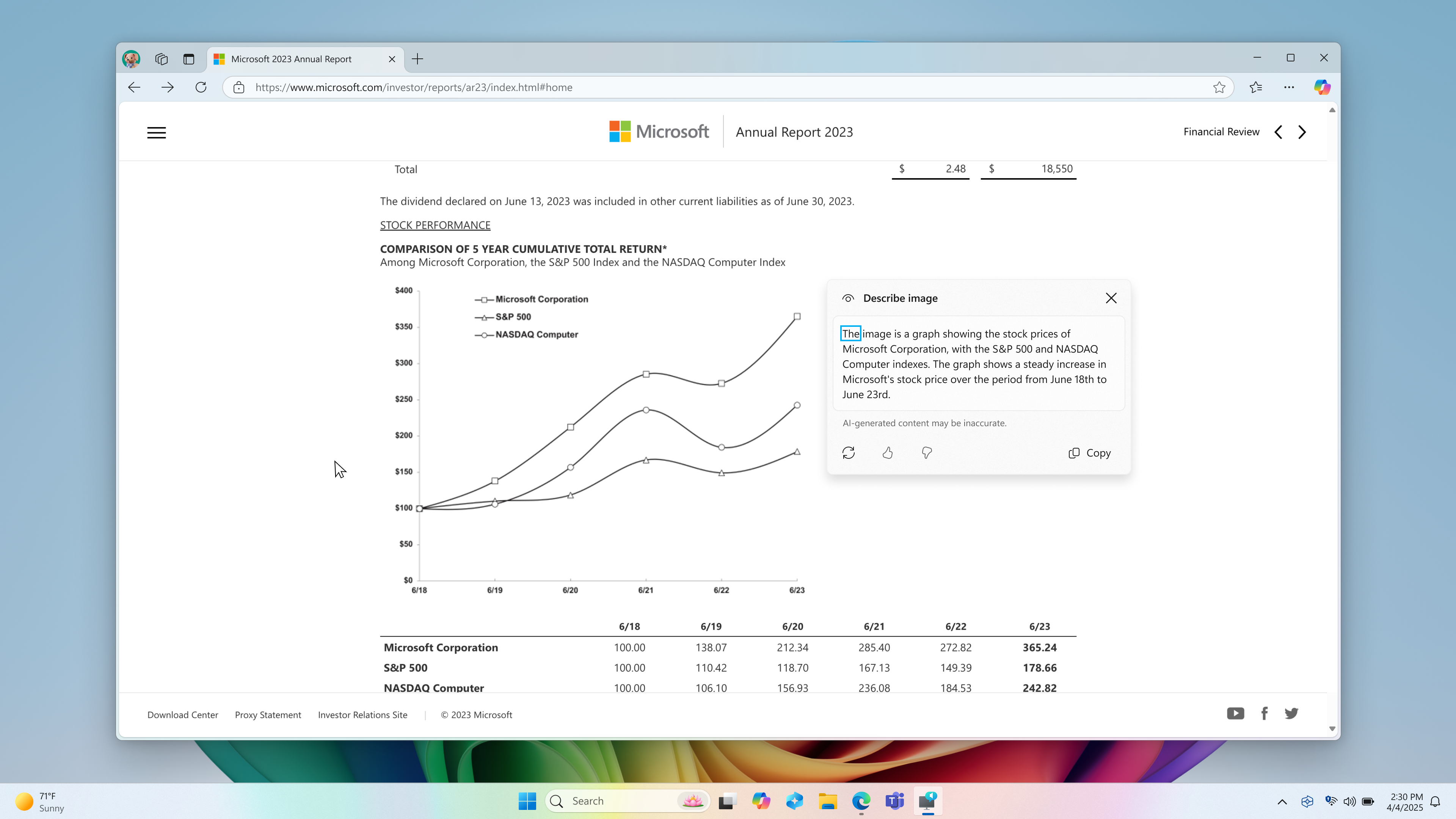
Fixed an issue where the Describe image feature of narrator wasn’t working.
[Voice Access]
Fixed an issue where support for more descriptive and flexible language on Copilot+ PCs wasn’t working as expected.
[Settings]
Fixed an underlying issue related to Bluetooth which could cause Settings or Quick Settings to crash on launch for some people.
Fixed an issue with Quick Settings where if you clicked the top third of the buttons in the top row, it wouldn’t work.
[Other]
Fixed an issue with msftedit.dll which was causing apps like Sticky Notes and Dxdiag to crash in certain cases for people using Hebrew or Arabic display languages.
Fixes for everyone in the Dev Channel
[General]
We have mitigated the issue where if Virtualization Based Security is enabled, applications dependent on virtualization, such as VMware Workstation, would lose the ability to run unless the “Windows Hypervisor Platform” Windows optional component is installed on the system.
Known issues
[General]
After you do a PC reset under Settings > System > Recovery, your build version may incorrectly show as Build 26100 instead of Build 26200. This will not prevent you from getting future Dev Channel updates, which will resolve this issue.
The option to reset your PC under Settings > System > Recovery will not work on this build.
[ADDED 6/4] We’re investigating an issue causing a small number of Insiders to experience repeated bugchecks with KERNEL_SECURITY_CHECK_FAILURE after upgrading to Build 26200.5622.
[Xbox Controllers]
Some Insiders are experiencing an issue where using their Xbox Controller via Bluetooth is causing their PC to bugcheck. Here is how to resolve the issue. Open Device Manager by searching for it via the search box on your taskbar. Once Device Manager is open, click on “View” and then “Devices by Driver”. Find the driver named “oemXXX.inf (XboxGameControllerDriver.inf)” where the “XXX” will be a specific number on your PC. Right-click on that driver and click “Uninstall”.
[Click to Do (Preview)]
The following known issues will be fixed in future updates to Windows Insiders:
Windows Insiders on AMD or Intel™-powered Copilot+ PCs may experience long wait times on the first attempt to perform intelligent text actions in Click to Do after a new build or model update.
[Improved Windows Search]
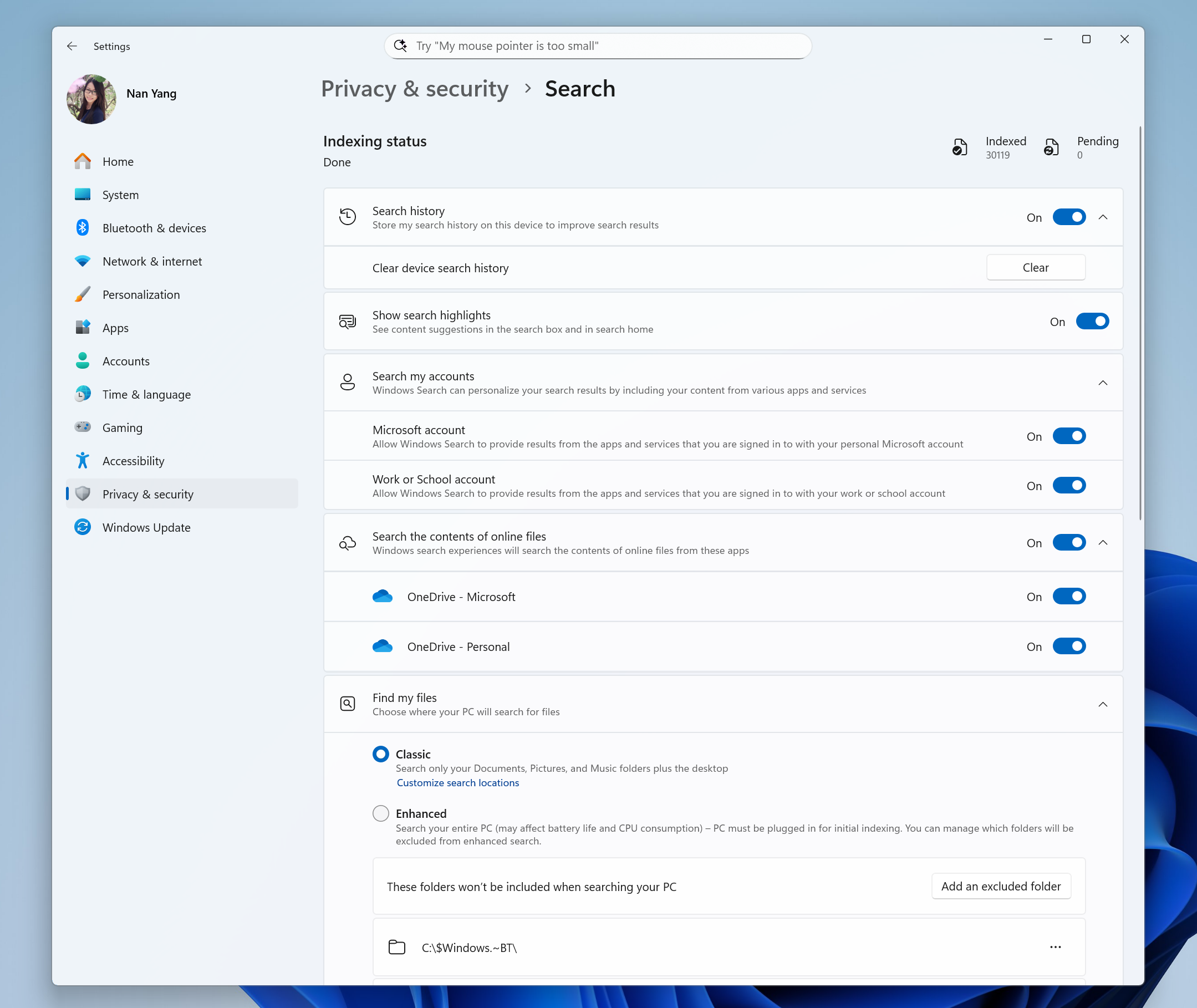
[REMINDER] For improved Windows Search on Copilot+ PCs, it is recommended that you plug in your Copilot+ PC for the initial search indexing to get completed. You can check your search indexing status under Settings > Privacy & security > Searching Windows.
[Taskbar & System Tray]
[NEW] In some cases, taskbar icons may appear small even though the setting to show smaller taskbar buttons is configured as “never”.
[File Explorer]
The following are known issues for AI actions in File Explorer:
Narrator scan mode may not work properly in the action result canvas window for the Summarize AI action for Microsoft 365 files when reading bulleted lists. As a workaround, you can use Caps + Right key to navigate.
[Widgets]
Until we complete support for pinning in the new widgets board experience, pinning reverts you back to the previous experience.
[Graphics]
[NEW] When connecting your PC to some older Dolby Vision displays, in some cases you might see severe discoloration. You can navigate to Settings > System > Display > HDR turn off “Use Dolby Vision mode” as a workaround to resolve the issue or disconnect the display.
Hi all, last today we are releasing Windows 11 Insider Preview Build 27868 to the Canary Channel.
Smooth upgrade on all my devices though the installation did take way longer than expected (getting to 100% before the reboot)
Happy Upgrades!
Changes and Improvements
[Voice access]
Voice access will now support an immersive in-product experience to announce new features and improvements. It will help you quickly discover and learn more about new features in voice access to try out. You can launch or dismiss this new experience from the settings menu.
New voice access in-product experience for highlighting new features and improvements in voice access.
Fixes
[Input]
Fixed an issue which was causing pen input to be non-responsive on some PCs that support pen for inking. This issue may have also impacted some scenarios interacting with touch.
[Other]
Mitigated an underlying issue in the previous flight resulting in some apps like Spotify failing to launch and failing to install from the Microsoft Store with an 0x80070032 error.
Fixed an issue which was causing Group Policy Editor to not render correctly for some display languages like Chinese in recent Canary builds, causing big blank areas.
Fixed another underlying issue which was causing some Insiders to see a SYSTEM_THREAD_EXCEPTION_NOT_HANDLED bugcheck in recent Canary builds.
Known issues
[General]
[IMPORTANT NOTE FOR COPILOT+ PCs] If you are joining the Canary Channel on a new Copilot+ PC from the Dev Channel, Release Preview Channel or retail, you will lose Windows Hello pin and biometrics to sign into your PC with error 0xd0000225 and error message “Something went wrong, and your PIN isn’t available”. You should be able to re-create your PIN by clicking “Set up my PIN”.
You may see an Administrative Templates error message when opening Group Policy Editor. If you click OK you should be able to proceed as normal.
We’re investigating an issue where the taskbar is unexpectedly not showing acrylic material after upgrading to this build.
We’re working on the fix for an issue where audio devices with high sampling (like 192Hz) and multiple channels aren’t producing sound after upgrading to this build. Thanks Insiders that provided detailed information in your feedback!
[NEW] When Virtualization Based Security is enabled, applications dependent on virtualization, such as VMware Workstation, lose the ability to run unless the “Windows Hypervisor Platform” Windows optional component is installed on the system. Previously, installing the optional component was not required.
[Task Manager]
Search and other options such as filtering in Task Manager does not work.
Hi all, last Friday Microsoft released Windows 11 Insider Preview Build 27863 to the Canary Channel.
All smooth updates here, the install hase took a bit longer than expected but completed succesfully.
Happy Upgrades!
Changes and Improvements
[Post-Quantum Cryptography]
As announced this week at the Build conference, we are adding support for post-quantum signature algorithm ML-DSA in NCrypt and BCrypt cryptography API surfaces, as well as Crypt32 certificate APIs. Three variants are supported, ML-DSA 44, 65, and 87. In Build 27858 and higher, we encourage you to try out using and validating ML-DSA certificates with these changes.
Fixes
[Windows Sandbox]
Fixed an issue causing Windows Sandbox to not work and show error 0xc0370106 on launch in the previous flight.
[Other]
Fixed an issue where core Windows surfaces were not able to load in safe mode (File Explorer, Start menu, and others) after the previous flight.
Fixed an issue with msftedit.dll which was causing apps like Sticky Notes and Dxdiag to crash in certain cases for people using Hebrew or Arabic display languages.
Known issues
[General]
[IMPORTANT NOTE FOR COPILOT+ PCs] If you are joining the Canary Channel on a new Copilot+ PC from the Dev Channel, Release Preview Channel or retail, you will lose Windows Hello pin and biometrics to sign into your PC with error 0xd0000225 and error message “Something went wrong, and your PIN isn’t available”. You should be able to re-create your PIN by clicking “Set up my PIN”.
You may see an Administrative Templates error message when opening Group Policy Editor. If you click OK you should be able to proceed as normal. One of the causes of this is fixed with this flight – there’s a second fix we’re working on which will be included in an upcoming flight.
We’re investigating an issue where the taskbar is unexpectedly not showing acrylic material after upgrading to this build.
We’re working on the fix for an issue where audio devices with high sampling (like 192Hz) and multiple channels aren’t producing sound after upgrading to this build. Thanks Insiders that provided detailed information in your feedback!
[Input]
Pen input may be non-responsive on some PCs that support pen for inking.
[Task Manager]
Search and other options such as filtering in Task Manager does not work.
Hi all, last Monday Microsoft released Windows 11 Insider Preview Build 26200.5603 (KB5058488) to the Dev Channel.
Bluetooth on my Surface Laptop 7th edition with Intel cpu isn’t fond of this build, after a while it stops working until the system is rebooted. (Feedback Hub: https://aka.ms/AAwdm3s)
Happy Upgrades!
New features gradually being rolled out to the Dev Channel with toggle on*
Introducing AI actions in File Explorer
With AI actions in File Explorer, you can interact more deeply with your files by right-clicking to quickly take actions like editing images or summarizing documents. Like with Click to Do, AI actions in File Explorer allow you to stay in your flow while leveraging the power of AI to take advantage of editing tools in apps or Copilot functionality without having to open your file. AI actions in File Explorer are easily accessible – to try out AI actions in File Explorer, just right-click on a file and you will see a new AI actions entry on the content menu that allows you to choose from available options for your file.
File Explorer with context menu expanded on a file showing new AI actions highlighted in a red box.
Today, you can try one of four image actions for seamless editing or web searches with images:
Bing Visual Search: Allows you to search the web using an image instead of text. Find similar images and products, get details about sites using the image, and identify landmarks, plants, and famous faces. From searching what you see on your screen, to shopping your preferred style, getting help with that homework problem, or translating text, getting answers is more intuitive than ever.
Blur Background: Opens the Photos app which automatically finds the background in the photo, and with a single click, instantly highlights your subject and blurs out the background. You can also customize the effect by adjusting the Blur Intensity or use the Brush Tool to modify the areas being blurred.
Erase Objects: With Photos by selecting or highlighting an unwanted element in your photo and Generative Erase makes it disappear. It allows you to fix and remove distractions from your photos.
Remove Background: With Paint allows you to alter any image automatically in just one click leaving a smooth cutout of the subject. Background removal can detect the subject from the entire canvas or using the selection tool.
These four image actions currently support these file types: .jpg, .jpeg, and .png.
Over the course of the coming weeks, we will begin to roll out new AI actions for Microsoft 365 files:
A summary of a document in File Explorer via the Summarize Microsoft 365 action.
Summarize: With Copilot you can generate summaries of various document types stored on OneDrive and SharePoint without the need to open them individually. Find the information you need quickly! Supported file types: .docx, .doc, .pptx, .ppt, .xlsx, .xls, .pdf, .rtf, .txt, .loop.
Create an FAQ: Copilot can help you turn your OneDrive files into a neatly formatted, AI-generated Q&A list. Whether you’re building internal knowledge bases, prepping for meetings, or crafting quick-start guides, “Create an FAQ” distills complex information into clear, shareable FAQs in seconds. Supported file types: xlsx, .ppt, .pptx, .doc, .docx, .pdf, .txt, .rtf, .aspx, .htm, and .html.
To see AI actions for Microsoft 365 files, you must be:
For Summarize, you need to be Microsoft 365 subscriber with a Copilot subscription (Microsoft account and Microsoft Entra ID supported).
For Create an FAQ, you need to be a commercial Microsoft 365 subscriber with a Copilot subscription (Microsoft Entra ID supported). Consumer support with a Microsoft account is coming later.
Enrolled in the Microsoft 365 Insider Program. Your PC will need to be part of the Beta Channel update channel. Use these instructions to get setup today: Become a Microsoft 365 Insider on Windows.
Let us know what you think of these new AI actions in File Explorer!
Introducing Advanced Settings
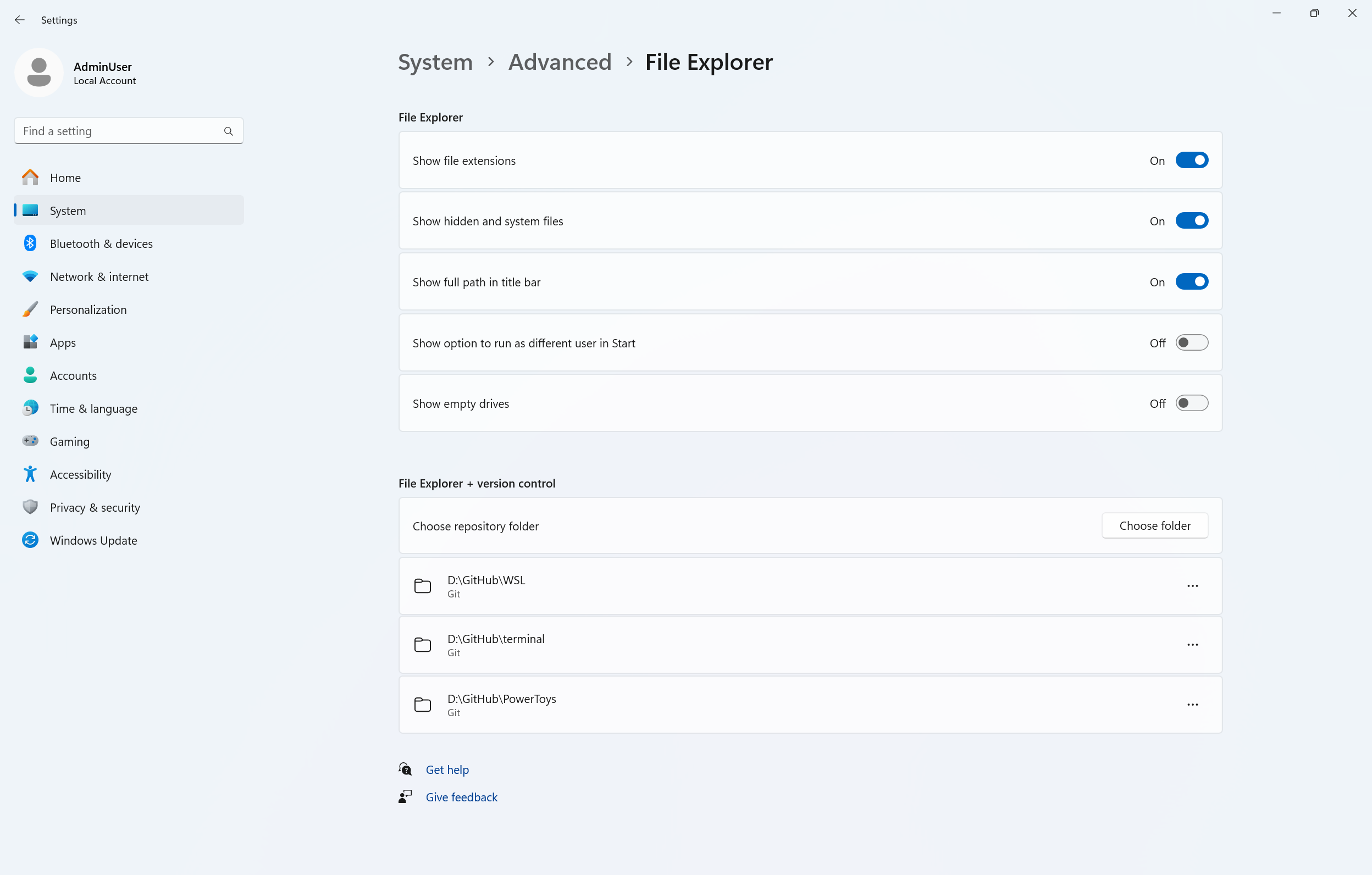
Advanced settings are now available via Settings > System > Advanced with some new features. The Advanced page is a redesign of the For Developers page, intending to make its settings easier to find for a broader audience. With the redesign of this page, we’ve added additional settings: Enable long paths, Virtual workspaces, and File Explorer + version control.
Enable long paths allows you to remove MAX_PATH limitations from common Win32 file and directory functions. Virtual workspaces allow you to enable/disable virtual environments such as Hyper-V, Windows Sandbox, and more. File Explorer + version control provides the ability to display Git information directly inside File Explorer. Simply select your repository folder and File Explorer will display information such as your branch, diff count, last commit message, and more.
Changes and Improvements gradually being rolled out to the Dev Channel with toggle on*
[Taskbar & System Tray]
In addition to the new grouping of the Accessibility flyout in quick settings, we are adding text descriptions for the assistive technologies like Narrator, Voice access, etc. for easy identification and learning by the users.
Accessibility flyout via quick setting showing text descriptions for assistive technologies like Narrator, Voice access, etc.
[Search on the Taskbar]
We are beginning to roll out some improvements for the Windows search box on your taskbar:
When showing search results, we will provide a notice that your search results may be incomplete if Windows is still indexing your PC with a link to check your indexing status. You can dismiss this notice.
We are also providing a status for files and folders on your PC so you can easily see if a file or folder is available when online (cloud) or available on your device.
Windows search box improvements for search results highlighted in red boxes.
[Voice access]
We have temporarily disabled Chinese support in voice access to address some issues. We plan to begin rolling this change out again in a future flight soon.
[Widgets]
We’re trying out a new visual experience for the widgets board, with a more organized, personalized, and engaging feed. In addition, we are introducing Copilot-curated stories into the feed. These make it easy to get a multifaceted view on a single topic, connecting summaries, videos, and images from trusted MSN premium publishers. Some features, such as pinning and hiding, are still under development. Explore this experience and please share your feedback as we’ll continue to evolve the experience.
The new visual experience for the widgets board.
You can choose to return to the previous widgets board experience, by changing the ‘Copilot Discover (Preview)’ toggle in the Personalize MSN settings dialog (shown below).
Toggle for Copilot Discover (Preview) in a red box.
[Power & Battery]
We’re introducing User Interaction-Aware CPU Power Management, an OS-level enhancement that helps reduce power consumption and extend your battery life. After a period of inactivity on your PC, Windows now conserve power by automatically applying efficient power management policies. This happens seamlessly to save energy while you’re inactive, with full performance instantly restored the moment you get back to it. It’s another way we’re working to make your Windows experience both responsive and energy-efficient!
Please note: Actual savings depend on device segment, power mode and whether you’re plugged in or running on battery, according to manufacturer-defined Processor Power Management (PPM) settings.
[Windows Share]
In the Windows share window, as part of the ability to quickly edit and enhance images while sharing, we have adjusted the UI so that now you can now select their compression scale from High, Medium, or Low Quality, instead of choosing from an entire scale ranging from 0-100.
New drop-down menu for compression scale of high, medium, or low when sharing images in the Windows share window.
[Windows Backup]
We’re trying out different variations of the landing page when you launch the Windows Backup app.
[Snipping Tool]
[ADDED] Last month, we announced Snipping Tool’s new text extractor feature — designed to minimize the number of steps it takes to copy text to your clipboard without having to take a screenshot of your screen. With this Windows update, we’re making it easier to jump directly into text extractor via Win + Shift + T. You can learn more about using text extractor here. You should be on Snipping Tool version 11.2503.29.0 or higher as well.
[Settings]
We are rolling out some small changes for your setting your browser defaults in Windows 11 via Settings > Apps > Default apps:
For Add new link/file types of ‘Set Default’ button, we have added additional types for the “Set Default” button. You can now set more types.
For one-click button of PDF for browser sets, we have added a new button for making your default browser also the default app for PDF files.
Browser default settings page showing new set default button for PDF files.
Fixes gradually being rolled out to the Dev Channel with toggle on*
[General]
Fixed an issue where core Windows surfaces were not able to load in safe mode (File Explorer, Start menu, and others) after latest flights.
[Start menu]
Fixed an issue causing Start menu to be blank for some Insiders in the previous flight.
[File Explorer]
Fixed an issue where if File Explorer was maximized and you clicked the new tab button it would unmaximize the window.
[Settings]
Fixed an issue related to loading Bluetooth information which could lead to Settings and Quick Settings crashes.
Fixed an issue where you couldn’t switch active hours from manually to automatic in Settings > Windows Update.
Fixed an issue which was causing Settings > Personalization > Lock screen to crash for some Insiders.
Known issues
[General]
After you do a PC reset under Settings > System > Recovery, your build version may incorrectly show as Build 26100 instead of Build 26200. This will not prevent you from getting future Beta Channel updates, which will resolve this issue.
The option to reset your PC under Settings > System > Recovery will not work on this build.
[ADDED 5/23] When Virtualization Based Security is enabled, applications dependent on virtualization, such as VMware Workstation, lose the ability to run unless the “Windows Hypervisor Platform” Windows optional component is installed on the system. Previously, installing the optional component was not required.
[Xbox Controllers]
Some Insiders are experiencing an issue where using their Xbox Controller via Bluetooth is causing their PC to bugcheck. Here is how to resolve the issue. Open Device Manager by searching for it via the search box on your taskbar. Once Device Manager is open, click on “View” and then “Devices by Driver”. Find the driver named “oemXXX.inf (XboxGameControllerDriver.inf)” where the “XXX” will be a specific number on your PC. Right-click on that driver and click “Uninstall”.
[Click to Do (Preview)]
The following known issues will be fixed in future updates to Windows Insiders:
Windows Insiders on AMD or Intel™-powered Copilot+ PCs may experience long wait times on the first attempt to perform intelligent text actions in Click to Do after a new build or model update.
[Improved Windows Search]
[REMINDER] For improved Windows Search on Copilot+ PCs, it is recommended that you plug in your Copilot+ PC for the initial search indexing to get completed. You can check your search indexing status under Settings > Privacy & security > Searching Windows.
[Start menu]
We’re investigating reports that clicking your profile picture isn’t opening the Account Manager for some Insiders after the last couple of flights.
[File Explorer]
The following are known issues for AI actions in File Explorer:
[NEW] Narrator scan mode may not work properly in the action result canvas window for the Summarize AI action for Microsoft 365 files when reading bulleted lists. As a workaround, you can use Caps + Right key to navigate.
[NEW] When your Windows display language is configured with a right-to-left language, the action result canvas displays text from left to right for AI actions for Microsoft 365 files.
[Task Manager]
After adding the new CPU Utility column, you may notice that System Idle Process always shows as 0.
The CPU graphs in the Performance page are still using the old CPU utility calculations.
[Narrator]
We are investigating an issue where the richer image descriptions on your Copilot+ PC with Narrator do not work.
[Voice Access]
We are investigating an issue where support for more descriptive and flexible language on Copilot+ PCs does not work as expected.
[Widgets]
[NEW] Until we complete support for pinning in the new widgets board experience, pinning reverts you back to the previous experience.
Hi all, last Friday Microsoft released Windows 11 Insider Preview Build 27858 to the Canary Channel.
All smooth upgrades on my Canary Channel devices
The Surface Pro 10 decided to greenscreen during reboot just before downloading the new build, then upgraded without issues. Looks like it might be addressed in this update
Happy Upgrades!
Changes and Improvements
[Input]
We are trying out a new experience to improve the discoverability of the emoji and more panel in Windows 11 with the introduction of a new system tray icon on the taskbar. With this new system tray icon, you can easily express yourself by using emojis, GIFs, Kaomoji etc. across all apps and surfaces in Windows in addition to using the WIN + . keyboard shortcut which is also now shown on the emoji and more panel. This new system tray icon for the emoji and more panel shows can be changed by right-clicking on the icon to go to taskbar settings page.
The new system tray icon for the emoji and more panel highlighted with a red box.
Fixes
[General]
Fixed an issue which was causing some Insiders to see a black screen when upgrading to the previous flight.
Fixed an issue causing text to disappear in places across the system after the previous flight.
[File Explorer]
As part of our ongoing commitment to improving File Explorer accessibility, this release includes increased support for the text scaling (via Settings > Accessibility > Text size) across File Explorer, File Open/Save dialogs and the copy dialogs.
[Desktop icons]
Updated the logic for apps pinned to the desktop, so that packaged apps no longer show an accent colored backplate (for example, if you were to drag and drop Snipping Tool from the apps list in Start to the desktop). In doing this, the icons should be bigger and easier to see now. Please note, you may need to create new shortcuts for this to take effect, if you already have something on your desktop.
[Input]
Fixed an issue where voice typing wouldn’t start from the touch keyboard when using the Chinese (Simplified) narrow layout.
Fixed a high hitting ctmon.exe crash, which could impact the ability to type.
[Windowing]
Fixed an explorer.exe crash related to snap layouts which could happen when dragging a window or hovering over the maximize button in a window.
[Taskbar]
Fixed an issue where the taskbar icons weren’t increasing in size as they should when using your PC in a tablet posture.
Fixed an issue where when using Hebrew or Arabic as your display language, if you pressed WIN + T then arrow keys, focus through the taskbar icons would move in the opposite direction.
[Graphics]
Fixed an issue causing night light to not work for some Insiders after the latest flights.
Fixed an issue which was causing unexpected FPS caps for some Insiders in the previous flight.
[Network]
Mitigated an issue believed to be the cause of reports that wi-fi stopped working for some Insiders after the previous flight.
[Audio]
Fixed an underlying issue which could lead to MIDI devices not being recognized in recent Canary flights.
[Other]
Fixed an issue causing some Insiders to see a bugcheck with KERNEL_SECURITY_CHECK_FAILURE after the previous flight.
Fixed an issue causing some Insiders to see a bugcheck with SYSTEM_THREAD_EXCEPTION_NOT_HANDLED after the previous flight.
Fixed an issue where setting your desktop background to a JXR HDR wallpaper wasn’t working for extra wide format (21×9).
Known issues
[General]
[IMPORTANT NOTE FOR COPILOT+ PCs] If you are joining the Canary Channel on a new Copilot+ PC from the Dev Channel, Release Preview Channel or retail, you will lose Windows Hello pin and biometrics to sign into your PC with error 0xd0000225 and error message “Something went wrong, and your PIN isn’t available”. You should be able to re-create your PIN by clicking “Set up my PIN”.
[NEW] You may see an Administrative Templates error message when opening Group Policy Editor. If you click OK, you should be able to proceed as normal.
[Input]
[NEW] Pen input may be non-responsive on some PCs that support pen for inking.
[Task Manager]
[ADDED] Search and other options such as filtering in Task Manager does not work.
Hi all, last Monday Microsoft released Windows 11 Insider Preview Build 26200.5600 (KB5058493) to the Dev Channel.
Great to see Entra ID support for Notepad and Paint is here, Paint on my Surface Laptop 7th Edition Intel offered to dowmload the Models to generate images
Resizing the store app is not displaying correctly on this build, when I dragg the edge or corner of the app to make it larger, part of the added size is transparrent (the faster you move the more the effect shows) (FeedBackHub: https://aka.ms/AAwaknl)
Partially Transparrent Window
Happy Upgrades!
New Copilot+ PC experiences
Intelligent text actions in Click to Do for AMD and Intel™-powered Copilot+ PCs
We’re introducing more intelligent text actions to enhance your Click to Do experience even further on AMD and Intel™-powered Copilot+ PCs. Use WIN key + mouse-click or WIN + Q to select a text block and then drag to select the text that you want. You’ll see options to Summarize, Create a bulleted list, or to help you Rewrite your text, so it sounds more causal, more formal, or more polished.
More intelligent text actions in Click to Do with options to Summarize, Create a bulleted list, or Rewrite.
The intelligent text actions are available when your default language is set to English, at least 10 words are selected, and you’re signed in with either a Microsoft account or Microsoft Entra account. You can learn more about using Click to Do here.
FEEDBACK: Please file feedback in Feedback Hub (WIN + F) under Desktop Environment > Click to Do.
Changes and Improvements gradually being rolled out to the Dev Channel with toggle on*
[Click to Do (Preview)]
For Windows Insiders using French or Spanish as their primary language on their PC, Click to Do will temporarily only provide Summarize, Create a bulleted list, Refine as intelligent text actions. Rewrite and its options, including Refine, will return in a future update.
[Dynamic Lighting]
Dynamic Lighting compatible devices can now be safely removed using the “Safely Remove Hardware and Eject Media” taskbar icon.
[Settings]
The new agent in Settings experience is currently beginning to roll out to Windows Insiders in the Beta Channel first and once the right ML models are set up for the Dev Channel, we will begin rolling this experience out in the Dev Channel with a future flight.
We’re making it easy to find answers to common questions about your PC and Windows 11 with a dedicated FAQs section on the Settings > System > About page, providing quick and helpful insights for using your PC all in one place. Whether you’re curious about system configuration, performance, or compatibility, this experience ensures you get the information you need for the frequently asked questions for those topics. We hope these FAQs will help you make informed decisions about your PC with ease.
FAQ section highlighted in a red box on the About settings page.
Fixes gradually being rolled out to the Dev Channel with toggle on*
[Start menu]
Fixed a few crashes impacting Start menu reliability for Insiders in recent flights.
[File Explorer]
Fixed a deadlock which could occur when loading File Explorer Home, causing it to hang.
Fixed an issue where Shared by and Activity information was missing in the tooltip when hovering over recent documents in File Explorer Home.
Fixed an issue which could cause explorer.exe to crash when closing File Explorer.
[Voice Access]
Fixed an issue which was causing voice access crashes when using Spanish.
[Taskbar]
Fixed an issue where when using Tab and Shift + Tab to move keyboard focus around the taskbar, if you went backwards at least once you could get keyboard focus stuck on the taskbar frame, which would potentially lead screen readers to just say “pane”.
Fixed an issue which could cause the media controls in the preview windows for apps in the taskbar (that support it) to flicker.
[Windows Spotlight]
Fixed an issue where the Windows Spotlight flyout for “learn more about this picture” (when using it as your desktop background) might get stuck above other app windows.
[Live captions]
Fixed an issue causing live captions to crash in the previous build.
[Other]
Improved the colors used in MMC when items are selected, both generally, and when contrast modes are enabled.
Fixed an underlying issue which could make some apps like Word hang when trying to print.
Known issues
[General]
After you do a PC reset under Settings > System > Recovery, your build version may incorrectly show as Build 26100 instead of Build 26200. This will not prevent you from getting future Beta Channel updates, which will resolve this issue.
[NEW] The option to reset your PC under Settings > System > Recovery will not work on this build.
[Xbox Controllers]
Some Insiders are experiencing an issue where using their Xbox Controller via Bluetooth is causing their PC to bugcheck. Here is how to resolve the issue. Open Device Manager by searching for it via the search box on your taskbar. Once Device Manager is open, click on “View” and then “Devices by Driver”. Find the driver named “oemXXX.inf (XboxGameControllerDriver.inf)” where the “XXX” will be a specific number on your PC. Right-click on that driver and click “Uninstall”.
[Recall (Preview)]
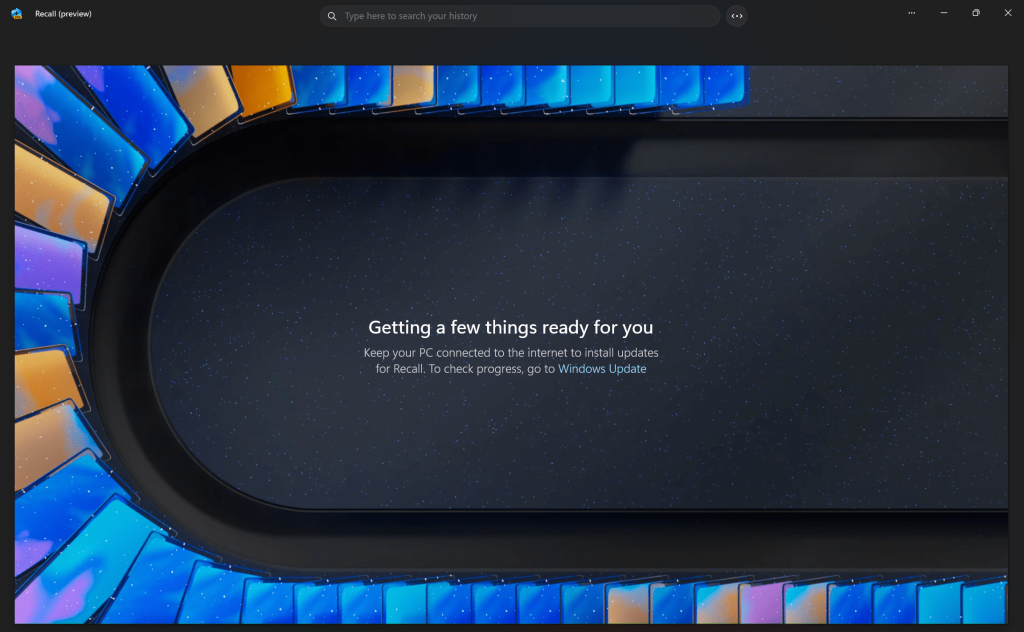
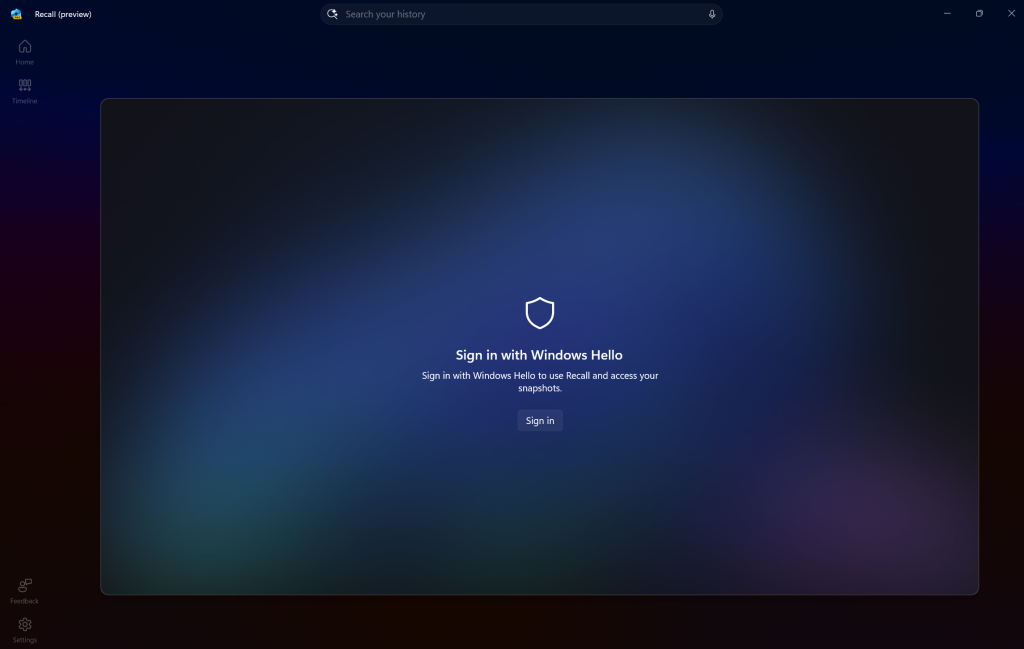
[REMINDER] You are always in control and can always choose to remove Recall anytime via “Turn Windows features on or off”. Removing Recall will delete entry points and binaries. Like any feature, Windows sometimes keeps temporary copies of binaries for serviceability. These Recall binaries are not executable and are eventually removed over time.
[REMINDER] Make sure you update Microsoft 365 apps to the latest version so you can jump back into specific documents.
[Click to Do (Preview)]
[REMINDER] The intelligent text actions are now locally moderated to ensure the safety of prompts and responses and has replaced the cloud endpoint. Now that these intelligent text actions are fully local, they are also available in Click to Do in Recall.
[REMINDER] If any of your actions on image entities are no longer appearing, please ensure you have the latest updates for the Photos and Paint app from the Microsoft Store.
The following known issues will be fixed in future updates to Windows Insiders:
[NEW] Image actions may not show up in Click to Do.
[NEW] Windows Insiders on AMD or Intel™-powered Copilot+ PCs may experience long wait times on the first attempt to perform intelligent text actions in Click to Do after a new build or model update.
[NEW] For Windows Insiders in the Dev Channel, Click to Do’s intelligent text actions may not offer support for Spanish or French.
[Improved Windows Search]
[REMINDER] For improved Windows Search on Copilot+ PCs, it is recommended that you plug in your Copilot+ PC for the initial search indexing to get completed. You can check your search indexing status under Settings > Privacy & security > Searching Windows.
[Start menu]
We’re investigating reports that clicking your profile picture isn’t opening the Account Manager for some Insiders after the last flight.
[Task Manager]
After adding the new CPU Utility column, you may notice that System Idle Process always shows as 0.
The CPU graphs in the Performance page are still using the old CPU utility calculations.
[Narrator]
[NEW] We are investigating an issue where the richer image descriptions on your Copilot+ PC with Narrator do not work.
[Voice Access]
[NEW] We are investigating an issue where support for more descriptive and flexible language on Copilot+ PCs does not work as expected.
Entra ID support for AI features in Paint and Notepad
We are rolling out Entra ID support for AI features in Paint (version 11.2503.381.0 and higher) and Notepad (version 11.2503.16.0 and higher) to Windows Insiders on IT-managed PCs in the Canary, Dev, and Beta Channels. This update enables commercial customers to access AI features that were previously limited to consumers. In Paint, Entra ID unlocks access to Cocreator, which generates images by combining a sketch and text prompt and Generative Fill, which adds new elements to selected areas of a canvas based on descriptive input. These tools help teams explore ideas visually and speed up creative workflows. In Notepad, Entra ID unlocks the ability to quickly summarize or rewrite text content.
Hi all, Monday Microsoft released Windows 11 Insider Preview Build 26200.5581 (KB5055651) to the Dev Channel.
New Taskbar tweaks showing apps tahat need attention more clearly look great!
New features gradually being rolled out to the Dev Channel with toggle on*
Energy saver now available in Microsoft Intune
We are bringing the ability to manage energy saver in Windows 11 to Microsoft Intune to allow IT administrators to control the energy saver settings on Windows 11 PCs through group policies and Mobile Device Management (MDM) configurations.
This feature, when enabled, intelligently balances your battery use, so it can last longer between charges. It extends battery life by managing power usage efficiently. It limits background activity and reduces screen brightness, ensuring that devices consume less power while maintaining optimal performance. By automatically managing system processes and power usage, the energy saver group policy helps reduce overall energy consumption. This not only saves costs but also contributes to environmental sustainability.
IT administrators can activate the policy by using either method below:
Local Group Policy Editor in Windows 11
Microsoft Intune Admin Center
New group policy highlighted in a red box in Local Group Policy Editor.
The path for the new policy configuration can be found at in Local Group Policy Editor by navigating to Computer Configuration > Administrative Templates > System > Power Management > Energy Saver Settings and “Enable Energy Saver to Always Be On”.
Changes and Improvements gradually being rolled out to the Dev Channel with toggle on*
[Recall (Preview)]
We’re trying out different treatments of the UI in Recall including trying out different locations for snapshot actions and the timeline.
[Taskbar & System Tray]
We have adjusted the needy state pill under apps on the taskbar that need attention to be wider and more visible.
Wider needy state pill UI showing for Microsoft Teams on the taskbar indicating the app needs attention.
Admins can now allow users to unpin specific pinned apps, ensuring they are not pinned again during the next policy refresh cycle. To enable this feature, use the new PinGeneration option. Learn more about configuring pinned apps on the taskbar.
[Graphics]
We’re introducing some improvements for managing HDR capabilities of your PC via under Settings > System > Display > HDR:
New HDR management settings highlighted in a red box.
We have changed the wording for “Use HDR” inside display capabilities to improve clarity on supported media types.
On PCs with HDR displays, we have added the option to allow HDR video streaming even when HDR is off in settings.
On PCs with Dolby Vision displays, we have added the option to toggle Dolby Vision mode independently from HDR. You can now enjoy HDR with Dolby Vision either on or off based on your preference.
Fixes gradually being rolled out to the Dev Channel with toggle on*
[Taskbar]
Fixed an underlying issue which was causing keyboard focus to get set to widgets in the taskbar on login, which could make widgets unexpectedly invoke.
Fixed an issue where WIN + CTRL + wasn’t working to cycle between windows of open apps for that position on the taskbar.
[Audio]
Fixed an issue which could cause the startup sound not to play, though it was enabled.
[Graphics]
Fixed an issue which could cause unexpected scaling and window position changes after sleep/resume for some devices.
[Windows Update]
Fixed an issue where after resetting your PC, taking subsequent cumulative updates may fail with error 0x800f081f.
Known issues
[General]
When joining the Dev Channel on Windows 11, version 24H2 – you will no longer be offered Build 26200.5518 first and will be offered the most current available update in the Dev Channel.
After you do a PC reset under Settings > System > Recovery, your build version may incorrectly show as Build 26100 instead of Build 26200. This will not prevent you from getting future Beta Channel updates, which will resolve this issue.
We’re investigating an issue where core Windows surfaces are not able to load in safe mode (File Explorer, Start menu, and others) after the previous flight.
[Xbox Controllers]
Some Insiders are experiencing an issue where using their Xbox Controller via Bluetooth is causing their PC to bugcheck. Here is how to resolve the issue. Open Device Manager by searching for it via the search box on your taskbar. Once Device Manager is open, click on “View” and then “Devices by Driver”. Find the driver named “oemXXX.inf (XboxGameControllerDriver.inf)” where the “XXX” will be a specific number on your PC. Right-click on that driver and click “Uninstall”.
[Live Captions]
[NEW] We’re investigating an issue where live captions is crashing on this build.
[Recall (Preview)]
[REMINDER] You are always in control and can always choose to remove Recall anytime via “Turn Windows features on or off”. Removing Recall will delete entry points and binaries. Like any feature, Windows sometimes keeps temporary copies of binaries for serviceability. These Recall binaries are not executable and are eventually removed over time.
[REMINDER] Make sure you update Microsoft 365 apps to the latest version so you can jump back into specific documents.
[Click to Do (Preview)]
[REMINDER] The intelligent text actions are now locally moderated to ensure the safety of prompts and responses and has replaced the cloud endpoint. Now that these intelligent text actions are fully local, they are also available in Click to Do in Recall.
[REMINDER] If any of your actions on image entities are no longer appearing, please ensure you have the latest updates for the Photos and Paint app from the Microsoft Store.
[Improved Windows Search]
[REMINDER] For improved Windows Search on Copilot+ PCs, it is recommended that you plug in your Copilot+ PC for the initial search indexing to get completed. You can check your search indexing status under Settings > Privacy & security > Searching Windows.
[Start menu]
We’re investigating reports that clicking your profile picture isn’t opening the Account Manager for some Insiders after the last flight.
[Task Manager]
After adding the new CPU Utility column, you may notice that System Idle Process always shows as 0.
The CPU graphs in the Performance page are still using the old CPU utility calculations.
In the ever-evolving world of technology, staying updated with the latest features and improvements is crucial. Microsoft has recently launched the Windows Roadmap, a comprehensive guide designed to keep IT professionals and users informed about upcoming changes and enhancements in Windows 11.
What is the Windows Roadmap?
The Windows Roadmap is a transparent and detailed resource that provides insights into the future of Windows 11. It includes information on features that are currently available for validation in the Windows Insider Program, those that are gradually rolling out, and those that are generally available. This roadmap is a significant step towards increasing transparency and helping users manage changes effectively.
Key Features of the Windows Roadmap
Transparency and Clarity: The roadmap offers estimated release dates and descriptions for new features, ensuring users know what to expect and when.
Comprehensive Coverage: It covers various release channels and device types, including Copilot+ PCs and Windows 11 PCs.
User Feedback Integration: Microsoft is actively seeking feedback to improve the roadmap, making it a dynamic and user-centric tool.
How to Use the Windows Roadmap
Explore New Features: Users can find detailed information on new features and improvements, including instructions on how to access them before they are enabled by default.
Stay Updated: The roadmap is regularly updated, ensuring that users have the latest information on Windows 11 enhancements.
Provide Feedback: Microsoft encourages users to share their suggestions and feedback to help refine the roadmap and expand its scope.
Why the Windows Roadmap Matters
For IT professionals and tech enthusiasts, the Windows Roadmap is an invaluable tool. It not only helps in planning and managing updates but also ensures that users can leverage the latest features to enhance productivity and security. By staying informed about upcoming changes, users can better prepare for transitions and make the most of new capabilities.
In conclusion, the Windows Roadmap is a game-changer for anyone looking to stay ahead in the tech world. With its detailed insights and user-centric approach, it promises to make navigating the future of Windows 11 a seamless experience.
Hi all, last Friday Microsoft released Windows 11 Insider Preview Build 26200.5570 (KB5055632) to the Dev Channel.
No issues during updates on my Dev Channel Devices
Happy Upgrades!
New features gradually being rolled out to the Dev Channel with toggle on*
New profanity filter setting for voice typing
We’re excited to address the top customer feedback for voice typing by starting to roll out a new setting that lets you control the profanity filter. With this setting on, voice typing will continue to filter out profanity, masking it with asterisks, like it already did. With the setting off, it will type out your profanity like any other words.
To adjust this setting, open voice typing (Win + H), select the settings icon, and use the Filter profanity toggle in the settings menu.
New filter profanity option in voice typing settings highlighted in a red box.
FEEDBACK: Please file feedback in Feedback Hub (WIN + F) under Input and Language > Voice Typing (Windows key plus H).
Changes and Improvements gradually being rolled out to the Dev Channel with toggle on*
[Click to Do (Preview)]
Click to Do is currently available in preview for Windows Insiders on Windows 11, version 24H2 in the Dev and Beta Channels on Copilot+ PCs.
If your PC supports pen and inking, you can configure the shortcut button (usually at the tail of your pen) to open Click to Do with a single-click, with a double-click, or by press and hold. You can configure this via Settings > Bluetooth & devices > Pen & Windows Ink.
Pen & Windows Ink settings page with option to point pen shortcut to Click to Do highlighted in a red box.
Click to Do can also be added as 1 of the 4 apps you can launch via the pen menu when using a pen with your PC. If all 4 of the slots for the pen menu are configured with apps, you may need to swap out one of those apps with Click to Do via the pen menu settings.
Click to Do shown in the pen menu.
[Improved Windows Search
Improved Windows Search is currently available in preview for Windows Insiders on Windows 11, version 24H2 in the Dev and Beta Channels on Copilot+ PCs.
If you are signed into OneDrive with a work or school account (Entra ID), you will only see matches for keywords you are searching for within the text of your cloud files in the results shown in the Windows search box on the taskbar – not photos.
[Taskbar & System Tray]
We are improving Accessibility flyout in quick settings by grouping the assistive technologies by vision, hearing, motor and mobility for easy identification to help you find the right accessibility feature based on your needs.
New grouping by vision, hearing, motor and mobility in the Accessibility flyout in quick settings.
Fixes gradually being rolled out to the Dev Channel with toggle on*
[General]
Fixed an underlying issue causing apps to appear blank after installing the latest flights.
[Click to Do (Preview)]
The following fixes are rolling out for Click to Do on Copilot+ PCs:
Fixed the issue causing images that are used with Click to Do image actions to be stuck in your temp folder on your PC.
[Login and Lock]
Fixed an issue causing Windows Hello facial recognition to not work for login for some Insiders after the last two flights.
[Input]
Fixed an issue where when using the Symbols section of the touch keyboard, pressing the key to change pages may unexpectedly insert a character into password fields.
Fixed an issue where toggling back and forth to the Japanese touch keyboard could block input on it.
[Settings]
Fixed an issue where hovering over the cards at the top of System > About wasn’t showing the correct corner radius.
[Other]
Fixed an issue which was causing Quick Assist to not work for non-administrator users (showing error 1002).
Fixed an underlying issue which was causing certain apps to fail to open with an error saying, “The application was unable to load a required virtual machine component”.
Fixed an underlying issue which could lead to certain USB devices becoming disconnected after sleep, until you rebooted your PC.
Fixes for everyone in the Dev Channel
[General]
We fixed the issue that caused Windows Recovery Environment (WinRE) to not work and the option “Fix problems using Windows Update” option under Settings > Recovery to also not work. If you experience any issues with these experiences, please file feedback in Feedback Hub.
Known issues
[General]
[IMPORTANT]When joining the Dev Channel on Windows 11, version 24H2 – you will be offered Build 26200.5518 After installing that update, you will be offered the most recent update available. This 2-hop experience to get onto the latest 24H2-based flight in the Dev Channel is just temporary.
After you do a PC reset under Settings > System > Recovery, your build version may incorrectly show as Build 26100 instead of Build 26200. This will not prevent you from getting future Beta Channel updates, which will resolve this issue.
Windows Sandbox may fail to launch with a 0x800705b4 error. If you hit this, you can try reinstalling Sandbox by unchecking Sandbox under “Turn Windows features on or off” to uninstall it then reboot, go back to “Turn Windows features on or off” and check Sandbox to reinstall it and reboot again.
[NEW] We’re investigating an issue where core Windows surfaces are not able to load in safe mode (File Explorer, Start menu, and others) after the previous flight.
[Xbox Controllers]
[NEW] Some Insiders are experiencing an issue where using their Xbox Controller via Bluetooth is causing their PC to bugcheck. Here is how to resolve the issue. Open Device Manager by searching for it via the search box on your taskbar. Once Device Manager is open, click on “View” and then “Devices by Driver”. Find the driver named “oemXXX.inf (XboxGameControllerDriver.inf)” where the “XXX” will be a specific number on your PC. Right-click on that driver and click “Uninstall”.
[Recall (Preview)]
[REMINDER] You are always in control and can always choose to remove Recall anytime via “Turn Windows features on or off”. Removing Recall will delete entry points and binaries. Like any feature, Windows sometimes keeps temporary copies of binaries for serviceability. These Recall binaries are not executable and are eventually removed over time.
[REMINDER] Make sure you update Microsoft 365 apps to the latest version so you can jump back into specific documents.
[Click to Do (Preview)]
[REMINDER] The intelligent text actions are now locally moderated to ensure the safety of prompts and responses and has replaced the cloud endpoint. Now that these intelligent text actions are fully local, they are also available in Click to Do in Recall.
[REMINDER] If any of your actions on image entities are no longer appearing, please ensure you have the latest updates for the Photos and Paint app from the Microsoft Store.
[Improved Windows Search]
[REMINDER] For improved Windows Search on Copilot+ PCs, it is recommended that you plug in your Copilot+ PC for the initial search indexing to get completed. You can check your search indexing status under Settings > Privacy & security > Searching Windows.
[Start menu]
[NEW] We’re investigating reports that clicking your profile picture isn’t opening the Account Manager for some Insiders after the last flight.
[Task Manager]
After adding the new CPU Utility column, you may notice that System Idle Process always shows as 0.
The CPU graphs in the Performance page are still using the old CPU utility calculations.