Hi all, last Wednesday Microsoft released a new optional update to the Windows 11 Insider Canary Channel, continuing the work to bring you early access to platform changes as they take shape.
As part of this ongoing development, Canary Channel will move forward on two update paths. This will help us validate platform changes at different stages while continuing to deliver new features and experiences to Insiders in the Canary channel.
I upgraded my Surface 13inch and my Surface Studio Laptop to the build, the SL went fine, the 13inch ran into an issue after upgrade, Pin sign in is not available on the lockscreen, also making biometric sign in fail.
I signed in with my passkey using Web Sign‑in and then fixed my PIN by resetting it. When I tried to send feedback through the Feedback Hub, the app opened, asked me to choose an account, and then crashed. I solved it by resetting the app via Settings > Apps > Feedback Hub > Advanced. (Feedback Hub: https://aka.ms/AAztffj)
I kept 2 other devices on the 28000 builds to be able to keep testing those developments too
So, few bumps getting there, all is good now Happy Upgrades!
What this means for Canary Channel Insiders
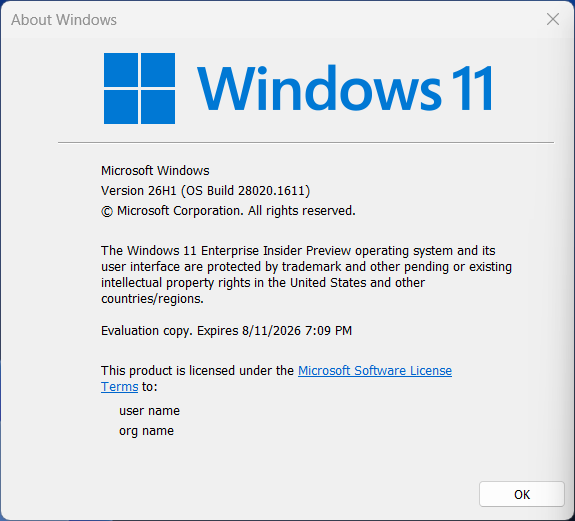
Today, Windows Insiders in the Canary Channel already have available to preview Windows 11 Insider Preview Build 28020.1611. This build path will continue to focus on previewing new features and experiences in Canary for Windows 11, version 26H1, and moving forward will continue to be identified as a 28000 series build.
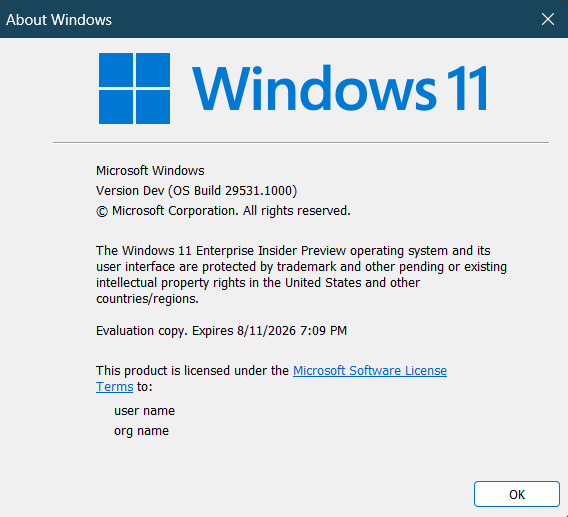
Available starting today, Insiders can take an optional update under Settings > Windows Update > Advanced options > Optional updates which will move your device to a new active development Build 29531.1000. Once you opt in to this path, future builds will be identified as 29500 series builds and newer. Please note, because of the focus on platform development for this path, you may notice a temporary loss in some features that you have today. These features will return to this new active development build.
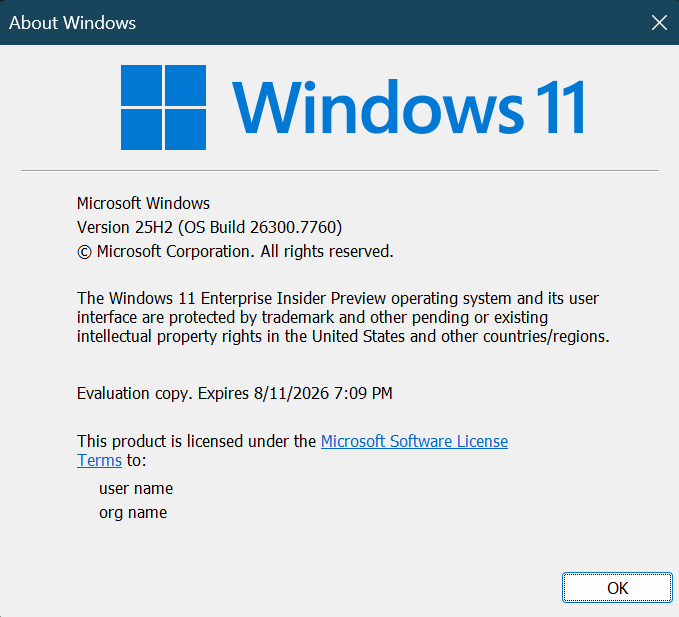
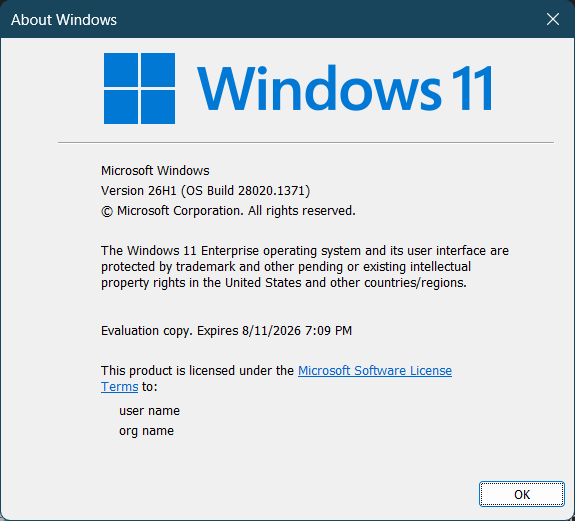
Going forward, each Canary Channel build will be announced in its own blog post, so you’ll always know exactly what’s new—and what to expect—based on the build you’re receiving. You can always confirm which build you’re running by typing winver into the Windows search box and selecting About Windows. This will show your exact build number and version.
Choosing the right path for you
We generally recommend that Insiders continue on the update path they’re already on, as this helps maintain stability and predictability within each build population.
That said, some Insiders—especially those who prefer getting the newest platform changes as early as possible—may choose to move to a newer development path when available.
This flexibility allows us to experiment, learn quickly, and incorporate feedback before changes move further along in development.
As a reminder – Insiders can’t switch to a channel that is receiving builds with lower build numbers without doing a clean installation of Windows 11 due to technical setup requirements. This means Insiders can’t go back to 28000 series builds after taking the optional update.
What’s new in Canary Build 29531.1000
Changes and Improvements
This update includes platform changes in moving to a new active development build.
Windows Secure Boot has been a key protection mechanism since 2011. It ensures that only trusted, digitally signed software can run during the earliest stage of your PC’s startup. These protections rely on certificates stored in your device’s UEFI firmware. However, the original Microsoft Secure Boot certificates from 2011 are now reaching the end of their lifecycle and will begin expiring in June 2026.
This blog explains:
Why these certificates expire
What happens if your device doesn’t get the new certificates
How to check your system
How Microsoft is already handling the rollout for you
Why Secure Boot Certificates Are Expiring
Secure Boot certificates were never meant to last forever. Like all cryptographic material, they must be refreshed periodically to maintain strong protection and prevent outdated keys from becoming a weak point. After more than 15 years of service, the original certificates are being replaced with updated 2023 versions to continue protecting the Windows boot process into the future.
The updated certificates will remain valid far longer, extending the protection lifecycle for modern Windows devices.
What Happens If the Certificate Isn’t Updated?
If a device does not receive the new Secure Boot certificates before the old ones expire:
Your PC will still boot and function normally—nothing breaks immediately.
But the system enters a degraded security state. It will no longer be able to install new boot‑level protections from Microsoft, including:
Updated Windows Boot Manager versions
New Secure Boot database (DB/DBX) entries
Revocations for discovered threats
Mitigations for future boot-level vulnerabilities
Over time, this may lead to:
Higher exposure to early‑boot malware
Compatibility issues with newer OS versions, firmware, or hardware
In short: your device won’t break, but it will become less secure as new threats emerge.
How to Check Whether Your Certificates Are Updated
Most users don’t need to check anything manually—but if you want to verify:
Option 1 – Check the Eventlog
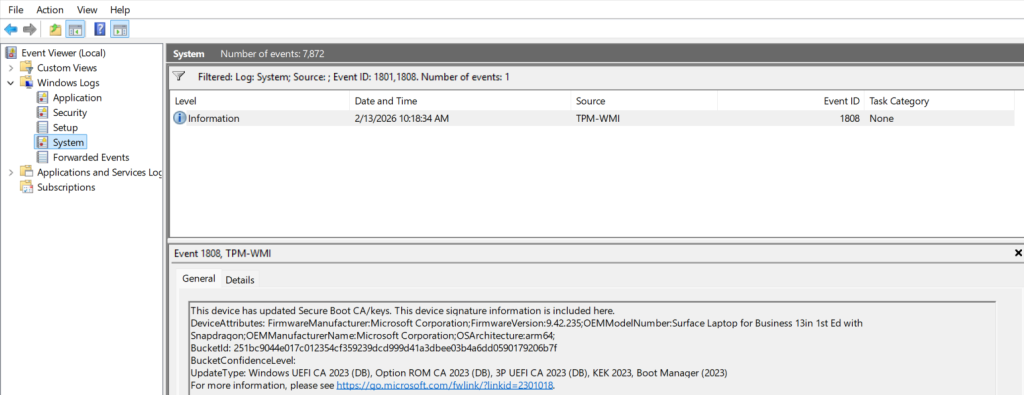
To manually check a device, – open Event Viewer – go to Windows Logs / System – look for event ID 1801 (attempted) and 1808 (successfully set) – (using Filter events on 1799,1801,1808 for easy lookup)
If not successfully updated yet, no action is required on most devices Windows will update the Certificate for you using CFR of LCU’s
Option 2 — Use PowerShell
Windows exposes Secure Boot certificate information via PowerShell. You can check certificate and Secure Boot status using commands such as those described in Microsoft’s update guidance. The following script can be run manually or used as a detection script in Custom Remediation scripts in Intune
<#
  IntuneCRS - Detect missing Windows UEFI CA 2023 (Secure Boot)
  Author: Erik Moreau - assisted by Copilot
  Behavior:
    - Exit 1  => Missing "Windows UEFI CA 2023" in active Secure Boot DB (needs remediation)
    - Exit 0  => Present OR device not applicable (BIOS / Secure Boot off / unsupported)
  Notes:
    - Requires SYSTEM/admin. Uses Get-SecureBootUEFI to read the 'db' variable (active allow-list).
    - String match method is recommended in vendor guidance and avoids heavy ASN.1 parsing.
#>

$logPrefix = "[SecureBoot-UEFI-CA2023][Detection]"
function Write-Det { param($m) ; Write-Output "$logPrefix $m" }

# 1) Quick capability & state checks
$sbEnabled = $false
try {
    $sbEnabled = Confirm-SecureBootUEFI  # True/False, or throws on non-UEFI
} catch {
    Write-Det "Platform is not UEFI / cmdlet unsupported. Marking NotApplicable."
    exit 0  # Not applicable (don’t trigger remediation on BIOS devices)
}

if (-not $sbEnabled) {
    Write-Det "Secure Boot is disabled. Marking NotApplicable."
    exit 0
}

# 2) Read the ACTIVE Secure Boot 'db' variable and search for 2023 CA
try {
    $db = Get-SecureBootUEFI -Name db -ErrorAction Stop  # Active allow-list (DB)
} catch {
    Write-Det "Failed to read UEFI 'db' variable: $($_.Exception.Message). Will trigger remediation."
    exit 1
}

# Convert bytes -> ASCII and look for the certificate name.
# This simple text search method is documented by OEM guidance and works reliably in practice.
# Ref: Dell KB "How to check Secure Boot certificates"
try {
    $ascii = [System.Text.Encoding]::ASCII.GetString($db.Bytes)
} catch {
    Write-Det "Failed to decode DB bytes. Will trigger remediation."
    exit 1
}

$hasWinUEFICA2023 = $ascii -match 'Windows UEFI CA 2023'

if ($hasWinUEFICA2023) {
    Write-Det "'Windows UEFI CA 2023' is present in the ACTIVE DB. Compliant."
    exit 0
} else {
    # Optional: show whether it's already present in DBDefault (factory set) for context
    $inDefault = $false
    try {
        $dbDefault = Get-SecureBootUEFI -Name dbDefault -ErrorAction Stop
        $asciiDefault = [System.Text.Encoding]::ASCII.GetString($dbDefault.Bytes)
        $inDefault = ($asciiDefault -match 'Windows UEFI CA 2023')
    } catch { }

    if ($inDefault) {
        Write-Det "Missing in ACTIVE DB but present in DBDEFAULT (firmware defaults). Consider resetting keys in firmware if appropriate."
    } else {
        Write-Det "'Windows UEFI CA 2023' is missing from ACTIVE DB. Non-compliant; remediation recommended."
    }

    exit 1
}
Manual run result will look like this when the Certificate is present:
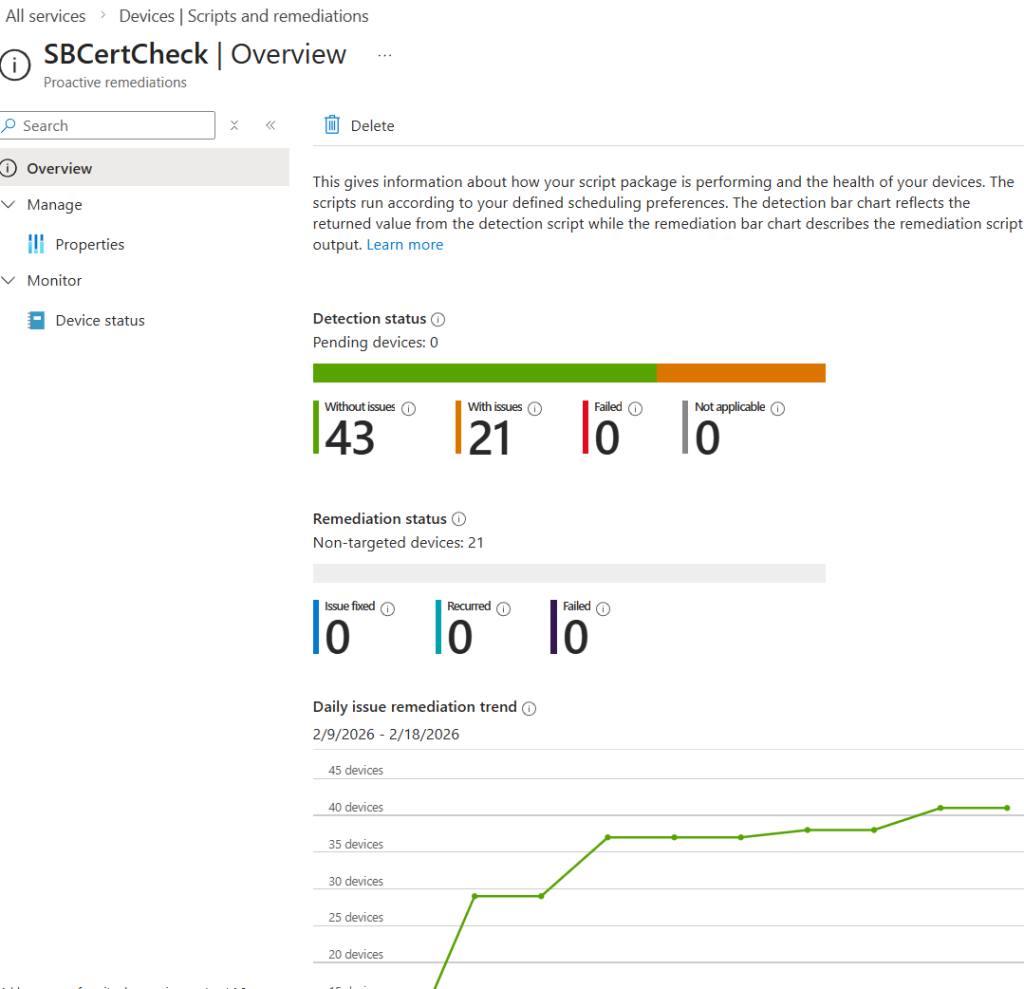
Assigning the script to your endpoints with Intune Custom Remediation Scripts as a detection script can help you get insight in the progress across your tenant:
How Microsoft Is Taking Care of This for You
Microsoft is handling most of the heavy lifting behind the scenes:
The certificate rollout is already underway. Updated Secure Boot certificates are being delivered through regular monthly Windows Updates for supported versions of Windows 10 and 11.
Most devices require no action.
PCs built since 2024, and almost all shipped in 2025, already include the new certificates from the factory.
Windows Update automatically deploys the updated certificates for home users, businesses, and education tenants with Microsoft‑managed updates enabled.
A fraction of devices may need a manufacturer firmware update first, particularly older systems, servers, or IoT devices.
Organizations can also control the deployment certificates using Intune Policy, Group Policy, registry keys, or Windows Configuration System tools if they manage updates themselves.
If your device is running an unsupported version of Windows (for example, older Windows 10 without Extended Security Updates), it will not receive new certificates automatically.
Do You Need to Do Anything?
For most people: No.
As long as:
Windows Update is enabled
Secure Boot is turned on
Your device is running a supported version of Windows
…you will receive the updated certificates automatically.
However, if you manage older hardware, servers, niche devices, or enterprise environments, you should:
Check firmware availability from your OEM
Confirm Secure Boot is enabled
Validate your certificate status using PowerShell or Eventlog
Ensure your organization’s update policies aren’t blocking the rollout
Final Thoughts
The expiration of the original Secure Boot certificates is a normal and expected lifecycle event. Microsoft has been preparing the ecosystem for years and is coordinating with OEMs to ensure a smooth transition.
If your PC is reasonably modern and kept up to date, the certificate refresh will happen quietly in the background providing continued protection against early‑boot threats without you having to do anything.
Hi all, last Thursday Microsoft released Windows 11 Insider Preview Build 28020.1611 to the Canary Channel
The desktop watermark is fixed to show the correct build number
With Sysmon now also available out of the box in the Canary Channel setting up this tool becomes much easier than before.
A nice quick and smooth upgrade on all my Canary Channel devices.
Happy upgrades!!
What’s new in Canary Build 28020.1611
Changes and Improvements gradually being rolled out with toggle on*
[Built-in Sysmon]
Previously announced here, Windows now brings Sysmon functionality natively to Windows. Sysmon functionality allows you to capture system events that can help with threat detection, and you can use custom configuration files to filter the events you want to monitor. The captured events are written on the Windows event log, enabling them to be used with security applications and a wide range of use cases.
Built-in Sysmon is disabled by default and must be explicitly enabled.
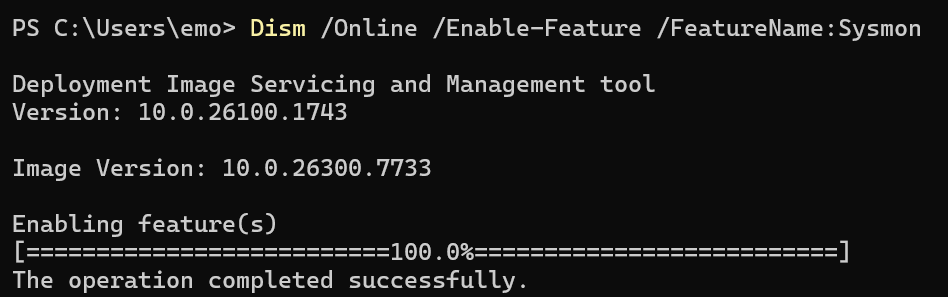
Go to Settings > System > Optional features > More Windows features > checking Sysmon or in PowerShell or command prompt:
Dism /Online /Enable-Feature /FeatureName:Sysmon
To complete the installation, from PowerShell or command prompt run:
sysmon -i
Note: If you’ve already installed Sysmon from the website, it must be uninstalled before enabling the built-in Sysmon.
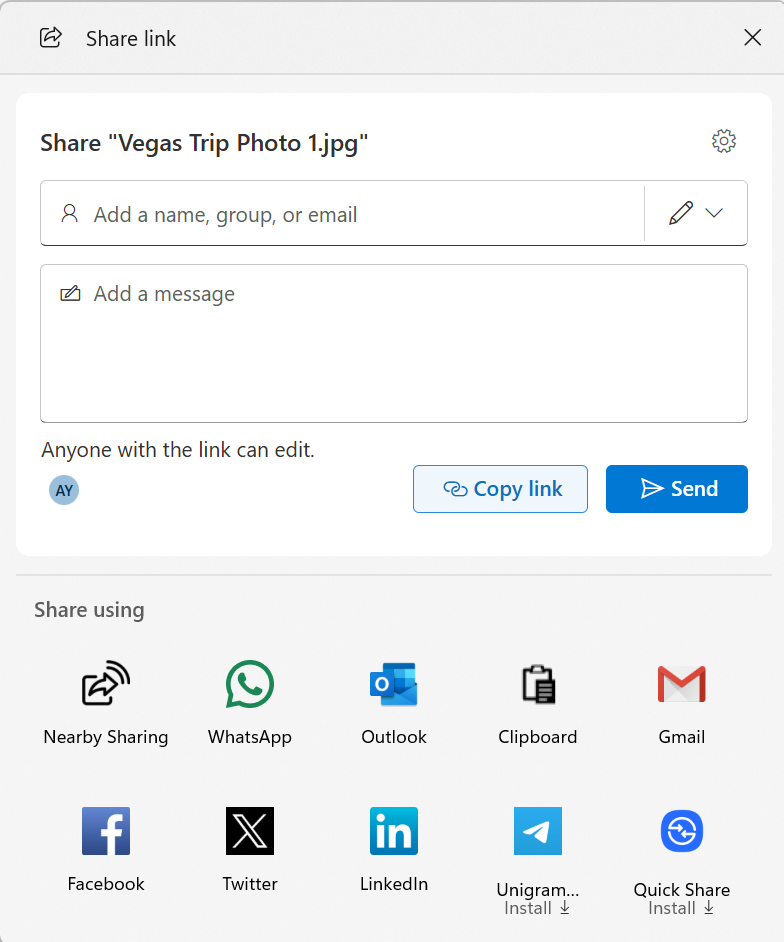
When you share a OneDrive cloud file by right-clicking to share on the file – new options for sharing that link through other apps will be provided under “Share using” when the “Copy link” button is clicked. This experience is rolling out to Windows Insiders signed in with their Microsoft accounts not in the EEA.
Ability to share OneDrive cloud file links via other apps via the Windows share window.
[General]
Fixed the desktop watermark to show the correct build number.
Hi all, Last Monday Microsoft released Windows 11 Insider Preview Build 26300.7760 (KB5077202) to the Dev Channel.
A few nice tweaks in this build, love the new Monday-morning face emoji
All updates went fast and smooth on my Dev Channel Devices, Happy Upgrading!
New features gradually being rolled out with toggle on*
[Emoji 16.0]
We’re starting to roll Emoji 16.0 back to Insiders.
The Emoji 16.0 release introduces a small but thoughtfully curated set of new emojis—one from each major category—designed to resonate across cultures and contexts. With this build, you will see these new emoji available in the emoji panel.
New Emoji 16.0 emoji from left to right: Face with Bags Under Eyes, Fingerprint, Root Vegetable, Leafless Tree, Harp, Shovel, and Splatter.
Feedback: Share your thoughts in Feedback Hub (WIN + F) under Input and Language > Emoji panel.
[Camera Settings]
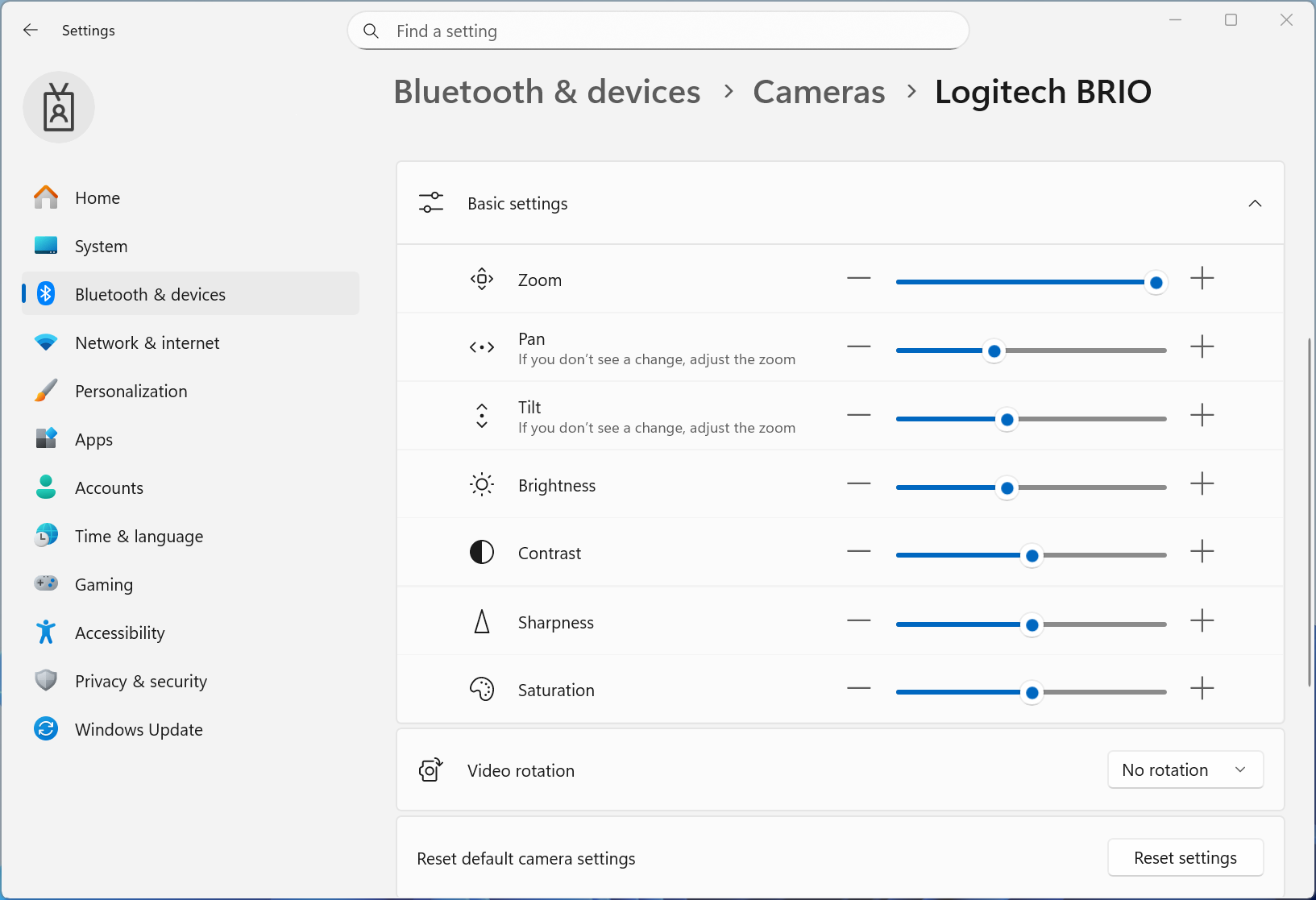
We are adding the option to directly control pan and tilt for supported cameras in the Settings app. These new controls appear in the camera settings page (Settings > Devices & drivers > Cameras) under the “Basic settings” of your selected camera.
UI showing new pan and tilt controls for supported cameras in Settings.
Feedback: Share your thoughts in Feedback Hub (WIN + F) under Devices and Drivers > Device Camera or Webcams.
Changes and Improvements gradually being rolled out with toggle on*
[General]
Improved the visual experience and performance for several scenarios including at the bottom of the screen when the taskbar is set to autohide, desktop icons unexpected flashing (and decreased performance interacting with your PC), and Windows Security pop up for credentials.
Hi all, last Tuesday Microsoft released Windows 11 Insider Preview Build 26300.7733 (KB5074178) to the Dev Channel.
A quick update that rolled out smoothly adding sysmon to Windows as a feature
Changes and Improvements gradually being rolled out with toggle on*
[Built-in Sysmon]
Previously announced here, Windows now brings Sysmon functionality natively to Windows. Sysmon functionality allows you to capture system events that can help with threat detection, and you can use custom configuration files to filter the events you want to monitor. The captured events are written on the Windows event log, enabling them to be used with security applications and a wide range of use cases.
Built-in Sysmon is disabled by default and must be explicitly enabled.
Go to Settings > System > Optional features > More Windows features > checking Sysmon or in PowerShell or command prompt:
Dism /Online /Enable-Feature /FeatureName:Sysmon
To complete the installation, from PowerShell or command prompt run:
sysmon -i
Note: If you’ve already installed Sysmon from the website, it must be uninstalled before enabling the built-in Sysmon.
Support for the Netherlands locale has been added.
Fixes gradually being rolled out with toggle on*
[File Explorer]
We fixed a few issues in File Explorer, including accessibility improvements (keyboard navigation and access keys), folder renaming with custom names, and missing icons/tooltips for “Add to favorites”.
[Other]
We fixed an issue that caused apps to freeze when working with files on OneDrive or Dropbox. Some Outlook setups with PSTs on OneDrive could also hang or reload email data.
Hi all, last Wednesday Microsoft released Windows 11 Insider Preview Build 28020.1495 to the Canary Channel. (KB 5074168)
A few tweaks from the last build and new wallpaper formats called .webp, what is this you might think, It a newer Image format developed by google intended to replace JPEG, PNG &GIF files. more info can be found here: WebP – Wikipedia
All updates went smoothly on my Canary channel devices Happy Upgrades
What’s new in Canary Build 28020.1495
[Desktop Background]
In recent Canary builds we added the capability to set .webp images for your desktop background in Settings > Personalization > Desktop Background.
Fixes
[General]
This update includes a small set of general improvements and fixes that improve the overall experience for Insiders running this build on their PCs.
[Start menu]
Fixed an issue where the edge of the warning dialog shown when shutting down your PC while other users were still signed in was truncated by the edge of the Start menu.
[Input]
Fixed an issue which could lead to a black flash when using a pen to ink in Snipping Tool.
[Power]
Fixed an issue in recent Canary builds which was causing shutdown to appear to restart on some Insider devices.
[Settings]
Fixed an issue which could lead to the Windows Update settings page hanging when loading.
Fixed an issue where language features under Settings > Time & Language > Language & Region for Australia (English – Australia) wouldn’t download (the button wouldn’t do anything when clicked).
[Other]
Fixed an issue causing a small number of Insiders in recent builds to encounter bug checks with IRQL_NOT_LESS_OR_EQUAL, related to the use of certain smart card readers.
Known issues
[General]
[UPDATED] The desktop watermark is showing the wrong build number.
[File Explorer]
[NEW] We’re working on the fix for an underlying issue causing all open File Explorer windows and tabs to unexpectedly jump to Desktop or Home within File Explorer sometimes.
Hi all, last Tuesday Microsoft released Windows 11 Insider Preview Build 26300.7674 (KB5074170) to the Dev Channel.
We’ve reached the 26300 builds the next big step in the Dev Channel
These 26300 series builds will contain many of the same features and improvements as the 26220 series builds that will continue to be released in the Beta Channel. Over time, we will be making behind-the-scenes platform changes in each build so they may have different known issues because of those changes.
In the case of Build 26300.7674 today – this build contains the same features and improvements as Build 26220.7653 released previously.
Happy Upgrades!
Fixes gradually being rolled out with toggle on*
[File Explorer]
Fixed an issue where the “Extract All” option would not appear in the command bar while browsing non-ZIP archive folders.
[Start menu]
Fixed an issue for some Insiders where clicking the “hide this pane” button in the mobile device side panel might not lead to the setting to hide it.
[Search]
Fixed an issue where the Search process was showing an icon with an X instead of a magnifying glass.
[Settings]
We’ve made some underlying changes to help address cases where the Settings Home page might be very slow to load.
[Display & Graphics]
Fixed an issue causing secondary monitors to not display correctly and show black screens after the latest updates for a small number of Insiders.
[Other]
Fixed an underlying issue in the previous flight which could cause unexpected sign-in failures when using Azure Virtual Desktop and Windows 365.
Fixed an issue causing some Insiders to see a bug check with error SYSTEM_SERVICE_EXCEPTION after the last few flights.
Known issues
[Start menu]
[NEW] We’re working on the fix for an issue where when using the Start menu in Categories view, clicking the entry to show more apps in the category might not work.
[File Explorer]
[NEW] We’re working on the fix for an underlying issue causing all open File Explorer windows and tabs to unexpectedly jump to Desktop or Home sometimes.
[Xbox full screen experience for PC]
Some apps may behave unexpectedly when using FSE, particularly those that expect to be locked to a given size or launch additional windows.
[Taskbar & System Tray]
We’re working on the fix for an issue where for some Insiders apps aren’t showing in the system tray when they should be.
[Click to Do]
We’re working on the fix for an issue where the Microsoft 365 Copilot prompt box on selected images does not function if the Microsoft 365 Copilot app is not running.
Hi all, last Tuesday Microsoft released Windows 11 Insider Preview Build 26220.7653 (KB5074157) to the Dev Channel
If you are an Insider in the Dev Channel, you now have a window to switch from the Dev Channel to the Beta Channel if you would like. This window is soon closing.
Happy upgrades!
Changes and Improvements gradually being rolled out with toggle on*
[Account Settings]
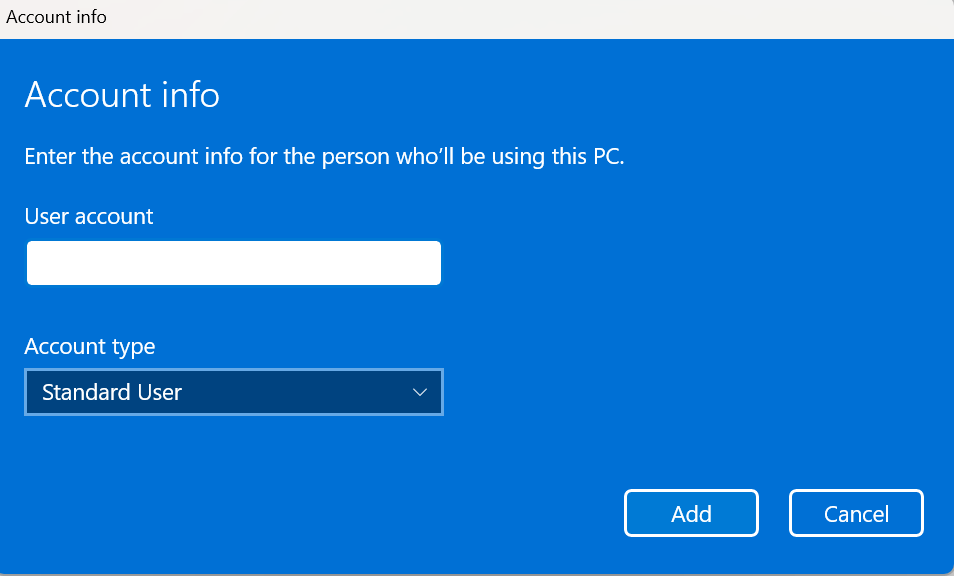
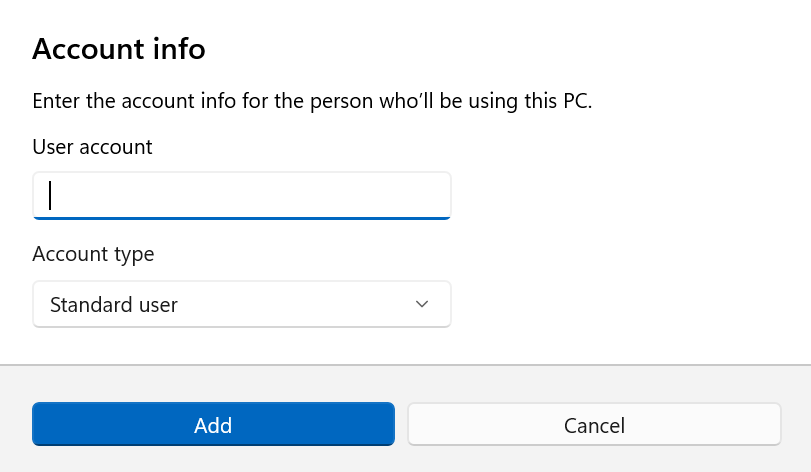
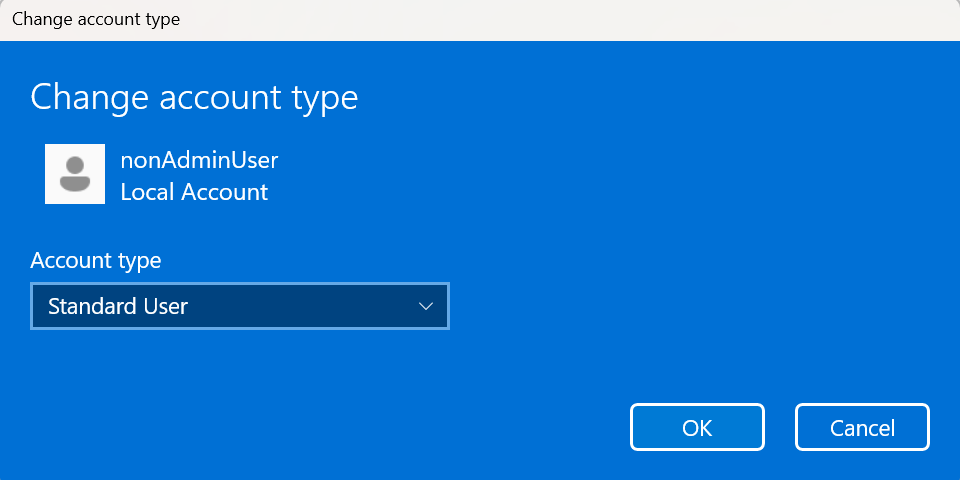
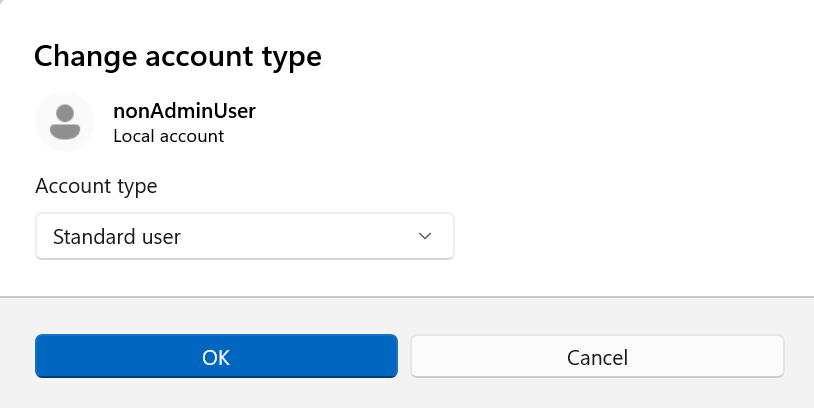
We’re updating the design of dialogs in “Accounts > Other Users” based on modern WinUI framework with support for dark mode:
Old ‘Add account’ dialog user experience for work or school users.
New ‘Add account’ dialog user experience for work or school users.
Please note that the visibility of the above dialog option depends on whether a domain joined work or school account is configured on the device.
Old ‘Change account type’ dialog user experience for other users present on the device.
New ‘Change account type’ dialog user experience for other users present on the device.
Feedback: Please share your feedback in Feedback Hub (WIN + F) under “Settings -> User Profile Account Settings.
[Click to Do]
The Copilot prompt suggestions in Click to Do will now load instantly. This change is not yet rolling out to Windows Insiders in the EEA (European Economic Area) or China.
[Desktop Background]
You can now set .webp images for your desktop background in Settings > Personalization > Desktop Background.
Fixes gradually being rolled out with toggle on*
[Taskbar and System Tray]
Fixed an issue in the latest builds where, when the taskbar was set to autohide, it might invoke before interacting with the bottom of the screen, blocking the use of apps in that area.
Fixed a recent issue which was causing the Start menu, notification center, and quick settings to not open on click sometimes, although using the keyboard shortcuts for each of these still worked.
[Start menu]
Fixed a memory leak when opening the Start menu, which could lead to performance issues over time.
Fixed an issue for Arabic and Hebrew users, where Start menu was opening on the wrong side of the screen when the taskbar icons weren’t centered.
Fixed an issue where if you opened a folder of pinned apps in Start menu and tried to pan it with touch, it would dismiss Start menu.
[Bluetooth]
Fixed an issue causing Bluetooth device battery level to not show for some Insiders after the latest builds, even though the devices supported it.
[Xbox full screen experience for PC]
This build fixes some unexpected app and game behavior when using FSE. We’re continuing to validate scenarios and as such keeping the known issue active for now. Thank you Insiders that have been sharing feedback!
[Login and Lock Screens]
Fixed an issue which could cause the password icon to appear blank on the login screen.
[Settings]
Fixed an issue causing Settings to crash when interacting with audio devices in the last two builds.
Fixed an issue where the keyboard character repeat delay in Settings > Bluetooth & Devices > Keyboard was backwards from how it was set in the backend.
[Other]
Fixed a few issues with clipped text in msinfo32 when using a high display scaling.
Fixed an issue impacting some Insiders where clicking on .appinstaller files to install MSIX packages was unexpectedly failing with an invalid argument error.
Fixed an underlying issue which was causing Notepad to not display an underscore in text with certain fonts when your display was set to 125%.
Fixed an underlying issue which could cause explorer.exe to hang when first logging into your PC, if certain apps were configured as startup apps. This could make the taskbar not appear.
Known issues
[Xbox full screen experience for PC]
Some apps may behave unexpectedly when using FSE, particularly those that expect to be locked to a given size or launch additional windows.
[Taskbar & System Tray]
We’re investigating an issue where for some Insiders apps aren’t showing in the system tray when they should be.
[Display & Graphics]
[NEW] We’re working on the fix for an issue causing secondary monitors to not display correctly and show black screens after the latest updates for a small number of Insiders.
[Click to Do]
We’re working on the fix for an issue where the Microsoft 365 Copilot prompt box on selected images does not function if the Microsoft 365 Copilot app is not running.
Hi all, last Wednesday Microsoft released the 1st Canary Channel Build of the year, Windows 11 Insider Preview Build 28020.1371 to the Canary Channel. (KB 5073097)
A quick and smooth upgrade to the new build on all my Canary devices.
Happy Upgrades!
What’s new in Build 28020.1371
Fixes gradually being rolled out with toggle on*
This update includes a small set of general improvements and fixes that improve the overall experience for Insiders running this build on their PCs.
[Start menu]
Fixed an issue where selecting something from inside a folder of pinned items in Start menu, could lead to the whole folder becoming invisible in Start menu.
[File Explorer]
Fixed an issue causing File Explorer to show a white flash when navigating between pages for some Insiders after the previous flight.
[Input]
Fixed an issue where the keyboard character repeat delay in Settings > Bluetooth & Devices > Keyboard was backwards from how it was set in the backend.
[Other]
Fixed an underlying issue that could lead to your PC freezing where attempting to run Windows Terminal elevated from a non-admin account.
Fixed an issue where the Share dialog might unexpectedly show an option to share to Shell Experience Host.
Known issues
[General]
[NEW] The desktop watermark is showing the wrong build number.