📅 Starting on March 19, 2024, this immersive challenge will help you gain the skills, confidence, and Microsoft Credentials needed to excel in the era of AI. Whether you’re a seasoned tech pro or just starting out, this is your chance to level up! 🌟
🎁 By completing just one challenge, you’ll be entitled to a free Microsoft Certification exam. 📝 Choose from topics like Azure AI Fundamentals, Azure Machine Learning, and more. 🌐
Don’t miss out! Let’s unlock the power of AI together! 🙌
The Windows Insider Program offers a great way to preview the latest features and updates of Windows before they are released to the general public. As an IT professional, you can benefit from testing insider builds of Windows in several ways:
Test new features first: Insiders get to experience upcoming Windows 10 features before they officially roll out. While some features may not be fully finished, most of what shows up in Insider builds is nearly complete. This early access is especially useful for IT professionals and developers who want to ensure that upcoming features won’t impact critical systems.
Shape the next version of Windows: Microsoft actively encourages Insiders to provide feedback on bugs, suggestions, and ideas. Depending on the popularity of your feedback, Microsoft may even implement your ideas into Windows.
Be part of a community: The Windows Insider Program brings together millions of people who share an interest in Microsoft and Windows. It’s a place to connect with others who are passionate about technology and contribute to shaping the future of Windows.
Flighting insider builds of Windows can offer numerous advantages to IT professionals. However, it’s essential to recognize the potential challenges and risks associated with this practice. Some of these risks include:”
Therefore, carefully consider the pros and cons of using insider builds of Windows and choose the channel that best suits your needs and preferences. There are four channels available: Canary, Dev, Beta, and Release Preview. Each channel offers different levels of stability, update frequency, and features. You can learn more about each channel and how to switch between them here.”
Hi all, last Thursday Microsoft released Windows 11 Insider Preview Build 26063 to the Canary Channel.
Make sure you test the new options for Copilot in Windows, quite nice to be trigger disk cleanup from Copilot.
All smooth and fast upgrades here, Happy upgrading!
What’s new in Build 26063
Wi-Fi 7
Following the announcement by the Wi-Fi Alliance, Windows is adding support for Wi-Fi 7 for consumer access points with the current Insider Preview builds in the Canary and Dev Channels. Wi-Fi 7, also known as IEEE 802.11be Extremely High Throughput (EHT), is a revolutionary technology that offers unprecedented speed, reliability, and efficiency for your wireless devices.
Next Generation Wi-Fi 7 builds on the innovations of Wi-Fi 6 and Wi-Fi 6E to provide enhanced user experiences through upgrades in all aspects of wireless connectivity – throughput, latency, efficiency, reliability, power, etc.
Highlighting some of Wi-Fi 7 new features:
Multi-Link operation (MLO) allows devices to use multiple bands (2.4 GHz, 5GHz, and/or 6GHz) simultaneously to avoid network congestion and maintain connectivity.
320 MHz ultra-wide bandwidth in 6GHz doubles the speed to your devices and enables new possibilities for high bandwidth applications – and scenarios using such as AR/VR.
4096-QAM modulation increases the data transmission by 20% and improves the quality of video streaming, video conferencing, and more.
With Wi-Fi 7, you can enjoy multi-gigabit speeds on your Windows PC and experience up to 4x faster speeds than Wi-Fi 6 and Wi-Fi 6E, and close to 6x faster than Wi-Fi 5. You can also enjoy significantly lower latency, which improves the responsiveness and performance of real-time activities like gaming and video conferencing. Please note that performance may vary by manufacturer and hardware device capabilities.
To take advantage of Wi-Fi 7, you will need a Wi-Fi 7 capable consumer access point and PC, which many of our ecosystem partners have launched on the market.
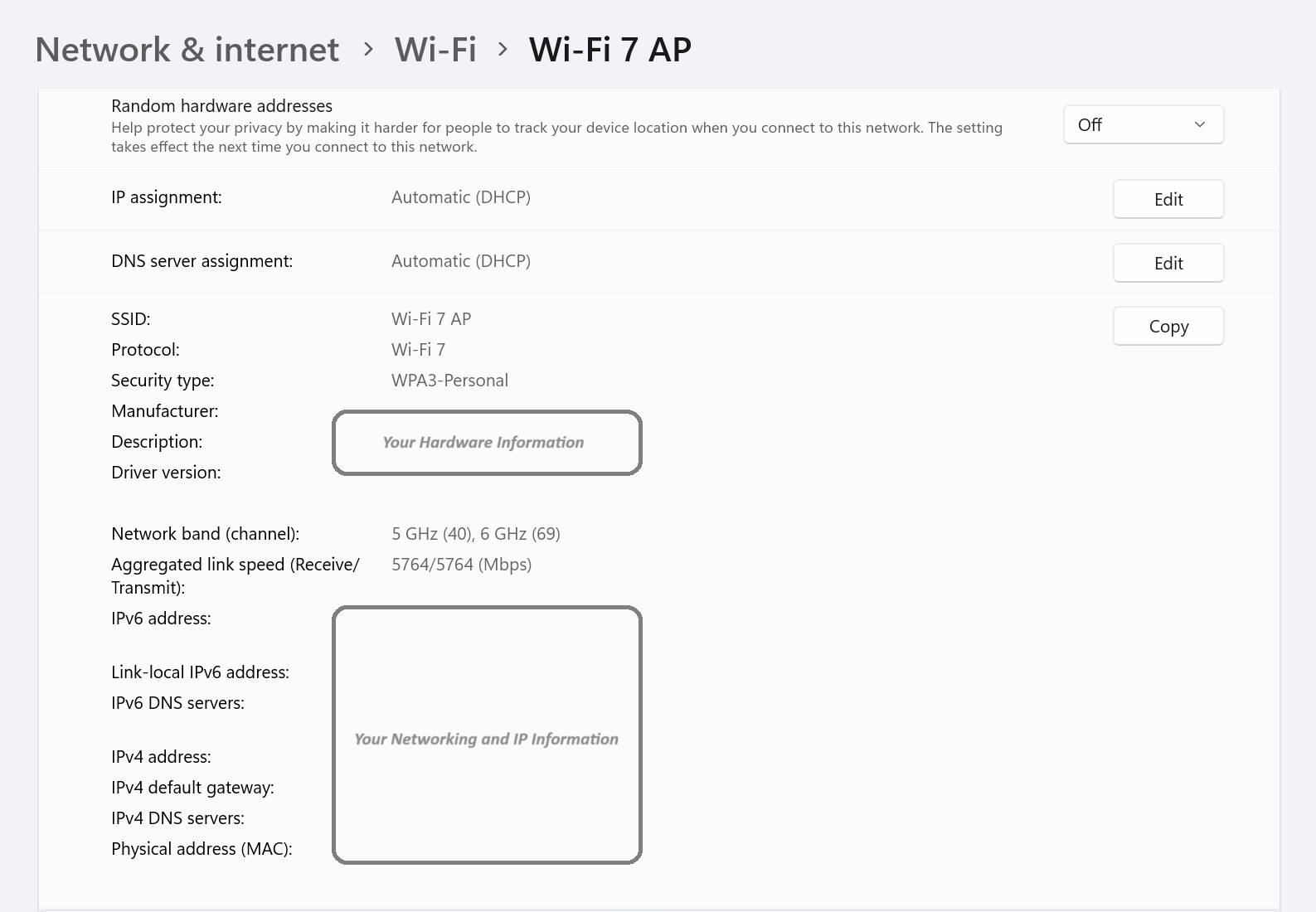
Below is a screenshot from your Windows PC with this build when connected to the Wi-Fi 7 consumer access point.
Wi-Fi settings showing a Windows PC connected to the Wi-Fi 7 access point.
FEEDBACK: Please file feedback in Feedback Hub (WIN + F) under Network and Internet > Connecting to a Wi-Fi network.
Changes and Improvements
[Copilot in Windows*]
You can now ask Copilot in Windows to do 16 new actions, adding to the 13 already live. With Power Automate Desktop, you can also automate tasks. We began rolling these improvements out for Copilot in Windows to Windows Insiders in the Canary Channel earlier this week and added the details into last week’s blog post.
Copilot in #Windows just got smarter! You can now ask Copilot to do 16 new actions, adding to the 13 already live. With Power Automate Desktop, you can also automate tasks! Rollout begins today in the WIP Canary Channel, check the blog post for details: https://t.co/UX5L0q99fO
The new Copilot in Windows experience we began trying out with Build 26052 where the Copilot icon will change appearance and animate to indicate that Copilot can help when you copy text has temporarily been disabled. We will bring this back in the future after fixing some bugs. Thank you for all the feedback!
[Widgets]
The widgets board improvements documented with Build 26058 have temporarily been disabled. We will bring this back in the future after fixing some bugs. Thank you for all the feedback.
Fixes for known issues
Fixed an issue causing some Insiders to experience an issue where the network icon in the system tray showed they didn’t have an internet connection when connected to some VPNs even though the internet connection was working. Those impact may have also seen some apps think there wasn’t an internet connection when there really was.
The fix for the issue causing Build 26058 to not be listed under Settings > Windows Update > Update history like it should is making its way out. It may take another flight or two for builds to properly show up under Update History.
Fixed a high hitting DWM crash in the last couple flights.
Fixed an underlying issue with plug and play which may have impacted audio device setup in the last 2 builds. If you’re continuing to experience issues with audio not playing after this build, please file feedback under Devices and Drivers > Audio and sound in the Feedback Hub.
Fixed an issue where typing too quickly in the Settings search box could result in the results not loading completely.
Fixed an issue causing the three-finger touchpad gesture for middle mouse click (if you had enabled this in touchpad settings) to not work in some apps.
Fixed an issue where attempted to use the Move option when you pressed ALT + Space was causing a window to resize instead of move.
Fixed an issue for Insiders with multiple monitors, where opening a minimized window might result in the window appearing on the wrong monitor.
Fixed an issue which could cause the clock in the taskbar to stop updating.
Fixed an issue which could cause the taskbar icons to shift around under your mouse as you moved your mouse across the taskbar.
Fixed an issue where the “Notify when apps request location” option in Settings under Privacy & Security > Location was reset after reboot.
Fixed an issue that was causing the Windows Update page in Settings to unexpectedly flash messages sometimes (too quickly to read) in the previous flight.
Known issues
[General]
[IMPORTANT NOTE FOR GAMERS – UPDATED!] Some popular games may not work correctly and cause a bugcheck (green screen) when launched on the most recent Insider Preview builds in the Canary Channel. Please be sure to submit feedback in Feedback Hub on any issues you see with playing games on these builds.
IMPORTANT NOTE FOR DEV DRIVE USERS: Insiders on Build 26052+ who have Dev Drives and might need to rollback will need to back up their Dev Drives BEFORE rolling back as rolling back will cause Dev Drives to break and data on them to be lost.
A Display Connection section is incorrectly showing up under Settings > System > Display > Graphics that when clicked, will crash Settings. This section will be removed in a future flight.
Using the ISOs for Build 26058 to upgrade instead of doing a clean install may not work if you choose “Keep nothing” in the Windows Setup experience. To upgrade to the latest build in the Canary and Dev Channels, please use Windows Update.
[UPDATED] We’ve made a change to help reduce the number of rollbacks (with error code 0xC1900101) when installing the latest builds and are continuing to investigate reports.
We’re working on the fix for an issue causing the input switcher (WIN + Space) design to revert back to an older style and draw in the wrong location.
In some cases, the File Explorer context menu no longer has the acrylic effect. This will be fixed in a future flight.
[NEW] We’re investigating reports of mouse cursor issues after installing Build 26058, including that the cursor is disappearing in some apps. If you’re experiencing issues, please file feedback describing exactly what you’re seeing under Input and Language > Mouse in the Feedback Hub.
[NEW] When opening the context menu in File Explorer, the icons may appear out of place and overlapping text.
Sudo for Windows is a new feature that was introduced in Windows 11 Insider Preview Build 26052. It allows users to run elevated commands directly from an unelevated console session, similar to how sudo works on other operating systems. Sudo for Windows is an ergonomic and familiar solution for users who want to elevate a command without having to first open a new elevated console. It also preserves the user’s profile and ownership of created objects. Sudo for Windows is an open-source project that can be found on GitHub.
To enable Sudo for Windows, you need to navigate to the Settings > For Developers page in Windows Settings and toggle on the “Enable Sudo” option.
You can also enable Sudo for Windows by running the following command in an elevated console session:
sudo config --enable <configuration_option>
Sudo for Windows currently supports three different configuration options:
In a new window (forceNewWindow): This is the default option. It opens a new elevated console window and runs the command in that window.
Input closed (disableInput): This option runs the elevated process in the current window, but the new process will not accept any user input. This option is useful for processes that do not require further user input after elevation.
Inline (normal): This option is most similar to the behavior of sudo on other operating systems. It runs the elevated process in the current window. This option is useful for processes that can take in input and route output to the current window.
To change the configuration option, you can use the drop-down menu in the Settings > For Developers page in Windows Settings, or run the following command in an elevated console session:
sudo config --enable <configuration_option>
When elevating a process from the command-line with sudo, a UAC dialog will appear asking the user to confirm the elevation. Once the user confirms the elevation, the process will be elevated based on the configuration option selected by the user.
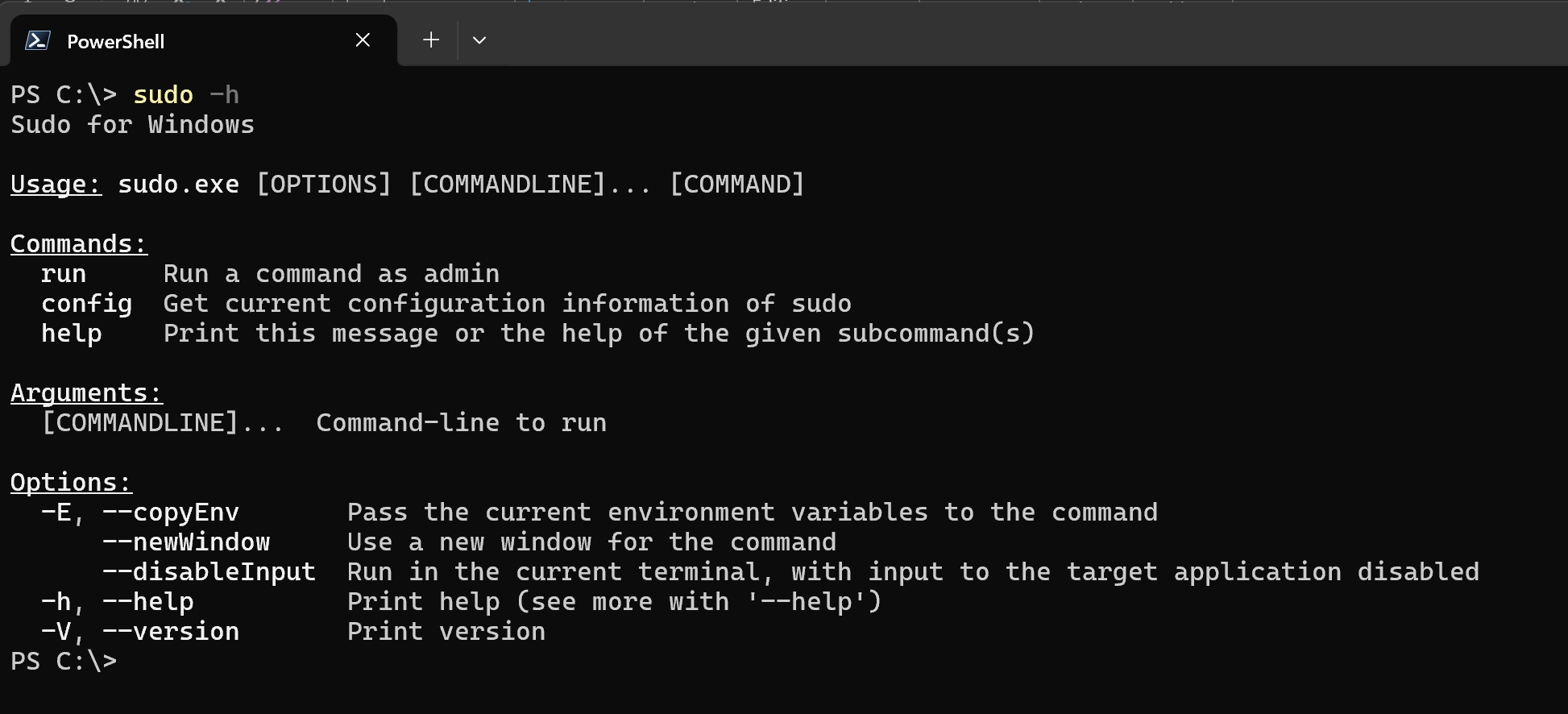
You can check out the optional parameters for the sudo command by running sudo -h in your console.
The advantage of Sudo for Windows is that it provides a consistent and convenient way to run elevated commands from the same console session.
Keep in mind however, the main security risk is that malicious processes could try to hijack the elevated process using the connection established by sudo. This risk is higher when using the Input closed or Inline configurations, as the elevated process can receive input from the current console window. Therefore, users should be cautious and understand the implications before choosing their configuration option.
Hi all, last Wednesday Microsoft released Windows 11 Insider Preview Build 26058 to the Canary and Dev Channels. Ther are ISOs for this build – they can be downloaded > here <.
Some very nice new features already showing up, Happy Upgrades!
Insiders in the Canary Channel will receive Build 26058.1000 while Insiders in the Dev Channel will receive Build 26058.1100 (KB5036078) as we test delivery of a full build and a servicing update at the same time. There is no difference between the two of these as Build 26058.1100 does not include any additional code.
The Canary and Dev Channels receiving the same builds is only temporary. During the times in which the Canary and Dev Channels are on the same builds (e.g. Build 26058), the window is open for Insiders in the Canary Channel to switch to the Dev Channel. At some point in the future, the Canary Channel will jump to higher build numbers and the window will be closed.
NOTE: Some features may begin rolling out to the Canary Channel first before the Dev Channel even if the two channels have the same build.
What’s new in Build 26058
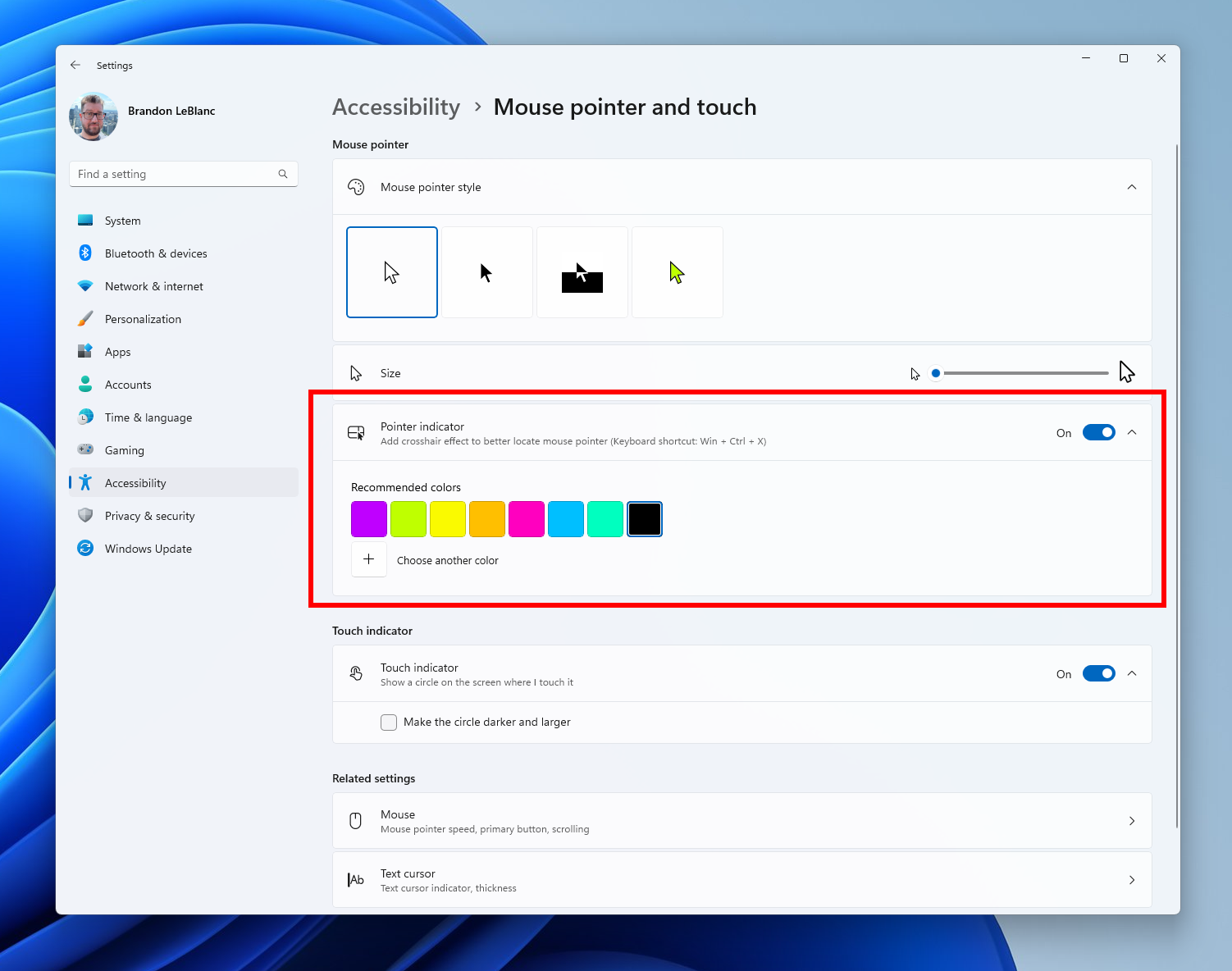
Pointer Indicator: New accessibility setting for low vision Windows users
Low vision users on Windows can now easily locate and use their cursor. This will allow these users to be more productive and efficient when using a Windows device.
Mouse pointer indicator shown over Settings in Windows 11.
To enable this experience, go to Settings > Accessibility > Mouse pointer and touch and enable the Pointer indicator setting. You can also search for the setting by name. When the setting is enabled, you can toggle it on/off with the keyboard shortcut, Win + Ctrl + X.
Settings shown for turning on the mouse pointer indicator.
FEEDBACK: Please file feedback in Feedback Hub (WIN + F) under Accessibility > Accessibility Settings.
Widgets board improvements
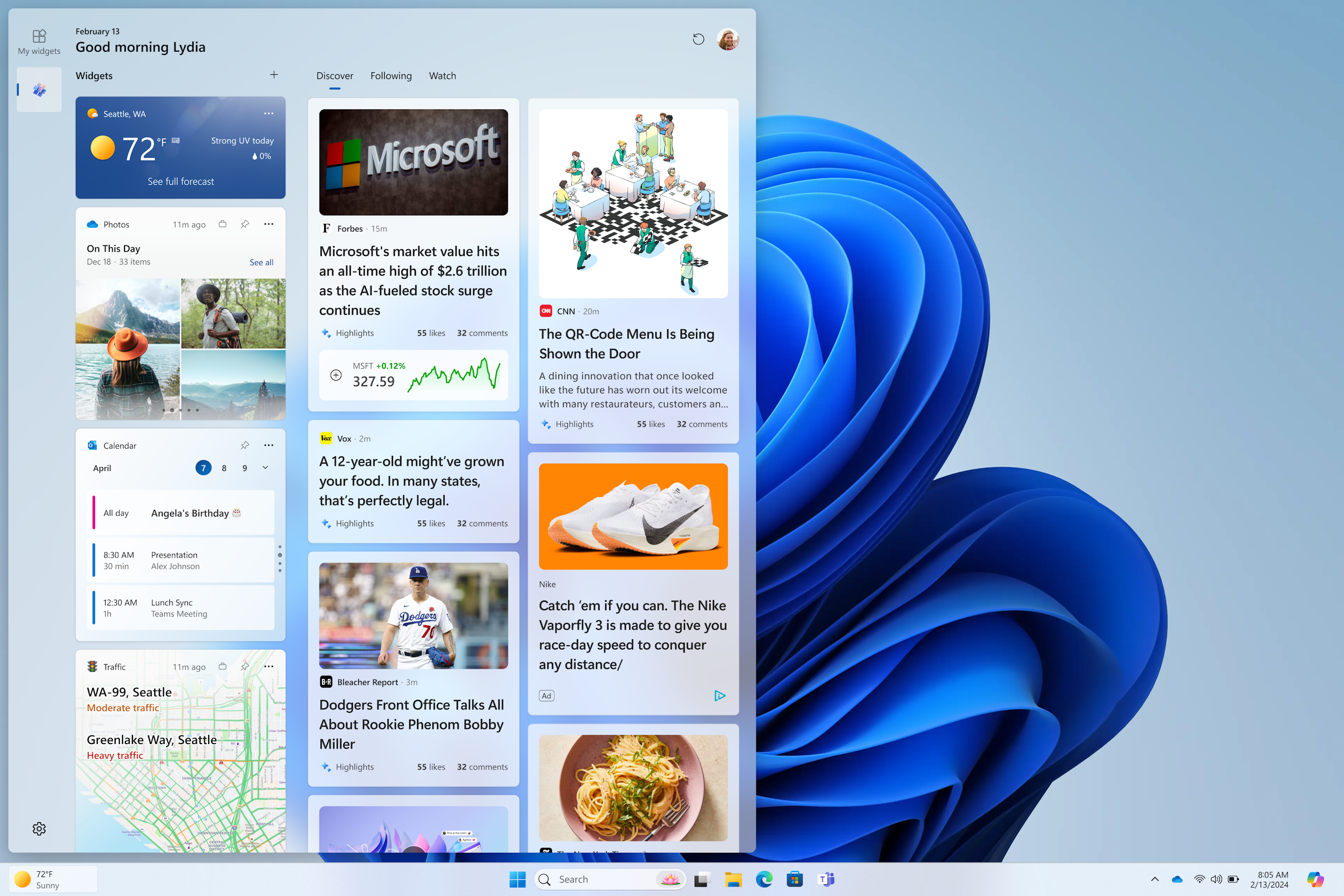
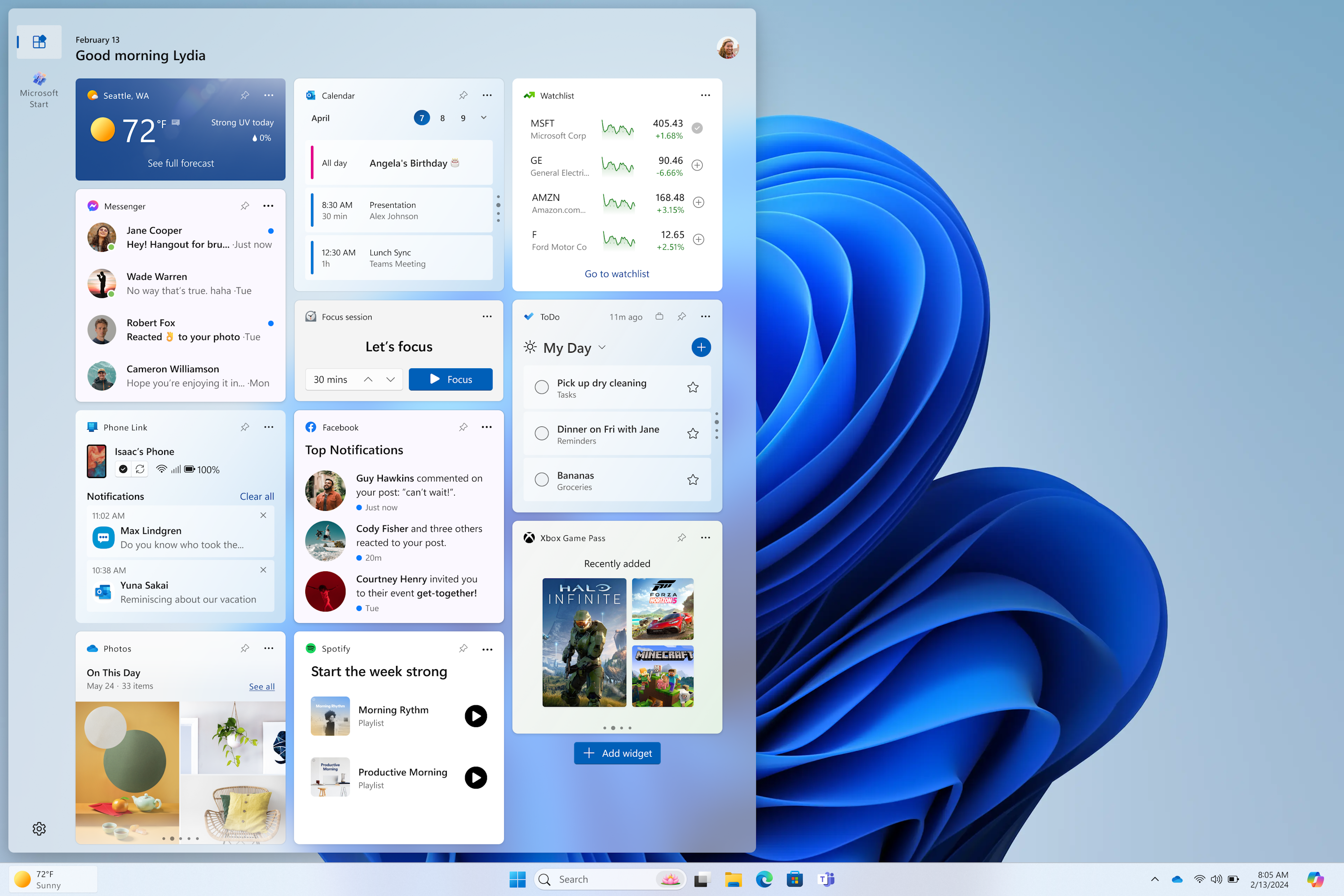
We’re continuing to evolve the widgets board experience and you can now have more space for your favorite widgets and stay on top of current events with a feed that helps you discover the world around you. With the introduction of the new navigation bar on the left, you can switch between a dedicated widgets dashboard and other integrated dashboards like Discover. Give it a try and let us know what you think using the feedback button at the top of the board.
We’ve added a new Navigation Pane on the left that allows you to switch to My Widgets dashboard.
A full widgets only experience from your favorite apps and services.
UPDATE 2/16: We have stopped the rollout of the above Widgets feature. We will begin rolling it out again after fixing a few bugs. Thanks to Insiders for all the feedback on this!
FEEDBACK: Please file feedback in Feedback Hub (WIN + F) under Desktop Environment > Widgets.
New notification badging for Widgets
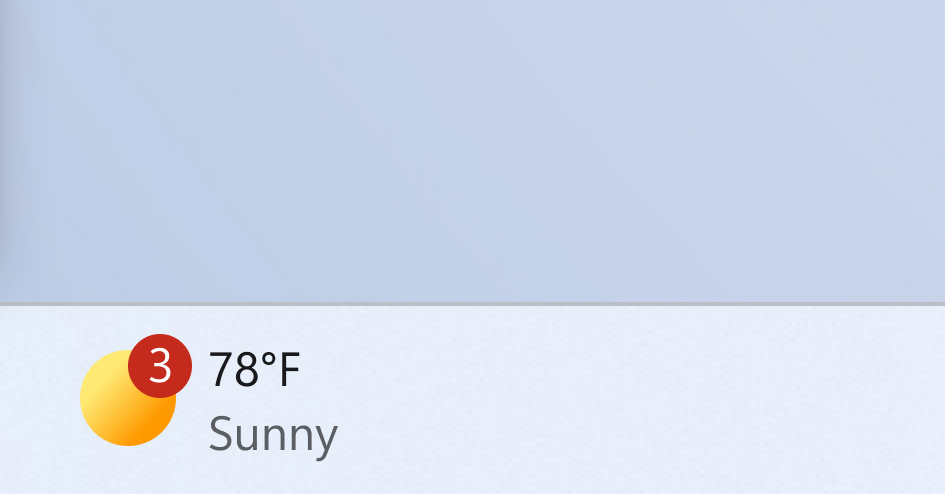
We’re beginning to roll out a new badging experience for Widgets. Widgets badges will notify you when you miss an important notification on your taskbar. Below is an example of a notification badge for Widgets that shows that there are three missed notifications.
Widget badging on the taskbar showing three missed notifications.
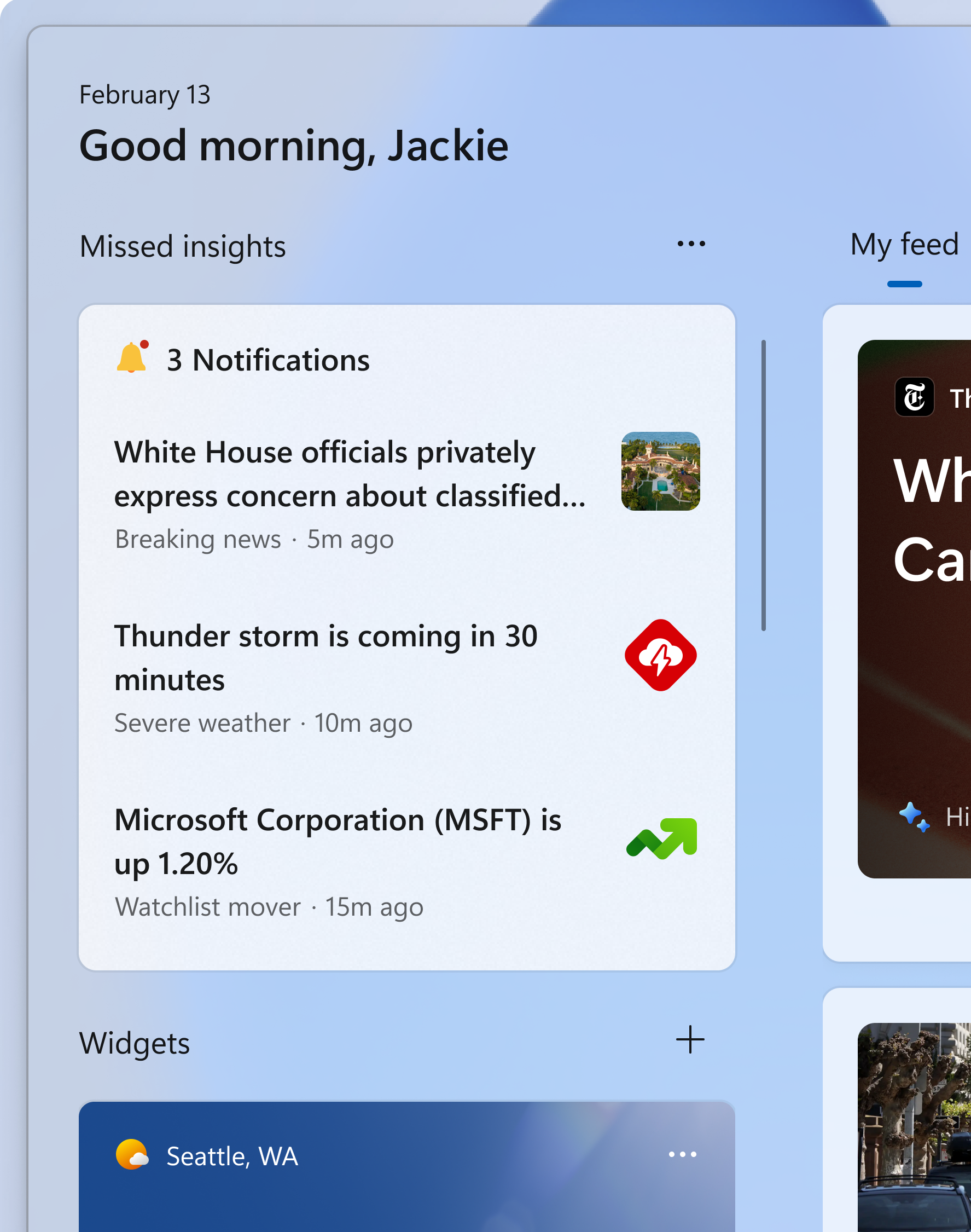
When you open the Widgets board you can see details for the notifications you missed in the top left corner of the board.
Missed notifications at the top left of the widgets board.
[We are beginning to roll this out to Windows Insiders in the Canary and Dev Channels today, so the experience isn’t available to all Insiders just yet.]
FEEDBACK: Please file feedback in Feedback Hub (WIN + F) under Desktop Environment > Widgets.
Richer weather experience on the lock screen
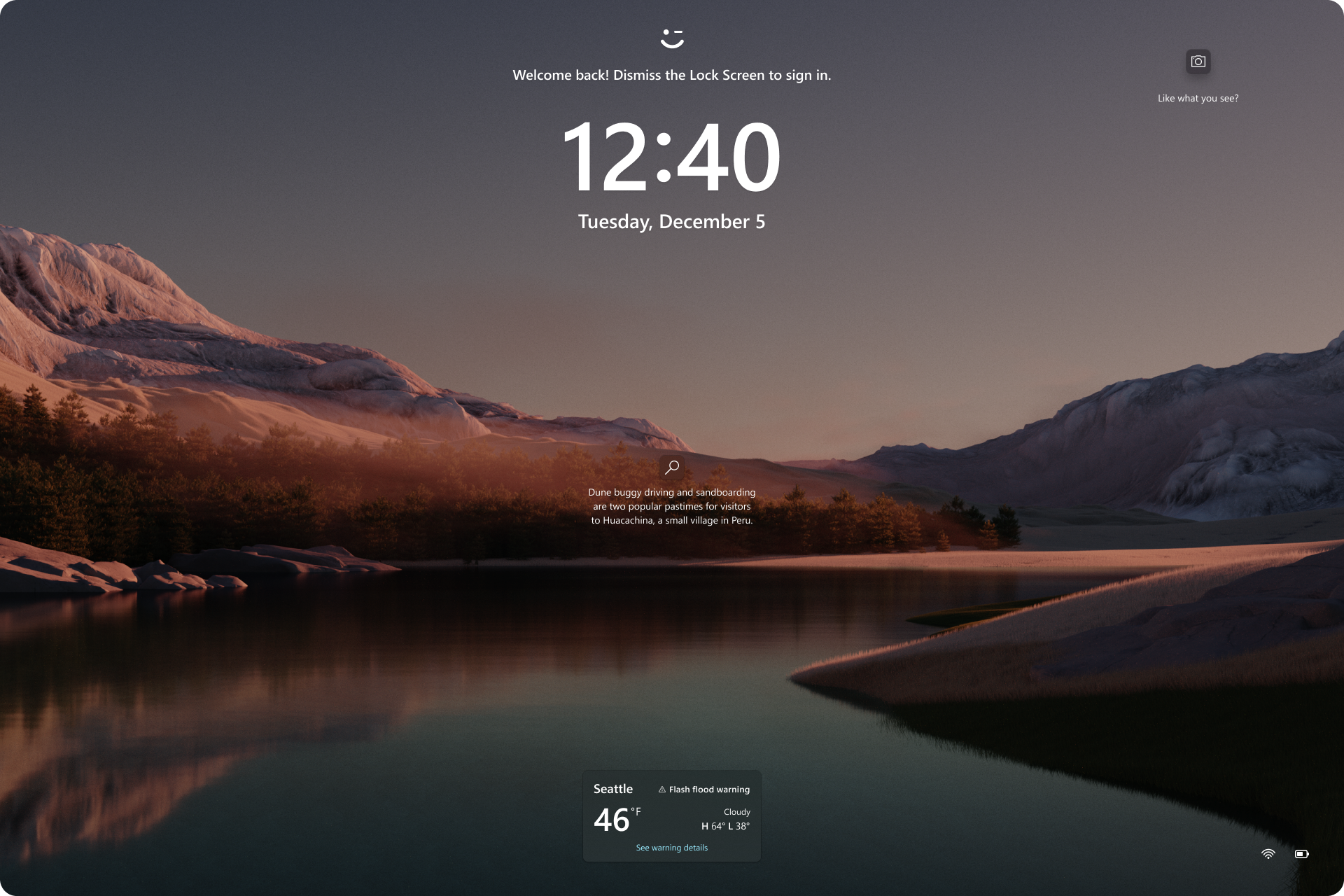
If you are in the Canary Channel, you should start to see the richer weather experience on your lock screen. This includes dynamic, interactive weather updates. So, as you hover over the weather experience on your lock screen, you will see more information. When you tap or click on the weather card and sign in, Microsoft Edge opens with the full forecast in MSN Weather. If you already use Weather under Settings > Personalization > Lock screen > Lock screen status, there is nothing for you to do. Also, this new experience will be on by default. Should you not want to see this experience, you can change your lock screen status to “None.” This rich weather experience is available when you lock your screen no matter which personalization option you select (Windows spotlight, Picture, or Slideshow).
Richer weather experience on the lock screen.
[We are currently rolling this out starting with EN-US only, so the experience isn’t available to all Insiders in the Canary or Dev Channels just yet as we plan to monitor feedback and see how it lands before pushing it out to everyone.]
FEEDBACK: Please file feedback in Feedback Hub (WIN + F) under Desktop Environment > Lock screen.
Changes and Improvements
[General]
WIN + CTRL + S will now open voice access instead of Windows Speech Recognition (WSR). Windows 11 is transitioning from WSR to voice access. WSR is being deprecated.
[File Explorer]
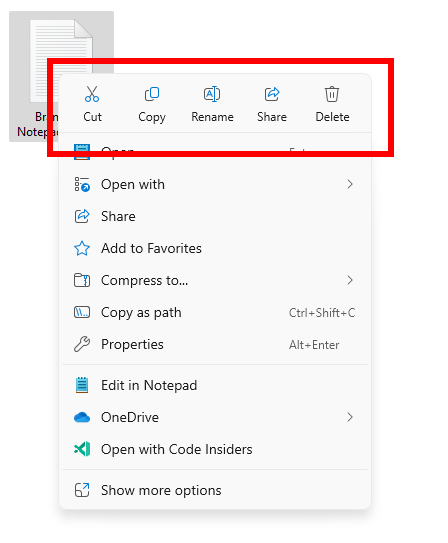
To make it easier to use the File Explorer context menu, labels have been added to previously unlabeled actions such as cut, copy, paste, rename, share, and delete.
Labels added to previously unlabeled actions in the File Explorer context menu.
[Command Prompt]
If you run winget, or any other package manager configured to do so, Command Prompt (CMD) will now look for changes to the PATH and update your current session. To enable a package manager to have this logic in CMD, simply add the package manager .exe name to HKEY_LOCAL_MACHINE\SOFTWARE\Microsoft\Command Processor\KnownPackageManagers.
Fixes for known issues
Fixed an issue causing an increase in Insiders to experience black screens after Build 26040 (particularly when waking a device from sleep). Please file feedback if you continue experiencing issues after installing this build.
Fixed an issue where all the added features under Settings > System > Optional Features were showing 0 bytes in the previous flight.
Fixed an issue where focus sessions continued to show as running in the notification center after they had ended.
Fixed an issue causing Windows Sandbox to unexpectedly show Windows Sandbox could not be initialized. (0x800736b3) for some Insiders in the previous flight.
Fixed an issue where the last checked time showing for Windows Update in Settings was wrong.
Known issues
[General]
[IMPORTANT NOTE FOR GAMERS – UPDATED!] Some popular games may not work correctly and cause a bugcheck (green screen) when launched on the most recent Insider Preview builds in the Canary Channel. Please be sure to submit feedback in Feedback Hub on any issues you see with playing games on these builds.
IMPORTANT NOTE FOR DEV DRIVE USERS: Insiders on Build 26052+ who have Dev Drives and might need to rollback will need to back up their Dev Drives BEFORE rolling back as rolling back will cause Dev Drives to break and data on them to be lost.
A Display Connection section is incorrectly showing up under Settings > System > Display > Graphics that when clicked, will crash Settings. This section will be removed in a future flight.
[NEW] Using the ISOs released today for this build to upgrade instead of doing a clean install may not work if you choose “Keep nothing” in the Windows Setup experience. To upgrade to the latest build in the Canary and Dev Channels, please use Windows Update.
[NEW] We are investigating an increase of reports of insiders rolling back when attempting to install the latest build (with error code 0xC1900101).
[NEW] Some Insiders may experience an issue where the network icon in the system tray shows they do not have an internet connection when connected to some VPNs even though the internet connection is working. Some apps might also think there isn’t an internet connection when there really is.
[NEW] We’re investigating an issue causing the input switcher (WIN + Space) design to revert back to an older style and draw in the wrong location.
[NEW] After this build is installed, there is an issue where the build will not be listed under Settings > Windows Update > Update history like it should.
[ADDED] In some cases, the File Explorer context menu no longer has the acrylic effect. This will be fixed in a future flight.
[Widgets]
[NEW] You may at times experience your widgets-only dashboard not rendering any content.
The Canary and Dev Channels receiving the same builds is only temporary. During the times in which the Canary and Dev Channels are on the same builds (e.g. Build 26052), the window is open for Insiders in the Canary Channel to switch to the Dev Channel. At some point in the future, the Canary Channel will jump to higher build numbers and the window will be closed.
If you are a gamer, please take note that some popular games may not work correctly or crash when launched on these builds. Over time, we expect this experience to improve as bugs get fixed.
NOTE: As part of this move, rollouts for some features in the Dev Channel may get reset which means in a small number of cases features might disappear. As we ramp up feature rollouts, these features should return over time. Some features may begin rolling out to the Canary Channel first before the Dev Channel even if the two channels have the same build.
What’s new in Build 26052
Sudo for Windows
Sudo for Windows provides a new, yet familiar way to elevate processes directly from the command-line.
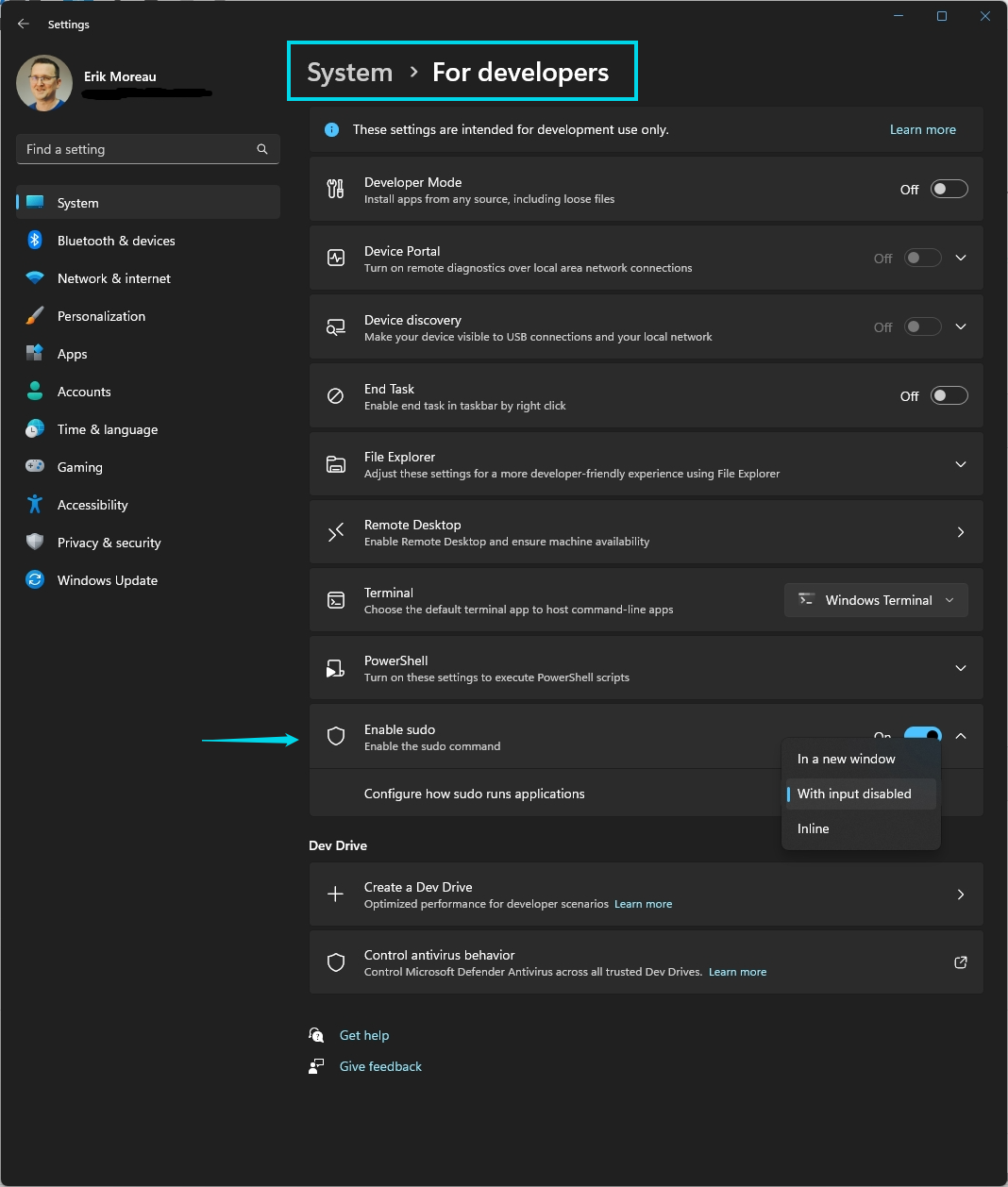
The sudo command can be configured to run in three different modes:
In a new window: A new window will open in which the elevated command will run.
With input disabled: The elevated command will run inline with its stdin closed in the window from which you’ve triggered elevation. You will not be able to interact with the elevated process.
Inline: The elevated command will run inline in the window from which you’ve triggered elevation. This mode is most similar to the sudo experience on other platforms.
It is recommended that you review the security considerations for each mode here before enabling the sudo command on your machine.
Here is how you can enable the sudo command: Just navigate to Settings > System > For developers and toggle on the sudo command. Configure how the sudo command behaves by selected one of the modes in the drop-down menu (In a new window, with input disabled, inline).
NOTE: The setting for enabling Sudo may incorrectly be showing on Windows Server Insider Preview builds – this feature will not be available on Windows Server and the setting will be disabled in a future Server Insider Preview build.
FEEDBACK: Please file feedback in Feedback Hub (WIN + F) under Developer platform > command line.
Enhancements in Hearing Aid Support
As announced in October 2023, Windows took a step forward in accessibility, allowing direct pairing, audio streaming, and smooth call handling for customers with Bluetooth® Low Energy Audio (LE Audio) supported hearing aids on LE Audio-compatible PCs. Now, we are thrilled to introduce a set of features that will take this support to the next level: We’re introducing new capabilities to control audio presets, ambient sounds, and experience enhancements to the Settings > Bluetooth & devices page.
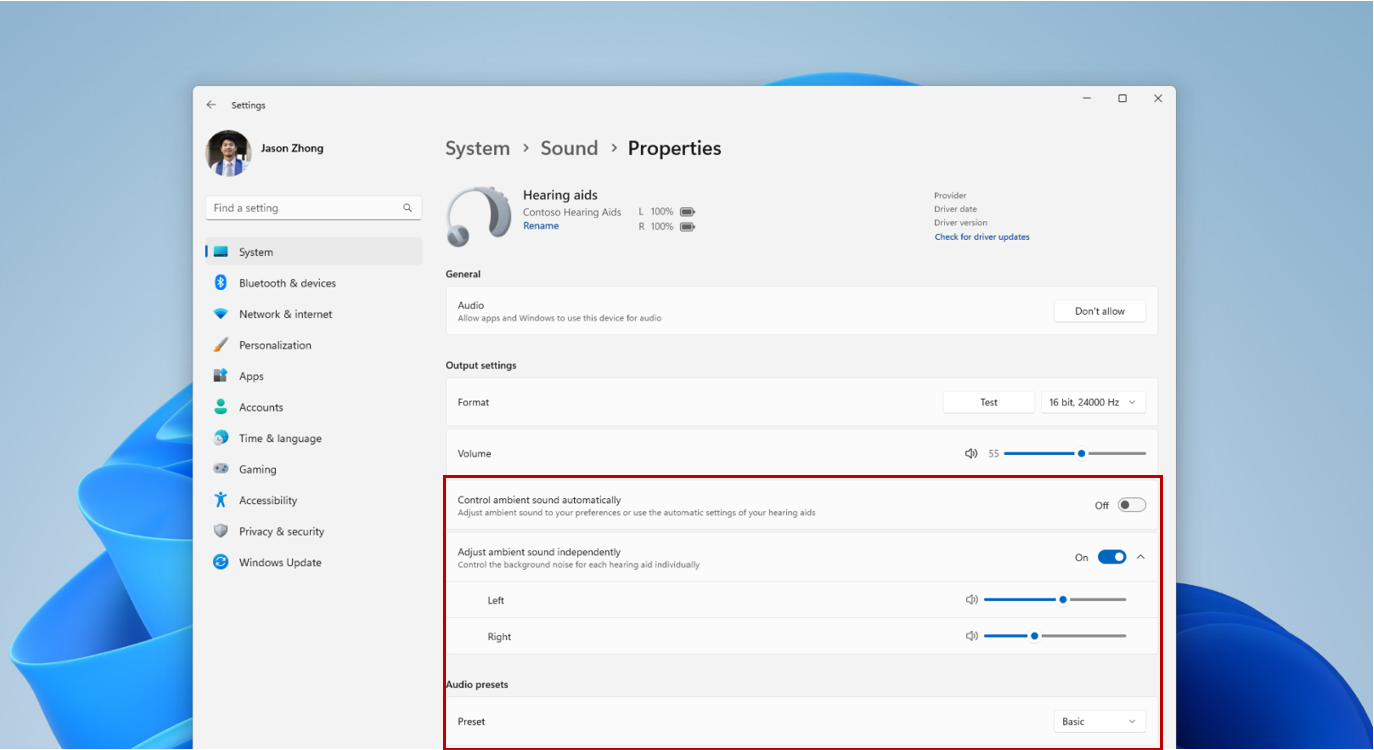
Customers can now adjust the audio presets that they or their audiologist configured in their hearing aids, right from the Settings or Quick Settings UI in Windows. These controls allow customers to quickly adjust the behavior of their hearing aids to their preference for the environment they’re in. Preset options and availability will vary based on the model and configuration of hearing aids.
Control ambient sound for hearing aids in Settings.
We’re also introducing capabilities for customers to adjust the volume of ambient sound captured by their hearing aids. These controls adjust the balance between streamed audio and sound picked up from the surrounding environment, helping customers choose what they want to focus on. Ambient sound control availability will vary based on the model of hearing aids.
These features require both your Windows device and hearing aid to support Bluetooth LE Audio. Note that not all Windows 11 PCs or hearing aids, even ones that support Bluetooth LE, have support for LE Audio. To learn more about LE Audio compatibility on Windows, please visit this link: Check if your Windows 11 PC supports Bluetooth Low Energy Audio. To learn more about LE Audio compatibility with hearing aids, consult your manufacturer or audiologist.
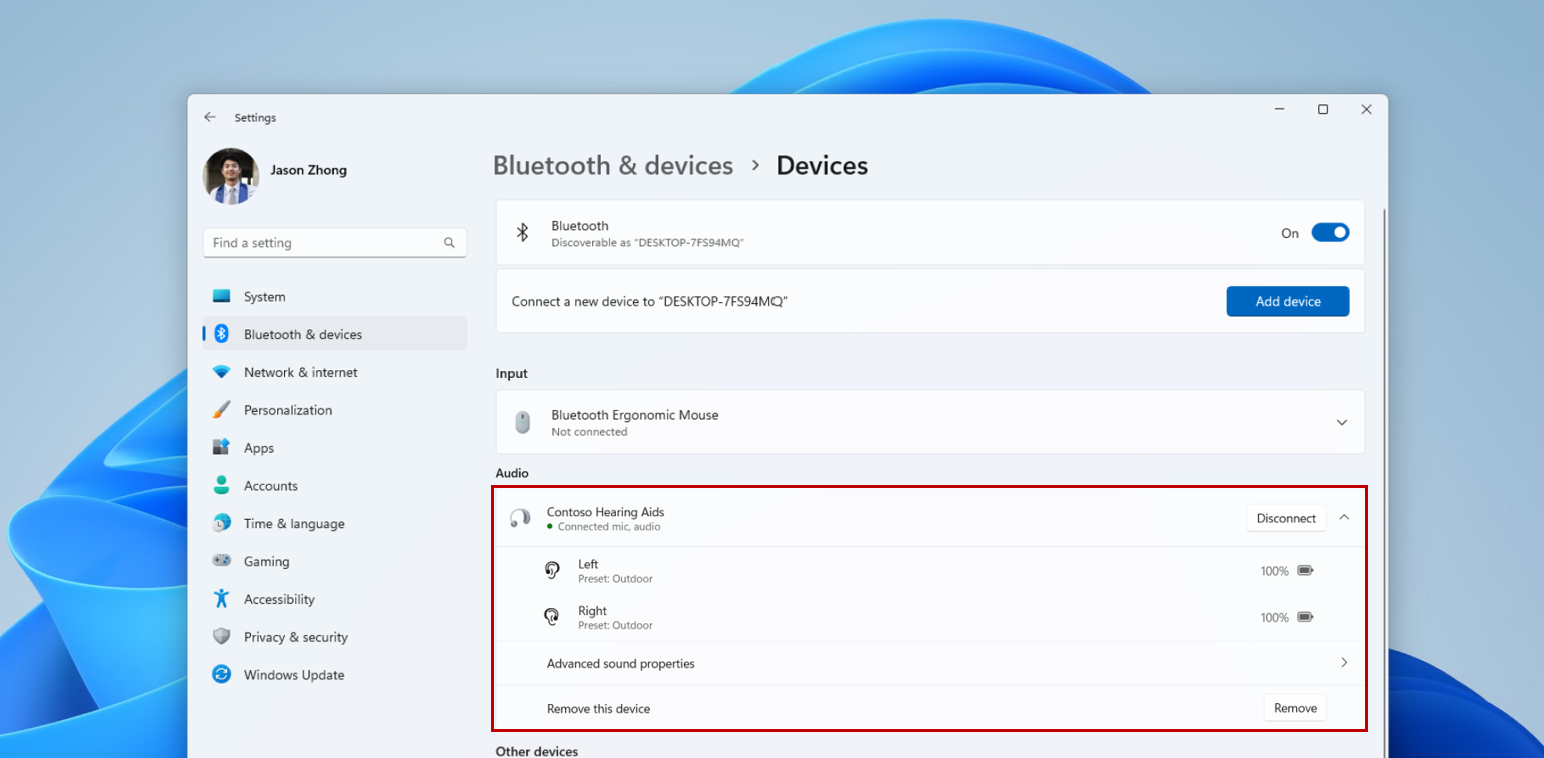
We’ve also enhanced the Bluetooth & devices settings page to provide additional functionality. Customers will now be able to:
Monitor essential Bluetooth device details when available, such as battery life and connection status, through an expandable menu for each connected device.
For audio devices, effortlessly access the System > Sound > Properties page to control audio settings for that device.
These new enhancements are available for hearing aids and all other devices on this page. To try out this feature, go to Settings > Bluetooth & devices > Devices.
Managing hearing aids in Settings.
FEEDBACK: Please file feedback in Feedback Hub (WIN + F) under Devices and Drivers > Bluetooth – Audio quality, glitches, choppiness, and stuttering.
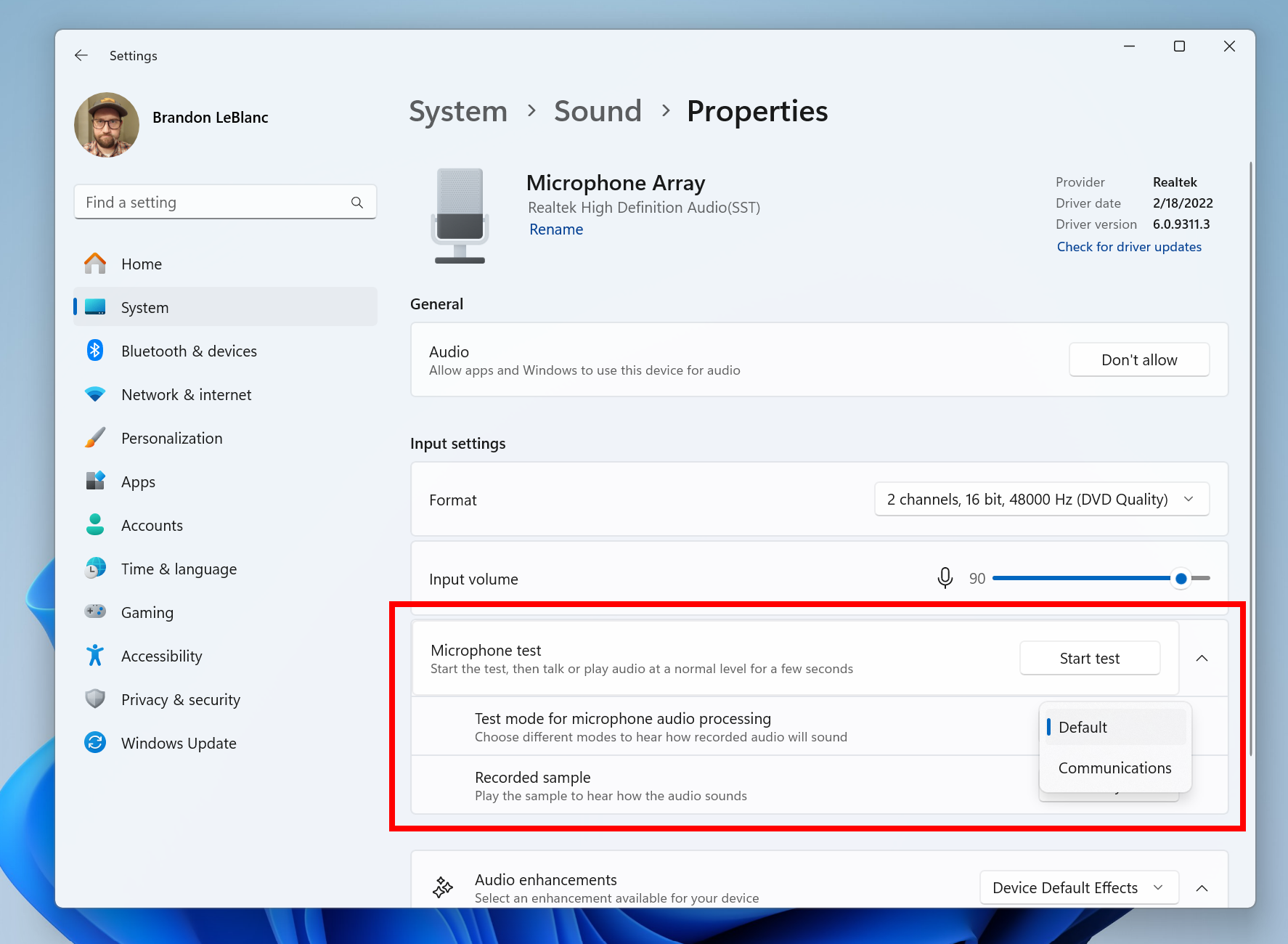
Audio mic test utility to test audio in different processing modes
Windows now offers a convenient way to test the difference between Default and Communication mode audio. This new utility can be found under the microphone properties via Settings > System > Sound. You can select the mode and record/listen to audio in both modes, allowing you to easily compare audio processing modes for applications built for the Windows ecosystem. Some audio drivers come with special audio effects for communications, and the toggle lets users hear how audio captured in your microphone sounds when recorded by a communications application versus a non-communications application. It’s important to note that the utility is for testing purposes only and will not affect the actual mode of the audio. You can use this to try out the Voice Clarity feature in the last flight!
New mic test utility in Settings.
FEEDBACK: Please file feedback in Feedback Hub (WIN + F) under Devices and Drivers > Audio and sound.
Changes and Improvements
[General]
Starting with Build 26-xx today, Windows Insiders in the Canary and Dev Channels will see the versioning updated under Settings > System > About (and winver) to version 24H2. This denotes that Windows 11, version 24H2 will be this year’s annual feature update. As mentioned here, Windows 11 will have an annual feature update cadence that releases in the second half of the calendar year.
Plugging in to use a Windows Mixed Reality headset will not work starting with this build. Windows Mixed Reality is no longer available to users as Windows Mixed Reality has been announced as deprecated. This includes the Mixed Reality Portal app, and Windows Mixed Reality for SteamVR and Steam VR Beta. Existing Windows Mixed Reality devices will continue to work with Steam through November 2026, if users remain on their current released version of Windows 11 (version 23H2) and do not upgrade to this year’s annual feature update for Windows 11 (version 24H2). This deprecation does not impact HoloLens.
Microsoft Defender Application Guard (MDAG) is no longer available as a feature on demand starting with this build. Microsoft Defender Application Guard for Office and Edge has been announced as deprecated.
[Copilot in Windows*]
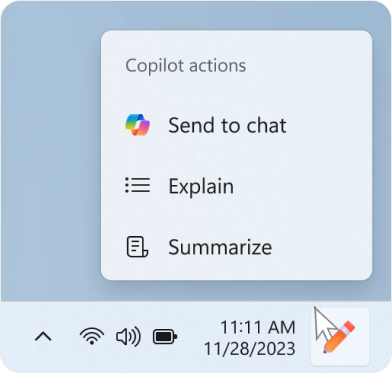
We are trying out a new experience for Copilot in Windows that helps showcase the ways that Copilot can accelerate and enhance your work. This experience will show when you copy text – since Copilot supports helpful actions that you can take with text content. In this scenario, the Copilot icon will change appearance and animate to indicate that Copilot can help (there are several different treatments so you may notice a different visual effect). When you hover your mouse over the Copilot icon, it will provide a menu of actions that you can take, such as summarizing or explaining the copied text. If you select an action on the menu, it will launch Copilot with the action ready-to-go. We will also support the ability to launch Copilot if you start dragging an image – just drag the image file onto the Copilot icon in the taskbar, and Copilot will open. You can then drop the image into the text box in Copilot and type an action that you would like to take on the image content.
Copilot actions you can take when you mouse over the Copilot icon on the taskbar after copying some text.
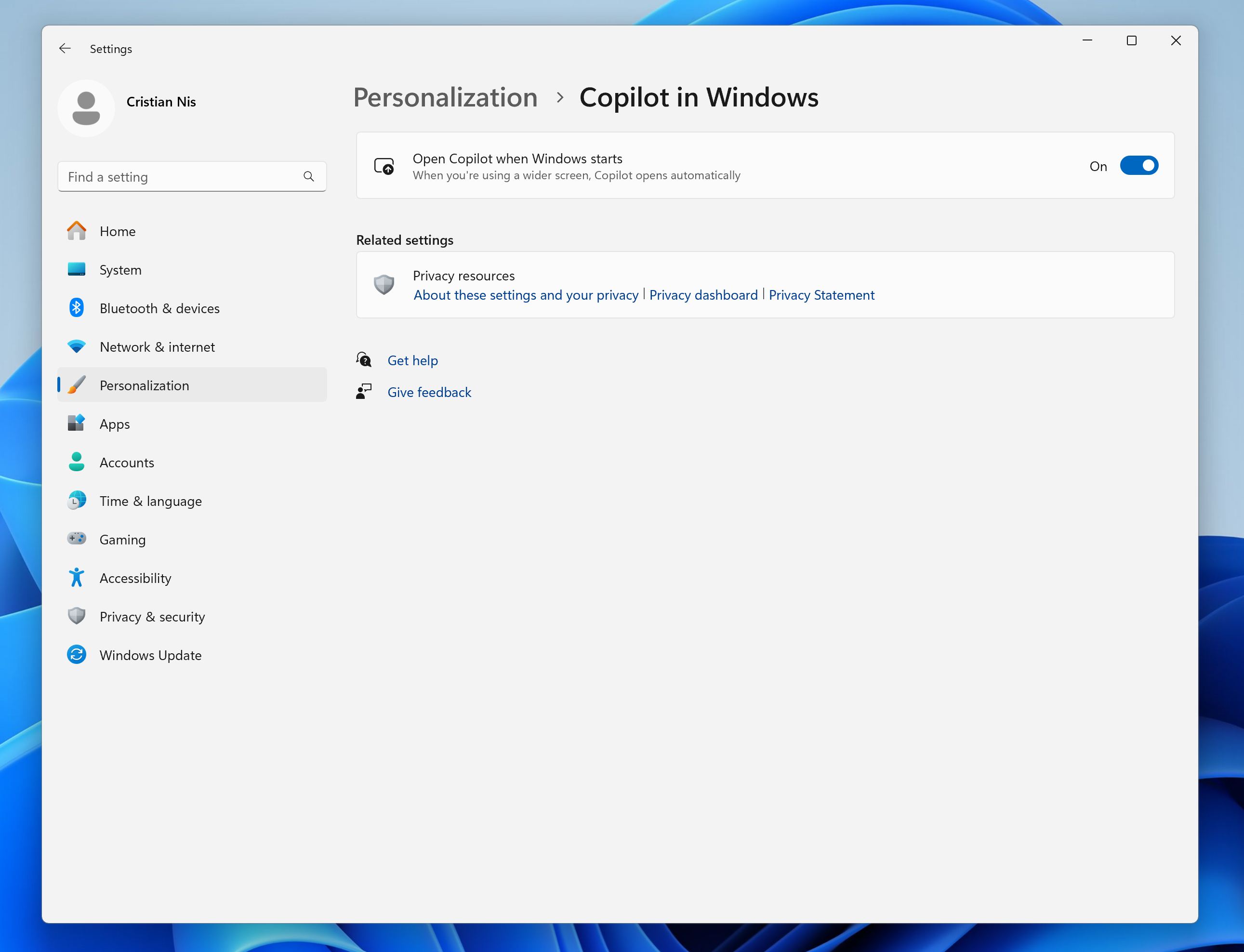
After temporarily disabling this experience to fix an issue, we are trying out opening Copilot automatically when Windows starts on widescreen devices again with some Windows Insiders in the Canary and Dev Channels. This can be managed via Settings > Personalization > Copilot. Note that this is rolling out so not all Insiders in the Dev Channel will see this right away. We’re trying this experience out on devices that have minimum diagonal screen size of 27” and pixel width of 1920 pixels and limited to primary display screens in multi-monitor scenarios. As a reminder, we regularly try out different experiences with Windows Insiders that may not ever ship, and others could show up in future Windows releases when they’re ready.
New Copilot Settings page.
[Taskbar & System Tray]
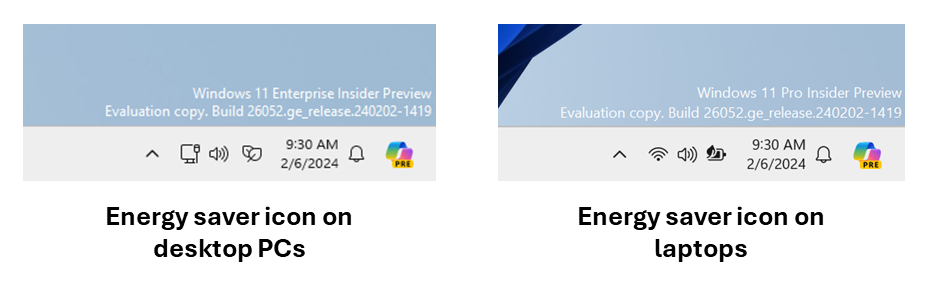
We have updated the energy saver icon for desktop PCs (PCs without batteries). This icon is shown on the system tray when energy saver is enabled, under quick settings, and under Settings > System power & battery.
Different energy saver icons on the system tray for desktop PCs and laptops.
[File Explorer]
[ADDED 2/9] The preview thumbnail title in the taskbar, ALT + Tab and Task View for File Explorer windows will now indicate if that window includes multiple tabs.
[Bluetooth]
Today, when discovering available Bluetooth devices to connect to, Windows filters out device classes that are uncommon. Customers who wish to override this filter and see all nearby devices available to pair can do so by choosing “Advanced” for the “Bluetooth devices discovery” setting. Starting with this build, we are removing that option and introducing some changes to the add device workflow to streamline this experience. Now, discovery will always scan for all devices, but only show common device types by default. Whenever an “uncommon” device is found during the discovery process, an option to “Show all devices” will be displayed to the customer.
[Graphics]
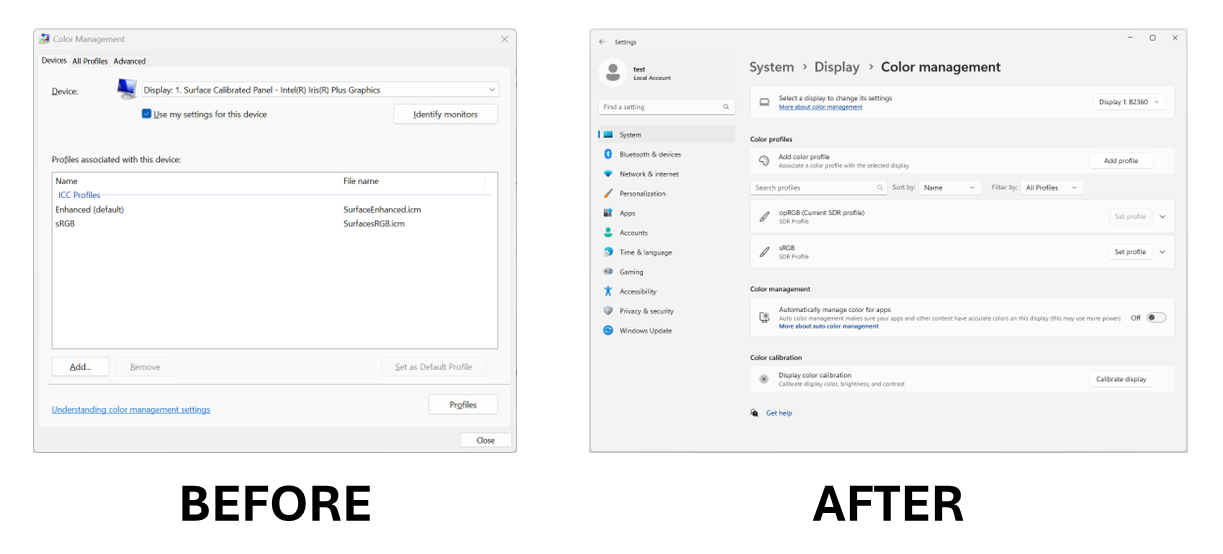
Windows Insiders who use the Color Management Control Panel to make changes to their color profiles can now use the all-new Color management settings page located under Settings > System > Display > Color management. This new settings page will allow users to add or remove color profiles, as well as set default color profiles for the connected displays. In addition, auto color management can now be found on the new Color management settings page.
Old Color Management Control Panel and new Color Management settings page.
[Registry Editor]
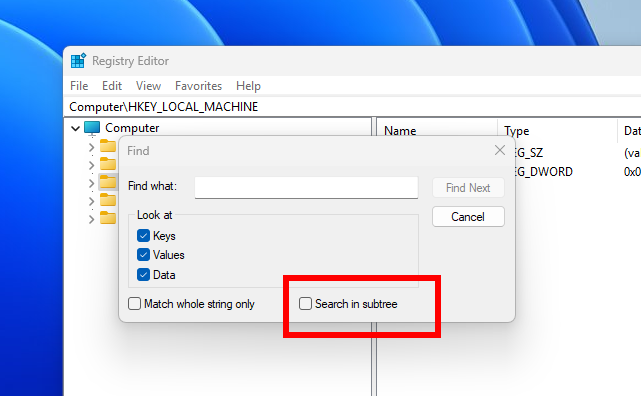
The Registry Editor now supports limiting a search to the currently selected key and its descendants.
New search in subtree option for searching in Registry Editor.
[Developer APIs]
Starting with this build, we are introducing the Power Grid Forecast API. This API empowers app developers to optimize app behavior, minimizing environmental impact by shifting background tasks to times when more renewable energy is available in the local electrical grid. The result is lower carbon emissions for app users. Please note that forecast quality varies by region and is not available globally. While the API is available in this build, we are still working on public documentation, sample code, and we have a couple of bug fixes checked in. All of this should make its way to Insiders in the coming weeks.
We are adding an energy saver notification callback setting GUID to represent the new energy saver experience introduced in Build 26002. Apps can subscribe to the energy saver status by passing the appropriate GUID to the PowerSettingRegisterNotification API and can implement different behaviors to optimize energy or performance depending on the current energy saver status. More details can be found in here.
We are making a minor extension of the existing Effective Power Mode API to interpret the new energy saver levels when determining the returned effective power mode. Documentation will be updated shortly.
You can go Settings > Bluetooth & devices > Printers & scanners to choose to setup Windows protected print mode but clicking the setup button under “Printer preferences”. This experience will continue to be refined in future flights.
We moved the option to show your Wi-Fi password to the top of the Wi-Fi properties page under Settings > Network & Internet > Wi-Fi.
[ADDED] We have updated the UI for Storage Spaces under Settings > System > Storage > Storage Spaces to more intuitively reflect Spaces. Some key changes include: remove confusing and/misleading status icons, replace links to Disk Management with links to Disks & Volumes, share drive labels and letter, when applicable, offering an explanation for a term when hovering over it, and adding upgrade and delete pool. This UI change should provide greater ease of storage management on Windows.
[Other]
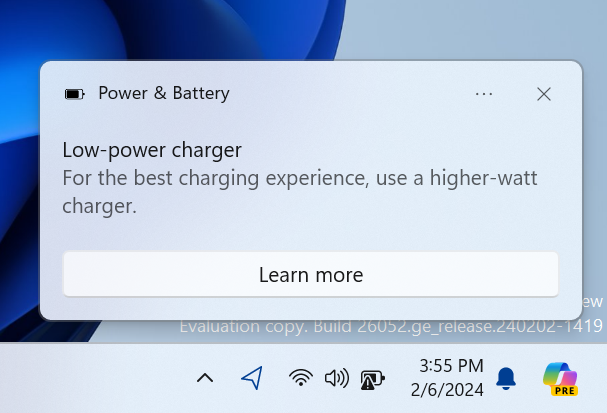
We’ve adjusted the text in the notification when a PC detects a slow charger.
Updated notification when a PC detects a slow charger.
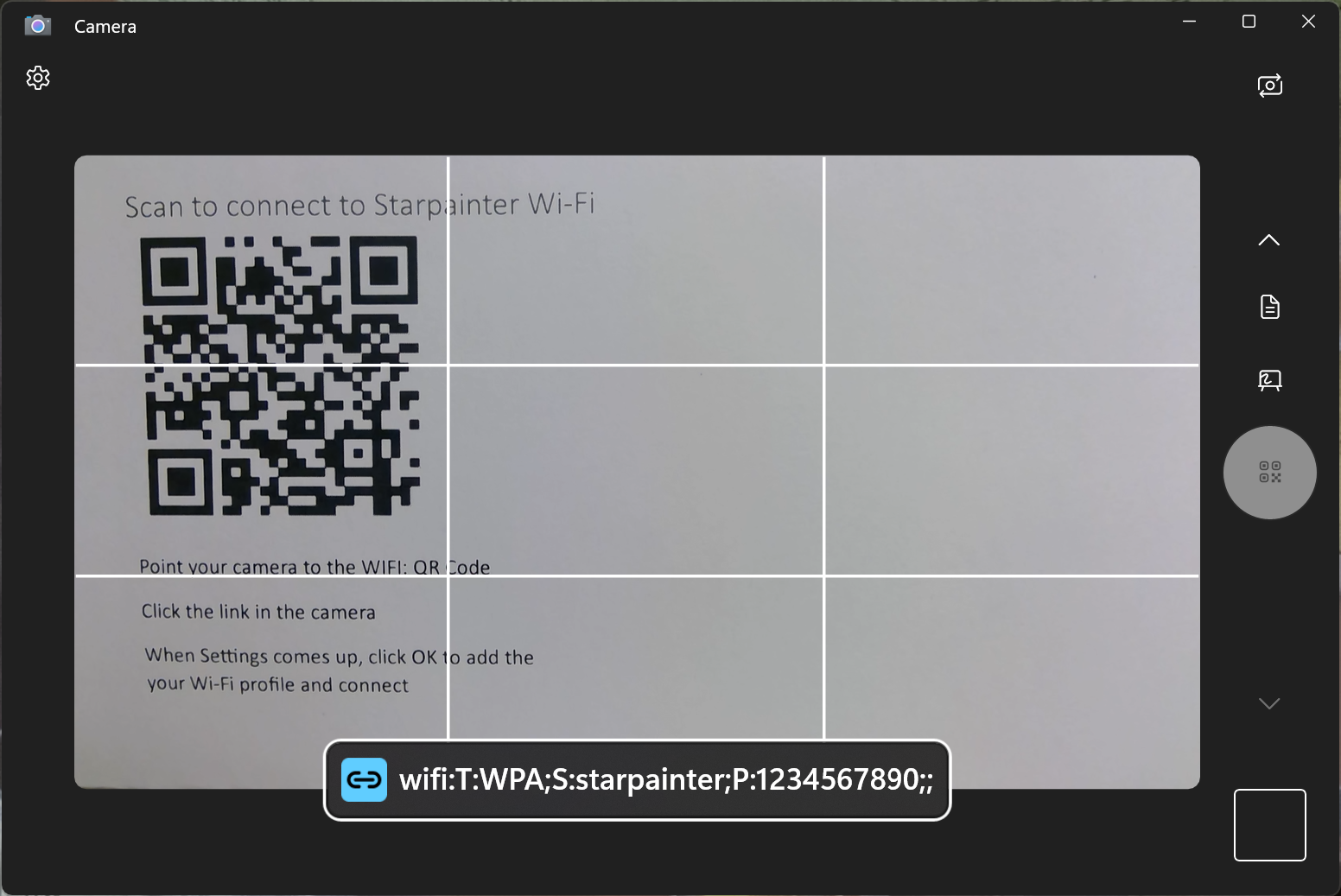
You can now use the Camera app to join a Wi-Fi network. Just scan a QR code with Wi-Fi details and a link will be provided that will open Settings to quickly get the new Wi-Fi profile added and connected. As a reminder, starting with Build 25977 in the Canary Channel you can create your own QR code for Wi-Fi and share it with others. This also works for mobile hotspots too.
Scan a QR code with Wi-Fi details in the Camera app to quickly connect to a Wi-Fi network.
Fixes for known issues
We fixed the issue where in some multi-monitor configurations, a display would appear as frozen in Build 26040.
Fixed a DWM issue in Build 26040 causing some rendering issues.
Fixed an issue causing Build 26040 flight to fail to install for some Insiders with error code 0x80188306.
Fixed an issue causing the print queue to not open in recent Canary Channel flights.
Did some more work to help improve the launch performance of File Explorer.
Fixed multiple crashes impacting system tray and its flyouts.
The volume slider in quick settings will now make a sound when adjusted again.
When using the save dialog, if you try to save a file to Gallery in File Explorer, it will now save to your Pictures library rather than showing an error.
Known issues
[General]
[IMPORTANT NOTE FOR GAMERS – UPDATED!] Some popular games may not work correctly and cause a bugcheck (green screen) when launched on the most recent Insider Preview builds in the Canary Channel. Please be sure to submit feedback in Feedback Hub on any issues you see with playing games on these builds.
Content in some video streaming apps from the Microsoft Store may not play. As a workaround, try streaming from a browser.
[NEW] We’re working on the fix for an issue causing an increase in Insiders experiencing black screens starting with Build 26040 (including when waking your PC from sleep). If you encounter this, pressing WIN + CTRL + Shift + B may resolve it.
[ADDED] A Display Connection section is incorrectly showing up under Settings > System > Display > Graphics that when clicked, will crash Settings. This section will be removed in a future flight.
[ADDED 2/9] IMPORTANT NOTE FOR DEV DRIVE USERS: Insiders on Build 26052 who have Dev Drives and might need to rollback will need to back up their Dev Drives BEFORE rolling back as rolling back will cause Dev Drives to break and data on them to be lost.
[Widgets]
Keyboard navigation from settings subpages back to the top-level Settings page is broken.
Microsoft Store Update
Windows Insiders in the Canary and Dev Channels running version 22401.xxxx.x of the Microsoft Store and higher will see the following improvement rolling out:
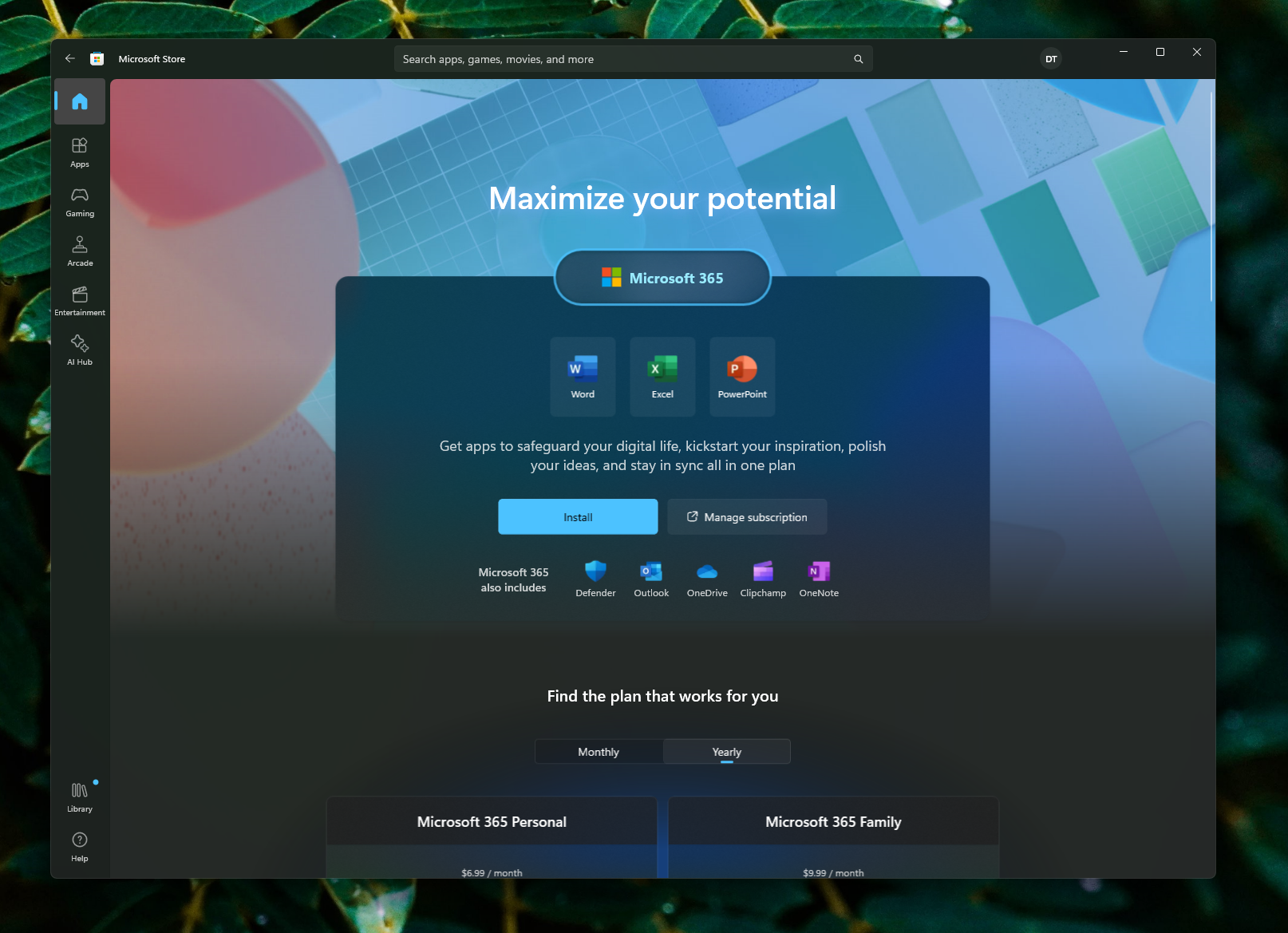
New and improved pages for Microsoft 365: We’ve improved the Microsoft 365 pages to better describe all the benefits included in the subscription. You can compare between monthly and annual plans to determine what’s best for you, and you can browse the features in various apps included in Microsoft 365.
Example of improved Microsoft 365 page in the Microsoft Store.
Task Manager is a handy utility that comes with Windows 11. It allows you to see how your system and apps are performing, and gives you the ability to manage them. You can use Task Manager to monitor your CPU, memory, disk, and network usage, view and end processes, start and stop services, and more.
To open Task Manager in Windows 11, you can use one of the following methods:
Press Ctrl+Shift+Esc on your keyboard.
Right-click the Start button and choose Task Manager from the menu.
Type Task in the Start menu and click on Task Manager.
Press Ctrl+Alt+Del and choose Task Manager from the screen.
Type taskmgr in any command prompt
In this blog post, I will share with you some of the best tips and tricks for using Task Manager in Windows 11. Let’s get started!
1. Find Out What’s Slowing Down Your PC
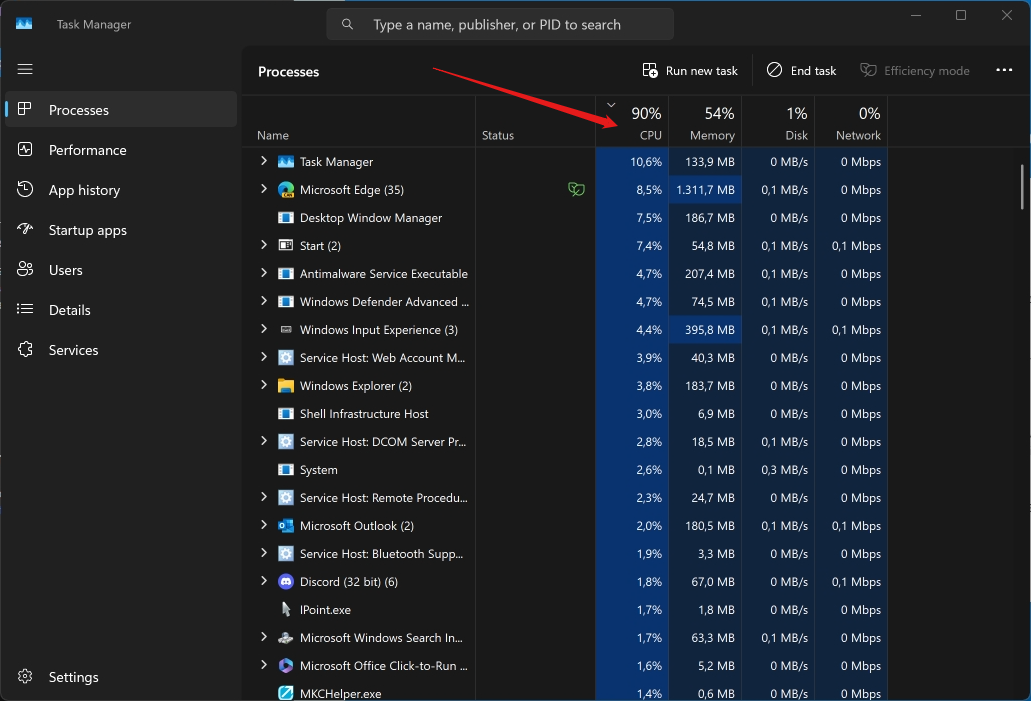
One of the most common uses for Task Manager is to find out what’s causing your PC to run slowly. To do this, you can sort the processes by CPU, memory, disk, or network usage, and see which ones are consuming the most resources. You can also add the GPU column to see how your graphics card is performing.
To sort the processes by a specific column, simply click on the column header. To add the GPU column, right-click on any column header and check the box next to GPU.
2. Shut Down Misbehaving Apps
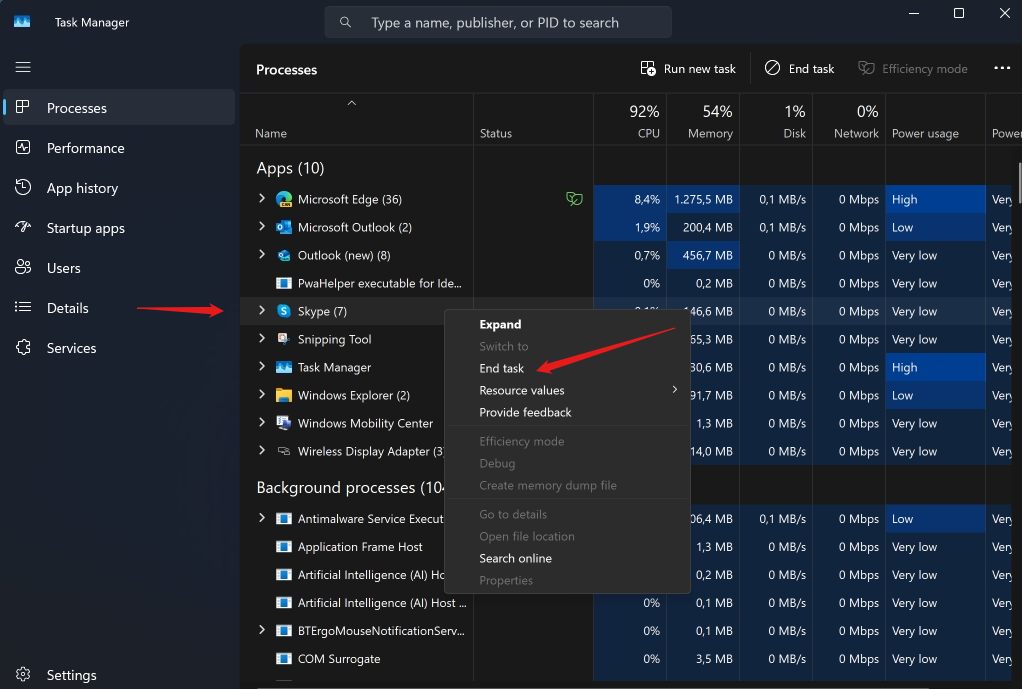
Sometimes, an app may stop responding or behave erratically, and you may not be able to close it normally. In that case, you can use Task Manager to force it to quit. To do this, select the app from the list of processes, and click on the End task button at the bottom right corner. Alternatively, you can right-click on the app and choose End task from the menu.
example or right-click on Skype with the option to end task
This will bypass any code in the app that prevents it from shutting down, and free up the resources it was using. However, be aware that you may lose any unsaved data or settings in the app.
3. Track Power Usage
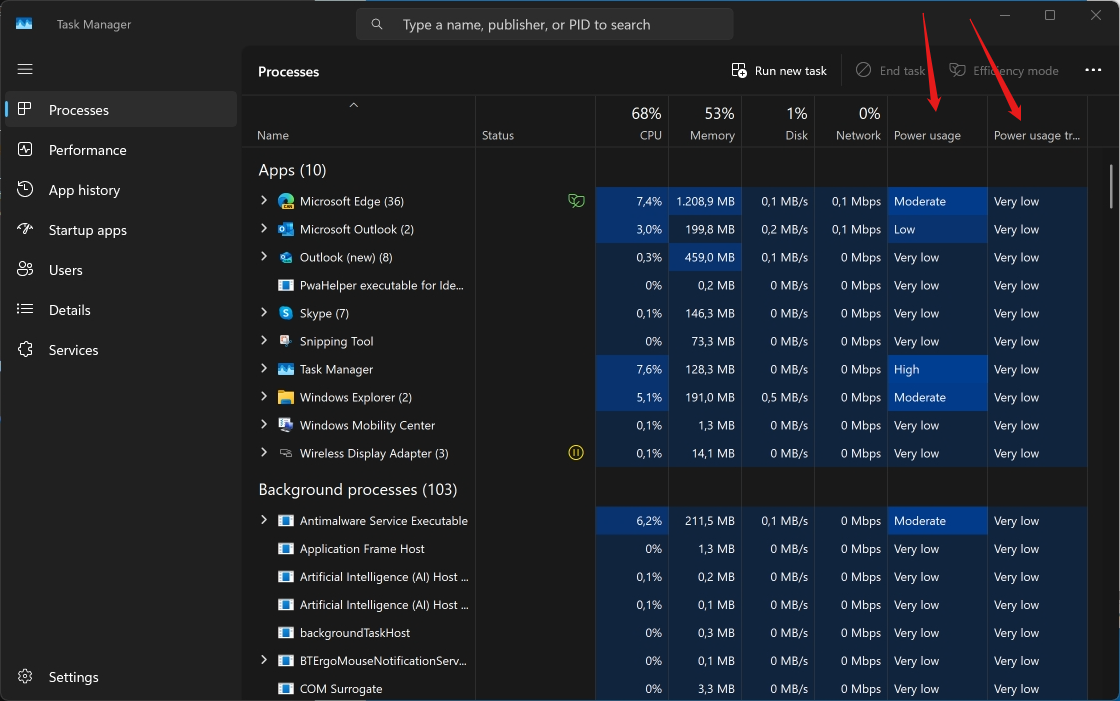
If you are using a laptop or tablet, you may want to keep an eye on your battery life and power consumption. Task Manager can help you with that, by showing you how much power each app is using. To see this information, you need to add the Power usage and Power usage trend columns to the processes tab.
To add these columns, right-click on any column header and check the boxes next to Power usage and Power usage trend. The Power usage column shows you the current power consumption of each app, while the Power usage trend column shows you the average power consumption over time. You can use this data to identify and close any apps that are draining your battery.
4. Add More Columns
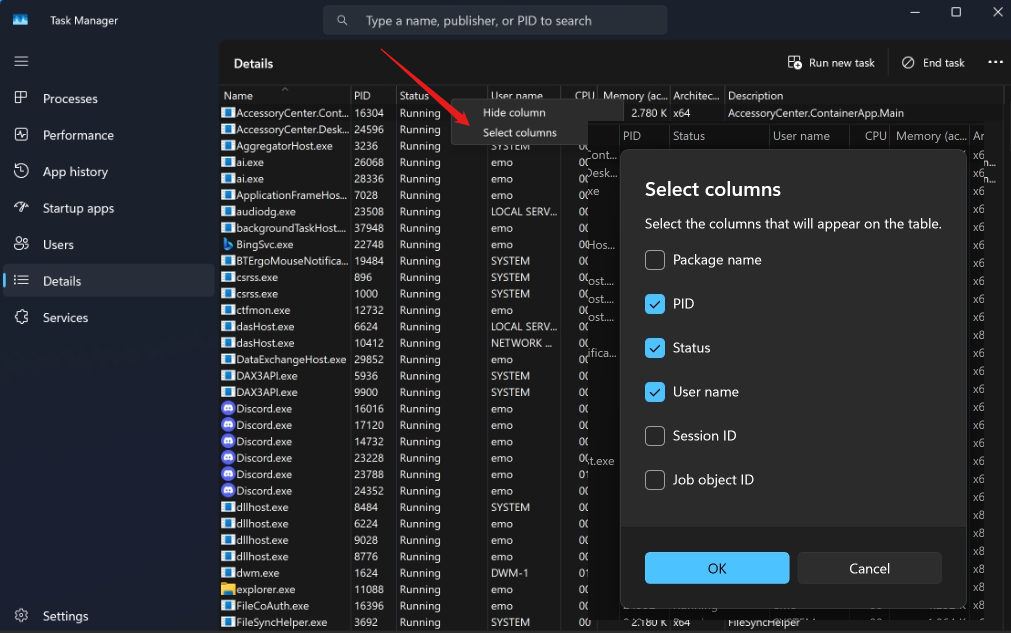
Task Manager has many more columns that you can add to the processes tab, depending on what information you want to see. For example, you can add columns for PID, command line, description, status, UWP context, and more. To add more columns, right-click on any column header and select hide column or show columns to check the boxes next to the columns you want to see.
You can also resize, reorder, and hide the columns by dragging them with your mouse. To reset the columns to their default settings, press Ctrl+Alt+Shift while opening Task Manager or use the reset option in settings.
5. Change the Default Tab
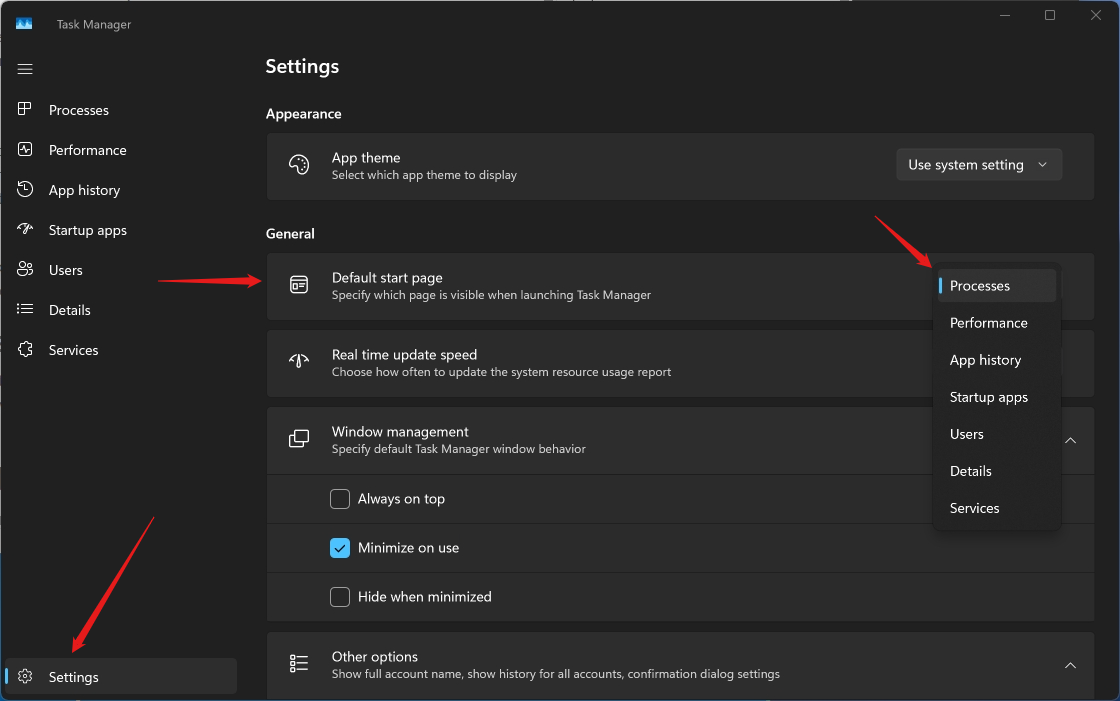
By default, Task Manager opens with the processes tab, which shows you the list of running processes and their resource usage. However, you can change this setting and choose a different tab to open by default. For example, you may prefer to see the performance tab, which shows you the graphs of your system and app performance, or the app history tab, which shows you the historical data of your app usage.
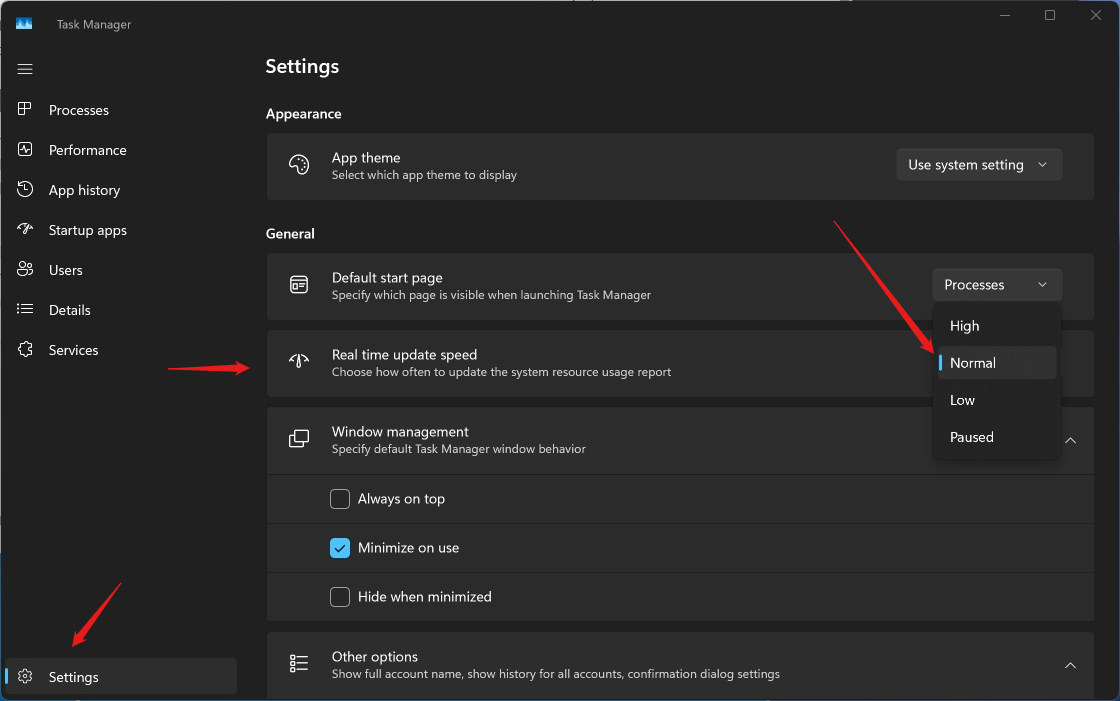
To set a different page to appear when you launch Task Manager, open the settings menu at the bottom left of Task Manager and select Default Start Page. Then, pick the page you prefer from the dropdown menu.
6. Freeze the Task Manager Values
Sometimes, you may want to pause the Task Manager values and take a closer look at them, without them changing constantly. To do this, you can hold down Ctrl and it will pause until you let go of the button.
7. Change Task Manager Data Update Speed
By default, Task Manager updates the data every two seconds, which may be too fast or too slow for your needs. You can change this setting and choose a different update speed, from high to low. To do this, go to the view menu at the top of Task Manager, and click on Update speed. Then, choose the speed you want from the options.
I hope you found these tips and tricks useful, and learned something new about Task Manager in Windows 11. Task Manager is a powerful tool that can help you optimize your system and app performance, and troubleshoot any issues. I encourage you to try it out for yourself, and see what else you can do with it.
Do you have any other tips or tricks for using Task Manager? Do you have any questions or feedback? Let me know in the comments below. Thanks for reading!
Hi all, last Thuerday Microsoft released Windows 11 Insider Preview Build 23620 to the Dev Channel.
A small updtae from last week’s build, all quick installs here
Happy Upgrades!
Fixes
[Start menu]
Fixed an issue that was causing labels like System in the Start menu’s all apps list to be cut off if text scaling is above 100%.
[File Explorer]
Fixed an issue impacting explorer.exe reliability.
[Widgets]
Fixed the issue where announcements from the Microsoft Start feed are still shown on the taskbar after the feed is hidden.
Fixed the issue where spacing and fonts used in some settings pages were incorrect.
[Task Manager]
Fixed an issue impacting Task Manager reliability on the last few builds.
[Accessibility]
Fixed an issue which was causing voice access to crash when setting up new languages.
Fixed multiple crashes impacting narrator, including one when trying to add new natural voices.
NOTE: Some fixes noted here in Insider Preview builds from the Dev Channel may make their way into the servicing updates for the released version of Windows 11.
Known issues
[Copilot in Windows*]
When first launching or after refreshing Copilot in Windows while using voice access, you’ll need to use “Show grid” commands to click in the “Ask me anything” box for the first time.
[Widgets]
Keyboard navigation from settings subpages back to the top-level Settings page is broken.
It took some time to prepare another Canary build for release, with lots of new features in this one!
Hard to pick a favorite, the new Task Manager Icon looks awesome, will be some getting used to for some but I’m a fan
Copilot has moved to the lower right corner very nice, the previous location always felt kind of ‘off’ to me
Happy Upgrades!
What’s new in Build 26040
Instantly access new photos and screenshots from your mobile device
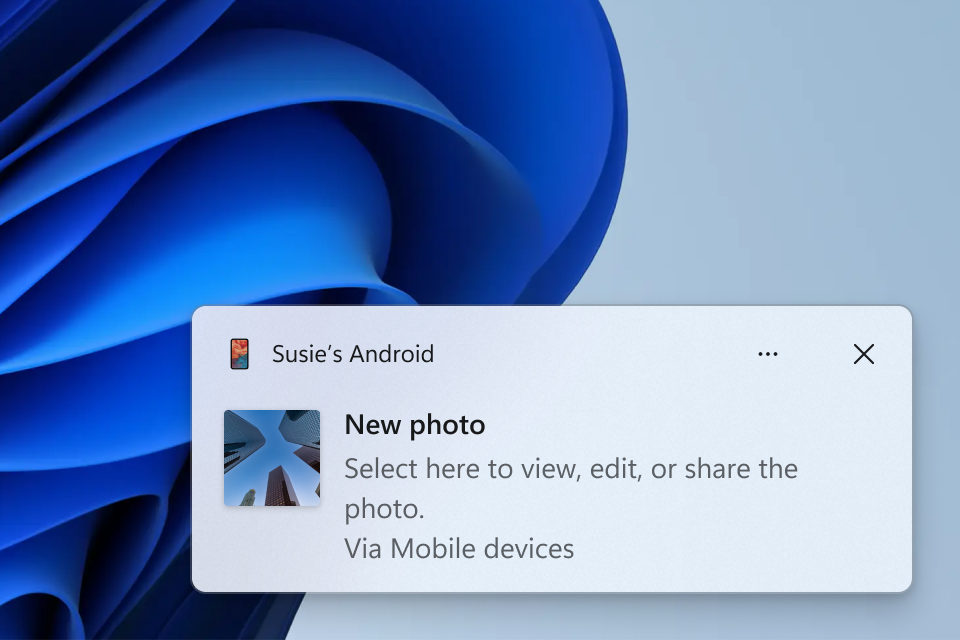
We are also beginning to gradually roll out a new feature for Windows that introduces the ability to effortlessly access and edit your most recent photos and screenshots from your Android mobile device in Snipping Tool on your PC. With this feature, you’ll receive instant notifications on your PC whenever a new photo or screenshot is captured on your Android device.
Windows notification prompting to open capture in Snipping Tool for markup.
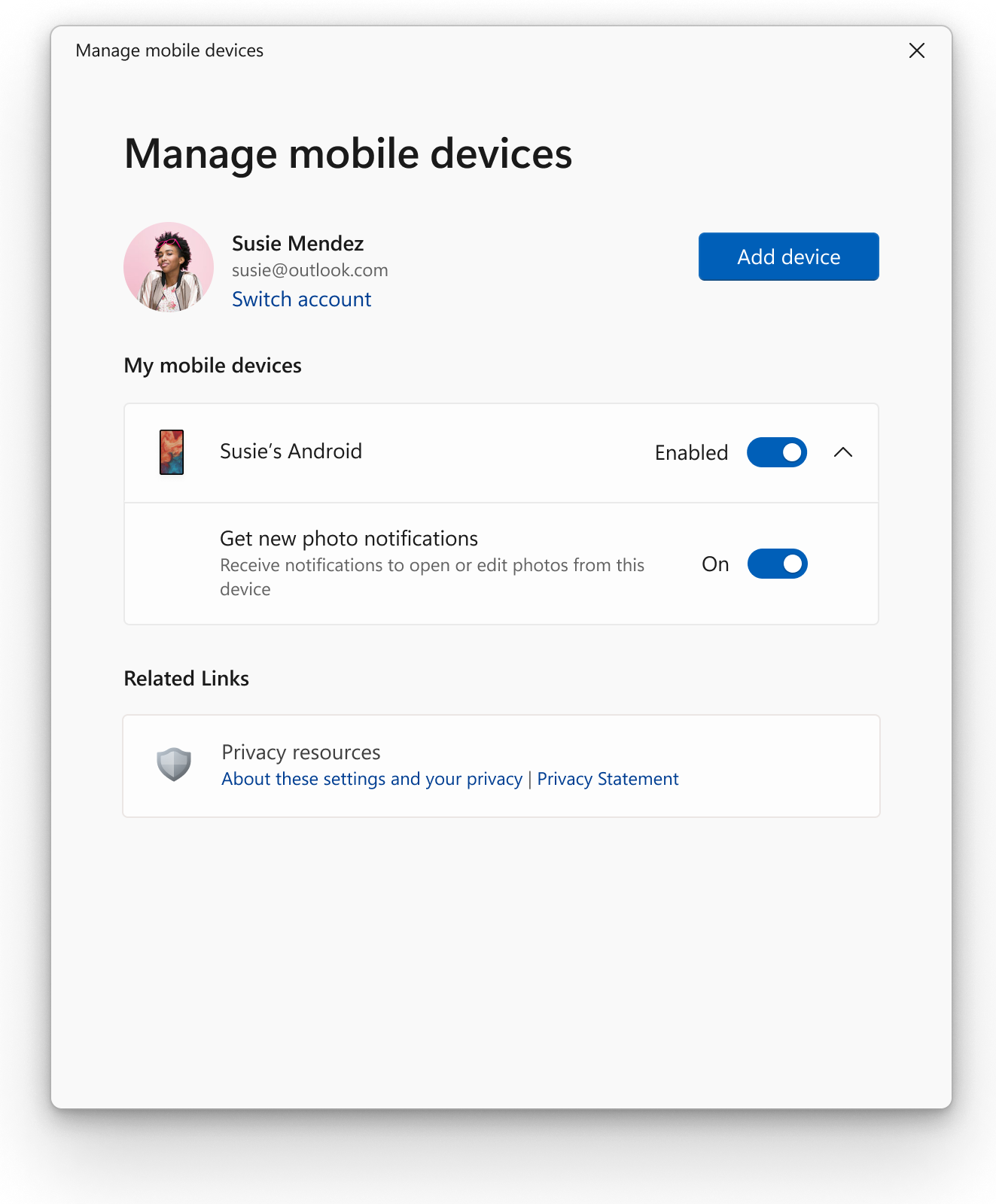
To enable this experience, go to Settings > Bluetooth & devices > Mobile devices (this settings was updated with Build 26016 in the Canary Channel) and choose “Manage devices” and allow your PC to access your Android phone. Your PC will get a Cross Device Experience Host update in the Microsoft Store that is required for this experience to work.
New settings window for managing mobile devices that are allowed to connect to your PC.
[We are beginning to roll this out to Windows Insiders in the Canary and Dev Channels, so the experience isn’t available to all Insiders just yet as we plan to monitor feedback before pushing it out to everyone.]
Experience crystal clear online communication with Voice Clarity
We are expanding Voice Clarity which has been available on Surface devices and making it available to more people. Voice Clarity is a feature that enhances your audio experience on Windows with state-of-the-art AI technology. Powered by low complexity AI models, Voice Clarity cancels echo, suppresses background noise, and reduces reverberation in real-time. This feature is enabled by default and can be utilized by applications using Communications Signal Processing Mode, such as Phone Link and WhatsApp. No additional hardware is required, as Voice Clarity is supported on x64 and Arm64 CPUs. Apps which use Communications Signal Processing Mode do not need any additional modifications and Voice Clarity will work for them automatically when the OEM device does not offer Communications Mode processing. Similarly, PC games that use Communications Signal Processing Mode for their online communications will also benefit from Voice Clarity. Applications can provide a toggle for the Deep Noise Suppression stream effect to switch between AI models for voice only communications (Deep Noise Suppression enabled, the default setting) and generic audio content (Deep Noise Suppression disabled). With Voice Clarity, you can have confidence that your voice will be clearly heard during online meetings and enjoy smoother and more effective online communications.
Updated Windows Setup Experience
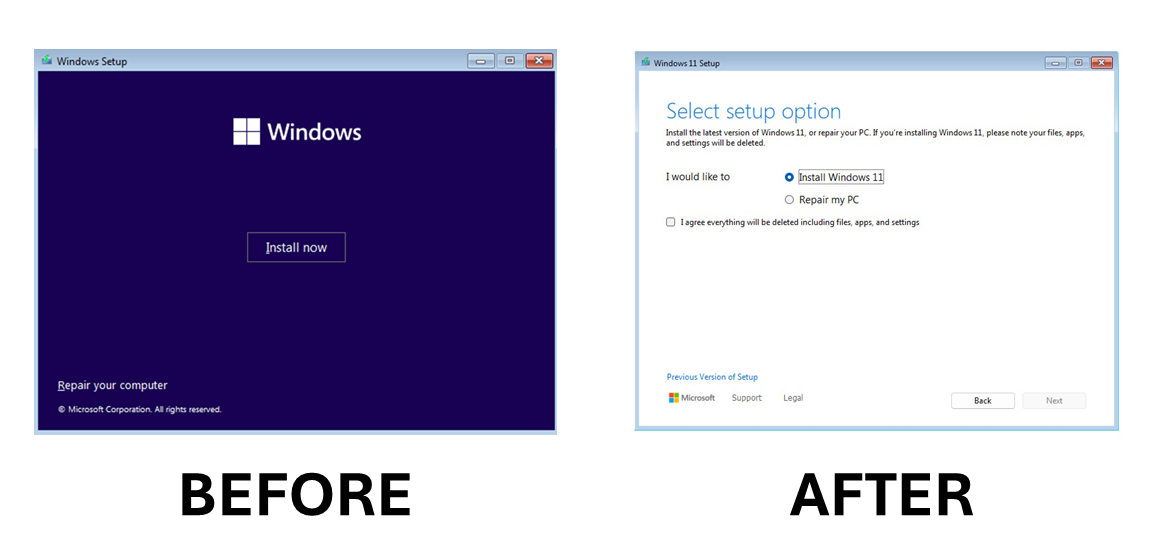
We are refreshing Windows OS Media Setup with a much cleaner and more modern design. All of the same features will continue to be supported in the bare-metal (clean) OS Iinstallation experience, including unattended support, but will now be consistent with the current upgrade and installation experience available for the devices already running the Windows OS.
Old Windows Setup design and new Windows Setup design.
Windows Insiders who want to try out this refreshed Windows Setup experience can download the ISOs for Build 26040 here and either do a clean install on their PC or do a clean install in a Virtual Machine (VM).
While this change does not affect the DISM OS deployment, it may affect some of your workflow. Please take the time to test these changes on your given scenarios and provide any feedback.
USB 80Gbps
We are excited to announce support for the latest generation USB standard, USB 80Gbps, in this build of Windows. USB 80Gbps support will initially launch on select devices based on the Intel Core 14th Gen HX-series mobile processors, such as the new Razer Blade 18.
This is the first major version update of the USB4®standard and increases performance to 80Gbps from 40Gbps. It enables the next generation of high-performance displays, storage, and connectivity. It is fully backwards compatible with peripherals built for older generations of USB and Thunderbolt™ and works alongside all other USB Type-C features.
Enhanced image consumption experience in Narrator
We are improving the image consumption experience with Narrator. There are two major changes:
We have introduced a new keyboard command for navigating between the images/graphics on a screen/page. Now, you can use the keys “G” or “Shift + G” to navigate forward or backwards between images in Scan mode (Narrator key + spacebar).
Recognition of text in images, including handwriting, is improved along with improvements to overall image descriptions. You can try the enhanced experience by navigating to the image and pressing Narrator key + CTRL + D key combination when the focus is on an image. This feature requires an active internet connection, and the setting to get Image Descriptions must be enabled in Narrator Settings.
Improving discoverability of screen casting in Windows 11
Casting from your Windows PC allows you to wirelessly extend your display to another nearby PC, TV, or other external displays. We are introducing improvements that focus on educating users about the Cast feature and improving its discoverability in Windows 11. Those improvements include:
When doing multitasking activities on your PC such as often switching between windows to complete a task or using Snap Assist to organize your screen space, we will provide the suggestion to Cast via a notification toast.
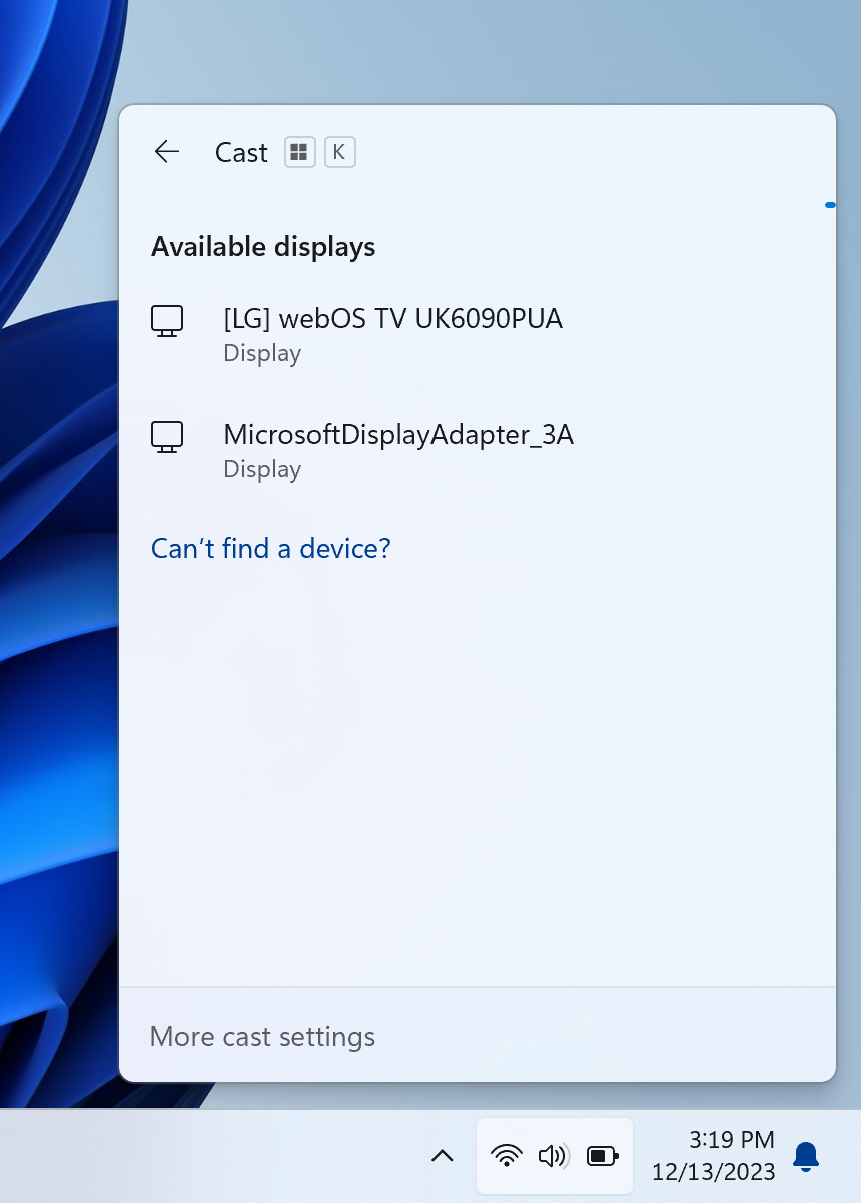
We have updated the Cast flyout in Quick Settings with additional support for you in case you face any trouble discovering nearby displays, fixing connections, and more.
Cast flyout in Quick Settings now shows link for troubleshooting device discovery and other casting issues.
Windows LAPS: New automatic account management feature
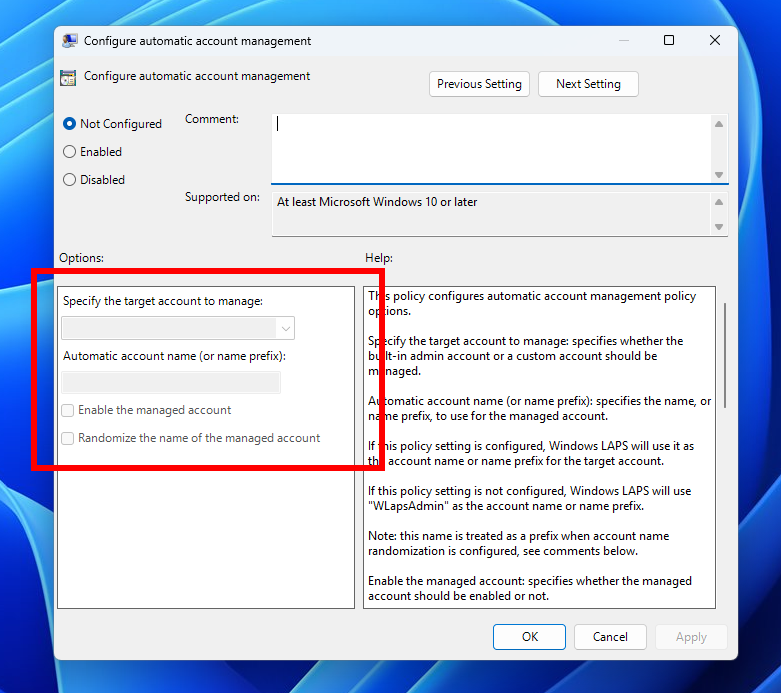
Windows Local Administrator Password Solution (LAPS) has been improved with a new automatic account management feature. Using this feature, IT admins can now configure Windows LAPS to automatically create the managed local account. You can also configure the name of the account, enable, or disable the account, and optionally randomize the account name for improved security. Improved integration with existing Microsoft local account management policies has also been added.
Here is an image of the new Automatic account management setting:
Policy for configuring automatic account management.
The Windows LAPS CSP offers full support for managing these settings. The Windows LAPS CSP documentation will be updated at a later date to reflect the new settings. You can learn more about these features here.
Windows LAPS: improved readability password dictionary (and improved password font)
Windows Local Administrator Password Solution (LAPS) has been improved with a new PasswordComplexity setting. Using this feature, IT admins can now configure Windows LAPS to generate less confusing passwords. The new setting is similar to the existing complexity setting 4 in that all four character categories are used (upper case letters, lower case letters, numbers, and special characters). However when PasswordComplexity is configured with the new setting of 5, the most confusing characters are omitted to improve password readability and reduce confusion and wasted time. For example, the number “1” and the letter “I” are never used with the new setting.
When PasswordComplexity is configured to 5, the following changes are made to the default password dictionary character set:
Don’t use these letters: ‘I’, ‘O’, ‘Q’, ‘l’, ‘o’
Don’t use these numbers: ‘0’, ‘1’
Don’t use these ‘special’ characters: ‘,’, ‘.’, ‘&’, ‘{‘, ‘}’, ‘[‘, ‘]’, ‘(‘, ‘)’, ‘;’
Start using these ‘special’ characters: ‘:’, ‘=’, ‘?’, ‘*’
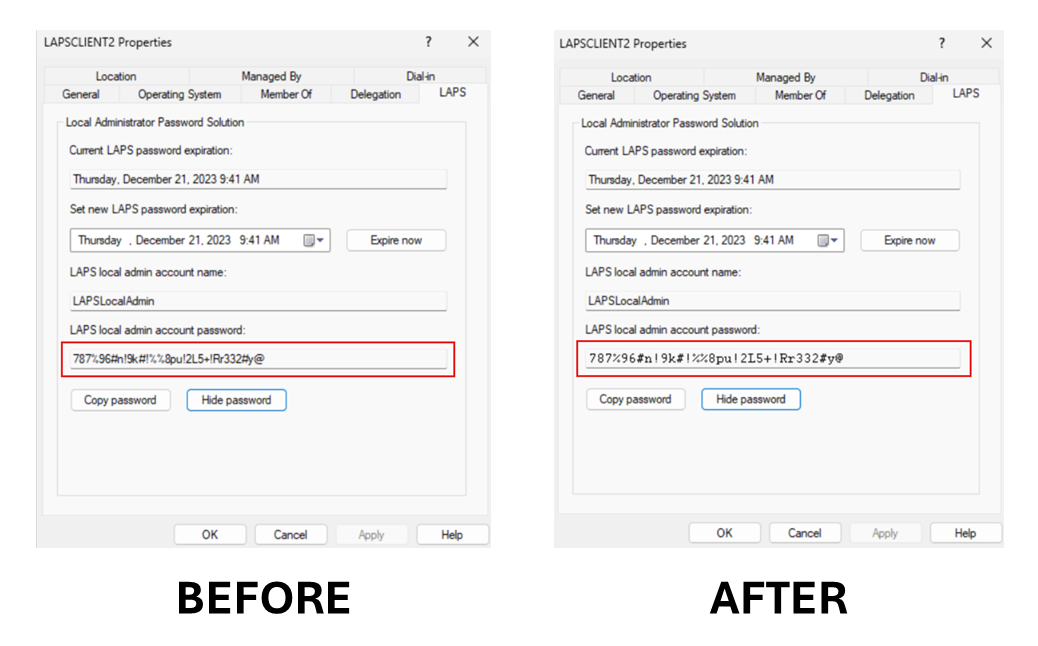
The Windows LAPS tab in the Active Directory Users and Computers snap-in (via Microsoft Management Console) has also been improved. When the Windows LAPS password is displayed in the clear, the password now uses a new font for improving readability.
Windows LAPS displaying a password using the old and new fonts.
The Windows LAPS CSP also offers full support for configuring the new PasswordComplexity setting (5). The Windows LAPS documentation will be updated at a later date with additional information on this new setting.
Windows LAPS: New passphrase feature
Windows Local Administrator Password Solution (LAPS) has been improved with a new passphrase feature. Using this feature, IT admins can now configure Windows LAPS to generate passphrases, for example: “EatsVeganYummyTasty”. Compare this to a more traditional style password like “q6Rgag667Pu23qA886?n:K” – the passphrase is clearly much easier to read, repeat, and type.
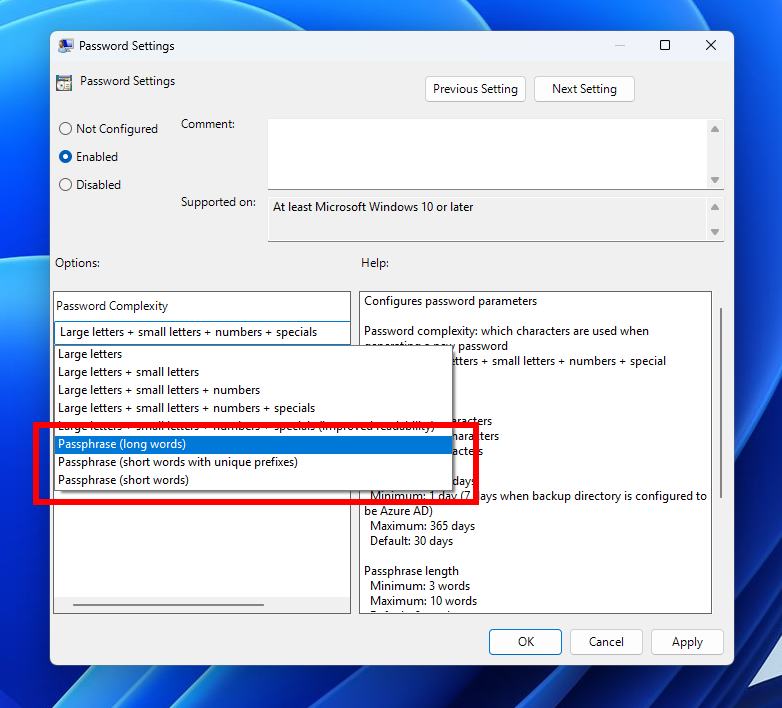
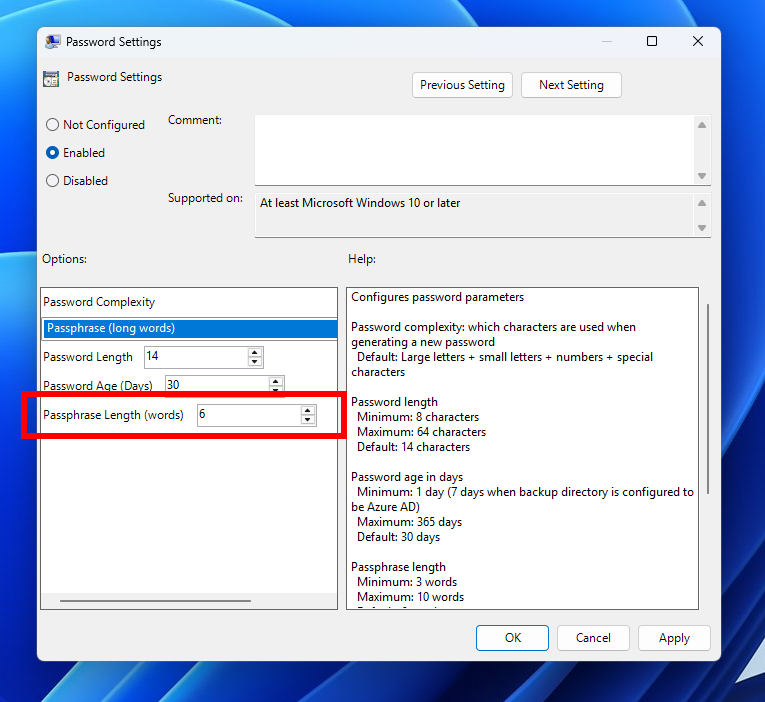
With this new feature, the existing PasswordComplexity policy setting can now be configured to select one of three different passphrase word lists. All three passphrase word lists are included as part of Windows, so no additional download is required. A new policy setting “PassphraseLength” is used to control the number of words in a new passphrase.
Construction of a passphrase is simple: the configured number of words are randomly selected from the configured word list and appended together. The first letter of each word is capitalized for easier readability.
Windows LAPS passphrase settings.
The new PassphraseLength policy setting:
Windows LAPS passphrase length setting.
The new passphrase feature is fully supported when backing passwords up to either Windows Server Active Directory or Microsoft Entra ID.
The three new PasswordComplexity passphrase settings each correspond to one of the original Electronic Fronter Foundation passphrase word lists.
Windows LAPS does not support either customer-configured word lists or customization of the built-in word lists.
The Windows LAPS CSP offers full support for managing these settings. The Windows LAPS CSP documentation will be updated at a later date to reflect the new settings.
Windows LAPS: New image rollback detection feature
Windows Local Administrator Password Solution (LAPS) has been improved with a new image rollback detection feature. Using this feature, Windows LAPS will now detect when an image rollback has occurred. When a live OS image is rolled back (regardless of mechanism, for example Hyper-V snapshot reversion, or via image re-deployment products) the result is often a “torn state” situation where the password stored in Active Directory no longer matches the password (hash) stored locally on the device. When this happens the IT admin will be unable to sign into the device using the persisted Windows LAPS password. The problem is not resolved until Windows LAPS rotates the password per the normal password expiration timestamp, which might not happen for days or weeks.
The new feature adds an Active Directory attribute “msLAPS-CurrentPasswordVersion” to the Windows LAPS schema. This attribute contains a random GUID which is written by Windows LAPS every time a new password is persisted in Active Directory, followed by saving a local copy. During every processing cycle, the GUID stored in msLAPS-CurrentPasswordVersion will be queried and compared to the locally persisted copy; if they are different, the password will be immediately rotated.
To enable this feature, you must first run the latest version of the Update-LapsADSchema PowerShell cmdlet. Windows LAPS will note the presence of the new attribute and start using it.
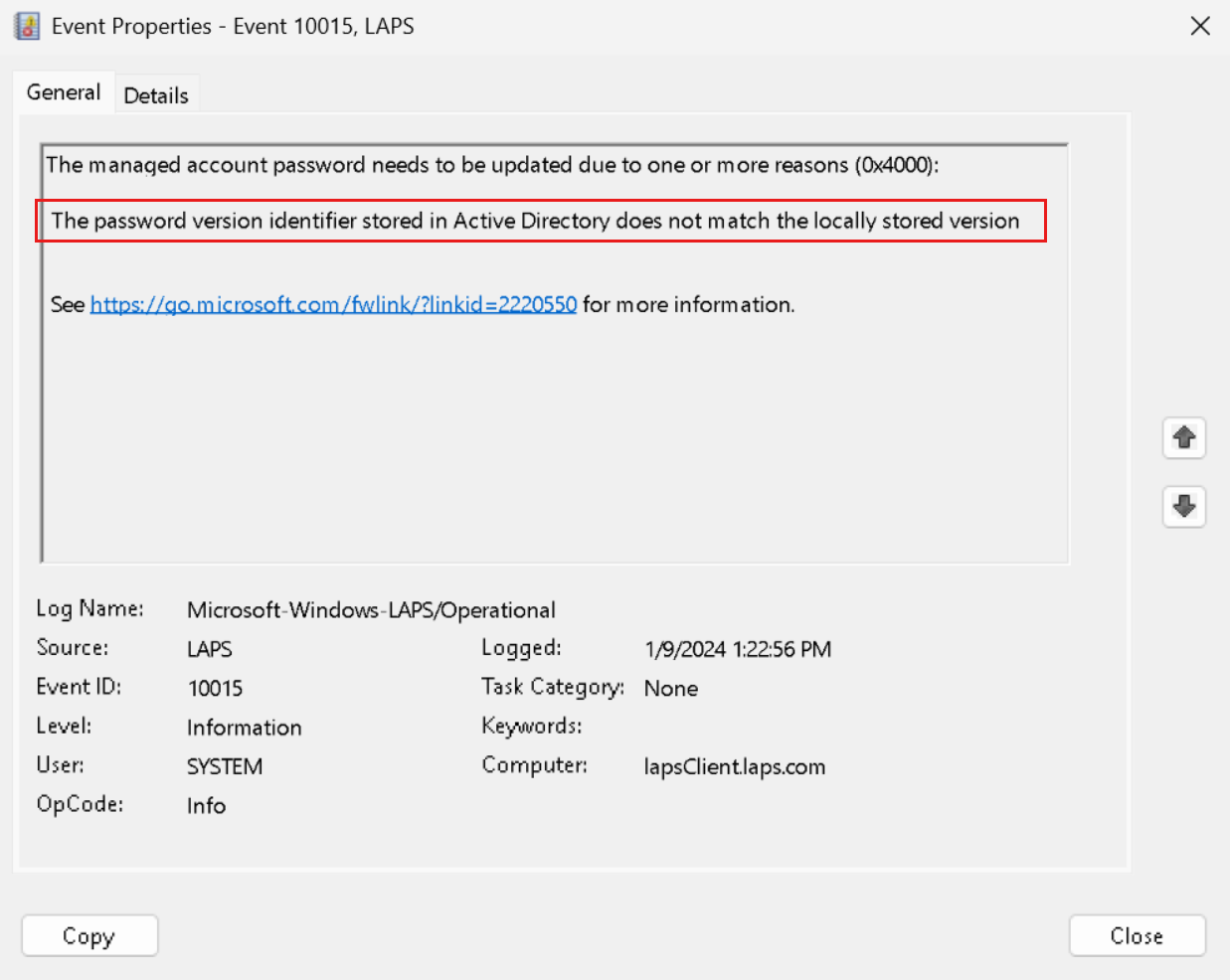
Windows LAPS will log a specific new reason when a rollback is detected, for example:
Windows LAPS event log message when OS rollback is detected.
If you do not run the updated version of the Update-LapsADSchema PowerShell cmdlet Windows LAPS will log a 10108 warning event in the event log, but will continue to function normally in all other respects.
Note that no policy settings are used to enable or configure this feature. The feature is always enabled once the new schema attribute has been added. The Windows LAPS documentation will be updated at a later date with additional information on this new feature.
Changes and Improvements
[General]
As we mentioned with Build 26020, WordPad is removed when doing a clean install and now is also removed on upgrade starting with this build.
[Copilot in Windows*]
We are making a change where the Copilot icon is shown on the right side of the system tray on the taskbar to make the entry point to Copilot more clear and easily accessible by being closer to where the Copilot pane opens. As part of this change, we have defaulted the “show the desktop” behavior for the far-right corner of the taskbar to off and this can be re-enabled in the taskbar behaviors section under Settings > Personalization > Taskbar (you can simply right-click on the taskbar to get to this). This is just beginning to roll out to Insiders in the Canary Channel so not every will see this change right away.
The Copilot on the right side of the system tray on the taskbar.
[Taskbar & System Tray]
When you hover over the date and time in the system tray, the tooltip will now always show a clock even when you only have a single clock added.
[File Explorer]
In addition to the new “Compress To” formats for 7Z and tar, we are adding a new compression wizard that lets you choose even more formats and specify even more details. You can compress individual files with gzip/bzip2 (and more,) or add multiple files to archives in different tar formats with different types of compression. You can also change the compression level and what types of data are stored in each archive.
[Windows Share]
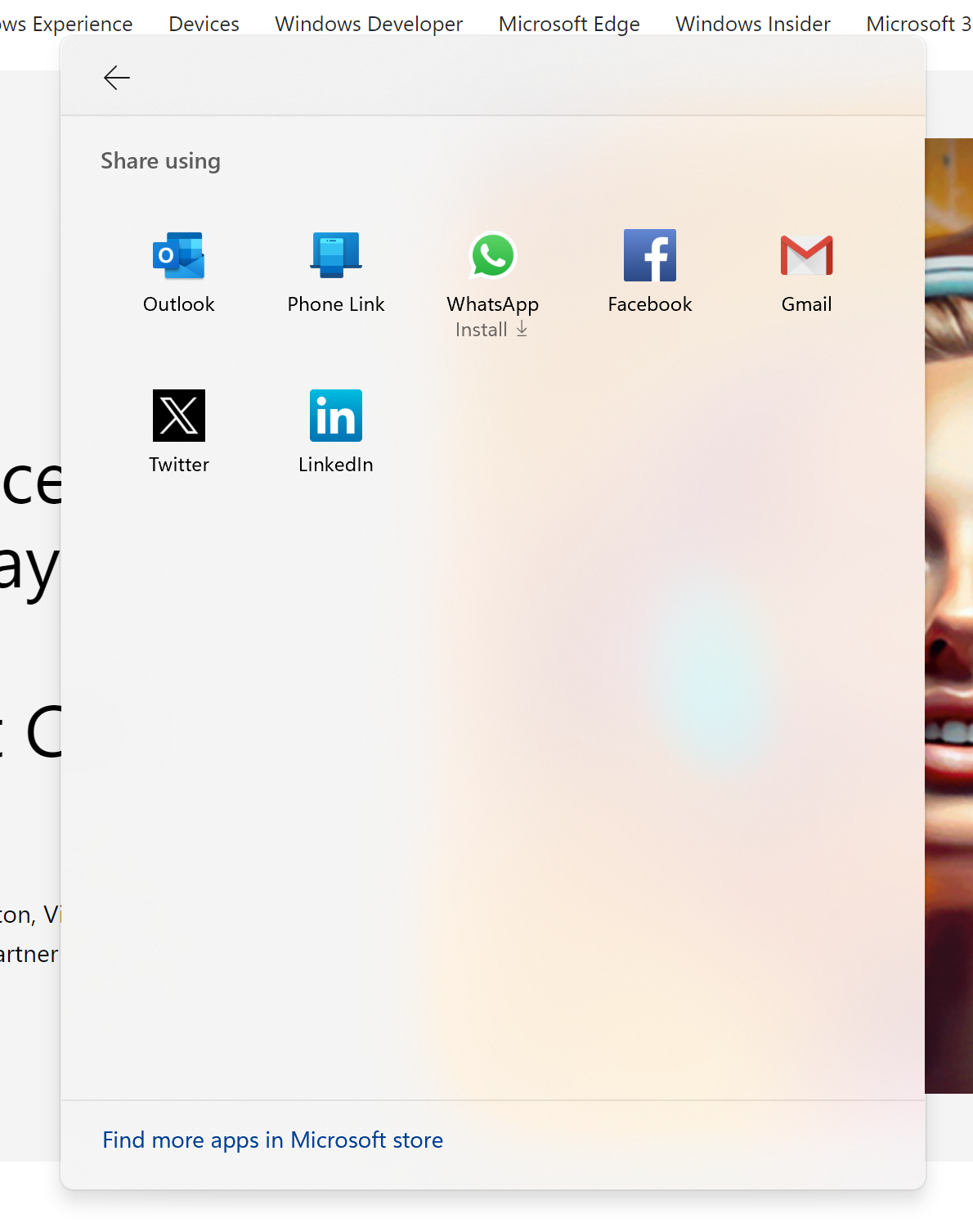
For Microsoft Edge and other browsers that invoke the Windows share window, the Windows share window now supports the ability to share website links directly to WhatsApp, Gmail, X (formerly Twitter), Facebook, and LinkedIn. In Microsoft Edge, you can invoke the Windows share window by clicking the share icon at the top right in the toolbar and choosing the Windows share options.
New share targets for sharing links through the Windows share window.
If you’re signed in with a Microsoft Entra ID, in addition to being able to share to your Microsoft Teams (work or school) contacts, you can also now share directly to specific Microsoft Teams Channels and groups chats as well directly within the Windows share window.
We have significantly improved nearby share transfer speed for users on same network. Before these changes, users had to be on the same private network but now users just have to be on the same network, which could be public or private. You can quickly turn on nearby share via Quick Settings and simply right-click on a local file in File Explorer, choose “Share”, and choose to share to a device listed under Nearby Share in the Windows share window.
[Task Manager]
We have updated the Task Manager icon to match the design of other icons in Windows 11.
Behold! The new Task Manager icon.
[Narrator]
In Microsoft Word, Narrator will now announce the presence of a draft comment, a resolved comment, a bookmark, or the availability of accessibility suggestions when reading text in the document.
Narrator users can now use voice access to open applications, dictate text and interact with elements on the screen using their voice. Narrator users can use voice access to give Narrator commands using their voice. For e.g., “speak faster”, “read next line”, etc. To get started, search for “voice access” in Windows search and set it up.
Fixed an issue where Narrator was not correctly announcing the selected item in combo boxes when users try to change the combo box value using key combination Control + up or down arrow.
Fixed an issue where Narrator was announcing old dialog names even after users navigate to new dialog on few web pages.
Fixed an issue where Narrator was not reading Role of a control in tables on the web while using table navigation commands CTRL + ALT + Arrow keys.
Fixed an issue in Microsoft Excel where Narrator was not consistently reading any item in the auto-complete list that comes when writing a formula.
Addressed an issue where Narrator was not announcing the selected state of menu items in few applications such as device manager.
Fixed an issue where Narrator was announcing both the unselected value and the newly selected value in elements such as date fields or any elements that are formatted as tables.
[Input]
Added the Colemak keyboard layout. To use you can add it in Settings > Time & Language > Language & region > and select a Latin-script alphabet-based language like English, click on the three dots to open Language Options for that language and then add a keyboard.
Added a new Hebrew keyboard layout. To use you can add it in Settings > Time & Language > Language & region > and select Hebrew, click on the three dots to open Language Options for that language, then add a keyboard, and select Hebrew (Standard, 2018).
[Magnifier]
Fixed an issue in Magnifier settings page where the text below “voice speed” slider was not following the color contrast guidelines.
Fixes for known issues
Fixed an issue causing Settings to not launch for a small number of Insiders on Build 26010+. If you are impacted and aren’t yet on this build, please see this forum post for a workaround.
Fixed a high hitting print spooler crash in the last 2 builds.
Fixed an issue where hovering over the system tray area wasn’t bringing up the taskbar when set to autohide.
Fixed an issue causing some users to see an increase in SYSTEM_THREAD_EXCEPTION_NOT_HANDLED bugchecks recently.
Fixed an issue causing some insiders to see a bugcheck with BAD_POOL_CALLER in Build 26016+.
Fixed an underlying issue related to scrollbars which was causing some app crashes in the last 2 builds.
Made a change to help fix an issue which could cause the spacing between your desktop icons to become extremely wide.
Fixed the issue in Widgets where announcements from the Microsoft Start feed are still shown on the taskbar after the feed is hidden.
Fixed the issue in Widgets where spacing and fonts used in some settings pages were incorrect.
Known issues
[General]
[IMPORTANT NOTE FOR GAMERS – UPDATED!] Some popular games may not work correctly and cause a bugcheck (green screen) when launched on the most recent Insider Preview builds in the Canary Channel. Please be sure to submit feedback in Feedback Hub on any issues you see with playing games on these builds.
[NEW] In some multi-monitor configurations on Build 26040, a display may appear as frozen. If you hit this, you can try CTRL + WIN + Shift + B to restart DWM.
[NEW] Content in some video streaming apps from the Microsoft Store may not play. As a workaround, try streaming from a browser.
We’re investigating an issue where the print queue is showing a messaging saying it can’t find the app when opened. As a workaround, you can launch the print queue from the Run dialog (WIN + R) and entering: explorer.exe shell:appsFolder\Microsoft.Windows.PrintQueueActionCenter_cw5n1h2txyewy!App.
[Widgets]
Keyboard navigation from settings subpages back to the top-level Settings page is broken.
Hi all, last Thursday Microsoft released Windows 11 Insider Preview Build 23619 to the Dev Channel.
All smooth upgradeds here, more improvemenets in sharing pictures from you mobile effortlessly.
Upcomming Teams meetings showing up directly in your start recommendations, this is an awesome idea!💡
Happy Upgrading!
What’s new in Build 23619
Instantly access new photos and screenshots from your mobile device
We are also beginning to gradually roll out a new feature for Windows that introduces the ability to effortlessly access and edit your most recent photos and screenshots from your Android mobile device in Snipping Tool on your PC. With this feature, you’ll receive instant notifications on your PC whenever a new photo or screenshot is captured on your Android device.
Windows notification prompting to open capture in Snipping Tool for markup.
To enable this experience, go to Settings > Bluetooth & devices > Mobile devices (this settings page was updated with Build 26016 in the Canary Channel and Build 23606 in the Dev Channel) and choose “Manage devices” and allow your PC to access your Android phone. Your PC will get a Cross Device Experience Host update in the Microsoft Store that is required for this experience to work.
New settings window for managing mobile devices that are allowed to connect to your PC.
[We are beginning to roll this out to Windows Insiders in BOTH the Canary and Dev Channels this week, so the experience isn’t available to all Insiders just yet as we plan to monitor feedback before pushing it out to everyone.]
FEEDBACK: Please file feedback in Feedback Hub (WIN + F) under Devices and Drivers > Linked devices.
Changes and Improvements
[Start menu]
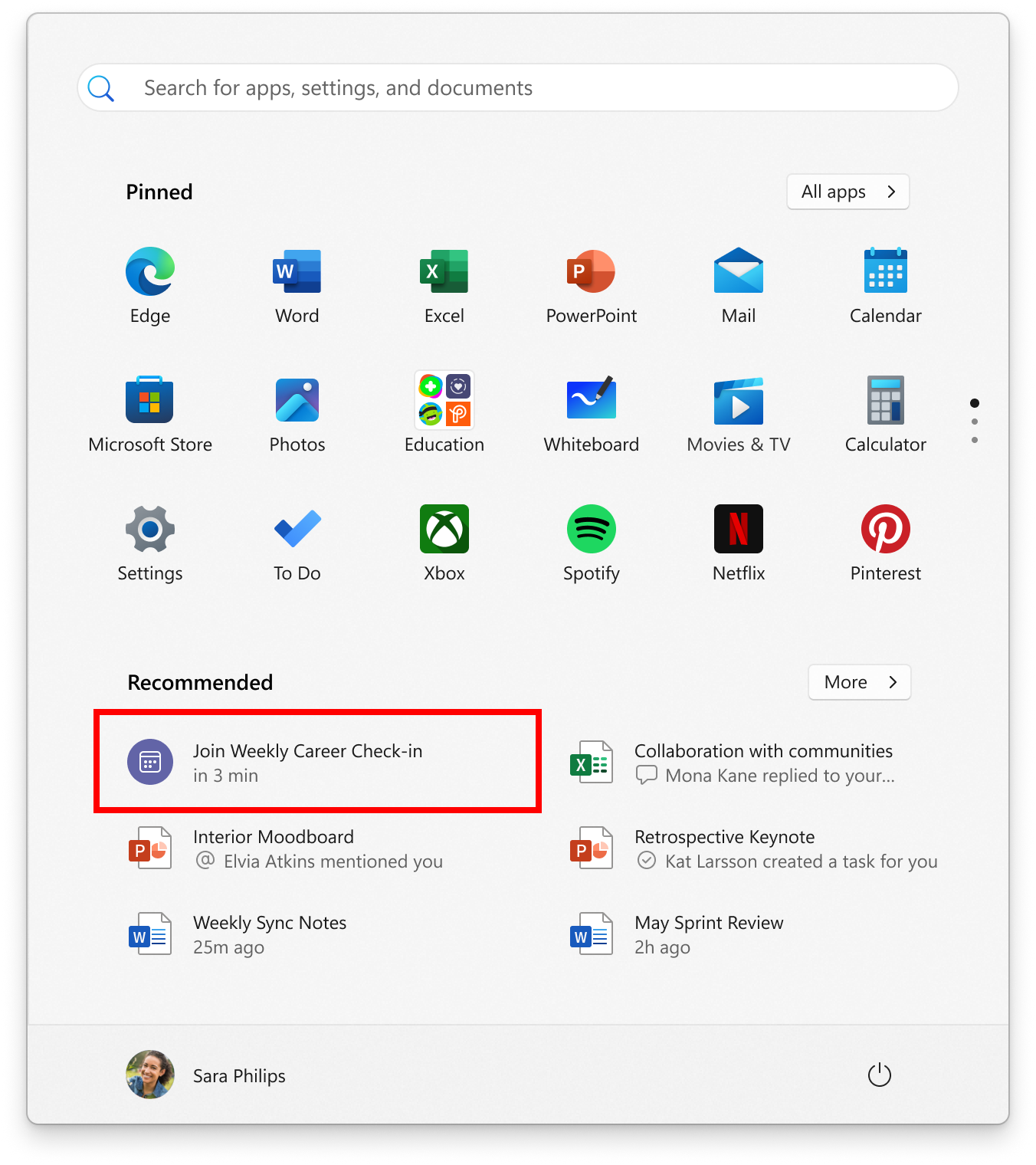
For people logged into Windows 11 Pro or Enterprise editions with a Microsoft Entra ID account, we are trying out the ability to view and join upcoming Microsoft Teams meetings directly from the Start menu. The next online Teams meeting will show up as a Recommended item 5 minutes before it begins, clicking the meeting recommendation will open the join meeting flow in Teams.
Join upcoming Microsoft Teams meetings directly Start menu.
Fixes
[File Explorer]
Did some more work to help improve the launch performance of File Explorer.
[Task Manager]
Fixed an issue where dragging the Task Manager window wouldn’t work if your mouse was on the search box.
[Other]
Fixed a crash when you tried to add natural voices for Narrator in Settings.
NOTE: Some fixes noted here in Insider Preview builds from the Dev Channel may make their way into the servicing updates for the released version of Windows 11.
Known issues
[Copilot in Windows*]
When first launching or after refreshing Copilot in Windows while using voice access, you’ll need to use “Show grid” commands to click in the “Ask me anything” box for the first time.
[Widgets]
Announcements from the Microsoft Start feed are still shown on the taskbar after the feed is hidden.
Keyboard navigation from settings subpages back to the top-level Settings page is broken.
Incorrect spacing and fonts used in some settings pages.