
How to File Actionable Windows Feedback Using the Feedback Hub

Share this post:

Providing feedback to Microsoft is crucial for improving Windows and ensuring it meets users’ needs. The Feedback Hub is a powerful tool that allows you to share your thoughts, report issues, and suggest new features. Here’s a step-by-step guide to help you file actionable feedback effectively.

Step 1: Open the Feedback Hub

First, you need to open the Feedback Hub. You can do this by:

  1. Pressing the Windows key and typing “Feedback Hub.”
  2. Selecting the Feedback Hub app from the search results.

or even faster: Windows Key + F

Step 2: Sign In

To provide feedback, you need to sign in with your Microsoft account. This helps Microsoft track and respond to your feedback.

Step 3: Navigate to the Feedback Section

Once you’re signed in, navigate to the Feedback section. You can find this in the left-hand menu and click the give new feedback button.

Step 4: Choose the Type of Feedback

You have two main options:

  • Report a problem: Use this if you’re experiencing an issue or bug.
  • Suggest a feature: Use this if you have an idea for a new feature or improvement.

Step 5: Describe Your Feedback

This is the most critical part. Here’s how to make your feedback actionable:

  • Title: Provide a clear and concise title. For example, “Bluetooth connectivity issues after update.”
  • Details: Describe the issue or suggestion in detail. Include steps to reproduce the problem, expected results, and actual results. For example:
    • Steps to reproduce: Turn on Bluetooth, try to connect to a device.
    • Expected result: Device connects successfully.
    • Actual result: Device fails to connect, error message appears.

Step 6: Categorize Your Feedback

Select the appropriate category and subcategory for your feedback. This helps Microsoft route your feedback to the right team.

Step 7: Attach Files and Diagnostics

If applicable, attach screenshots, videos, or diagnostic data to help illustrate your feedback. This can be done by clicking on the Attach a file button.

Step 8: Submit Your Feedback

Once you’ve filled out all the necessary information, click the Submit button. Your feedback will be sent to Microsoft for review.

Step 9: Monitor and Upvote

After submitting, you can monitor the status of your feedback in the My Feedback section. You can also upvote feedback from other users that you find relevant.

Tips for Effective Feedback

  • Be Specific: The more specific your feedback, the easier it is for Microsoft to understand and address it.
  • Stay Objective: Focus on the issue or suggestion without emotional language.
  • Provide Context: Explain why the issue is important or how the feature would improve your experience.

By following these steps, you can ensure your feedback is clear, actionable, and helpful. Your input is invaluable in making Windows better for everyone. Happy feedbacking!

Share this post:

Announcing Windows 11 Insider Preview Build 26120.2200 (Dev Channel)

Share this post:

Hi all, last Friday Microsoft released Windows 11 Insider Preview Build 26120.2200 (KB5044376) to the Dev Channel.

At 1st downloading thoe update seemed to thake very long ( 1% for almost an hour ) next devices went smooth

Happy Upgrades!

[Windows Studio Effects]

  • Windows Studio Effects delivers AI-based camera and audio enhancements on devices equipped with a Neural Processing Unit (NPU). Today, you can access Studio Effects in Quick Settings from the system tray of the taskbar. To further streamline your experience, an icon will now appear in the system tray when using any application with a Studio Effects-enabled camera. Simply click on this icon to launch the Studio Effects page in Quick Settings. Additionally, hovering over the icon will display a tooltip indicating which application is utilizing the camera.
New Studio Effects icon shown in system tray when using any application with a Studio Effects-enabled camera.

[Dynamic Lighting]

  • When no compatible devices are attached, the Dynamic Lighting settings page will now show a placeholder message and Brightness and Effects controls are disabled.
  • On the Dynamic Lighting settings page, we have added Forward, Backward, Outward and Inward direction options to the Wave effect, and added the Forward direction option to the Gradient effect.

Fixes gradually being rolled out to the Dev Channel with toggle on*

[Start menu]

  • Fixed an issue where if you clicked or tapped on a letter on Start menu’s All apps list, the All apps list may break.

[Taskbar]

  • Fixed an issue where explorer.exe was crashing for some Insiders when hovering over certain open apps in the taskbar.

[Settings]

  • Fixed an issue where there was a blank entry in Privacy & Security and clicking it would crash Settings.

[Input]

  • Updated the mouse option “Show location of pointer when I press the CTRL key”, so that the circles displayed are now DPI-aware, and aren’t really small on high DPI monitors.

Fixes for everyone in the Dev Channel

[Other]

  • [Windows Kernel Vulnerable Driver Blocklist file (DriverSiPolicy.p7b)] Fixed: This update adds to the list of drivers that are at risk for Bring Your Own Vulnerable Driver (BYOVD) attacks.
  • [HTML Applications (HTA)] Fixed: HTA optional components (OC) are now in ARM64 Windows PE.
  • [Live kernel debug files (dumps)] Fixed: sys creates live kernel debug files when it should not.
  • [User interface (UI)] Fixed: You cannot view some parts of the UI when you run certain apps.
  • [Winlogon] Fixed: A stop error occurs during shutdown.
  • [sfc /scannow command] Fixed: You get errors every time you run the command.
  • [Windows Disk Cleanup app] Fixed: This update addresses some of the causes for the wrong free space estimates and improves its accuracy.

Known issues

[Start menu]

  • [NEW] You may see there is an unexpected amount of spacing between items in the Start menu apps list.

[Dev Drive]

  • [NEW] We’re working on the fix for an underlying issue leading to Dev Drives potentially not being accessible within WSL.

soure: Windows Blogs

Share this post:

Announcing Windows 11 Insider Preview Build 26120.2130 (Dev Channel)

Share this post:

Hi all, last Thursday Microsoft released Windows 11 Insider Preview Build 26120.2130 (KB5044400)) to the Dev Channel.

All smooth updates here, Happy Upgarding!

Changes and Improvements gradually being rolled out to the Dev Channel with toggle on*

[Start menu]

  • “All apps” is now just “All” on the Start menu.

[Input]

  • We’re beginning to roll out a new Gamepad keyboard layout for the on-screen keyboard in Windows 11 that supports the ability to use your Xbox controller to navigate and type. This includes button accelerators (example: X button for backspace, Y button for spacebar) additionally the keyboard keys have been vertically aligned for better controller navigation patterns.
New Gamepad keyboard layout for the on-screen keyboard in Windows 11 that supports the ability to use your Xbox controller to navigate and type.

[Narrator]

  • We have added a new shortcut “Narrator key + control + X” to copy what Narrator last spoke to clipboard. It follows the pattern of using “Narrator key + X” which repeats the last spoken phrase out loud and is a good way to memorize similar shortcuts. You can use these shortcuts to review and copy what Narrator spoke, useful in cases you want to quickly copy some content or descriptions or codes/numbers for use.
  • Narrator will now auto-read contents of a mail in the new Outlook app similar to behavior in Outlook classic.

[Networking]

  • If you use the netsh wlan show networks command, you should be able to read SSIDs that are UTF-8 encoded. This means that Wi-Fi SSIDs with Unicode characters (like emojis) should be properly displayed in netsh output.

Fixes gradually being rolled out to the Dev Channel with toggle on*

[General]

  • Fixed an issue for a small number of Insiders after the latest builds, where on locking your PC, after waking the PC from sleep the login screen contents wouldn’t load and you couldn’t sign back in.

[Input]

  • Fixed an underlying issue which could lead to clipboard history not displaying items you’d copied.

[Taskbar]

  • Fixed an issue where if you had multiple windows open for an app on your taskbar, pressing WIN + multiple times wasn’t cycling between the windows, for example, pressing WIN + 1.

[Narrator]

  • We have addressed a performance issue where Narrator would slow down after 15 minutes of continuous use with a single application. If you continue to experience any performance delays, do report using Feedback Hub.
  • Fixed an issue where Narrator would add an additional announcement “contains style” whenever its focus is on text that has styling attributes such as bullets, numbers across applications such as Microsoft Edge, Teams, Outlook, etc.
  • Fixed an issue where few dialogs in Narrator were not adopting the 200% text scaling setting in Windows.

[Live captions]

  • Fixed an issue causing live captions to crash for some people in the previous flight when you tried to use it.

[Other]

  • Fixed an issue causing mica to not work correctly when using a slideshow for your desktop background.

Known issues

[Taskbar]

  • [NEW] We’re investigating reports that explorer.exe is crashing for some Insiders when hovering over certain open apps in the taskbar.

[Start menu]

  • If you click or tap on a letter on Start menu’s All apps list, the All apps list may break. If you encounter this issue, please try rebooting or restarting explorer.exe to fix it.

source: Windows Blogs
Share this post:

Announcing Windows 11 Insider Preview Build 27729 (Canary Channel)

Share this post:

Hi all, last Wednesday Microsoft released Windows 11 Insider Preview Build 27729 to the Canary Channel.

This update holds a few new things, updated snippintool that can copy as table, very nice! Copilot button remapping in the settings app and fixed crashing of Microsoft Solitaire & casual games.

Intresting development when a device has both Wi-Fi and a UTP connected network: the Microsoft Store waits for Wi-Fi for installation of Apps: (Feedback Hub: https://aka.ms/AAsy8z5)

Happy Upgrading!

Changes and Improvements

[Settings]

  • We are adding the ability to configure the Copilot key. You can choose to have the Copilot key launch an app that is MSIX packaged and signed, thus indicating the app meets security and privacy requirements to keep customers safe. The key will continue to launch Copilot on devices that have the Copilot app installed until a customer selects a different experience. This setting can be found via Settings > Personalization > Text input. If the keyboard connected to your PC does not have a Copilot key, adjusting this setting will not do anything. We are planning further refinements to this experience in a future flight.
New setting for configuring the Copilot key highlighted in a red box.

Fixes

[General]

  • We fixed an underlying issue causing some games, including Microsoft Solitaire & Casual Games, to crash on launch after installing Build 27718+.

[Windowing]

  • Fixed an underlying issue which could cause the screen to go black for a few seconds for some people when using ALT + Tab.

[Other]

  • We fixed an issue causing BitLocker to not work correctly for a small number of Insiders in the last 2 flights.

Known issues

[General]

  • [IMPORTANT NOTE FOR COPILOT+ PCs] If you are joining the Canary Channel on a new Copilot+ PC from the Dev Channel, Release Preview Channel or retail, you will lose Windows Hello pin and biometrics to sign into your PC with error 0xd0000225 and error message “Something went wrong, and your PIN isn’t available”. You should be able to re-create your PIN by clicking “Set up my PIN”.
  • We’re investigating reports that some Insiders are still experiencing rollbacks (with error code 0xc190010) when attempting to install the latest Canary builds.
  • [UPDATED] Some Insiders with PCs that have older NVIDIA GPUs (like the GTX 970, Quadro K620, etc.) are experiencing some issues where their displays appear stuck at a black screen and unresponsive or seeing their GPUs showing errors in Device Manager and not working correctly. We are aware of the issue and working on a fix. If you are impacted by this issue and unable to use your PC, you can boot into Windows Recovery (WinRE), roll back to the previous build, and pause updates in Windows Update to wait for a new build with the fix for this issue. If you paused updates with Build 27723 last week you will need to un-pause and re-pause updates to not take Build 27729 to remain on Build 27718 for right now.
  • [NEW] We’re working on the fix for an issue causing some Insiders to see a bugcheck with error PAGE_FAULT_IN_NONPAGED_AREA starting in Build 27723.

[Input]

  • We’re working on the fix for an underlying issue causing the Emoji Panel and Clipboard History to not open in certain surfaces anymore, including in Registry Editor.

Snipping Tool Update

We are rolling out an update for Snipping Tool (version 11.2409.23.0 and newer) to Windows Insiders in the Canary and Dev Channels that introduces a new “Copy as table” feature.

Snipping Tool showing copy as table option with text pasted into Microsoft Excel.

Customers can do even more with Snipping Tool! Alongside existing text features, like copying text from an image and redacting sensitive information, we’re adding a new option for “Copy as table”. Customers can use “Copy as table” to easily copy structured table data into an email, document, or spreadsheet. To get started, capture a screenshot with table data, select “Text actions,” and select “Copy as table.” You can paste the structured table data from there! Please note: the current implementation of the feature works best when your screenshot only includes one table.

FEEDBACK: Please file feedback in Feedback Hub (WIN + F) under Apps > Snipping Tool.

source: Windows Blogs

Share this post:

Announcing Windows 11 Insider Preview Build 27723 (Canary Channel)

Share this post:

Hi all, last Wednesday Microsoft released Windows 11 Insider Preview Build 27723 to the Canary Channel.

A quick and smooth update on all my Canary devices here

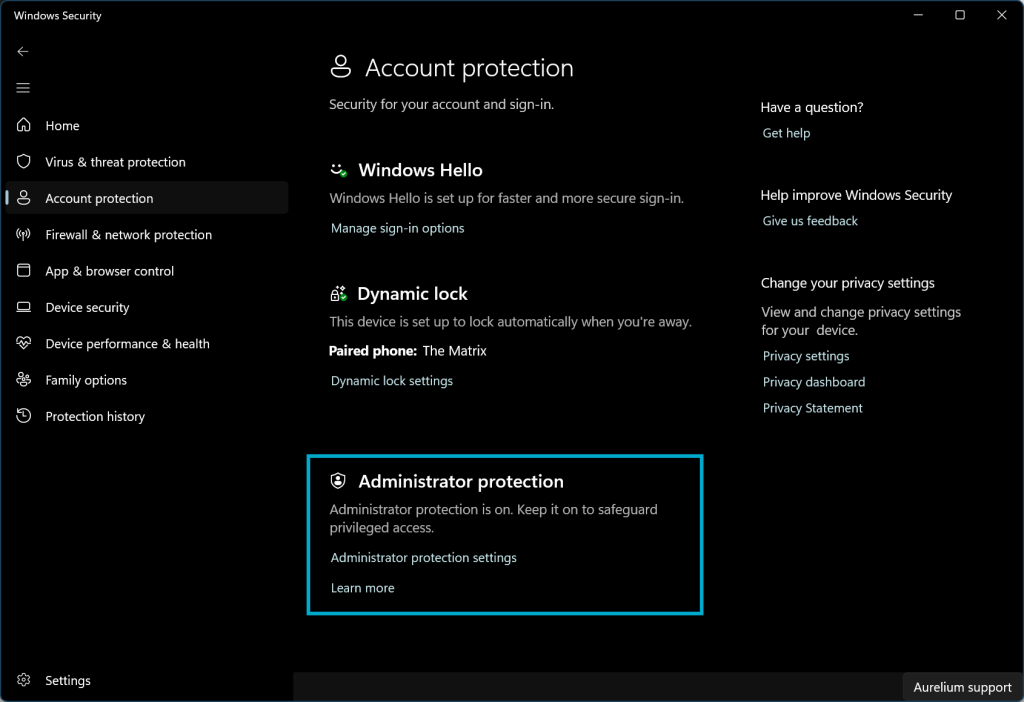
Since last week’s build the Canary channel has the Administartor Protection built in, give it a spin it looks very promissing.

Happy ugrading!

Changes and Improvements

[General]

  • [REMINDER] Insider Preview Build Expiration: The expiration date for Insider Preview builds flighted to the Canary Channel has been updated to 9/15/2025 starting with Build 27695Please make sure you are updated to the latest build in the Canary Channel.

[Search on the Taskbar]

  • We are beginning to roll out the ability to share local files directly from within the search results shown in the search box on the taskbar.
New option to share a local file highlighted in a red box in the search results from the search box on the taskbar.

[Voice Access]

  • We are making improvements for the spelling and corrections experience in voice access. You can now use the experience for the entire voice access session. The spelling experience will now enable you to dictate the characters at a faster speed and offer more editing flexibility inside the experience with dictation commands, namely selection, deletion and text navigation commands.

[Fonts]

  • There is a new simplified Chinese font (Simsun-ExtG) with 9,753 ideographs supporting Unicode Extensions GH and I. Included is the highly requested character for Biangbiang noodles. This character U+30EDD is said to be the most complicated Chinese character, as you can see in the image below. We are aware that some applications may not be able to display these new extension characters yet.
    • Unicode range G 30000-3134A (4,939 chars)
    • Unicode range H 31350-323AF (4,192 chars)
    • Unicode range I 2EBF0-2EE5D (622 chars)
Biangbiang character Unicode 30EDD.

[Settings]

  • The detach virtual hard disk (VHD/VHDx) button we added under Settings > System > Storage > Disks & Volumes introduced with Build 27686 has temporarily been disabled starting with Build 27718. We’re working to re-enable this change in a future flight soon.

Known issues

[General]

  • [IMPORTANT NOTE FOR COPILOT+ PCs] If you are joining the Canary Channel on a new Copilot+ PC from the Dev Channel, Release Preview Channel or retail, you will lose Windows Hello pin and biometrics to sign into your PC with error 0xd0000225 and error message “Something went wrong, and your PIN isn’t available”. You should be able to re-create your PIN by clicking “Set up my PIN”.
  • [NEW] We’re investigating reports that some games, including Microsoft Solitaire & Casual Games, are crashing on launch after installing 27718.
  • [NEW] We’re investigating reports that some Insiders are still experiencing rollbacks (with error code 0xc190010) when attempting to install the latest Canary builds.
  • [ADDED 10/10] Some Insiders with PCs that have older NVIDIA GPUs (like the GTX 970, Quadro K620, etc.) are experiencing some issues where their displays appear stuck at a black screen and unresponsive or seeing their GPUs showing errors in Device Manager and not working correctly. We are aware of the issue and working on a fix. If you are impacted by this issue and unable to use your PC, you can boot into Windows Recovery (WinRE), rollback to the previous build, and pause updates in Windows Update to wait for a new build with the fix for this issue.

[Input]

  • We’re working on the fix for an underlying issue causing the Emoji Panel and Clipboard History to not open in certain surfaces anymore, including in Registry Editor.

source: Windows Blogs

Share this post:

Enhancing Security with Remote Desktop Services: Limiting Console Session Access

Share this post:

In today’s digital landscape, securing remote access to systems is paramount. One effective method to enhance security is by configuring Remote Desktop Services (RDS) to limit the number of connections, thereby blocking access to the console session via Remote Desktop Protocol (RDP). Here’s a step-by-step guide on how to achieve this using Group Policy.

Step-by-Step Guide

  1. Open Group Policy Management Console (GPMC)
    • Press Win + R, type gpmc.msc, and press Enter. (or locally run gpedit.msc)
  2. Navigate to the Specific Policy
    • Go to Computer Configuration > Administrative Templates > Windows Components > Remote Desktop Services > Remote Desktop Session Host > Connections.
  3. Configure the Policy
    • Locate the policy named “Limit number of connections”.
    • Double-click to open the policy settings.
  4. Enable and Set the Limit
    • Select “Enabled”.
    • In the “RD Maximum Connections allowed” box, set the desired number of connections. For instance, setting it to 1 ensures only one remote connection is allowed, effectively blocking access to the console session.
  5. Apply and Close
    • Click “Apply” and then “OK” to save the changes.
  6. Update Group Policy
    • Open Command Prompt as an administrator and run gpupdate /force and reboot the machine to apply the new policy settings.

Benefits of Limiting Connections

  • Enhanced Security: Restricting the number of connections minimizes the risk of unauthorized access.
  • Resource Management: Prevents system overload by limiting the number of active sessions.
  • Control and Monitoring: Easier to monitor and manage remote sessions, ensuring compliance with security policies.

By following these steps, administrators can effectively block access to the console session using RDP, thereby enhancing the overall security of their systems. This simple yet powerful configuration helps maintain a secure and efficient remote access environment.

Share this post:

Announcing Windows 11 Insider Preview Build 26120.1930 (Dev Channel)

Share this post:

Hi all, last Friday Microsoft released Windows 11 Insider Preview Build 26120.1930 (KB5044388) to the Dev Channel.

This build also has the policy templates for Administartor Protecion, only enableing them does not enable the feature (yet)

All Dev channel device upgrades went smooth here, make sure to use the Feedback Hub if any issues are spotted.

Happy Upgrades!

Changes and Improvements gradually being rolled out to the Dev Channel with toggle on*

[General]

  • This update includes a small set of general improvements and fixes that improve the overall experience for Insiders running this build on their PCs.

[Fonts]

  • There is a new simplified Chinese font (Simsun-ExtG) with 9,753 ideographs supporting Unicode Extensions GH and I. Included is the highly requested character for Biangbiang noodles. This character U+30EDD is said to be the most complicated Chinese character, as you can see in the image below. We are aware that some applications may not be able to display these new extension characters yet.
    • Unicode range G 30000-3134A (4,939 chars)
    • Unicode range H 31350-323AF (4,192 chars)
    • Unicode range I 2EBF0-2EE5D (622 chars)
Biangbiang character Unicode 30EDD.

[Windows Sandbox]

  • The new Windows Sandbox Client Preview that began rolling out with Build 26120.1843 should now be available to all Insiders in the Dev Channel.
Windows Sandbox Client Preview with new dropdown showing clipboard redirection, audio/video input control, and the ability to share folders with the host.

Fixes gradually being rolled out to the Dev Channel with toggle on*

[Other]

  • Fixed an issue for some Insiders with dual boot devices, where the boot menu (where you select which OS to boot into) wasn’t displaying correctly (the color was wrong, and it might only display in half the available space).

Changes and Improvements gradually being rolled out to everyone in the Dev Channel

[Settings]

  • We are adding the ability to configure the Copilot key. You can choose to have the Copilot key launch an app that is MSIX packaged and signed, thus indicating the app meets security and privacy requirements to keep customers safe. The key will continue to launch Copilot on devices that have the Copilot app installed until a customer selects a different experience. This setting can be found via Settings > Personalization > Text input. If the keyboard connected to your PC does not have a Copilot key, adjusting this setting will not do anything. We are planning further refinements to this experience in a future flight.
New setting for configuring the Copilot key highlighted in a red box.

Known issues

[General]

  • This build may fail to install with error 0x800f0983. If you see this error, please try to install it again, as it should work on retry. If it stays on 0%, please be patient – it should proceed.

[Start menu]

  • If you click or tap on a letter on Start menu’s All apps list, the All apps list may break. If you encounter this issue, please try rebooting or restarting explorer.exe to fix it.

New Clock widgets: Countdown and Timer

We are rolling out a Clock app update to Windows Insiders across all Insider Channels that includes two new clock widgets: countdown and timer. Make sure you have the latest version of the Clock app update from the Microsoft Store (version 11.2408.9.0 and higher). After you open the widgets board, you can open the widgets picker by clicking the “+” button in the top right corner where you would be able to add these widgets to your board.

New countdown and timer widgets from the Clock app showing on the widgets board.

FEEDBACK: Please file feedback in Feedback Hub (WIN + F) under Apps > Clock App.

source: Windows Blogs
Share this post:

Announcing Windows 11 Insider Preview Build 26120.2122 (Dev Channel)

Share this post:

Hi all, last Friday Microsoft released Windows 11 Insider Preview Build 26120.2122 (KB5044374) to the Dev Channel.

Snipping tool now has copy as table this will save a lot of time!

Happy Updates!

Changes and Improvements gradually being rolled out to the Dev Channel with toggle on*

[General]

  • This update includes a small set of general improvements and fixes that improve the overall experience for Insiders running this build on their PCs.

[Taskbar & System Tray]

  • We’ve updated the previews that show when you mouse-over/hover over apps on the taskbar. We have also improved the animations for when these previews show on the taskbar based on Insider feedback.
Updated taskbar previews shown for two open File Explorer windows.

[Task Manager]

  • We’ve updated the design of the Disconnect and Logoff dialogs in Task Manager to now support dark mode and text scaling.
  • In the Performance section we now label listed disks with their type.

Fixes gradually being rolled out to the Dev Channel with toggle on*

[Windowing]

  • Fixed an underlying issue which could cause the screen to go black for a few seconds for some people when using ALT + Tab.

Fixes for everyone in the Dev Channel

[General]

  • Fixed an issue causing some Insiders to see error 0x800f0825 when trying to install the latest Dev Channel builds.

[Other]

This update includes fixes for the following issues:

  • [Remote Desktop Gateway Service] Fixed: The service stops responding. This occurs when a service uses remote procedure calls (RPC) over HTTP. Because of this, the clients that are using the service disconnect.

Known issues

[Start menu]

  • If you click or tap on a letter on Start menu’s All apps list, the All apps list may break. If you encounter this issue, please try rebooting or restarting explorer.exe to fix it.

[Live captions]

  • [NEW] After installing this build, live captions may crash if you try to use it.

Snipping Tool Update

We are rolling out an update for Snipping Tool (version 11.2409.22.0 and newer) to Windows Insiders in the Canary and Dev Channels that introduces a new “Copy as table” feature.

Snipping Tool showing copy as table option with text pasted into Microsoft Excel.

Customers can do even more with Snipping Tool! Alongside existing text features, like copying text from an image and redacting sensitive information, we’re adding a new option for “Copy as table”. Customers can use “Copy as table” to easily copy structured table data into an email, document, or spreadsheet. To get started, capture a screenshot with table data, select “Text actions,” and select “Copy as table.” You can paste the structured table data from there! Please note: the current implementation of the feature works best when your screenshot only includes one table.

FEEDBACK: Please file feedback in Feedback Hub (WIN + F) under Apps > Snipping Tool.

source: Windows Blogs

Share this post:

Announcing Windows 11 Insider Preview Build 27718 (Canary Channel)

Share this post:

Hi all, last Wednesday Microsoft released Windows 11 Insider Preview Build 27718 to the Canary Channel. ISOs for this build – they can be >downloaded here<.

The new Administrator protection is available in this build, it can be enabled through Intune policy or local policy if you want to test:

in Intune, create a new policy Windows 10 or later from settings catalog, search for insider, select Local PoliciesSecurity options:

add this setting

in policies:

Quick waring though, sometimes the promt does not load causing the pc to get stuck on the secure desktop requiring to reboot he device to get out of it (FeedbackHub: https://aka.ms/AAslpvo)

Happy Upgrades!

Changes and Improvements

[General]

  • [REMINDER] Insider Preview Build Expiration: The expiration date for Insider Preview builds flighted to the Canary Channel has been updated to 9/15/2025 starting with Build 27695Please make sure you are updated to the latest build in the Canary Channel.

[Lock screen]

  • We have updated the Lock screen so that the media controls will now show at the lower bottom center of the Lock screen now when media is being played.
Updated position of media controls shown on the Lock screen when media is being played highlighted in a red box.

[Start menu]

  • You can drag apps from the Pinned section of the menu and pin them to the taskbar.
  • [ADDED] Based on feedback, we’ve made some updates to the new account manager on the Start menu making the sign out option directly visible, and adding a list of signed in users under “…” so it’s faster to switch accounts.
New account manager on the Start menu with sign out option directly visible highlighted in a red box.

[Taskbar & System Tray]

  • Updated the taskbar to now support first letter navigation, so when keyboard focus is set to the taskbar (WIN + T), you can press a letter, and it will jump to the open or pinned app whose name starts with that letter. Pressing the letter multiple times will jump to the subsequent app which starts with that letter, if there are multiple apps for that letter. For those using uncombined taskbar, rather than app name, the first letter navigation will use window name. Along with this, pressing Home and End will now move keyboard focus to the first and last (respectively) items in the taskbar.

[Notifications]

  • If desired, there’s now an option to turn off the suggestions to disable notifications from certain apps. You can now press the “…” within the notification to disable the notification, as you can with other notifications, or you can go to the list of notification senders in Settings > System > Notifications and turn it off from there (called “Notification Suggestions” in the list). Note – this entry will only appear in the senders list after you have received one.

[Windows Share]

  • We’re rolling out some minor UI changes to simplify the Windows share window which removes the search box.

[Narrator]

  • We have made several changes to improve the performance of Narrator scan mode. This is expected to make scan mode responses much quicker, especially while using Microsoft Edge, and reading through large documents. To try out scan mode, turn on Narrator first (Win key + Ctrl + Enter), and then turn scan mode ON by pressing Caps Lock + Spacebar during a Narrator session.

[Energy Saver]

  • For laptops on battery, a notification will pop up asking you to plug in your laptop if the battery level reaches 20% while Energy Saver is set to “Always On”.

[Windows Update]

  • We’ve made some small design improvements to the dialog that opens if there’s something that needs your attention before proceeding with a Windows update, for example if more space is needed or there’s a compatibility issue. This includes updating the icon sizes and spacing.

[Input]

  • We have updated Settings > Bluetooth & Devices > Touch to have a new section for touch screen edge gestures, where you can choose if you would like to disable the left or right screen edge touch gesture. Note, this feature is rolling out so not all Insiders in the Canary Channel will see it right away.

[Administrator protection]

  • Administrator protection is an upcoming platform security feature in Windows 11, which aims to protect free floating admin rights for administrator users allowing them to still perform all admin functions with just-in-time admin privileges. This feature is off by default and needs to be enabled via group policy. We plan to share more details about this feature at Microsoft Ignite.

Fixes

[General]

  • Fixed an issue which was causing some Insiders to experience a hang at the boot screen and their PC to roll back with error 0xC1900101 when trying to upgrade to the previous flight.
  • Fixed an issue in the last 2 Canary builds which was causing sporadic explorer.exe crashes when moving windows around.
  • Fixed an issue causing some Insiders on the last 2 Canary builds to see a bugcheck with error message “SYSTEM_SERVICE_EXCEPTION”.

[Input]

  • Fixed an issue causing the emoji panel to close when trying to switch to the kaomoji and symbols sections, or after selecting an emoji.
  • Updated the logic for the setting “Press the lower right corner of the touchpad to right-click” Settings > Bluetooth & Devices > Touchpad so it shouldn’t show in cases where the touchpad doesn’t support the functionality.

[Widgets]

  • Fixed an issue which could result in the Widgets icon unexpectedly displaying in the taskbar twice sometimes.

[Other]

  • Fixed a high hitting wmiprvse.exe crash in the last 2 Canary flights.
  • Fixed an issue which was causing certain apps (like Media Player) to crash when playing audio for some Insiders in the last 2 Canary flights.
  • Fixed an issue for some Insiders with dual boot devices, where the boot menu (where you select which OS to boot into) wasn’t displaying correctly (the color was wrong, and it might only display in half the available space).

Known issues

[General]

  • [IMPORTANT NOTE FOR COPILOT+ PCs] If you are joining the Canary Channel on a new Copilot+ PC from the Dev Channel, Release Preview Channel or retail, you will lose Windows Hello pin and biometrics to sign into your PC with error 0xd0000225 and error message “Something went wrong, and your PIN isn’t available”. You should be able to re-create your PIN by clicking “Set up my PIN”.

[Movies & TV]

  • [NEW] Insiders may not be able to play purchased content in the Movies & TV app on the recent Canary Channel builds. This issue will soon be fixed in a future flight.

[Input]

  • [NEW] We’re working on the fix for an underlying issue causing the Emoji Panel and Clipboard History to not open in certain surfaces anymore, including in Registry Editor.

Microsoft Store Update

Windows Insiders in the Canary and Dev Channels running version 22409.xxxx.x of the Microsoft Store and higher will see the following improvement rolling out:

  • App Categories: The apps page on the Microsoft Store will now show a new categories experience just under the featured section. Clicking on any of the options will lead you to a page where you can browse a variety of apps for that category. We hope you find this new experience helpful as you browse the store to find your next favorite app. Let us know what you think!
New app categories shown on the apps page in the Microsoft Store under the featured section.

FEEDBACK: Please file feedback in Feedback Hub (WIN + F) under Microsoft Store.

New Clock widgets: Countdown and Timer

We are rolling out a Clock app update to Windows Insiders across all Insider Channels that includes two new clock widgets: countdown and timer. Make sure you have the latest version of the Clock app update from the Microsoft Store (version 11.2408.9.0 and higher). After you open the widgets board, you can open the widgets picker by clicking the “+” button in the top right corner where you would be able to add these widgets to your board.

New countdown and timer widgets from the Clock app showing on the widgets board.

FEEDBACK: Please file feedback in Feedback Hub (WIN + F) under Apps > Clock App.

source: Windows Blogs

Share this post:

Windows 11 24H2: The Future of Computing is Here

Share this post:

October 1, 2024 marks a significant milestone in the tech world with the release of Windows 11 version 24H2. This update, also known as the Windows 11 2024 Update, is now available for all users, bringing a host of new features and improvements designed to enhance your computing experience.

What’s New in Windows 11 24H2?

The 24H2 update is packed with exciting new features and enhancements:

  1. AI-Powered Features: The update introduces several AI-driven functionalities, particularly for Copilot+ PCs. These include local AI processing, Auto Super Resolution for gaming, and AI-powered live captions with translation in over 44 languages.
  2. File Explorer Enhancements: Users can now enjoy a redesigned context menu, the ability to create 7z and TAR files directly, and a new home tab layout that includes shared documents.
  3. Improved Gaming Performance: The update brings better gaming performance on certain GPUs and CPUs, making your gaming experience smoother and more immersive.
  4. New Outlook App: A revamped Outlook app for email, calendar, and contacts is included, offering a more integrated and efficient user experience.
  5. Voice Clarity: This feature uses AI to remove background noise picked up by your microphone, ensuring clearer communication during video calls.
  6. Energy Saver Mode: Replacing the old battery saver, this mode now applies to both laptops and desktops, helping you manage power consumption more effectively.

Availability

The Windows 11 24H2 update is rolling out in waves, so if you haven’t received it yet, don’t worry—it will be available to you soon. You can also manually check for updates through your system settings.

Important Upgrade Advice

Before you upgrade, here are a few tips to ensure a smooth transition:

  • Check Application Compatibility: Make sure your essential applications are supported on the new build. This can prevent any disruptions in your workflow.
  • Update Your Drivers: Ensure all your hardware drivers are up to date. This helps avoid unnecessary complications and ensures your system runs smoothly with the new update.

This update is a testament to Microsoft’s commitment to innovation and user experience. Whether you’re a gamer, a professional, or just someone who loves exploring new tech, Windows 11 24H2 has something for everyone.

Stay tuned for more updates and tips on how to make the most out of your Windows 11 experience!

Share this post: