
One of the most common complaints from users who travel between countries or work across multiple regions is that their Windows device shows the wrong time zone. While Windows 11 includes an “Set time zone automatically” option, it is not always enabled by default.
In this guide, I’ll show you how to enable automatic time zone detection on Windows 11 devices managed with Microsoft Intune using a combination of:
- A Settings Catalog policy to enable Location Services.
- An Intune Remediation to enable the Automatic Time Zone service (tzautoupdate).
Why Location Services Matter
Windows can only automatically determine the correct time zone if it has access to the device location.
If location services are disabled, Windows cannot detect that the user has moved to another region and will continue using the previously configured time zone.
Therefore, before enabling automatic time zone updates, make sure Location Services are enabled through Intune.
Step 1: Enable Location Services with Intune
Create a Settings Catalog Policy
Navigate to:
Intune Admin Center
Devices → Configuration → Create Policy
Configure:
- Platform: Windows 10 and later
- Profile type: Settings Catalog
Add the following settings
Search for Location and configure:
Location
| Setting | Value |
|---|---|
| Allow Location | Force Location On |
Privacy
| Setting | Value |
|---|---|
| Let Apps Access Location | Force Allow |
Depending on your organization’s privacy requirements, you can further restrict which applications are allowed to access location data.
Assign the policy to your target device group and allow it to synchronize.
Step 2: Create an Intune Remediation
Even with Location Services enabled, the automatic time zone feature may still be disabled if the Time Zone Auto Update Service is not configured correctly.
The service responsible for this is:
tzautoupdate
Windows expects this service to be configured as:
- Startup Type: Manual (Trigger Start)
- Registry Value: Start = 3
We’ll use an Intune Remediation to detect and correct this automatically.
Detection Script
The detection script checks whether automatic time zone updates are already enabled.
$RegPath = "HKLM:\SYSTEM\CurrentControlSet\Services\tzautoupdate"
$Value = (Get-ItemProperty -Path $RegPath -Name Start -ErrorAction SilentlyContinue).Start

if ($Value -eq 3) {
    Write-Output "Automatic time zone enabled"
    exit 0
}
else {
    Write-Output "Automatic time zone disabled"
    exit 1
}
Detection Logic
- Returns 0 when automatic time zone detection is enabled.
- Returns 1 when remediation is required.
Remediation Script
If the detection script reports non-compliance, the remediation script configures the required settings.
# Enable Time Zone Auto Update service

$RegPath = "HKLM:\SYSTEM\CurrentControlSet\Services\tzautoupdate"

if (-not (Test-Path $RegPath)) {
    New-Item -Path $RegPath -Force | Out-Null
}

Set-ItemProperty -Path $RegPath -Name Start -Value 3 -Type DWord

# Set service startup type to Manual (Trigger Start)
sc.exe config tzautoupdate start= demand | Out-Null

# Start the service if possible
try {
    Start-Service tzautoupdate -ErrorAction SilentlyContinue
}
catch {}

Write-Output "Automatic time zone enabled."
exit 0
What the Script Does
- Creates the registry key if necessary.
- Sets the startup value to 3 (Manual).
- Configures the service startup type to Manual (Trigger Start).
- Attempts to start the service immediately.
- Returns success to Intune.
Step 3: Deploy the Remediation
Navigate to:
Devices → Scripts and Remediations → Remediations
Select:
Create Remediation Package
Upload
- Detection Script → Detection script above
- Remediation Script → Remediation script above
Recommended Settings
| Setting | Value |
|---|---|
| Run this script using logged-on credentials | No |
| Enforce script signature check | No |
| Run script in 64-bit PowerShell | Yes |
Schedule
Recommended:
- Hourly for mobile users
- Daily for fixed office devices
Validating the Configuration
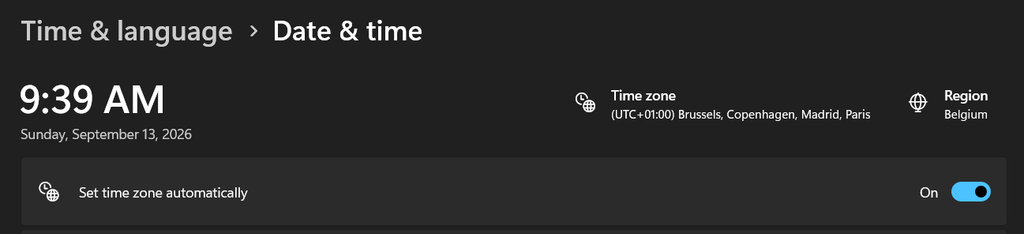
After the policy and remediation have run, users should see:
Settings → Time & Language → Date & Time
The following setting enabled:
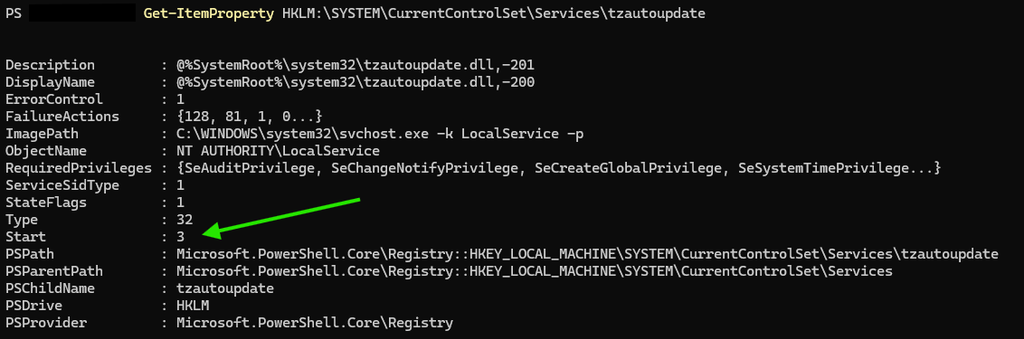
You can also verify via PowerShell:
Get-ItemProperty HKLM:\SYSTEM\CurrentControlSet\Services\tzautoupdateExpected result:
Start : 3
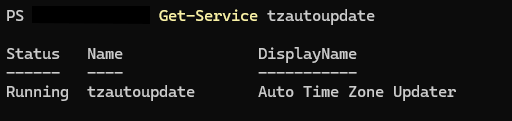
You can also check the service:
Get-Service tzautoupdateExpected:
Final Thoughts
Enabling automatic time zone detection is a small change that can greatly improve the experience for travelling users, remote workers, and consultants who frequently move between locations.
By combining:
- A Settings Catalog policy to enable Location Services
- An Intune Remediation to configure the
tzautoupdateservice
you can ensure Windows 11 devices automatically adjust to the correct time zone without requiring user intervention.
For organizations managing fleets of Windows 11 laptops through Intune, this is a simple but effective quality-of-life improvement that reduces support calls and prevents calendar and meeting scheduling issues caused by incorrect local time settings.