The way we work has changed.
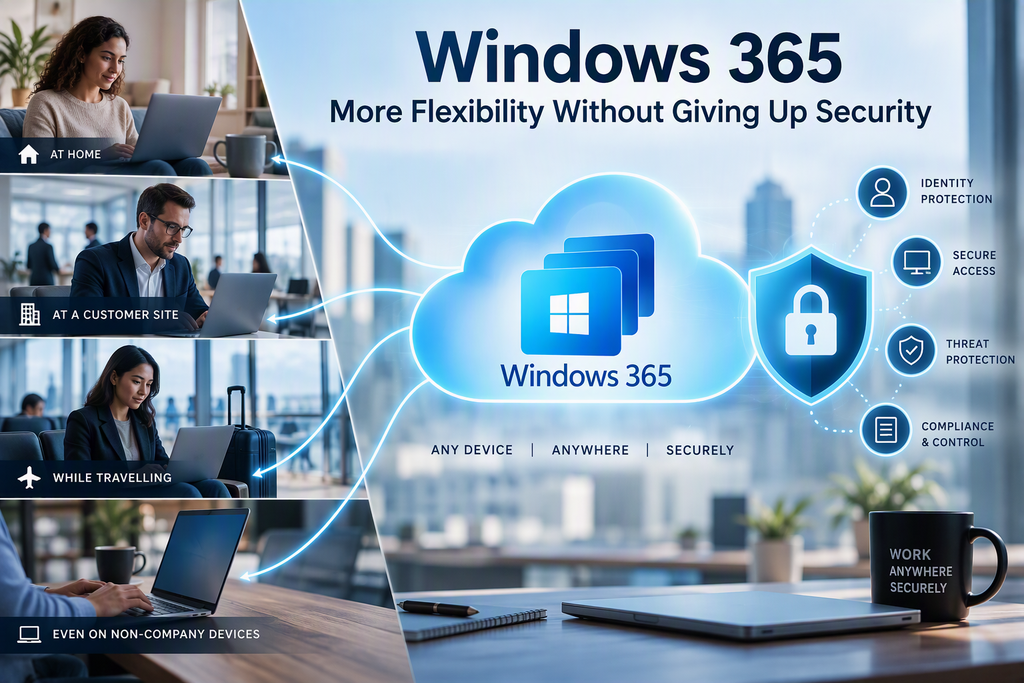
Users expect to be able to work from home, from a customer site, while travelling, or sometimes from a device that isn’t even owned by the company. For IT departments, however, every additional device and location potentially creates another security challenge.
Traditionally, flexibility and security tended to work against each other.
Give users more freedom, and you often increase the attack surface.
Lock everything down, and users start complaining that IT is making their job impossible.
Windows 365 changes that equation.
Instead of putting the corporate Windows environment directly on the device sitting in front of the user, Windows 365 provides a Cloud PC running in Microsoft’s cloud. Microsoft describes Windows 365 as providing the full Windows experience on different devices, including Windows, macOS, iOS, and Android. [microsoft.com]
That opens up some interesting possibilities.
Your PC Doesn’t Necessarily Have to Be a PC Anymore
Think about the traditional setup.
An employee receives a laptop containing:
- Windows
- Microsoft 365 Apps
- Business applications
- Company configuration
- Cached corporate information
- User profiles and settings
If that laptop breaks, disappears, or becomes unavailable, you suddenly have a productivity problem and potentially a security problem.
With Windows 365, the user’s Windows environment can instead live in Microsoft’s cloud.
The physical device becomes the way to access the workplace, rather than being the workplace itself.
A user could, depending on organizational policy, access their Cloud PC from a Windows computer, Mac, iOS device, or Android device. [microsoft.com]
That separation between the endpoint and the corporate Windows environment is one of the things that makes Windows 365 interesting.
Scenario 1: Working From Almost Anywhere
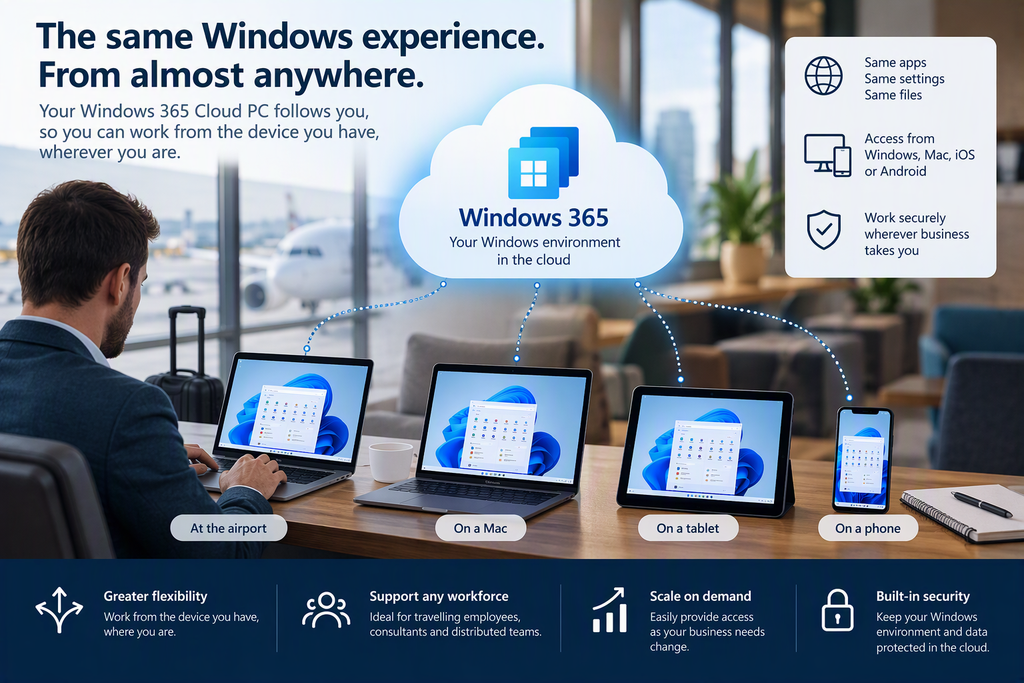
Imagine an employee normally working from a managed corporate Windows laptop.
They travel to another office and don’t have their laptop available.
In a traditional environment, this might mean preparing another corporate device before they can continue working.
With Windows 365, they can potentially access the same Cloud PC from another suitable device.
Their Windows environment hasn’t moved.
The access device changed.
Microsoft specifically positions Windows 365 for scenarios where organizations want users to access Windows from different devices while being able to scale Cloud PCs as business requirements change. [microsoft.com]
For organizations with consultants, travelling employees or distributed teams, that’s a big difference.
Scenario 2: Contractors and Temporary Workers
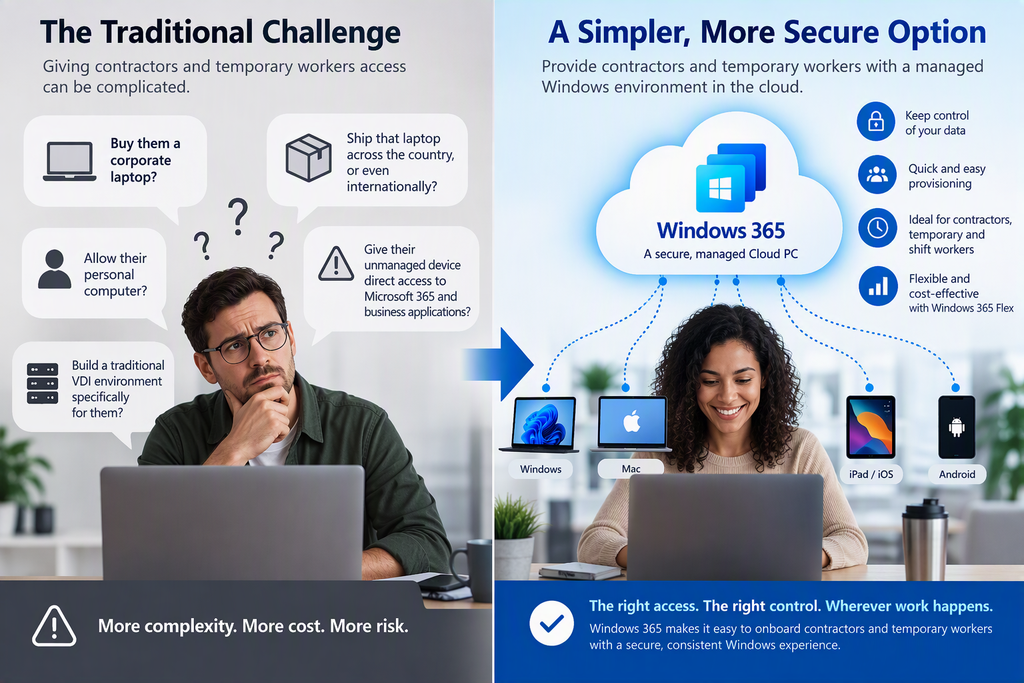
Another scenario I find particularly interesting is contractors.
Giving an external consultant access to corporate resources can quickly become complicated.
Do you:
- Buy them a corporate laptop?
- Ship that laptop across the country, or even internationally?
- Allow their personal computer?
- Give their unmanaged device direct access to Microsoft 365 and business applications?
- Build a traditional VDI environment specifically for them?
Windows 365 gives organizations another option.
Instead of putting the corporate workspace on the contractor’s physical computer, IT can provide a managed Cloud PC.
The contractor gets the Windows environment required to perform the job while the organization retains control over that Cloud PC.
For temporary, seasonal, shift-based and part-time workers, Microsoft also offers Windows 365 Flex, formerly Windows 365 Frontline. For temporary, seasonal, shift-based, and part-time workers, Microsoft also offers Windows 365 Flex, formerly Windows 365 Frontline. Windows 365 Flex includes Dedicated and Shared modes, allowing organizations to provide Cloud PCs to different types of workers while licensing around concurrent usage. [microsoft.com]
That can make Cloud PCs interesting beyond the traditional permanent employee.
Scenario 3: Bring Your Own Device Without Bringing Your Own Security Problems
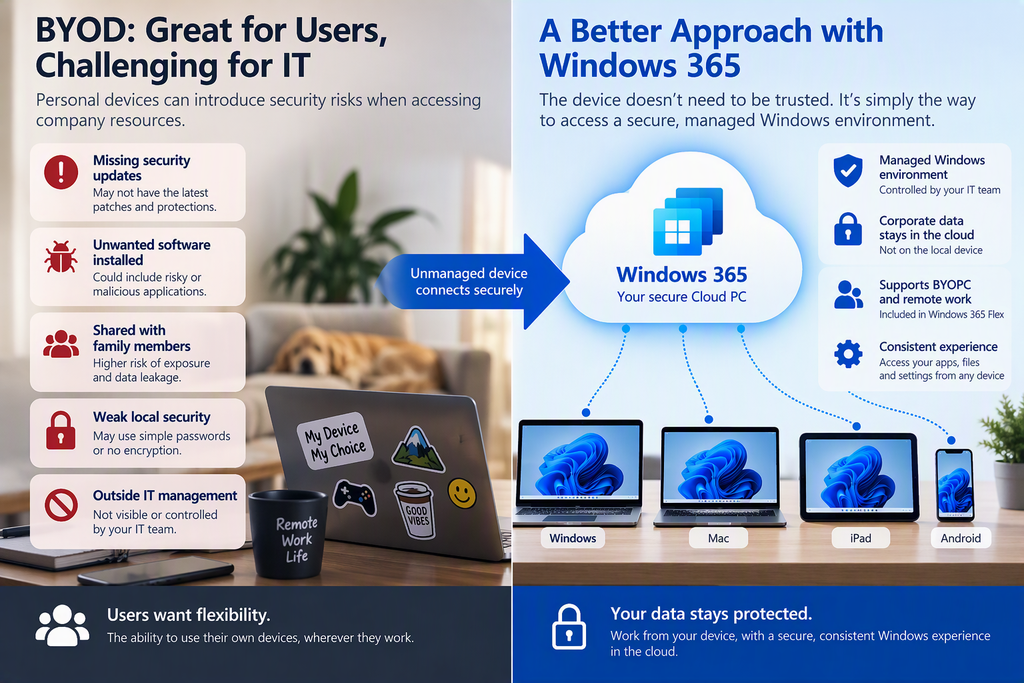
BYOD has always created an uncomfortable discussion for IT.
Users like using their own computers.
Security teams usually like them considerably less.
An unmanaged computer might:
- Be missing security updates
- Have unwanted software installed
- Be shared with family members
- Have weak local security
- Be outside normal IT management
Windows 365 doesn’t magically make an untrusted endpoint trustworthy.
What it does provide is another architecture for dealing with the situation.
Rather than treating the unmanaged computer as the corporate computer, it can be used to connect to a managed Cloud PC.
Microsoft explicitly lists BYOD and remote-work scenarios among the use cases for Windows 365 Flex. [microsoft.com]
This distinction is important.
You don’t necessarily need to treat the computer as a trusted corporate endpoint simply because someone is using it to access work.
You still need to secure the connection and control what can happen between the local device and the Cloud PC, but you’re starting from a very different security model.
This Is Where Zero Trust Becomes Important
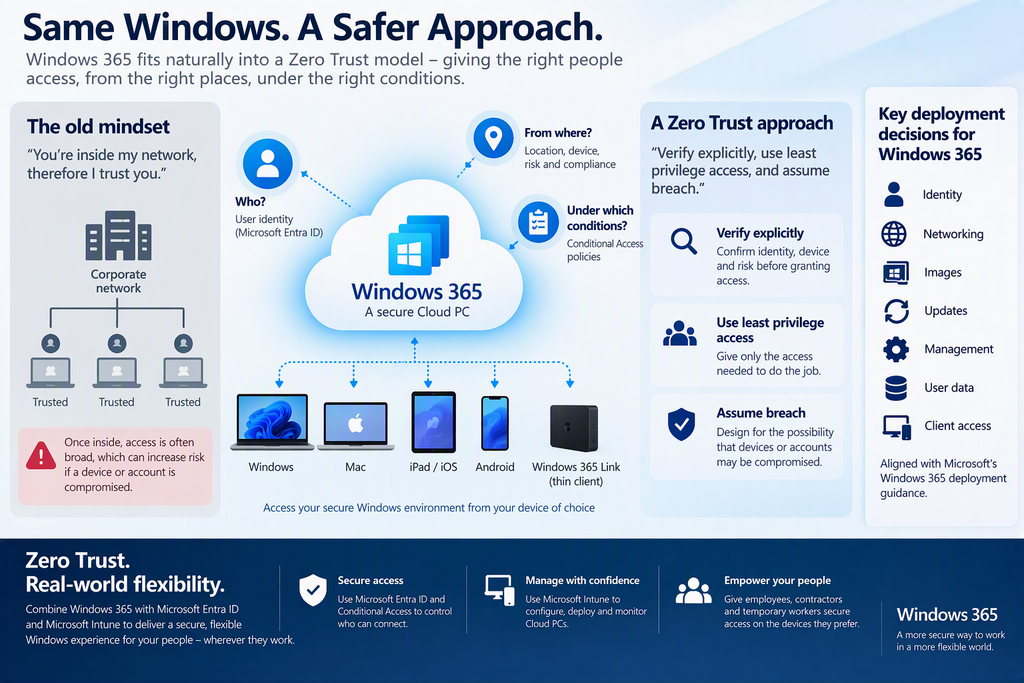
Moving Windows into the cloud doesn’t automatically make it secure.
You still need to decide: Who can access this Cloud PC, from where, and under which conditions?
Fortunately, Windows 365 fits very naturally into Microsoft’s Zero Trust approach.
Microsoft’s latest Windows 365 deployment guidance recommends a cloud-native, Zero Trust-aligned model and organizes deployment decisions around areas including identity, networking, images, updates, management, user data and client access. [learn.microsoft.com]
Zero Trust essentially changes the mindset from:
You’re inside my network, therefore I trust you.
to principles including:
Verify explicitly, use least-privilege access, and assume breach.
Those are the principles Microsoft identifies in its Zero Trust guidance for Windows 365. [learn.microsoft.com]
And this is where Windows 365 becomes much more interesting when combined with Microsoft Entra ID and Microsoft Intune.
Conditional Access Becomes Your Front Door
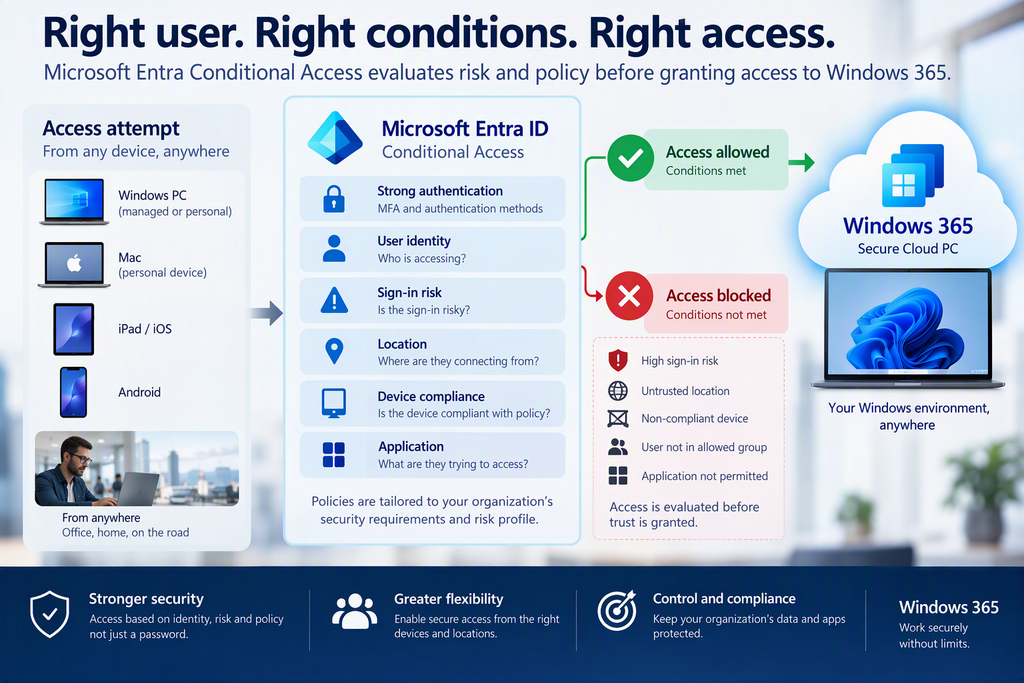
If somebody attempts to access a Cloud PC, identity becomes extremely important.
Microsoft identifies Entra Conditional Access as a primary control for conditionally granting access to the Windows 365 service. [learn.microsoft.com]
That allows organizations to build access decisions around their security requirements rather than simply asking whether the user knows a password.
For example, your security design might consider controls around:
- Strong authentication
- User identity
- Sign-in risk
- Location
- Device compliance
- The application being accessed
The exact policies should always be designed around the organization’s environment and risk profile.
But the important architectural difference is that access is evaluated before simply trusting the connection.
The Cloud PC Is Still an Endpoint
There’s another misconception worth addressing.
A Cloud PC is not something that can simply be deployed and forgotten.
It is still a Windows endpoint.
It needs:
- Configuration
- Updates
- Security policies
- Application deployment
- Monitoring
- Compliance policies
For Windows 365 Enterprise, Cloud PCs can be managed through Microsoft Intune, allowing IT departments to apply many of the same endpoint-management skills and processes they already use for physical PCs. Windows 365 Enterprise Cloud PCs are managed through Microsoft Intune, allowing IT teams to use many of the same management tools and processes they already use for physical Windows devices. [microsoft.com]
For an organization already managing Windows 11 through Intune, this is particularly attractive.
You don’t need a completely separate management philosophy just because Windows is running somewhere else.
Security Starts Before Windows Even Loads
Microsoft also enables several security technologies by default on new Cloud PCs.
These include:
- Virtual TPM
- Secure Boot
- Hypervisor-protected Code Integrity
- Microsoft Defender Credential Guard
Microsoft notes that HVCI and Credential Guard are enabled by default for Cloud PCs using a Windows 11 gallery image. [learn.microsoft.com]
These controls help provide a strong security foundation for the Windows environment itself.
But, again, I wouldn’t look at any single feature as the reason Windows 365 is secure.
The real strength comes from combining layers.
Think in Layers
A well-designed Windows 365 environment could look something like this:
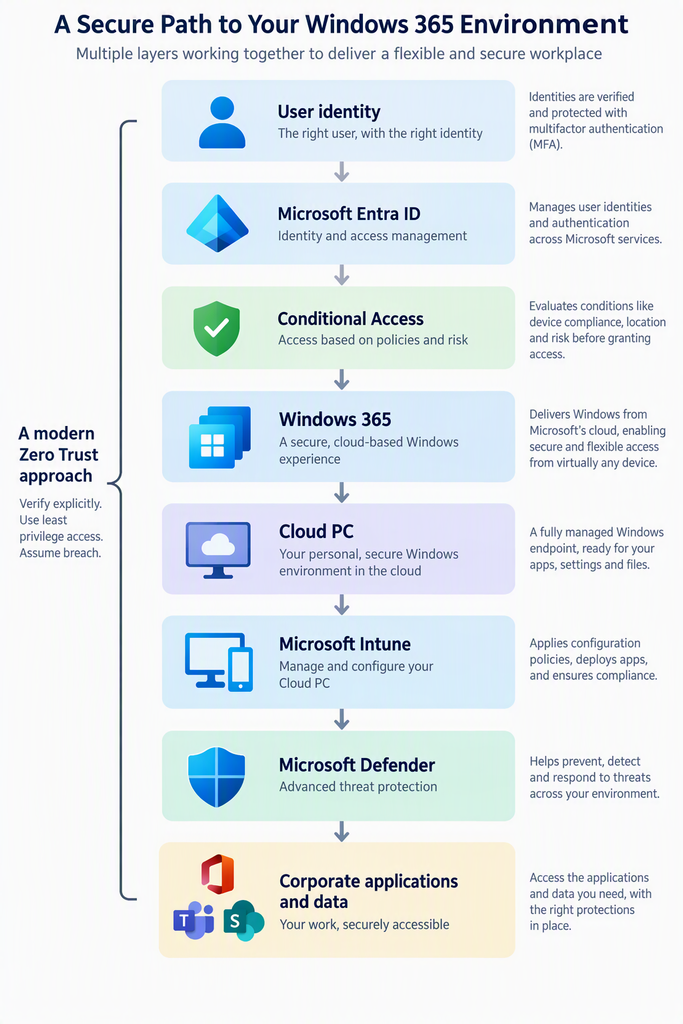
This is much closer to how modern endpoint security should be approached.
There isn’t one magic security setting.
Identity, endpoint configuration, access control and data protection work together.
Microsoft itself separates Windows 365 security into securing Cloud PC access, the Cloud PC device, and Cloud PC data. [learn.microsoft.com]
Flexibility Isn’t Only About Working Remotely
When people hear “Cloud PC”, they often immediately think:
remote workers.
But there are many more scenarios.
For example:
Contractors
Provide a corporate Windows environment without necessarily providing them with the same physical hardware model as permanent employees.
Temporary employees
Provision a Windows environment for the duration of their assignment.
Developers and administrators
Provide an isolated Windows workspace appropriate to a specific role or access model.
Consultants
Access the same Windows environment while moving between customer locations.
BYOD
Allow supported personal devices to act as an access point to a centrally managed Windows environment.
Shift and frontline workers
Windows 365 Flex can support workers who need Cloud PC access during particular working sessions without necessarily requiring a traditional one-user, one-PC model. [microsoft.com]
Suddenly Windows 365 becomes less about “putting desktops in Azure” and much more about changing where the boundary between the user and the IT-managed Windows environment sits.
It Can Also Change Device Lifecycle Thinking
There’s another advantage that doesn’t always receive enough attention.
Separating Windows from the physical endpoint changes how you can think about hardware.
When someone’s workstation is their physical laptop, replacing that laptop means replacing their working environment too.
When their working environment is a Cloud PC, the access device and the Windows environment have separate lifecycles.
That could be valuable when:
- A laptop fails
- A user temporarily needs another device
- Someone works from multiple locations
- A contractor uses their own hardware
- Hardware procurement takes longer than expected
It doesn’t mean physical endpoint management disappears.
It means the endpoint doesn’t necessarily contain the entire workplace anymore.
Windows 365 Is Not a Security Shortcut
This might be the most important part.
Don’t deploy Windows 365 and assume:
“It’s in Microsoft’s cloud, so security is taken care of.”
That’s not Zero Trust.
Identity still needs to be protected.
Conditional Access still needs to be configured correctly.
Cloud PCs still need to be managed.
Applications still need updating.
Users still need appropriate permissions.
Data still needs protection.
Incidents still need to be monitored.
Microsoft’s current Windows 365 deployment guidance explicitly recommends considering identity, networking, images, updates, management, user data, clients and supportability as part of the architecture. [learn.microsoft.com]
The platform provides the building blocks.
It’s still our job as IT professionals to use them properly.
Flexibility and Security Don’t Have to Be Opposites
For me, that’s the most interesting thing about Windows 365.
We’re used to making a compromise.
More flexibility usually means less control.
More security usually means restricting what users can do.
Windows 365 gives IT departments another way to approach that problem.
The device in someone’s hands no longer necessarily needs to be their corporate Windows environment.
Instead, Windows can follow the user through their Cloud PC while IT maintains centralized control over that environment.
Combine that with Microsoft Entra ID, Conditional Access, Intune, and Microsoft’s Zero Trust approach, and you get something much more interesting than simply hosting a Windows virtual machine in the cloud.
You get a different way of thinking about the corporate PC.
The future of endpoint management might not be about managing every computer a user touches.
It might be about securely delivering the right Windows environment wherever that user happens to be.