Hi all, last night Microsoft released Windows 11 Build 26300.8493 to the Experimental Channel.
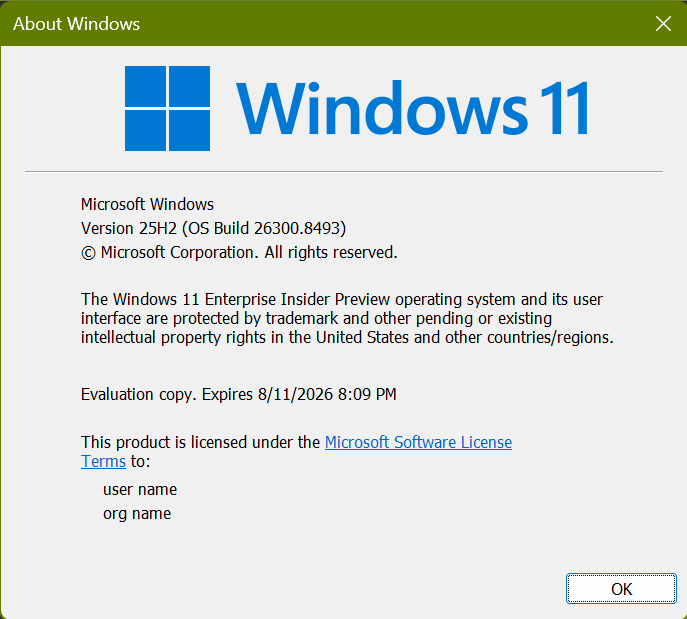
After a slight delay in release the update rolled out smoothly on all my Experimental Channel devices.
keep in mind pc reset in this build and the experimental 26h1 channel currently have a known issue with local reset, select cloud option for now (usually the fastest option)
Changes and improvements gradually being rolled out
[Taskbar]
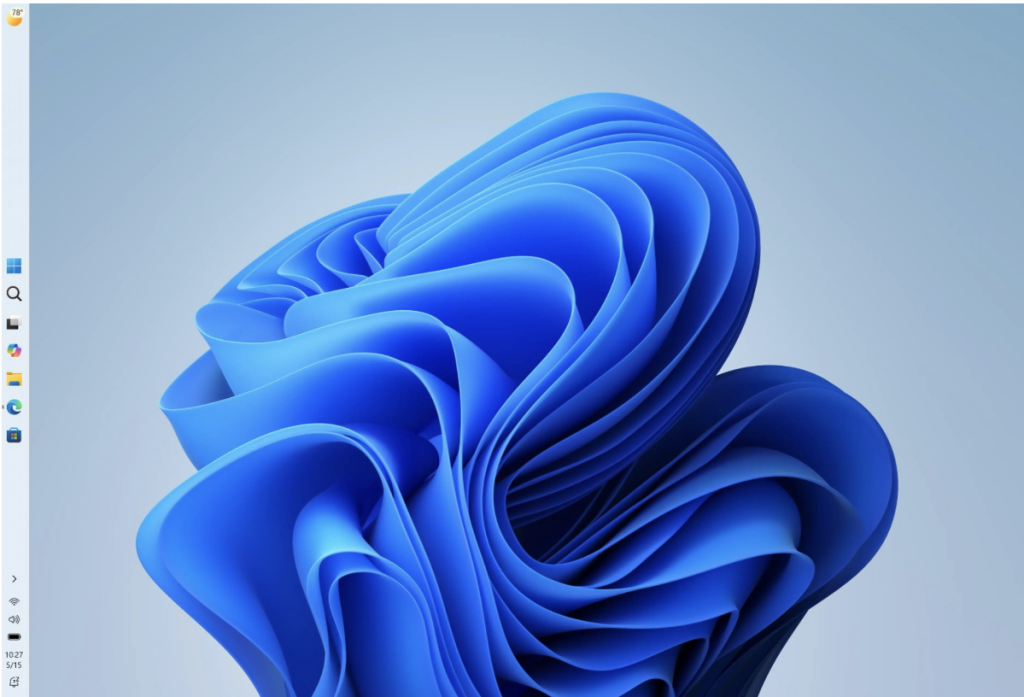
- Alternate Taskbar Position
- You can now change the position of taskbar on your screen. In Settings > Personalization > Taskbar > Taskbar Behaviors, you can select the side of the screen you want your taskbar on: bottom, top, left, or right. In these other positions, tooltips, flyouts, and animations will still come from the taskbar, and most customization settings like small taskbar and never combine taskbar icons will work with all locations.
- Support for touch gestures, Search box, and Ask Copilot in alternate locations is in progress. Auto-hidden taskbar and touch optimized taskbar are not yet supported.
- Smaller Taskbar
- We’re introducing a smaller taskbar for users who want to maximize screen space, especially on smaller devices. While the default taskbar remains unchanged, this setting provides a more compact experience with smaller icons and a reduced taskbar height, giving you more room for your apps. Core elements like Start, Search, and the system tray scale appropriately to stay aligned and consistent.
- To change your taskbar size, go to Settings > Personalization > Taskbar > Taskbar behaviors > Show smaller taskbar buttons. When set to Always, both the icons and the taskbar height become smaller.
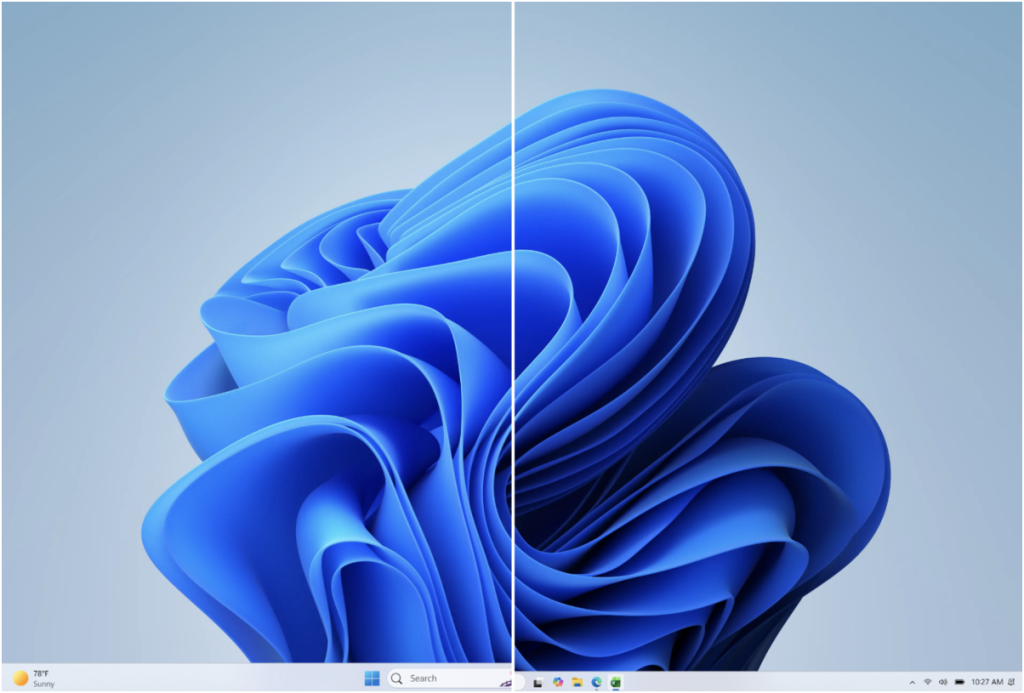
- We’re also working on improving taskbar settings to make resizing easier, these enhancements are currently in progress.
Feedback: Share your thoughts in Feedback Hub (WIN + F) under Desktop Environment > Taskbar.
See the in-depth blog for more information about Taskbar improvements.
[Widgets]
- As we continue to make Widgets feel less distracting, we’ve made a small but meaningful visual update to taskbar badging. For those that have taskbar badging on, the badge color will now match your Windows accent color instead of always appearing red, reducing the sense of urgency that something needs your immediate attention.
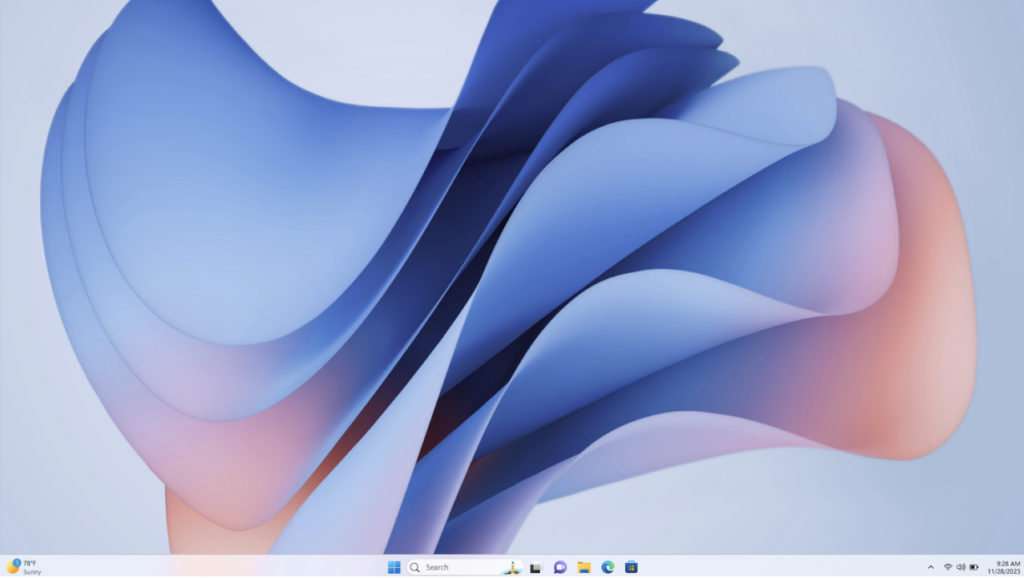
- We’re also testing out quieting down a user’s experience based on their level of engagement. For example, a user who highly engages with Widgets likely has their settings set to a state that works best for them, as compared to a user who barely engages with it and would benefit from having the experience quieted down with taskbar badging turned off as it is for new users who experience it as quiet by default.
- Please share your feedback to let us know how these changes are working for you or if you encounter any issues with your quieter Widgets experience.
Feedback: Share your thoughts in Feedback Hub (WIN + F) under Widgets.
[Windows Search Box]
We’ve started making changes to make Windows Search Box more relevant, starting with making it easier to find your files and apps:
- Files and apps more reliably appear ahead of web suggestions when your content is a stronger match
You can expect to see additional relevance improvements in upcoming releases.
[Voice access and Voice typing]
- Fluid Dictation is now available in Spanish & French for Windows Insiders! It makes voice-based dictation smoother and smarter by automatically correcting grammar, punctuation, and filler words as you speak, reducing the need for manual editing. This experience is powered by on-device small language models (SLMs) to ensure fast and private processing. You can try out fluid dictation from Windows voice access or Voice typing (Win +H).
[Windows design]
- We are introducing consistent solid (donut) spinners across key Windows scenarios including Boot, Logon, Restart, Shutdown, and Update. This update replaces legacy spinner visuals to deliver a more cohesive and modern experience aligned with Windows design standards. Users will now see a unified spinner behavior with corresponding status text (e.g., “Restarting”, “Working on updates”, “Welcome”) across these flows, improving perceived reliability and visual consistency.
[File Explorer]
- Fixed an issue in the previous flight where Properties wasn’t invoking correctly for the Recycle bin and some other scenarios.
[Run]
- Fixed an issue where the refreshed Run dialog didn’t navigate through your history if you pressed the up / down arrow keys on first launch.
[Other]
- This flight contains the first of a set of optimizations to improve logon performance that we expect to flight in the Windows Insider Program over the next few months. Note that this is part of an ongoing effort – we plan to flight additional logon optimizations to WIP, measure real impact, and use that data to drive the next round of improvements.
- Improved reliability when switching between multiple desktops.
- This update improves the reliability of Simple Service Discovery Protocol (SSDP) notifications to help prevent the service from becoming unresponsive.
- Improved reliability of running dism /online /cleanup-image /restorehealth command.
- Improved reliability of PC remaining asleep if it had been asleep prior to an update
Known Issues
[Reset PC]
- Resetting your PC may get stuck when using “Reset this PC.” To complete the reset successfully, choose the cloud download option (Cloud PBR) instead of local.
source: Flight Hub