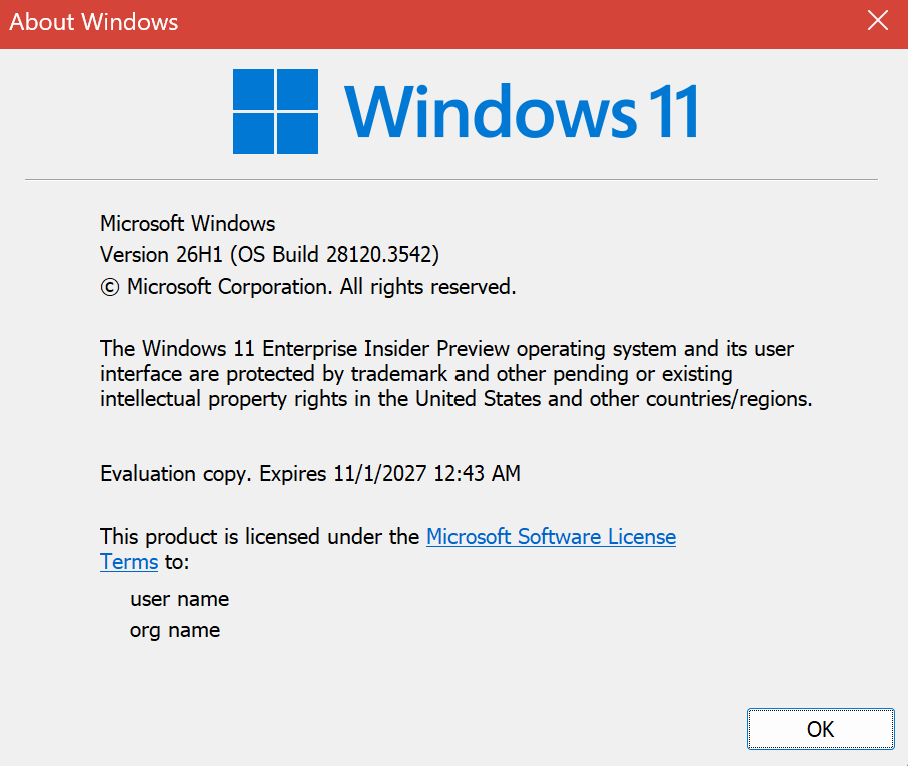
Hi all, last Friday Microsoft released Windows 11 Insider Experimental (26H1) Preview Build 28120.3542
Slight delay on this post, traveling to Microsoft Ignite this last week
Changes and improvements gradually being rolled out*
- This update includes a small set of general improvements and fixes that improve the overall experience for Insiders running this build on their PCs.
[Run dialog update]
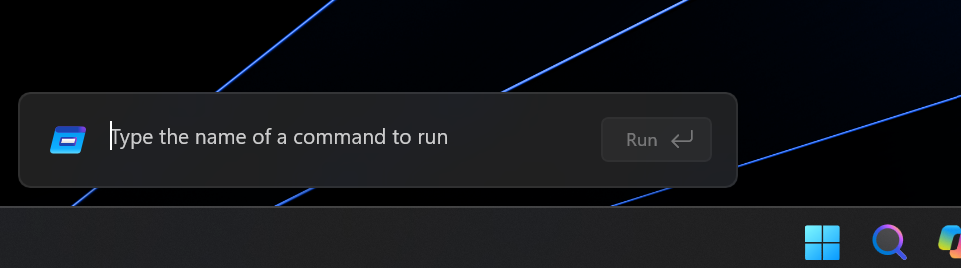
- A refreshed Run dialog experience is rolling out with a more modern look and improved usability. This update introduces updated visuals and a cleaner interface, along with new controls that make it easier to manage the experience from within Settings. The refreshed Run dialog is currently available as an opt-in experience for Windows Insiders on the Experimental channel. To enable it, go to Settings > System > Advanced and turn on the new Run dialog option.
- See the Dev blog announcement for more information.
[BitLocker]
- Standard users can now set a BitLocker preboot PIN. Before this change, users without admin rights couldn’t add the TPM+PIN protector. Now, standard users on managed devices can add the PIN themselves.
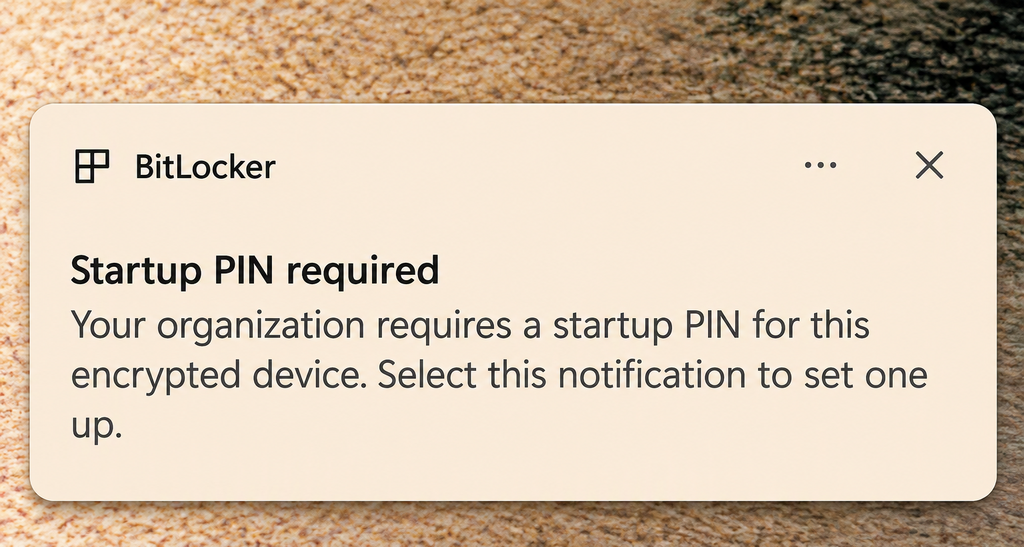
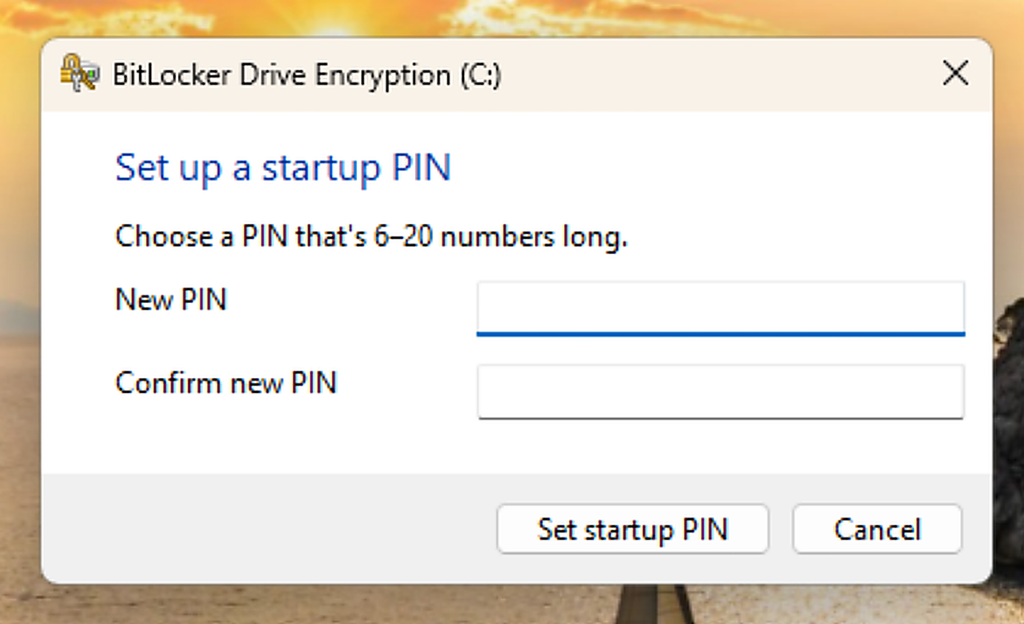
- How it works: When the policies below apply to a device that doesn’t have a PIN yet, you get a notification asking you to add one. Selecting the notification opens a window where you can set the preboot PIN.
Set it up
In Microsoft Intune or another device management solution, configure these existing BitLocker policies to require TPM+PIN for non-administrators:
| Policy | Value |
|---|---|
AllowStandardUserEncryption | ON |
AllowWarningForOtherDiskEncryption | OFF |
RequireDeviceEncryption | ON |
SystemDrivesRequireStartupAuthentication | ON |
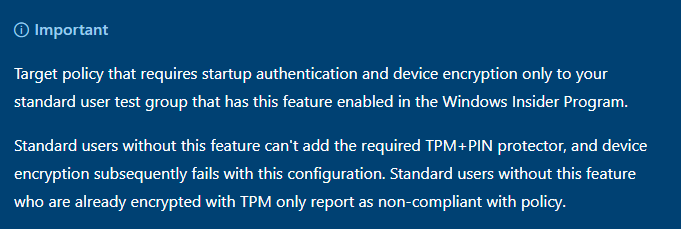
- All users targeted with these policies get a notification to add a PIN to their device if they don’t already have one. Selecting the notification opens a window where you can set the preboot PIN.
source: Windows Blogs