
Hi all, last Friday Microsoft released Windows 11 Build 28120.3393 to the Experimental (26H1) Channel
Smooth Flights in this channel, the new search is developing features fast
Changes and improvements gradually being rolled out*
- This update includes a small set of general improvements and fixes that improve the overall experience for Insiders running this build on their PCs.
[Windows Search]
- We’re expanding the new Windows Search experience that began rolling out earlier this month with more ways to find what you need and take action directly from Search.
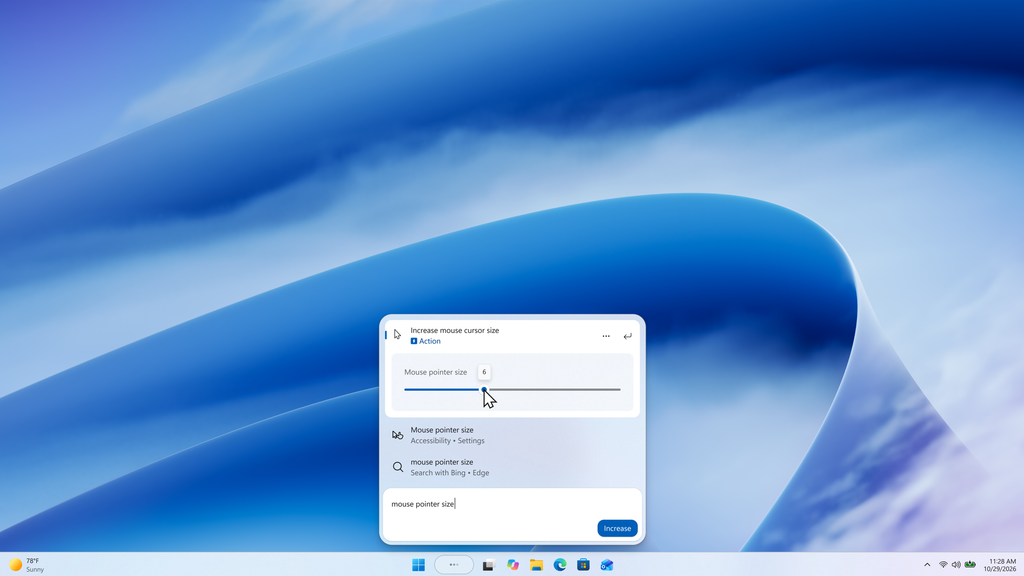
- Inline actions: Adjust your volume, screen brightness, or cursor size with inline sliders. Actions are more clearly labeled, and suggested actions help you discover more things you can do.
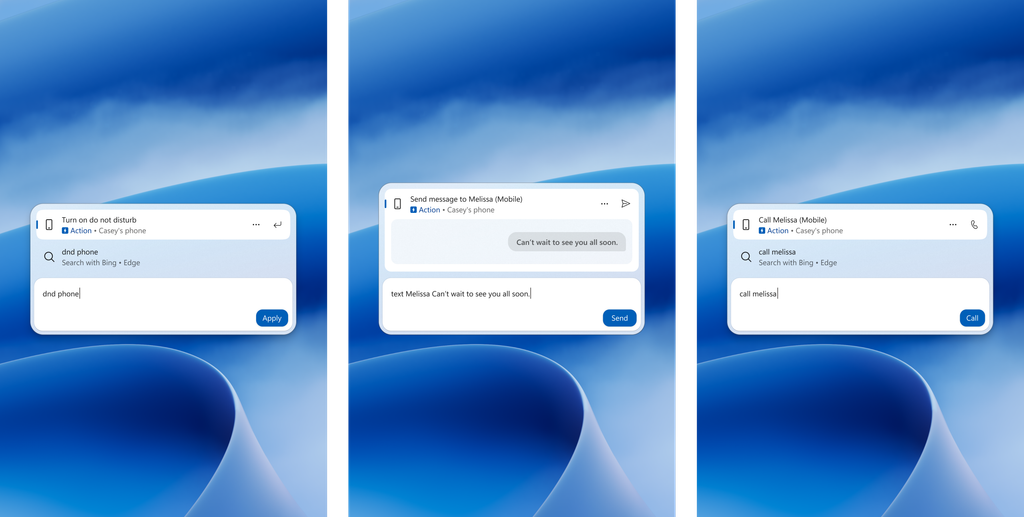
- Phone actions: With a supported phone connected through Phone Link, you can now call or text a friend and access phone actions such as Do Not Disturb. Android support is available now with iPhone support coming early next year.
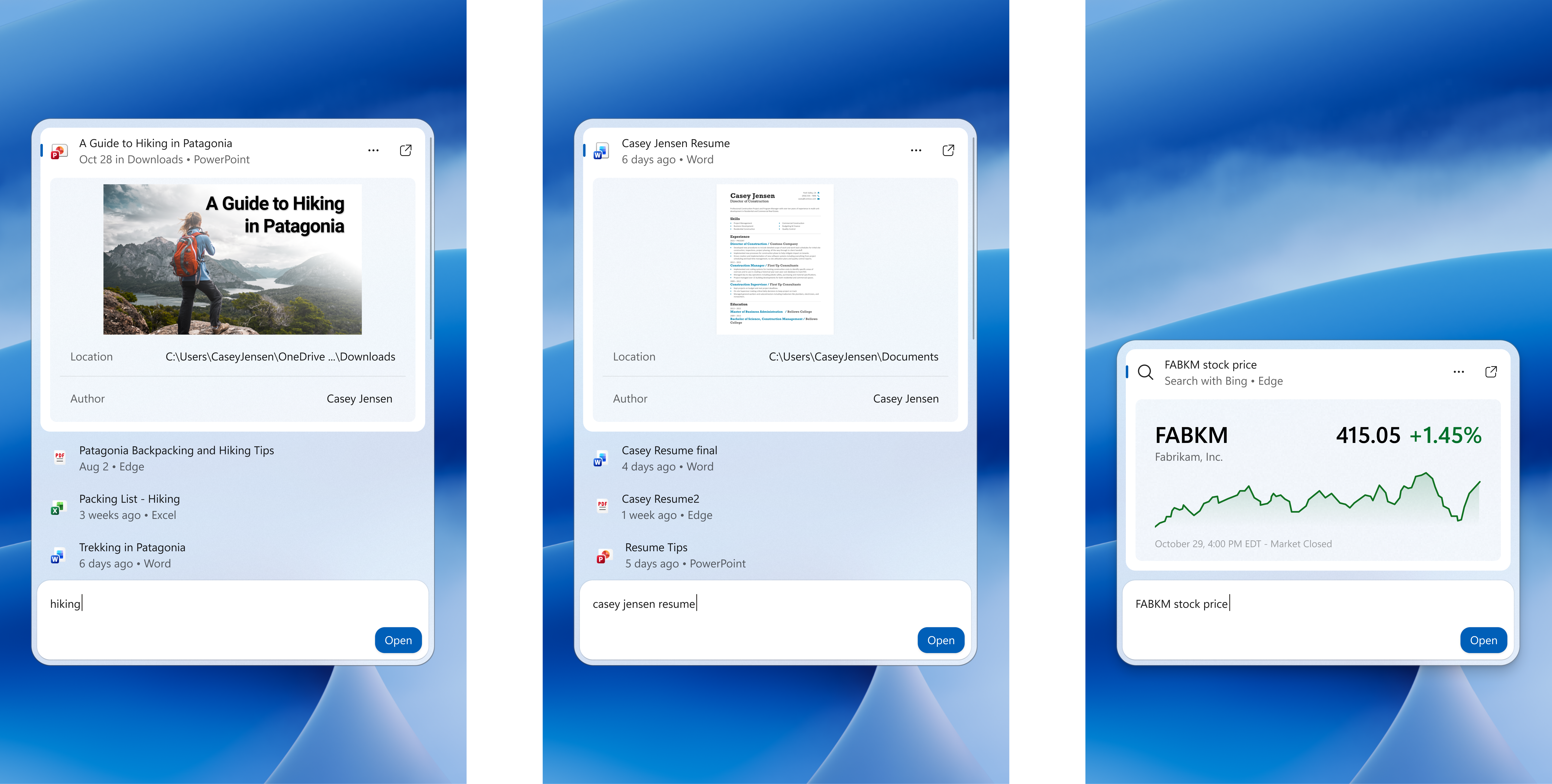
- Richer results: Preview files and see details such as a file’s last modified date, location, and author. Get web answers for weather, stocks, and facts, and discover apps and games from the Microsoft Store. Like web results, app results from the Store can be toggled on or off in Settings > Privacy & security > Search.
- Result filters: Scroll to see more results and filter by Files & Folders, Settings, Actions, and more.
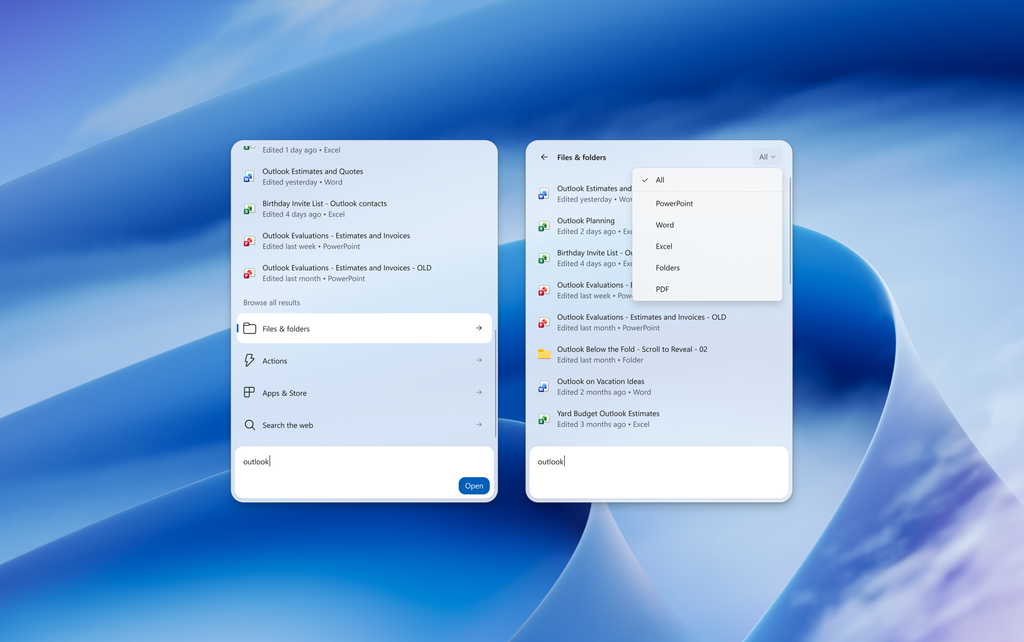
- Feedback controls: Right-click a result or suggestion and choose thumbs up or thumbs down to tell us whether it was helpful. Thanks to your feedback, you can also remove items from the initial Search view before you type. We’ve also made small polish improvements to the look and feel of Windows Search based on what you’ve shared.
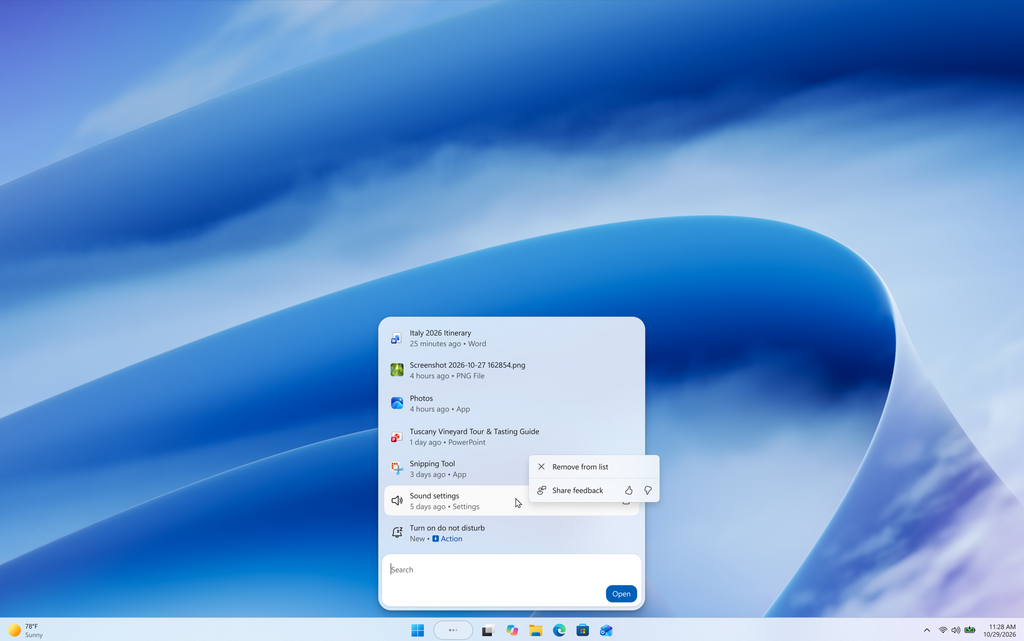
- As noted in our blog post, the new Windows Search opens at the bottom center of the screen. Work is underway to have it adapt to different taskbar positions and when using search from the Start menu.
[Modernized AutoPlay experience]
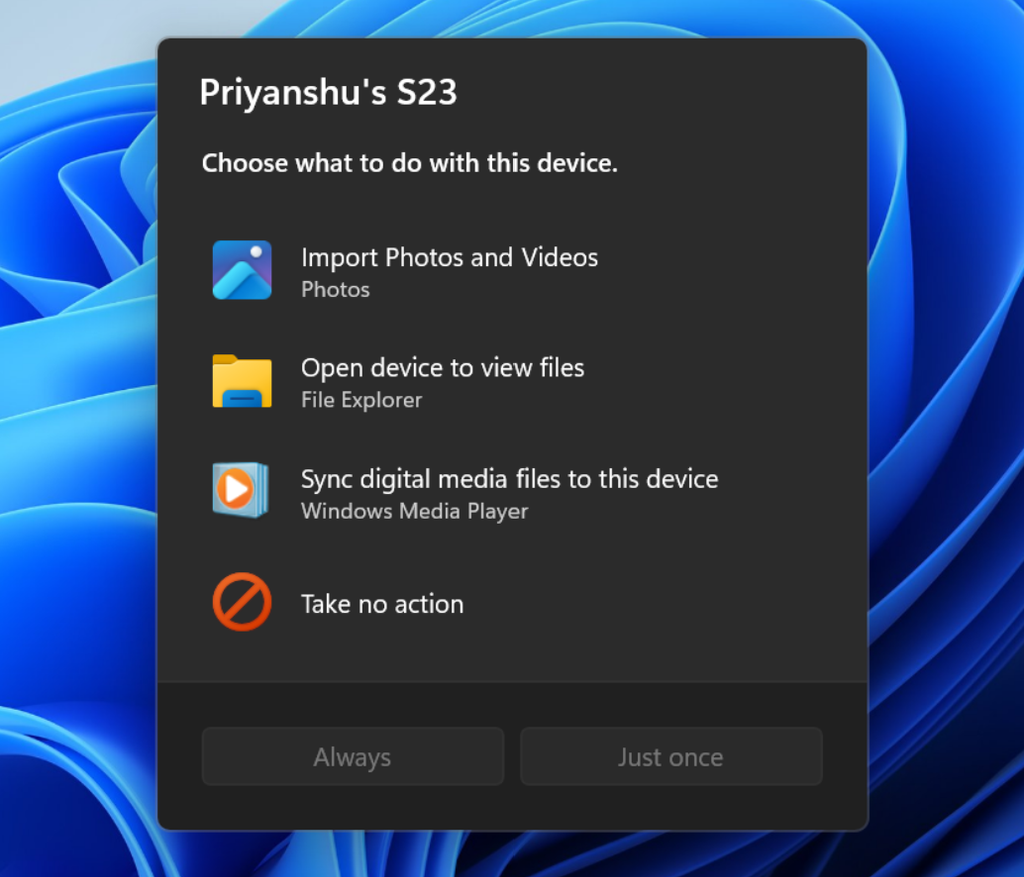
- We’ve updated the AutoPlay dialog that helps you choose the preferred experience when devices are connected to your PC, such as a phone, camera, or removable drive. Rebuilt with WinUI, the refreshed experience is more consistent with the rest of Windows, supports dark mode, and continues to provide the familiar AutoPlay actions you use today. The experience is also more responsive to text scaling and display settings. Notifications for this dialog are now docked in the notification center for easy access.
[Data Protection API (DPAPI)]
- This update adds a warning before prompt-based protect and unprotect operations. The warning explains that this prompt-based experience will be retired in April 2027. If you or an app use these prompts, stop creating new prompt-protected data, use a supported non-interactive protection flow, and decrypt or migrate existing prompt-protected data before retirement. DPAPI operations that do not use the prompt-based flow aren’t affected. For more details, see CRYPTPROTECT_PROMPTSTRUCT structure (dpapi.h).
[Security]
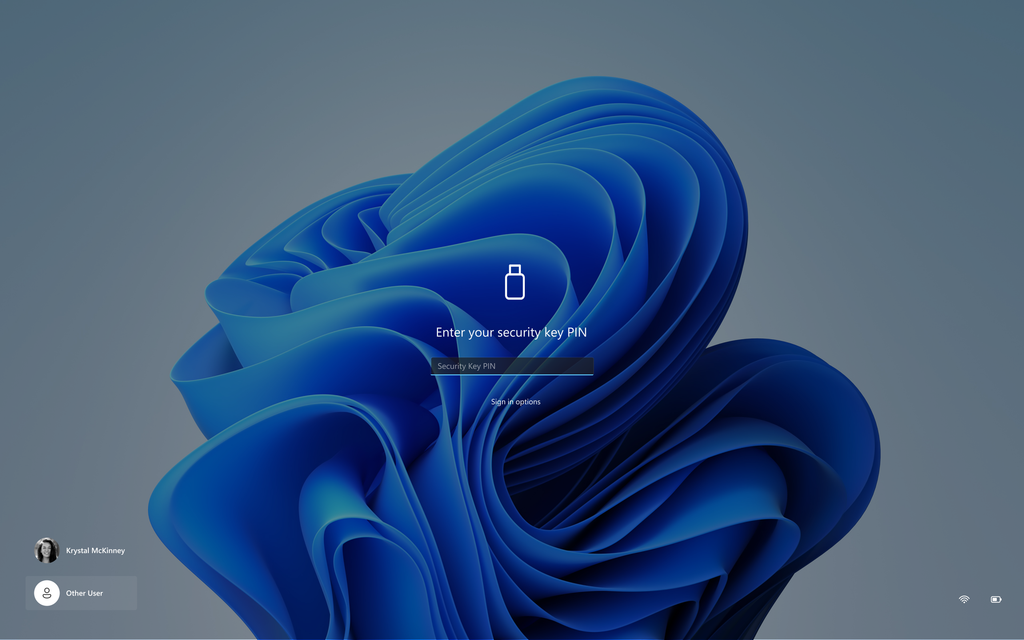
- We’ve updated the security key PIN entry experience, removing the “other user” icon for a clearer sign-in experience.
[Gaming]
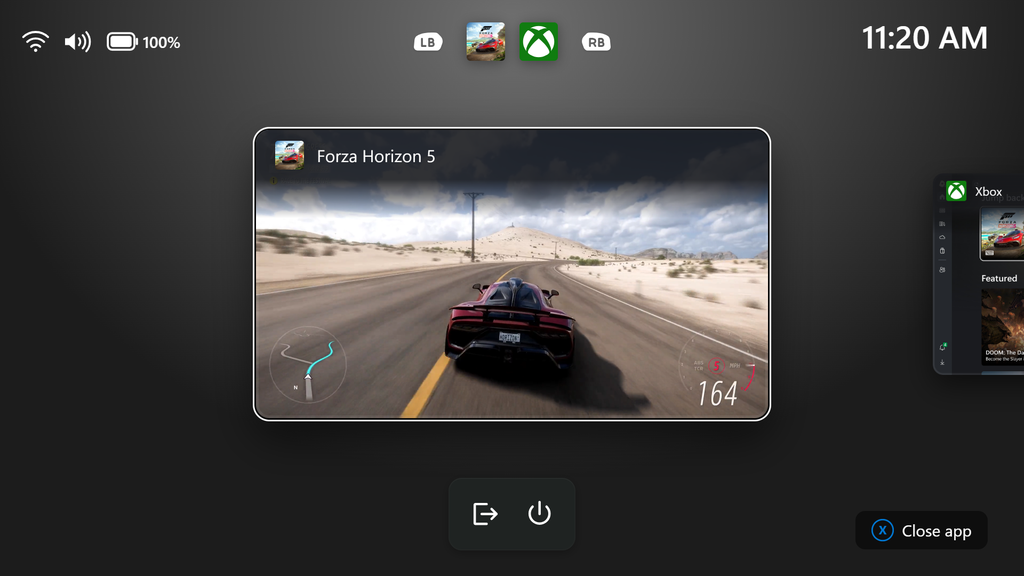
- We’re introducing a refreshed Gaming Task View experience in XBOX mode, featuring a new navigation bar that provides quick access to Exit to Desktop and Power Options. This update makes key system actions easier to access while gaming.
[File Explorer]
- Launching File Explorer Home is now faster and more responsive.
- The Recommended section on Home now supports touch scrolling, making it easier to browse files in the carousel.
- File sizes in the Details view now display appropriate units (KB, MB, GB) instead of KB-only, making them easier to understand at a glance.
- Middle-click to open a folder in a new tab is now supported in the Address Bar and the Home page for a more consistent and efficient tabbed navigation experience across File Explorer.
- This update improves the reliability of thumbnail previews for cloud files in the Details pane. The pane has also been reorganized so file properties are easier to find and review at a glance.
- This update addresses an issue that caused the Address Bar contents to be cleared when entering edit mode by clicking near the right end of the bar.
[Windows design]
- We are temporarily rolling back the solid (donut) spinners across some of the key Windows scenarios including Boot, Logon, Restart, Shutdown, and Update as we work on a bug. We expect to resume rolling it out soon.
source: Flight Hub