Hi all, last week Microsoft released Windows 11 Insider Preview Build 26220.7262 (KB5070303) to the Dev & Beta Channels.
Flighted this build from San Francisco where Microsoft Ignite was on all week, great new tweaks and features in this build
Happy Flighting !
New features gradually being rolled out with toggle on*
HD Voices in Narrator and Magnifier
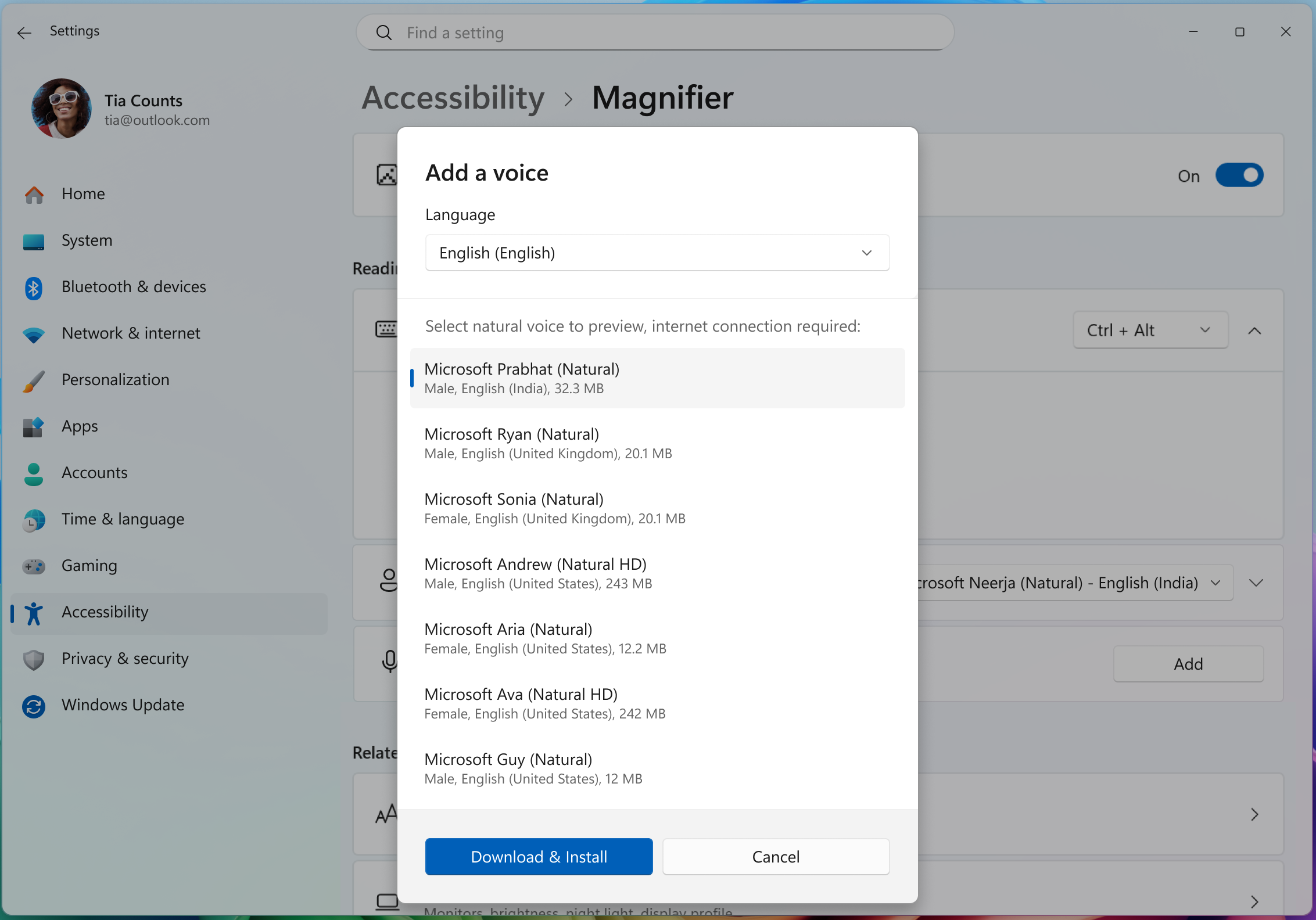
Narrator and Magnifier now support high-definition voices for English (United States), powered by Azure’s latest on-device text-to-speech models. These voices use generative AI to adjust tone and pacing for more natural, expressive speech.
When reading with Narrator or listening to text in Magnifier, HD voices provide clearer audio and smoother flow. This helps reduce listening fatigue during long sessions and makes it easier to stay focused on the content. While natural voices are available in multiple languages, HD voices are currently offered in English (United States). Both Narrator and Magnifier allow you to personalize your experience by adjusting voice speed and switching between voices anytime.
To enable in Narrator
- Open Settings → Accessibility → Narrator.
- Navigate to “add a natural voice” button
- Download your preferred HD voice.
- Switch voices or adjust speed anytime in Narrator settings.
Currently, HD voices are available in English (United States), with one male (Andrew) and one female (Ava) option to choose from.
Magnifier also supports natural voices, including new HD options for even clearer, more lifelike speech. To enable:
- Open Settings → Accessibility → Magnifier.
- Navigate to “add a natural voice” button
- Download your preferred voice.
- Change voices or adjust speed anytime in Magnifier settings.
FEEDBACK: Please share your feedback in Feedback Hub (WIN + F) under Accessibility > Narrator or Accessibility > Magnifier.
Narrator now supports math
- We’re introducing the first phase of Math reading in Narrator, bringing clearer and more natural math experiences to users who are blind or have low vision. With this update, equations in Microsoft 365 apps such as Word can now be read in a structured way that reflects how they’re meant to be understood. Math is at the heart of STEM education and learning, and this improvement helps ensure that students and professionals can independently explore equations, formulas, and scientific notations with confidence.
- To try out this experience, turn on Narrator (press Win + Ctrl + Enter) and open a Word document containing mathematical equations. Use any of the standard Narrator reading commands to hear equations read aloud in a more natural, structured way. We’re continuing to refine this experience and plan to expand it to more scenarios in the future.
- FEEDBACK: Please file feedback in Feedback Hub (WIN + F) under Accessibility > Narrator.
AI Components Setting
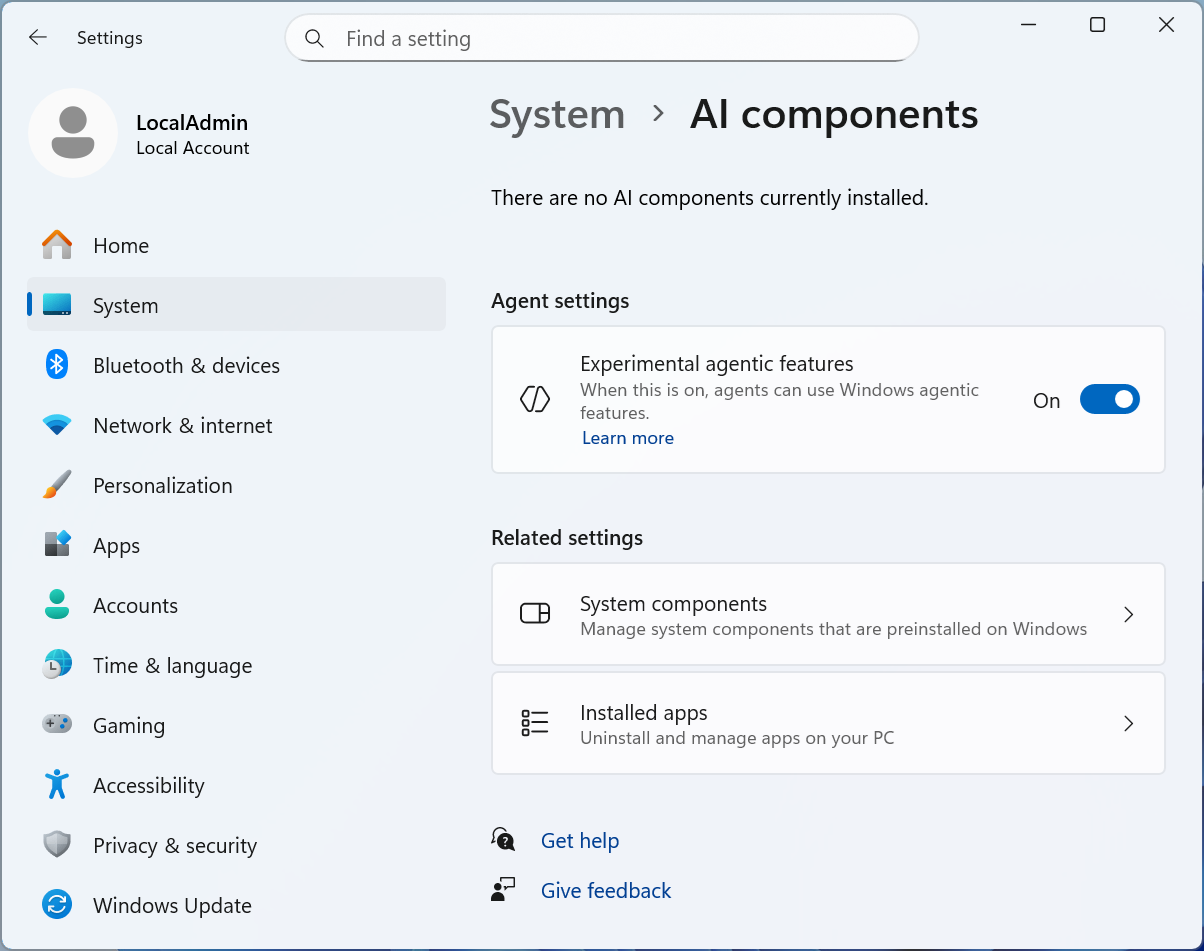
- New “Experimental agentic features” toggle in the Settings app. This setting, under System >AI Components, allows agents to use new Windows agentic features. More information can be found here: Experimental Agentic Features – Microsoft Support.
Changes and Improvements gradually being rolled out with toggle on*
[Click to Do]
- The Click to Do context menu is being updated with a streamlined design, making it simpler to locate what you need. Frequently used actions like Copy, Save, Share, and Open will now be easier to access directly from the context menu.
- Whenever a large image or table appears on your screen, the context menu will automatically pop up, making it quicker and easier to access the actions and results you need.
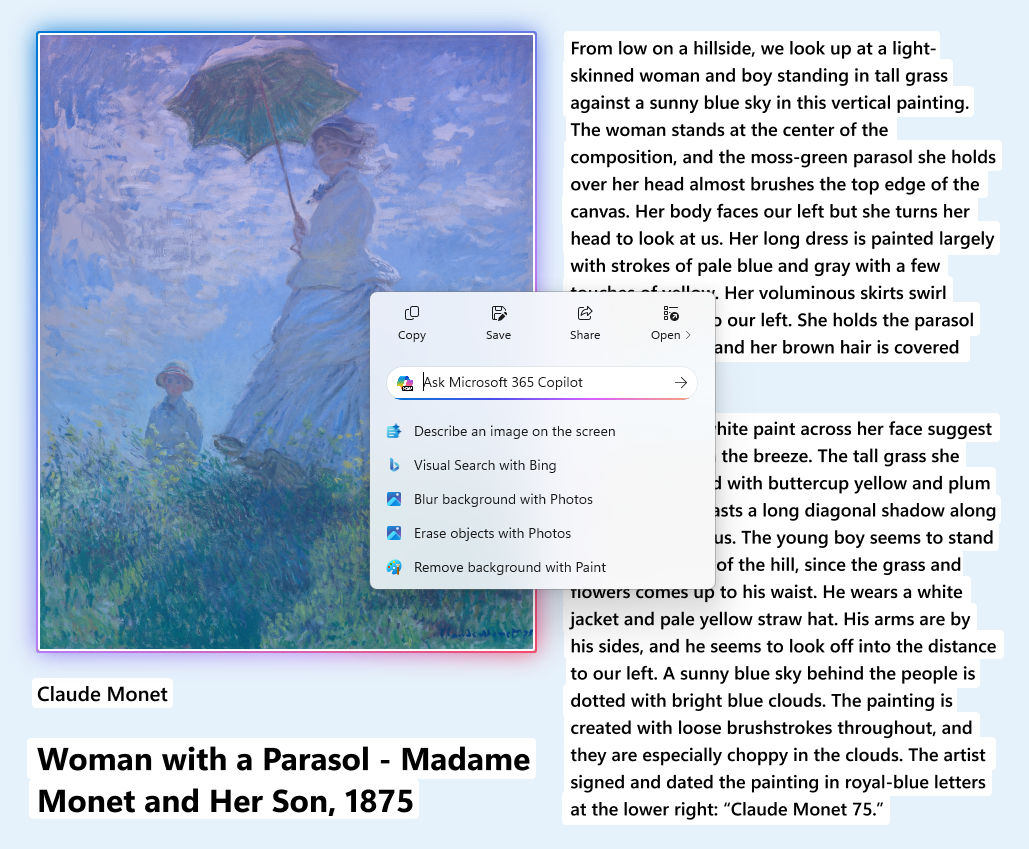
Image Object Selection Update
Teaching Tip Updates
- Teaching tips and introduction screen in tutorial mode have been improved.
- A new “Launch Tutorial” button and refreshed instructions make it easier for users to start the tutorial.
[Input]
- Pens that support haptic feedback will now deliver tactile responses during certain interactions with the system UI. For example, you may feel vibrations when hovering over the close button or when snapping and resizing windows.
[File Explorer]
- We are reconfiguring the CFR that supported AI Actions in File Explorer – Insiders may see a temporary loss in image actions and Copilot summary actions as this is relaunched and gradually rolled out to Insiders in the Dev & Beta Channels.
- We’re temporarily stopping the roll out of the ability for newly launched File Explorer folders to open in tabs instead of windows, as it wasn’t working correctly. Appreciate your patience.
- We’re working on consolidating the share options in the context menu into a single entry point. (Updated 11/17)
[Administrator Protection]
- We’re temporarily stopping the rollout of administrator protection feature. Appreciate your patience. (Updated 11/17)
Fixes gradually being rolled out with toggle on*
[General]
- Fixed an issue resulting in mouse and keyboard not working for some Insiders in WinRE / Advanced Startup.
[Recall]
- Fixed an issue recently causing some Insiders to see a message saying they don’t have an eligible camera for Recall when they did.
[Task Manager]
- Fixed an issue where the Task Manager process wasn’t stopping correctly after closing Task Manager. As a result of this, you may have also seen Task Manager unexpectedly open on boot.
[Settings]
- Fixed an issue where the Virtual Workspaces options weren’t working correctly in Settings > System > Advanced. As part of this fix, the option is now available again for Insiders.
- Fixed an issue where the CPU information in Settings > System > About may be unexpectedly truncated.
Known issues
[Taskbar & System Tray]
- We’re investigating an issue which is causing the Start menu to not open for some Insiders on click, although it will open if you press the Windows key. It’s believed this issue may also potentially impact the notification center (which you can open with WIN + N).
- We’re investigating an issue where for some Insiders apps aren’t showing in the system tray when they should be.
[File Explorer]
- Scrollbar and footer are missing and showing a white block instead when text is scaled in dark mode version of the copy dialog.
[.NET Framework and Visual Studio]
- [NEW] Insiders using ARM64 PCs may observe crashes with Visual Studio or applications that depend on .NET Framework. To resolve the problem, scan for Windows Updates and install the latest .NET Framework update.
source: Windows Blogs