Hi all, last Friday Microsoft released Windows 11 Insider Preview Build 26220.6972 (KB5067106) to the Dev Channel.
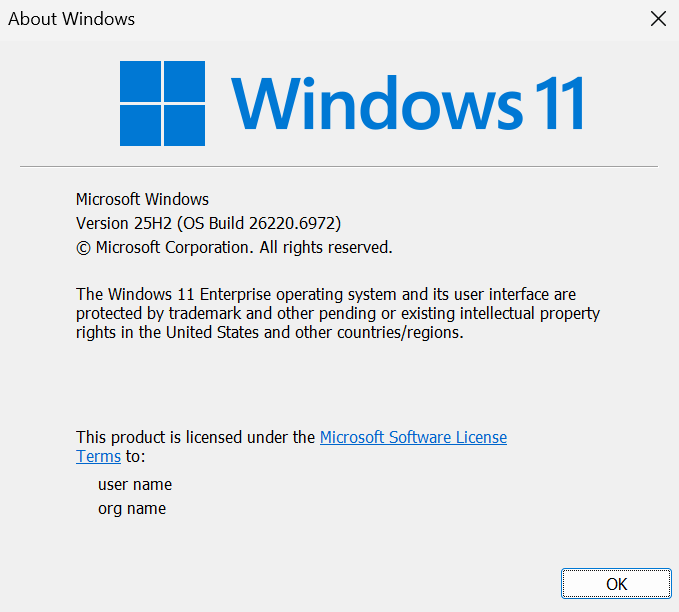
After presenting all day on Windows 10 to Windows 11 Migration new features a nice new build for the dev channel, all my devices including my demosetup I prepped with 25H2 upgraded nicely to the new Dev Channel build
Enjoy Upgrading!
New features gradually being rolled out to the Dev Channel with toggle on*
[Mobile Device Settings]
- You can now directly add and manage your mobile devices from Settings on your Windows PC by navigating to “Mobile Devices” under the Bluetooth & Devices section. This page allows you to view your mobile devices, add new mobile devices, and manage features such as using your device as a connected camera or accessing your device’s files in File Explorer.

Changes and Improvements gradually being rolled out to the Dev Channel with toggle on*
[Accounts]
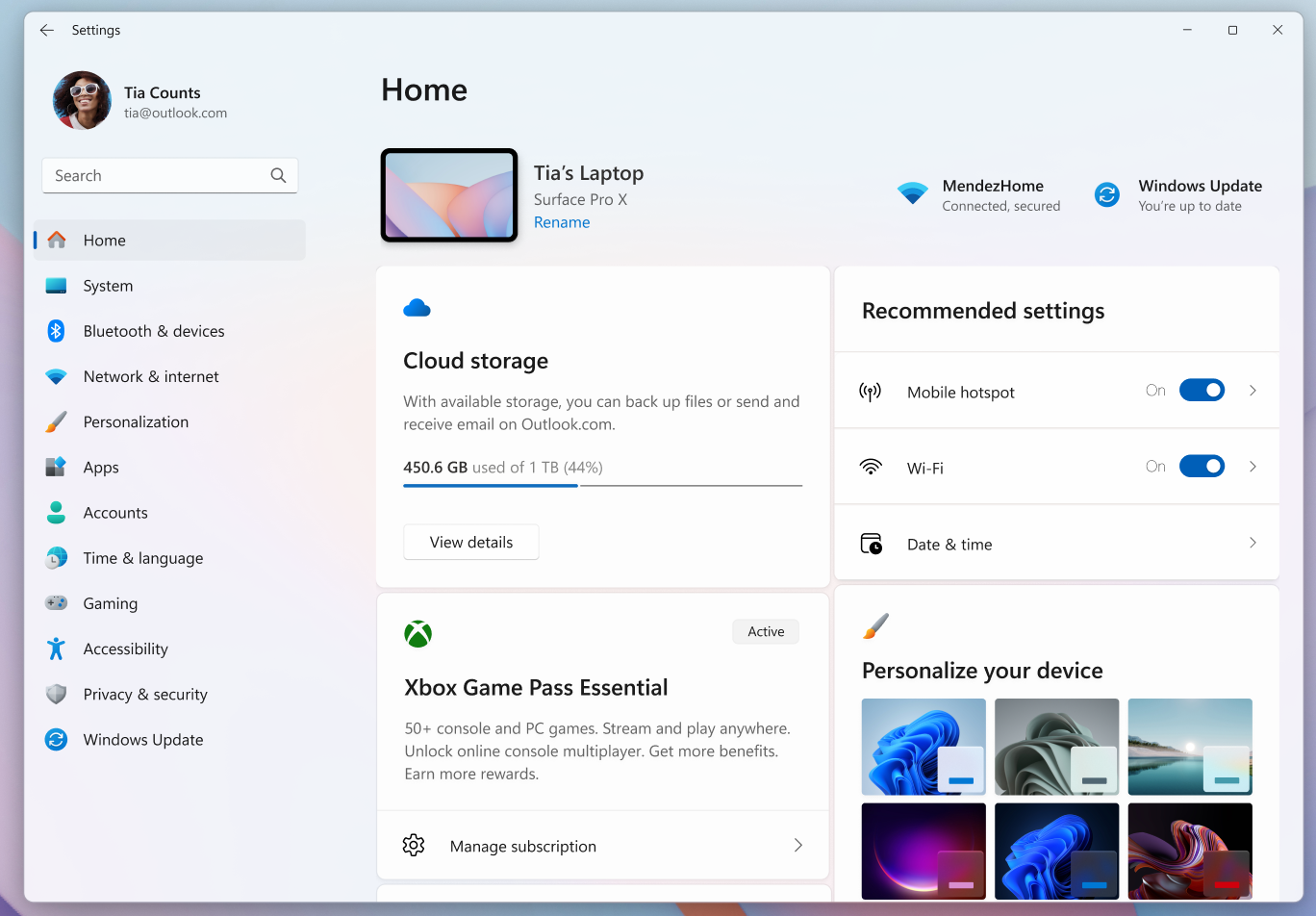
- We’ve added a new entry point in the account control on the Start menu that takes you directly to the benefits page on https://account.microsoft.com/, making it easier to explore and manage the benefits that come with your Microsoft account.
[Game Pass]
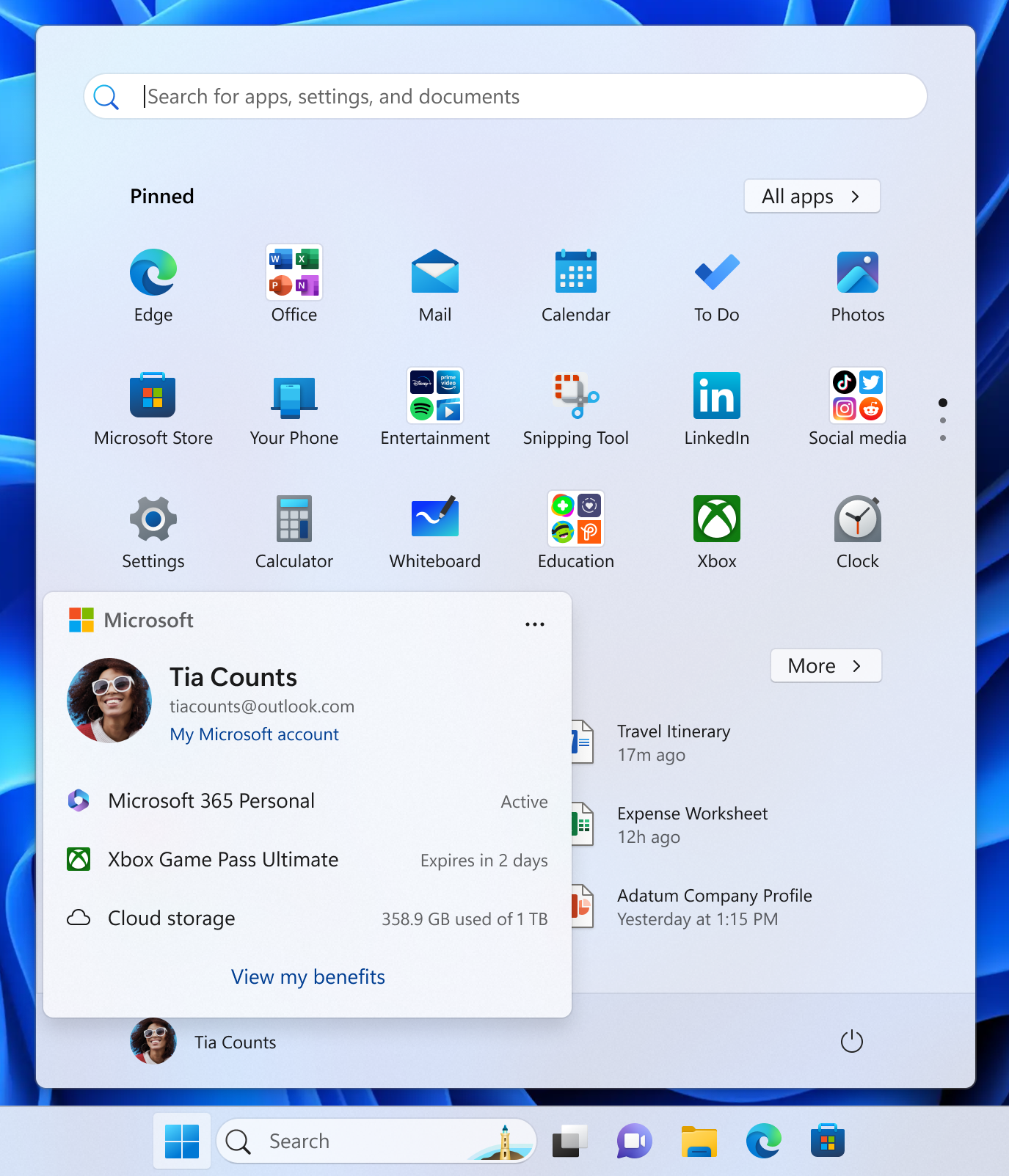
- In this build we have modified references to Game Pass plans in Settings to reflect updated branding and benefits.
[File Explorer]
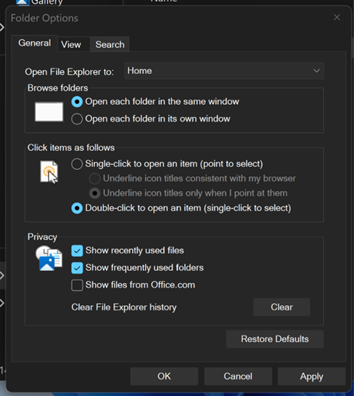
- We’re continuing to make improvements to the dark mode experience in File Explorer. You will now see a consistent dark mode experience in the Folder Options dialog.
[Drag Tray]
- We’ve added the ability to turn Drag Tray on/off from Settings->System->Nearby sharing.
Fixes gradually being rolled out to the Dev Channel with toggle on*
[File Explorer]
- Fixed an issue which could cause File Explorer to show a Catastrophic Error (0x8000FFFF) when extracting large (1.5gb+) archive files.
- Fixed an issue which could cause an old white toolbar to randomly appear in File Explorer sometimes.
[Display and Graphics]
- Fixed a recent issue which was causing some videos and games to be unexpectedly red.
- Fixed an issue where apps and browsers could have partially stuck onscreen content when other maximized / full screen apps were updating in the background. This may have been noticeable particularly when trying to scroll the window content, as only some parts would update.
- We’ve improved the performance when apps query monitors for their full list of supported modes. When this happens could lead to a momentary stutter on very high-resolution monitors, and this work should help prevent and reduce stuttering in these scenarios.
[Windows Update]
- Fixed an issue which could lead to updates failing to install with error 0x800f0983.
[Other]
- Fixed a hang which could impact Outlook in recent builds, where if prompted for your credentials, you wouldn’t be able to bring the pop up to the foreground and it would go unresponsive.
- Fixed an issue which was causing Remote Credential Guard scenarios between the latest Windows 11 builds and Server 2022 (and below) to fail.
- Fixed an issue which could cause the print preview screen to stop responding in Chromium-based browsers.
Known issues
[General]
- [NEW] Text actions that use Phi Silica in Click to Do and Recall will not work correctly on this build. A fix is on the way.
[Taskbar & System Tray]
- Our new animations on taskbar previews have been turned off temporarily because they were interfering with the ability to share a window from its preview, we will note when they’re brought back.
- [NEW] We’re investigating an issue which is causing the Start menu to not open for some Insiders on click, although it will open if you press the Windows key. It’s believed this issue may also potentially impact the notification center (which you can open with WIN + N).
[File Explorer]
- Copy progress might flash when clicking more or less details in dark mode version of the copy dialog.
- Scrollbar and footer are missing and showing a white block instead when text is scaled in dark mode version of the copy dialog.
[Gaming]
- Some Insiders are experiencing an issue where using their Xbox Controller via Bluetooth is causing their PC to bugcheck. Here is how to resolve the issue. Open Device Manager by searching for it via the search box on your taskbar. Once Device Manager is open, click on “View” and then “Devices by Driver”. Find the driver named “oemXXX.inf (XboxGameControllerDriver.inf)” where the “XXX” will be a specific number on your PC. Right-click on that driver and click “Uninstall”.
source: Windows Blogs