
Windows Secure Boot has been a key protection mechanism since 2011. It ensures that only trusted, digitally signed software can run during the earliest stage of your PC’s startup. These protections rely on certificates stored in your device’s UEFI firmware.
However, the original Microsoft Secure Boot certificates from 2011 are now reaching the end of their lifecycle and will begin expiring in June 2026.
This blog explains:
- Why these certificates expire
- What happens if your device doesn’t get the new certificates
- How to check your system
- How Microsoft is already handling the rollout for you
Why Secure Boot Certificates Are Expiring
Secure Boot certificates were never meant to last forever. Like all cryptographic material, they must be refreshed periodically to maintain strong protection and prevent outdated keys from becoming a weak point. After more than 15 years of service, the original certificates are being replaced with updated 2023 versions to continue protecting the Windows boot process into the future.
The updated certificates will remain valid far longer, extending the protection lifecycle for modern Windows devices.
What Happens If the Certificate Isn’t Updated?
If a device does not receive the new Secure Boot certificates before the old ones expire:
- Your PC will still boot and function normally—nothing breaks immediately.
- But the system enters a degraded security state. It will no longer be able to install new boot‑level protections from Microsoft, including:
- Updated Windows Boot Manager versions
- New Secure Boot database (DB/DBX) entries
- Revocations for discovered threats
- Mitigations for future boot-level vulnerabilities
- Over time, this may lead to:
- Higher exposure to early‑boot malware
- Compatibility issues with newer OS versions, firmware, or hardware
In short: your device won’t break, but it will become less secure as new threats emerge.
How to Check Whether Your Certificates Are Updated
Most users don’t need to check anything manually—but if you want to verify:
Option 1 – Check the Eventlog
To manually check a device,
– open Event Viewer
– go to Windows Logs / System
– look for event ID 1801 (attempted) and 1808 (successfully set)
– (using Filter events on 1799,1801,1808 for easy lookup)
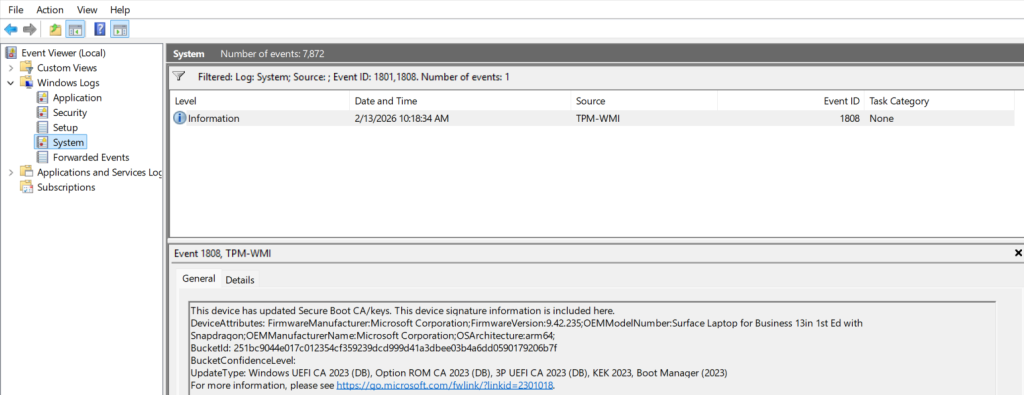
If not successfully updated yet, no action is required on most devices Windows will update the Certificate for you using CFR of LCU’s
Option 2 — Use PowerShell
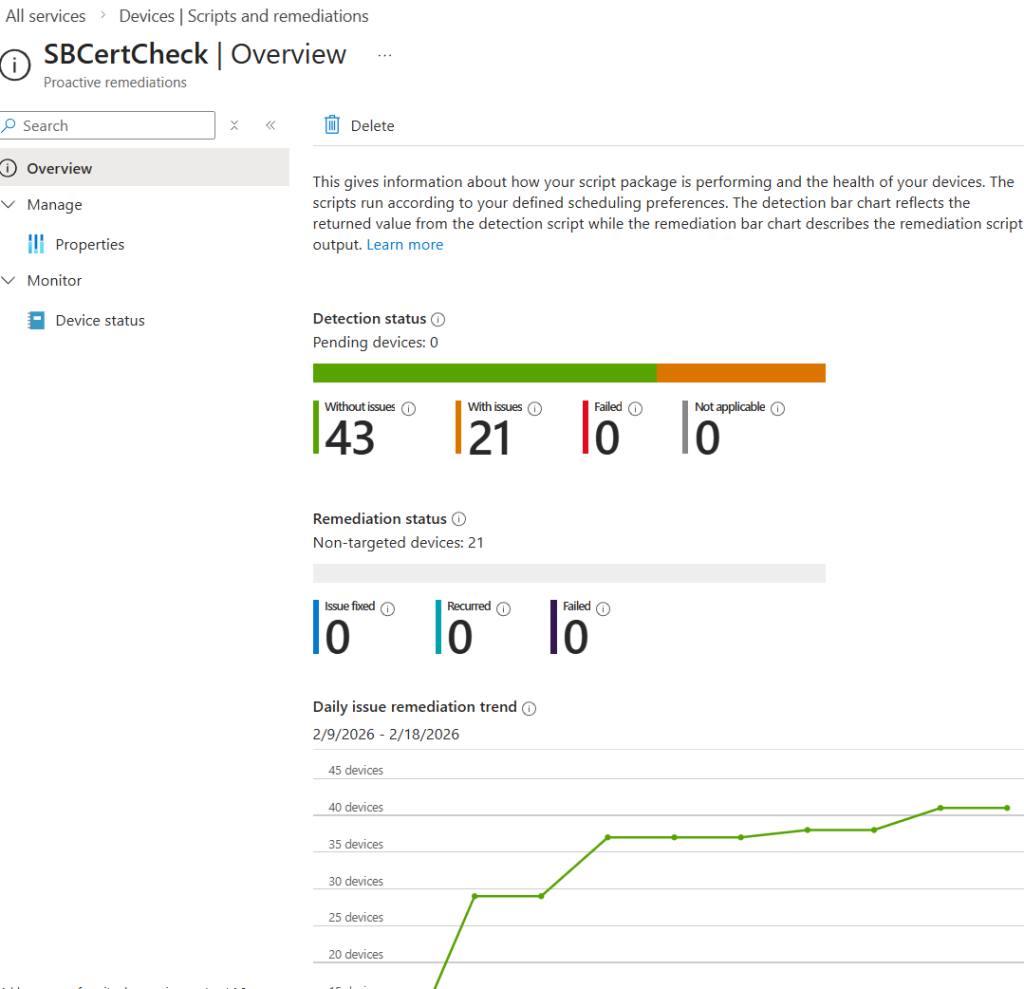
Windows exposes Secure Boot certificate information via PowerShell. You can check certificate and Secure Boot status using commands such as those described in Microsoft’s update guidance. The following script can be run manually or used as a detection script in Custom Remediation scripts in Intune
<#
  IntuneCRS - Detect missing Windows UEFI CA 2023 (Secure Boot)
  Author: Erik Moreau - assisted by Copilot
  Behavior:
    - Exit 1  => Missing "Windows UEFI CA 2023" in active Secure Boot DB (needs remediation)
    - Exit 0  => Present OR device not applicable (BIOS / Secure Boot off / unsupported)
  Notes:
    - Requires SYSTEM/admin. Uses Get-SecureBootUEFI to read the 'db' variable (active allow-list).
    - String match method is recommended in vendor guidance and avoids heavy ASN.1 parsing.
#>

$logPrefix = "[SecureBoot-UEFI-CA2023][Detection]"
function Write-Det { param($m) ; Write-Output "$logPrefix $m" }

# 1) Quick capability & state checks
$sbEnabled = $false
try {
    $sbEnabled = Confirm-SecureBootUEFI  # True/False, or throws on non-UEFI
} catch {
    Write-Det "Platform is not UEFI / cmdlet unsupported. Marking NotApplicable."
    exit 0  # Not applicable (don’t trigger remediation on BIOS devices)
}

if (-not $sbEnabled) {
    Write-Det "Secure Boot is disabled. Marking NotApplicable."
    exit 0
}

# 2) Read the ACTIVE Secure Boot 'db' variable and search for 2023 CA
try {
    $db = Get-SecureBootUEFI -Name db -ErrorAction Stop  # Active allow-list (DB)
} catch {
    Write-Det "Failed to read UEFI 'db' variable: $($_.Exception.Message). Will trigger remediation."
    exit 1
}

# Convert bytes -> ASCII and look for the certificate name.
# This simple text search method is documented by OEM guidance and works reliably in practice.
# Ref: Dell KB "How to check Secure Boot certificates"
try {
    $ascii = [System.Text.Encoding]::ASCII.GetString($db.Bytes)
} catch {
    Write-Det "Failed to decode DB bytes. Will trigger remediation."
    exit 1
}

$hasWinUEFICA2023 = $ascii -match 'Windows UEFI CA 2023'

if ($hasWinUEFICA2023) {
    Write-Det "'Windows UEFI CA 2023' is present in the ACTIVE DB. Compliant."
    exit 0
} else {
    # Optional: show whether it's already present in DBDefault (factory set) for context
    $inDefault = $false
    try {
        $dbDefault = Get-SecureBootUEFI -Name dbDefault -ErrorAction Stop
        $asciiDefault = [System.Text.Encoding]::ASCII.GetString($dbDefault.Bytes)
        $inDefault = ($asciiDefault -match 'Windows UEFI CA 2023')
    } catch { }

    if ($inDefault) {
        Write-Det "Missing in ACTIVE DB but present in DBDEFAULT (firmware defaults). Consider resetting keys in firmware if appropriate."
    } else {
        Write-Det "'Windows UEFI CA 2023' is missing from ACTIVE DB. Non-compliant; remediation recommended."
    }

    exit 1
}
Manual run result will look like this when the Certificate is present:

Assigning the script to your endpoints with Intune Custom Remediation Scripts as a detection script can help you get insight in the progress across your tenant:
How Microsoft Is Taking Care of This for You
Microsoft is handling most of the heavy lifting behind the scenes:
- The certificate rollout is already underway. Updated Secure Boot certificates are being delivered through regular monthly Windows Updates for supported versions of Windows 10 and 11.
- Most devices require no action.
- PCs built since 2024, and almost all shipped in 2025, already include the new certificates from the factory.
- Windows Update automatically deploys the updated certificates for home users, businesses, and education tenants with Microsoft‑managed updates enabled.
- A fraction of devices may need a manufacturer firmware update first, particularly older systems, servers, or IoT devices.
- Organizations can also control the deployment certificates using Intune Policy, Group Policy, registry keys, or Windows Configuration System tools if they manage updates themselves.
If your device is running an unsupported version of Windows (for example, older Windows 10 without Extended Security Updates), it will not receive new certificates automatically.
Do You Need to Do Anything?
For most people: No.
If your device is managed Intune of Group Policies your admin needs to opt-in to the deployment by Microsoft
As long as:
- Windows Update is enabled
- Secure Boot is turned on
- Your device is running a supported version of Windows
…you will receive the updated certificates automatically.
However, if you manage older hardware, servers, niche devices, or enterprise environments, you should:
- Check firmware availability from your OEM
- Confirm Secure Boot is enabled
- Validate your certificate status using PowerShell or Eventlog
- Ensure your organization’s update policies aren’t blocking the rollout
Final Thoughts
The expiration of the original Secure Boot certificates is a normal and expected lifecycle event. Microsoft has been preparing the ecosystem for years and is coordinating with OEMs to ensure a smooth transition.
If your PC is reasonably modern and kept up to date, the certificate refresh will happen quietly in the background providing continued protection against early‑boot threats without you having to do anything.
More info on this topic: Microsoft Support, TechCommunity, Windows Blogs