
Hi all, last Thursday Microsoft released Windows 11 Insider Preview Build 27924 to the Canary Channel.
ISOs for this build are available > downloaded here <
Glad to see the Copilot+ experience features enabled in Canary.
Upgrades weent fast and smooth here, Happy Updates!!
What’s new in Build 27924
Copilot+ PC experiences
We are beginning to enable many of the Copilot+ PC experiences* for Windows Insiders in the Canary Channel on Copilot+ PCs such as:
- Recall (Preview)
- Click to Do (Preview)
- Improved Windows Search
- Live captions with real-time translation
- Agent in Settings
Note that some features are gradually rolling out such as Improved Windows Search and agent in Settings. And we’re still working to enable some features like image descriptions in Narrator – so if you don’t see something right away on your Copilot+ PC after updating to this build, that’s expected. We’re working hard to get everything enabled across the board over for the Canary Channel.
As is normal for the Canary Channel, the quality of these features will not match the quality of the same features in the Dev or Beta Channels. Expect some of these features to not work quite right. We will try to document known issues for the most impactful issues for these features and one such issue regarding Click to Do is documented in the known issues below. As always, please file feedback on any issues you see when using these Copilot+ experiences via Feedback Hub.
Advanced Settings
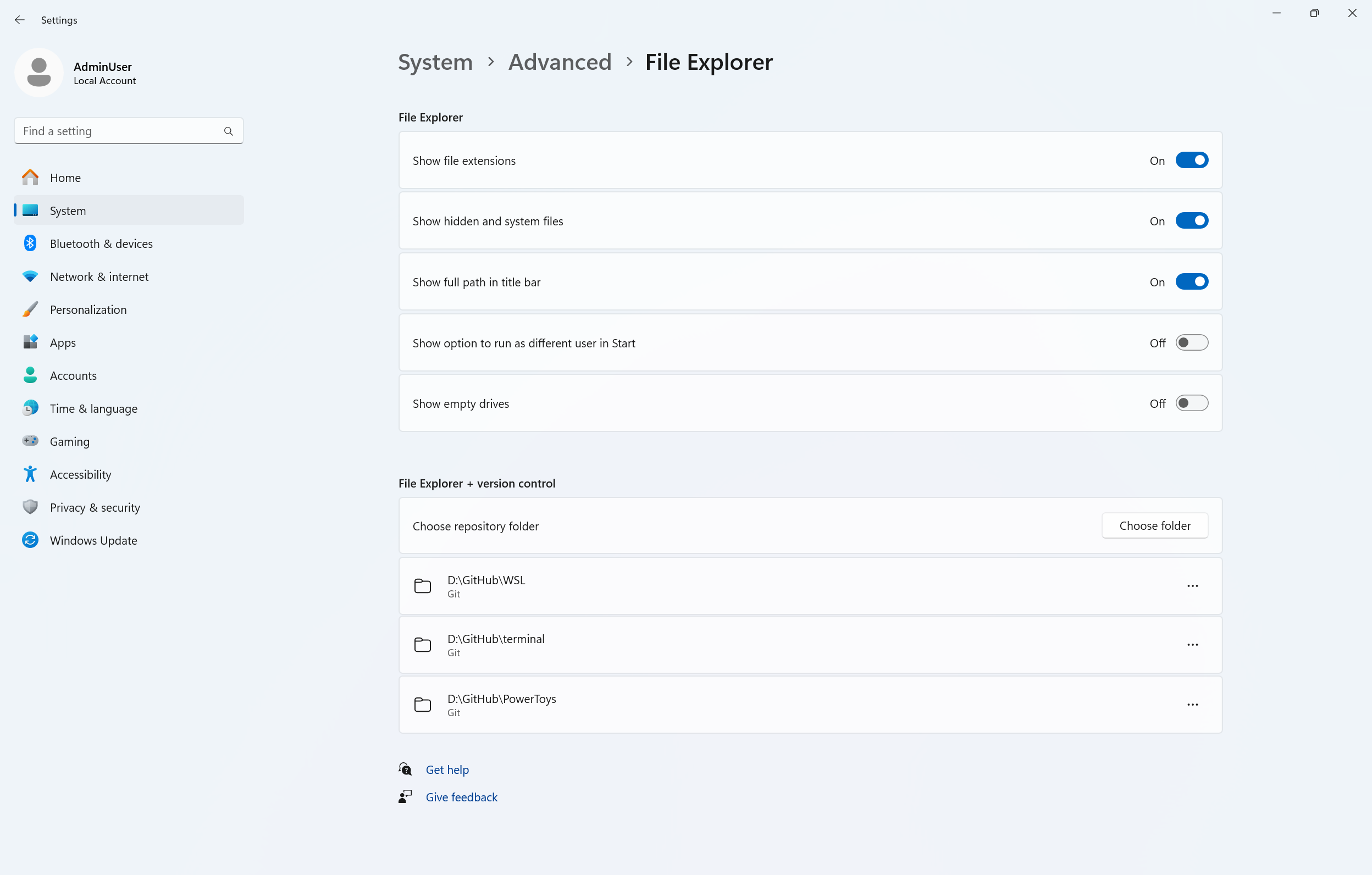
Advanced settings are now available via Settings > System > Advanced with some new features. The Advanced page is a redesign of the For Developers page, intending to make its settings easier to find for a broader audience. With the redesign of this page, we’ve added additional settings: Enable long paths, Virtual workspaces, and File Explorer + version control.
Enable long paths allows you to remove MAX_PATH limitations from common Win32 file and directory functions. Virtual workspaces allow you to enable/disable virtual environments such as Hyper-V, Windows Sandbox, and more. File Explorer + version control provides the ability to display Git information directly inside File Explorer. Simply select your repository folder and File Explorer will display information such as your branch, diff count, last commit message, and more.
FEEDBACK: Please file feedback on GitHub at microsoft/WindowsAdvancedSettings.
Changes and Improvements
[Input]
- Adjusted the pointer indicator to be a little more transparent, so it’s easier to see what’s under the crosshairs when it’s enabled.
- For the time being we have changed the keyboard shortcut for the new pointer indicator from CTRL + WIN + X to
CTRL + WIN + ALT + XWIN + CTRL + SHIFT + X, to help reduce accidental invocations.
[Windows MIDI Services]
- The inbox preview MIDI Service and API has a feedback-driven breaking change to optionally allow for waiting for messages to be completely sent before returning from function calls. Any apps written against previous versions of the Windows MIDI Services MIDI 2.0 SDK will need to update to the latest preview available at https://aka.ms/midireleases and be recompiled to continue working properly. For more discussion and feedback, please join our discord server at https://aka.ms/mididiscord.
Fixes
[General]
- Fixed an issue where the progress wheel might show as a rectangle glyph instead of rendering correctly when upgrading to the latest builds.
[Widgets]
- Fixed an issue causing widgets to disappear or not work for some Insiders after the previous flight.
[Remote desktop]
- Fixed an issue in the latest flights where remote desktop only used your primary monitor even if it was configured to use multiple monitors.
[Other]
- Fixed an underlying webauth.dll crash in the previous flight which may have impacted the ability to use passkeys.
Known issues
[General]
- [IMPORTANT NOTE FOR COPILOT+ PCs] If you are joining the Canary Channel on a new Copilot+ PC from the Dev Channel, Release Preview Channel or retail, you will lose Windows Hello pin and biometrics to sign into your PC with error 0xd0000225 and error message “Something went wrong, and your PIN isn’t available”. You should be able to re-create your PIN by clicking “Set up my PIN”.
- You may see multiple error pop ups about unexpected elements when opening Group Policy Editor.
- There’s an underlying issue with dao360.dll in this build which may result in some apps crashing.
- [ADDED 8/15] We’re investigating reports that Settings > System > Storage > Temporary files is getting stuck when scanning files. We are also investigating previous Windows Installations also not showing.
[Click to Do (Preview)]
The following known issues will be fixed in future updates to Windows Insiders:
- [NEW] Text and image actions in Click to Do may not work and Click to Do may crash. This issue will be fixed in the next flight.
[File Explorer]
- [ADDED 8/15] In dark mode, the red color used for a low space drive in This PC may be unexpectedly light colored in this build. Some of the other colors may also be incorrect, including that black is used for space remaining instead of a more visible color.
Snipping Tool Update
We are rolling out an update for Snipping Tool (version 11.2507.14.0 and higher) to Windows Insiders in the Canary and Dev Channels. In this update, we’re introducing window mode screen recording in Snipping Tool—an easy way to capture activity within a specific app window. To get started, toggle over to the Record option in the capture toolbar and click on the dropdown menu for Recording area to select window mode.
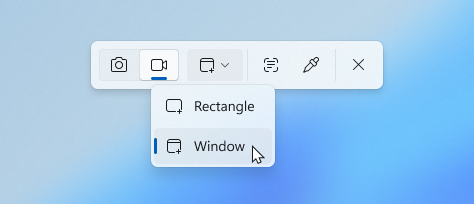
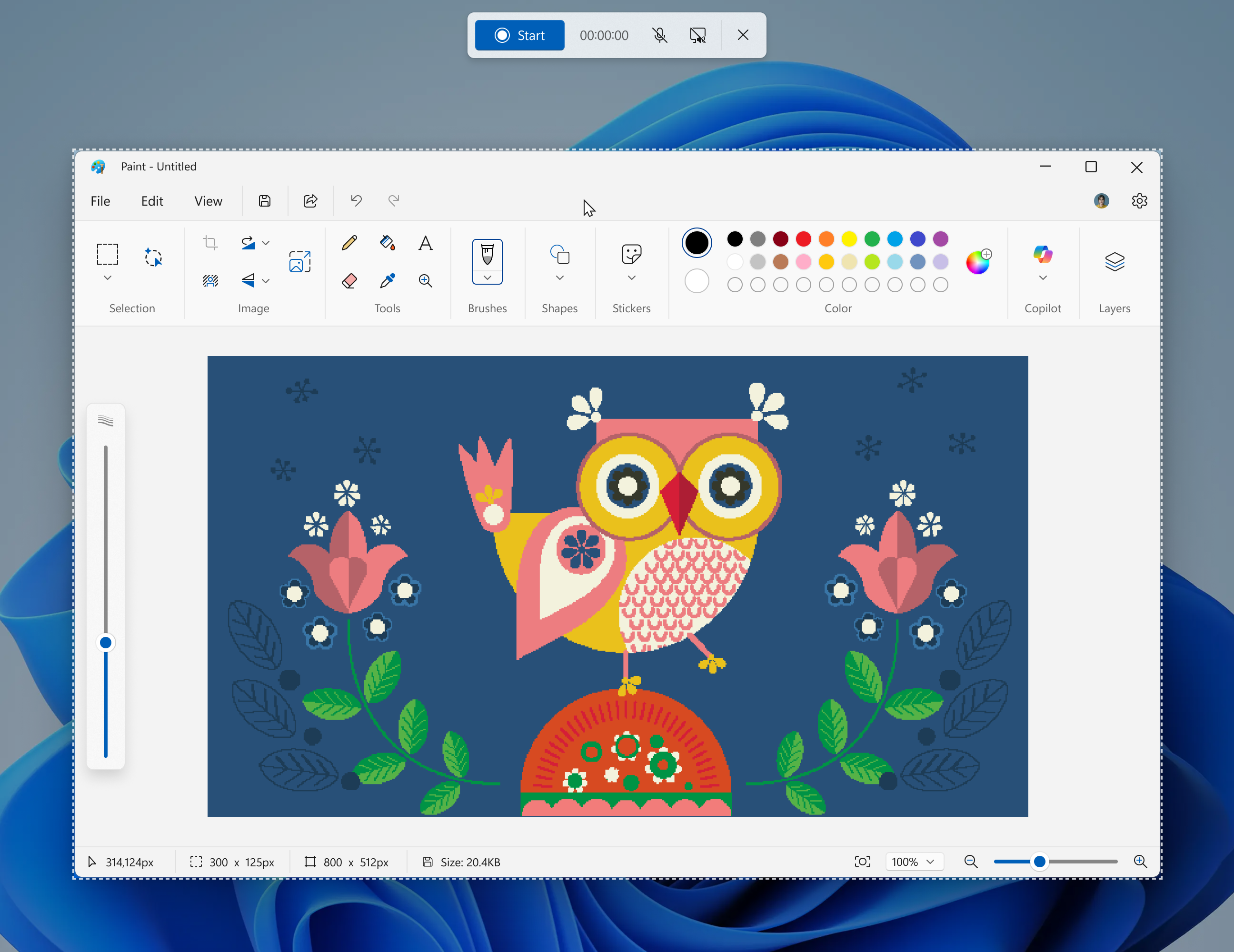
When you select window mode, Snipping Tool will automatically size the recording region to tightly match the app window you choose, making setup quick and precise. Once recording begins, however, the region remains fixed—so if the app moves or gets covered by another window, the recording won’t follow it. This gives you a simple, focused way to record what’s happening in a defined space on your screen, without needing to crop or adjust later.
FEEDBACK: Please file feedback in Feedback Hub (WIN + F) under Apps > Snipping Tool.
source: Windows Blogs